lights CHEVROLET UPLANDER 2007 1.G Owner's Manual
[x] Cancel search | Manufacturer: CHEVROLET, Model Year: 2007, Model line: UPLANDER, Model: CHEVROLET UPLANDER 2007 1.GPages: 592, PDF Size: 3.04 MB
Page 321 of 592
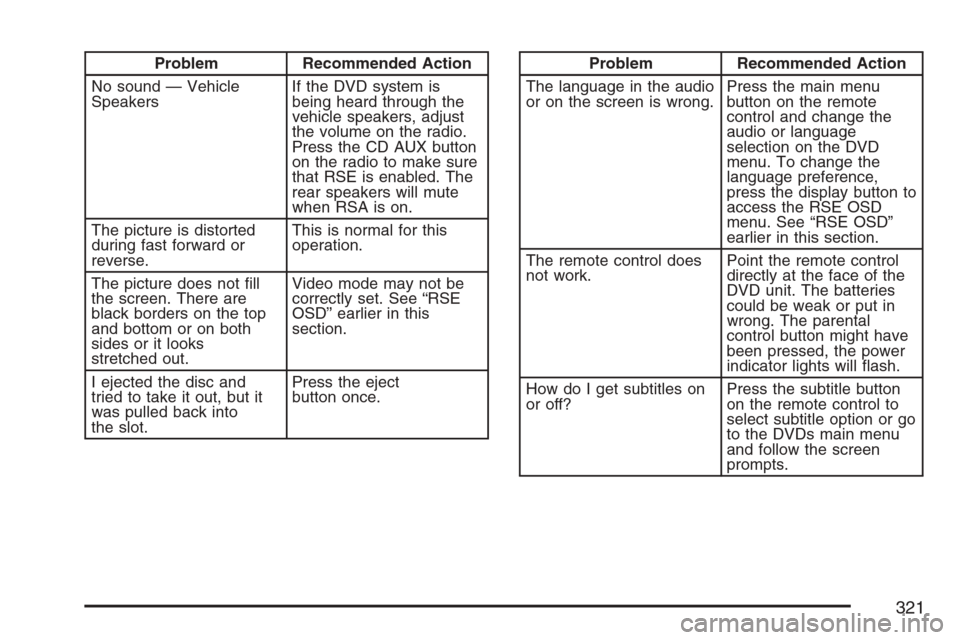
Problem Recommended Action
No sound — Vehicle
SpeakersIf the DVD system is
being heard through the
vehicle speakers, adjust
the volume on the radio.
Press the CD AUX button
on the radio to make sure
that RSE is enabled. The
rear speakers will mute
when RSA is on.
The picture is distorted
during fast forward or
reverse.This is normal for this
operation.
The picture does not ll
the screen. There are
black borders on the top
and bottom or on both
sides or it looks
stretched out.Video mode may not be
correctly set. See “RSE
OSD” earlier in this
section.
I ejected the disc and
tried to take it out, but it
was pulled back into
the slot.Press the eject
button once.Problem Recommended Action
The language in the audio
or on the screen is wrong.Press the main menu
button on the remote
control and change the
audio or language
selection on the DVD
menu. To change the
language preference,
press the display button to
access the RSE OSD
menu. See “RSE OSD”
earlier in this section.
The remote control does
not work.Point the remote control
directly at the face of the
DVD unit. The batteries
could be weak or put in
wrong. The parental
control button might have
been pressed, the power
indicator lights will ash.
How do I get subtitles on
or off?Press the subtitle button
on the remote control to
select subtitle option or go
to the DVDs main menu
and follow the screen
prompts.
321
Page 324 of 592
DVD Distortion
There may be an experience with video distortion
when operating cellular phones, scanners, CB
radios, Global Position Systems (GPS)*, two-way
radios, mobile fax, or walkie talkies.
It may be necessary to turn off the DVD player
when operating one of these devices in or near the
vehicle.
*Excludes the OnStar
®System.
Cleaning the DVD Player
When cleaning the outside DVD faceplate and
buttons, use only a clean cloth dampened
with clean water.
Cleaning the Video Screen
When cleaning the video screen, use only a clean
cloth dampened with clean water. Use care
when directly touching or cleaning the screen, as
damage may result.
Rear Seat Entertainment System
(Option B, Uplevel)
Your vehicle may have this type of DVD Rear
Seat Entertainment (RSE) system. If it has
this feature, it will include a DVD player, a video
display screen, auxiliary inputs, two sets of
wireless headphones, and a remote control.
Parental Control
rj
(Parental Control):This button is located
behind the video screen, next to the auxiliary jacks.
Press this button while using rear seat audio (RSA),
or when a DVD or CD is playing to make the video
screen go blank and to mute the audio. The power
indicator lights on the DVD player will ash. Turning
on the parental control will also disable all other
button operations from the remote control and the
DVD player, except for the eject button. Press this
button again to restore operation of the RSA, DVD
player, and remote control.
This button may also be used to turn the DVD
player power on and to automatically resume play
of a disc that is in the player while the vehicle is on.
If no disc is in the player, the system will power up
and display no display on the LCD screen.
324
Page 336 of 592
Battery Replacement
To change the remote control batteries, do the
following:
1. Slide the battery door, located on the back of
the remote control, down.
2. Replace the two batteries in the compartment.
Make sure that they are installed correctly,
using the diagram on the inside of the battery
compartment.
3. Close the battery door.
If the remote control is to be stored for a long
period of time, remove the batteries and keep them
in a cool, dry place.
Tips and Troubleshooting Chart
Problem Recommended Action
No power. The ignition may not be
in ACCESSORY, RUN,
or RAP.
Disc will not play. The system might be off.
The parental control
button might have been
pressed. The power
indicator lights will ash.
The system might be in
auxiliary source mode.
Press the DVD AUX
button on the player
faceplate or the AUX
button on the remote to
switch between the DVD
player and the auxiliary
sources. The disc is
upside down or is not
compatible.
No sound — Wireless
HeadphonesTurn the headphones on.
Make sure the correct
channel is selected on the
wireless headphones.
Check the batteries. The
volume on the
headphones could be too
low, adjust the volume.
336
Page 337 of 592
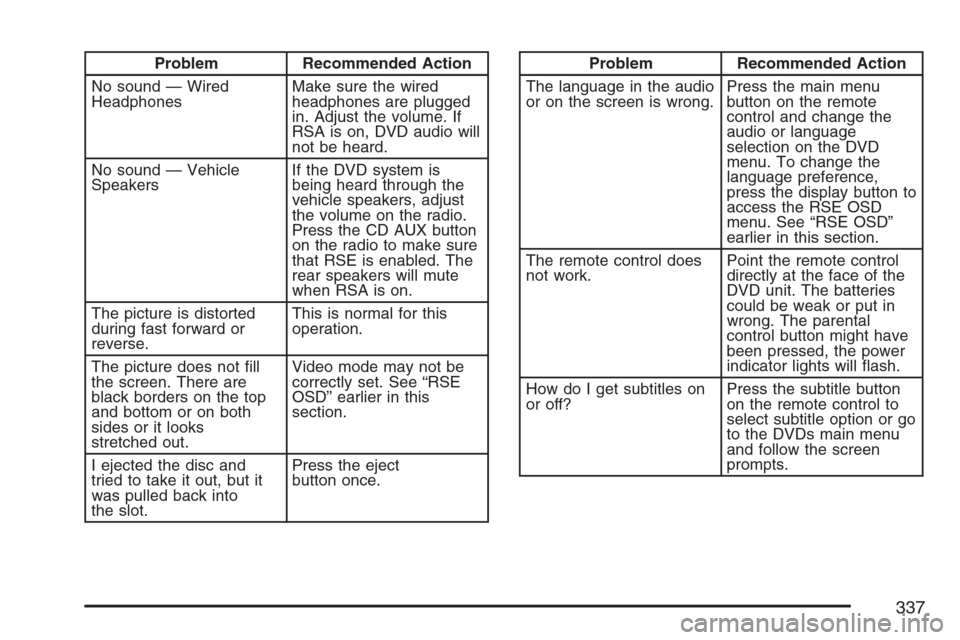
Problem Recommended Action
No sound — Wired
HeadphonesMake sure the wired
headphones are plugged
in. Adjust the volume. If
RSA is on, DVD audio will
not be heard.
No sound — Vehicle
SpeakersIf the DVD system is
being heard through the
vehicle speakers, adjust
the volume on the radio.
Press the CD AUX button
on the radio to make sure
that RSE is enabled. The
rear speakers will mute
when RSA is on.
The picture is distorted
during fast forward or
reverse.This is normal for this
operation.
The picture does not ll
the screen. There are
black borders on the top
and bottom or on both
sides or it looks
stretched out.Video mode may not be
correctly set. See “RSE
OSD” earlier in this
section.
I ejected the disc and
tried to take it out, but it
was pulled back into
the slot.Press the eject
button once.Problem Recommended Action
The language in the audio
or on the screen is wrong.Press the main menu
button on the remote
control and change the
audio or language
selection on the DVD
menu. To change the
language preference,
press the display button to
access the RSE OSD
menu. See “RSE OSD”
earlier in this section.
The remote control does
not work.Point the remote control
directly at the face of the
DVD unit. The batteries
could be weak or put in
wrong. The parental
control button might have
been pressed, the power
indicator lights will ash.
How do I get subtitles on
or off?Press the subtitle button
on the remote control to
select subtitle option or go
to the DVDs main menu
and follow the screen
prompts.
337
Page 342 of 592
tr/[u(Tune):When listening to the
radio, press the right or the left arrow to go to the
next or the previous station and stay there.
This function is inactive if the front seat
passengers are listening to the radio.
When a CD is playing, press the left arrow to go
to the start of the current track or to the previous
track. Press the right arrow to go to the next
track on the CD. This function is inactive if the front
seat passengers are listening to a CD.
PROG (Program):Press this button to select the
next preset station stored on the radio. Each
press of this button will take you to the next preset
station. This function is inactive if the front seat
passengers are listening to the radio.
When a CD is playing in the single CD player,
press this button to select the next track.
This function is inactive if the front seat
passengers are listening to a CD.
When a CD is playing in the six-disc CD changer,
press this button to select the next CD, if
multiple CDs are loaded. This function is inactive if
the front seat passengers are listening to a CD.SRCE (Source):Press this button to switch
between playing the AM/FM tuner, front CD player,
and XM™ Satellite Radio Service (if equipped). If
one of the sources are not loaded, the system will
skip over the source when this button is pressed.
X(Headphone):Press the right or the left
headphone button to enable volume control of the
wired headphone connected to the corresponding
jack. Press the right and left arrow buttons to
change the volume.
rj(Parental Control):This button is located
behind the video screen, below the auxiliary jacks.
Press this button while using RSA, or when a
DVD or CD is playing to blank the video screen
and to mute the audio. The power indicator
lights on the DVD player will ash. Turning on the
parental control will also disable all other button
operations from the remote control and the
DVD player, except for the eject button. Press this
button again to restore operation of the RSA,
DVD player, and remote control.
This button may also be used to turn the DVD
player power on and automatically resume play if
the vehicle is on and a disc is in the player. If
no disc is in the player then the system will power
up in auxiliary mode.
342
Page 344 of 592
Q,R,q,r, (Directional Arrows):
Up Arrow– Press this button while in AM/FM
tuner, or XM™ Satellite Radio Service to switch
between the station presets. Press this button
while sourcing the single CD player to go to the
next track. Press this button while sourcing
the six-disc CD player to go to the next disc.
Down Arrow– Press this button while in AM/FM
tuner to change the BAND from AM/FM tuner
to the front CD player or to the XM™ Satellite
Radio Service.
Left Arrow– Press this button while in AM/FM
tuner, or XM™ Satellite Radio Service to
seek down. Press this button while sourcing the
single CD player, or the six-disc CD player to go to
the previous track.
Right Arrow– Press this button while in AM/FM
tuner, or XM™ Satellite Radio Service to seek
up. Press this button while sourcing the single CD
player, or the six-disc CD player to go to the
next track.43(Wired Headphone Volume):Press this
button to select the correct headphone. Then press
the left or right arrow buttons to increase or
decrease the headphone volume.
rj(Parental Control):This button is located
behind the video screen next to the auxiliary
and headphone jacks. Press this button while
using RSA, or when a DVD or CD is playing
to blank the video screen and to mute the audio.
The power indicator lights on the DVD player
will ash. Turning on the parental control will also
disable all other button operations from the
remote control and the DVD player, except for the
eject button. Press this button again to restore
operation of the RSA, DVD player, and remote
control.
This button may also be used to turn the DVD
player power on and automatically resume play if
the vehicle is on and a disc is in the player. If
no disc is in the player then the system will power
up in auxiliary mode.
344
Page 364 of 592
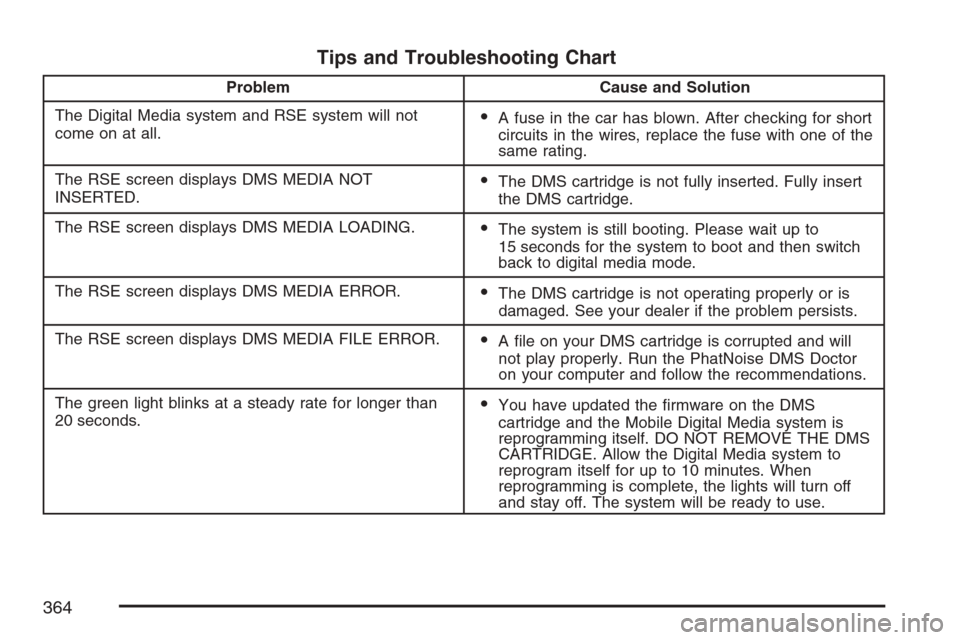
Tips and Troubleshooting Chart
Problem Cause and Solution
The Digital Media system and RSE system will not
come on at all.
A fuse in the car has blown. After checking for short
circuits in the wires, replace the fuse with one of the
same rating.
The RSE screen displays DMS MEDIA NOT
INSERTED.
The DMS cartridge is not fully inserted. Fully insert
the DMS cartridge.
The RSE screen displays DMS MEDIA LOADING.
The system is still booting. Please wait up to
15 seconds for the system to boot and then switch
back to digital media mode.
The RSE screen displays DMS MEDIA ERROR.
The DMS cartridge is not operating properly or is
damaged. See your dealer if the problem persists.
The RSE screen displays DMS MEDIA FILE ERROR.
A le on your DMS cartridge is corrupted and will
not play properly. Run the PhatNoise DMS Doctor
on your computer and follow the recommendations.
The green light blinks at a steady rate for longer than
20 seconds.
You have updated the rmware on the DMS
cartridge and the Mobile Digital Media system is
reprogramming itself. DO NOT REMOVE THE DMS
CARTRIDGE. Allow the Digital Media system to
reprogram itself for up to 10 minutes. When
reprogramming is complete, the lights will turn off
and stay off. The system will be ready to use.
364
Page 365 of 592
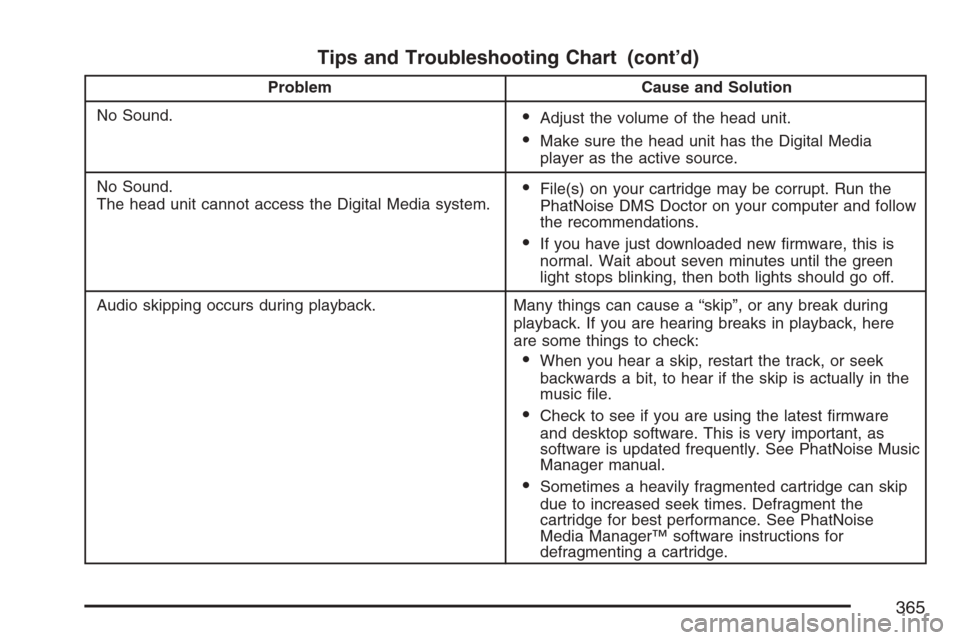
Tips and Troubleshooting Chart (cont’d)
Problem Cause and Solution
No Sound.
Adjust the volume of the head unit.
Make sure the head unit has the Digital Media
player as the active source.
No Sound.
The head unit cannot access the Digital Media system.
File(s) on your cartridge may be corrupt. Run the
PhatNoise DMS Doctor on your computer and follow
the recommendations.
If you have just downloaded new rmware, this is
normal. Wait about seven minutes until the green
light stops blinking, then both lights should go off.
Audio skipping occurs during playback. Many things can cause a “skip”, or any break during
playback. If you are hearing breaks in playback, here
are some things to check:
When you hear a skip, restart the track, or seek
backwards a bit, to hear if the skip is actually in the
music le.
Check to see if you are using the latest rmware
and desktop software. This is very important, as
software is updated frequently. See PhatNoise Music
Manager manual.
Sometimes a heavily fragmented cartridge can skip
due to increased seek times. Defragment the
cartridge for best performance. See PhatNoise
Media Manager™ software instructions for
defragmenting a cartridge.
365
Page 389 of 592
No one can see as well at night as in the daytime.
But as we get older these differences increase.
A 50-year-old driver may require at least twice as
much light to see the same thing at night as a
20-year-old.
What you do in the daytime can also affect your
night vision. For example, if you spend the
day in bright sunshine you are wise to wear
sunglasses. Your eyes will have less trouble
adjusting to night. But if you are driving, do not
wear sunglasses at night. They may cut down on
glare from headlamps, but they also make a
lot of things invisible.
You can be temporarily blinded by approaching
headlamps. It can take a second or two, or
even several seconds, for your eyes to re-adjust
to the dark. When you are faced with severe glare,
as from a driver who does not lower the high
beams, or a vehicle with misaimed headlamps,
slow down a little. Avoid staring directly into
the approaching headlamps.Keep the windshield and all the glass on your
vehicle clean — inside and out. Glare at night is
made much worse by dirt on the glass. Even
the inside of the glass can build up a lm caused
by dust. Dirty glass makes lights dazzle and
ash more than clean glass would, making the
pupils of your eyes contract repeatedly.
Remember that the headlamps light up far less of a
roadway when you are in a turn or curve. Keep your
eyes moving; that way, it is easier to pick out dimly
lighted objects. Just as the headlamps should be
checked regularly for proper aim, so should your
eyes be examined regularly. Some drivers suffer
from night blindness — the inability to see in dim
light — and are not even aware of it.
389
Page 592 of 592
W
Warning Lights, Gages and Indicators......... 230
Warnings
DIC Warnings and Messages................... 256
Hazard Warning Flashers......................... 194
Other Warning Devices............................ 194
Safety and Symbols..................................... 4
Vehicle Damage.......................................... 5
Wheels
Alignment and Tire Balance..................... 494
Different Size........................................... 492
Replacement............................................ 494
Where to Put the Restraint............................ 68
Windows..................................................... 143
Manual Rear Quarter............................... 144
Power...................................................... 144
Power Rear Quarter................................. 145Windshield
Backglass, and Wiper Blades, Cleaning..... 522
Washer.................................................... 198
Washer Fluid........................................... 460
Wiper Blade Replacement........................ 476
Wiper Fuses............................................ 527
Wipers..................................................... 197
Windshield, Rear Washer/Wiper................... 199
Winter Driving............................................. 399
Wiper Activated Headlamps ......................... 205
X
XM Radio Messages................................... 307
XM™ Satellite Radio Antenna System......... 370
Y
Your Vehicle and the Environment............... 536
592