stop start CHEVROLET UPLANDER 2007 1.G Owner's Manual
[x] Cancel search | Manufacturer: CHEVROLET, Model Year: 2007, Model line: UPLANDER, Model: CHEVROLET UPLANDER 2007 1.GPages: 592, PDF Size: 3.04 MB
Page 331 of 592
l(Fast Forward):Press this button to fast
forward the DVD and CD. To stop forwarding,
press the play or stop button. This button may not
work when the DVD is playing the copyright
information or the previews.
MENU (Disc):Press this button to view the main
DVD menu. The menu is different on every
disc. Use the up, down, right, and left arrow
buttons to move the cursor around the menu. After
making a selection, press the enter button.
r(Enter/Select):Press this button to select
the choice that is highlighted in any menu.
z(Display Control Button):For vehicles
without rear seat climate control, this button will
take the place of the fan/temp button. For vehicles
with rear seat climate control, this button is also
found on the remote control. Press this button
to open the RSE On-Screen Display (OSD) menus
to adjust the color, tint, brightness, contrast, and
display modes.
Playing a Disc
To play a disc, gently insert the disc, with the label
side up, into the loading slot. The DVD player
will continue loading the disc and the player will
automatically start if the vehicle is in
ACCESSORY, RUN, or RAP.
If a disc is already in the player, make sure that
the DVD player is on, then press the play/pause
button on the player faceplate or on the remote
control. You can also press the DVD AUX button
on the player faceplate, or the CD AUX button
on the radio faceplate until RSE appears on
the display, to start playing a disc.
Some DVDs will not allow fast forwarding or
skipping of the copyright information or previews.
Some DVDs will begin playing after the previews
have nished. If the DVD does not begin playing at
the main title, refer to the on-screen instructions.
331
Page 334 of 592
s(Play/Pause):Press this button to start play
of a disc. Press this button while a disc is
playing to pause it. Press it again to continue
playing the disc.
t(Prior Chapter/Track):Press this button to go
to the beginning of the current chapter or track.
Press this button again to return to the previous
chapter or track. This button may not work
when the DVD is playing the copyright information
or previews.
u(Next Chapter/Track):Press this button to go
to the beginning of the next chapter or track.
This button may not work when the DVD is playing
the copyright information or the previews.
r(Fast Reverse):Press this button to fast
reverse the DVD and CD. To stop reversing, press
the play or stop button. This button may not
work when the DVD is playing the copyright
information or the previews.
[(Fast Forward):Press this button to fast
forward the DVD and CD. To stop fast forwarding,
press the play or stop button. This button may
not work when the DVD is playing the copyright
information or the previews.
e(Sound):Press this button to display the
current audio track. Each press will move the DVD
to the next language or commentary. The format
and content of this function will vary for each disc.
{(Subtitles):Press this button to display the
current subtitles. Each press of this button
will move the DVD to the next available subtitle
option (English, Spanish, French, etc., if available).
The format and content of this function will vary
for each disc.
AUX (Auxiliary):Press this button to switch the
system between the DVD player and an auxiliary
source.
d(Camera):Press this button to display the
current camera angle on DVDs that have
this feature. Each press will move the DVD to the
next available camera angle. The format and
content of this function will vary for each disc.
0 through 9 (Numeric Keypad):The numeric
keypad provides the capability of direct chapter or
track number selection.
334
Page 350 of 592
The GM Mobile Digital Media is controlled through
the radio and steering wheel controls on your
vehicle’s audio system. This system functions
differently than a typical CD changer. The Digital
Media system allows you to switch between
different playback modes. These modes determine
the next song that will play. Using modes, you
can browse through playlists, artists, albums, and
genres while the system reads Voice Index™
names to you while you drive. By selecting Playlist
Mode, you can access the music collection in
the order placed onto the DMS cartridge, or you
can have the system sort the music by Album,
Artist, or Genre by selecting the corresponding
Modes.
Starting the System for Front Seat
Entertainment
The GM Mobile Digital Media system is available
through the DMS mode of your radio. This
system will power on and off automatically and
resume where the system last stopped.To begin playback, follow the instructions listed
below:
1. Insert the DMS cartridge into the GM Mobile
Digital Media player.
2. Turn on your radio and switch to the DMS
mode by pressing the CD/AUX button on
your radio.
3. Press any of the rst four pushbuttons (A-D)
to select different browse modes.
4. Press the left or right SEEK/SCAN arrow (E)
to navigate through the mode items.
5. Turn the tune knob (F) to navigate through
songs in a song list.
350
Page 352 of 592
Changing Song Lists Within a
Browse Mode
Each browse mode contains lists of songs. For
example, Genre mode might contain a list of
Classical songs, a list of Rock songs, and a list of
Country songs.
Once the audio system is set to one of the four
modes, press the SEEK/SCAN button to navigate
through the song lists. For example, press the
right arrow while in Album mode to change to the
next album. Press the left arrow to go back to
the previous Album item.
tSEEK/SCANu:Press the SEEK/SCAN
button once to change to the next song list.
Mode 1 (Album Mode):Press the (1) pushbutton
to put the system into Album mode. Press the
right or left SEEK/SCAN arrow once to change to
the next or previous Album. Albums are listed
alphabetically in groups of Artists.Mode 2 (Artist Mode):Press the (2) pushbutton
to put the system into Artist mode. Press the
right or left SEEK/SCAN arrow once to change to
the next or previous Artist. Artists are listed in
alphabetical order.
Mode 3 (Genre Mode):Press the (3) pushbutton
to put the system into Genre mode. Press the right
or left SEEK/SCAN arrow once to change to the
next or previous Genre in alphabetical order.
Mode 4 (Playlist Mode):Press the (4) pushbutton
to put the system into Playlist mode. Press the
right or left SEEK/SCAN arrow once to change to
the next or previous Playlist in the order the
playlists were saved to the DMS cartridge.
The Album, Artist, and Genre lists are generated
and organized automatically using the
Phatnoise™ Media Manager.
Seeking Through Song List Titles
tSEEK/SCANu:Press and hold the
SEEK/SCAN button for more than 2 seconds to
start seeking through song list titles. Press
this button again to stop on a song list title.
352
Page 355 of 592
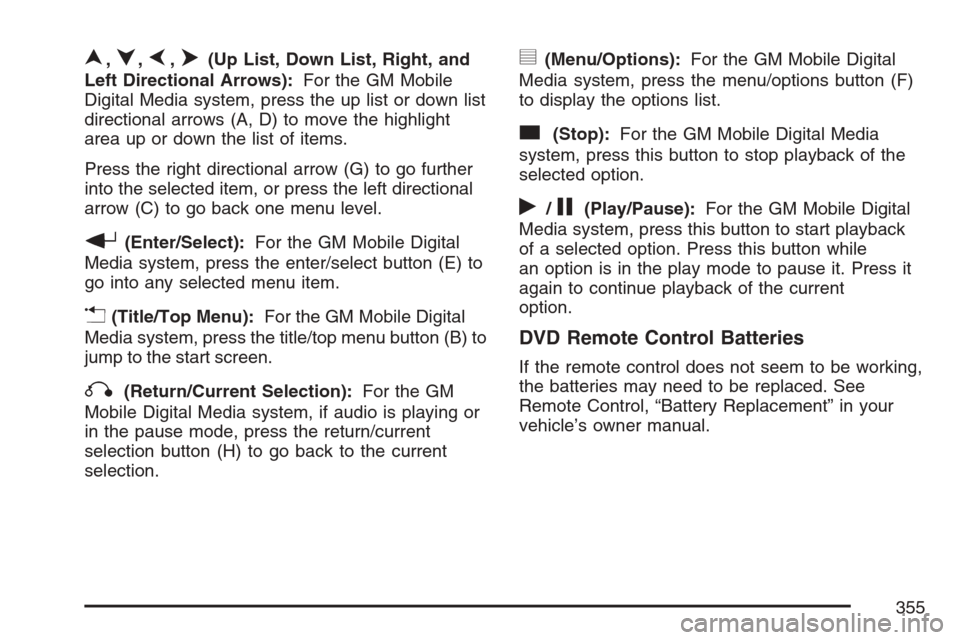
n,q,p,o(Up List, Down List, Right, and
Left Directional Arrows):For the GM Mobile
Digital Media system, press the up list or down list
directional arrows (A, D) to move the highlight
area up or down the list of items.
Press the right directional arrow (G) to go further
into the selected item, or press the left directional
arrow (C) to go back one menu level.
r(Enter/Select):For the GM Mobile Digital
Media system, press the enter/select button (E) to
go into any selected menu item.
v(Title/Top Menu):For the GM Mobile Digital
Media system, press the title/top menu button (B) to
jump to the start screen.
q(Return/Current Selection):For the GM
Mobile Digital Media system, if audio is playing or
in the pause mode, press the return/current
selection button (H) to go back to the current
selection.
y(Menu/Options):For the GM Mobile Digital
Media system, press the menu/options button (F)
to display the options list.
c(Stop):For the GM Mobile Digital Media
system, press this button to stop playback of the
selected option.
r/j(Play/Pause):For the GM Mobile Digital
Media system, press this button to start playback
of a selected option. Press this button while
an option is in the play mode to pause it. Press it
again to continue playback of the current
option.
DVD Remote Control Batteries
If the remote control does not seem to be working,
the batteries may need to be replaced. See
Remote Control, “Battery Replacement” in your
vehicle’s owner manual.
355
Page 365 of 592
Tips and Troubleshooting Chart (cont’d)
Problem Cause and Solution
No Sound.
Adjust the volume of the head unit.
Make sure the head unit has the Digital Media
player as the active source.
No Sound.
The head unit cannot access the Digital Media system.
File(s) on your cartridge may be corrupt. Run the
PhatNoise DMS Doctor on your computer and follow
the recommendations.
If you have just downloaded new rmware, this is
normal. Wait about seven minutes until the green
light stops blinking, then both lights should go off.
Audio skipping occurs during playback. Many things can cause a “skip”, or any break during
playback. If you are hearing breaks in playback, here
are some things to check:
When you hear a skip, restart the track, or seek
backwards a bit, to hear if the skip is actually in the
music le.
Check to see if you are using the latest rmware
and desktop software. This is very important, as
software is updated frequently. See PhatNoise Music
Manager manual.
Sometimes a heavily fragmented cartridge can skip
due to increased seek times. Defragment the
cartridge for best performance. See PhatNoise
Media Manager™ software instructions for
defragmenting a cartridge.
365
Page 377 of 592
Avoid needless heavy braking. Some people drive
in spurts — heavy acceleration followed by
heavy braking — rather than keeping pace with
traffic. This is a mistake. The brakes may not have
time to cool between hard stops. The brakes
will wear out much faster if you do a lot of heavy
braking. If you keep pace with the traffic and
allow realistic following distances, you will
eliminate a lot of unnecessary braking. That means
better braking and longer brake life.
If your vehicle’s engine ever stops while you are
driving, brake normally but do not pump the
brakes. If you do, the pedal may get harder to
push down. If the engine stops, you will still have
some power brake assist. But you will use it
when you brake. Once the power assist is used
up, it may take longer to stop and the brake pedal
will be harder to push.
Adding non-GM accessories can affect your
vehicle’s performance. SeeAccessories and
Modications on page 426.Anti-Lock Brake System (ABS)
Your vehicle has the Anti-Lock Brake System
(ABS), an advanced electronic braking system that
will help prevent a braking skid.
When you start your engine and begin to drive
away, ABS will check itself. You may hear a
momentary motor or clicking noise while this test
is going on, and you may even notice that
your brake pedal moves or pulses a little. This is
normal.
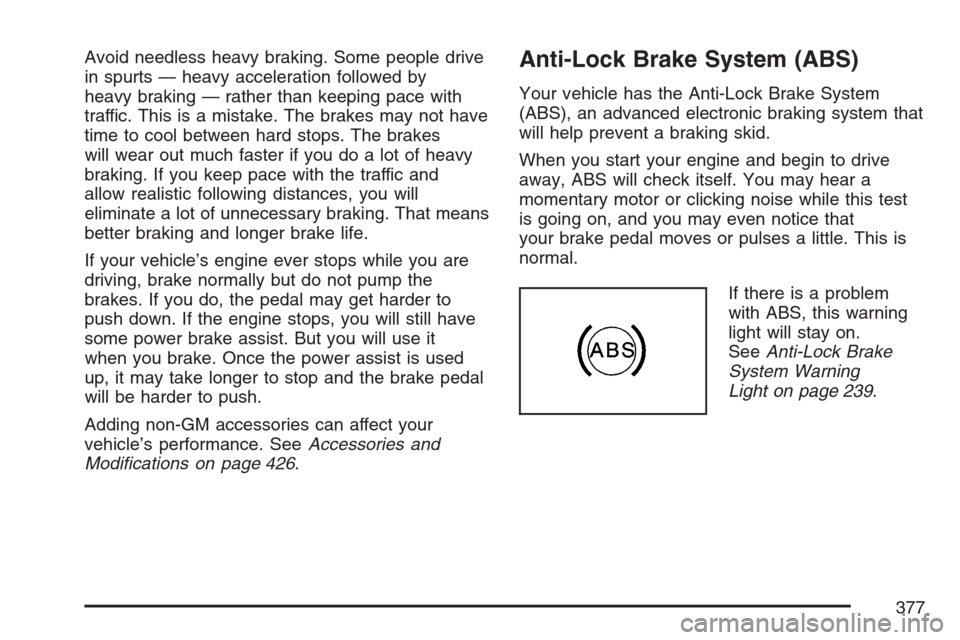
If there is a problem
with ABS, this warning
light will stay on.
SeeAnti-Lock Brake
System Warning
Light on page 239.
377
Page 386 of 592
So here are some tips for passing:
Drive ahead. Look down the road, to the
sides, and to crossroads for situations
that might affect your passing patterns. If you
have any doubt whatsoever about making
a successful pass, wait for a better time.
Watch for traffic signs, pavement markings,
and lines. If you can see a sign up ahead
that might indicate a turn or an intersection,
delay your pass. A broken center line
usually indicates it is all right to pass, providing
the road ahead is clear. Never cross a solid
line on your side of the lane or a double solid
line, even if the road seems empty of
approaching traffic.
Do not get too close to the vehicle you want
to pass while you are awaiting an opportunity.
For one thing, following too closely reduces
your area of vision, especially if you are
following a larger vehicle. Also, you will not
have adequate space if the vehicle ahead
suddenly slows or stops. Keep back a
reasonable distance.
When it looks like a chance to pass is
coming up, start to accelerate but stay in
the right lane and do not get too close.Time your move so you will be increasing
speed as the time comes to move into
the other lane. If the way is clear to pass, you
will have a running start that more than
makes up for the distance you would lose by
dropping back. And if something happens
to cause you to cancel your pass, you need
only slow down and drop back again and wait
for another opportunity.
If other vehicles are lined up to pass a slow
vehicle, wait your turn. But take care that
someone is not trying to pass you as you pull
out to pass the slow vehicle. Remember to
glance over your shoulder and check the
blind spot.
Check your vehicle’s mirrors, glance over your
shoulder, and start your left lane change
signal before moving out of the right lane to
pass. When you are far enough ahead of
the passed vehicle to see its front in
your vehicle’s inside mirror, activate the right
lane change signal and move back into
the right lane. Remember that your vehicle’s
passenger side outside mirror is convex.
The vehicle you just passed may seem to be
farther away from you than it really is.
386
Page 388 of 592
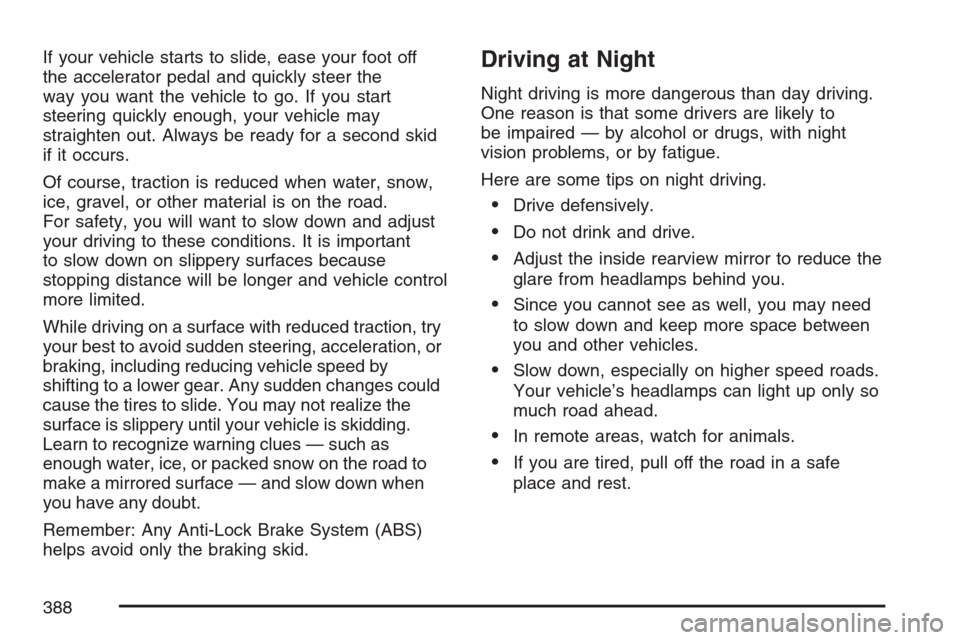
If your vehicle starts to slide, ease your foot off
the accelerator pedal and quickly steer the
way you want the vehicle to go. If you start
steering quickly enough, your vehicle may
straighten out. Always be ready for a second skid
if it occurs.
Of course, traction is reduced when water, snow,
ice, gravel, or other material is on the road.
For safety, you will want to slow down and adjust
your driving to these conditions. It is important
to slow down on slippery surfaces because
stopping distance will be longer and vehicle control
more limited.
While driving on a surface with reduced traction, try
your best to avoid sudden steering, acceleration, or
braking, including reducing vehicle speed by
shifting to a lower gear. Any sudden changes could
cause the tires to slide. You may not realize the
surface is slippery until your vehicle is skidding.
Learn to recognize warning clues — such as
enough water, ice, or packed snow on the road to
make a mirrored surface — and slow down when
you have any doubt.
Remember: Any Anti-Lock Brake System (ABS)
helps avoid only the braking skid.Driving at Night
Night driving is more dangerous than day driving.
One reason is that some drivers are likely to
be impaired — by alcohol or drugs, with night
vision problems, or by fatigue.
Here are some tips on night driving.
Drive defensively.
Do not drink and drive.
Adjust the inside rearview mirror to reduce the
glare from headlamps behind you.
Since you cannot see as well, you may need
to slow down and keep more space between
you and other vehicles.
Slow down, especially on higher speed roads.
Your vehicle’s headlamps can light up only so
much road ahead.
In remote areas, watch for animals.
If you are tired, pull off the road in a safe
place and rest.
388
Page 390 of 592
Driving in Rain and on Wet Roads
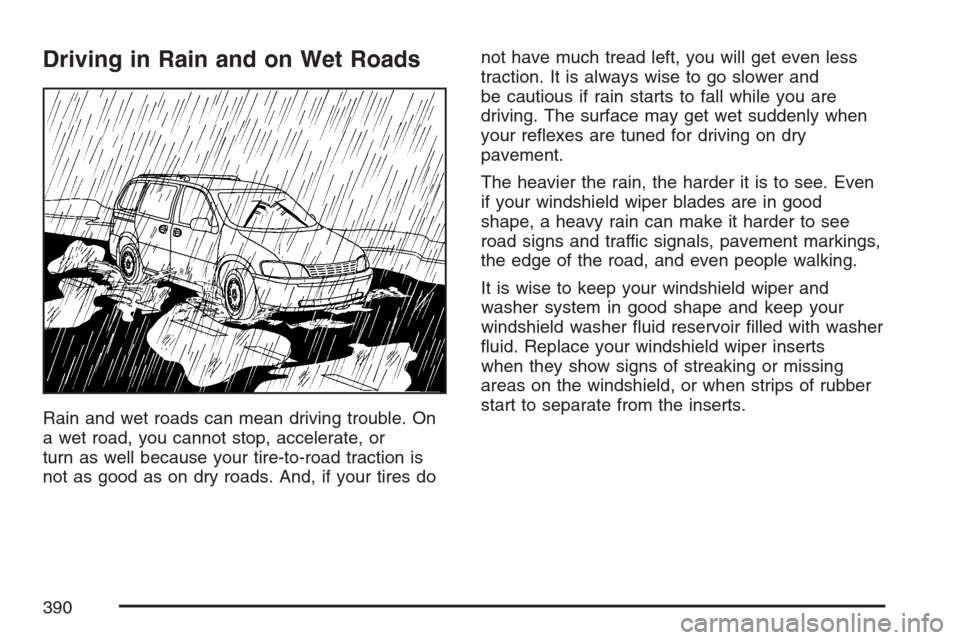
Rain and wet roads can mean driving trouble. On
a wet road, you cannot stop, accelerate, or
turn as well because your tire-to-road traction is
not as good as on dry roads. And, if your tires donot have much tread left, you will get even less
traction. It is always wise to go slower and
be cautious if rain starts to fall while you are
driving. The surface may get wet suddenly when
your reexes are tuned for driving on dry
pavement.
The heavier the rain, the harder it is to see. Even
if your windshield wiper blades are in good
shape, a heavy rain can make it harder to see
road signs and traffic signals, pavement markings,
the edge of the road, and even people walking.
It is wise to keep your windshield wiper and
washer system in good shape and keep your
windshield washer uid reservoir lled with washer
uid. Replace your windshield wiper inserts
when they show signs of streaking or missing
areas on the windshield, or when strips of rubber
start to separate from the inserts.
390