battery CHEVROLET UPLANDER 2008 1.G Owner's Manual
[x] Cancel search | Manufacturer: CHEVROLET, Model Year: 2008, Model line: UPLANDER, Model: CHEVROLET UPLANDER 2008 1.GPages: 476, PDF Size: 5.77 MB
Page 237 of 476
Entering the Personal Program Menu
1. Turn the ignition on and place the vehicle in
PARK (P).
To avoid excessive drain on the battery, it is
recommended that the headlamps are turned off.
2. Press the menu button until PERSONAL
PROGRAM displays.
If the vehicle is not in PARK (P), PERSONAL
PROGRAM ONLY IN PARK will display.
If the vehicle is not able to enter the personal
program menu, PERSONAL PROGRAM NOT
AVAILABLE will display.
3. Press the set/reset button to begin.
4. The DIC will then display an instruction screen.
Press the menu button to display the modes that
are available to program.
Press the set/reset button to change the setting of
each mode.
Customization Menu Items
The following are customization features that allow you
to program settings to the vehicle:
FACTORY DEFAULTS
This feature allows you to set all of the customization
and personalization features back to their factory default
settings.
Press the menu button until FACTORY DEFAULTS
appears on the DIC display. Press the set/reset button
to scroll through the following choices:
NO (default):The customization and personalization
features will not be set to their factory default settings.
YES:The customization and personalization features
will be set to their factory default settings.
If YES is selected, the keys will need to be
personalized again to be recognized as key 1 or 2.
See “PERSONALIZE KEY” later in this section for
more information.
To select a setting and move on to the next feature,
press the menu button while the desired setting is
displayed on the DIC.
3-77
Page 263 of 476
Wireless Headphones
The RSE system may include two sets of wireless
headphones (batteries may be included with the
headphone sets).
The wireless headphones have an ON/OFF switch, a
channel select switch, and a volume control. To use the
headphones, turn the ON/OFF switch to ON. An indicator
light on the headphones come on. If the light does not
come on, the batteries might need to be replaced.
See “Battery Replacement” later in this section for
more information. Switch the headphones to OFF
when not in use.
The headphones shut off automatically to save
the battery power if the RSE system is off or if the
headphones are out of range of the transmitters for
more than three minutes. The transmitters are located
next to the DVD faceplate. If the person using the
headphones moves too far forward or steps out of
the vehicle, the headphones lose the audio signal.
DVD and auxiliary audio are always found on channel
(CHA or CH1) of the wireless headphones. RSA audio is
dedicated to CHB or CH2 of the wireless headphones.
To adjust the volume on the wireless headphones,
use the volume control located on the headphones.
If there is a decreased audio signal during CD, MP3, or
DVD play, there could be a low hissing noise through
the speakers and/or headphones. If the hissing sound inthe wireless headphones seems excessive, make sure
that the headphone batteries are fully charged. Some
amount of hissing is normal.
Both sets of rear seat headphones could include foam
ear pads that can be replaced.
These foam ear pads can become worn or damaged
if they are not handled or stored properly. They can
be replaced separately from the headphone set.
See your dealer/retailer for more information.
Battery Replacement
To change the batteries on the headphones, do the
following:
1. Turn the screw to loosen the battery door located
on the left side of the headphones. Slide the
battery door open.
2. Replace the two batteries in the compartment.
Make sure that they are installed correctly, using the
diagram on the inside of the battery compartment.
3. Replace the battery door and tighten the door
screw.
If the headphones are to be stored for a long period of
time, remove the batteries, and keep them in a cool,
dry place.
3-103
Page 269 of 476
Remote Control
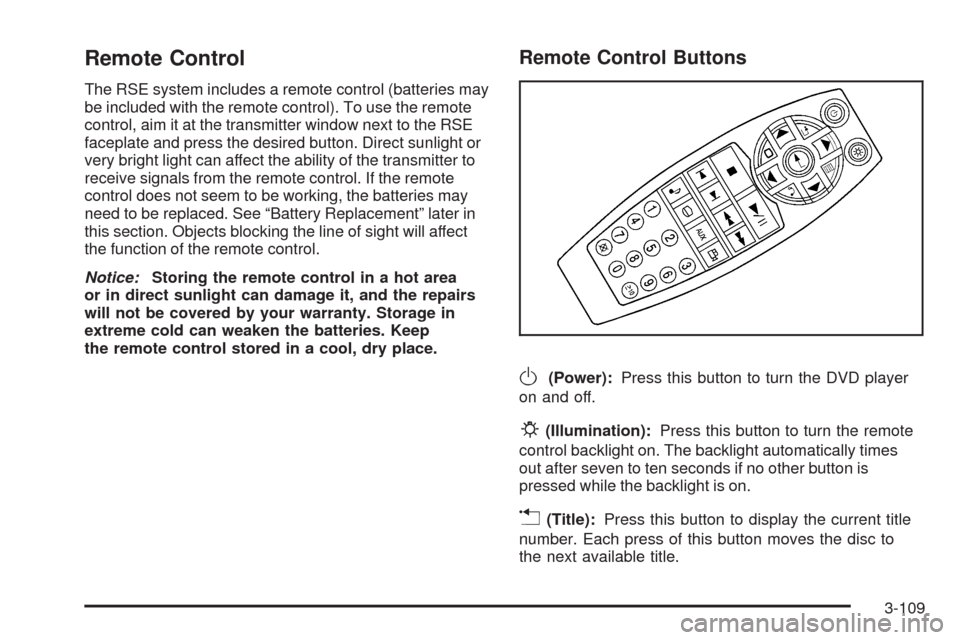
The RSE system includes a remote control (batteries may
be included with the remote control). To use the remote
control, aim it at the transmitter window next to the RSE
faceplate and press the desired button. Direct sunlight or
very bright light can affect the ability of the transmitter to
receive signals from the remote control. If the remote
control does not seem to be working, the batteries may
need to be replaced. See “Battery Replacement” later in
this section. Objects blocking the line of sight will affect
the function of the remote control.
Notice:Storing the remote control in a hot area
or in direct sunlight can damage it, and the repairs
will not be covered by your warranty. Storage in
extreme cold can weaken the batteries. Keep
the remote control stored in a cool, dry place.
Remote Control Buttons
O(Power):Press this button to turn the DVD player
on and off.
P(Illumination):Press this button to turn the remote
control backlight on. The backlight automatically times
out after seven to ten seconds if no other button is
pressed while the backlight is on.
v(Title):Press this button to display the current title
number. Each press of this button moves the disc to
the next available title.
3-109
Page 272 of 476

To use the RSE OSD menu when using a CD or an
MP3, do the following:
Make sure that a CD or an MP3 is loaded in the RSE
system and that the system is not in auxiliary, then press
the
zbutton on the remote control, or faceplate if there
is no rear seat climate control. Once the menu is on the
screen, use the
q,Q,r,Rnavigation arrows and
the
rbutton to navigate the screen. This menu lets
you select default preferences for language and playback
settings. To exit this menu, press the
zbutton, or
the
qbutton on the remote control, or faceplate if
there is no rear seat climate control, or wait for the menu
to time out.
Battery Replacement
To change the remote control batteries, do the following:
1. Slide the rear cover back on the remote control.
2. Replace the two batteries in the compartment. Make
sure that they are installed correctly, using the
diagram on the inside of the battery compartment.
3. Replace the battery cover.
If the remote control is to be stored for a long period of
time, remove the batteries and keep them in a cool,
dry place.
Tips and Troubleshooting Chart
Problem Recommended Action
No power. The ignition might not be
in ACC/ACCESSORY,
ON/RUN, or Retained
Accessory Power (RAP).
Disc will not play. The system might be off.
The parental control
button might have been
pressed. The power
indicator lights ash.
The system might be in
auxiliary source mode.
Press the DVD AUX
button on the player
faceplate or the AUX
button on the remote to
switch between the DVD
player and the auxiliary
sources. The disc is
upside down or is not
compatible.
3-112
Page 301 of 476
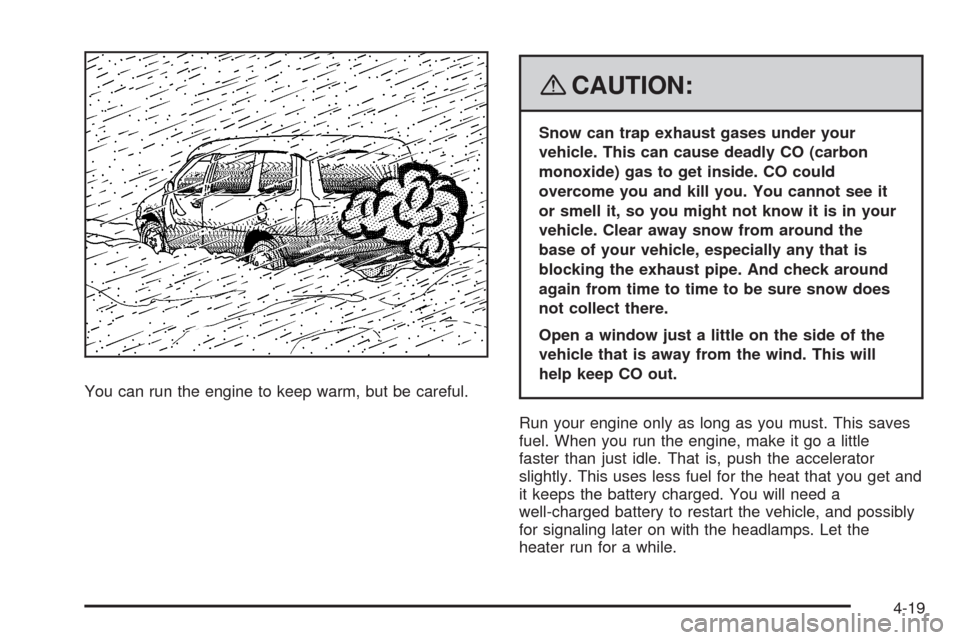
You can run the engine to keep warm, but be careful.
{CAUTION:
Snow can trap exhaust gases under your
vehicle. This can cause deadly CO (carbon
monoxide) gas to get inside. CO could
overcome you and kill you. You cannot see it
or smell it, so you might not know it is in your
vehicle. Clear away snow from around the
base of your vehicle, especially any that is
blocking the exhaust pipe. And check around
again from time to time to be sure snow does
not collect there.
Open a window just a little on the side of the
vehicle that is away from the wind. This will
help keep CO out.
Run your engine only as long as you must. This saves
fuel. When you run the engine, make it go a little
faster than just idle. That is, push the accelerator
slightly. This uses less fuel for the heat that you get and
it keeps the battery charged. You will need a
well-charged battery to restart the vehicle, and possibly
for signaling later on with the headlamps. Let the
heater run for a while.
4-19
Page 321 of 476
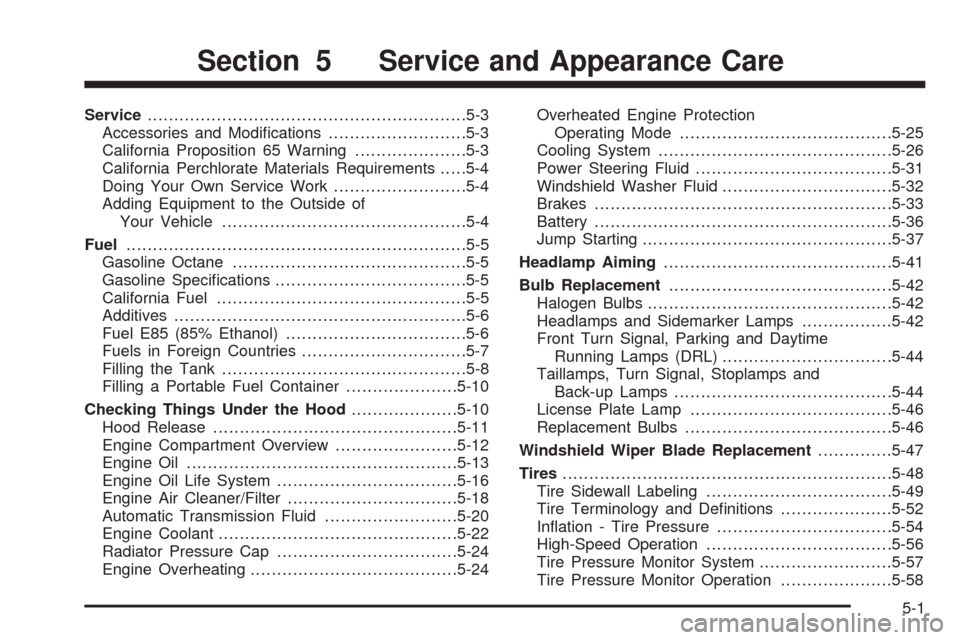
Service............................................................5-3
Accessories and Modications..........................5-3
California Proposition 65 Warning.....................5-3
California Perchlorate Materials Requirements.....5-4
Doing Your Own Service Work.........................5-4
Adding Equipment to the Outside of
Your Vehicle..............................................5-4
Fuel................................................................5-5
Gasoline Octane............................................5-5
Gasoline Specications....................................5-5
California Fuel...............................................5-5
Additives.......................................................5-6
Fuel E85 (85% Ethanol)..................................5-6
Fuels in Foreign Countries...............................5-7
Filling the Tank..............................................5-8
Filling a Portable Fuel Container.....................5-10
Checking Things Under the Hood....................5-10
Hood Release..............................................5-11
Engine Compartment Overview.......................5-12
Engine Oil...................................................5-13
Engine Oil Life System..................................5-16
Engine Air Cleaner/Filter................................5-18
Automatic Transmission Fluid.........................5-20
Engine Coolant.............................................5-22
Radiator Pressure Cap..................................5-24
Engine Overheating.......................................5-24Overheated Engine Protection
Operating Mode........................................5-25
Cooling System............................................5-26
Power Steering Fluid.....................................5-31
Windshield Washer Fluid................................5-32
Brakes........................................................5-33
Battery........................................................5-36
Jump Starting...............................................5-37
Headlamp Aiming...........................................5-41
Bulb Replacement..........................................5-42
Halogen Bulbs..............................................5-42
Headlamps and Sidemarker Lamps.................5-42
Front Turn Signal, Parking and Daytime
Running Lamps (DRL)................................5-44
Taillamps, Turn Signal, Stoplamps and
Back-up Lamps.........................................5-44
License Plate Lamp......................................5-46
Replacement Bulbs.......................................5-46
Windshield Wiper Blade Replacement..............5-47
Tires..............................................................5-48
Tire Sidewall Labeling...................................5-49
Tire Terminology and Denitions.....................5-52
Ination - Tire Pressure.................................5-54
High-Speed Operation...................................5-56
Tire Pressure Monitor System.........................5-57
Tire Pressure Monitor Operation.....................5-58
Section 5 Service and Appearance Care
5-1
Page 356 of 476
Replacing Brake System Parts
The braking system on a vehicle is complex. Its many
parts have to be of top quality and work well together if
the vehicle is to have really good braking. Your vehicle
was designed and tested with top-quality brake parts.
When you replace parts of the braking system — for
example, when the brake linings wear down and you
need new ones put in — be sure you get new approved
replacement parts. If you do not, the brakes might not
work properly. For example, if someone puts in brake
linings that are wrong for your vehicle, the balance
between the front and rear brakes can change — for the
worse. The braking performance you have come to
expect can change in many other ways if someone puts
in the wrong replacement brake parts.
Battery
Your vehicle has a maintenance free battery. When it is
time for a new battery, see your dealer/retailer for one
that has the replacement number shown on the original
battery’s label.
For battery replacement, see your dealer/retailer or the
service manual. To purchase a service manual, see
Service Publications Ordering Information on page 7-15.Warning:Battery posts, terminals, and related
accessories contain lead and lead compounds,
chemicals known to the State of California to cause
cancer and reproductive harm. Wash hands after
handling.
Vehicle Storage
{CAUTION:
Batteries have acid that can burn you and
gas that can explode. You can be badly hurt if
you are not careful. SeeJump Starting on
page 5-37for tips on working around a battery
without getting hurt.
Infrequent Usage: If you drive your vehicle infrequently,
remove the black, negative (−) cable from the battery.
This will help keep the battery from running down.
Extended Storage: For extended storage of your vehicle,
remove the black, negative (−) cable from the battery
or use a battery trickle charger. This will help maintain
the charge of the battery over an extended period
of time.
5-36
Page 357 of 476
Jump Starting
If your vehicle’s battery has run down, you may want to
use another vehicle and some jumper cables to start
your vehicle. Be sure to use the following steps to
do it safely.
On vehicles equipped with the optional power sliding
door, a low-voltage battery or replacing a battery
may cause the system to become inoperative.
SeePower Sliding Door (PSD) on page 2-16for
more information.
{CAUTION:
Batteries can hurt you. They can be dangerous
because:
They contain acid that can burn you.
They contain gas that can explode or
ignite.
They contain enough electricity to
burn you.
If you do not follow these steps exactly, some
or all of these things can hurt you.Notice:Ignoring these steps could result in costly
damage to your vehicle that would not be covered
by your warranty.
Trying to start your vehicle by pushing or pulling it
will not work, and it could damage your vehicle.
1. Check the other vehicle. It must have a 12-volt
battery with a negative ground system.
Notice:If the other vehicle’s system is not a 12-volt
system with a negative ground, both vehicles can
be damaged. Only use vehicles with 12-volt systems
with negative grounds to jump start your vehicle.
2. Get the vehicles close enough so the jumper cables
can reach, but be sure the vehicles are not touching
each other. If they are, it could cause a ground
connection you do not want. You would not be able
to start your vehicle, and the bad grounding
could damage the electrical systems.
To avoid the possibility of the vehicles rolling, set
the parking brake rmly on both vehicles involved
in the jump start procedure. Put an automatic
transaxle in PARK (P) or a manual transaxle in
NEUTRAL before setting the parking brake.
5-37
Page 358 of 476
Notice:If you leave your radio or other accessories
on during the jump starting procedure, they could
be damaged. The repairs would not be covered
by your warranty. Always turn off your radio and
other accessories when jump starting your vehicle.
3. Turn off the ignition on both vehicles. Unplug
unnecessary accessories plugged into the cigarette
lighter or the accessory power outlet. Turn off
the radio and all lamps that are not needed.
This will avoid sparks and help save both batteries.
And it could save the radio!
4. Open the hoods and locate the batteries. Find the
positive (+) and negative (−) terminal locations on
each vehicle.
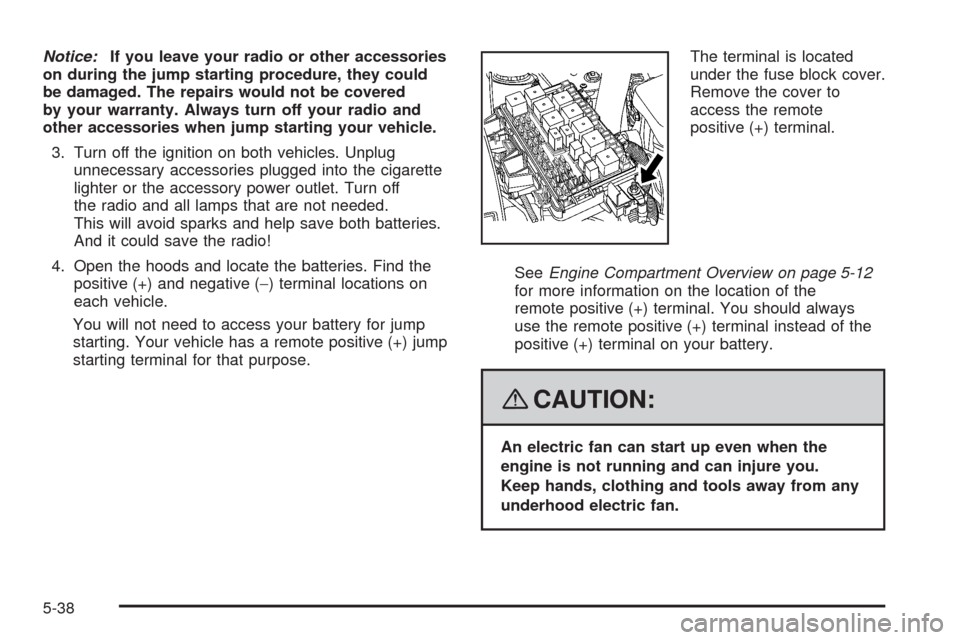
You will not need to access your battery for jump
starting. Your vehicle has a remote positive (+) jump
starting terminal for that purpose.The terminal is located
under the fuse block cover.
Remove the cover to
access the remote
positive (+) terminal.
SeeEngine Compartment Overview on page 5-12
for more information on the location of the
remote positive (+) terminal. You should always
use the remote positive (+) terminal instead of the
positive (+) terminal on your battery.
{CAUTION:
An electric fan can start up even when the
engine is not running and can injure you.
Keep hands, clothing and tools away from any
underhood electric fan.
5-38
Page 359 of 476
{CAUTION:
Using a match near a battery can cause battery
gas to explode. People have been hurt doing
this, and some have been blinded. Use a
ashlight if you need more light.
Be sure the battery has enough water. You do
not need to add water to the battery installed
in your new vehicle. But if a battery has ller
caps, be sure the right amount of uid is there.
If it is low, add water to take care of that rst.
If you do not, explosive gas could be present.
Battery uid contains acid that can burn you.
Do not get it on you. If you accidentally get it
in your eyes or on your skin, ush the place
with water and get medical help immediately.
{CAUTION:
Fans or other moving engine parts can injure
you badly. Keep your hands away from moving
parts once the engine is running.
5. Check that the jumper cables do not have loose or
missing insulation. If they do, you could get a
shock. The vehicles could be damaged too.
Before you connect the cables, here are some
basic things you should know. Positive (+) will go to
positive (+) or to a remote positive (+) terminal if
the vehicle has one. Negative (−) will go to a heavy,
unpainted metal engine part or to a remote
negative (−) terminal if the vehicle has one. Do not
connect positive (+) to negative (−) or you will
get a short that would damage the battery and
maybe other parts too. Do not connect the
negative (−) cable to the negative (−) terminal on
the dead battery because this can cause sparks.
6. Connect the red positive (+) cable to the positive (+)
terminal of the dead battery. Use a remote
positive (+) terminal if the vehicle has one.
5-39