remote control CHEVROLET UPLANDER 2008 1.G Owner's Manual
[x] Cancel search | Manufacturer: CHEVROLET, Model Year: 2008, Model line: UPLANDER, Model: CHEVROLET UPLANDER 2008 1.GPages: 476, PDF Size: 5.77 MB
Page 272 of 476

To use the RSE OSD menu when using a CD or an
MP3, do the following:
Make sure that a CD or an MP3 is loaded in the RSE
system and that the system is not in auxiliary, then press
the
zbutton on the remote control, or faceplate if there
is no rear seat climate control. Once the menu is on the
screen, use the
q,Q,r,Rnavigation arrows and
the
rbutton to navigate the screen. This menu lets
you select default preferences for language and playback
settings. To exit this menu, press the
zbutton, or
the
qbutton on the remote control, or faceplate if
there is no rear seat climate control, or wait for the menu
to time out.
Battery Replacement
To change the remote control batteries, do the following:
1. Slide the rear cover back on the remote control.
2. Replace the two batteries in the compartment. Make
sure that they are installed correctly, using the
diagram on the inside of the battery compartment.
3. Replace the battery cover.
If the remote control is to be stored for a long period of
time, remove the batteries and keep them in a cool,
dry place.
Tips and Troubleshooting Chart
Problem Recommended Action
No power. The ignition might not be
in ACC/ACCESSORY,
ON/RUN, or Retained
Accessory Power (RAP).
Disc will not play. The system might be off.
The parental control
button might have been
pressed. The power
indicator lights ash.
The system might be in
auxiliary source mode.
Press the DVD AUX
button on the player
faceplate or the AUX
button on the remote to
switch between the DVD
player and the auxiliary
sources. The disc is
upside down or is not
compatible.
3-112
Page 273 of 476
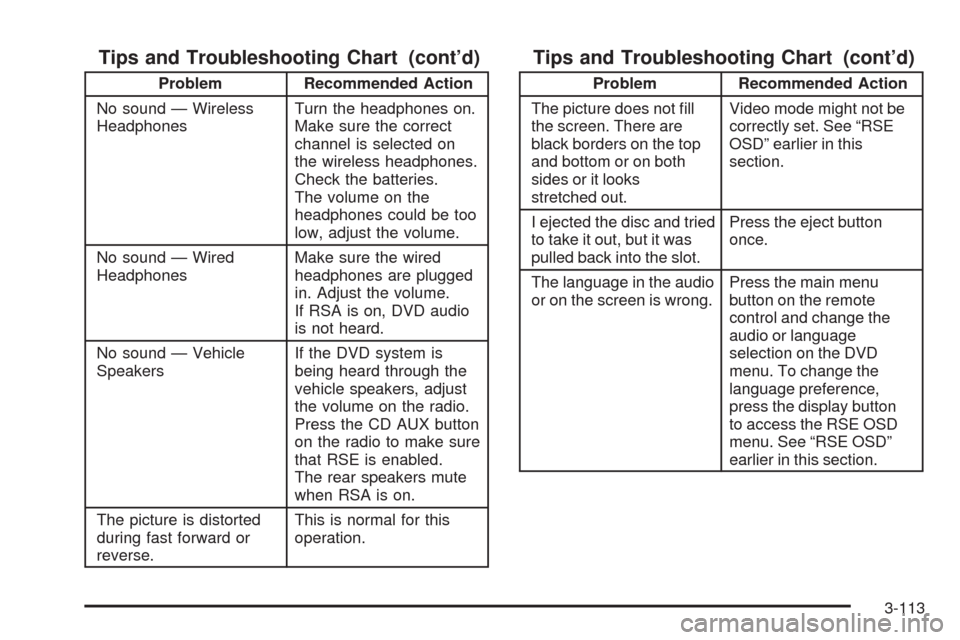
Tips and Troubleshooting Chart (cont’d)
Problem Recommended Action
No sound — Wireless
HeadphonesTurn the headphones on.
Make sure the correct
channel is selected on
the wireless headphones.
Check the batteries.
The volume on the
headphones could be too
low, adjust the volume.
No sound — Wired
HeadphonesMake sure the wired
headphones are plugged
in. Adjust the volume.
If RSA is on, DVD audio
is not heard.
No sound — Vehicle
SpeakersIf the DVD system is
being heard through the
vehicle speakers, adjust
the volume on the radio.
Press the CD AUX button
on the radio to make sure
that RSE is enabled.
The rear speakers mute
when RSA is on.
The picture is distorted
during fast forward or
reverse.This is normal for this
operation.
Tips and Troubleshooting Chart (cont’d)
Problem Recommended Action
The picture does not ll
the screen. There are
black borders on the top
and bottom or on both
sides or it looks
stretched out.Video mode might not be
correctly set. See “RSE
OSD” earlier in this
section.
I ejected the disc and tried
to take it out, but it was
pulled back into the slot.Press the eject button
once.
The language in the audio
or on the screen is wrong.Press the main menu
button on the remote
control and change the
audio or language
selection on the DVD
menu. To change the
language preference,
press the display button
to access the RSE OSD
menu. See “RSE OSD”
earlier in this section.
3-113
Page 274 of 476
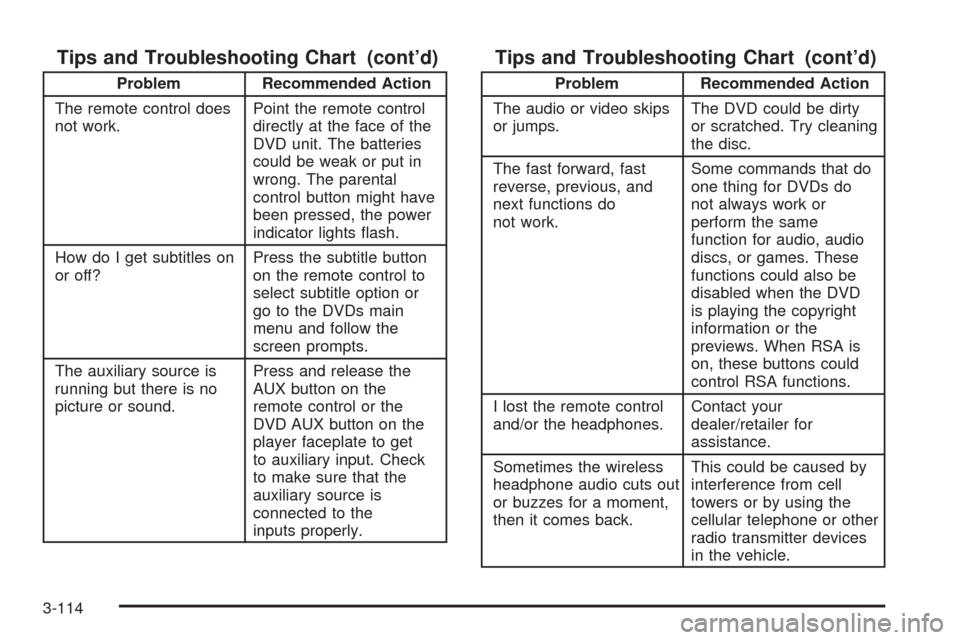
Tips and Troubleshooting Chart (cont’d)
Problem Recommended Action
The remote control does
not work.Point the remote control
directly at the face of the
DVD unit. The batteries
could be weak or put in
wrong. The parental
control button might have
been pressed, the power
indicator lights ash.
How do I get subtitles on
or off?Press the subtitle button
on the remote control to
select subtitle option or
go to the DVDs main
menu and follow the
screen prompts.
The auxiliary source is
running but there is no
picture or sound.Press and release the
AUX button on the
remote control or the
DVD AUX button on the
player faceplate to get
to auxiliary input. Check
to make sure that the
auxiliary source is
connected to the
inputs properly.
Tips and Troubleshooting Chart (cont’d)
Problem Recommended Action
The audio or video skips
or jumps.The DVD could be dirty
or scratched. Try cleaning
the disc.
The fast forward, fast
reverse, previous, and
next functions do
not work.Some commands that do
one thing for DVDs do
not always work or
perform the same
function for audio, audio
discs, or games. These
functions could also be
disabled when the DVD
is playing the copyright
information or the
previews. When RSA is
on, these buttons could
control RSA functions.
I lost the remote control
and/or the headphones.Contact your
dealer/retailer for
assistance.
Sometimes the wireless
headphone audio cuts out
or buzzes for a moment,
then it comes back.This could be caused by
interference from cell
towers or by using the
cellular telephone or other
radio transmitter devices
in the vehicle.
3-114
Page 277 of 476
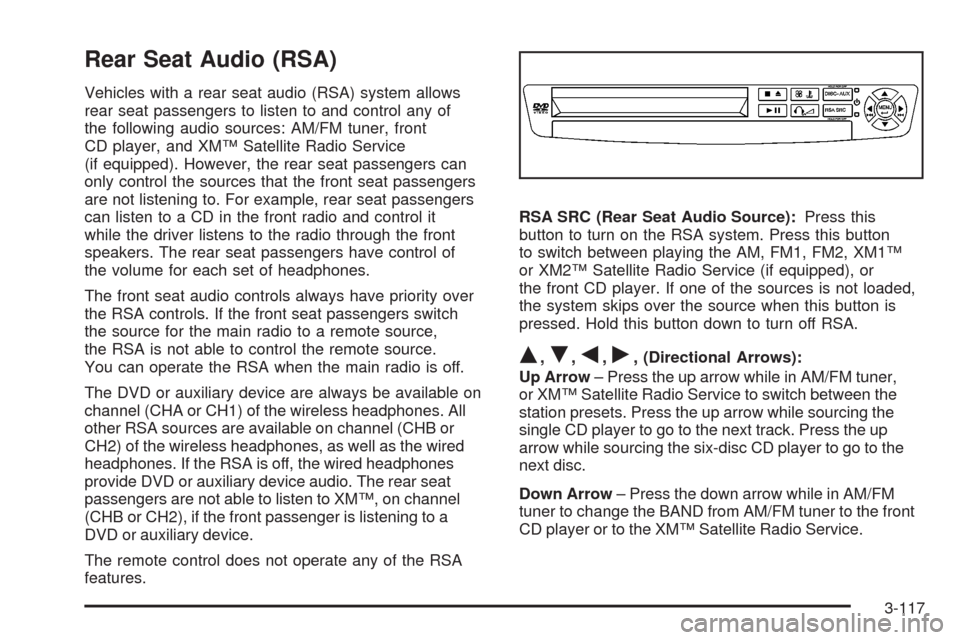
Rear Seat Audio (RSA)
Vehicles with a rear seat audio (RSA) system allows
rear seat passengers to listen to and control any of
the following audio sources: AM/FM tuner, front
CD player, and XM™ Satellite Radio Service
(if equipped). However, the rear seat passengers can
only control the sources that the front seat passengers
are not listening to. For example, rear seat passengers
can listen to a CD in the front radio and control it
while the driver listens to the radio through the front
speakers. The rear seat passengers have control of
the volume for each set of headphones.
The front seat audio controls always have priority over
the RSA controls. If the front seat passengers switch
the source for the main radio to a remote source,
the RSA is not able to control the remote source.
You can operate the RSA when the main radio is off.
The DVD or auxiliary device are always be available on
channel (CHA or CH1) of the wireless headphones. All
other RSA sources are available on channel (CHB or
CH2) of the wireless headphones, as well as the wired
headphones. If the RSA is off, the wired headphones
provide DVD or auxiliary device audio. The rear seat
passengers are not able to listen to XM™, on channel
(CHB or CH2), if the front passenger is listening to a
DVD or auxiliary device.
The remote control does not operate any of the RSA
features.RSA SRC (Rear Seat Audio Source):Press this
button to turn on the RSA system. Press this button
to switch between playing the AM, FM1, FM2, XM1™
or XM2™ Satellite Radio Service (if equipped), or
the front CD player. If one of the sources is not loaded,
the system skips over the source when this button is
pressed. Hold this button down to turn off RSA.
Q,R,q,r, (Directional Arrows):
Up Arrow– Press the up arrow while in AM/FM tuner,
or XM™ Satellite Radio Service to switch between the
station presets. Press the up arrow while sourcing the
single CD player to go to the next track. Press the up
arrow while sourcing the six-disc CD player to go to the
next disc.
Down Arrow– Press the down arrow while in AM/FM
tuner to change the BAND from AM/FM tuner to the front
CD player or to the XM™ Satellite Radio Service.
3-117
Page 278 of 476
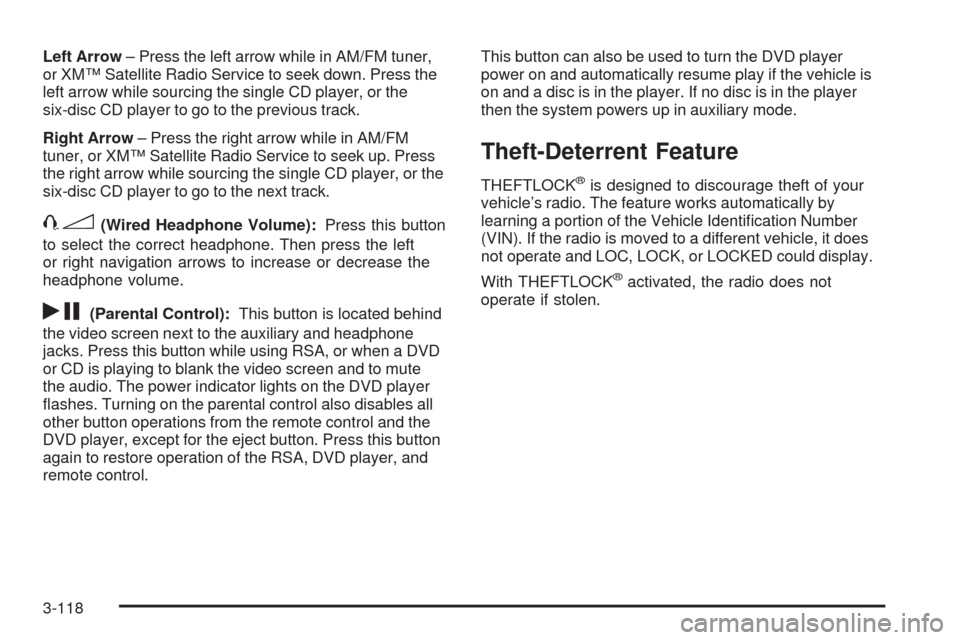
Left Arrow– Press the left arrow while in AM/FM tuner,
or XM™ Satellite Radio Service to seek down. Press the
left arrow while sourcing the single CD player, or the
six-disc CD player to go to the previous track.
Right Arrow– Press the right arrow while in AM/FM
tuner, or XM™ Satellite Radio Service to seek up. Press
the right arrow while sourcing the single CD player, or the
six-disc CD player to go to the next track.
43(Wired Headphone Volume):Press this button
to select the correct headphone. Then press the left
or right navigation arrows to increase or decrease the
headphone volume.
rj(Parental Control):This button is located behind
the video screen next to the auxiliary and headphone
jacks. Press this button while using RSA, or when a DVD
or CD is playing to blank the video screen and to mute
the audio. The power indicator lights on the DVD player
ashes. Turning on the parental control also disables all
other button operations from the remote control and the
DVD player, except for the eject button. Press this button
again to restore operation of the RSA, DVD player, and
remote control.This button can also be used to turn the DVD player
power on and automatically resume play if the vehicle is
on and a disc is in the player. If no disc is in the player
then the system powers up in auxiliary mode.
Theft-Deterrent Feature
THEFTLOCK®is designed to discourage theft of your
vehicle’s radio. The feature works automatically by
learning a portion of the Vehicle Identication Number
(VIN). If the radio is moved to a different vehicle, it does
not operate and LOC, LOCK, or LOCKED could display.
With THEFTLOCK
®activated, the radio does not
operate if stolen.
3-118
Page 472 of 476
R
Radiator Pressure Cap....................................5-24
Radio Frequency Identication (RFID), Privacy....7-17
Radios..........................................................3-84
Radio(s)........................................................3-86
Radios
Navigation/Radio System, see Navigation
Manual.................................................3-102
Rear Seat Audio........................................3-117
Reception.................................................3-120
Setting the Time..........................................3-85
Theft-Deterrent..........................................3-118
Rear Climate Control System............................3-30
Rear Reading Lamps......................................3-19
Rear Seat Audio (RSA)..................................3-117
Rear Seat Entertainment System.....................3-102
Rear Seat Operation......................................... 1-6
Rear Windshield Washer/Wiper.........................3-10
Rearview Mirrors.............................................2-43
Reclining Seatbacks.......................................... 1-4
Recommended Fluids and Lubricants.................6-11
Recreational Vehicle Towing.............................4-27
Remote Keyless Entry (RKE) System.................. 2-4
Remote Keyless Entry (RKE) System, Operation . . . 2-5
Remote Vehicle Start........................................ 2-8
Removing the Flat Tire and Installing the
Spare Tire..................................................5-76Removing the Spare Tire and Tools...................5-74
Replacement Bulbs.........................................5-46
Reporting Safety Defects
Canadian Government..................................7-14
General Motors...........................................7-14
United States Government............................7-14
Restraint System Check
Checking the Restraint Systems....................1-91
Replacing Restraint System Parts After
a Crash..................................................1-92
Retained Accessory Power (RAP)......................2-32
Roadside
Assistance Program....................................... 7-6
Rocking Your Vehicle to Get it Out....................4-21
Routing, Engine Drive Belt...............................6-14
Running the Engine While Parked.....................2-42
S
Safety Belt
Reminder Light............................................3-36
Safety Belts
Care of Safety Belts and Built-in Child
Restraint Harness.....................................5-93
How to Wear Safety Belts Properly................1-28
Lap-Shoulder Belt........................................1-36
Safety Belt Extender....................................1-42
10
Page 475 of 476
Tires (cont.)
Storing a Flat or Spare Tire and Tools............5-86
Tire Sidewall Labeling..................................5-49
Tire Terminology and Denitions....................5-52
Uniform Tire Quality Grading.........................5-67
Wheel Alignment and Tire Balance.................5-68
Wheel Replacement.....................................5-68
When It Is Time for New Tires......................5-64
Towing
Recreational Vehicle.....................................4-27
Towing a Trailer..........................................4-28
Your Vehicle...............................................4-27
Traction
Control System (TCS).................................... 4-6
Control System Warning Light.......................3-42
StabiliTrak
®System....................................... 4-7
Transmission
Fluid, Automatic...........................................5-20
Transmission Operation, Automatic....................2-35
Trip Odometer................................................3-36
Turn and Lane-Change Signals.......................... 3-7
Turn Signal/Multifunction Lever........................... 3-7
U
Ultrasonic Rear Parking Assist (URPA)...............2-44
Uniform Tire Quality Grading............................5-67
Universal Home Remote System.......................2-51
Operation...................................................2-51
Using this Manual................................................ ii
V
Vehicle
Control........................................................ 4-4
Damage Warnings........................................... iv
Loading......................................................4-21
Symbols......................................................... iv
Vehicle Data Recording and Privacy..................7-16
Vehicle Identication
Number (VIN).............................................5-98
Service Parts Identication Label...................5-98
Vehicle Personalization
DIC ...........................................................3-76
Vehicle, Remote Start....................................... 2-8
Ventilation Adjustment......................................3-30
Visors...........................................................2-27
13