remote control CHEVROLET UPLANDER 2008 1.G User Guide
[x] Cancel search | Manufacturer: CHEVROLET, Model Year: 2008, Model line: UPLANDER, Model: CHEVROLET UPLANDER 2008 1.GPages: 476, PDF Size: 5.77 MB
Page 179 of 476
Exit Lighting
With exit lighting, the interior lamps will come on for
about 25 seconds whenever you remove the key from
the ignition. If you turn the ignition key to RUN or
ACCESSORY, the lamps will fade out. The lamps
will also fade out if you lock the doors with the power
door lock switch or the remote keyless entry transmitter.
When any door is opened, exit lighting is cancelled.
The interior lamps will stay on while any door or
the liftgate is open, and slowly fade out when all
doors and the liftgate are closed.
The interior lamps may stay on for up to 20 seconds
after all doors have been closed if they have not been
locked. SeeDelayed Lighting on page 3-18.
To turn the exit lighting feature off or on, seeDIC
Vehicle Personalization (Uplevel Only) on page 3-76.
Front Reading Lamps
There are two reading lamps and one courtesy lamp
in the overhead console. To turn either reading lamp on
or off, press the lens of the lamp. The courtesy lamp
will come on each time you open a door, unless you
turn on the interior lamps override feature. SeeInterior
Lamps Control on page 3-17.
Rear Reading Lamps
There are two reading lamps in the third row headliner.
To turn either reading lamp on or off, press the lens
of the lamp.
There may also be a reading lamp in the second row,
integrated with the dome lamp. To turn the second
row reading lamp on or off, press the button next to
the lamp lens.
Cargo Lamp
The cargo lamp is located in the rear of your vehicle,
above the liftgate opening, and does not have a switch.
The cargo lamp will come on each time you open a
door, unless you turn on the interior lamps override.
SeeInterior Lamps Control on page 3-17.
3-19
Page 183 of 476
Power Outlet 115 Volt Alternating
Current
Your vehicle may have a power outlet that can be used
to plug in electrical equipment that uses a maximum
limit of 150 watts.
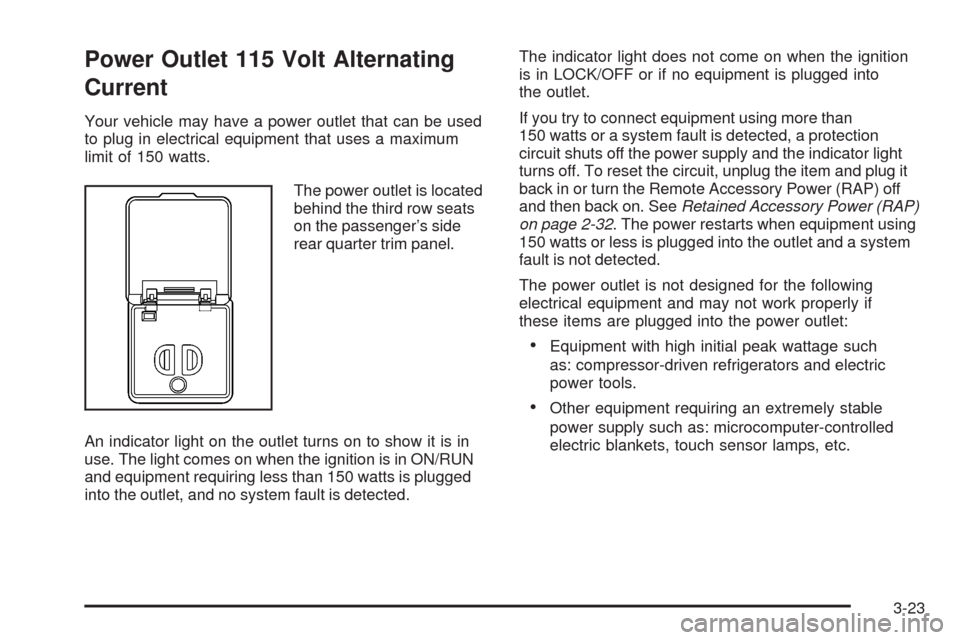
The power outlet is located
behind the third row seats
on the passenger’s side
rear quarter trim panel.
An indicator light on the outlet turns on to show it is in
use. The light comes on when the ignition is in ON/RUN
and equipment requiring less than 150 watts is plugged
into the outlet, and no system fault is detected.The indicator light does not come on when the ignition
is in LOCK/OFF or if no equipment is plugged into
the outlet.
If you try to connect equipment using more than
150 watts or a system fault is detected, a protection
circuit shuts off the power supply and the indicator light
turns off. To reset the circuit, unplug the item and plug it
back in or turn the Remote Accessory Power (RAP) off
and then back on. SeeRetained Accessory Power (RAP)
on page 2-32. The power restarts when equipment using
150 watts or less is plugged into the outlet and a system
fault is not detected.
The power outlet is not designed for the following
electrical equipment and may not work properly if
these items are plugged into the power outlet:
Equipment with high initial peak wattage such
as: compressor-driven refrigerators and electric
power tools.
Other equipment requiring an extremely stable
power supply such as: microcomputer-controlled
electric blankets, touch sensor lamps, etc.
3-23
Page 210 of 476
Driver Information Center (DIC)
Your vehicle has a Driver Information Center (DIC).
All messages appear in the DIC display located in the
instrument panel cluster, below the tachometer. The DIC
buttons are located on the center of the instrument
panel, below the center outlets.
The DIC comes on when the ignition is on. After a short
delay, the DIC displays WELCOME DRIVER (1 or 2)
if a personalized key 1 or 2 is used, and then the
information that was last displayed before the engine
was turned off. The driver number also corresponds
to the numbers, 1 or 2, on the back of the remote
keyless entry transmitters.
The DIC displays the odometer, trip odometers, fuel
economy, trip computer, vehicle system information, and
compass display, if equipped. It also displays warning
messages if a system problem is detected. In addition,
the DIC displays phone numbers that are called using the
OnStar
®system, if equipped. SeeOnStar®System on
page 2-47.On some vehicles, the outside air temperature
automatically appears in the bottom right corner
of the DIC display when viewing all of the information
screens, except for the oil life screens. If the outside air
temperature is at or below 37°F (3°C), the temperature
reading will toggle between displaying the outside
temperature and the word ICE for two minutes. If there is
a problem with the system that controls the temperature
display, the letters OC (open circuit) or SC (short circuit)
will appear on the display. If this occurs, have the vehicle
serviced by your dealer/retailer.
The DIC also allows some features to be customized
or personalized, if equipped. SeeDIC Vehicle
Personalization (Uplevel Only) on page 3-76
for more information.
DIC Operation and Displays
The DIC has different modes which can be accessed by
pressing the DIC buttons located on the center of the
instrument panel. The buttons are the information,
set/reset, and menu buttons.
The button functions are detailed in the following pages.
3-50
Page 228 of 476
REDUCED POWER STOP WHEN SAFE
This message displays when your vehicle is in an
overheated engine operating mode. This operating mode
allows your vehicle to be driven to a safe place in an
emergency. In this mode, you will notice a signicant
loss in power and engine performance. SeeOverheated
Engine Protection Operating Mode on page 5-25for
more information. Anytime this message is on, the
vehicle should be taken to your dealer/retailer for
service as soon as possible.
This message displays and a chime sounds only
when the ignition is in ON/RUN. Press any of the
DIC buttons to acknowledge this message and to
clear it from the screen.
This message continues to display for two seconds
if it has not been acknowledged when the engine
is turned off. It also re-displays for two seconds if the
message has been acknowledged, but the condition
still exists when the engine is turned off.
If the condition still exists, the message re-appears
when the engine is turned on.
REMOTE START DISABLED
If your vehicle has the remote start feature, this message
displays if a remote start attempt is unsuccessful. This
may be caused if any of the following conditions are true
when a remote start attempt is made:
The remote start system is disabled through the DIC.
The key is in the ignition.
The hood or the doors are not closed.
There is an emission control system malfunction.
The engine coolant temperature is too high.
The oil pressure is low.
The hazard warning ashers are turned on.
The maximum number of remote starts or remote
start attempts between ignition cycles has been
reached.
The content theft-deterrent alarm is on while
attempting to remote start the vehicle.
See “REMOTE START” underDIC Vehicle
Personalization (Uplevel Only) on page 3-76and
“Remote Vehicle Start” underRemote Keyless Entry
(RKE) System Operation on page 2-5for more
information.
3-68
Page 262 of 476
Navigation/Radio System
Your vehicle may have a navigation radio system.
The navigation system has built-in features intended
to minimize driver distraction. Technology alone,
no matter how advanced, can never replace your
own judgment. See the Navigation System manual for
some tips to help you reduce distractions while driving.
Rear Seat Entertainment (RSE)
System
Vehicles with a Rear Seat Entertainment (RSE) system
have a DVD player, a video display screen, auxiliary
inputs, two sets of wireless headphones, and a remote
control.
Parental Control
rj
(Parental Control):This button is located behind
the video screen, next to the auxiliary jacks. Press this
button while using rear seat audio (RSA) to make the
video screen go blank and to mute the audio while a DVD
or CD is playing. The power indicator lights on the DVD
player ash. Turning on the parental control also disables
all other button operations from the remote control andthe DVD player, except for the eject button. Press this
button again to restore operation of the RSA, DVD player,
and remote control.
This button can also be used to turn the DVD player
power on and to automatically resume play of a disc that
is in the player while the ignition is on. If no disc is in the
player, the system powers up with no display on the LCD
screen.
Before You Drive
The RSE is designed for rear seat passengers only.
The driver cannot safely view the video screen
while driving and should not try to do so.
Normal operation could be limited under extremely low
or high temperatures, in order to protect the system
from damage. Operate the RSE system under normal
or comfortable cabin temperature ranges.
Headphones
Notice:Do not store the headphones in heat or
direct sunlight. This could damage the headphones
and repairs will not be covered by your warranty.
Storage in extreme cold can weaken the batteries.
Keep the headphones stored in a cool, dry place.
3-102
Page 265 of 476
To use the auxiliary audio and video inputs, connect an
external auxiliary device such as a camcorder to the
RCA jacks and turn on both the auxiliary device power
and the power on the front of the RSE player.
If a disc is present when the RSE power is turned on,
the player automatically begins playing the disc. Press
the AUX button on the remote control or the DVD AUX
button on the DVD player faceplate to switch the system
between the DVD player and the auxiliary device. See
“DVD Player” and “Remote Control” later in this section
for more information.
Audio Output
Audio from the DVD player or auxiliary inputs can be
heard through the following sources:
Wireless Headphones
Vehicle Speakers
Wired Headphones (not included)
Vehicle Speakers
Only one audio source can be heard through the
vehicle’s speakers at a time.
The RSE system or an auxiliary device can be heard
through all of the vehicle’s speakers when the following
occurs:
A DVD or auxiliary device is playing
The front audio system is on and the CD AUX
button is pressed to enable the RSE system
DVD appears on the radio display when the RSE
system is on.
To turn the vehicles speakers on and off, press the CD
AUX button on the radio. The audio from the RSE system
can be heard through the wireless headphones and the
vehicles speakers at the same time. The volume on the
radio varies when switching between the radio, CD, DVD,
MP3, or an auxiliary device.
3-105
Page 266 of 476
Video Screen
The video screen is located in the overhead console.
To use the video screen, do the following:
1. Push the release button located on the overhead
console.
2. Move the screen to the desired position.
When the video screen is not in use, push it up into its
locked position.
Notice:Avoid directly touching the video screen,
as damage may occur. See “Cleaning the Video
Screen” later in this section for more information.
DVD Player
The DVD player is located in the overhead console.
The DVD player can be controlled by the buttons on
the DVD player and/or by the buttons on the remote
control. See “Remote Control” later in this section
for more information.
The RSE system DVD player is only compatible with
DVDs of the appropriate region code for the country that
the vehicle was sold. The DVD region code is printed
on the jacket of most DVDs.
The player is capable of playing the following media
formats: DVD (single and dual player), DVD+R/RW,
DVD-R/RW, DVD-ROM with MP3, DVD-ROM with
WMA, CD-DA, CD-R/RW, CD-ROM with MP3, CD-ROM
with WMA, Enhanced CD, SACD (CD player only).
An error message could display if any other type
of media is inserted into the DVD player.
If an error message displays on the video screen,
see “DVD Messages” later in this section.
3-106
Page 268 of 476
MENU (Disc):Press this button to view the main DVD
menu. The menu is different on every disc. Use the up,
down, right, and left arrow buttons to move the cursor
around the menu. After making a selection, press the
enter button.
r(Enter/Select):Press this button to select the
choice that is highlighted in any menu.
z(Display Control Button):For vehicles without rear
seat climate control, this button can take the place of the
fan/temp button. For vehicles with rear seat climate
control, this button is also found on the remote control.
Press this button to open the RSE On-Screen Display
(OSD) menus to adjust the color, tint, brightness,
contrast, and display modes.
Playing a Disc
To play a disc, gently insert the disc, with the label side
up, into the loading slot. The DVD player continues
loading the disc and the player automatically starts if
the vehicle is in ACC/ACCESSORY, ON/RUN, or RAP.
If a disc is already in the player, make sure that the
DVD player is on, then press the
r/jbutton on
the player faceplate or on the remote control. Press
the DVD AUX button on the player faceplate, or the CD
AUX button on the radio faceplate until RSE displays,
to start playing a disc.Some DVDs do not allow fast forwarding or skipping
of the copyright information or previews. Some
DVDs begins playing after the previews have nished.
If the DVD does not begin playing at the main title, refer
to the on-screen instructions.
To stop playing a disc, press and release
the
c/Ybutton on the DVD player faceplate
or the remote control.
To resume playback, press the
r/jbutton on
the DVD player faceplate or the remote control.
The movie should resume play from where it was
last stopped if the disc has not been ejected.
If the disc has been ejected, the disc resumes play at
the beginning of the disc.
Ejecting a Disc
Press thec/Ybutton on the DVD player faceplate,
when the disc is stopped, to eject the disc. There is
no eject button on the remote control.
If a disc is ejected from the player, but not removed,
the DVD player reloads the disc after a short period
of time.
3-108
Page 269 of 476
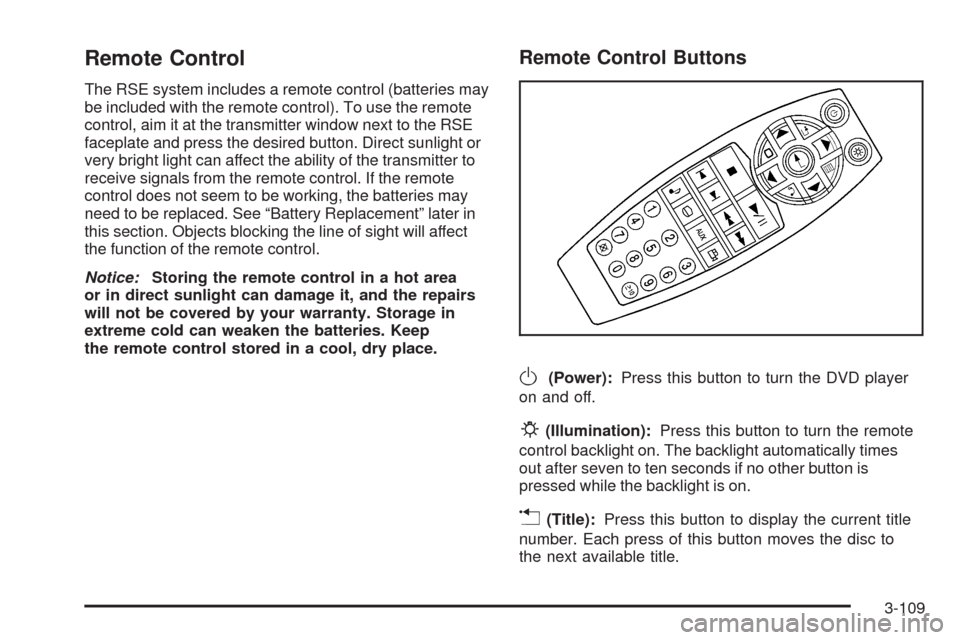
Remote Control
The RSE system includes a remote control (batteries may
be included with the remote control). To use the remote
control, aim it at the transmitter window next to the RSE
faceplate and press the desired button. Direct sunlight or
very bright light can affect the ability of the transmitter to
receive signals from the remote control. If the remote
control does not seem to be working, the batteries may
need to be replaced. See “Battery Replacement” later in
this section. Objects blocking the line of sight will affect
the function of the remote control.
Notice:Storing the remote control in a hot area
or in direct sunlight can damage it, and the repairs
will not be covered by your warranty. Storage in
extreme cold can weaken the batteries. Keep
the remote control stored in a cool, dry place.
Remote Control Buttons
O(Power):Press this button to turn the DVD player
on and off.
P(Illumination):Press this button to turn the remote
control backlight on. The backlight automatically times
out after seven to ten seconds if no other button is
pressed while the backlight is on.
v(Title):Press this button to display the current title
number. Each press of this button moves the disc to
the next available title.
3-109
Page 271 of 476
{(Subtitles):Press this button to display the current
subtitles. Each press of this button moves the DVD
to the next available subtitle option (English, Spanish,
French, etc., if available). The format and content of this
function vary for each disc.
AUX (Auxiliary):Press this button to switch the system
between the DVD player and an auxiliary source.
d(Camera):Press this button to display the current
camera angle on DVDs that have this feature. Each
press moves the DVD to the next available camera
angle. The format and content of this function vary
for each disc.
0 through 9 (Numeric Keypad):The numeric keypad
provides the capability of direct chapter or track number
selection.
\(Clear):Press this button within two seconds after
entering a numeric selection, to clear all numeric inputs.
}10 (Multiple Digit Entries):Press this button
to select chapter or track numbers greater than 9.
Press this button before entering the number.
RSE On-Screen Display (OSD) Menu
To use the RSE OSD menu when using a DVD or an
auxiliary device, do the following:
To access this menu, press the
zbutton on the remote
control or on the DVD faceplate, if the vehicle does not
have rear seat climate control. Once the menu is on the
screen, use the
q,Q,r,Rnavigation arrows and
the
rbutton to navigate the screen. This menu lets
you select default preferences for video format, language
preference, brightness, color, contrast, and tint. Not all
DVDs support all the feature defaults in the setup menus.
If a feature is not supported, the defaults are provided by
the DVD media. To exit this menu, press the
zbutton,
or the
qbutton on the remote control, or faceplate if
there is no rear seat climate control, or wait for the menu
to time out.
The default language selection applies to all
future DVDs.
3-111