buttons CHEVROLET UPLANDER 2009 1.G Owner's Guide
[x] Cancel search | Manufacturer: CHEVROLET, Model Year: 2009, Model line: UPLANDER, Model: CHEVROLET UPLANDER 2009 1.GPages: 464, PDF Size: 2.59 MB
Page 258 of 464
An error message could display if any other type of
media is inserted into the DVD player.
If an error message displays on the video screen, see
“DVD Messages” later in this section.
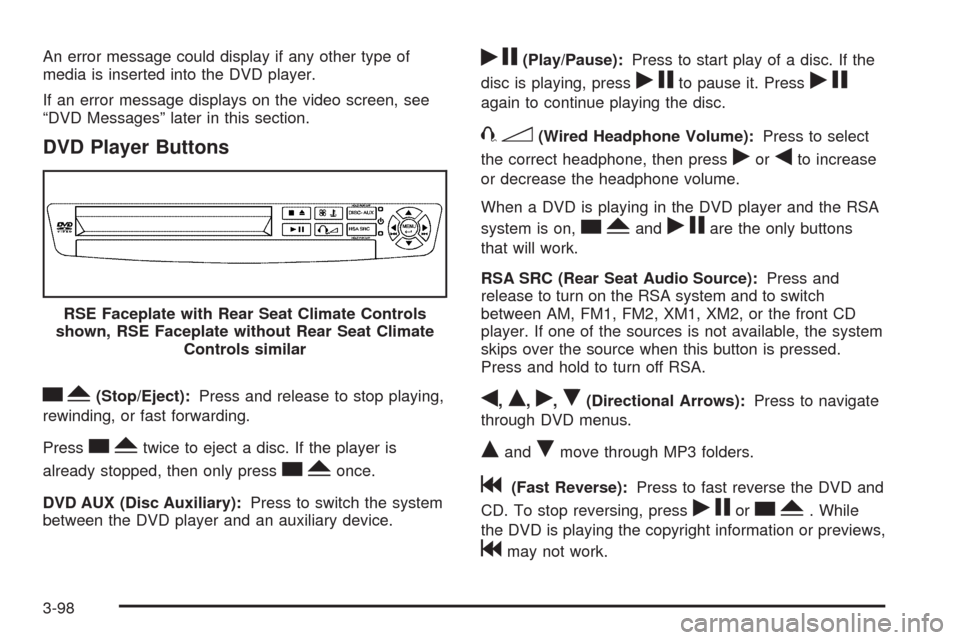
DVD Player Buttons
cY(Stop/Eject):Press and release to stop playing,
rewinding, or fast forwarding.
Press
cYtwice to eject a disc. If the player is
already stopped, then only press
cYonce.
DVD AUX (Disc Auxiliary):Press to switch the system
between the DVD player and an auxiliary device.
rj(Play/Pause):Press to start play of a disc. If the
disc is playing, press
rjto pause it. Pressrj
again to continue playing the disc.
43(Wired Headphone Volume):Press to select
the correct headphone, then press
rorqto increase
or decrease the headphone volume.
When a DVD is playing in the DVD player and the RSA
system is on,
cYandrjare the only buttons
that will work.
RSA SRC (Rear Seat Audio Source):Press and
release to turn on the RSA system and to switch
between AM, FM1, FM2, XM1, XM2, or the front CD
player. If one of the sources is not available, the system
skips over the source when this button is pressed.
Press and hold to turn off RSA.
q,Q,r,R(Directional Arrows):Press to navigate
through DVD menus.
QandRmove through MP3 folders.
g(Fast Reverse):Press to fast reverse the DVD and
CD. To stop reversing, press
rjorcY. While
the DVD is playing the copyright information or previews,
gmay not work. RSE Faceplate with Rear Seat Climate Controls
shown, RSE Faceplate without Rear Seat Climate
Controls similar
3-98
Page 260 of 464
Ejecting a Disc
When the disc is stopped presscYon the DVD
player faceplate to eject the disc. There is no eject
button on the remote control.
The DVD player reloads the disc after a short period
of time if the disc is ejected from the player and not
removed.
Remote Control
The RSE system includes a remote control (batteries
may be included with the remote control). To use the
remote control, aim it at the transmitter window next to
the RSE faceplate and press the desired button. Direct
sunlight or very bright light can affect the ability of the
transmitter to receive signals from the remote control. If
the remote control does not seem to be working, the
batteries may need to be replaced. See “Battery
Replacement” later in this section. Objects blocking the
line of sight will affect the function of the remote control.
Notice:Storing the remote control in a hot area or
in direct sunlight can damage it, and the repairs
will not be covered by your warranty. Storage
in extreme cold can weaken the batteries. Keep
the remote control stored in a cool, dry place.
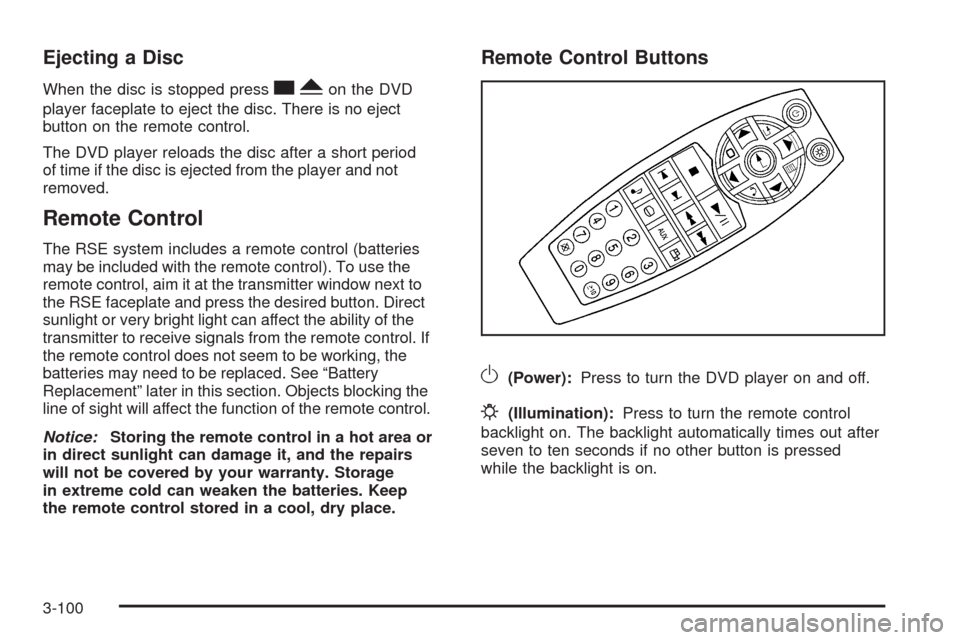
Remote Control Buttons
O(Power):Press to turn the DVD player on and off.
P(Illumination):Press to turn the remote control
backlight on. The backlight automatically times out after
seven to ten seconds if no other button is pressed
while the backlight is on.
3-100
Page 266 of 464
Tips and Troubleshooting Chart (cont’d)
Problem Recommended Action
The audio or video skips
or jumps.The DVD could be dirty
or scratched. Try cleaning
the disc.
The fast forward, fast
reverse, previous,
and next functions do
not work.Some commands that do
one thing for DVDs do
not always work or
perform the same
function for audio, audio
discs, or games. These
functions could also be
disabled when the DVD is
playing the copyright
information or the
previews. When RSA is
on, these buttons could
control RSA functions.
I lost the remote control
and/or the headphones.Contact your
dealer/retailer for
assistance.
Tips and Troubleshooting Chart (cont’d)
Problem Recommended Action
Sometimes the wireless
headphone audio cuts out
or buzzes for a moment,
then it comes back.This could be caused by
interference from cell
towers or by using the
cellular telephone or other
radio transmitter devices
in the vehicle.
DVD System inoperable. In severe or extreme
temperatures the DVD
system might not be
operable. Temperatures
below−4°F (−20°C) or
above 140°F (60°C)
could damage the DVD
system. Operate the
DVD system under
normal or comfortable
cabin temperature
ranges. See your
dealer/retailer if the
problem persists.
3-106
Page 268 of 464
DVD Distortion
Video distortion can occur when operating cellular
phones, scanners, CB radios, Global Position Systems
(GPS)*, two-way radios, mobile fax, or walkie talkies.
It might be necessary to turn off the DVD player when
operating one of these devices in or near the vehicle.
*Excludes the OnStar
®System.
Cleaning the DVD Player
When cleaning the outside DVD faceplate and buttons,
use only a clean cloth dampened with clean water.
Cleaning the Video Screen
When cleaning the video screen, use only a clean cloth
dampened with clean water. Use care when directly
touching or cleaning the screen, as damage may result.
Rear Seat Audio (RSA)
Vehicles with an RSA system allows rear seat
passengers to listen to and control any of the following
audio sources: AM/FM tuner, front CD player, and
XM™ Satellite Radio Service. However, the rear seat
passengers can only control the sources that the
front seat passengers are not listening to. For example,
rear seat passengers can listen to a CD in the front
radio and control it while the front seat passengers listen
to the radio through the front speakers. The rear seat
passengers have control of the volume for each
set of headphones.
The front seat audio controls always have priority over
the RSA controls. If the front seat passengers switch
the source for the main radio to a remote source,
the RSA is not able to control the remote source. RSA
can operate when the main radio is off.
3-108
Page 271 of 464
Audio Steering Wheel Controls
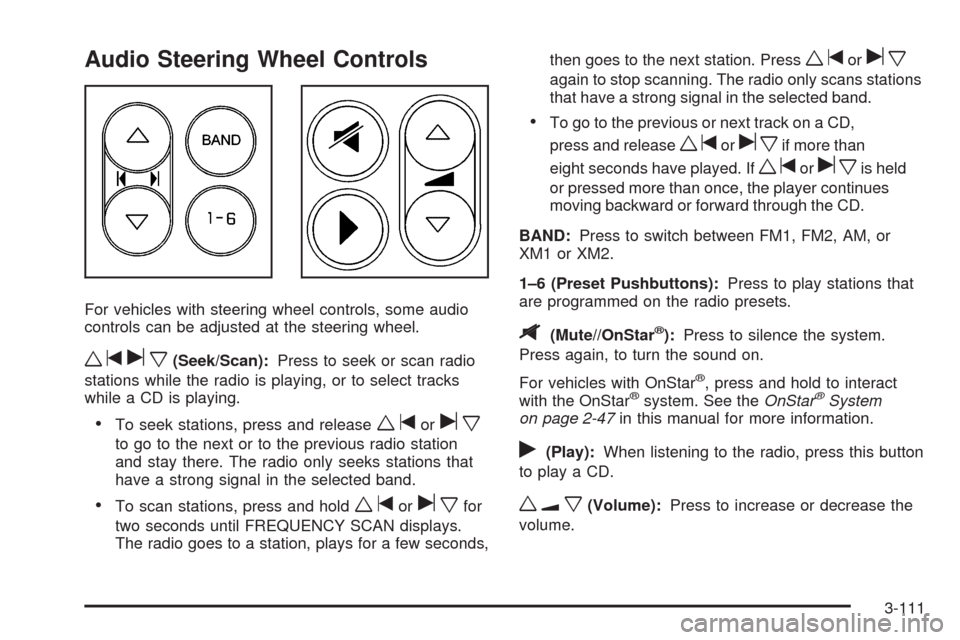
For vehicles with steering wheel controls, some audio
controls can be adjusted at the steering wheel.
wtux(Seek/Scan):Press to seek or scan radio
stations while the radio is playing, or to select tracks
while a CD is playing.
To seek stations, press and releasewtorux
to go to the next or to the previous radio station
and stay there. The radio only seeks stations that
have a strong signal in the selected band.
To scan stations, press and holdwtoruxfor
two seconds until FREQUENCY SCAN displays.
The radio goes to a station, plays for a few seconds,then goes to the next station. Press
wtorux
again to stop scanning. The radio only scans stations
that have a strong signal in the selected band.
To go to the previous or next track on a CD,
press and release
wtoruxif more than
eight seconds have played. If
wtoruxis held
or pressed more than once, the player continues
moving backward or forward through the CD.
BAND:Press to switch between FM1, FM2, AM, or
XM1orXM2.
1–6 (Preset Pushbuttons):Press to play stations that
are programmed on the radio presets.
$(Mute//OnStar®):Press to silence the system.
Press again, to turn the sound on.
For vehicles with OnStar
®, press and hold to interact
with the OnStar®system. See theOnStar®System
on page 2-47in this manual for more information.
r(Play):When listening to the radio, press this button
to play a CD.
wux(Volume):Press to increase or decrease the
volume.
3-111
Page 371 of 464
You will have two minutes to match the rst tire/wheel
position, and ve minutes overall to match all four
tire/wheel positions. If it takes longer than two minutes, to
match the rst tire and wheel, or more than ve minutes
to match all four tire and wheel positions the matching
process stops and you will need to start over.
The TPMS sensor matching process is outlined below:
1. Set the parking brake.
2. Turn the ignition switch to RUN with the engine off.
3. Using the Remote Keyless Entry (RKE) transmitter,
lock and unlock the vehicle’s doors.
4. Press and hold the RKE transmitter’s LOCK and
UNLOCK buttons at the same time, for about
three seconds. The horn chirps two times indicating
the receiver is ready for the sensor matching
process to begin.
5. Start with the driver side front tire. The driver side
turn signal lamp comes on.6. Remove the valve cap from the valve cap stem.
Activate the TPMS sensor by increasing or
decreasing the tire’s air pressure for ve seconds,
or until a horn chirp sounds. The horn chirp,
which may take up to 30 seconds to sound,
conrms that the sensor identication code has
been matched to this tire and wheel position.
7. Proceed to the passenger side front tire, and repeat
the procedure in Step 6.
8. Proceed to the passenger side rear tire, and repeat
the procedure in Step 6.
9. Proceed to the driver side rear tire, and repeat the
procedure in Step 6.
10. After hearing the conrming horn chirp for the driver
side rear tire, the tire sensor matching process
ends. Turn the ignition switch to LOCK.
11. Set all four tires to the recommended air pressure
level as indicated on the Tire and Loading
Information label.
12. Put the valve caps back on the valve stems.
5-61
Page 400 of 464
When cleaning your vehicle’s interior, only use cleaners
specically designed for the surfaces being cleaned.
Permanent damage may result from using cleaners on
surfaces for which they were not intended. Use glass
cleaner only on glass. Remove any accidental over-spray
from other surfaces immediately. To prevent over-spray,
apply cleaner directly to the cleaning cloth.
Notice:If you use abrasive cleaners when cleaning
glass surfaces on your vehicle, you could scratch
the glass and/or cause damage to the rear window
defogger. When cleaning the glass on your
vehicle, use only a soft cloth and glass cleaner.
Many cleaners contain solvents that may become
concentrated in your vehicle’s breathing space.
Before using cleaners, read and adhere to all safety
instructions on the label. While cleaning your vehicle’s
interior, maintain adequate ventilation by opening
your vehicle’s doors and windows.
Dust may be removed from small buttons and knobs
using a small brush with soft bristles.Your dealer/retailer has a product for cleaning your
vehicle’s glass. Should it become necessary, you can
also obtain a product from your dealer/retailer to remove
odors from your vehicle’s upholstery.
Do not clean your vehicle using:
A knife or any other sharp object to remove a soil
from any interior surface.
A stiff brush. It can cause damage to your vehicle’s
interior surfaces.
Heavy pressure or aggressive rubbing with a
cleaning cloth. Use of heavy pressure can damage
your interior and does not improve the effectiveness
of soil removal.
Laundry detergents or dishwashing soaps with
degreasers can leave residue that streaks and
attracts dirt. For liquid cleaners, about 20 drops
per gallon (3.78 L) of water is a good guide.
Use only mild, neutral-pH soaps.
Too much cleaner that saturates the upholstery.
Organic solvents such as naptha, alcohol, etc. that
can damage your vehicle’s interior.
5-90