change time CHEVROLET VENTURE 2003 1.G User Guide
[x] Cancel search | Manufacturer: CHEVROLET, Model Year: 2003, Model line: VENTURE, Model: CHEVROLET VENTURE 2003 1.GPages: 486, PDF Size: 3.3 MB
Page 238 of 486
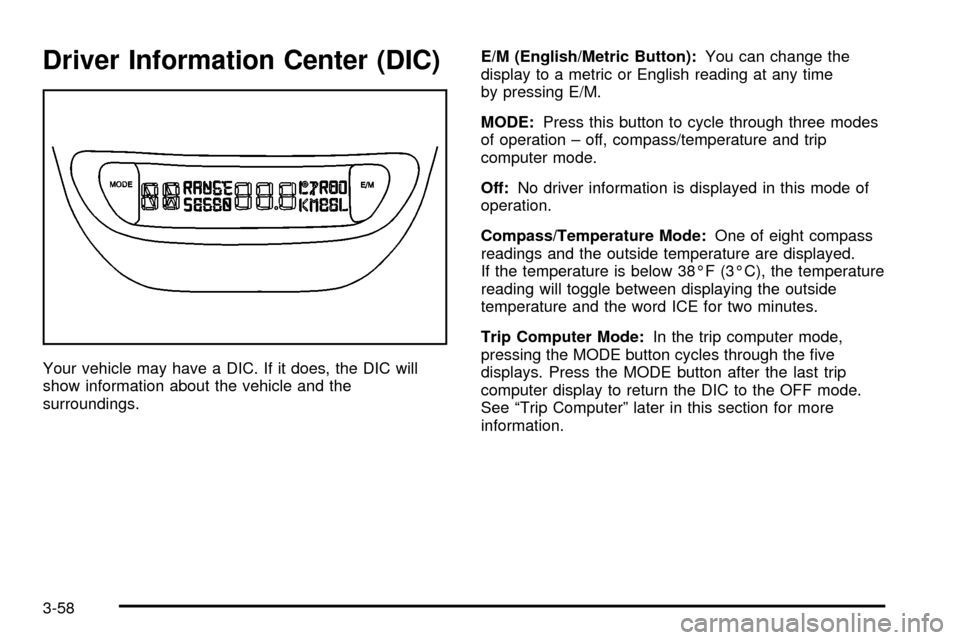
Driver Information Center (DIC)
Your vehicle may have a DIC. If it does, the DIC will
show information about the vehicle and the
surroundings.E/M (English/Metric Button):You can change the
display to a metric or English reading at any time
by pressing E/M.
MODE:Press this button to cycle through three modes
of operation ± off, compass/temperature and trip
computer mode.
Off:No driver information is displayed in this mode of
operation.
Compass/Temperature Mode:One of eight compass
readings and the outside temperature are displayed.
If the temperature is below 38ÉF (3ÉC), the temperature
reading will toggle between displaying the outside
temperature and the word ICE for two minutes.
Trip Computer Mode:In the trip computer mode,
pressing the MODE button cycles through the ®ve
displays. Press the MODE button after the last trip
computer display to return the DIC to the OFF mode.
See ªTrip Computerº later in this section for more
information.
3-58
Page 245 of 486
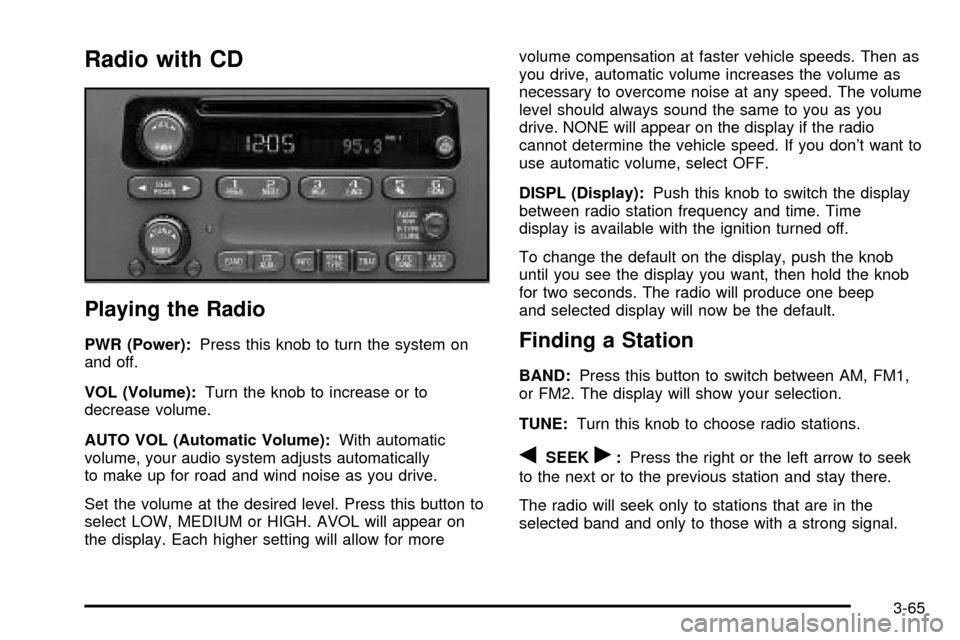
Radio with CD
Playing the Radio
PWR (Power):Press this knob to turn the system on
and off.
VOL (Volume):Turn the knob to increase or to
decrease volume.
AUTO VOL (Automatic Volume):With automatic
volume, your audio system adjusts automatically
to make up for road and wind noise as you drive.
Set the volume at the desired level. Press this button to
select LOW, MEDIUM or HIGH. AVOL will appear on
the display. Each higher setting will allow for morevolume compensation at faster vehicle speeds. Then as
you drive, automatic volume increases the volume as
necessary to overcome noise at any speed. The volume
level should always sound the same to you as you
drive. NONE will appear on the display if the radio
cannot determine the vehicle speed. If you don't want to
use automatic volume, select OFF.
DISPL (Display):Push this knob to switch the display
between radio station frequency and time. Time
display is available with the ignition turned off.
To change the default on the display, push the knob
until you see the display you want, then hold the knob
for two seconds. The radio will produce one beep
and selected display will now be the default.Finding a Station
BAND:Press this button to switch between AM, FM1,
or FM2. The display will show your selection.
TUNE:Turn this knob to choose radio stations.
qSEEKr:Press the right or the left arrow to seek
to the next or to the previous station and stay there.
The radio will seek only to stations that are in the
selected band and only to those with a strong signal.
3-65
Page 251 of 486

6 RDM (Random):Press this pushbutton to hear the
tracks in random, rather than sequential, order. RDM ON
will appear on the display. RDM T and the track
number will appear on the display when each track
starts to play. Press RDM again to turn off random play.
RDM OFF will appear on the display.
qSEEKr:Press the left arrow to go to the start of
the current or of the previous track. Press the right
arrow to go to the start of the next track. If either of the
arrows is held or pressed more than once, the player
will continue moving backward or forward through
the CD.
DISPL (Display):Press this knob to see how long the
current track has been playing. ET and the elapsed
time will appear on the display. To change the default
on the display (track or elapsed time), push the
knob until you see the display you want, then hold the
knob for two seconds. The radio will produce one
beep and selected display will now be the default.
BAND:Press this button to listen to the radio when a
CD is playing. The CD will stop but remain in the player.
CD AUX (Auxiliary):Press this button to play a CD
when listening to the radio.
ZEJT (Eject):Press this button to eject a CD. Eject
may be activated with either the ignition or radio off.
CDs may be loaded with the radio and ignition off if this
button is pressed ®rst.
Compact Disc Messages
If the disc comes out or CHECK CD appears on the
display, it could be for one of the following reasons:
·You're driving on a very rough road. When the road
becomes smoother, the disc should play.
·It's very hot. When the temperature returns to
normal, the disc should play.
·The disc is dirty, scratched, wet or upside down.
·The air is very humid. If so, wait about an hour and
try again.
·There may have been a problem while burning
the CD.
·The label may be caught in the CD player.
If the CD is not playing correctly, for any other reason,
try a known good CD.
If any error occurs repeatedly or if an error can't be
corrected, contact your dealer.
3-71
Page 252 of 486
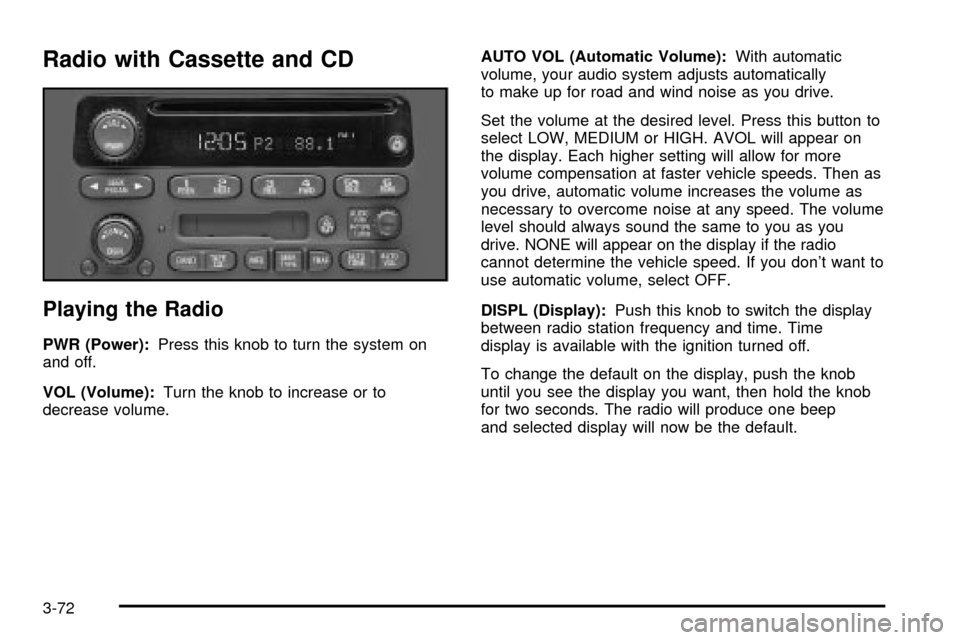
Radio with Cassette and CD
Playing the Radio
PWR (Power):Press this knob to turn the system on
and off.
VOL (Volume):Turn the knob to increase or to
decrease volume.AUTO VOL (Automatic Volume):With automatic
volume, your audio system adjusts automatically
to make up for road and wind noise as you drive.
Set the volume at the desired level. Press this button to
select LOW, MEDIUM or HIGH. AVOL will appear on
the display. Each higher setting will allow for more
volume compensation at faster vehicle speeds. Then as
you drive, automatic volume increases the volume as
necessary to overcome noise at any speed. The volume
level should always sound the same to you as you
drive. NONE will appear on the display if the radio
cannot determine the vehicle speed. If you don't want to
use automatic volume, select OFF.
DISPL (Display):Push this knob to switch the display
between radio station frequency and time. Time
display is available with the ignition turned off.
To change the default on the display, push the knob
until you see the display you want, then hold the knob
for two seconds. The radio will produce one beep
and selected display will now be the default.
3-72
Page 255 of 486

Using RDS
Radio Data System (RDS):Your audio system is
equipped with a Radio Data System (RDS). RDS
features are available for use only on FM stations that
broadcast RDS information.
·Seek to stations broadcasting the selected type of
programming,
·receive announcements concerning local and
national emergencies,
·display messages from radio stations, and
·seek to stations with traffic announcements.
This system relies upon receiving speci®c information
from these stations and will only work when the
information is available. In rare cases, a radio station
may broadcast incorrect information that will cause
the radio features to work improperly. If this happens,
contact the radio station.
While you are tuned to an RDS station, the station
name or the call letters will appear on the display instead
of the frequency. RDS stations may also provide the
time of day, a program type (PTY) for current
programming and the name of the program being
broadcast.DISPL (Display):For RDS, press this knob to change
what appears on the display while using RDS. The
display options are station name, RDS station frequency,
PTY and the name of the program (if available).
Finding a PTY Station
To select and ®nd a desired PTY perform the following:
1. Press the P-TYPE knob. TYPE and a PTY will
appear on the display.
2. Select a category by turning the P-TYPE knob.
3. Once the desired category is displayed, press the
SEEK TYPE button to take you to the category's
®rst station.
4. If you want to go to another station within that
category and the category is displayed, press
the SEEK TYPE button once. If the category is not
displayed, press the SEEK TYPE button twice
to display the category and then to go to another
station.
If the radio cannot ®nd the desired program type, NONE
will appear on the display and the radio will return to
the last station you were listening to.
3-75
Page 260 of 486

1 PREV (Previous):Press this pushbutton to go to the
previous track if the current track has been playing
for less than eight seconds. If pressed when the current
track has been playing for more than eight seconds,
it will go to the beginning of the current track. TRACK
and the track number will appear on the display. If
you hold this pushbutton or press it more than once, the
player will continue moving back through the disc.
2 NEXT:Press this pushbutton to go to the next track.
TRACK. The track number will appear on the display.
If you hold this pushbutton or press it more than
once, the player will continue moving forward through
the disc.
3 REV (Reverse):Press and hold this pushbutton to
reverse quickly within a track. Press and hold this
pushbutton for less than two seconds to reverse at six
times the normal playing speed. Press and hold it
for more than two seconds to reverse at 17 times the
normal playing speed. Release it to play the passage.
The display will show ET and the elapsed time.
4 FWD (Forward):Press and hold this pushbutton to
advance quickly within a track. Press and hold this
pushbutton for less than two seconds to advance at six
times the normal playing speed. Press and hold it for
more than two seconds to advance at 17 times the
normal playing speed. Release it to play the passage.
The display will show ET and the elapsed time.6 RDM (Random):Press this pushbutton to hear the
tracks in random, rather than sequential, order. RDM ON
will appear on the display. RDM T and the track
number will appear on the display when each track
starts to play. Press it again to turn off random play.
RDM OFF will appear on the display.
qSEEKr:The right arrow is the same as the
NEXT pushbutton, and the left arrow is the same as the
PREV pushbutton. If either of the SEEK arrows is
held or pressed more than once, the player will continue
moving backward or forward through the CD.
DISPL (Display):Press this knob to see how long the
current track has been playing. ET and the elapsed
time will appear on the display. To change the default
on the display (track or elapsed time), push the
knob until you see the display you want, then hold the
knob for two seconds. The radio will produce one
beep and selected display will now be the default.
BAND:Press this button to listen to the radio when a
disc is playing. The disc will stop but remain in the
player.
3-80
Page 262 of 486

Set the volume at the desired level. Press this button to
select MIN, MED or MAX. Each higher setting will
allow for more volume compensation at faster vehicle
speeds. Then, as you drive, automatic volume increases
the volume, as necessary, to overcome noise at any
speed. The volume level should always sound the same
to you as you drive. If you don't want to use automatic
volume, select OFF.
RCL (Recall):Push this knob to switch the display
between the time and the radio station frequency. Push
this knob with the ignition off to display the time.
To change the default on the display, push the knob
until you see the display you want, then hold the knob
for two seconds. The radio will produce one beep
and selected display will now be the default.
Finding a Station
AM FM:Press this button to switch between AM, FM1
and FM2. The display will show your selection.
TUNE:Turn this knob to select radio stations.
sSEEKt:Press the right or the left arrow to go to
the next or to the previous station and stay there.
The radio will seek only to stations that are in the
selected band and only to those with a strong signal.
sSCANt:Press and hold either SCAN arrow
for two seconds until SC appears on the display and
you hear a beep. The radio will go to a station, play for
a few seconds, then go on to the next station. Press
either SCAN arrow again to stop scanning.
To scan preset stations, press and hold either SCAN
arrow for more than four seconds. PRESET SCAN will
appear on the display. You will hear a double beep.
The radio will go to a preset station stored on your
pushbuttons, play for a few seconds, then go on to the
next preset station. Press either SCAN arrow again
to stop scanning presets.
The radio will scan only to stations that are in the
selected band and only to those with a strong signal.
3-82
Page 270 of 486

sSCANt:To scan one disc, press and hold either
SCAN arrow for more than two seconds until SCAN
appears on the display and you hear a beep. Use this
feature to listen to 10 seconds of each track of the
currently selected disc. SCAN will appear on the display.
Press either SCAN arrow again, to stop scanning.
To scan all loaded discs, press and hold either SCAN
arrow for more than four seconds until DISC SCAN
appears on the display and you hear a beep. Use this
feature to listen to 10 seconds of the ®rst tracks of each
disc loaded. Press either SCAN arrow again, to stop
scanning.
RCL (Recall):Push this knob to see how long the
current track has been playing. To change the default
on the display (track and elapsed time), push the
knob until you see the display you want, then hold the
knob until the display ¯ashes. The selected display
will now be the default.
AM FM:Press this button to play the radio when a
disc(s) is in the player.Using Song List Mode
The integrated six-disc CD changer has a feature called
song list. This feature is capable of saving 20 track
selections.
To save tracks into the song list feature, perform the
following steps:
1. Turn the disc player on and load it with at least one
disc. See ªLOAD CDº listed previously in this
section for more information.
2. Check to see that the disc changer is not in song
list mode. S-LIST should not appear in the display.
If S-LIST is present, press the SONG LIST
button to turn it off.
3. Select the desired disc by pressing the numbered
pushbutton and then use the SEEK SCAN right
arrow button to locate the track that you want
to save. The track will begin to play.
4. Press and hold the SONG LIST button for two or
more seconds to save the track into memory.
When SONG LIST is pressed a beep will be heard
immediately. After two seconds of pressing
SONG LIST continuously, two beeps will sound to
con®rm that the track has been saved.
5. Repeat Steps 3 and 4 for saving other selections.
3-90
Page 273 of 486
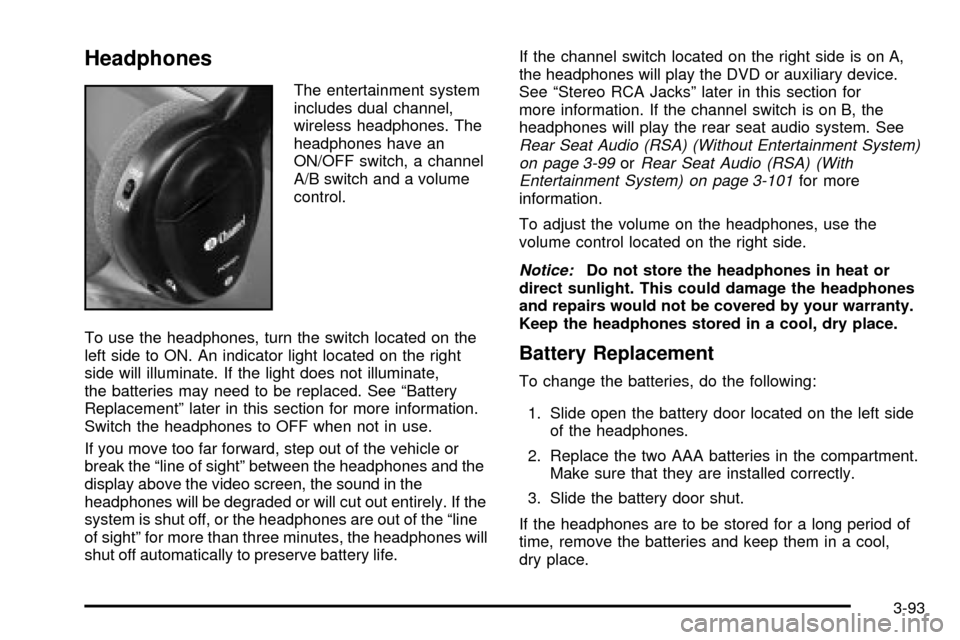
Headphones
The entertainment system
includes dual channel,
wireless headphones. The
headphones have an
ON/OFF switch, a channel
A/B switch and a volume
control.
To use the headphones, turn the switch located on the
left side to ON. An indicator light located on the right
side will illuminate. If the light does not illuminate,
the batteries may need to be replaced. See ªBattery
Replacementº later in this section for more information.
Switch the headphones to OFF when not in use.
If you move too far forward, step out of the vehicle or
break the ªline of sightº between the headphones and the
display above the video screen, the sound in the
headphones will be degraded or will cut out entirely. If the
system is shut off, or the headphones are out of the ªline
of sightº for more than three minutes, the headphones will
shut off automatically to preserve battery life.If the channel switch located on the right side is on A,
the headphones will play the DVD or auxiliary device.
See ªStereo RCA Jacksº later in this section for
more information. If the channel switch is on B, the
headphones will play the rear seat audio system. See
Rear Seat Audio (RSA) (Without Entertainment System)
on page 3-99orRear Seat Audio (RSA) (With
Entertainment System) on page 3-101for more
information.
To adjust the volume on the headphones, use the
volume control located on the right side.
Notice:Do not store the headphones in heat or
direct sunlight. This could damage the headphones
and repairs would not be covered by your warranty.
Keep the headphones stored in a cool, dry place.
Battery Replacement
To change the batteries, do the following:
1. Slide open the battery door located on the left side
of the headphones.
2. Replace the two AAA batteries in the compartment.
Make sure that they are installed correctly.
3. Slide the battery door shut.
If the headphones are to be stored for a long period of
time, remove the batteries and keep them in a cool,
dry place.
3-93
Page 279 of 486

Battery Replacement
To change the batteries, do the following:
1. Remove the screw and open the battery door
located on the back of the remote control.
2. Replace the two AAA batteries in the compartment.
Make sure that they are installed correctly.
3. Replace the battery door and screw.
If the remote control is to be stored for a long period of
time, remove the batteries and keep them in a cool,
dry place.
Rear Seat Audio (RSA) (Without
Entertainment System)
This feature allows rear seat passengers to listen to and
control any of the music sources: radio, cassette
tapes and CDs. However, the rear seat passengers can
only control the music sources that the front seatpassengers are not listening to. For example, rear seat
passengers may listen to a cassette tape or CD
through headphones, while the driver listens to the radio
through the front speakers. The rear seat passengers
have control of the volume for each set of headphones.
Be aware that the front seat audio controls always
have priority over the RSA controls. If the front seat
passengers switch the source for the main radio
to a remote source, the RSA will play the same remote
source. The rear speakers will be muted when the
RSA power is turned on. You may operate the RSA
functions even when the main radio is off.
Primary Radio Controls
The following function is controlled by the knob on the
main radio:
PWR (Power):Push this knob twice to turn RSA off.
3-99