light CHEVROLET VENTURE 2004 1.G Workshop Manual
[x] Cancel search | Manufacturer: CHEVROLET, Model Year: 2004, Model line: VENTURE, Model: CHEVROLET VENTURE 2004 1.GPages: 516, PDF Size: 3.33 MB
Page 239 of 516
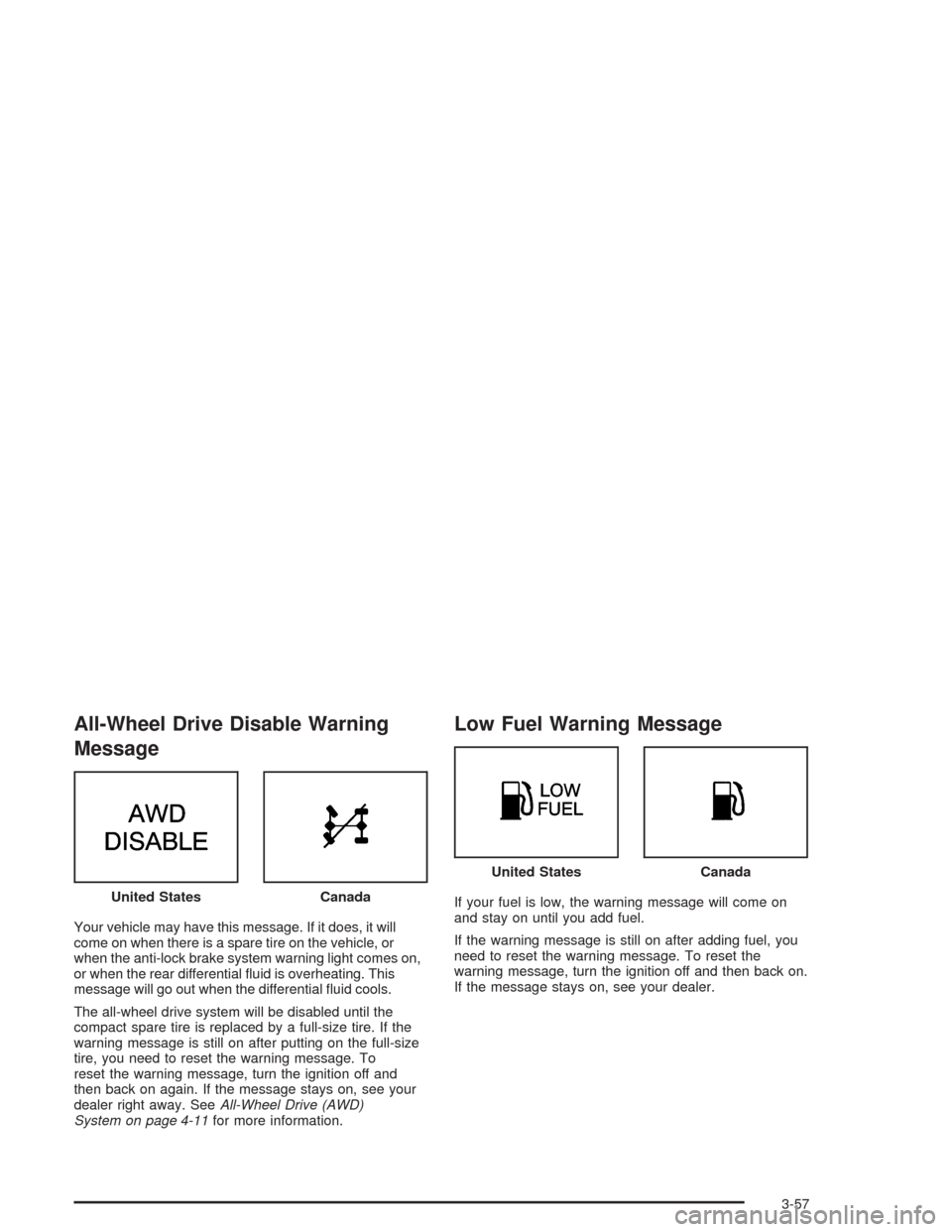
All-Wheel Drive Disable Warning
Message
Your vehicle may have this message. If it does, it will
come on when there is a spare tire on the vehicle, or
when the anti-lock brake system warning light comes on,
or when the rear differential uid is overheating. This
message will go out when the differential uid cools.
The all-wheel drive system will be disabled until the
compact spare tire is replaced by a full-size tire. If the
warning message is still on after putting on the full-size
tire, you need to reset the warning message. To
reset the warning message, turn the ignition off and
then back on again. If the message stays on, see your
dealer right away. SeeAll-Wheel Drive (AWD)
System on page 4-11for more information.
Low Fuel Warning Message
If your fuel is low, the warning message will come on
and stay on until you add fuel.
If the warning message is still on after adding fuel, you
need to reset the warning message. To reset the
warning message, turn the ignition off and then back on.
If the message stays on, see your dealer. United StatesCanada
United StatesCanada
3-57
Page 285 of 516
Playing a CD
The CD player can play the smaller 8 cm single CDs
with an adapter ring. Full-size CDs and the smaller CDs
are loaded in the same manner.
If playing a CD-R the sound quality may be reduced
due to CD-R quality, the method of recording, the quality
of the music that has been recorded, and the way the
CD-R has been handled. You may experience an
increase in skipping, difficulty in nding tracks, and/or
difficulty in loading and ejecting. If these problems occur
try a known good CD.
Do not add paper labels to CDs, they could get caught
in the CD player.
Do not play 3 inch CDs without a standard adapter CD.
If an error appears on the display, see “CD Messages”
later in this section.LOAD CD
Z:Press the LOAD side of this button to
load CDs into the CD player. This CD player will
hold up to six CDs.
To insert one CD, do the following:
1. Turn the ignition on.
2. Press and release the LOAD side of the LOAD CD
button.
3. Wait for the light, located to the right of the slot, to
turn green.
4. Load a CD. Insert the CD partway into the slot,
label side up. The player will pull the CD in.
When a CD is inserted, the CD symbol will be displayed.
If you select an equalization setting for your CD, it will
be activated each time you play a CD.
The CD will begin to play automatically. As each new
track starts to play, the track number will appear on the
display.
3-103
Page 286 of 516
To insert multiple CDs, do the following:
1. Turn the ignition on.
2. Press and hold the LOAD side of the LOAD CD
button for two seconds.
You will hear a beep and the light, located to the
right of the slot, will begin to ash.
3. Once the light stops ashing and turns green, load
a CD. Insert the CD partway into the slot, label side
up. The player will pull the CD in.
4. Once the CD is loaded, the light will begin ashing
again. Press the LOAD side of the LOAD CD button
again. Once the light turns green, load the next
CD. Repeat this procedure for each CD.
The CD player takes up to six CDs. Do not try to
load more than six.
To load more than one CD but less than six, complete
Steps 1 through 3. When you have nished loading
CDs, the radio will begin to play the last CD loaded.
When a CD is inserted, the CD symbol will be displayed.
If more than one CD has been loaded, a number for
each CD will be displayed. If you select an equalization
setting for your CD, it will be activated each time you
play a CD.
As each new track starts to play, the track number will
appear on the display.Playing a Specic Loaded CD
For every CD loaded, a number will appear on the
display. To play a specic CD, rst press the CD AUX
button, then press the numbered pushbutton that
corresponds to the CD you want to play. A small bar will
appear under the CD number that is playing, and the
track number will appear.
If an error appears on the display, see “CD Messages”
later in this section.
LOAD CD
Z(Eject):Press the CD eject side of this
button to eject a CD. You will hear a beep and the
light will ash to let you know when a CD is being
ejected.
REMOVE CD will be displayed. You can now remove
the CD. If the CD is not removed, after 25 seconds, the
CD will be automatically pulled back into the receiver.
If you try to push the CD back into the receiver,
before the 25 second time period is complete, the
receiver will sense an error and will try to eject the CD
several times before stopping.
Do not repeatedly press the CD eject button to eject a
CD after you have tried to push it in manually. The
receivers 25-second eject timer will reset at each press
of eject, which will cause the receiver to not eject
the CD until the 25-second time period has elapsed.
3-104
Page 291 of 516
Headphones
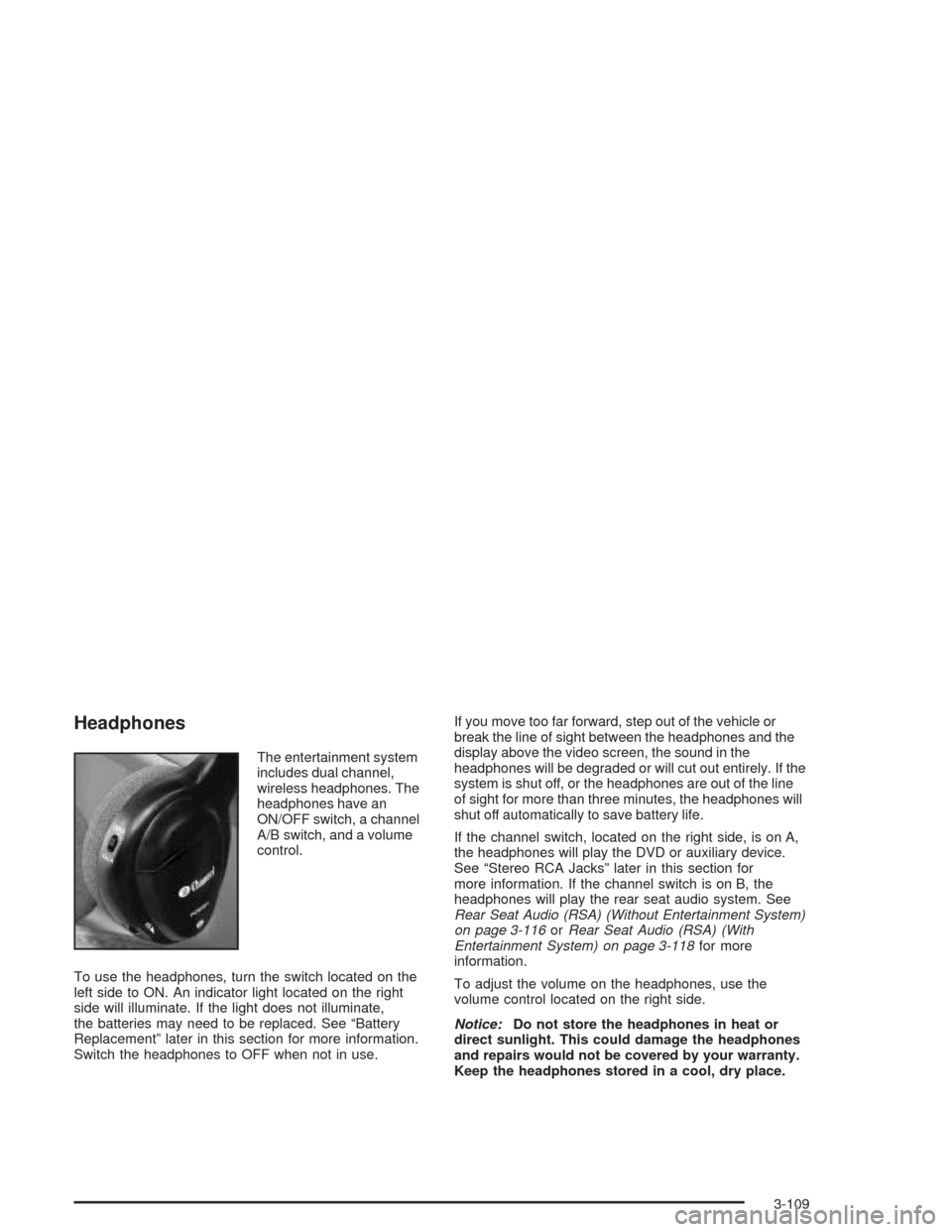
The entertainment system
includes dual channel,
wireless headphones. The
headphones have an
ON/OFF switch, a channel
A/B switch, and a volume
control.
To use the headphones, turn the switch located on the
left side to ON. An indicator light located on the right
side will illuminate. If the light does not illuminate,
the batteries may need to be replaced. See “Battery
Replacement” later in this section for more information.
Switch the headphones to OFF when not in use.If you move too far forward, step out of the vehicle or
break the line of sight between the headphones and the
display above the video screen, the sound in the
headphones will be degraded or will cut out entirely. If the
system is shut off, or the headphones are out of the line
of sight for more than three minutes, the headphones will
shut off automatically to save battery life.
If the channel switch, located on the right side, is on A,
the headphones will play the DVD or auxiliary device.
See “Stereo RCA Jacks” later in this section for
more information. If the channel switch is on B, the
headphones will play the rear seat audio system. See
Rear Seat Audio (RSA) (Without Entertainment System)
on page 3-116orRear Seat Audio (RSA) (With
Entertainment System) on page 3-118for more
information.
To adjust the volume on the headphones, use the
volume control located on the right side.
Notice:Do not store the headphones in heat or
direct sunlight. This could damage the headphones
and repairs would not be covered by your warranty.
Keep the headphones stored in a cool, dry place.
3-109
Page 295 of 516
Playing a Disc
To play a disc, gently insert the disc with the label side
up into the loading slot until it stops. The DVD player
will continue loading the disc and the player will
automatically start.
If a disc is already in the player, press the play/pause
button on the DVD player faceplate or on the remote
control.
Some DVDs will not allow fast forwarding or skipping of
the copyright information or the previews. Some
DVDs will begin playing the movie automatically after
the previews have nished, there may be a delay of up
to 30 seconds. If the DVD does not begin playing
the movie automatically, press the play/pause button on
the DVD player faceplate or the remote control. If the
DVD still does not play, refer to the on-screen
instructions.
Stopping and Resuming Playback
To stop playing a disc, press the stop/eject button on
the DVD player.
To resume playback, press the play/pause button. The
movie will start playing from where it was last stopped
if the disc has not been ejected. If the disc has
been ejected, the player will start playing at the
beginning.
Ejecting a Disc
Press the stop/eject button on the DVD player once to
stop and a second time to eject the disc.
If a disc is ejected from the player, but not removed,
the DVD player will reload the disc after a short period
of time.
Remote Control
To use the remote control, aim it at the display above
the video screen and press the desired button.
Direct sunlight or very bright light may affect the ability
of the entertainment system to receive signals from
the remote control. Be sure the remote’s batteries are
not discharged, as this will also affect the function of the
remote control. Objects blocking the line of sight may
also affect the function of the remote control.
Notice:Storing the remote control in a hot area or
in direct sunlight may damage it, and the repairs
would not be covered by your warranty. Keep
the remote control stored in a cool, dry place.
3-113
Page 298 of 516
Rear Seat Audio (RSA)
(Without Entertainment System)
This feature allows rear seat passengers to listen to and
control any of the sources: radio and CDs. However,
the rear seat passengers can only control the sources
that the front seat passengers are not listening to.
For example, rear seat passengers may listen to and
control a CD through headphones, while the driver
listens to the radio through the front speakers. The rear
seat passengers have control of the volume for each
set of headphones.
The front seat audio controls always have priority over
the RSA controls. If the front seat passengers switch
the source for the main radio to a remote source,
the RSA will not be able to control the remote source.
You can operate the RSA when the main radio is off.
Primary Radio Controls
The following function is controlled by the main radio:
PWR (Power):Press this knob twice to turn RSA off.
Rear Seat Radio Controls
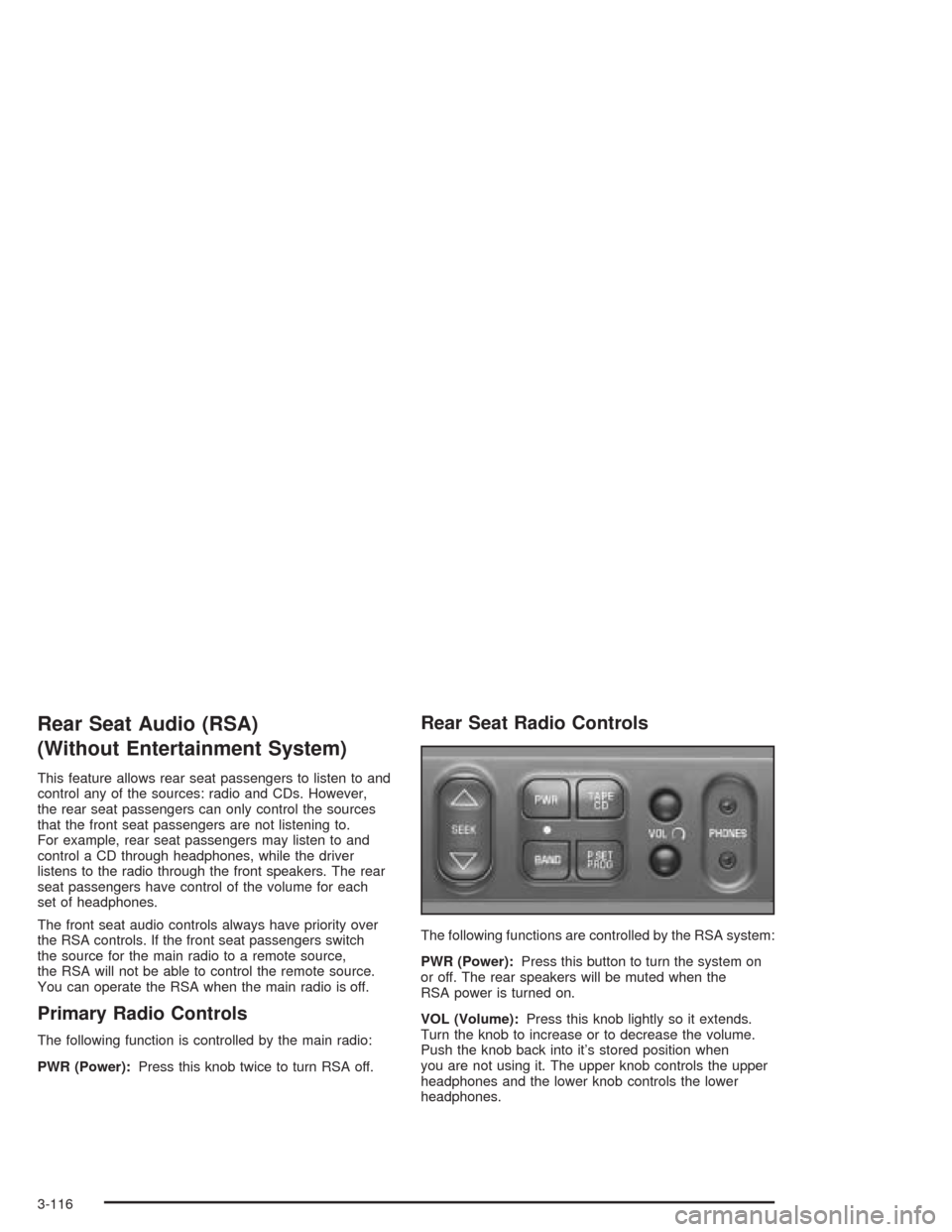
The following functions are controlled by the RSA system:
PWR (Power):Press this button to turn the system on
or off. The rear speakers will be muted when the
RSA power is turned on.
VOL (Volume):Press this knob lightly so it extends.
Turn the knob to increase or to decrease the volume.
Push the knob back into it’s stored position when
you are not using it. The upper knob controls the upper
headphones and the lower knob controls the lower
headphones.
3-116
Page 301 of 516
qr(Tune):When listening to the radio, press the
right or the left arrow to go to the next or the previous
station and stay there. This function is inactive if
the front seat passengers are listening to the radio.
When a CD is playing, press the right arrow to go to the
next track on the CD. Press the left arrow to go to the
start of the current track, if more than eight seconds
have played. This function is inactive if the front
seat passengers are listening to a CD.
P.SET SCAN (Preset Scan):Press and hold this
button to scan the preset radio stations set on the
pushbuttons on the main radio. The radio will go to a
preset station stored on the pushbuttons, play for a few
seconds, then go on to the next preset station. The
selected radio station will appear on the display above
the video screen. Press this button again to stop
scanning presets. This function is inactive if the front
seat passengers are listening to the radio.
When a CD is playing in the six-disc CD changer, press
this button to select the next CD, if multiple CDs are
loaded. This function is inactive if the front seat
passengers are listening to a CD.
CD TAPE:Press this button to switch between playing
a CD, a DVD, or an auxiliary device when the
headphones are on channel B. If one of the devices are
not loaded, the system will skip over the device when
this button is pressed.Theft-Deterrent Feature
(Non-RDS Radios)
THEFTLOCK®is designed to discourage theft of your
vehicle’s radio. The feature works automatically by
learning a portion of the Vehicle Identication Number
(VIN). If the radio is moved to a different vehicle, it
will not operate and LOCKED will appear on the display.
When the radio and vehicle are turned off, the blinking
red light indicates that THEFTLOCK
®is armed.
With THEFTLOCK
®activated, the radio will not operate
if stolen.
Theft-Deterrent Feature
(RDS Radios)
THEFTLOCK®is designed to discourage theft of your
vehicle’s radio. The feature works automatically by
learning a portion of the Vehicle Identication Number
(VIN). If the radio is moved to a different vehicle, it
will not operate and LOCKED will appear on the display.
When the ignition is off and RAP is not active, the
blinking red light indicates that THEFTLOCK
®is armed.
With THEFTLOCK
®activated, the radio will not
operate if stolen.
3-119
Page 303 of 516
Radio Reception
AM
The range for most AM stations is greater than for FM,
especially at night. The longer range can cause
station frequencies to interfere with each other. Static
can occur on AM stations caused by things like
storms and power lines. Try reducing the treble to
reduce this noise.
FM Stereo
FM stereo will give the best sound, but FM signals will
reach only about 10 to 40 miles (16 to 65 km). Tall
buildings or hills can interfere with FM signals, causing
the sound to fade in and out.
XM™ Satellite Radio Service
XM™ Satellite Radio Service gives digital radio
reception from coast to coast. Just as with FM, tall
buildings or hills can interfere with satellite radio signals,
causing the sound to fade in and out. The radio may
display NO SIGNAL to indicate interference.
Care of Your CDs and DVDs
Handle discs carefully. Store them in their original cases
or other protective cases and away from direct sunlight
and dust. If the surface of a disc is soiled, dampen
a clean, soft cloth in a mild, neutral detergent solution
and clean it, wiping from the center to the edge.
Be sure never to touch the side without writing when
handling discs. Pick up discs by grasping the outer
edges or the edge of the hole and the outer edge.
3-121
Page 304 of 516
Care of Your CD and DVD Player
The use of CD lens cleaners for CDs is not advised, due
to the risk of contaminating the lens of the CD optics
with lubricants internal to the CD mechanism.
Fixed Mast Antenna
The xed mast antenna can withstand most car washes
without being damaged. If the mast should ever
become slightly bent, straighten it out by hand. If the
mast is badly bent, replace it.
Check occasionally to make sure the mast is still
tightened to the fender. If tightening is required, tighten
by hand, then with a wrench one quarter turn.
XM™ Satellite Radio Antenna
System
The XM™ Satellite Radio antenna is located on the roof
of your vehicle. Keep this antenna clear of snow and
ice build up for clear radio reception.
Loading items onto the roof of your vehicle can interfere
with the performance of the XM™ system. Make sure
that the XM™ satellite antenna is not obstructed.
3-122
Page 311 of 516
Avoid needless heavy braking. Some people drive in
spurts — heavy acceleration followed by heavy
braking — rather than keeping pace with traffic. This is a
mistake. Your brakes may not have time to cool between
hard stops. Your brakes will wear out much faster if you
do a lot of heavy braking. If you keep pace with the traffic
and allow realistic following distances, you will eliminate a
lot of unnecessary braking. That means better braking
and longer brake life.
If your engine ever stops while you are driving, brake
normally but do not pump your brakes. If you do,
the pedal may get harder to push down. If your engine
stops, you will still have some power brake assist.
But you will use it when you brake. Once the power
assist is used up, it may take longer to stop and
the brake pedal will be harder to push.Anti-lock Brake System (ABS)
Your vehicle may have anti-lock brakes. ABS is an
advanced electronic braking system that will help
prevent a braking skid.
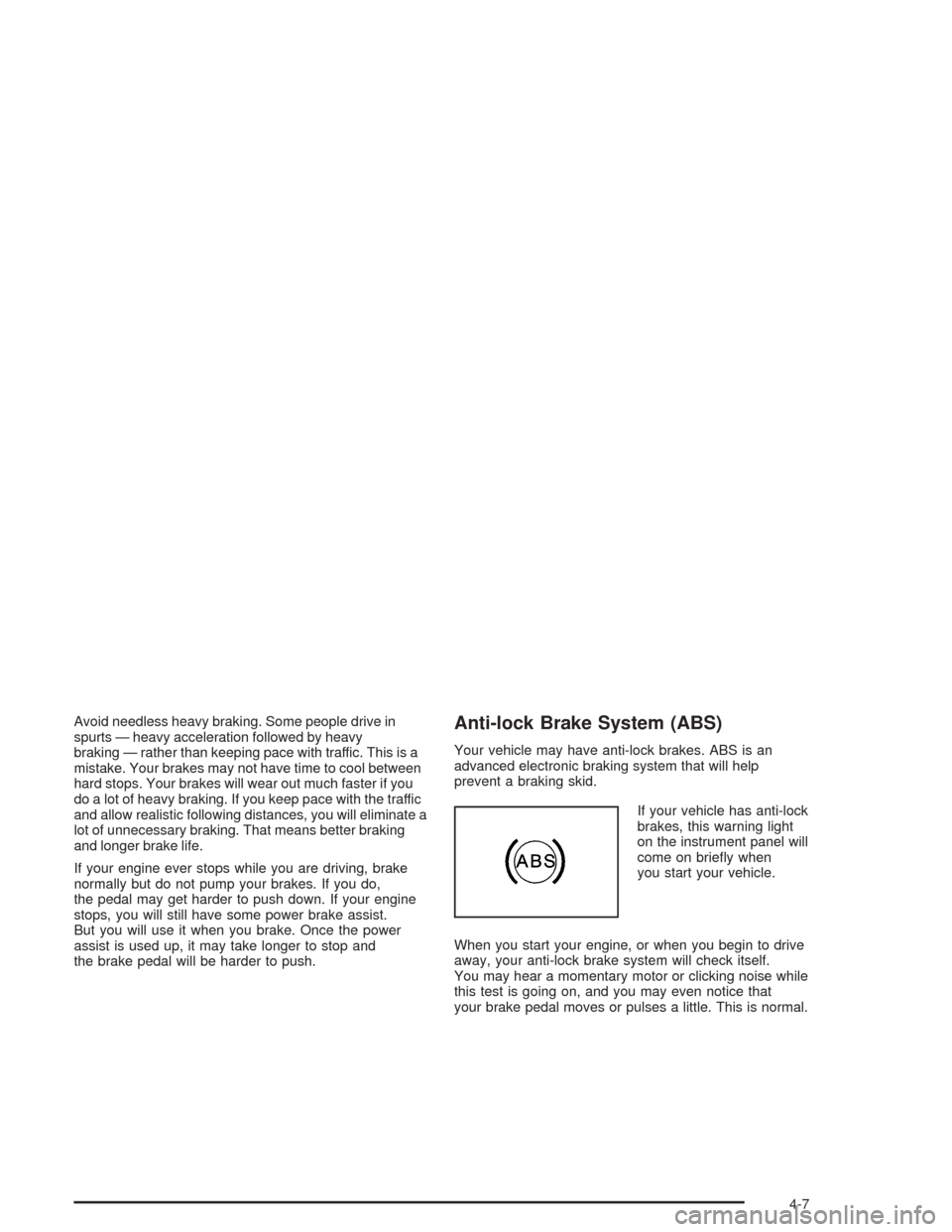
If your vehicle has anti-lock
brakes, this warning light
on the instrument panel will
come on briey when
you start your vehicle.
When you start your engine, or when you begin to drive
away, your anti-lock brake system will check itself.
You may hear a momentary motor or clicking noise while
this test is going on, and you may even notice that
your brake pedal moves or pulses a little. This is normal.
4-7