ESP CHEVROLET VOLT 2011 User Guide
[x] Cancel search | Manufacturer: CHEVROLET, Model Year: 2011, Model line: VOLT, Model: CHEVROLET VOLT 2011Pages: 516, PDF Size: 6.61 MB
Page 139 of 516
Black plate (19,1)Chevrolet Volt Owner Manual - 2011
Instruments and Controls 5-19
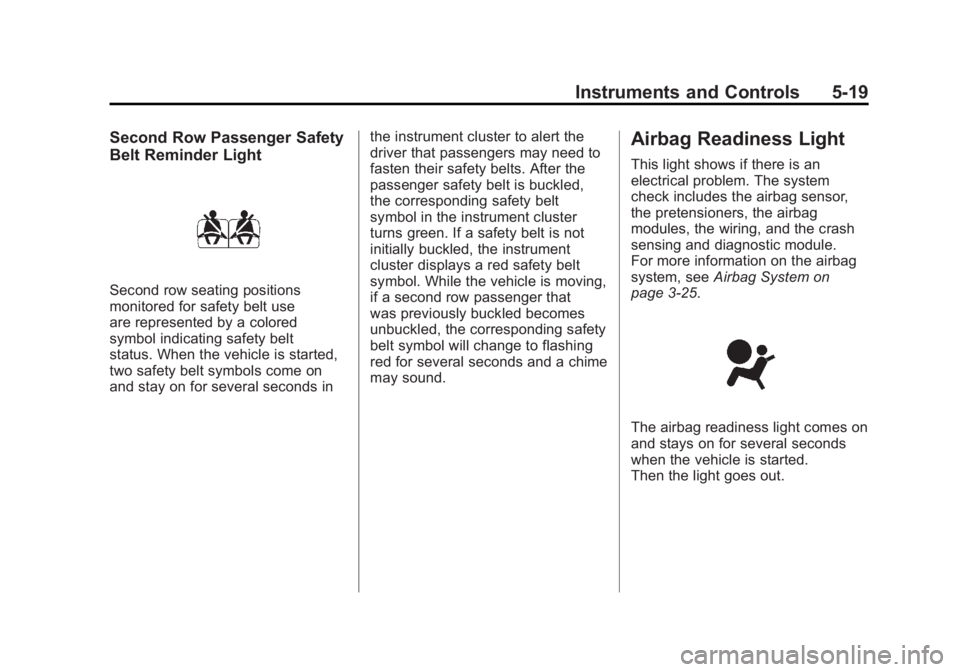
Second Row Passenger Safety
Belt Reminder Light
Second row seating positions
monitored for safety belt use
are represented by a colored
symbol indicating safety belt
status. When the vehicle is started,
two safety belt symbols come on
and stay on for several seconds inthe instrument cluster to alert the
driver that passengers may need to
fasten their safety belts. After the
passenger safety belt is buckled,
the corresponding safety belt
symbol in the instrument cluster
turns green. If a safety belt is not
initially buckled, the instrument
cluster displays a red safety belt
symbol. While the vehicle is moving,
if a second row passenger that
was previously buckled becomes
unbuckled, the corresponding safety
belt symbol will change to flashing
red for several seconds and a chime
may sound.
Airbag Readiness Light
This light shows if there is an
electrical problem. The system
check includes the airbag sensor,
the pretensioners, the airbag
modules, the wiring, and the crash
sensing and diagnostic module.
For more information on the airbag
system, see
Airbag System on
page 3‑25.
The airbag readiness light comes on
and stays on for several seconds
when the vehicle is started.
Then the light goes out.
Page 151 of 516
Black plate (31,1)Chevrolet Volt Owner Manual - 2011
Instruments and Controls 5-31
Information Displays
Center Stack Display
The center stack screen displays
Charging, Power Flow, and Energy
Information. See the information that
follows.
The Climate Control, Infotainment,
and Vehicle Personalization also
display information in this screen.
For more information on these
systems, see:
.Automatic Climate Control
System on page 8‑1.
.Infotainment on page 7‑2.
.Vehicle Personalization on
page 5‑53.
The center stack controls only need
a light touch to operate and work
best with bare hands. The controls
will work with most gloves although
they may take longer to respond. Use the finger pad rather than the
finger tip to minimize response time.
If the controls are not responding,
remove the gloves.To view the Power Flow, Charging,
and Energy Information, press
the
[button on the center stack.
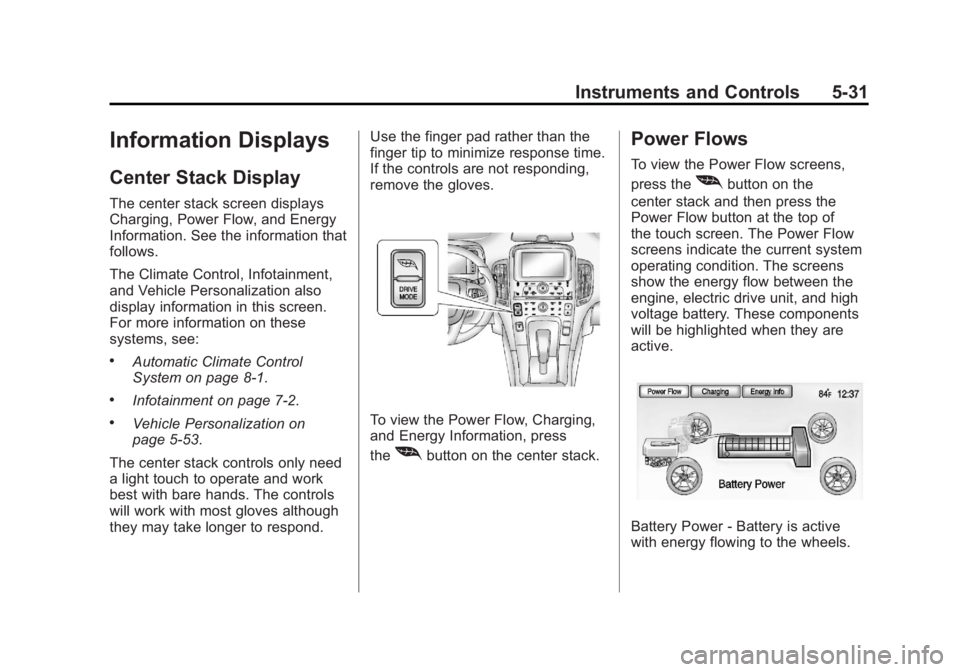
Power Flows
To view the Power Flow screens,
press the
[button on the
center stack and then press the
Power Flow button at the top of
the touch screen. The Power Flow
screens indicate the current system
operating condition. The screens
show the energy flow between the
engine, electric drive unit, and high
voltage battery. These components
will be highlighted when they are
active.
Battery Power ‐Battery is active
with energy flowing to the wheels.
Page 203 of 516
Black plate (13,1)Chevrolet Volt Owner Manual - 2011
Infotainment System 7-13
Auto Volume
Select OFF, Low, Medium, or High
sensitivity to automatically adjust
the volume to minimize the effects
of unwanted background noise
that can result from changing road
surfaces, driving speeds, or open
windows. This feature works best
at lower volume settings where
background noise is typically louder
than the sound system volume.
Number of Favorite Pages
Change the number of mixed-band
preset pages when using the FAV
button. Press 1-6 to select the
number of preset lists.
HDD FAV Pages (Number
of Favorite Categories for
HDD Mode)
Select the categories such as
Playlist, Artist, Album, and Genre
to be used as a favorite category
during HDD mode.Show/Hide XM Categories
Configure favorite categories to be
used during XM mode.
DivX Registration Code
Display the DivX registration code
used for DivX media playback.
Finding a Station
To select the band, see
“Audio
Source Menu” earlier in this section.
Turn the TUNE/MENU knob to find
a radio station. To select a preset
station, press the corresponding
preset button.
See “Mixed-Band Presets” later for
more information.
Seeking a Station
Press
rSEEK/SEEK[to search
for a station. Local Station List Search
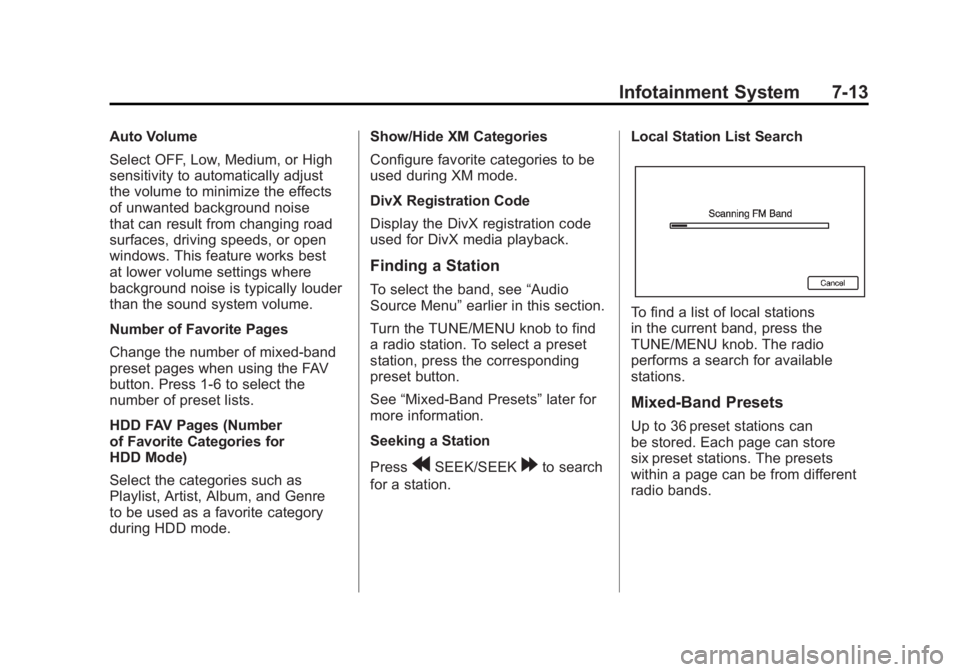
To find a list of local stations
in the current band, press the
TUNE/MENU knob. The radio
performs a search for available
stations.
Mixed-Band Presets
Up to 36 preset stations can
be stored. Each page can store
six preset stations. The presets
within a page can be from different
radio bands.
Page 207 of 516
Black plate (17,1)Chevrolet Volt Owner Manual - 2011
Infotainment System 7-17
No Title Info:The system is
working properly. No song title
information is available at this
time on this channel.
No CAT Info: The system is
working properly. No category
information is available at this
time on this channel.
No Information: The system
is working properly. No text or
informational messages are
available at this time on this
channel.
No XM Signal: The system is
working properly. The vehicle may
be in a location where the XM signal
is being blocked. When the vehicle
is moved into an open area, the
signal should return. CAT Not Found:
The system is
working properly. There are no
channels available for the selected
category.
XM Radio ID: If tuned to channel 0,
this message alternates with the
XM radio eight‐digit radio ID label.
This label is needed to activate the
service.
Unknown: If this message is
received when tuned to channel 0,
there could be a receiver fault.
Consult with your dealer.
Check Antenna: If this message
does not clear within a short period
of time, the receiver could have a
fault. Consult with your dealer.
XM Not Available: If this message
does not clear within a short period
of time, the receiver could have a
fault. Consult with your dealer.Radio Reception
Frequency interference and static
can occur during normal radio
reception if items such as cell phone
chargers, vehicle convenience
accessories, and external electronic
devices are plugged into the
accessory power outlet. If there is
interference or static, unplug the
item from the accessory power
outlet.
FM
FM signals only reach about 16 to
65 km (10 to 40 mi). Although the
radio has a built-in electronic circuit
that automatically works to reduce
interference, some static can occur,
especially around tall buildings or
hills, causing the sound to fade in
and out.
Page 208 of 516

Black plate (18,1)Chevrolet Volt Owner Manual - 2011
7-18 Infotainment System
AM
The range for most AM stations is
greater than for FM, especially at
night. The longer range can cause
station frequencies to interfere with
each other. Static can occur when
things like storms and power lines
interfere with radio reception. When
this happens, try reducing the treble
on the radio.
XM™Satellite Radio Service
XM Satellite Radio Service gives
digital radio reception from coast
to coast in the 48 contiguous
United States, and in Canada.
Just as with FM, tall buildings or
hills can interfere with satellite radio
signals, causing the sound to fade
in and out. In addition, traveling
or standing under heavy foliage,
bridges, garages, or tunnels may
cause loss of the XM signal for a
period of time.
Cellular Phone Usage
Cellular phone usage can cause
interference with the vehicle's radio.
Multi-Band Antenna
The multi-band antenna is on the
roof of the vehicle. The antenna
is used for the AM‐FM radio,
OnStar, the XM Satellite Radio
Service System, and GPS (Global
Positioning System), if the vehicle
has these features. Keep the
antenna clear of obstructions
for clear reception.
Audio Players
CD/DVD Player
The player can be used for CD,
MP3, and DVD audio, and as a
DVD video player.
With the vehicle on, insert a
CD/DVD into the slot, label side
up. The player pulls it in and
begins playing. While playing,
the navigation system is available.
The vehicle must be in P (Park) for
video to display.
The DVD player is only compatible
with DVDs of the appropriate region
code printed on the jacket of
most DVDs.
Page 215 of 516
Black plate (25,1)Chevrolet Volt Owner Manual - 2011
Infotainment System 7-25
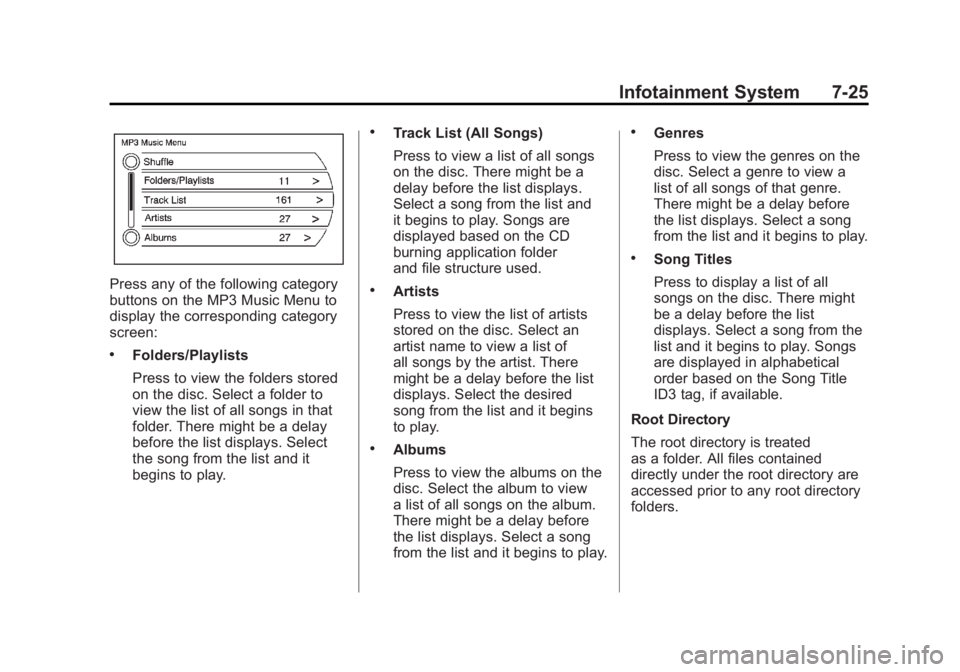
Press any of the following category
buttons on the MP3 Music Menu to
display the corresponding category
screen:
.Folders/Playlists
Press to view the folders stored
on the disc. Select a folder to
view the list of all songs in that
folder. There might be a delay
before the list displays. Select
the song from the list and it
begins to play.
.Track List (All Songs)
Press to view a list of all songs
on the disc. There might be a
delay before the list displays.
Select a song from the list and
it begins to play. Songs are
displayed based on the CD
burning application folder
and file structure used.
.Artists
Press to view the list of artists
stored on the disc. Select an
artist name to view a list of
all songs by the artist. There
might be a delay before the list
displays. Select the desired
song from the list and it begins
to play.
.Albums
Press to view the albums on the
disc. Select the album to view
a list of all songs on the album.
There might be a delay before
the list displays. Select a song
from the list and it begins to play.
.Genres
Press to view the genres on the
disc. Select a genre to view a
list of all songs of that genre.
There might be a delay before
the list displays. Select a song
from the list and it begins to play.
.Song Titles
Press to display a list of all
songs on the disc. There might
be a delay before the list
displays. Select a song from the
list and it begins to play. Songs
are displayed in alphabetical
order based on the Song Title
ID3 tag, if available.
Root Directory
The root directory is treated
as a folder. All files contained
directly under the root directory are
accessed prior to any root directory
folders.
Page 220 of 516
Black plate (30,1)Chevrolet Volt Owner Manual - 2011
7-30 Infotainment System
All Songs:
1. Press to view a list of all songson the hard drive.
2. Select a song from the list. Once selected, All Songs Mode
displays.
Genres:
1. Press to view the genres on the hard drive.
2. Select a genre to view a list of all songs of that genre.
3. Select a song from the list. Once selected, Genre Mode displays.
Recently Saved: Press to view a
list of the 50 most recently saved
songs to the HDD. Once selected,
Recently Saved Mode displays. Saving HDD Favorites
During HDD playback, to save the
current song playing to a category
preset:
1. Press the FAV button until the
FAV playlist category displays.
2. Press and hold a preset button on the bottom of the screen until
the Saved to Favorites message
displays.
To save an entire Artist, Album,
or Genre to a FAV category preset:
1. Press the FAV button until the correct FAV category appears.
2. Press and hold a preset button on the bottom of the screen.Playing HDD Favorites
Favorites can be played two
different ways:
.Press the FAV button until the
appropriate FAV HDD category
displays. Press a preset button
at the bottom of the FAV HDD
screen.
.Select FAV from the HDD
Music Menu. Favorite Artist,
Album, and Genre are in the
corresponding list.
Page 223 of 516
Black plate (33,1)Chevrolet Volt Owner Manual - 2011
Infotainment System 7-33
Eject USB:Press when the USB
is to be removed. If the USB is
disconnected without selecting
Eject USB, the files could become
corrupted.
Playing from an iPod®
This feature supports the following
iPod models:
.iPod (fifth generation or later)
.iPod nano (first, second, third,
fourth, and fifth generation)
.iPod classic
.iPod touch (first and second
generation) For proper operation, make sure
the iPod has the latest firmware
from Apple
®. iPod firmware can be
updated using the latest iTunes®
application. For more information,
visit www.apple.com/itunes.
Recording from the iPod to the
HDD is not supported. Media must
be recorded using a USB mass
storage device.
To connect and control an iPod,
connect one end of the standard
iPod USB cable to the iPod's dock
connector. Connect the other end to
the USB port in the center console.
iPod music information displays
on the radio’s display and begins
playing through the vehicle’s audio
system.
The iPod battery recharges
automatically while the vehicle
is on. When the vehicle is off while
an iPod is connected using the iPod
USB cable, the iPod battery stops
charging and the iPod automatically
turns off. If the iPod is an unsupported
model, it can still be listened to
in the vehicle by connecting to
the auxiliary input jack using a
standard 3.5 mm (1/8 in) stereo
cable. See
Auxiliary Devices on
page 7‑38 for more information.
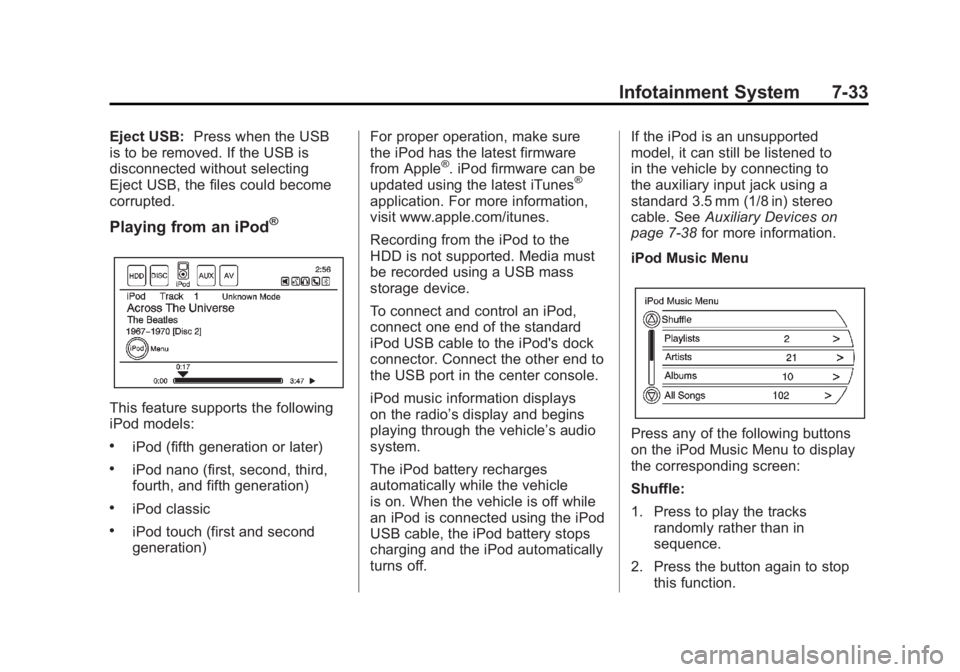
iPod Music Menu
Press any of the following buttons
on the iPod Music Menu to display
the corresponding screen:
Shuffle:
1. Press to play the tracks randomly rather than in
sequence.
2. Press the button again to stop this function.
Page 267 of 516
Black plate (77,1)Chevrolet Volt Owner Manual - 2011
Infotainment System 7-77
Database Coverage
Explanations
Coverage areas vary with respect to
the level of map detail available for
any given area. Some areas feature
greater levels of detail than others.
If this happens, it does not mean
there is a problem with the system.
As the map data is updated, more
detail can become available for
areas which previously had limited
detail. SeeOrdering Map DVDs on
page 7‑76 for more information.
Voice Recognition
The navigation system's voice
recognition allows for hands-free
operation of the navigation system
and the audio system features.
Voice recognition only works if the
map database is installed in the
system.
If the radio is off, the only
commands would be Hands
Free and Help.
Navigation voice commands are not
available until the I Agree button
has been selected.
Voice recognition can be used when
the vehicle is on or when Retained
Accessory Power (RAP) is active.
SeeRetained Accessory Power
(RAP) on page 9‑22 for more
information.
Using Voice Recognition
1. Press and release theb g
steering wheel button. The audio
system mutes, and a beep is
heard. A voice prompt stating,
“Please start speaking after the
beep” might be heard.
If there is no beep, make sure
that the voice volume setting is
not turned down. See Configure
Menu on page 7‑66 for more
information.
While voice recognition is active,
the system displays a
gsymbol.
2. Clearly speak one of the commands listed later in this
section.
Page 268 of 516
Black plate (78,1)Chevrolet Volt Owner Manual - 2011
7-78 Infotainment System
Canceling Voice Recognition
1. Press and release the$i
steering wheel button to cancel
a command, or if the system
response does not match the
verbal command.
2. The system replies, “Voice
recognition canceled.”
Pressing any other radio or
steering wheel control, other
than the volume knob or the
volume steering wheel button
cancels the session.
3. Press and release the
b g
steering wheel button to restart
the voice recognition session.
Helpful Hints for Speaking
Commands
.When multiple commands are
available, choose the command
that best works for you.
.Words that are in brackets are
optional. For example, for the
command “Radio (band) FM,”
saying “Radio FM” or“Radio
Band FM” are both valid
commands.
.Words separated by a ( / ) mean
there is a choice of using a
word on either side of the slash.
For example, for the command
(CD/DVD/Disc) (help), you can
say “CD (help)” or“DVD (help)”
or “Disc (help).”
.When the system recognizes the
command, the system will either
perform the function or ask to
confirm the choice by clearly
saying “yes”or“no.”
.When the system does not
recognize the command,
the system issues an error
message such as “pardon”
or “command not recognized.”
The system could also say,
“voice recognition canceled.”
.If experiencing difficulty with the
system recognizing a command,
confirm that the command is
correct. Try saying the command
clearly or wait for a brief moment
after the beep.
.Background noise such as a
climate control fan positioned
on high, open windows, and
very loud outside noises, even
if the windows are closed, can
cause voice commands to be
misunderstood.