phone CHEVROLET VOLT 2011 User Guide
[x] Cancel search | Manufacturer: CHEVROLET, Model Year: 2011, Model line: VOLT, Model: CHEVROLET VOLT 2011Pages: 516, PDF Size: 6.61 MB
Page 192 of 516
Black plate (2,1)Chevrolet Volt Owner Manual - 2011
7-2 Infotainment System
Introduction
Infotainment
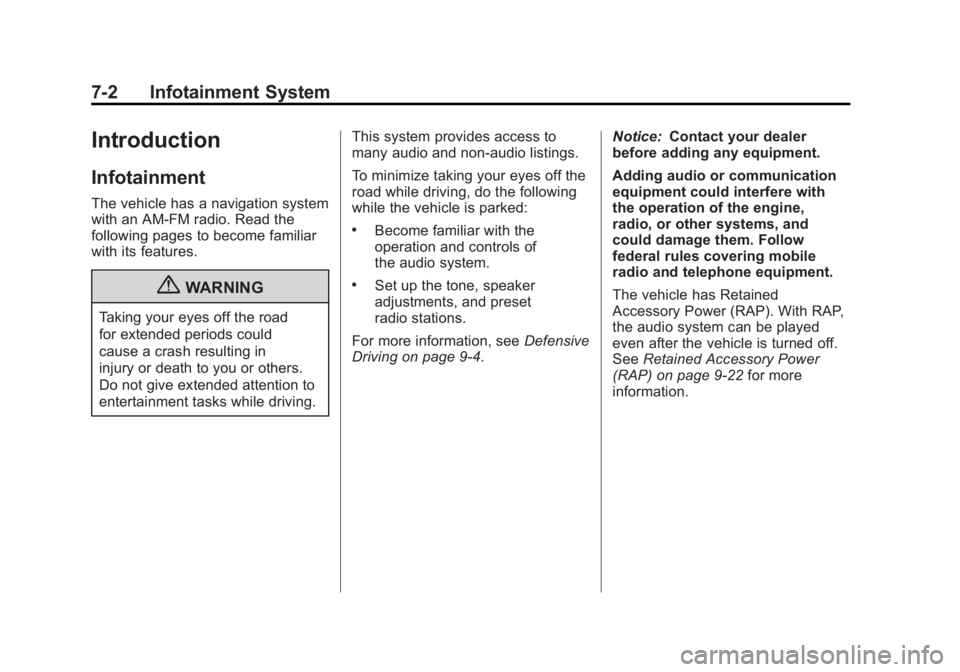
The vehicle has a navigation system
with an AM-FM radio. Read the
following pages to become familiar
with its features.
{WARNING
Taking your eyes off the road
for extended periods could
cause a crash resulting in
injury or death to you or others.
Do not give extended attention to
entertainment tasks while driving.This system provides access to
many audio and non‐audio listings.
To minimize taking your eyes off the
road while driving, do the following
while the vehicle is parked:
.Become familiar with the
operation and controls of
the audio system.
.Set up the tone, speaker
adjustments, and preset
radio stations.
For more information, see Defensive
Driving on page 9‑4. Notice:
Contact your dealer
before adding any equipment.
Adding audio or communication
equipment could interfere with
the operation of the engine,
radio, or other systems, and
could damage them. Follow
federal rules covering mobile
radio and telephone equipment.
The vehicle has Retained
Accessory Power (RAP). With RAP,
the audio system can be played
even after the vehicle is turned off.
See Retained Accessory Power
(RAP) on page 9‑22 for more
information.
Page 194 of 516

Black plate (4,1)Chevrolet Volt Owner Manual - 2011
7-4 Infotainment System
A. RADIO BAND (AM, FM, XM)
B. HDD/DVD/AUX (Source)
C. FAV (Favorite)
D. TUNE/MENU
E.
}BACK
F. TONE
G. CONFIG (Configuration)
H.
rSEEK/SEEK[
I.V/0(Phone/Mute)
J. TP (Time Program)
K. DEL (Delete)
L.
OREC (Record)
M.
k(Play/Pause)
N. VOL/
O(Volume/Power)
O. INFO (Information)
P. DEST (Destination)
Q. NAV (Navigation)
R. RPT (Repeat)
Page 195 of 516

Black plate (5,1)Chevrolet Volt Owner Manual - 2011
Infotainment System 7-5
S. AS1-2 (Autostore)
T.
X(Eject)
NAV (Navigation) Menu
Use the Navigation Menu screen
to access the navigation system
settings. SeeUsing the Navigation
System on page 7‑39 for more
information.
.Press the NAV button to view
the navigation map screen.
The map and the current
vehicle location display.
.Press the NAV button to change
between a map/audio split view
or a full map view.
Config Setup Menu
Press the CONFIG button to display
the Config Menu. The Config Menu
is used for changing the settings for
the audio, navigation display, phone,
vehicle configuration, and time
features.
Turn the TUNE/MENU knob to scroll
through the available setup features.
Once the desired feature displays,
press the TUNE/MENU knob or
press the desired feature on the
screen, to display more options
within that feature.
Page 207 of 516
Black plate (17,1)Chevrolet Volt Owner Manual - 2011
Infotainment System 7-17
No Title Info:The system is
working properly. No song title
information is available at this
time on this channel.
No CAT Info: The system is
working properly. No category
information is available at this
time on this channel.
No Information: The system
is working properly. No text or
informational messages are
available at this time on this
channel.
No XM Signal: The system is
working properly. The vehicle may
be in a location where the XM signal
is being blocked. When the vehicle
is moved into an open area, the
signal should return. CAT Not Found:
The system is
working properly. There are no
channels available for the selected
category.
XM Radio ID: If tuned to channel 0,
this message alternates with the
XM radio eight‐digit radio ID label.
This label is needed to activate the
service.
Unknown: If this message is
received when tuned to channel 0,
there could be a receiver fault.
Consult with your dealer.
Check Antenna: If this message
does not clear within a short period
of time, the receiver could have a
fault. Consult with your dealer.
XM Not Available: If this message
does not clear within a short period
of time, the receiver could have a
fault. Consult with your dealer.Radio Reception
Frequency interference and static
can occur during normal radio
reception if items such as cell phone
chargers, vehicle convenience
accessories, and external electronic
devices are plugged into the
accessory power outlet. If there is
interference or static, unplug the
item from the accessory power
outlet.
FM
FM signals only reach about 16 to
65 km (10 to 40 mi). Although the
radio has a built-in electronic circuit
that automatically works to reduce
interference, some static can occur,
especially around tall buildings or
hills, causing the sound to fade in
and out.
Page 208 of 516

Black plate (18,1)Chevrolet Volt Owner Manual - 2011
7-18 Infotainment System
AM
The range for most AM stations is
greater than for FM, especially at
night. The longer range can cause
station frequencies to interfere with
each other. Static can occur when
things like storms and power lines
interfere with radio reception. When
this happens, try reducing the treble
on the radio.
XM™Satellite Radio Service
XM Satellite Radio Service gives
digital radio reception from coast
to coast in the 48 contiguous
United States, and in Canada.
Just as with FM, tall buildings or
hills can interfere with satellite radio
signals, causing the sound to fade
in and out. In addition, traveling
or standing under heavy foliage,
bridges, garages, or tunnels may
cause loss of the XM signal for a
period of time.
Cellular Phone Usage
Cellular phone usage can cause
interference with the vehicle's radio.
Multi-Band Antenna
The multi-band antenna is on the
roof of the vehicle. The antenna
is used for the AM‐FM radio,
OnStar, the XM Satellite Radio
Service System, and GPS (Global
Positioning System), if the vehicle
has these features. Keep the
antenna clear of obstructions
for clear reception.
Audio Players
CD/DVD Player
The player can be used for CD,
MP3, and DVD audio, and as a
DVD video player.
With the vehicle on, insert a
CD/DVD into the slot, label side
up. The player pulls it in and
begins playing. While playing,
the navigation system is available.
The vehicle must be in P (Park) for
video to display.
The DVD player is only compatible
with DVDs of the appropriate region
code printed on the jacket of
most DVDs.
Page 228 of 516
Black plate (38,1)Chevrolet Volt Owner Manual - 2011
7-38 Infotainment System
Changing Chapters within an
Audio Book
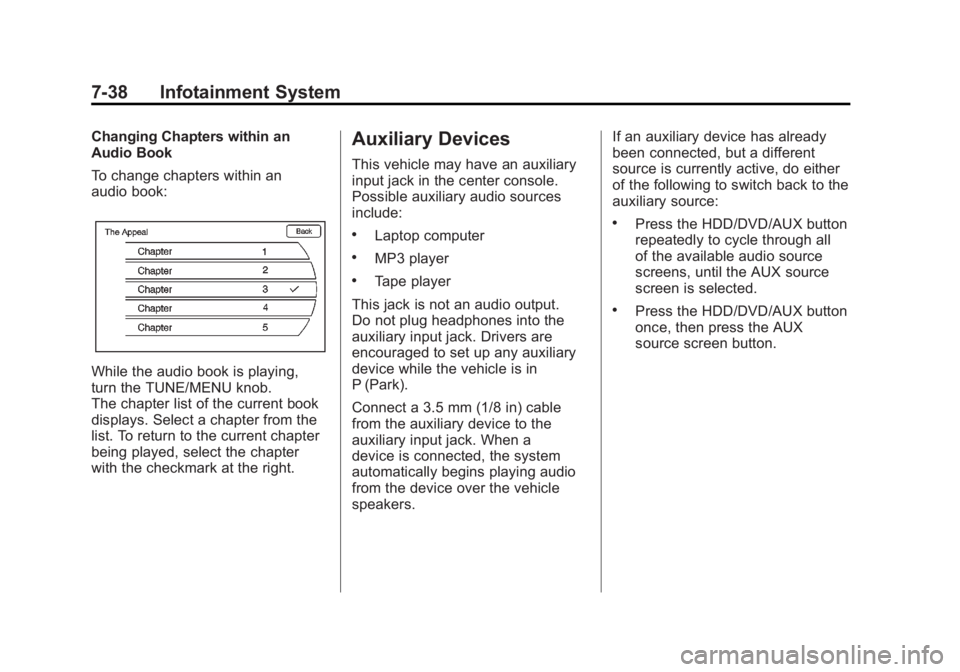
To change chapters within an
audio book:
While the audio book is playing,
turn the TUNE/MENU knob.
The chapter list of the current book
displays. Select a chapter from the
list. To return to the current chapter
being played, select the chapter
with the checkmark at the right.
Auxiliary Devices
This vehicle may have an auxiliary
input jack in the center console.
Possible auxiliary audio sources
include:
.Laptop computer
.MP3 player
.Tape player
This jack is not an audio output.
Do not plug headphones into the
auxiliary input jack. Drivers are
encouraged to set up any auxiliary
device while the vehicle is in
P (Park).
Connect a 3.5 mm (1/8 in) cable
from the auxiliary device to the
auxiliary input jack. When a
device is connected, the system
automatically begins playing audio
from the device over the vehicle
speakers. If an auxiliary device has already
been connected, but a different
source is currently active, do either
of the following to switch back to the
auxiliary source:
.Press the HDD/DVD/AUX button
repeatedly to cycle through all
of the available audio source
screens, until the AUX source
screen is selected.
.Press the HDD/DVD/AUX button
once, then press the AUX
source screen button.
Page 229 of 516
Black plate (39,1)Chevrolet Volt Owner Manual - 2011
Infotainment System 7-39
Navigation
Using the Navigation
System
Read this section thoroughly to
become familiar with how the
navigation system operates.
Keeping your eyes on the road and
your mind on driving is important for
safe driving. The navigation system
has built-in features intended to
help do this. Some features may be
disabled while driving. A grayed-out
function indicates it is not available
when the vehicle is moving.
All functions are available when the
vehicle is parked. Do the following
before driving:
.Become familiar with the
navigation system operation,
buttons on the faceplate, and
touch-sensitive screen buttons
of the navigation system.
.Set up the audio by presetting
favorite stations, setting the
tone, and adjusting the
speakers.
.Set up the navigation features
before beginning to drive, such
as entering an address or a
preset destination.
.For vehicles equipped with
phone capability, set up phone
numbers in advance so they
can be called with the press
of a single button or a single
voice command.
{WARNING
Taking your eyes off the road too
long or too often while using the
navigation system could cause a
crash resulting in injury or death
to you or others. Focus your
attention on driving.
{WARNING
Avoid looking too long or too
often at the moving map on the
navigation screen. This could
cause a crash and you or others
can be injured or killed. Use the
turn-by-turn voice guidance
directions whenever possible.
Use the navigation system to:
.Plan a route by selecting a
destination using the various
methods and choices.
.Follow turn-by-turn instructions
and map guidance with voice
prompts, when permitted by
traffic laws, controls, and
conditions.
.Receive RDS broadcast
announcements.
Page 230 of 516
Black plate (40,1)Chevrolet Volt Owner Manual - 2011
7-40 Infotainment System
Always be alert and obey traffic
and roadway laws and instructions,
regardless of the guidance from
the navigation system. Because
the navigation system uses street
map information that does not
include all traffic restrictions or
the latest road changes, it may
suggest using a road that is now
closed for construction or a turn
that is prohibited by signs at the
intersection. Because the system
uses limited information, always
evaluate whether following the
system's directions is safe and
legal for the current conditions.
Use the buttons on the navigation
system and the available screen
buttons on the navigation screen to
operate the system. SeeOverview
on page 7‑3.
Various functions are disabled when
the vehicle is moving.Infotainment Control Buttons
The buttons on the faceplate are
used to start primary functions
while using the infotainment system.
See Overview on page 7‑3. These
buttons are:
RADIO BAND: Press to select AM,
FM, or XM, if equipped.
HDD/DVD/AUX (Source): Change
to the Hard Drive, CD, DVD, USB,
or AUX by pressing the HDD/DVD/
AUX button until the desired source
is selected.
The audio sources can also be
changed by using the steering
wheel controls. See Steering Wheel
Controls on page 5‑6 for more
information.
FAV (Favorites): Press to display
the current page number above the
preset buttons. The stored stations
for each list display on the preset
buttons at the bottom of the touch
screen. The number of preset FAV
lists can be changed. TUNE/MENU:
Turn to highlight
a feature. Press to activate the
highlighted feature.
}BACK: Press to return to
the previous screen in a menu.
The
}BACK button does not work
in primary screens, such as the
map, audio, leaf, or climate screens.
TONE: Press to open the tone
menu for sound adjustment.
CONFIG (Configure): Press to
adjust features for radio, navigation,
display, phone, vehicle, and time.
See Configure Menu on page 7‑66
for more information.
SEEK
[:
1. Press to seek to the next track or chapter.
2. Press and hold to advance quickly through playback.
3. Release the button to return to playing speed. Elapsed time
displays.
Page 231 of 516
Black plate (41,1)Chevrolet Volt Owner Manual - 2011
Infotainment System 7-41
rSEEK:
1. Press to seek to the beginning of the current or previous track or
chapter. If the track or chapter
has been playing for less than
five seconds, the previous track
or chapter plays. If playing
longer than five seconds, the
current track or chapter restarts.
2. Press and hold to reverse quickly through playback.
Release the button to return
to playing speed. Elapsed
time displays.
V/0(Phone): SeeBluetooth on
page 7‑85 for more information.
k(Play/Pause): Press to start,
pause, or resume play of the current
media source.
TP (Time Program): Press
to display the Time settings.
This button can be pressed to
quickly go to the Time menu instead
of pathing through the Config
menu and the TUNE/MENU knob. Adjust the time as needed. See
Configure Menu on page 7‑66
later
in this section.
OREC (Record): Press to record
from a CD player or a mass media
storage device connected by a USB
connector.
DEL (Delete): Press to delete XM
categories and information from the
hard drive.
VOL/
O(Volume/Power): Press to
turn the system on and off. Turn this
knob to adjust the volume for the
audio, OnStar, voice guidance, and
voice recognition voice prompts.
DEST (Destination): Press to
plan a route through the Select
Destination menu. If route guidance
is active, press to access the
Route menu. See Destination on
page 7‑51 for more information. NAV (Navigation):
Press to view
the vehicle's current position on
the map screen. Continue pressing
to cycle through the full map and
split screen. Full Map displays the
screen in full view; Split Screen
displays both map and audio
information.
INFO (Information): Press for
weather information, if equipped,
and climate control displays,
if equipped.
RPT (Navigation Repeat): Press
to repeat the last voice guidance
prompt.
AS1–2 (Autostore): The stations
that can be received best in an AM
or FM band can be searched for
and stored automatically through the
autostore function. Each band has
two autostore lists (AS 1, AS 2), in
each of which six stations can be
stored. To update station list press
and hold AS 1-2 button for more
than two seconds.
X(CD/DVD Eject): Press to eject
a CD or a DVD.
Page 243 of 516
Black plate (53,1)Chevrolet Volt Owner Manual - 2011
Infotainment System 7-53
3. Select the street name field.Enter the street name. Do not
enter directional information
or street type. Use the space
screen button between street
and city names. Use the
backspace
qscreen button to
delete an incorrect character.
A list displays if four or fewer
names are available. If there
are more than four, there is a
match counter with a number
of available streets. Press the
List screen button to view the
list and select the street.
4. Select the city from the list or enter the city name.
5. Enter the house number. This field is automatically
selected.
6. Press the OK screen button. 7. Press Go located on the
confirmation screen if the
information is correct.
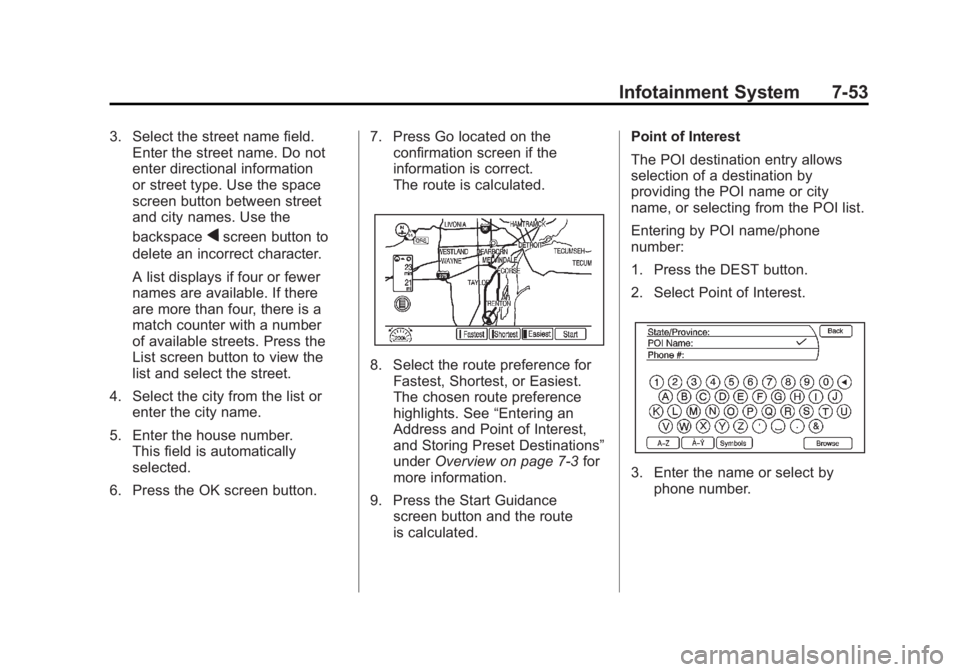
The route is calculated.
8. Select the route preference for
Fastest, Shortest, or Easiest.
The chosen route preference
highlights. See “Entering an
Address and Point of Interest,
and Storing Preset Destinations”
under Overview on page 7‑3 for
more information.
9. Press the Start Guidance screen button and the route
is calculated. Point of Interest
The POI destination entry allows
selection of a destination by
providing the POI name or city
name, or selecting from the POI list.
Entering by POI name/phone
number:
1. Press the DEST button.
2. Select Point of Interest.
3. Enter the name or select by
phone number.