change time CHEVROLET VOLT 2012 1.G User Guide
[x] Cancel search | Manufacturer: CHEVROLET, Model Year: 2012, Model line: VOLT, Model: CHEVROLET VOLT 2012 1.GPages: 454, PDF Size: 7.89 MB
Page 187 of 454
Black plate (1,1)Chevrolet Volt Owner Manual - 2012
Lighting 6-1
Lighting
Exterior Lighting
Exterior Lamp Controls . . . . . . . . 6-1
Headlamp High/Low-BeamChanger . . . . . . . . . . . . . . . . . . . . . 6-2
Flash-to-Pass . . . . . . . . . . . . . . . . . 6-2
Daytime Running Lamps (DRL) . . . . . . . . . . . . . . . . 6-2
Hazard Warning Flashers . . . . . 6-3
Turn and Lane-Change Signals . . . . . . . . . . . . . . . . . . . . . . 6-4
Interior Lighting
Instrument Panel IlluminationControl . . . . . . . . . . . . . . . . . . . . . . 6-4
Dome Lamps . . . . . . . . . . . . . . . . . 6-5
Reading Lamps . . . . . . . . . . . . . . . 6-5
Lighting Features
Entry Lighting . . . . . . . . . . . . . . . . . 6-6
Exit Lighting . . . . . . . . . . . . . . . . . . . 6-6
Battery Power Protection . . . . . . 6-6
Exterior Lighting
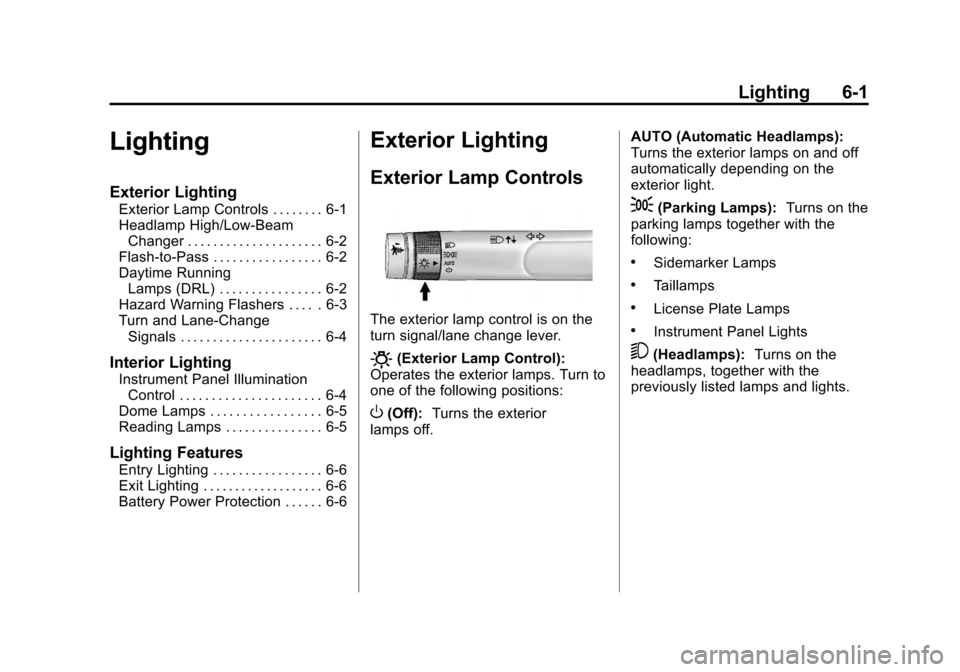
Exterior Lamp Controls
The exterior lamp control is on the
turn signal/lane change lever.
O(Exterior Lamp Control):
Operates the exterior lamps. Turn to
one of the following positions:
O(Off): Turns the exterior
lamps off. AUTO (Automatic Headlamps):
Turns the exterior lamps on and off
automatically depending on the
exterior light.
;(Parking Lamps):
Turns on the
parking lamps together with the
following:
.Sidemarker Lamps
.Taillamps
.License Plate Lamps
.Instrument Panel Lights
5(Headlamps): Turns on the
headlamps, together with the
previously listed lamps and lights.
Page 188 of 454
Black plate (2,1)Chevrolet Volt Owner Manual - 2012
6-2 Lighting
Headlamp High/
Low-Beam Changer
2 3
Headlamp High/Low‐Beam
Changer: Push the turn signal/lane
change lever away from you and
release, to turn the high beams on.
To return to low beams, push the
lever again or pull it toward you and
release.
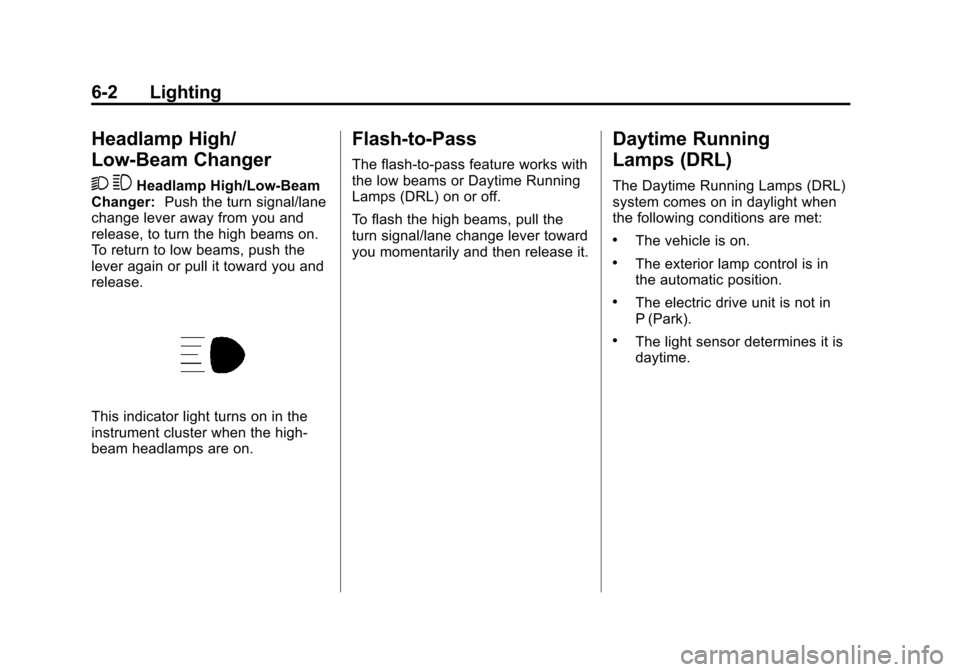
This indicator light turns on in the
instrument cluster when the high‐
beam headlamps are on.
Flash-to-Pass
The flash‐to‐pass feature works with
the low beams or Daytime Running
Lamps (DRL) on or off.
To flash the high beams, pull the
turn signal/lane change lever toward
you momentarily and then release it.
Daytime Running
Lamps (DRL)
The Daytime Running Lamps (DRL)
system comes on in daylight when
the following conditions are met:
.The vehicle is on.
.The exterior lamp control is in
the automatic position.
.The electric drive unit is not in
P (Park).
.The light sensor determines it is
daytime.
Page 190 of 454
Black plate (4,1)Chevrolet Volt Owner Manual - 2012
6-4 Lighting
Turn and Lane-Change
Signals
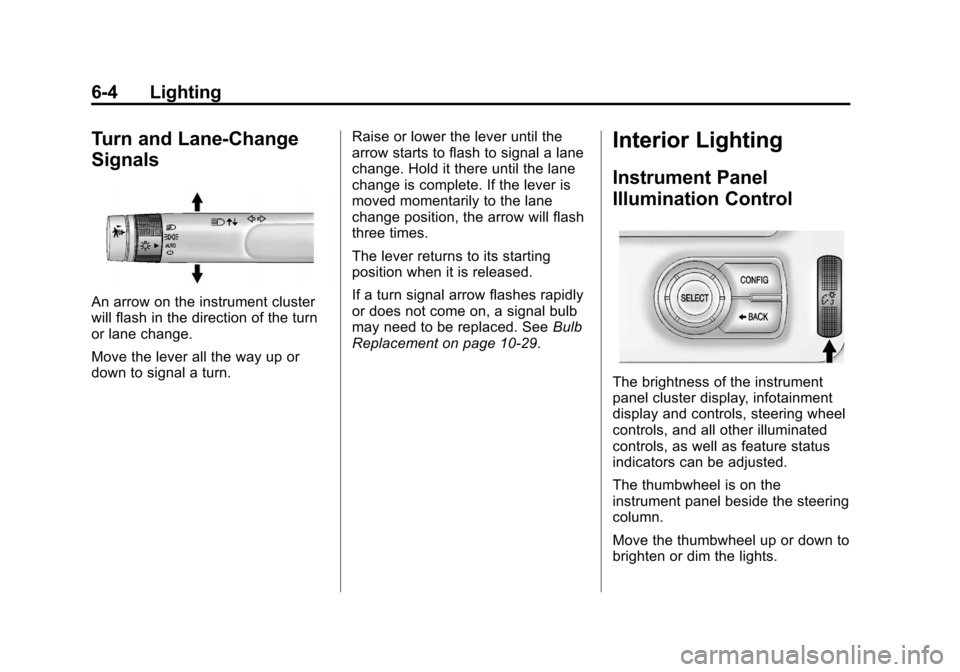
An arrow on the instrument cluster
will flash in the direction of the turn
or lane change.
Move the lever all the way up or
down to signal a turn.Raise or lower the lever until the
arrow starts to flash to signal a lane
change. Hold it there until the lane
change is complete. If the lever is
moved momentarily to the lane
change position, the arrow will flash
three times.
The lever returns to its starting
position when it is released.
If a turn signal arrow flashes rapidly
or does not come on, a signal bulb
may need to be replaced. See
Bulb
Replacement on page 10‑29.
Interior Lighting
Instrument Panel
Illumination Control
The brightness of the instrument
panel cluster display, infotainment
display and controls, steering wheel
controls, and all other illuminated
controls, as well as feature status
indicators can be adjusted.
The thumbwheel is on the
instrument panel beside the steering
column.
Move the thumbwheel up or down to
brighten or dim the lights.
Page 197 of 454
Black plate (5,1)Chevrolet Volt Owner Manual - 2012
Infotainment System 7-5
Infotainment Control Buttons
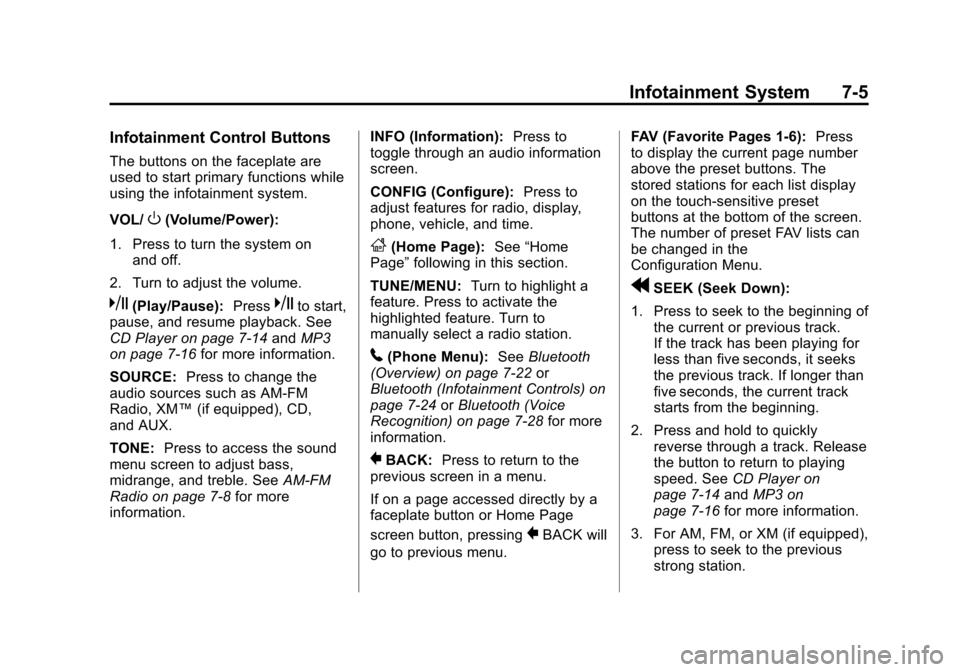
The buttons on the faceplate are
used to start primary functions while
using the infotainment system.
VOL/
O(Volume/Power):
1. Press to turn the system on and off.
2. Turn to adjust the volume.
k(Play/Pause): Presskto start,
pause, and resume playback. See
CD Player on page 7‑14 andMP3
on page 7‑16 for more information.
SOURCE: Press to change the
audio sources such as AM-FM
Radio, XM™ (if equipped), CD,
and AUX.
TONE: Press to access the sound
menu screen to adjust bass,
midrange, and treble. See AM-FM
Radio on page 7‑8 for more
information. INFO (Information):
Press to
toggle through an audio information
screen.
CONFIG (Configure): Press to
adjust features for radio, display,
phone, vehicle, and time.
F(Home Page): See“Home
Page” following in this section.
TUNE/MENU: Turn to highlight a
feature. Press to activate the
highlighted feature. Turn to
manually select a radio station.
5(Phone Menu): SeeBluetooth
(Overview) on page 7‑22 or
Bluetooth (Infotainment Controls) on
page 7‑24 orBluetooth (Voice
Recognition) on page 7‑28 for more
information.
}BACK: Press to return to the
previous screen in a menu.
If on a page accessed directly by a
faceplate button or Home Page
screen button, pressing
}BACK will
go to previous menu. FAV (Favorite Pages 1-6):
Press
to display the current page number
above the preset buttons. The
stored stations for each list display
on the touch-sensitive preset
buttons at the bottom of the screen.
The number of preset FAV lists can
be changed in the
Configuration Menu.
rSEEK (Seek Down):
1. Press to seek to the beginning of the current or previous track.
If the track has been playing for
less than five seconds, it seeks
the previous track. If longer than
five seconds, the current track
starts from the beginning.
2. Press and hold to quickly reverse through a track. Release
the button to return to playing
speed. See CD Player on
page 7‑14 andMP3 on
page 7‑16 for more information.
3. For AM, FM, or XM (if equipped), press to seek to the previous
strong station.
Page 199 of 454
Black plate (7,1)Chevrolet Volt Owner Manual - 2012
Infotainment System 7-7
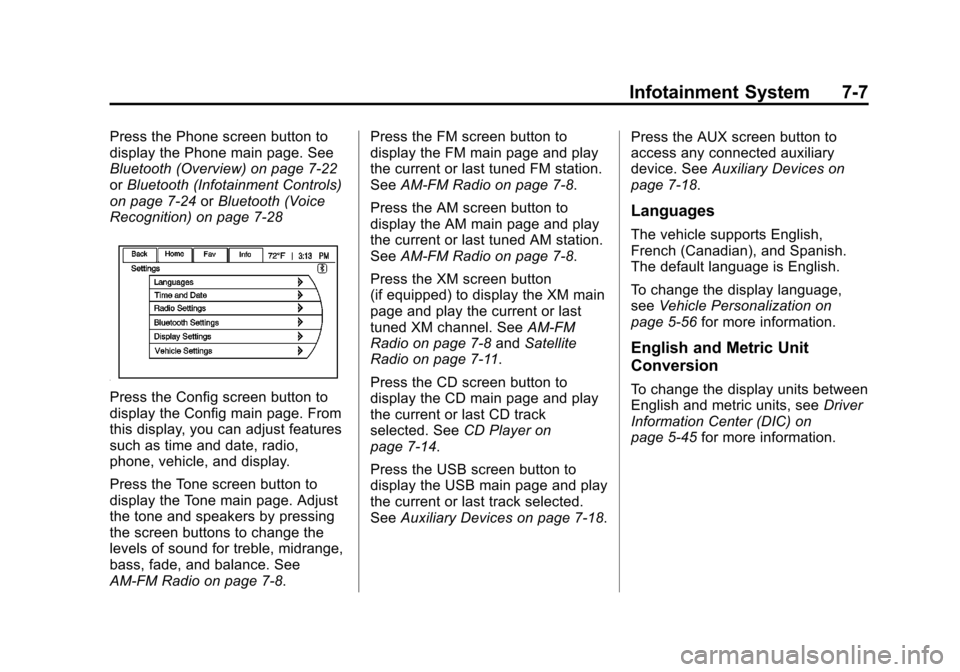
Press the Phone screen button to
display the Phone main page. See
Bluetooth (Overview) on page 7‑22
orBluetooth (Infotainment Controls)
on page 7‑24 orBluetooth (Voice
Recognition) on page 7‑28
Press the Config screen button to
display the Config main page. From
this display, you can adjust features
such as time and date, radio,
phone, vehicle, and display.
Press the Tone screen button to
display the Tone main page. Adjust
the tone and speakers by pressing
the screen buttons to change the
levels of sound for treble, midrange,
bass, fade, and balance. See
AM-FM Radio on page 7‑8. Press the FM screen button to
display the FM main page and play
the current or last tuned FM station.
See
AM-FM Radio on page 7‑8.
Press the AM screen button to
display the AM main page and play
the current or last tuned AM station.
See AM-FM Radio on page 7‑8.
Press the XM screen button
(if equipped) to display the XM main
page and play the current or last
tuned XM channel. See AM-FM
Radio on page 7‑8 andSatellite
Radio on page 7‑11.
Press the CD screen button to
display the CD main page and play
the current or last CD track
selected. See CD Player on
page 7‑14.
Press the USB screen button to
display the USB main page and play
the current or last track selected.
See Auxiliary Devices on page 7‑18. Press the AUX screen button to
access any connected auxiliary
device. See
Auxiliary Devices on
page 7‑18.
Languages
The vehicle supports English,
French (Canadian), and Spanish.
The default language is English.
To change the display language,
see Vehicle Personalization on
page 5‑56 for more information.
English and Metric Unit
Conversion
To change the display units between
English and metric units, see Driver
Information Center (DIC) on
page 5‑45 for more information.
Page 216 of 454
Black plate (24,1)Chevrolet Volt Owner Manual - 2012
7-24 Infotainment System
Audio System
When using the Bluetooth system,
sound comes through the vehicle's
front audio system speakers and
overrides the audio system. Use the
VOL/
Oknob during a call to
change the volume level. The
adjusted volume level remains in
memory for later calls. The system
maintains a minimum volume level.
Other Information
The Bluetooth®word mark and
logos are owned by the Bluetooth®
SIG, Inc. and any use of such marks
by General Motors is under license.
Other trademarks and trade names
are those of their respective owners.
See Radio Frequency Statement on
page 13‑17 for information
regarding Part 15 of the Federal
Communications Commission (FCC)
rules and Industry Canada
Standards RSS-GEN/210/220/310.
Bluetooth (Infotainment
Controls)
For vehicles equipped with the
MyLink or IntelliLink infotainment
system, see the separate MyLink/
IntelliLink Features and Functions
Guide for more information.
For information about how to
navigate the menu system using the
infotainment controls, see Overview
on page 7‑2.
Pairing
A Bluetooth‐enabled cell phone
must be paired to the Bluetooth
system and then connected to the
vehicle before it can be used. See
your cell phone manufacturer's user
guide for Bluetooth functions before
pairing the cell phone. If a Bluetooth
phone is not connected, calls will be
made using OnStar Hands‐Free
Calling, if available. See OnStar
Overview on page 14‑1 for more
information. Pairing Information
.A Bluetooth phone with MP3
capability cannot be paired to
the vehicle as a phone and an
MP3 player at the same time.
.Up to five cell phones can be
paired to the Bluetooth system.
.The pairing process is disabled
when the vehicle is moving.
.Pairing only needs to be
completed once, unless the
pairing information on the cell
phone changes or the cell phone
is deleted from the system.
.Only one paired cell phone can
be connected to the Bluetooth
system at a time.
.If multiple paired cell phones are
within range of the system, the
system connects to the first
available paired cell phone in the
order that they were first paired
to the system. To link to a
different paired phone, see
“Linking to a Different Phone”
later in this section.
Page 220 of 454
Black plate (28,1)Chevrolet Volt Owner Manual - 2012
7-28 Infotainment System
Dual Tone Multi-Frequency
(DTMF) Tones
The in‐vehicle Bluetooth system can
send numbers during a call. This is
used when calling a menu‐driven
phone system.
1. Turn or press the TUNE/MENUknob and select Enter Number.
2. Enter the phone number.
Bluetooth (Voice
Recognition)
Using Voice Recognition
For vehicles equipped with the
MyLink or IntelliLink infotainment
system, see the separate MyLink/
IntelliLink Features and Functions
Guide for more information. To use voice recognition, press the
b/gbutton located on the steering
wheel. Use the commands below for
the various voice features. For
additional information, say “Help”
while you are in a voice
recognition menu.
Pairing
A Bluetooth‐enabled cell phone
must be paired to the Bluetooth
system and then connected to the
vehicle before it can be used. See
your cell phone manufacturer's user
guide for Bluetooth functions before
pairing the cell phone. If a Bluetooth
phone is not connected, calls will be
made using OnStar Hands‐Free
Calling, if available. See OnStar
Overview on page 14‑1 for more
information. Pairing Information
.A Bluetooth phone with MP3
capability cannot be paired to
the vehicle as a phone and an
MP3 player at the same time.
.Up to five cell phones can be
paired to the Bluetooth system.
.The pairing process is disabled
when the vehicle is moving.
.Pairing only needs to be
completed once, unless the
pairing information on the cell
phone changes or the cell phone
is deleted from the system.
.Only one paired cell phone can
be connected to the Bluetooth
system at a time.
.If multiple paired cell phones are
within range of the system, the
system connects to the first
available paired cell phone in the
order that they were first paired
to the system. To link to a
different paired phone, see
“Linking to a Different Phone”
later in this section.
Page 222 of 454
Black plate (30,1)Chevrolet Volt Owner Manual - 2012
7-30 Infotainment System
2. Say“Bluetooth.”
3. Say “Change phone.”
.If another cell phone is
found, the response will be
“
connected.”
.If another cell phone is not
found, the original phone
remains connected.
Storing and Deleting Phone
Numbers
The system can store up to 30
phone numbers as name tags in the
Hands‐Free Directory that is shared
between the Bluetooth and OnStar
systems.
The following commands are used
to delete and store phone numbers.
Store:This command will store a
phone number, or a group of
numbers as a name tag. Digit Store:
This command allows
a phone number to be stored as a
name tag by entering the digits one
at a time.
Delete: This command is used to
delete individual name tags.
Delete All Name Tags: This
command deletes all stored name
tags in the Hands‐Free Calling
Directory and the Destinations
Directory.
Using the “Store”Command
1. Pressb/g. The system
responds “Ready,”followed by
a tone.
2. Say “Store.”
3. Say the phone number or group of numbers you want to store all
at once with no pauses, then
follow the directions given by the
system to save a name tag for
this number. Using the
“Digit Store” Command
If an unwanted number is
recognized by the system, say
“Clear” at any time to clear the last
number.
To hear all of the numbers
recognized by the system, say
“Verify” at any time.
1. Press
b/g. The system
responds “Ready,”followed by
a tone.
2. Say “Digit Store.”
3. Say each digit, one at a time, that you want to store. After
each digit is entered, the system
repeats back the digit it heard
followed by a tone. After the last
digit has been entered, say
“Store,” and then follow the
directions given by the system to
save a name tag for this number.
Page 223 of 454
Black plate (31,1)Chevrolet Volt Owner Manual - 2012
Infotainment System 7-31
Using the“Delete”Command
1. Press
b/g. The system
responds “Ready,”followed by
a tone.
2. Say “Delete.”
3. Say the name tag you want to delete.
Using the “Delete All Name Tags”
Command
This command deletes all stored
name tags in the Hands Free
Calling Directory and the
Destinations Directory.
To delete all name tags:
1. Press
b/g. The system
responds “Ready,”followed by
a tone.
2. Say “Delete all name tags.”
Listing Stored Numbers
The list command will list all the
stored numbers and name tags.
Using the “List”Command
1. Press
b/g. The system
responds “Ready,”followed by
a tone.
2. Say “Directory.”
3. Say “Hands Free Calling.”
4. Say “List.”
Making a Call
Calls can be made using the
following commands.
Dial or Call: The dial or call
command can be used
interchangeably to dial a phone
number or a stored name tag.
Digit Dial: This command allows a
phone number to be dialed by
entering the digits one at a time.
Re‐dial: This command is used to
dial the last number used on the cell
phone. Using the
“Dial”or“Call”
Command
1. Press
b/g. The system
responds “Ready,”followed by
a tone.
2. Say “Dial”or“Call.”
3. Say the entire number without pausing or say the name tag.
Once connected, the person called
will be heard through the audio
speakers.
Using the “Digit Dial” Command
The digit dial command allows a
phone number to be dialed by
entering the digits one at a time.
After each digit is entered, the
system repeats back the digit it
heard followed by a tone.
If an unwanted number is
recognized by the system, say
“Clear” at any time to clear the last
number.
Page 229 of 454
Black plate (37,1)Chevrolet Volt Owner Manual - 2012
Infotainment System 7-37
The Gracenote Software and each
item of Gracenote Data are licensed
to you“AS IS.” Gracenote makes no
representations or warranties,
express or implied, regarding the
accuracy of any Gracenote Data
from in the Gracenote Servers.
Gracenote reserves the right to
delete data from the Gracenote
Servers or to change data
categories for any cause that
Gracenote deems sufficient.
No warranty is made that the
Gracenote Software or Gracenote
Servers are error-free or that
functioning of Gracenote Software
or Gracenote Servers will be
uninterrupted.
Gracenote is not obligated to
provide you with new enhanced or
additional data types or categories
that Gracenote may provide in the
future and is free to discontinue its
services at any time. Gracenote disclaims all warranties
express or implied, including, but
not limited to, implied warranties of
merchantability, fitness for a
particular purpose, title, and
non-infringement. Gracenote does
not warrant the results that will be
obtained by your use of the
Gracenote software or any
Gracenote server. In no case will
Gracenote be liable for any
consequential or incidental
damages or for any lost profits or
lost revenues.
Portions of this software are
copyright © 2008 The FreeType
Project (www.freetype.org). All rights
reserved.