buttons CHEVROLET VOLT 2012 1.G Owner's Manual
[x] Cancel search | Manufacturer: CHEVROLET, Model Year: 2012, Model line: VOLT, Model: CHEVROLET VOLT 2012 1.GPages: 454, PDF Size: 7.89 MB
Page 199 of 454
Black plate (7,1)Chevrolet Volt Owner Manual - 2012
Infotainment System 7-7
Press the Phone screen button to
display the Phone main page. See
Bluetooth (Overview) on page 7‑22
orBluetooth (Infotainment Controls)
on page 7‑24 orBluetooth (Voice
Recognition) on page 7‑28
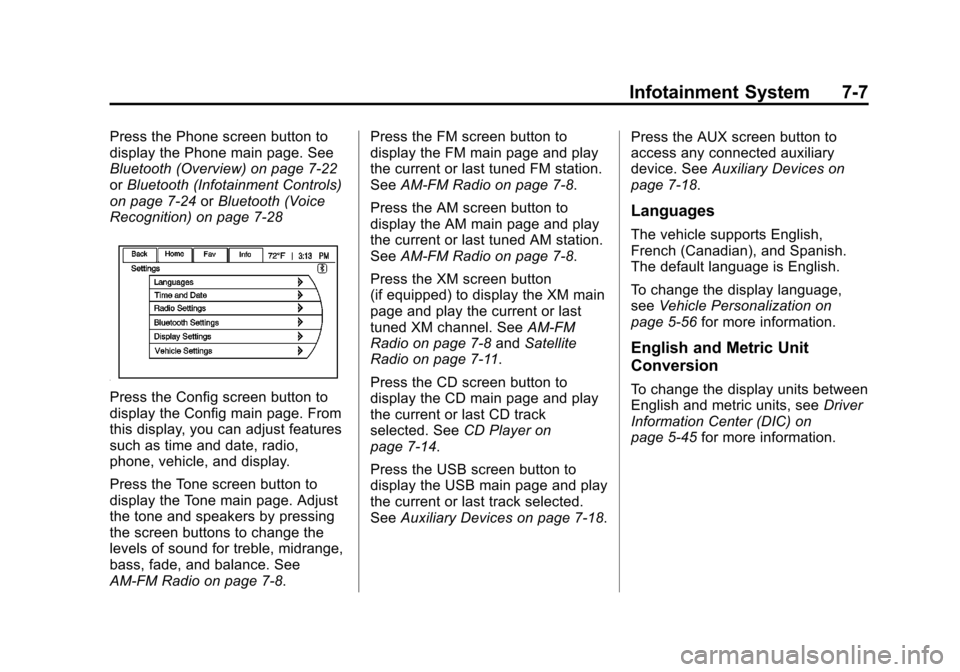
Press the Config screen button to
display the Config main page. From
this display, you can adjust features
such as time and date, radio,
phone, vehicle, and display.
Press the Tone screen button to
display the Tone main page. Adjust
the tone and speakers by pressing
the screen buttons to change the
levels of sound for treble, midrange,
bass, fade, and balance. See
AM-FM Radio on page 7‑8. Press the FM screen button to
display the FM main page and play
the current or last tuned FM station.
See
AM-FM Radio on page 7‑8.
Press the AM screen button to
display the AM main page and play
the current or last tuned AM station.
See AM-FM Radio on page 7‑8.
Press the XM screen button
(if equipped) to display the XM main
page and play the current or last
tuned XM channel. See AM-FM
Radio on page 7‑8 andSatellite
Radio on page 7‑11.
Press the CD screen button to
display the CD main page and play
the current or last CD track
selected. See CD Player on
page 7‑14.
Press the USB screen button to
display the USB main page and play
the current or last track selected.
See Auxiliary Devices on page 7‑18. Press the AUX screen button to
access any connected auxiliary
device. See
Auxiliary Devices on
page 7‑18.
Languages
The vehicle supports English,
French (Canadian), and Spanish.
The default language is English.
To change the display language,
see Vehicle Personalization on
page 5‑56 for more information.
English and Metric Unit
Conversion
To change the display units between
English and metric units, see Driver
Information Center (DIC) on
page 5‑45 for more information.
Page 200 of 454
Black plate (8,1)Chevrolet Volt Owner Manual - 2012
7-8 Infotainment System
Radio
AM-FM Radio
Playing the Radio
For vehicles equipped with the
MyLink or IntelliLink infotainment
system, see the separate MyLink/
IntelliLink Features and Functions
Guide for more information.
Audio Source
VOL/
O(Volume/Power):
1. Press to turn the radio on or off.
2. Turn to increase or decrease the volume of the active source
(i.e., current audio source, active
navigation voice guidance,
or traffic prompts).
The steering wheel controls can
also be used to adjust the volume.
See “Steering Wheel Controls” in
the vehicle owner manual for more
information. To access the radio main page,
press the SOURCE button on the
faceplate, the Now Playing screen
button, or one of the audio screen
buttons on the Home Page.
While on the audio main page,
press the Source button repeatedly
to display and cycle through the
available sources (AM, FM, and XM
(if equipped), CD, USB/iPod,
and AUX).Infotainment System Settings
Tone Settings
To access the tone settings, press
the Home Page Tone button or the
TONE button on the faceplate.
Use the tone settings to adjust the
following features:
.Setting the tone
.Adjusting the speakers
Setting the Tone
To adjust the tone:
.Treble: Press + or
−to change
the level.
.Middle (Midrange): Press +
or −to change the level.
.Bass: Press + or −to change
the level.
Adjusting the Speakers
To adjust the speaker balance:
.Press the left arrow on the
bottom for more sound from the
left speakers or the right arrow
on the bottom for more sound
from the right speakers. The
middle position balances the
sound between the left and right
speakers.
Page 202 of 454
Black plate (10,1)Chevrolet Volt Owner Manual - 2012
7-10 Infotainment System
Storing Radio Station Presets
There are a few ways to store
presets.
Up to 36 preset stations can be
stored. AM, FM, and XM,
if equipped, can be mixed.
1. From the AM, FM, or XM mainpage, press and hold one of the
preset screen buttons located at
the bottom of the screen. After a
few seconds, a beep will be
heard and the new preset
information will display on that
screen button.
2. Touch and hold a preset button to store the currently active
station. After a few seconds, a
beep will be heard and the new
preset information will display on
a small pop-up display at the
bottom of the screen.
3. Repeat the steps for each preset.
To change the number of preset
pages, see “Mixed-Band Presets”
following for more information. Recalling a Preset Station
To recall a preset station from a FAV
page, do the following:
.Press the FAV button on the
faceplate to display the FAV
pop-up. Select the desired
preset from the pop-up.
.Press the FAV screen button at
the top bar to display the preset
pop-up that appears at the
bottom of the page. Press one of
the preset screen buttons to go
to the selected preset station.
.In the AM, FM, or XM
(if equipped) main page, press
one of the preset screen buttons
to go to the selected preset
station.
Mixed-Band Presets
Each page can store six preset
stations. The presets within a page
can be from different radio bands.
To scroll through the pages, press
the FAV button located on the
faceplate or the FAV screen button
on the top bar. The current page
number displays above the preset
buttons. The stored stations for
each FAV page display on the
preset buttons at the bottom of the
screen. The number of FAV pages
displayed can be changed in the
Radio Settings in the
Configuration Menu.
Page 208 of 454
Black plate (16,1)Chevrolet Volt Owner Manual - 2012
7-16 Infotainment System
.The air is very humid. Try the
disc again later.
.There was a problem while
burning the disc.
.The label is caught in the CD
player.
If the CD is not playing correctly, for
any other reason, try a known
good CD.
If any error continues, contact your
dealer.
MP3
Playing an MP3 CD
For vehicles equipped with the
MyLink or IntelliLink infotainment
system, see the separate MyLink/
IntelliLink Features and Functions
Guide for more information. MP3 Format
There are guidelines that must be
met when creating an MP3 disc;
otherwise the CD might not play.
The guidelines are:
.Sampling rate: 8 kHz, 16 kHz,
22.05 kHz, 24 kHz, 32 kHz,
44.1 kHz, and 48 kHz.
.Bit rates supported: 8, 16, 24,
32, 40, 48, 56, 64, 80, 96, 112,
128, 144, 160, 192, 224, 256,
and 320 kbps.
.Maximum number of folders: 255
with a maximum hierarchy of
eight folders.
.Maximum of 1,024 files on
a disc.
.Recorded on a CD-R or CD-RW
with a maximum capacity of
700 MB.
.The Artist/Album/Song Titles/
Genre information requires a CD
to be fully scanned before the
music navigator works with
these menus. Disc scanning
does not occur when the disc is
being played.
MP3 Music Menu
Press the Menu screen button while
that source is active to access
the menu.
Press any of the following buttons
on the MP3 Menu:
Shuffle Songs: Press to play the
tracks randomly. Press again to stop
shuffle.
Playlists: Press to view the
playlists stored on the disc. Select a
playlist to view the list of all songs in
that playlist. There might be a delay
before the list displays. Select a
song from the list to begin playback.
Page 211 of 454
Black plate (19,1)Chevrolet Volt Owner Manual - 2012
Infotainment System 7-19
.WMA with Digital Rights
Management (DRM) from online
music shops cannot be played.
WMA files can only be played
back safely if they were created
with Windows Media Player
version 8 or later.
‐Applicable playlist extensions
are: .m3u, .pls.
‐ Playlist entries must be in the
form of relative paths.
‐ The system attribute for
folders/files that contain audio
data must not be set.
To play a USB device, do one of the
following:
.Connect the USB and it begins
to play.
.Press the Now Playing screen
button on the Home Page, then
press the SOURCE button on
the faceplate repeatedly to cycle
through all of the available audio
source screens, until the USB
source screen is selected. While the USB source is active, use
the following to operate USB
function:
k(Play/Pause):
Press to start,
pause, or resume play of the current
media source.
rSEEK (Seek Down):
1. Press to seek to the beginning of the current or previous track.
If the track has been playing for
less than five seconds, the
previous track plays. If playing
longer than five seconds, the
current track restarts.
2. Press and hold to reverse quickly through playback.
3. Release to return to playing speed. Elapsed time displays.
SEEK
[(Seek Up):
1. Press to seek to the next track.
2. Press and hold to advance quickly through playback.
Release to return to playing
speed. Elapsed time displays. USB Menu
Press any of the following buttons
on the USB Menu:
Shuffle Songs:
Press to play the
tracks randomly. Press again to stop
shuffle.
Playlists: Press to view the
playlists stored on the USB. Select
a playlist to view the list of all songs
in that playlist. There might be a
delay before the list displays. Select
a song from the list to begin
playback.
Artists: Press to view the list of
artists stored on the USB. Select an
artist name to view a list of all
albums by the artist. There might be
a delay before the list displays. To
select a song, touch All Songs then
select a song or touch an album
then select a song from the list to
begin playback.
Page 213 of 454
Black plate (21,1)Chevrolet Volt Owner Manual - 2012
Infotainment System 7-21
The iPod battery recharges
automatically while the vehicle is on.
When the vehicle is off while an
iPod is connected using the iPod
USB cable, the iPod battery stops
charging and the iPod automatically
turns off.
If the iPod is an unsupported model,
it can still be listened to in the
vehicle by connecting to the
auxiliary input jack using a standard
3.5 mm (1/8 in) stereo cable.
iPod Menu
Shuffle Songs:Press to play the
tracks randomly. Press again to stop
shuffle.
Press any of the following buttons
on the iPod Menu:
Playlists:
1. Press to view the playlists stored on the iPod.
2. Select a playlist name to view a list of all songs in the playlist.
3. Select the desired song from the list to begin playback. Artists:
1. Press to view the artists stored
on the iPod.
2. Select an artist name to view a list of all songs by the artist.
3. Select the desired song from the list to begin playback.
Albums:
1. Press to view the albums stored on the iPod.
2. Select an album name to view a list of all songs on the album or
select All Songs to view all
songsby the artist.
3. Select the desired song from the list to begin playback.
Song Titles:
1. Press to view a list of all songs stored on the iPod.
2. Select the desired song from the list to begin playback. Genres:
1. Press to view the genres stored
on the iPod.
2. Select a genre name to view a list of artists of that genre.
3. Select an artist to view albums or All Songs to view all songs of
that genre.
4. Select album to view songs.
5. Select the desired song from the list to begin playback.
Podcasts:
1. Press to view the podcasts stored on the iPod.
2. Select a podcast name to play the desired podcast.
Page 215 of 454
Black plate (23,1)Chevrolet Volt Owner Manual - 2012
Infotainment System 7-23
{WARNING
When using a cell phone, it can
be distracting to look too long or
too often at the screen of the
phone or the infotainment
(navigation) system. Taking your
eyes off the road too long or too
often could cause a crash
resulting in injury or death. Focus
your attention on driving.
Vehicles with a Bluetooth system
can use a Bluetooth‐capable cell
phone with a Hands‐Free Profile to
make and receive phone calls. The
infotainment system and voice
recognition are used to control the
system. The system can be used
while in ON/RUN or ACC/
ACCESSORY. The range of the
Bluetooth system can be up to 9.1 m
(30 ft). Not all phones support all
functions and not all phones work
with the Bluetooth system. See www.gm.com/bluetooth for
more information about compatible
phones.
Bluetooth Controls
Use the buttons located on the
infotainment system and the
steering wheel to operate the
Bluetooth system.
Steering Wheel Controls
b/g(Push To Talk) :
Press to
answer incoming calls, confirm
system information, and start voice
recognition.
$/i(End Call/Mute): Press to
end a call, reject a call, or cancel an
operation. Infotainment System Controls
For information about how to
navigate the menu system using the
infotainment controls, see
Overview
on page 7‑2.
V(Phone): Press to enter the
Phone main menu.
Voice Recognition
The voice recognition system uses
commands to control the system
and dial phone numbers.
Noise: The system may not
recognize voice commands if there
is too much background noise.
When to Speak: A tone sounds to
indicate that the system is ready for
a voice command. Wait for the tone
and then speak.
How to Speak: Speak clearly in a
calm and natural voice.
Page 231 of 454
Black plate (1,1)Chevrolet Volt Owner Manual - 2012
Climate Controls 8-1
Climate Controls
Climate Control Systems
Automatic Climate ControlSystem . . . . . . . . . . . . . . . . . . . . . . 8-1
Air Vents
Air Vents . . . . . . . . . . . . . . . . . . . . . . 8-8
Climate Control
Systems
Automatic Climate
Control System
The climate control buttons and the
touch screen are used to adjust the
heating, cooling, and ventilation. The vehicle may require the use of
an auxiliary heat source under
certain cold conditions. This
provides additional heating and
defrost capability obtained by
running the engine, even if the high
voltage battery is adequately
charged. Under these conditions,
the engine will start and use fuel.
Make sure there is fuel in the tank.
Do not allow the vehicle to remain in
extreme temperatures for long
periods without being driven or
being plugged in.
Page 232 of 454
Black plate (2,1)Chevrolet Volt Owner Manual - 2012
8-2 Climate Controls
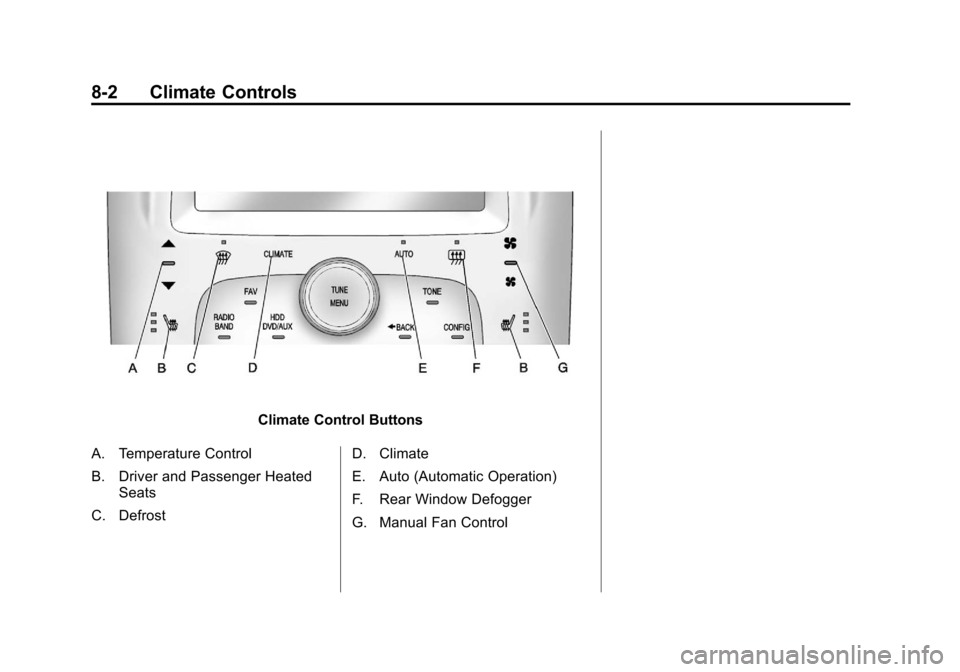
Climate Control Buttons
A. Temperature Control
B. Driver and Passenger Heated Seats
C. Defrost D. Climate
E. Auto (Automatic Operation)
F. Rear Window Defogger
G. Manual Fan Control
Page 235 of 454
Black plate (5,1)Chevrolet Volt Owner Manual - 2012
Climate Controls 8-5
The air conditioning and electric
heat could be on at the same time
when dehumidification is required in
ECO or Comfort modes.
In Fan Only mode, occasionally the
air conditioning and/or heating
status will be on if the Auto Defog
function is enabled and high
humidity is detected. See“Climate
and Air Quality” underVehicle
Personalization on page 5‑56, for
details on enabling or disabling the
Auto Defog function.
The air conditioning may also run if
0is selected, regardless of the
climate mode.
Automatic Operation
The system automatically controls
the fan speed, air delivery mode,
and recirculation to heat or cool the
vehicle to the selected temperature.
When the AUTO indicator light is
on, the system is in full automatic
operation. If the air delivery mode, fan speed, or recirculation setting is
adjusted, the AUTO indicator turns
off and the selected settings display.
For automatic operation:
1. Press AUTO.
2. Set the temperature. An initial
setting of 23°C (74°F) is
recommended. Allow the system
time to stabilize. Adjust the
temperature as needed.
Q/R(Temperature Control):
Press to increase or decrease the
temperature.
Auto Defog: The system will
monitor high humidity inside the
vehicle. When high humidity is
detected, the climate control system
may adjust to outside air supply and
turn on the air conditioner or the
heater. The fan speed may slightly
increase to help prevent fogging.
When high humidity is no longer
detected, the system will return to
its prior operation. To turn Auto Defog off or on, see
“Climate and
Air Quality” underVehicle
Personalization on page 5‑56.
Manual Operation
A(Fan Control): Press the fan
control buttons or the touch screen
fan control, to increase or decrease
the fan speed. The fan speed
setting displays. Pressing either
button cancels automatic fan control
and the fan can be controlled
manually. Press AUTO to return to
automatic operation. Press the fan
down button repeatedly to turn off
the fan and the climate control
system.
If the fan is manually turned off
while in ECO or Comfort mode, the
display will automatically change to
Fan Only mode. When the fan is
turned back on either by manually
increasing fan speed or pressing the
AUTO button, the climate mode will
revert back to ECO or
Comfort mode.