infotainment CHEVROLET VOLT 2012 1.G Service Manual
[x] Cancel search | Manufacturer: CHEVROLET, Model Year: 2012, Model line: VOLT, Model: CHEVROLET VOLT 2012 1.GPages: 454, PDF Size: 7.89 MB
Page 224 of 454
Black plate (32,1)Chevrolet Volt Owner Manual - 2012
7-32 Infotainment System
To hear all of the numbers
recognized by the system, say
“Verify”at any time.
1. Press
b/g. The system
responds “Ready,”followed by
a tone.
2. Say “Digit Dial.”
3. Say each digit, one at a time, that you want to dial. After each
digit is entered, the system
repeats back the digit it heard
followed by a tone. After the last
digit has been entered,
say “Dial.”
Once connected, the person called
will be heard through the audio
speakers.
Using the “Re‐dial”Command
1. Press
b/g. The system
responds “Ready,”followed by
a tone.
2. After the tone, say “Re‐dial.”The
system dials the last number
called from the connected cell
phone. Once connected, the person called
will be heard through the audio
speakers.
Receiving a Call
When an incoming call is received,
the audio system mutes and a ring
tone is heard in the vehicle.
.Pressb/gto answer the call.
.Press$/ito ignore a call.
Call Waiting
Call waiting must be supported on
the cell phone and enabled by the
wireless service carrier.
.Pressb/gto answer an
incoming call when another call
is active. The original call is
placed on hold.
.Pressb/gagain to return to
the original call.
.To ignore the incoming call, no
action is required.
.Press$/ito disconnect the
current call and switch to the call
on hold.
Three‐Way Calling
Three‐way calling must be
supported on the cell phone and
enabled by the wireless service
carrier.
1. While on a call, press
b/g.
2. Say “Three‐way call.”
3. Use the dial or call command to dial the number of the third party
to be called.
4. Once the call is connected, press
b/gto link all callers
together.
Ending a Call
Press$/ito end a call.
Page 225 of 454
Black plate (33,1)Chevrolet Volt Owner Manual - 2012
Infotainment System 7-33
Muting a Call
During a call, all sounds from inside
the vehicle can be muted so that the
person on the other end of the call
cannot hear them.
To mute a call, press
b/g, and
then say “Mute Call.”
To cancel mute, press
b/g, and
then say “Un‐mute Call.”
Transferring a Call
Audio can be transferred between
the Bluetooth system and the cell
phone.
The cell phone must be paired and
connected with the Bluetooth
system before a call can be
transferred. The connection process
can take up to two minutes after the
ignition is turned to ON/RUN. To Transfer Audio from the
Bluetooth System to a Cell Phone
During a call with the audio in the
vehicle:
1. Press
b/g.
2. Say “Transfer Call.”
To Transfer Audio to the Bluetooth
System from a Cell Phone
During a call with the audio on the
cell phone, press
b/g. The audio
transfers to the vehicle. If the audio
does not transfer to the vehicle, use
the audio transfer feature on the cell
phone. See your cell phone
manufacturer's user guide for more
information.
Voice Pass-Thru
Voice pass‐thru allows access to the
voice recognition commands on the
cell phone. See your cell phone
manufacturer's user guide to see if
the cell phone supports this feature.
To access contacts stored in the cell
phone:
1. Press
b/g. The system
responds “Ready,”followed by
a tone.
2. Say “Bluetooth.”
3. Say “Voice.” The system
responds “OK, accessing
The cell phone's normal prompt
messages will go through their cycle
according to the phone's operating
instructions.
Page 226 of 454
Black plate (34,1)Chevrolet Volt Owner Manual - 2012
7-34 Infotainment System
Dual Tone Multi-Frequency
(DTMF) Tones
The Bluetooth system can send
numbers and the numbers stored as
name tags during a call. You can
use this feature when calling a
menu‐driven phone system.
Account numbers can also be
stored for use.
Sending a Number or Name Tag
During a Call
1. Press
b/g. The system
responds “Ready,”followed by
a tone.
2. Say “Dial.”
3. Say the number or name tag to send.
Clearing the System
Unless information is deleted out of
the in‐vehicle Bluetooth system, it
will be retained indefinitely. This
includes all saved name tags in the
phone book and phone pairing
information. For information on how
to delete this information, see the
previous sections on “Deleting a
Paired Phone” and“Deleting
Name Tags.”
Trademarks and
License Agreements
Manufactured under license under
U.S. Patent #'s: 5,451,942;
5,956,674; 5,974,380; 5,978,762;
6,487,535 & other U.S. and
worldwide patents issued &
pending. DTS and the Symbol are
registered trademarks and DTS
Digital Surround and the DTS logos
are trademarks of DTS Inc. All
Rights Reserved.
Page 227 of 454
Black plate (35,1)Chevrolet Volt Owner Manual - 2012
Infotainment System 7-35
Manufactured under license from
Dolby Laboratories. Dolby and the
double-D symbol are trademarks of
Dolby Laboratories.
MP3PRO audio decoding
technology licensed from Coding
Technologies, Fraunhofer IIS and
Thompson.
“Made for iPod”means that an
electronic accessory has been
designed to connect specifically to
iPod and has been certified by the
developer to meet Apple
performance standards.
iPod is a trademark of Apple
Computer, Inc., registered in the
U.S. and other countries.Music and video recognition
technology and related data are
provided by Gracenote
®. Gracenote
is the industry standard in music
recognition technology and related
content delivery. For more
information, visit
www.gracenote.com.
CD and music data from Gracenote,
Inc., copyright © 2000 to present
Gracenote. One or more patents
owned by Gracenote apply to this
product and service. See the
Gracenote website for a
non-exhaustive list of applicable
Gracenote patents. Gracenote and
CDDB, MusicID, Media VOCS, the
Gracenote logo and logotype, and
Page 228 of 454
Black plate (36,1)Chevrolet Volt Owner Manual - 2012
7-36 Infotainment System
the“Powered by Gracenote” logo
are either registered trademarks or
trademarks of Gracenote in the
United States and/or other
countries.
If you require more information
regarding the use of the Gracenote
Service, visit: www.gracenote.com/
corporate.
For the data provided by
Gracenote
®Music Recognition
Service, the content is not
necessarily guaranteed 100%.
Regarding the use of Gracenote
Music Recognition Service, when
this product is used, it is necessary
to agree to the following articles.
Gracenote
®End User License
This application or device contains
software from Gracenote, Inc. of
Emeryville, California (“Gracenote”).
The software from Gracenote (the
“Gracenote Software”) enables this
application to perform disc and/or
file identification and obtain
music-related information, including name, artist, track, and title
information (“Gracenote Data”) from
online servers or embedded
databases (collectively,
“Gracenote
Servers”) and to perform other
functions. You may use Gracenote
Data only by means of the intended
End-User functions of this
application or device. You agree that
you will use Gracenote Data, the
Gracenote Software, and Gracenote
Servers for your own personal
non-commercial use only. You agree
not to assign, copy, transfer or
transmit the Gracenote Software or
any Gracenote Data to any third
party.
YOU AGREE NOT TO USE OR
EXPLOIT GRACENOTE DATA, THE
GRACENOTE SOFTWARE, OR
GRACENOTE SERVERS, EXCEPT
AS EXPRESSLY PERMITTED
HEREIN. You agree that your
non-exclusive license to use the
Gracenote Data, the Gracenote
Software, and Gracenote Servers
will terminate if you violate these
restrictions. If your license terminates, you agree to cease any
and all use of the Gracenote Data,
the Gracenote Software, and
Gracenote Servers.
Gracenote reserves all rights in
Gracenote Data, the Gracenote
Software, and the Gracenote
Servers, including all ownership
rights.
Under no circumstances will
Gracenote become liable for any
payment to you for any information
that you provide. You agree that
Gracenote, Inc. may enforce its
rights under this Agreement against
you directly in its own name.
The Gracenote service uses a
unique identifier to track queries for
statistical purposes.
The purpose of a randomly
assigned numeric identifier is to
allow the Gracenote service to
count queries without knowing
anything about who you are. For
more information, see the web page
for the Gracenote Privacy Policy for
the Gracenote service.
Page 229 of 454
Black plate (37,1)Chevrolet Volt Owner Manual - 2012
Infotainment System 7-37
The Gracenote Software and each
item of Gracenote Data are licensed
to you“AS IS.” Gracenote makes no
representations or warranties,
express or implied, regarding the
accuracy of any Gracenote Data
from in the Gracenote Servers.
Gracenote reserves the right to
delete data from the Gracenote
Servers or to change data
categories for any cause that
Gracenote deems sufficient.
No warranty is made that the
Gracenote Software or Gracenote
Servers are error-free or that
functioning of Gracenote Software
or Gracenote Servers will be
uninterrupted.
Gracenote is not obligated to
provide you with new enhanced or
additional data types or categories
that Gracenote may provide in the
future and is free to discontinue its
services at any time. Gracenote disclaims all warranties
express or implied, including, but
not limited to, implied warranties of
merchantability, fitness for a
particular purpose, title, and
non-infringement. Gracenote does
not warrant the results that will be
obtained by your use of the
Gracenote software or any
Gracenote server. In no case will
Gracenote be liable for any
consequential or incidental
damages or for any lost profits or
lost revenues.
Portions of this software are
copyright © 2008 The FreeType
Project (www.freetype.org). All rights
reserved.
Page 230 of 454

Black plate (38,1)Chevrolet Volt Owner Manual - 2012
7-38 Infotainment System
2NOTES
Page 243 of 454
Black plate (5,1)Chevrolet Volt Owner Manual - 2012
Driving and Operating 9-5
{WARNING
Taking your eyes off the road too
long or too often could cause a
crash resulting in injury or death.
Focus your attention on driving.
Refer to the infotainment section for
more information on using that
system, including pairing and using
a cell phone.
If equipped, refer to the navigation
manual for information on that
system, including pairing and using
a cell phone.
Defensive Driving
Defensive driving means “always
expect the unexpected.” The first
step in driving defensively is to wear
the safety belt. See Safety Belts on
page 3‑10.
.Assume that other road users
(pedestrians, bicyclists, and
other drivers) are going to be
careless and make mistakes.
Anticipate what they might do
and be ready.
.Allow enough following distance
between you and the driver in
front of you.
.Focus on the task of driving.
Drunk Driving
Death and injury associated with
drinking and driving is a global
tragedy.
{WARNING
Drinking and then driving is very
dangerous. Your reflexes,
perceptions, attentiveness, and
judgment can be affected by even
a small amount of alcohol. You
can have a serious —or even
fatal —collision if you drive after
drinking.
Do not drink and drive or ride with
a driver who has been drinking.
Ride home in a cab; or if you are
with a group, designate a driver
who will not drink.
Control of a Vehicle
Braking, steering, and accelerating
are important factors in helping to
control a vehicle while driving.
Page 284 of 454
Black plate (46,1)Chevrolet Volt Owner Manual - 2012
9-46 Driving and Operating
How the System Works
When the vehicle is shifted into
R (Reverse), the image of the area
behind the vehicle appears
in the center stack display
with the message CHECK
SURROUNDINGS FOR SAFETY.
The previous screen displays when
the vehicle is shifted out of
R (Reverse) after approximately
10 seconds.
To cancel the delay, do one of the
following:
.Press a button on the
infotainment system.
.Shift into P (Park).
.Reach a vehicle speed of
8 km/h (5 mph).
Turning the Rear Vision Camera
System On or Off
To turn the RVC system on or off:
1. Shift into P (Park).
2. Press the CONFIG button on the center stack. 3. Select Display.
4. Select Camera. When a
checkmark appears next to
Camera, then the RVC system
is on.
Symbols
The navigation system may have a
feature that lets the driver view
symbols on the navigation screen
while using the RVC. The Ultrasonic
Front and Rear Parking Assist
(UFRPA) system must not be
disabled to use the caution symbols.
The error message REAR PARKING
ASSIST SYMBOLS UNAVAILABLE
may display if UFRPA has been
disabled and the symbols have
been turned on. See Ultrasonic
Parking Assist on page 9‑42.
The symbols appear and may cover
an object when viewing the
navigation screen when an object is
detected by the UFRPA system. To turn the symbols on or off:
1. Shift into P (Park).
2. Press the CONFIG button on the
center stack.
3. Select Display.
4. Select Symbols. When a checkmark appears next to
Symbols, symbols will appear.
Guidelines
The RVC system has a guideline
overlay that can help the driver align
the vehicle when backing into a
parking spot.
To turn the guidelines on or off:
1. Shift into P (Park).
2. Press the CONFIG button on the center stack.
3. Select Display.
4. Select Guidelines. When a checkmark appears next to
Guidelines, guidelines will
appear.
Page 342 of 454
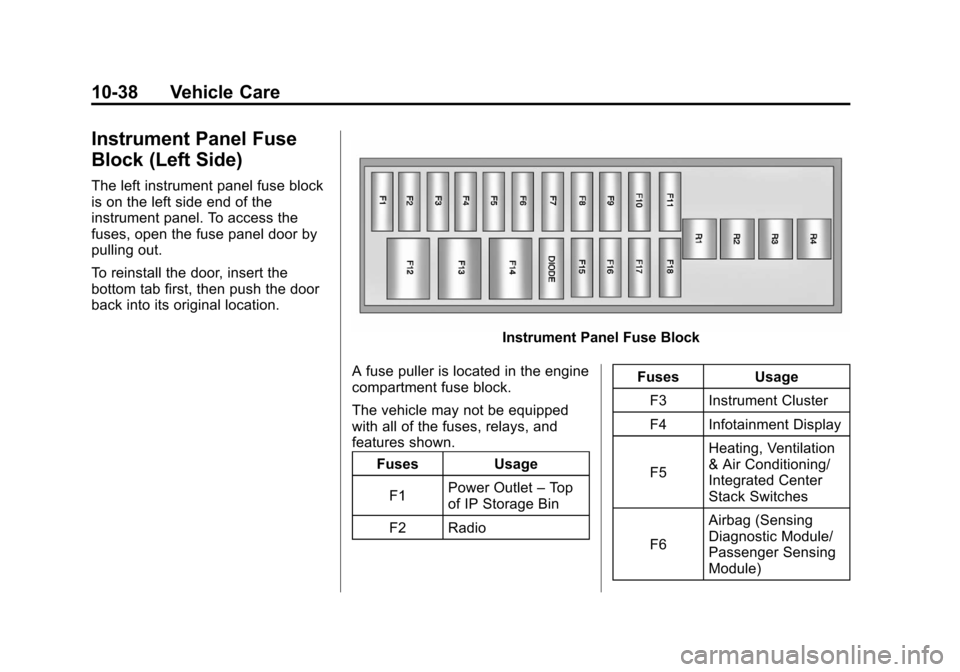
Black plate (38,1)Chevrolet Volt Owner Manual - 2012
10-38 Vehicle Care
Instrument Panel Fuse
Block (Left Side)
The left instrument panel fuse block
is on the left side end of the
instrument panel. To access the
fuses, open the fuse panel door by
pulling out.
To reinstall the door, insert the
bottom tab first, then push the door
back into its original location.
Instrument Panel Fuse Block
A fuse puller is located in the engine
compartment fuse block.
The vehicle may not be equipped
with all of the fuses, relays, and
features shown. Fuses Usage
F1 Power Outlet
–Top
of IP Storage Bin
F2 Radio Fuses Usage
F3 Instrument Cluster
F4 Infotainment Display
F5 Heating, Ventilation
& Air Conditioning/
Integrated Center
Stack Switches
F6 Airbag (Sensing
Diagnostic Module/
Passenger Sensing
Module)