display CHRYSLER 300 2018 Manual Online
[x] Cancel search | Manufacturer: CHRYSLER, Model Year: 2018, Model line: 300, Model: CHRYSLER 300 2018Pages: 492, PDF Size: 6.67 MB
Page 429 of 492
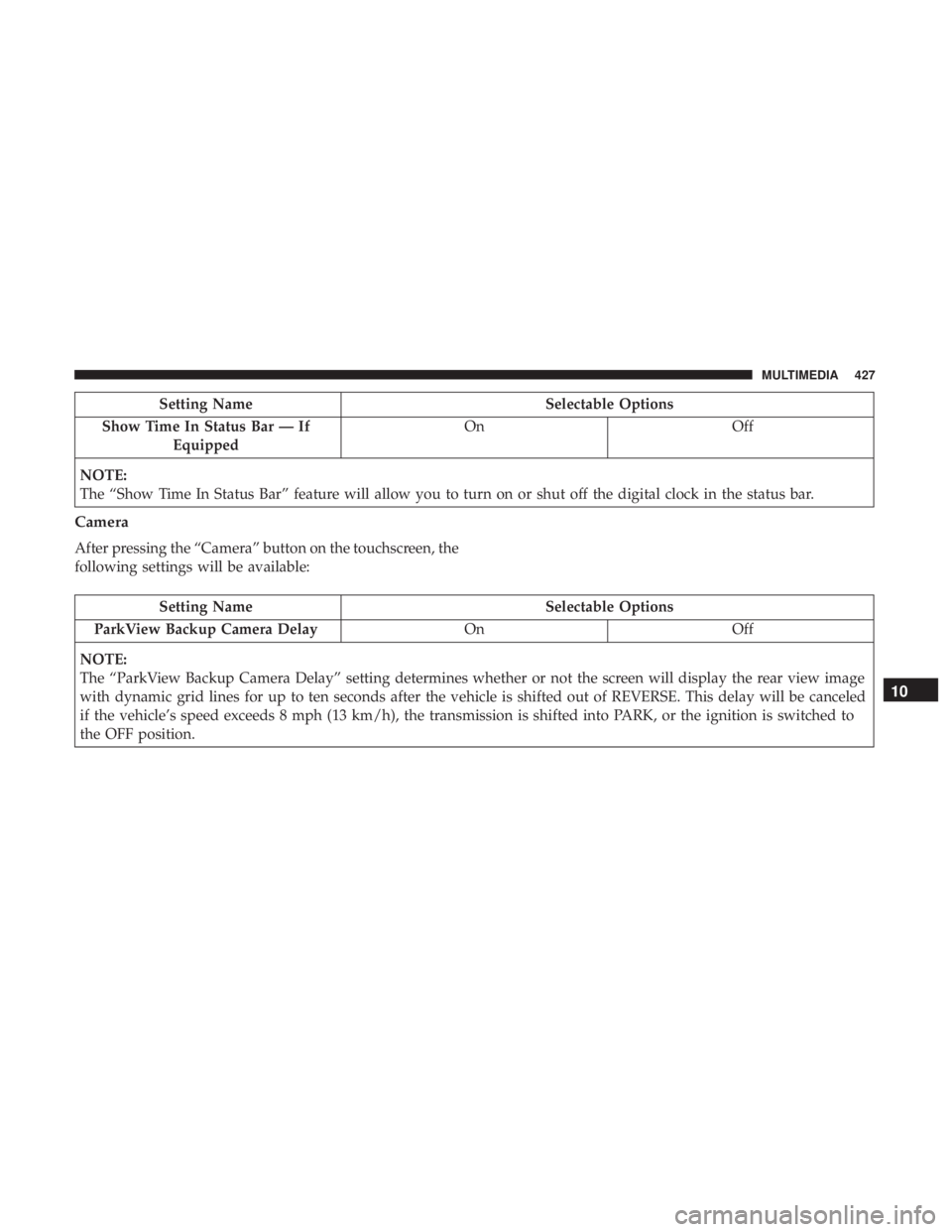
Setting NameSelectable Options
Show Time In Status Bar — If Equipped On
Off
NOTE:
The “Show Time In Status Bar” feature will allow you to turn on or shut off the digital clock in the status bar.
Camera
After pressing the “Camera” button on the touchscreen, the
following settings will be available:
Setting Name Selectable Options
ParkView Backup Camera Delay OnOff
NOTE:
The “ParkView Backup Camera Delay” setting determines whether or not the screen will display the rear view image
with dynamic grid lines for up to ten seconds after the vehicle is shifted out of REVERSE. This delay will be canceled
if the vehicle’s speed exceeds 8 mph (13 km/h), the transmission is shifted into PARK, or the ignition is switched to
the OFF position.
10
MULTIMEDIA 427
Page 432 of 492
Setting NameSelectable Options
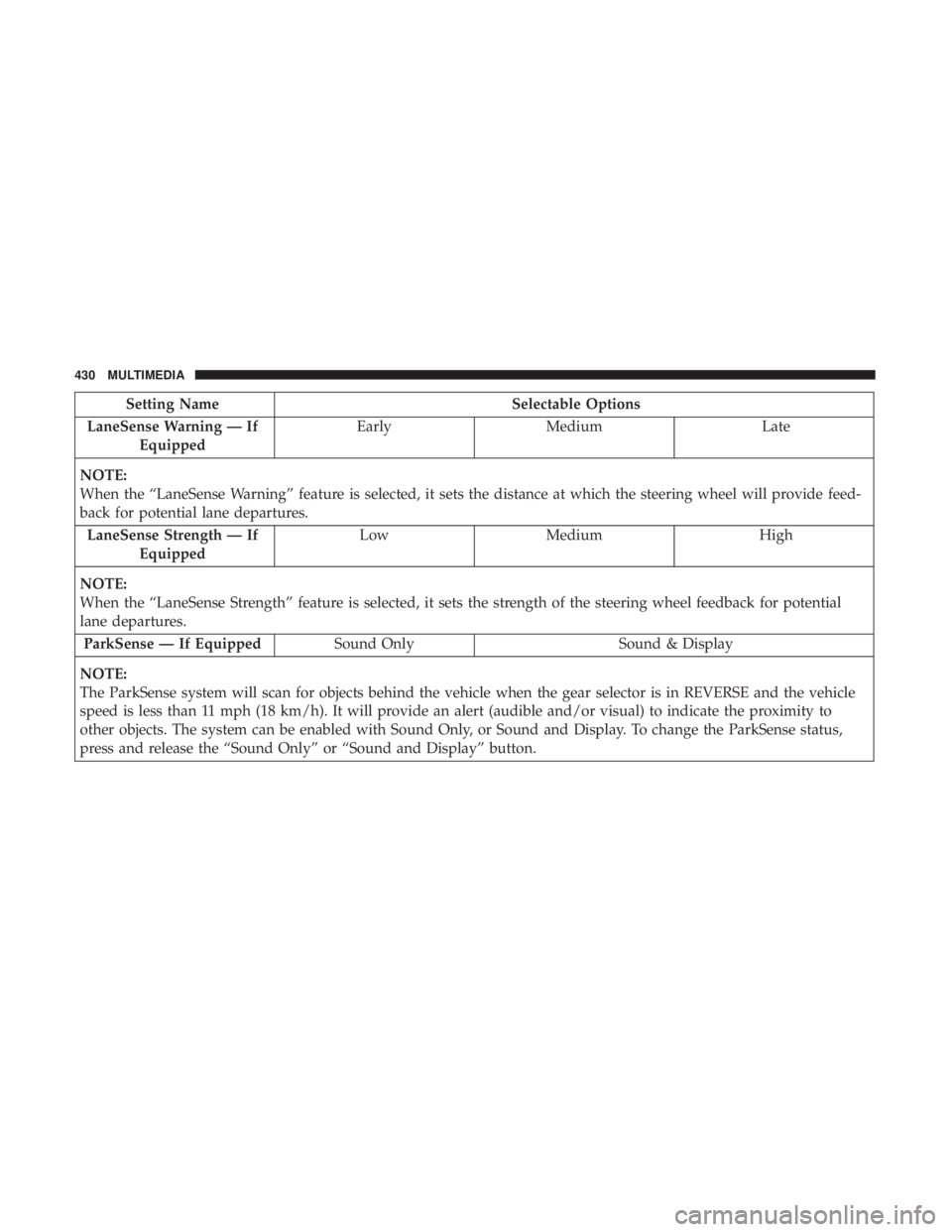
LaneSense Warning — If Equipped Early
Medium Late
NOTE:
When the “LaneSense Warning” feature is selected, it sets the distance at which the steering wheel will provide feed-
back for potential lane departures. LaneSense Strength — If Equipped Low
Medium High
NOTE:
When the “LaneSense Strength” feature is selected, it sets the strength of the steering wheel feedback for potential
lane departures. ParkSense — If Equipped Sound Only Sound & Display
NOTE:
The ParkSense system will scan for objects behind the vehicle when the gear selector is in REVERSE and the vehicle
speed is less than 11 mph (18 km/h). It will provide an alert (audible and/or visual) to indicate the proximity to
other objects. The system can be enabled with Sound Only, or Sound and Display. To change the ParkSense status,
press and release the “Sound Only” or “Sound and Display” button.
430 MULTIMEDIA
Page 434 of 492
Setting NameSelectable Options
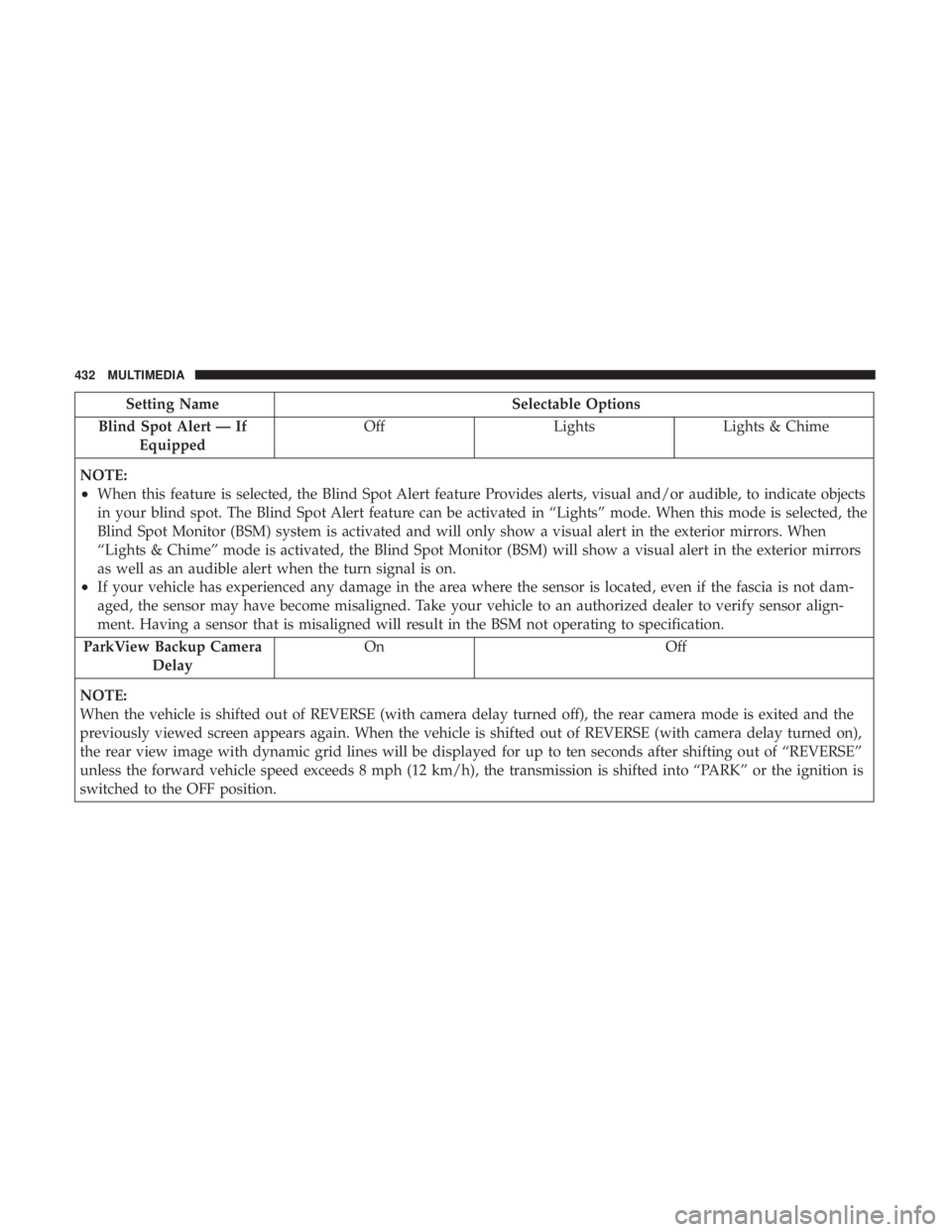
Blind Spot Alert — If Equipped Off
LightsLights & Chime
NOTE:
•When this feature is selected, the Blind Spot Alert feature Provides alerts, visual and/or audible, to indicate objects
in your blind spot. The Blind Spot Alert feature can be activated in “Lights” mode. When this mode is selected, the
Blind Spot Monitor (BSM) system is activated and will only show a visual alert in the exterior mirrors. When
“Lights & Chime” mode is activated, the Blind Spot Monitor (BSM) will show a visual alert in the exterior mirrors
as well as an audible alert when the turn signal is on.
•If your vehicle has experienced any damage in the area where the sensor is located, even if the fascia is not dam-
aged, the sensor may have become misaligned. Take your vehicle to an authorized dealer to verify sensor align-
ment. Having a sensor that is misaligned will result in the BSM not operating to specification.
ParkView Backup Camera Delay On Off
NOTE:
When the vehicle is shifted out of REVERSE (with camera delay turned off), the rear camera mode is exited and the
previously viewed screen appears again. When the vehicle is shifted out of REVERSE (with camera delay turned on),
the rear view image with dynamic grid lines will be displayed for up to ten seconds after shifting out of “REVERSE”
unless the forward vehicle speed exceeds 8 mph (12 km/h), the transmission is shifted into “PARK” or the ignition is
switched to the OFF position.
432 MULTIMEDIA
Page 435 of 492
Setting NameSelectable Options
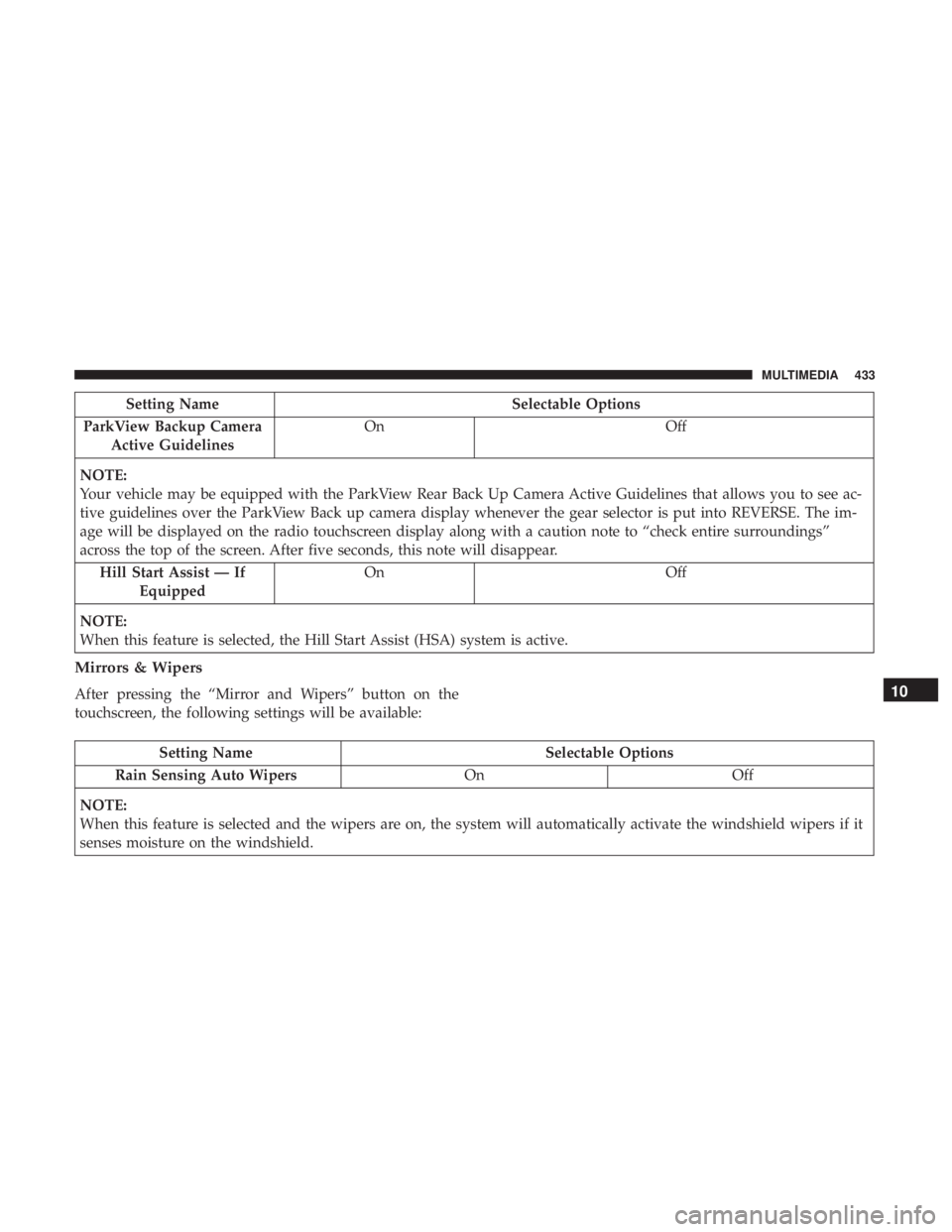
ParkView Backup Camera Active Guidelines On
Off
NOTE:
Your vehicle may be equipped with the ParkView Rear Back Up Camera Active Guidelines that allows you to see ac-
tive guidelines over the ParkView Back up camera display whenever the gear selector is put into REVERSE. The im-
age will be displayed on the radio touchscreen display along with a caution note to “check entire surroundings”
across the top of the screen. After five seconds, this note will disappear. Hill Start Assist — If Equipped On
Off
NOTE:
When this feature is selected, the Hill Start Assist (HSA) system is active.
Mirrors & Wipers
After pressing the “Mirror and Wipers” button on the
touchscreen, the following settings will be available:
Setting Name Selectable Options
Rain Sensing Auto Wipers OnOff
NOTE:
When this feature is selected and the wipers are on, the system will automatically activate the windshield wipers if it
senses moisture on the windshield.
10
MULTIMEDIA 433
Page 444 of 492
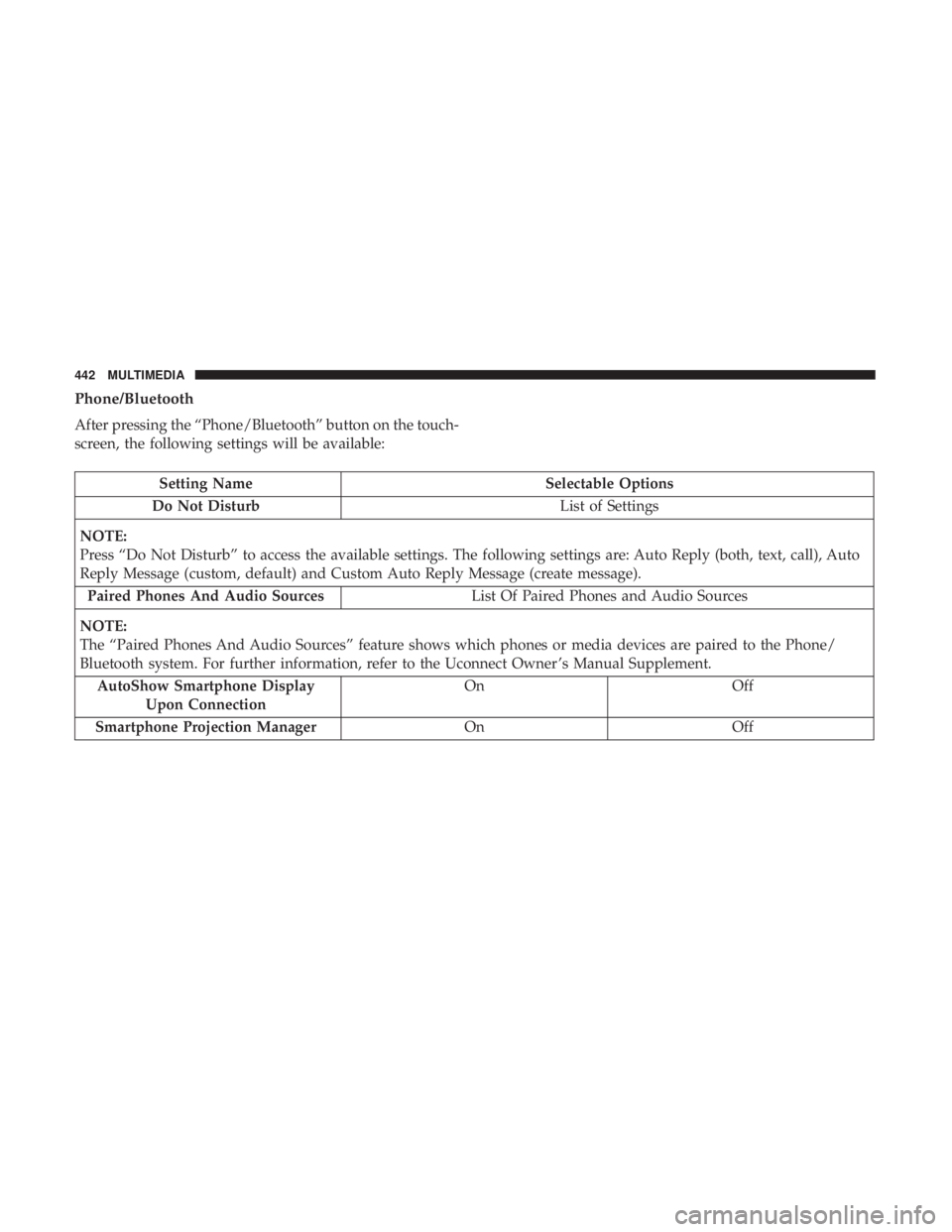
Phone/Bluetooth
After pressing the “Phone/Bluetooth” button on the touch-
screen, the following settings will be available:
Setting NameSelectable Options
Do Not Disturb List of Settings
NOTE:
Press “Do Not Disturb” to access the available settings. The following settings are: Auto Reply (both, text, call), Auto
Reply Message (custom, default) and Custom Auto Reply Message (create message). Paired Phones And Audio Sources List Of Paired Phones and Audio Sources
NOTE:
The “Paired Phones And Audio Sources” feature shows which phones or media devices are paired to the Phone/
Bluetooth system. For further information, refer to the Uconnect Owner ’s Manual Supplement. AutoShow Smartphone Display Upon Connection On
Off
Smartphone Projection Manager OnOff
442 MULTIMEDIA
Page 447 of 492
System Information
After pressing the “System Information” button on the
touchscreen, the following settings will be available:
Setting NameSelectable Options
Software License System Software Information Screen
NOTE:
When the “System Information” feature is selected, a “System Software Information” screen will appear, displaying
the system software version.
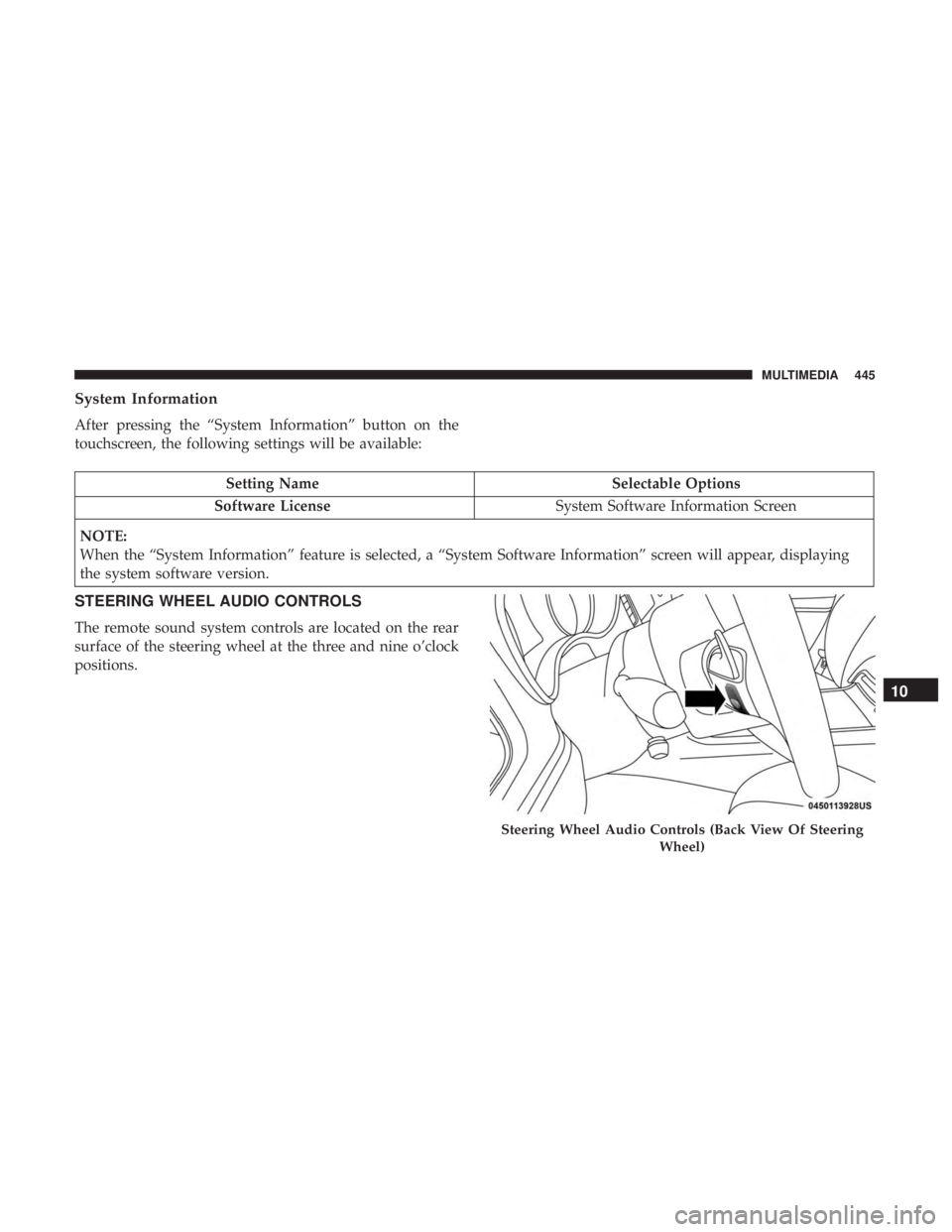
STEERING WHEEL AUDIO CONTROLS
The remote sound system controls are located on the rear
surface of the steering wheel at the three and nine o’clock
positions.
Steering Wheel Audio Controls (Back View Of Steering Wheel)
10
MULTIMEDIA 445
Page 454 of 492
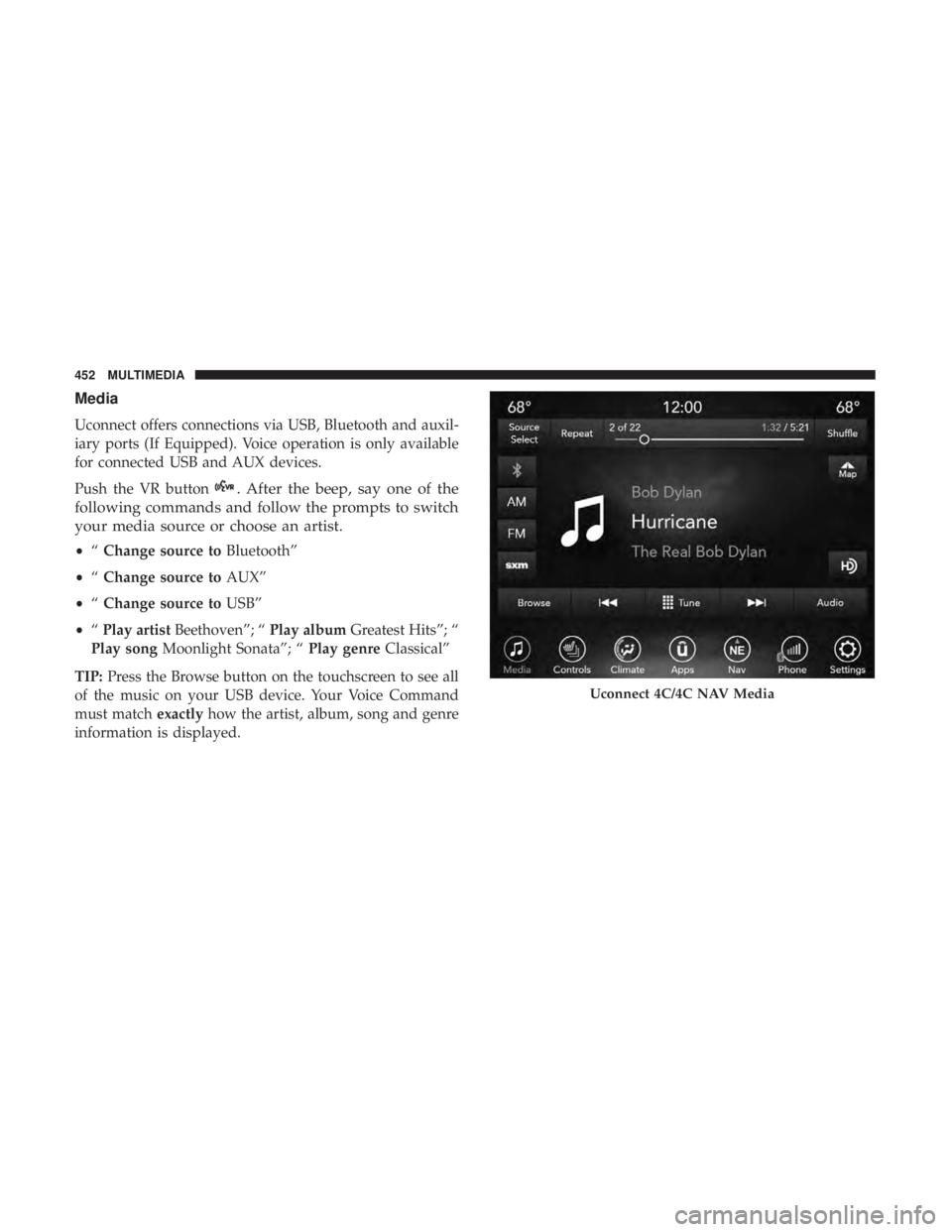
Media
Uconnect offers connections via USB, Bluetooth and auxil-
iary ports (If Equipped). Voice operation is only available
for connected USB and AUX devices.
Push the VR button
. After the beep, say one of the
following commands and follow the prompts to switch
your media source or choose an artist.
• “Change source to Bluetooth”
• “Change source to AUX”
• “Change source to USB”
• “Play artist Beethoven”; “ Play albumGreatest Hits”; “
Play song Moonlight Sonata”; “ Play genreClassical”
TIP: Press the Browse button on the touchscreen to see all
of the music on your USB device. Your Voice Command
must match exactlyhow the artist, album, song and genre
information is displayed.
Uconnect 4C/4C NAV Media
452 MULTIMEDIA
Page 458 of 492
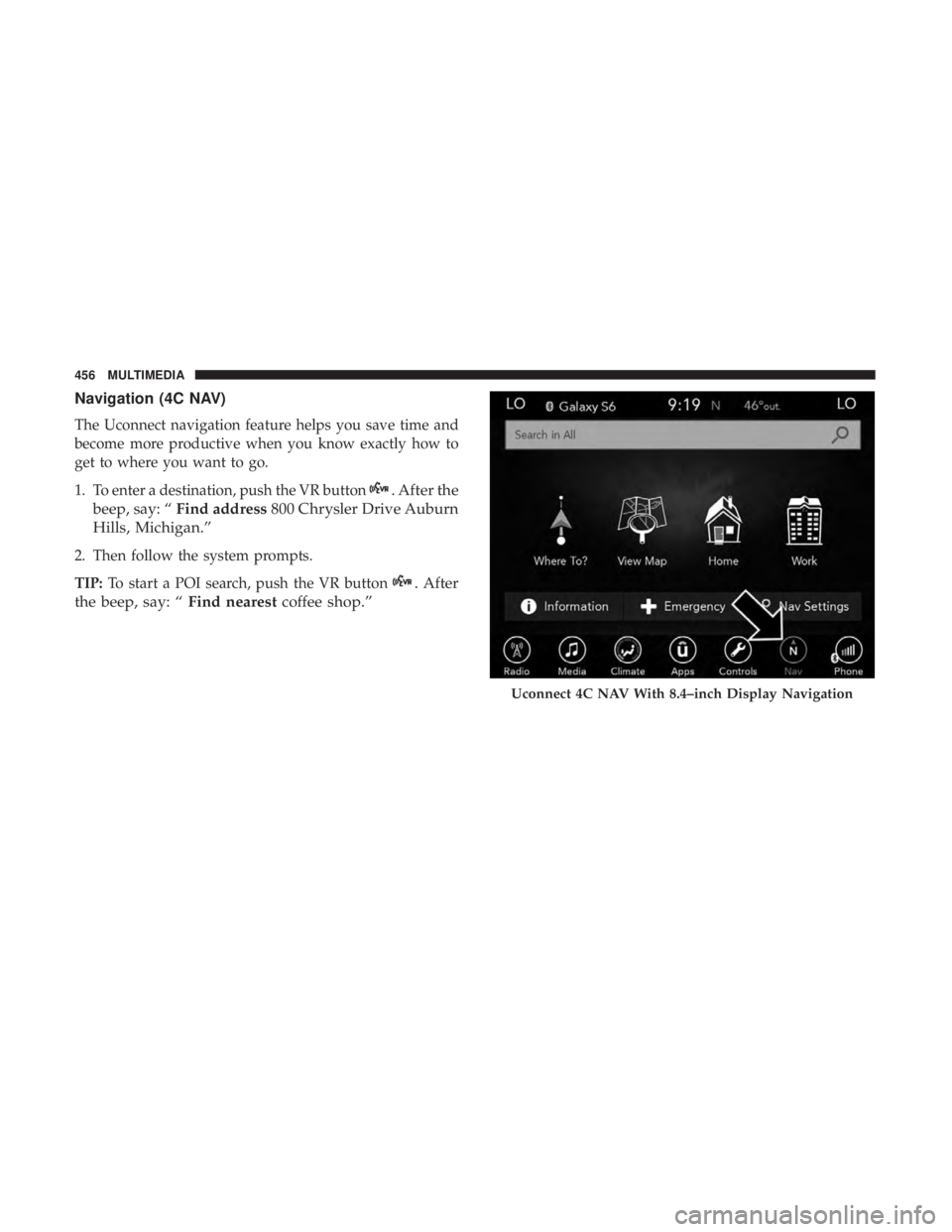
Navigation (4C NAV)
The Uconnect navigation feature helps you save time and
become more productive when you know exactly how to
get to where you want to go.
1. To enter a destination, push the VR button
. After the
beep, say: “ Find address 800 Chrysler Drive Auburn
Hills, Michigan.”
2. Then follow the system prompts.
TIP: To start a POI search, push the VR button
. After
the beep, say: “ Find nearestcoffee shop.”
Uconnect 4C NAV With 8.4–inch Display Navigation
456 MULTIMEDIA
Page 462 of 492
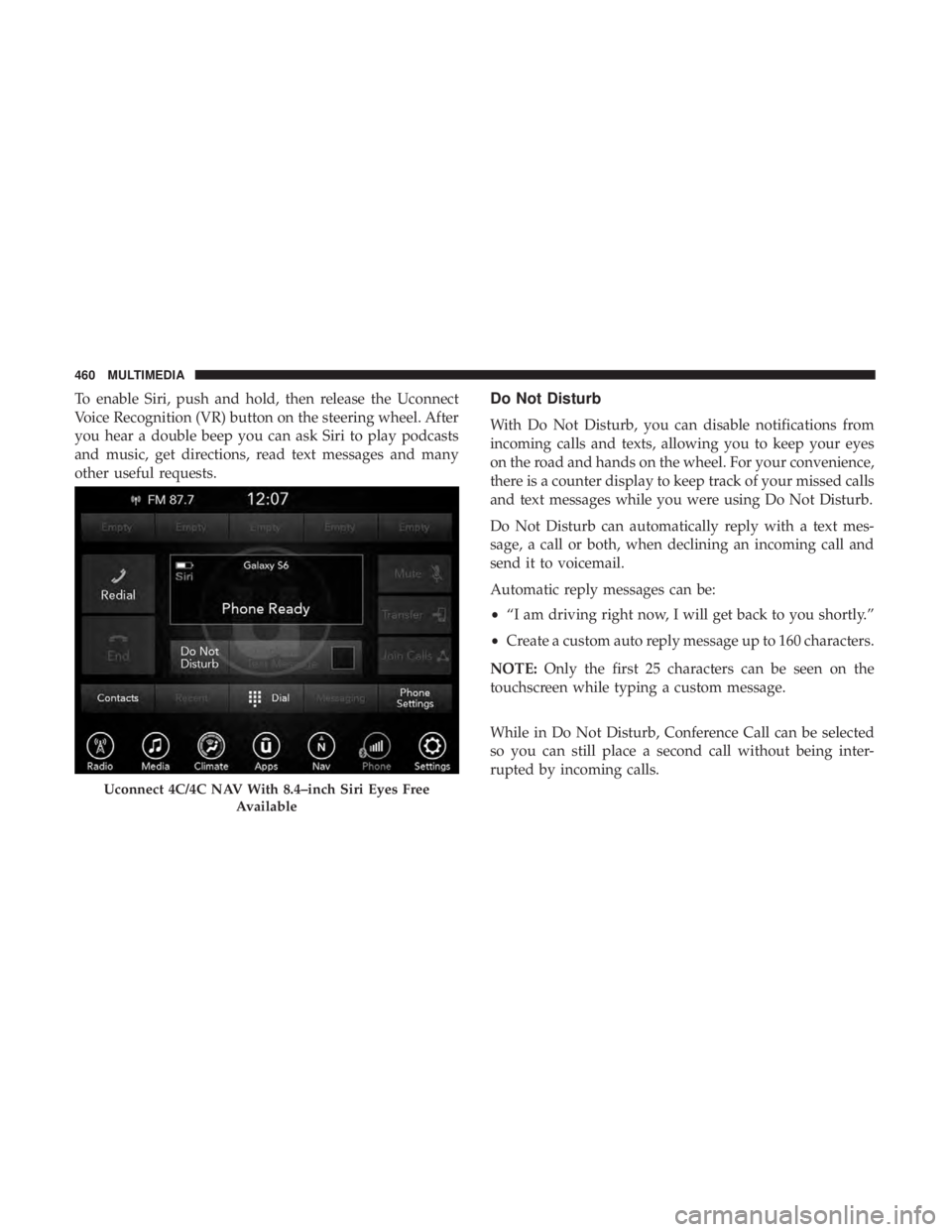
To enable Siri, push and hold, then release the Uconnect
Voice Recognition (VR) button on the steering wheel. After
you hear a double beep you can ask Siri to play podcasts
and music, get directions, read text messages and many
other useful requests.Do Not Disturb
With Do Not Disturb, you can disable notifications from
incoming calls and texts, allowing you to keep your eyes
on the road and hands on the wheel. For your convenience,
there is a counter display to keep track of your missed calls
and text messages while you were using Do Not Disturb.
Do Not Disturb can automatically reply with a text mes-
sage, a call or both, when declining an incoming call and
send it to voicemail.
Automatic reply messages can be:
•“I am driving right now, I will get back to you shortly.”
• Create a custom auto reply message up to 160 characters.
NOTE: Only the first 25 characters can be seen on the
touchscreen while typing a custom message.
While in Do Not Disturb, Conference Call can be selected
so you can still place a second call without being inter-
rupted by incoming calls.
Uconnect 4C/4C NAV With 8.4–inch Siri Eyes Free
Available
460 MULTIMEDIA
Page 463 of 492
NOTE:
•Reply with text message is not compatible with iPhones.
• Auto reply with text message is only available on
phones that support Bluetooth MAP.
Android Auto — If Equipped
NOTE: Feature availability depends on your carrier and
mobile phone manufacturer. Some Android Auto features
may or may not be available in every region and/or
language.
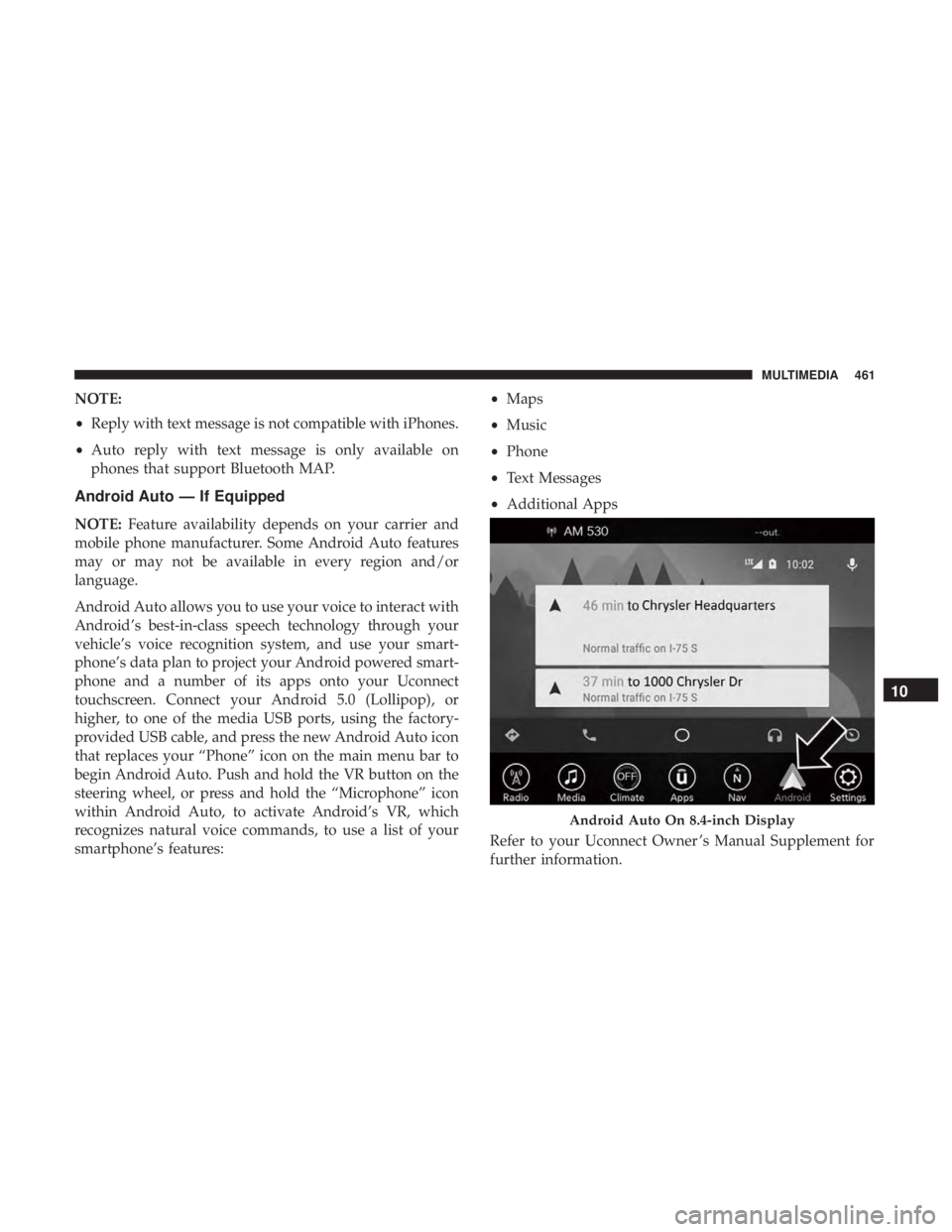
Android Auto allows you to use your voice to interact with
Android’s best-in-class speech technology through your
vehicle’s voice recognition system, and use your smart-
phone’s data plan to project your Android powered smart-
phone and a number of its apps onto your Uconnect
touchscreen. Connect your Android 5.0 (Lollipop), or
higher, to one of the media USB ports, using the factory-
provided USB cable, and press the new Android Auto icon
that replaces your “Phone” icon on the main menu bar to
begin Android Auto. Push and hold the VR button on the
steering wheel, or press and hold the “Microphone” icon
within Android Auto, to activate Android’s VR, which
recognizes natural voice commands, to use a list of your
smartphone’s features: •
Maps
• Music
• Phone
• Text Messages
• Additional Apps
Refer to your Uconnect Owner ’s Manual Supplement for
further information.
Android Auto On 8.4-inch Display
10
MULTIMEDIA 461