buttons CHRYSLER ASPEN 2008 2.G Owner's Manual
[x] Cancel search | Manufacturer: CHRYSLER, Model Year: 2008, Model line: ASPEN, Model: CHRYSLER ASPEN 2008 2.GPages: 479, PDF Size: 4.3 MB
Page 225 of 479
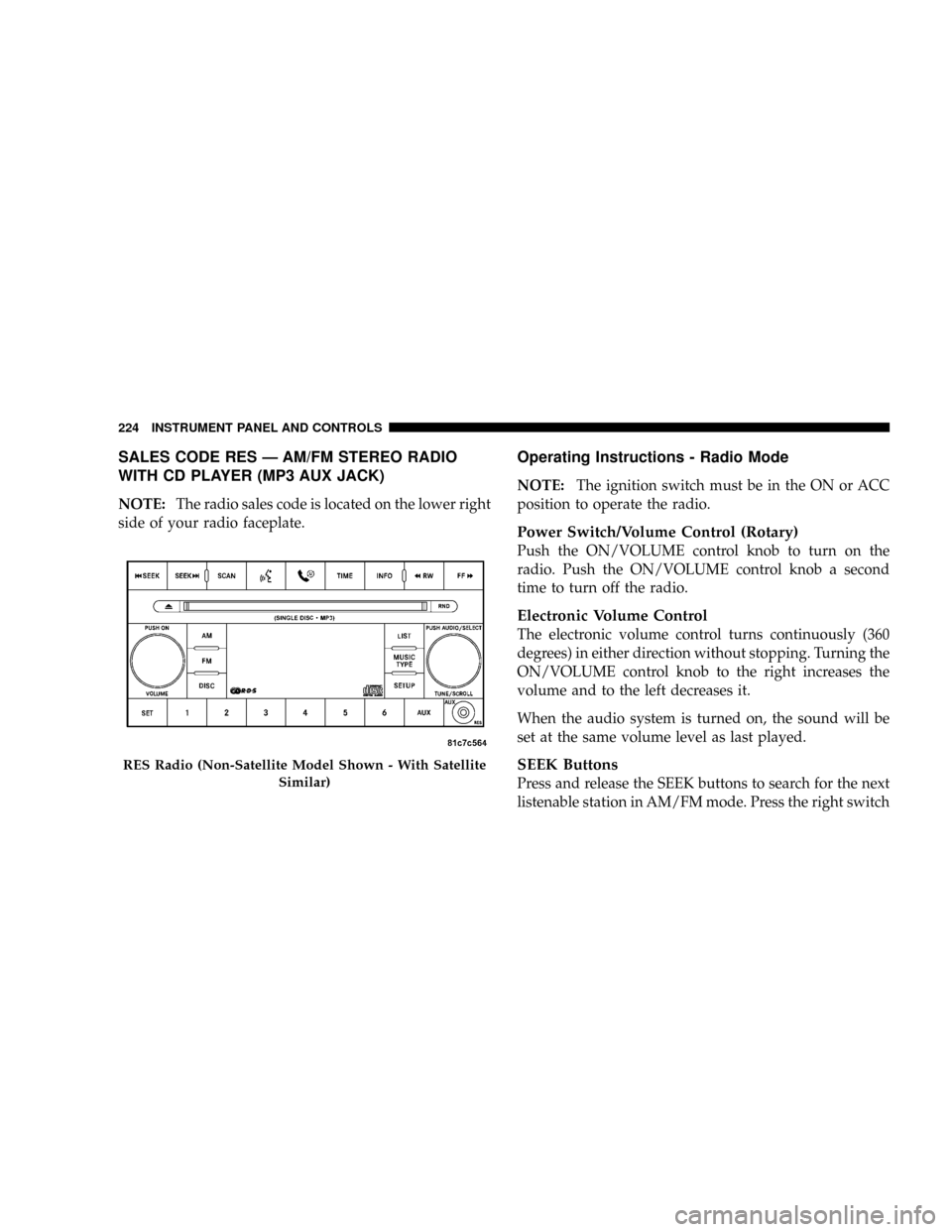
SALES CODE RES Ð AM/FM STEREO RADIO
WITH CD PLAYER (MP3 AUX JACK)
NOTE:The radio sales code is located on the lower right
side of your radio faceplate.
Operating Instructions - Radio Mode
NOTE:The ignition switch must be in the ON or ACC
position to operate the radio.
Power Switch/Volume Control (Rotary)
Push the ON/VOLUME control knob to turn on the
radio. Push the ON/VOLUME control knob a second
time to turn off the radio.
Electronic Volume Control
The electronic volume control turns continuously (360
degrees) in either direction without stopping. Turning the
ON/VOLUME control knob to the right increases the
volume and to the left decreases it.
When the audio system is turned on, the sound will be
set at the same volume level as last played.
SEEK Buttons
Press and release the SEEK buttons to search for the next
listenable station in AM/FM mode. Press the right switch
RES Radio (Non-Satellite Model Shown - With Satellite
Similar)
224 INSTRUMENT PANEL AND CONTROLS
Page 227 of 479

Clock Setting Procedure
1. Press and hold the TIME button, until the hours blink.
2. Adjust the hours by turning the right side TUNE/
SCROLL control knob.
3. After adjusting the hours, press the right side TUNE/
SCROLL control knob to set the minutes. The minutes
will begin to blink.
4. Adjust the minutes using the right side TUNE/
SCROLL control knob. Press the TUNE/SCROLL control
knob to save time change.
5. To exit, press any button/knob or wait five seconds.
The clock can also be set by pressing the SETUP button.
For vehicles equipped with satellite radio, press the
SETUP button, use the TUNE/SCROLL control to select
SET CLOCK, and then follow the above procedure,starting at Step 2. For vehicles not equipped with satellite
radio, press the SETUP button and then follow the above
procedure, starting at Step 2.
INFO Button
Press the INFO button for an RDS station (one with call
letters displayed). The radio will return a Radio Text
message broadcast from an FM station (FM mode only).
RW/FF
Pressing the RW (Rewind) or FF (Fast Forward) buttons
causes the tuner to search for the next frequency in the
direction of the arrows. This feature operates in either
AM or FM frequencies.
TUNE Control
Turn the rotary TUNE/SCROLL control knob clockwise
to increase or counterclockwise to decrease the frequency.
226 INSTRUMENT PANEL AND CONTROLS
Page 230 of 479

By pressing the SEEK button when the Music Type icon
is displayed, the radio will be tuned to the next frequency
station with the same selected Music Type name. The
Music Type function only operates when in the FM
mode.
If a preset button is activated while in the Music Type
(Program Type) mode, the Music Type mode will be
exited and the radio will tune to the preset station.
SETUP Button
Pressing the SETUP button allows you to select between
the following items:
²Set ClockÐ Pressing the SELECT button will allow
you to set the clock. Turn the TUNE/SCROLL control
knob to adjust the hours and then press and turn the
TUNE/SCROLL control knob to adjust the minutes.
Press the TUNE/SCROLL control knob again to save
changes.
AM and FM Buttons
Press the buttons to select AM or FM modes.
SET Button Ð To Set the Pushbutton Memory
When you are receiving a station that you wish to
commit to pushbutton memory, press the SET button.
The symbol SET 1 will now show in the display window.
Select the button (1 to 6) you wish to lock onto this station
and press and release that button. If a button is not
selected within five seconds after pressing the SET but-
ton, the station will continue to play but will not be
stored into pushbutton memory.
You may add a second station to each pushbutton by
repeating the above procedure with this exception: Press
the SET button twice and SET 2 will show in the display
window. Each button can be set for SET 1 and SET 2 in
both AM and FM. This allows a total of 12 AM and 12 FM
stations to be stored into pushbutton memory. The sta-
tions stored in SET 2 memory can be selected by pressing
the pushbutton twice.
INSTRUMENT PANEL AND CONTROLS 229
4
Page 231 of 479

Every time a preset button is used, a corresponding
button number will display.
Buttons1-6
These buttons tune the radio to the stations that you
commit to pushbutton memory (12 AM and 12 FM
stations).
DISC Button
Pressing the DISC button will allow you to switch from
AM/FM modes to Disc modes.
Operation Instructions - CD MODE for CD and
MP3 Audio Play
NOTE:The ignition switch must be in the ON or ACC
position to operate the radio.
NOTE:This radio is capable of playing compact discs
(CD), recordable compact discs (CD-R), rewritable com-
pact discs (CD-RW), compact discs with MP3 tracks and
multisession compact discs with CD and MP3 tracks.
Inserting Compact Disc(s)
Gently insert one CD into the CD player with the CD
label facing up. The CD will automatically be pulled into
the CD player and the CD icon will illuminate on the
radio display. If a CD does not go into the slot more than
an inch (2.5 cm), a disc may already be loaded and must
be ejected before a new disc can be loaded.
If you insert a disc with the ignition ON and the radio
ON, the unit will switch from radio to CD mode and
begin to play when you insert the disc. The display will
show the disc number, the track number, and index time
in minutes and seconds. Play will begin at the start of
track 1.
230 INSTRUMENT PANEL AND CONTROLS
Page 239 of 479
Satellite Antenna
To ensure optimum reception, do not place items on the
roof around the rooftop antenna location or strap items to
the trunk lid around the trunk lid antenna (if equipped).
Metal objects placed within the line of sight of the
antenna will cause decreased performance. Larger lug-
gage items such as bikes should be placed as far rearward
as possible, within the loading design of the rack. Do not
place items directly on or above the antenna.
Reception Quality
Satellite reception may be interrupted due to one of the
following reasons:
²The vehicle is parked in an underground parking
structure or under a physical obstacle.
²Dense tree coverage may interrupt reception in the
form of short audio mutes.
²Driving under wide bridges or along tall buildings can
cause intermittent reception.
²Placing objects over or too close to the antenna can
cause signal blockage.
Operating Instructions - Satellite Mode
NOTE:The ignition switch must be in the ON or ACC
position to operate the radio.
SEEK Buttons
Press and release the SEEK buttons to search for the next
channel in Satellite mode. Press the right switch to seek
up and the left switch to seek down. The radio will
remain tuned to the new channel until you make another
selection. Holding either button will bypass channels
without stopping until you release it.
238 INSTRUMENT PANEL AND CONTROLS
Page 240 of 479

SCAN Button
Pressing the SCAN button causes the tuner to search for
the next channel, pausing for eight seconds before con-
tinuing to the next. To stop the search, press the SCAN
button a second time.
INFO Button
Pressing the INFO button will cycle between Artist, Song
Title, and Composer (if available) information. Also,
pressing and holding the INFO button for an additional
three seconds will make the radio display the Song Title
all of the time (press and hold again to return to normal
display).
RW/FF
Pressing the RW (Rewind) or FF (Fast Forward) buttons
causes the tuner to search for the next channel in the
direction of the arrows.
TUNE Control (Rotary)
Turn the rotary TUNE/SCROLL control knob clockwise
to increase or counterclockwise to decrease the channel.
MUSIC TYPE Button
Pressing this button once will turn on the Music Type
mode for five seconds. Pressing the MUSIC TYPE button
or turning the TUNE/SCROLL control knob within five
seconds will allow the program format type to be se-
lected.
Toggle the MUSIC TYPE button again to select the music
type.
By pressing the SEEK button when the Music Type
function is active, the radio will be tuned to the next
channel with the same selected Music Type name.
If a preset button is activated while in the Music Type
(Program Type) mode, the Music Type mode will be
exited and the radio will tune to the preset channel.
INSTRUMENT PANEL AND CONTROLS 239
4
Page 241 of 479

SETUP Button
Pressing the SETUP button allows you to select the
following items:
²Display Sirius ID number Ð Press the AUDIO/
SELECT button to display the Sirius ID number. This
number is used to activate, deactivate, or change the
Sirius subscription.
SET Button ± To Set the Pushbutton Memory
When you are receiving a channel that you wish to
commit to pushbutton memory, press the SET button.
The symbol SET 1 will now show in the display window.
Select the button (1-6) you wish to lock onto this channel
and press and release that button. If a button is not
selected within five seconds after pressing the SET but-
ton, the channel will continue to play but will not be
stored into pushbutton memory.You may add a second channel to each pushbutton by
repeating the above procedure with this exception: Press
the SET button twice and SET 2 will show in the display
window. Each button can be set for SET 1 and SET 2. This
allows a total of 12 Satellite channels to be stored into
pushbutton memory. The channels stored in SET 2
memory can be selected by pressing the pushbutton
twice.
Every time a preset button is used, a corresponding
button number will display.
Buttons1-6
These buttons tune the radio to the channels that you
commit to pushbutton memory (12 Satellite stations).
240 INSTRUMENT PANEL AND CONTROLS
Page 242 of 479

Operating Instructions - Hands-Free Phone (If
Equipped)
Refer to ªHands-Free Communication (UConnectt)º in
Section 3.
Operating Instructions - Video Entertainment
System (VESŸ) (If Equipped)
Refer to separate ªVideo Entertainment System (VESŸ)
Guide.º
UNIVERSAL CONSUMER INTERFACE (UCI) Ð IF
EQUIPPED
NOTE:This section is for sales code RES and REQ
radios only with UConnectt. For sales code REN touch
screen radio, refer to the separate User's Manual.This feature allows you to plug an iPodtmobile digital
device into the vehicle's sound system through a connec-
tor (UCI connector) using an optional connection cable
(available through MOPARt). See your authorized dealer
for details.
Using this feature,
²the iPodtaudio can be played on the vehicle's sound
system, providing metadata (Track Title, Artist, Al-
bum, etc.) information display on radio.
²the iPodtcan be controlled using the radio buttons to
Play, Browse and List the iPodtcontents.
²the iPodtbattery charges when plugged into the UCI
connector.
INSTRUMENT PANEL AND CONTROLS 241
4
Page 243 of 479
Connecting The iPodTDevice
Use the optional connection cable to connect an iPodtto
the vehicle's UCI connector (which is located in the glove
box on some vehicles. This location may vary with
vehicle). Once the iPodtis connected and synchronized
to the vehicle system (this may take a few seconds to
connect), the vehicle brand logo appears on the iPodt
display, and it starts charging and is ready for use by
pressing radio switches as described below.
Controlling The iPodTUsing Radio Buttons
To get into the UCI (iPodt) mode and access a connected
iPodt, press the AUX button on the radio faceplate. Once
in the UCI (iPodt) mode, the iPodtaudio track (if
available from iPodt) will start playing over the vehicle
audio system.
Play Mode
When switched to UCI mode the iPodtwill be in Play
mode. In Play mode, you may use the following buttons
on the radio faceplate to control the iPodtand display
data:
TUNE/SCROLL Knob
Use the TUNE/SCROLL knob to go to the next or
previous track.
The TUNE/SCROLL knob functions similar to the scroll
wheel on the iPodtmobile digital device.
Turning it clockwise (forward) by one click while playing
a track skips to the next track.
Turning it counterclockwise (backward) by one click
during the first two seconds of the track will jump to the
previous track in the list and turning this button at any
other time in the track will jump to the beginning of the
current track.
242 INSTRUMENT PANEL AND CONTROLS
Page 244 of 479
RW (Rewind) Button
Press and hold the RW button to move backward in the
current track. Holding the RW button long enough will
take you back to the beginning of the current track.
Pressing and releasing the RW button will go back five
seconds of the current track.
FF (Fast Forward) Button
Press and hold the FF button to move forward in the
current track.
Pressing and releasing the FF button will go forward five
seconds of the current track.
SEEK Buttons
Use the SEEK buttons to move to the previous or the next
track.If the left (down) button is pressed during the first two
seconds of the current track, it will go back to the
previous track in the list; if you press this button at any
other time in the current track it will go back to the
beginning of the track.
If the right (up) button is pressed during Play mode, it
will go to the next track in the list.
INFO Button
Press the INFO button while a track is playing to see the
information (Track Title, Artist, Album, etc.) for that
track. Each press of the INFO button will take you to the
next screen of data for that track. Once you have seen all
of the screens, the last press of the INFO button will take
you back to the Play mode screen on the radio.
REPEAT Button
Press the REPEAT button to repeat the current playing
track.
INSTRUMENT PANEL AND CONTROLS 243
4