radio CHRYSLER ASPEN 2009 2.G Owner's Manual
[x] Cancel search | Manufacturer: CHRYSLER, Model Year: 2009, Model line: ASPEN, Model: CHRYSLER ASPEN 2009 2.GPages: 481, PDF Size: 9.28 MB
Page 180 of 481
It is recommended that a new battery be placed in the
hand-held transmitter of the device being programmed
to HomeLinktfor more efficient training and accurate
transmission of the radio-frequency signal.
Your vehicle should be parked outside of the garage
while training.
1. Turn the ignition switch to the ON/RUN position.
2. Place the hand-held transmitter 1 to 3 in (3 to 8 cm)
from the HomeLinktbuttons while keeping the EVIC
display in view.
For optimal training, point the battery end of the hand-
held transmitter away from the HomeLinkt.
3. Simultaneously, press and hold both the chosen
HomeLinktbutton and the hand-held transmitter button
until the EVIC display changes from ªCHANNEL #
TRAININGº to ªCHANNEL # TRAINED.ºThen release both the HomeLinktand hand-held trans-
mitter buttons.
If the EVIC display states ªDID NOT TRAINº repeat Step
3. If the signal is too weak, replace the battery in the
original hand-held transmitter.
It may take up to 30 seconds, or longer, in rare cases. The
garage door may open and close while you train.
NOTE:Some gate operators and garage door openers
may require you to replace Step 3 with procedures noted
in the ªGate Operator/Canadian Programmingº section.
4. Press and hold the just-trained HomeLinktbutton. If
the channel has been trained, the EVIC display will now
state ªCHANNEL # TRANSMIT.º
If the EVIC display still states ªCHANNEL # TRAIN-
INGº repeat Step 3.
178 UNDERSTANDING THE FEATURES OF YOUR VEHICLE
Page 182 of 481
NOTE:There are 30 seconds in which to initiate the next
step after the ªLearnº button has been pressed.
7. Return to the vehicle and press the programmed
HomeLinktbutton twice (holding the button for two
seconds each time). If the device is plugged in and
activates, programming is complete.
If the device does not activate, press the button a third
time (for two seconds) to complete the training.
If you have any problems, or require assistance, please
call toll-free 1±800±355±3515 or, on the Internet at
www.HomeLink.com for information or assistance.
To program the remaining two HomeLinktbuttons,
repeat each step for each remaining button. DO NOT
erase the channels.Gate Operator/Canadian Programming
Canadian radio-frequency laws require transmitter sig-
nals to ªtime-outº (or quit) after several seconds of
transmission ± which may not be long enough for
HomeLinktto pick up the signal during programming.
Similar to this Canadian law, some U.S. gate operators are
designed to ªtime-outº in the same manner.
It may be helpful to unplug the device during the cycling
process to prevent possible overheating of the garage
door or gate motor.
If you are having difficulties programming a garage door
opener or a gate operator, replace ªProgramming
HomeLinkº Step 3 with the following:
180 UNDERSTANDING THE FEATURES OF YOUR VEHICLE
Page 201 of 481
UNDERSTANDING YOUR INSTRUMENT PANEL
CONTENTS
mInstruments And Controls................ 202
mInstrument Cluster..................... 203
mInstrument Cluster Description............ 204
mSetting The Analog Clock................ 216
mElectronic Digital Clock................. 216
NClock Setting Procedure................ 217
mAM/FM/CD/DVD Multimedia System Radio
(RER/REN) ± If Equipped................ 217
NOperating Instructions Ð Voice Recognition
System (VR) Ð If Equipped............. 218NOperating Instructions Ð Hands-Free
Communication (UConnectt) Ð If Equipped
. . 218
NClock Setting Procedure................ 218
mSales Code RES Ð AM/FM Stereo Radio With
CD Player (MP3 AUX Jack)................ 220
NOperating Instructions - Radio Mode....... 220
NOperation Instructions - CD Mode For CD
And MP3 Audio Play.................. 223
NNotes On Playing MP3 Files............. 226
NOperation Instructions - Auxiliary Mode.... 2284
Page 202 of 481
mSales Code RES/RSC Ð AM/FM Stereo Radio
With CD Player (MP3 AUX Jack) And Sirius
Radio............................... 229
NOperating Instructions - Radio Mode....... 229
NOperation Instructions - CD Mode For CD
And MP3 Audio Play.................. 235
NNotes On Playing MP3 Files............. 237
NList Button (CD Mode For MP3 Play)...... 240
NInfo Button (CD Mode For MP3 Play)...... 240
mUniversal Consumer Interface (UCI)
Ð If Equipped......................... 241
NConnecting The iPodt................. 242
NUsing This Feature................... 242
NControlling The iPodtUsing Radio Buttons . . 243NPlay Mode......................... 243
NList Or Browse Mode.................. 244
mSatellite Radio Ð If Equipped
(REN/REQ/RER/RES/REU Radios Only)..... 246
NSystem Activation.................... 246
NElectronic Serial Number/Sirius
Identification Number (ESN/SID)......... 247
NSelecting Satellite Mode................ 248
NSatellite Antenna..................... 248
NReception Quality.................... 248
NOperating Instructions - Satellite Mode..... 248
NOperating Instructions - Hands-Free Phone
(If Equipped)........................ 251
200 UNDERSTANDING YOUR INSTRUMENT PANEL
Page 203 of 481
NOperating Instructions - Video Entertainment
System (VESt) (If Equipped)............. 251
mSirius Backseat TVŸÐ If Equipped......... 251
mVideo Entertainment System (Sales Code XRV)
Ð If Equipped......................... 252
m
Remote Sound System Controls Ð If Equipped. . 252
NRadio Operation..................... 253
NCD Player.......................... 253
mCD/DVD Maintenance.................. 253
mRadio Operation And Cellular Phones....... 254
mClimate Controls...................... 255
NManual Control...................... 255
NAir Conditioning Operation............. 255
NFront Blower Control.................. 256NFront Mode Control................... 256
NRear Temperature Control Ð If Equipped . . . 259
NRear Window Defrosting And Rear Window
Washer/Wiper....................... 259
NAutomatic Temperature Control (ATC)
Ð If Equipped....................... 260
NAutomatic Control.................... 260
NLevel Of Automatic Control............. 261
NManual Control (ATC)................. 261
NRear Zone Climate Control Ð If Equipped . . . 265
NRear Rotary Temperature Control......... 266
NFront Unit To Rear Unit Chart........... 267
NOperating Tips...................... 267
NOperating Tips Chart.................. 269
UNDERSTANDING YOUR INSTRUMENT PANEL 201
4
Page 204 of 481
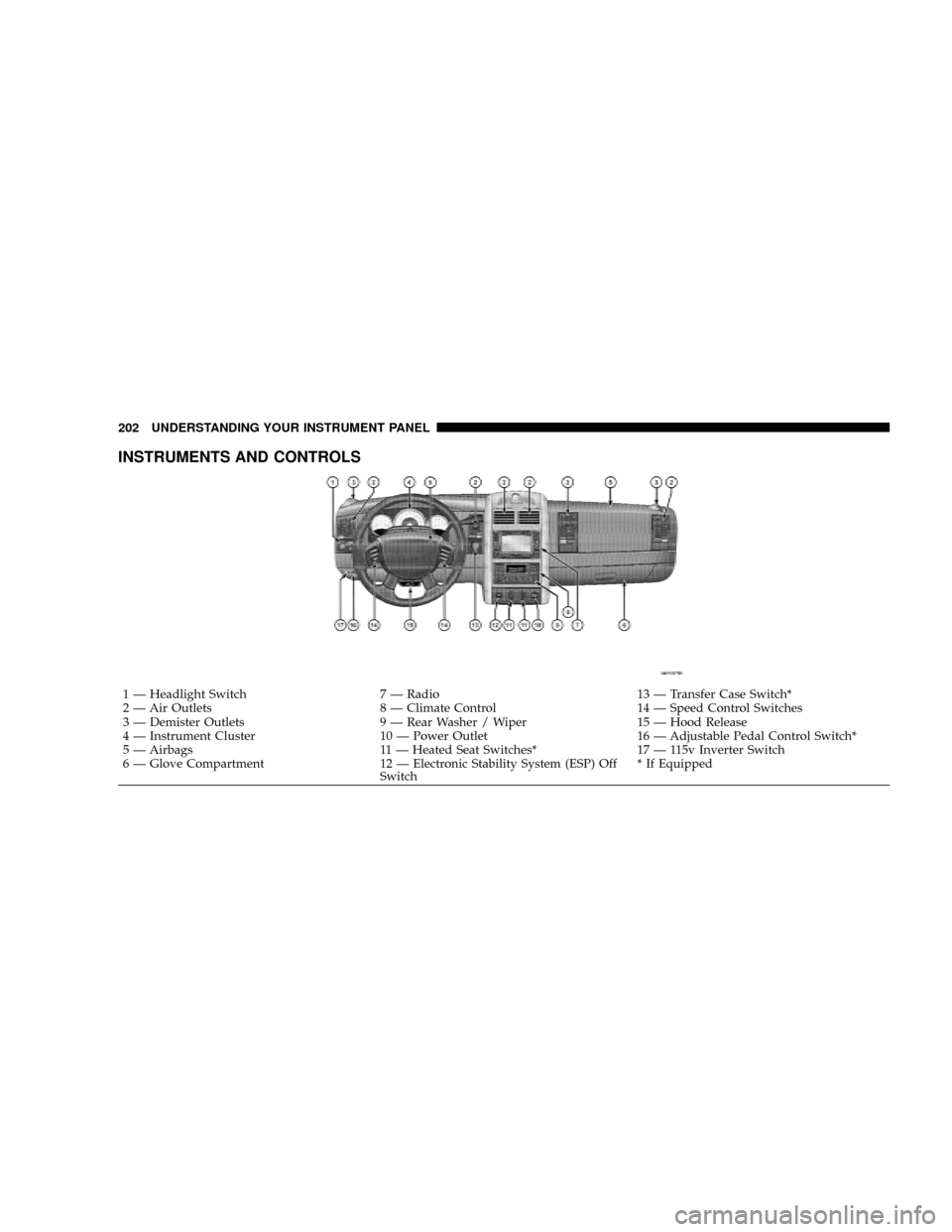
INSTRUMENTS AND CONTROLS
1 Ð Headlight Switch 7 Ð Radio 13 Ð Transfer Case Switch*
2 Ð Air Outlets 8 Ð Climate Control 14 Ð Speed Control Switches
3 Ð Demister Outlets 9 Ð Rear Washer / Wiper 15 Ð Hood Release
4 Ð Instrument Cluster 10 Ð Power Outlet 16 Ð Adjustable Pedal Control Switch*
5 Ð Airbags 11 Ð Heated Seat Switches* 17 Ð 115v Inverter Switch
6 Ð Glove Compartment 12 Ð Electronic Stability System (ESP) Off
Switch* If Equipped 202 UNDERSTANDING YOUR INSTRUMENT PANEL
Page 218 of 481
29. TOW/HAUL
The TOW/HAUL button is located at the end of the shift
lever. This light will illuminate when the TOW/HAUL
button has been selected.
30. 4LOW Indicator
Indicates the transfer case is in 4LOW position.
31. Odometer / Trip Odometer Button
Press this button to toggle between the odometer and the
trip odometer display. Holding the button in resets the
trip odometer reading.
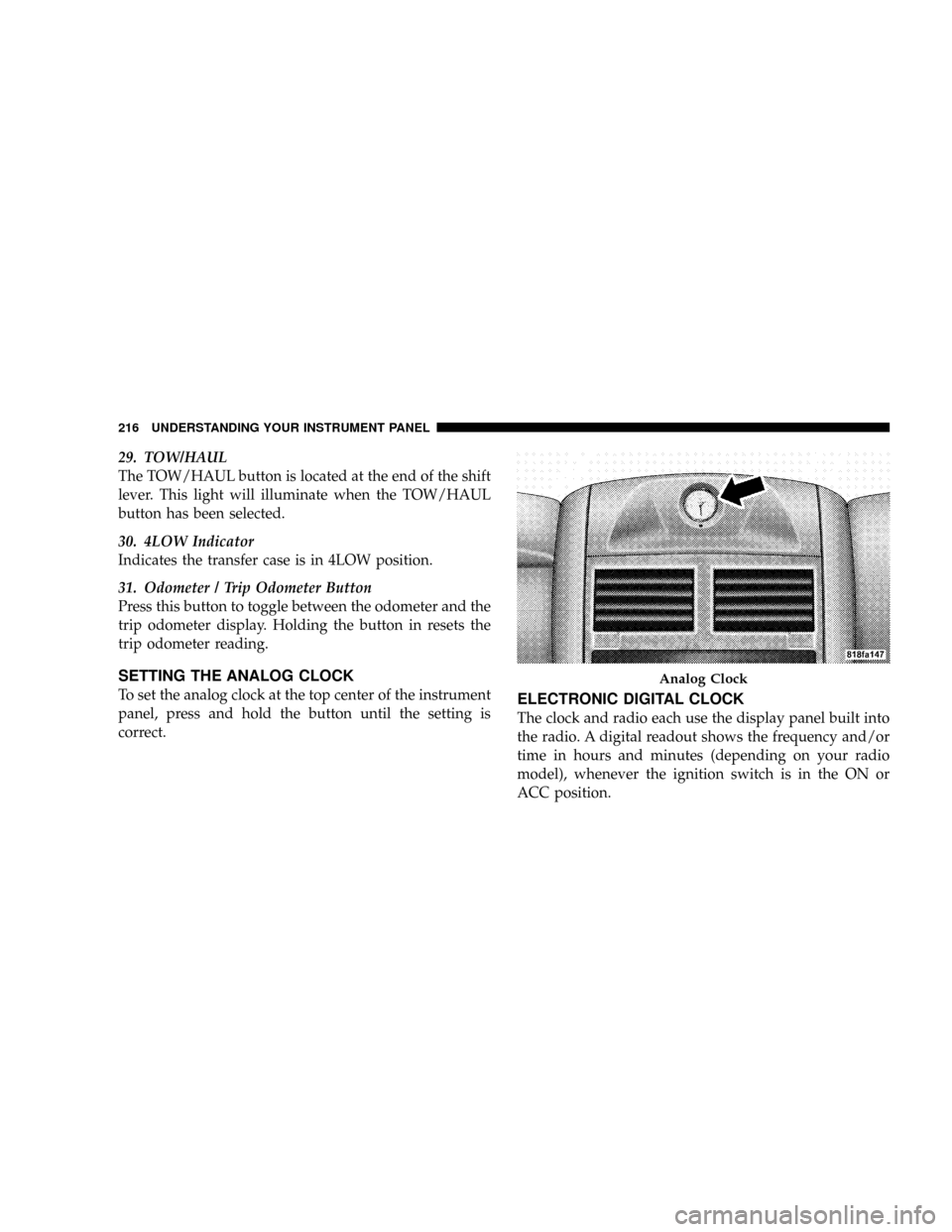
SETTING THE ANALOG CLOCK
To set the analog clock at the top center of the instrument
panel, press and hold the button until the setting is
correct.ELECTRONIC DIGITAL CLOCK
The clock and radio each use the display panel built into
the radio. A digital readout shows the frequency and/or
time in hours and minutes (depending on your radio
model), whenever the ignition switch is in the ON or
ACC position.
Analog Clock
216 UNDERSTANDING YOUR INSTRUMENT PANEL
Page 219 of 481
When the ignition switch is in the OFF position, or when
the radio frequency is being displayed, timekeeping is
accurately maintained.
On the AM/FM/CD (6-disc) radio, the time button
alternates the location of the time and frequency on the
display. On the AM/FM/CD (single-disc) radio, only one
of the two, time or frequency, is displayed.
Clock Setting Procedure
1. Press and hold the TIME button until the hours blink.
2. Adjust the hours by turning the TUNE/AUDIO con-
trol knob.
3. After the hours are adjusted, push the TUNE/AUDIO
control knob to set the minutes.
4. Adjust the minutes by turning the TUNE/AUDIO
control knob.5. To exit, press any button/knob, or wait approximately
five seconds.
AM/FM/CD/DVD MULTIMEDIA SYSTEM RADIO
(RER/REN) ± IF EQUIPPED
NOTE:The sales code is located on the lower right side
of the unit's faceplate.
The REN and RER Multimedia systems contain a radio,
CD/DVD player, USB port, a 20-gigabyte hard drive
(HDD), and a ªJukeBoxº (virtual CD changer). Sirius
Satellite Radio is optional. The 6.5 in (16.5 cm) touch
screen allows for easy menu selection.
The RER radio also contains a Global Positioning System
(GPS) based Navigation system.
Refer to your Multimedia system (REN) or Navigation
(RER) user's manual for detailed operating instructions.
UNDERSTANDING YOUR INSTRUMENT PANEL 217
4
Page 220 of 481
Operating Instructions Ð Voice Recognition
System (VR) Ð If Equipped
For the radio, refer to ªVoice Recognition System (VR)º in
Section 3.
Operating Instructions Ð Hands-Free
Communication (UConnectT) Ð If Equipped
Refer to ªHands-Free Communication (UConnectt)º in
Section 3.
Clock Setting Procedure
Global Positioning System (GPS) Ð RER only
The GPS receiver used in this system is synchronized to
the time data being transmitted by the GPS satellite. The
satellites' clock is Greenwich Mean Time (GMT). This is
the worldwide standard for time. This makes the sys-
tem's clock very accurate once the appropriate time zone
and daylight savings information is set.
To Manually Set the Clock Ð RER/REN
1. Turn on the multimedia system.
2. Touch the screen where the time is displayed. The
clock setting menu will appear on the screen.
3. To move the hour forward, touch the screen where the
word ªHourº with the arrow pointing upward is dis-
played. To move the hour backward, touch the screen
where the word ªHourº with the arrow pointing down-
ward is displayed.
4. To move the minute forward, touch the screen where
the word ªMinº with the arrow pointing upward is
displayed. To move the minute backward, touch the
screen where the word ªMinº with the arrow pointing
downward is displayed.
5. To save the new time setting, touch the screen where
the word ªSaveº is displayed.
218 UNDERSTANDING YOUR INSTRUMENT PANEL
Page 221 of 481
Changing Daylight Savings Time
When selected, this feature will display the time of day in
daylight savings time. Proceed as follows to change the
current setting:
1. Turn on the multimedia system.
2. Touch the screen where the time is displayed. The
clock setting menu will appear on the screen.
3. When this feature is on, a check mark will appear in
the box next to the words ªDaylight Savings.º Touch the
screen where the words ªDaylight Savingsº are dis-
played to change the current setting.
Show Time if Radio is Off
When selected, this feature will display the time of day on
the touch screen when the multimedia system is turned off.
Proceed as follows to change the current setting:
1. Turn on the multimedia system.
2. Touch the screen where the time is displayed. The
clock setting menu will appear on the screen.3. When this feature is on, a check mark will appear in
the box next to the words ªShow Time if Radio is Off.º
Touch the screen where the words ªShow Time if Radio is
Offº are displayed to change the current setting.
Changing the Time Zone
1. Turn on the multimedia system.
2. Touch the screen where the time is displayed. The
clock setting menu will appear on the screen.
3. Touch the screen where the words ªSet Time Zoneº are
displayed. The time zone selection menu will appear on
the screen.
4. Select a time zone by touching the screen where your
selection appears. If you do not see a time zone that you
want to select, touch the screen where the word ªPageº is
displayed to view additional time zones in the menu.
5. Touch the screen where the word ªSaveº is displayed.
UNDERSTANDING YOUR INSTRUMENT PANEL 219
4