phone CHRYSLER PACIFICA 2008 1.G Owner's Manual
[x] Cancel search | Manufacturer: CHRYSLER, Model Year: 2008, Model line: PACIFICA, Model: CHRYSLER PACIFICA 2008 1.GPages: 457, PDF Size: 6.7 MB
Page 106 of 457

²Press the 'Phone' button to begin.
²After the9Ready9prompt and the following beep, say
9Setup Select Phone9and follow the prompts.
²You can also press the8Voice Recognition' button
anytime while the list is being played, and then choose
the phone that you wish to select.
²The selected phone will be used for the next phone
call. If the selected phone is not available, the UCon-
nectŸ system will return to using the highest priority
phone present in or near (approximately with in 30
feet) the vehicle.
Delete UConnectŸ Paired Cellular Phones
²
Press the 'Phone' button to begin.
²After the9Ready9prompt and the following beep, say
9Setup Phone Pairing.9
²At the next prompt, say9Delete9and follow the
prompts.
²You can also press the8Voice Recognition' button
anytime while the list is being played and then choose
the phone you wish to delete.
Things You Should Know About Your UConnectŸ
System
Voice Training
For users experiencing difficulty with the system recog-
nizing their voice commands or numbers, the UCon-
nectŸ system Voice Training feature may be used. To
enter this training mode, follow one of the two proce-
dures:
From outside the UConnectŸ mode (e.g. from radio
mode)
²Press and hold the `Voice Recognition' button for 5
seconds until the session begins, or,
106 UNDERSTANDING THE FEATURES OF YOUR VEHICLE
Page 108 of 457

²When navigating through an automated system, such
as voice mail, or when sending a page at the end of
speaking the digit string, make sure to say9send.9
²Storing names in phonebook when vehicle is not in
motion is recommended.
²It is not recommended to store similar sounding
names in the UConnectŸ phonebook.
²UConnectŸ phonebook nametag recognition rate is
optimized for the voice of the person who stored the
name in the phonebook.
²You can say9O9(letter9O9) for909(zero).98009must be
spoken9eight-zero-zero.9
²Even though international dialing for most number
combinations is supported, some shortcut dialing
number combinations may not be supported.
Far End Audio Performance
²
Audio quality is maximized under:
²low-to-medium blower setting.
²low-to-medium vehicle speed.
²low road noise.
²smooth road surface.
²fully closed windows.
²dry weather condition.
²operation from driver seat.
²Performance, such as audio clarity, echo, and loudness
to a large degree rely on the phone and network, and
not the UConnectŸ system.
²Echo at far end can sometime be reduced by lowering
the in-vehicle audio volume.
108 UNDERSTANDING THE FEATURES OF YOUR VEHICLE
Page 109 of 457

Bluetooth Communication Link
Occasionally, Cellular phones have been found to lose
connection to the UConnectŸ system. When this hap-
pens, the connection can generally be re-established by
switching the phone off/on. Your cell phone is recom-
mended to remain in Bluetooth9on9mode.
Power-Up
After switching the ignition key from OFF to either ON
or ACC position, or after a reset, you must wait at least
five (5) seconds prior to using the system.
UNDERSTANDING THE FEATURES OF YOUR VEHICLE 109
3
Page 114 of 457
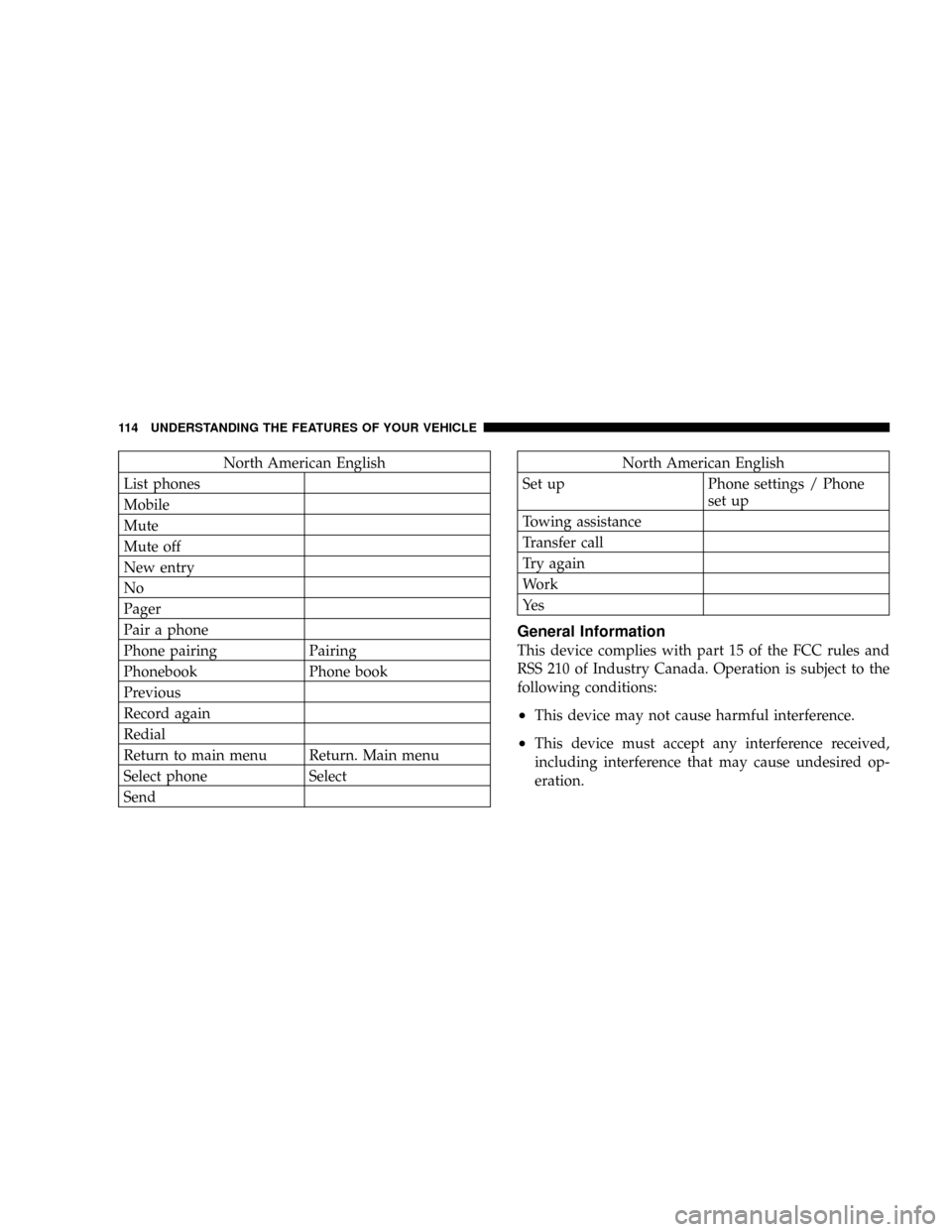
North American English
List phones
Mobile
Mute
Mute off
New entry
No
Pager
Pair a phone
Phone pairing Pairing
Phonebook Phone book
Previous
Record again
Redial
Return to main menu Return. Main menu
Select phone Select
SendNorth American English
Set up Phone settings / Phone
set up
Towing assistance
Transfer call
Try again
Work
Ye s
General Information
This device complies with part 15 of the FCC rules and
RSS 210 of Industry Canada. Operation is subject to the
following conditions:
²This device may not cause harmful interference.
²This device must accept any interference received,
including interference that may cause undesired op-
eration.
114 UNDERSTANDING THE FEATURES OF YOUR VEHICLE
Page 173 of 457
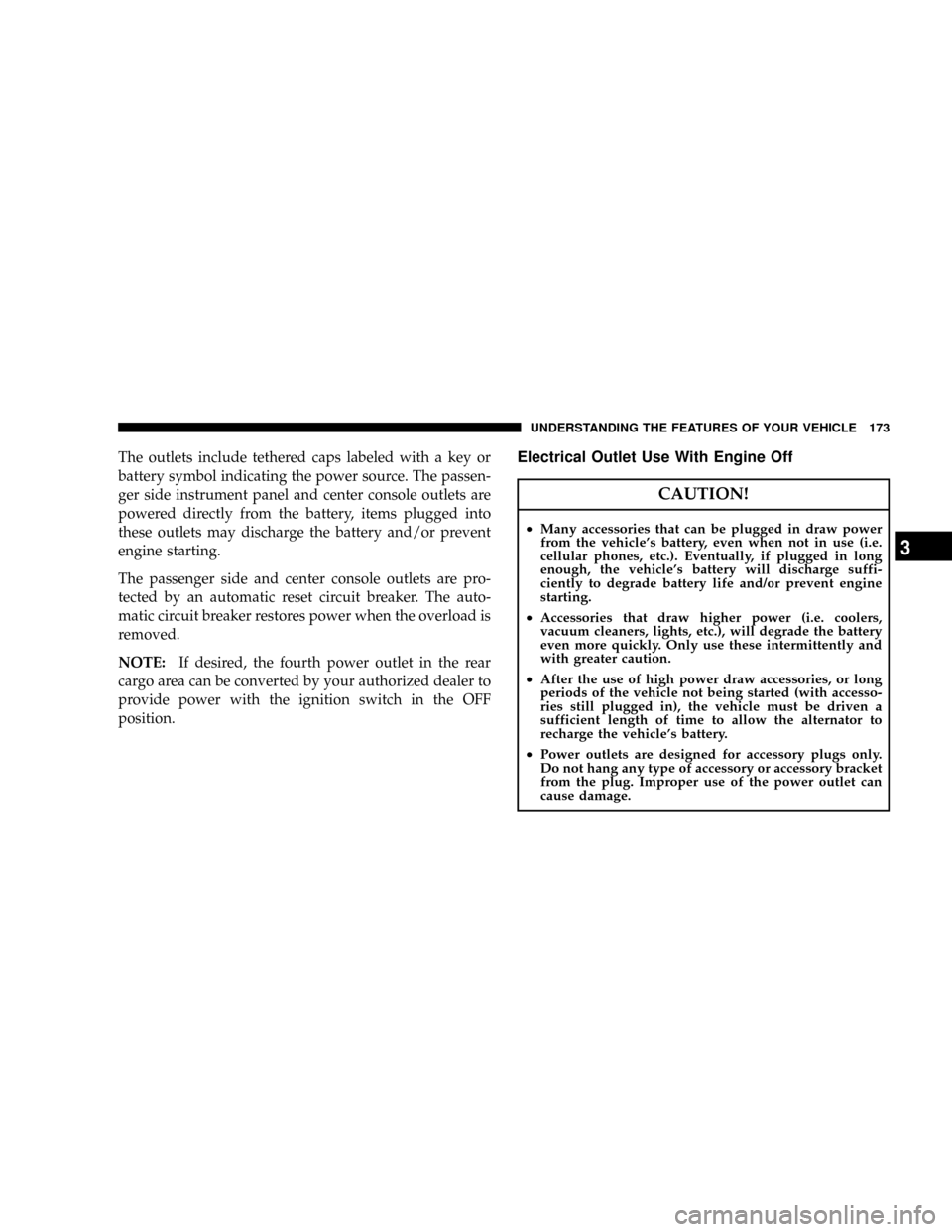
The outlets include tethered caps labeled with a key or
battery symbol indicating the power source. The passen-
ger side instrument panel and center console outlets are
powered directly from the battery, items plugged into
these outlets may discharge the battery and/or prevent
engine starting.
The passenger side and center console outlets are pro-
tected by an automatic reset circuit breaker. The auto-
matic circuit breaker restores power when the overload is
removed.
NOTE:If desired, the fourth power outlet in the rear
cargo area can be converted by your authorized dealer to
provide power with the ignition switch in the OFF
position.Electrical Outlet Use With Engine Off
CAUTION!
²Many accessories that can be plugged in draw power
from the vehicle's battery, even when not in use (i.e.
cellular phones, etc.). Eventually, if plugged in long
enough, the vehicle's battery will discharge suffi-
ciently to degrade battery life and/or prevent engine
starting.
²Accessories that draw higher power (i.e. coolers,
vacuum cleaners, lights, etc.), will degrade the battery
even more quickly. Only use these intermittently and
with greater caution.
²After the use of high power draw accessories, or long
periods of the vehicle not being started (with accesso-
ries still plugged in), the vehicle must be driven a
sufficient length of time to allow the alternator to
recharge the vehicle's battery.
²Power outlets are designed for accessory plugs only.
Do not hang any type of accessory or accessory bracket
from the plug. Improper use of the power outlet can
cause damage.
UNDERSTANDING THE FEATURES OF YOUR VEHICLE 173
3
Page 182 of 457

NFM Reception........................211
mSales Code RAH Ð AM & FM Stereo Radio With
CD Player And CD/DVD Changer Controls....212
NRadio Operation......................212
NCD Player Operation...................216
NCD/DVD Changer Operation.............218
NNotes On Playing MP3 Files.............218
NOperation Instructions - (CD Mode For MP3
Audio Play).........................220
mSales Code REV Ð AM & FM Stereo Radio With
CD Player And CD/DVD Changer Controls....222
NRadio Operation......................222
NCD Player Operation...................226
NCD/DVD Changer Operation.............228NNotes On Playing MP3 Files.............228
NOperation Instructions - (CD Mode For MP3
Audio Play).........................230
NOperating Instructions Ð MP3 Player, Portable
Walkman...........................231
NOperating Instructions Ð Video
Games/Camcorders...................231
m6 Disc CD/DVD Changer (RDV) Ð If Equipped . 232
NOperating Instructions Ð CD/DVD Changer . . 233
NEject (EJT) Button.....................235
NOperating Instructions Ð Remote Control....235
NOperating Instructions Ð Video Screen......239
NOperating Instructions Ð Headphones......241
NOperating Instructions Ð Auxiliary Input....243
182 UNDERSTANDING YOUR INSTRUMENT PANEL
Page 183 of 457

mNavigation System Ð If Equipped...........244
mSatellite Radio Ð If Equipped..............245
Nystem Activation......................245
NElectronic Serial Number/Sirius Identification
Number (ENS/SID)....................245
NSelecting Satellite Mode In RBB, RAH, REV
And RBK Radios......................246
NSelecting Satellite Mode In RBP, RBU, RAZ,
RB1 And RBQ Radios..................246
NSelecting a Channel....................247
NStoring And Selecting Pre-Set Channels......247
NUsing The PTY (Program Type) Button
(If Equipped)........................247
NPTY Button9Scan9.....................247
NPTY Button9Seek9.....................248NSatellite Antenna......................248
NReception Quality.....................248
mRemote Sound System Controls.............249
NRadio Operation......................249
NCD Player..........................249
mCD/DVD Disc Maintenance...............250
mRadio Operation And Cellular Phones........250
mClimate Controls.......................250
NManual Air Conditioning And Heating
System.............................251
NMode Control........................252
NManual Air Conditioning Operation........256
NDual-Zone Automatic Temperature Control . . . 259
NElectric Rear Window Defroster...........269
UNDERSTANDING YOUR INSTRUMENT PANEL 183
4
Page 221 of 457

RW/FF (CD Mode For MP3 Play)
Press the FF side of the button to move forward through
the MP3 selection. Press the RW side of the button to
move back through the MP3 selection.
AM/FM Button (CD Mode For MP3 Play)
Switches back to Radio mode.
RND Button (CD Mode For MP3 Play)
Pressing this button plays files randomly.
DIR Button (CD Mode For MP3 Play)
Press the DIR Button to display folders, when playing an
MP3 discs that have a file/folder structure. Press DISC
up (button 1) or DISC down (button 5) to move through
the folders. Press the SET button to select a folder.
Operating Instructions - Hands Free Phone (If
Equipped)
Refer to Hands Free Phone section of the Owner's
Manual.
Operating Instructions - Satellite Radio Mode (If
Equipped)
Refer to the Satellite Radio section of the Owner's
Manual.
Operating Instructions - Video Entertainment
System (VESt) (If Equipped)
Refer to 6 Disc CD/DVD Changer (RDV) section of the
Owner's Manual.
UNDERSTANDING YOUR INSTRUMENT PANEL 221
4
Page 231 of 457

RW/FF (CD Mode For MP3 Play)
Press the FF side of the button to move forward through
the MP3 selection. Press the RW side of the button to
move back through the MP3 selection.
AM/FM Button (CD Mode For MP3 Play)
Switches back to Radio mode.
RND Button (CD Mode For MP3 Play)
Pressing this button plays files randomly.
DIR Button (CD Mode For MP3 Play)
Press the DIR Button to display folders, when playing an
MP3 discs that have a file/folder structure. Press DISC
up (button 1) or DISC down (button 5) to move through
the folders. Press the SET button to select a folder.
Operating Instructions - Hands Free Phone (If
Equipped)
Refer to Hands Free Phone section of the Owner's
Manual.
Operating Instructions - Satellite Radio Mode (If
Equipped)
Refer to the Satellite Radio section of the Owner's
Manual.
Operating Instructions Ð MP3 Player, Portable
Walkman
An MP3 player can be connected to the audio system.
Connect the cables to the RCA jacks located on the front
of the CD/DVD changer.
NOTE:Follow the manufactures instructions for the
correct colors when connecting the RCA cables. (Refer to
the illustration below).
Operating Instructions Ð Video
Games/Camcorders
A video game unit or camcorder can be connected to the
rear audio/video system. Connect the cables to the RCA
jacks located on the front of the CD/DVD changer.
UNDERSTANDING YOUR INSTRUMENT PANEL 231
4
Page 232 of 457

NOTE:To operate a video game unit a DC to AC
adapter may be required, plug the adapter into any
power outlet.
Listed below is the standard RCA
Jack/Cable connection. You may also
want to refer to the manufacture's
instructions for the correct colors
when connecting the RCA cables.
1. Video in (yellow)
2. Left audio in (white)
3. Right audio in (red)
NOTE:MP3 player's, video game systems, camcorders
connected to the RCA jacks and CD's or DVD's inserted
into the radio, can be heard through the headphones or
the cabin when AUX Mode is selected.6 DISC CD/DVD CHANGER (RDV) Ð IF EQUIPPED
The Rear Seat Audio/Video System allows passengers to
listen to a CD or DVD from the 6 disc CD/DVD changer
through wireless headphones, while the front seat pas-
sengers listen to either AM/FM, Cassette or CDs from the
radio speakers. A remote control is provided for func-
tions such as changing tracks or DVD functions, as well
as selecting discs loaded in the 6 disc CD/DVD changer
while listening to the Rear Audio/Video System.
The Rear Seat Audio/Video System may be available in a
base and premium version. The premium version in-
cludes a six disc changer, remote control and two sets of
wireless headphones. The base version includes a single
disc player and remote control.
The CD/DVD Changer will play CD-R, CD-RW, CD-
Audio and DVD Video disc formats. The video screen
will turn on automatically once a DVD is inserted into the
changer.
232 UNDERSTANDING YOUR INSTRUMENT PANEL