phone CHRYSLER PACIFICA 2008 1.G Owner's Guide
[x] Cancel search | Manufacturer: CHRYSLER, Model Year: 2008, Model line: PACIFICA, Model: CHRYSLER PACIFICA 2008 1.GPages: 457, PDF Size: 6.7 MB
Page 236 of 457

Remote Control Buttons
1. Headphone Transmitter
2. Menu Up/Next Track/Chapter
3. Menu Left/Fast Rewind
4. Return
5. Setup
6. Pause/Play
7. Mute
8. Display
9. Mode
10. Program Down - Previous Disc
11. Program Up - Next Disc
12. Slow
13. Stop
14. Menu
15. Menu Down/Previous Track/Chapter
16. Menu Right/Fast ForwardRemote Control Buttons
17. Enter
18. Light
Headphone Transmitter Button (1)
The headphone transmitter button on the remote control
and the power button on the headphones must be turned
ON before sound can be heard from the headphones. On
some radios the headphone symbol will flash for ap-
proximately 5 seconds in the radio display, indicating the
headphones are in use.
ARROW Buttons (2, 3, 15, 16)
These arrow buttons only function in CD/ DVD mode.
Use the arrow buttons to toggle through the disc menu
screen options.
236 UNDERSTANDING YOUR INSTRUMENT PANEL
Page 238 of 457

This button changes between available modes and can be
heard in the headphones.
PROG UP/DOWN Buttons (10, 11)
PROG UP selects the next disc loaded in the changer.
PROG DOWN selects the previous disc loaded in the
changer.
SLOW Button (12)
This button only functions in DVD video mode. Press this
button to advance the video. If the DVD is paused,
pressing this button will advance the video frame by
frame.
STOP Button (13)
This button only functions in DVD video mode. Press this
button to stop the DVD.
MENU Button (14)
This button only functions in DVD video mode. Press this
button to select the DVD disc menu.
NEXT/PREV Buttons (2, 15)
Press the up arrow or the NEXT button for the next
chapter or track on the disc. Press the down arrow or
PREV button to return to the beginning of the current
chapter or track. Press the down arrow or PREV button
twice within two seconds to return to the previous
chapter or track. Each press of the NEXT/PREV button
up or down will toggle through the chapters or tracks.
FF/RW Buttons (3, 16)
Press and hold FF (Fast Forward) once and the CD/DVD
changer will begin to fast forward until the FF button is
released. The RW (Reverse) button works in a similar
manner.
ENTER Button (17)
This button only functions in DVD video mode. Use the
ENTER button to enter selections from the menu screens.
Use the arrow buttons to toggle through the menu screen
options.
238 UNDERSTANDING YOUR INSTRUMENT PANEL
Page 241 of 457

Operating Instructions Ð Headphones
1. Power Button
2. Volume Control
3. Power Indicator
Power Button
Pressing the power button will turn the headphones
ON/OFF. An indicator light will illuminate on the head-
phone earpiece to indicate the headphones are ON.
NOTE:
²The headphones will turn OFF automatically in ap-
proximately 3 minutes if they lose the signal form the
system or when the radio or rear audio/video system
is turned OFF.
Volume Control
Rotate the volume control to adjust the volume to the
desired listening level.
Rear Headphones
UNDERSTANDING YOUR INSTRUMENT PANEL 241
4
Page 242 of 457

Headphone Battery Service
²
Press the button at the bottom of each headphone
earpiece and lift the cover upward.
²Replace the battery in each earpiece and reinstall the
cover. The headphones require two AAA batteries.
General Information
This device complies with part 15 of the FCC rules and
RSS 210 of Industry Canada. Operation is subject to the
following two conditions: (1) This device may not cause
harmful interference and (2) This device must accept any
interference received, including interference that may
cause undesired operation.
If you do not hear sound coming from the headphones,
check for the following conditions:
1. Rear Seat Audio/Video System and headphones are
on. Press the headphone transmitter button (1) on the
remote control and the power button on the headphones.
An indicator light will illuminate on the headphone
earpiece to indicate the headphones are ON.
2. Weak batteries in the headphones.
3. Direct sunlight or objects blocking the line of sight
between the headphone transmitter on the video screen
and the headphones.
Headphone Battery Service
242 UNDERSTANDING YOUR INSTRUMENT PANEL
Page 243 of 457

Operating Instructions Ð Auxiliary Input
²
Connect your auxiliary device (video game system,
video camera, or MP3 player) cables to the color coded
auxiliary jacks on the front of the DVD changer. (Refer
to the illustration below).
²Turn your auxiliary device on and adjust its volume to
mid or high position.
NOTE:Audio can now be heard through the vehicle's
speaker system or through the headphones (if Rear Seat
Audio is turned ON).
²Video will be displayed on the screen if connected to a
video device.
²Your auxiliary device must be disconnected or turned
off to return to DVD changer mode.NOTE:To operate a video game unit a DC to AC
adapter may be required, plug the adapter into any
power outlet.
Listed below is the standard RCA
Jack/Cable connection. You may also
want to refer to the manufacture's
instructions for the correct colors
when connecting the RCA cables.
1. Video in (yellow)
2. Left audio in (white)
3. Right audio in (red)
UNDERSTANDING YOUR INSTRUMENT PANEL 243
4
Page 250 of 457

CD/DVD DISC MAINTENANCE
To keep the CD/DVD discs in good condition, take the
following precautions:
1. Handle the disc by its edge; avoid touching the
surface.
2. If the disc is stained, clean the surface with a soft cloth,
wiping from center to edge.
3. Do not apply paper, paper CD labels, or tape to the
disc; avoid scratching the disc.
4. Do not use solvents such as benzine, thinner, cleaners,
or antistatic sprays.
5. Store the disc in its case after playing.
6. Do not expose the disc to direct sunlight.
7. Do not store the disc where temperatures may become
too high.
RADIO OPERATION AND CELLULAR PHONES
Under certain conditions, the cellular phone being ON in
your vehicle can cause erratic or noisy performance from
your radio. This condition may be lessened or eliminated
by relocating the cellular phone antenna. This condition
is not harmful to the radio. If your radio performance
does not satisfactorily ªclearº by the repositioning of the
antenna, it is recommended that the radio volume be
turned down or off during cellular phone operation.
CLIMATE CONTROLS
The Air Conditioning and Heating System is designed to
make you comfortable in all types of weather.
250 UNDERSTANDING YOUR INSTRUMENT PANEL
Page 408 of 457
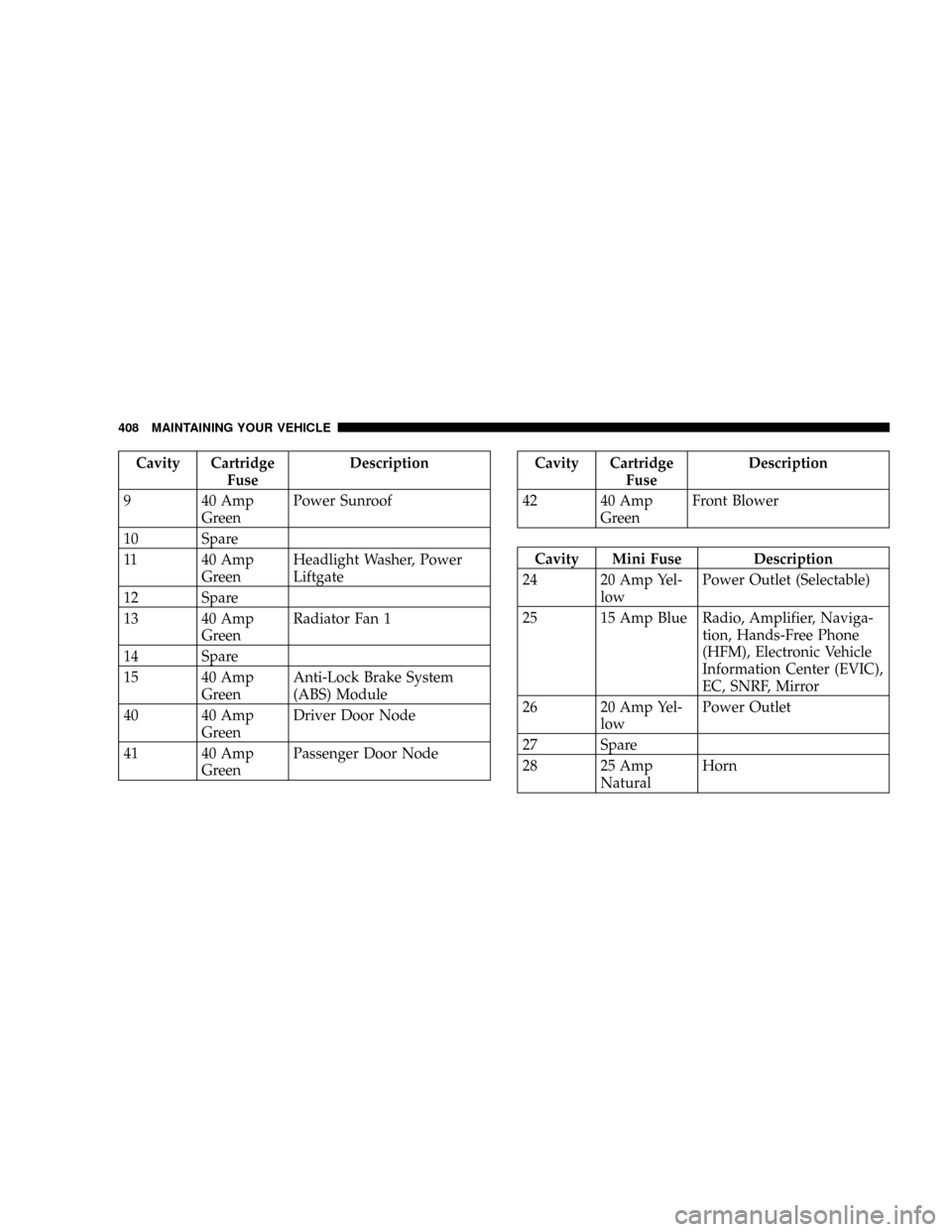
Cavity Cartridge
FuseDescription
9 40 Amp
GreenPower Sunroof
10 Spare
11 40 Amp
GreenHeadlight Washer, Power
Liftgate
12 Spare
13 40 Amp
GreenRadiator Fan 1
14 Spare
15 40 Amp
GreenAnti-Lock Brake System
(ABS) Module
40 40 Amp
GreenDriver Door Node
41 40 Amp
GreenPassenger Door NodeCavity Cartridge
FuseDescription
42 40 Amp
GreenFront Blower
Cavity Mini Fuse Description
24 20 Amp Yel-
lowPower Outlet (Selectable)
25 15 Amp Blue Radio, Amplifier, Naviga-
tion, Hands-Free Phone
(HFM), Electronic Vehicle
Information Center (EVIC),
EC, SNRF, Mirror
26 20 Amp Yel-
lowPower Outlet
27 Spare
28 25 Amp
NaturalHorn
408 MAINTAINING YOUR VEHICLE
Page 409 of 457
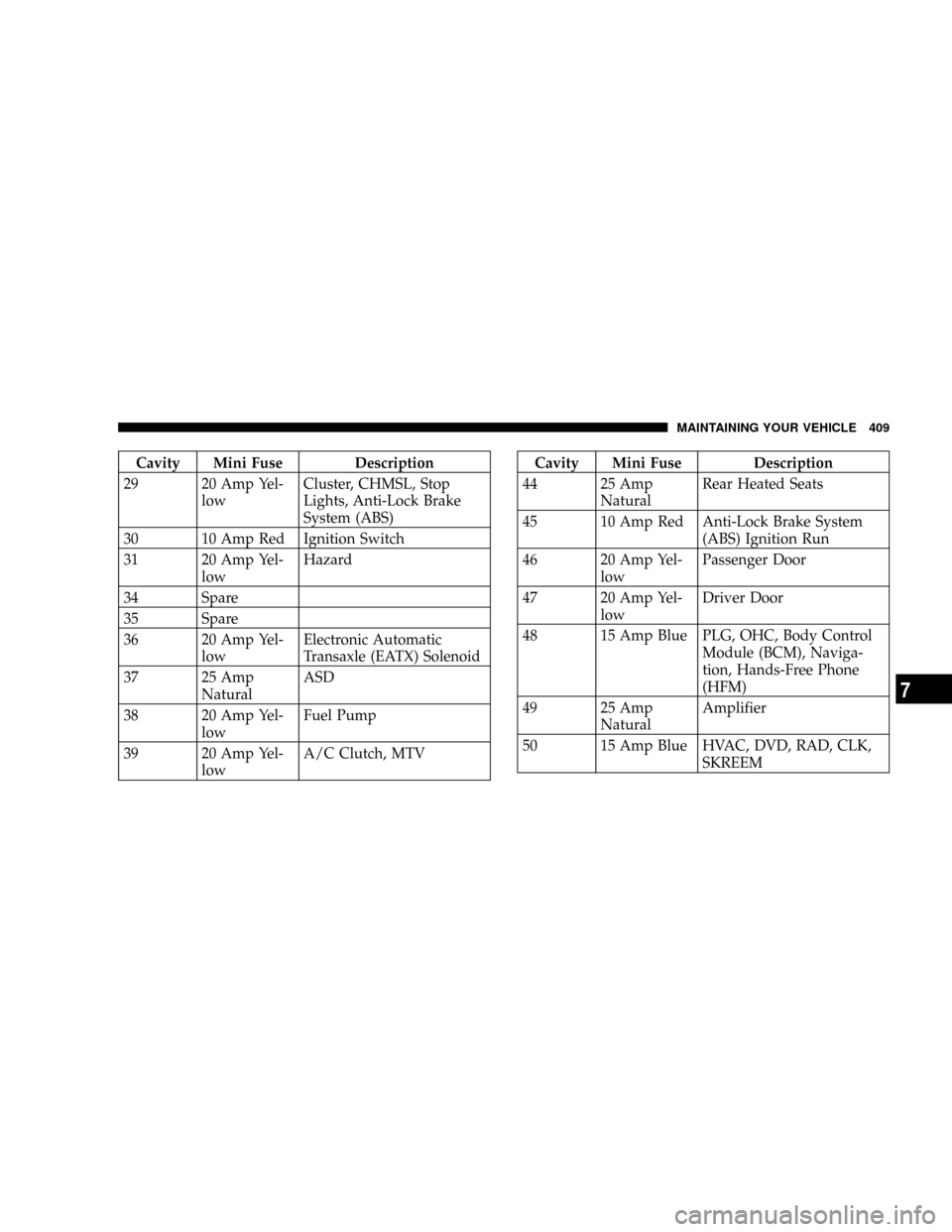
Cavity Mini Fuse Description
29 20 Amp Yel-
lowCluster, CHMSL, Stop
Lights, Anti-Lock Brake
System (ABS)
30 10 Amp Red Ignition Switch
31 20 Amp Yel-
lowHazard
34 Spare
35 Spare
36 20 Amp Yel-
lowElectronic Automatic
Transaxle (EATX) Solenoid
37 25 Amp
NaturalASD
38 20 Amp Yel-
lowFuel Pump
39 20 Amp Yel-
lowA/C Clutch, MTVCavity Mini Fuse Description
44 25 Amp
NaturalRear Heated Seats
45 10 Amp Red Anti-Lock Brake System
(ABS) Ignition Run
46 20 Amp Yel-
lowPassenger Door
47 20 Amp Yel-
lowDriver Door
48 15 Amp Blue PLG, OHC, Body Control
Module (BCM), Naviga-
tion, Hands-Free Phone
(HFM)
49 25 Amp
NaturalAmplifier
50 15 Amp Blue HVAC, DVD, RAD, CLK,
SKREEM
MAINTAINING YOUR VEHICLE 409
7
Page 429 of 457

technicians, special tools, and the latest information to
assure your vehicle is fixed correctly and in a timely
manner.
This is why you should always talk to your dealer's
service manager first. Most matters can be resolved with
this process.
²If for some reason you are still not satisfied, talk to the
general manager or owner of the dealership. They
want to know if you need assistance.
²If your dealership is unable to resolve the concern, you
may contact the Manufacturer's Customer Center.
Any communication to the Manufacturer's Customer
Center should include the following information:
²Owner's name and address
²Owner's telephone number (home and office)
²Dealership name
²Vehicle identification number
²Vehicle delivery date and mileage
DaimlerChrysler Motors Corporation Customer Center
P.O. Box 21±8004
Auburn Hills, MI 48321±8004
Phone: (800) 992-1997
DaimlerChrysler Canada Inc. Customer Center
P.O. Box 1621
Windsor, Ontario N9A 4H6
Phone: (800) 465±2001
In Mexico contact:
Av. Prolongacion Paseo de la Reforma, 1240
Sante Fe C.P. 05109
Mexico, D. F.
In Mexico (915) 729±1248 or 729±1240
Outside Mexico (525) 729±1248 or 729±1240
IF YOU NEED CONSUMER ASSISTANCE 429
9
Page 432 of 457

To contact NHTSA, you may either call the Auto Safety
Hotline toll free at 1±888±327±4236 (TTY: 1±800±424±
9153), or go to http://www.safercar.gov; or write to:
Administrator, NHTSA, 400 Seventh Street, SW., Wash-
ington, DC 20590. You can also obtain other information
about motor vehicle safety from http://
www.safercar.gov.
In Canada:
If you believe that your vehicle has a safety defect, you
should contact the Customer Service Department imme-
diately. Canadian customers who wish to report a safety
defect to the Canadian government should write to
Transport Canada, Motor Vehicle Defect Investigations
and Recalls, 2780 Sheffield Road, Ottawa, Ontario K1B
3V9.
PUBLICATION ORDER FORMS
To order the following manuals, you may use either the
website or the phone numbers listed below. Visa, Mas-
tercard, American Express, and Discover orders are ac-
cepted. If you prefer mailing your payment, please call
for an order form.
NOTE:A street address is required when ordering
manuals. (No P.O. Boxes).
²Service Manuals.
These comprehensive service manuals provide the
information that students and professional technicians
need in diagnosing/troubleshooting, problem solving,
maintaining, servicing, and repairing DaimlerChrysler
Corporation vehicles. A complete working knowledge
of the vehicle, system, and/or components is written
in straightforward language with illustrations, dia-
grams, and charts.
432 IF YOU NEED CONSUMER ASSISTANCE