uconnect CHRYSLER PACIFICA 2018 Manual Online
[x] Cancel search | Manufacturer: CHRYSLER, Model Year: 2018, Model line: PACIFICA, Model: CHRYSLER PACIFICA 2018Pages: 696, PDF Size: 8.48 MB
Page 630 of 696
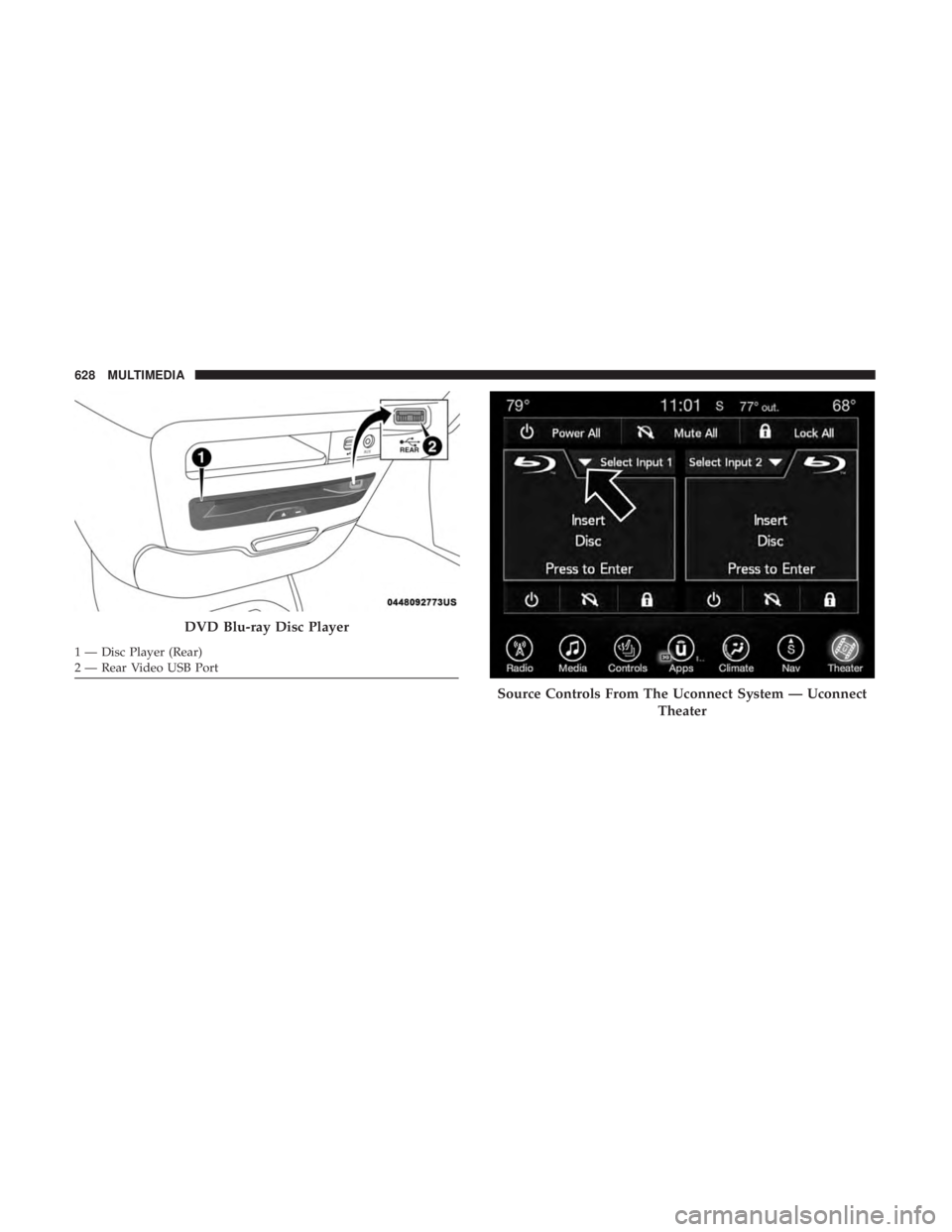
DVD Blu-ray Disc Player
1 — Disc Player (Rear)
2 — Rear Video USB Port
Source Controls From The Uconnect System — UconnectTheater
628 MULTIMEDIA
Page 631 of 696
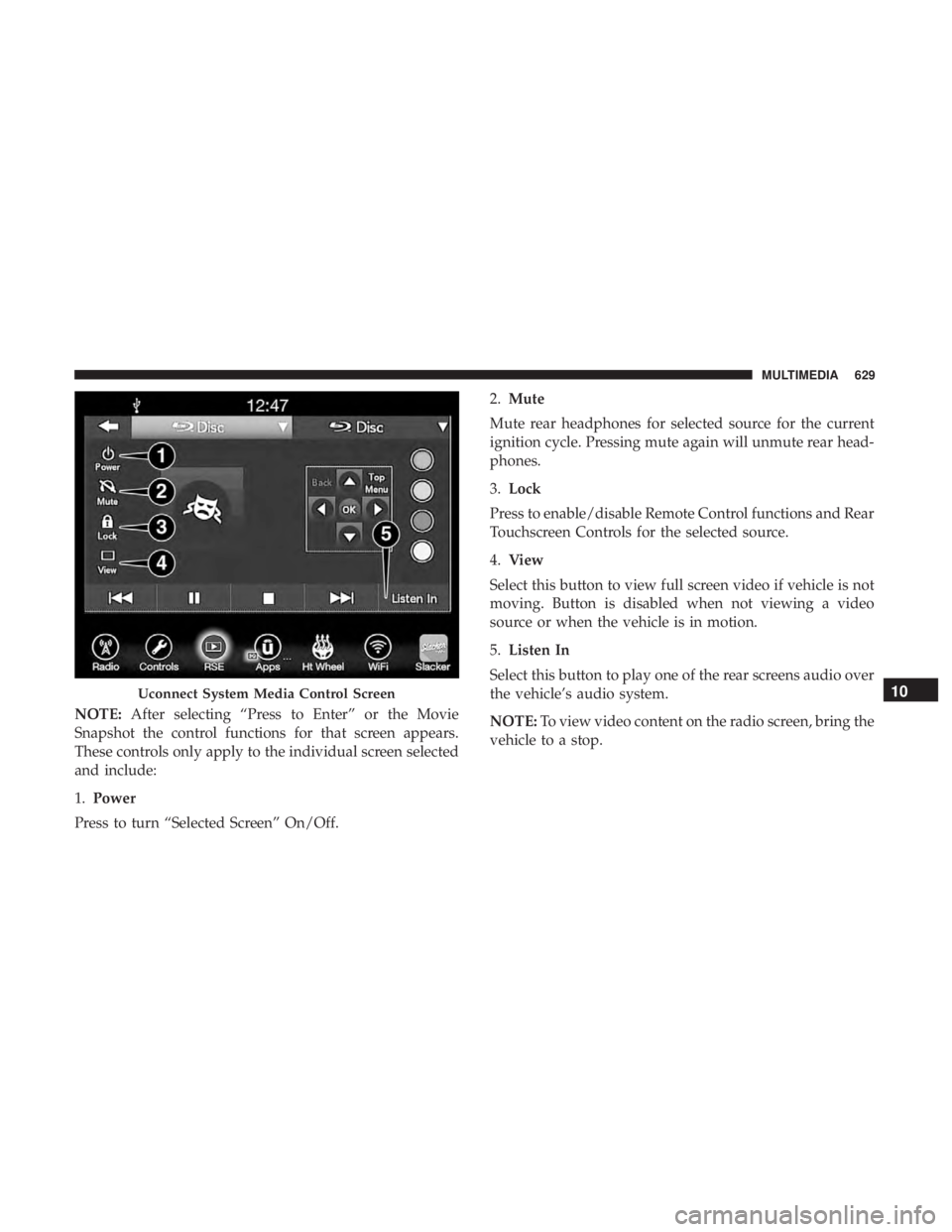
NOTE:After selecting “Press to Enter” or the Movie
Snapshot the control functions for that screen appears.
These controls only apply to the individual screen selected
and include:
1. Power
Press to turn “Selected Screen” On/Off. 2.
Mute
Mute rear headphones for selected source for the current
ignition cycle. Pressing mute again will unmute rear head-
phones.
3. Lock
Press to enable/disable Remote Control functions and Rear
Touchscreen Controls for the selected source.
4. View
Select this button to view full screen video if vehicle is not
moving. Button is disabled when not viewing a video
source or when the vehicle is in motion.
5. Listen In
Select this button to play one of the rear screens audio over
the vehicle’s audio system.
NOTE: To view video content on the radio screen, bring the
vehicle to a stop.
Uconnect System Media Control Screen10
MULTIMEDIA 629
Page 633 of 696
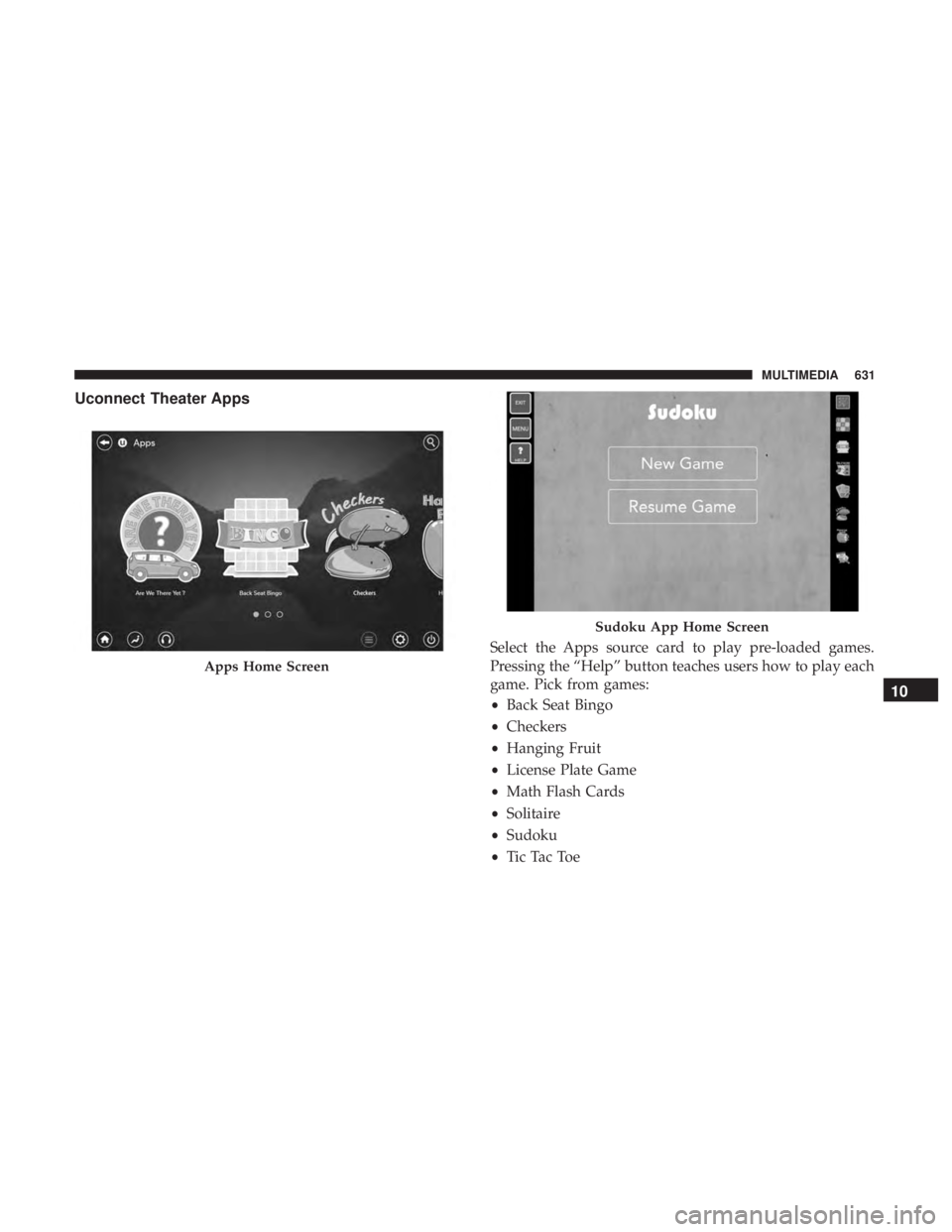
Uconnect Theater Apps
Select the Apps source card to play pre-loaded games.
Pressing the “Help” button teaches users how to play each
game. Pick from games:
•Back Seat Bingo
• Checkers
• Hanging Fruit
• License Plate Game
• Math Flash Cards
• Solitaire
• Sudoku
• Tic Tac Toe
Apps Home Screen
Sudoku App Home Screen
10
MULTIMEDIA 631
Page 634 of 696
NOTE:To exit a game, push “Exit Button” then “Back
Arrow,” or “Home Button” on the touchscreen.
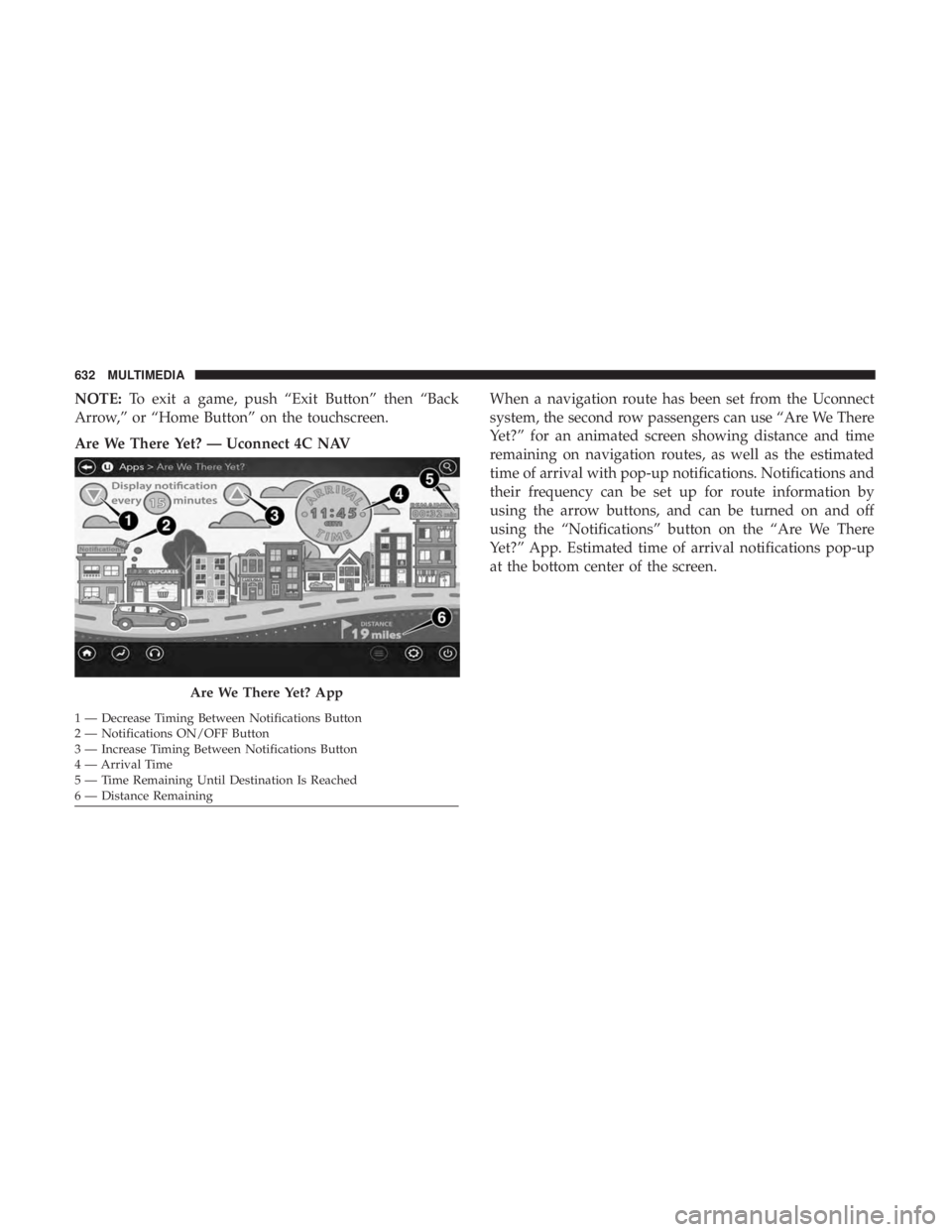
Are We There Yet? — Uconnect 4C NAV When a navigation route has been set from the Uconnect
system, the second row passengers can use “Are We There
Yet?” for an animated screen showing distance and time
remaining on navigation routes, as well as the estimated
time of arrival with pop-up notifications. Notifications and
their frequency can be set up for route information by
using the arrow buttons, and can be turned on and off
using the “Notifications” button on the “Are We There
Yet?” App. Estimated time of arrival notifications pop-up
at the bottom center of the screen.
Are We There Yet? App
1 — Decrease Timing Between Notifications Button
2 — Notifications ON/OFF Button
3 — Increase Timing Between Notifications Button
4 — Arrival Time
5 — Time Remaining Until Destination Is Reached
6 — Distance Remaining 632 MULTIMEDIA
Page 637 of 696
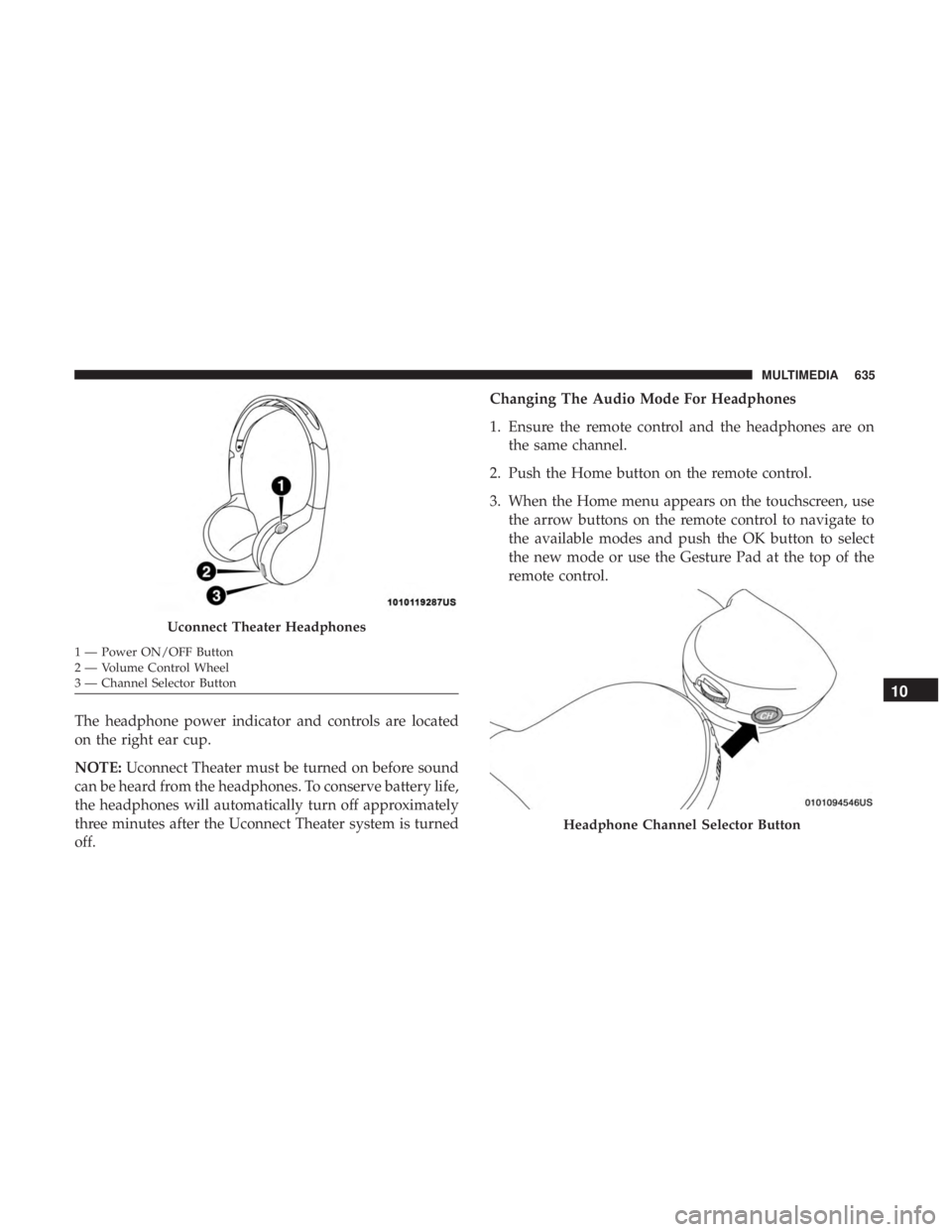
The headphone power indicator and controls are located
on the right ear cup.
NOTE:Uconnect Theater must be turned on before sound
can be heard from the headphones. To conserve battery life,
the headphones will automatically turn off approximately
three minutes after the Uconnect Theater system is turned
off. Changing The Audio Mode For Headphones
1. Ensure the remote control and the headphones are on
the same channel.
2. Push the Home button on the remote control.
3. When the Home menu appears on the touchscreen, use the arrow buttons on the remote control to navigate to
the available modes and push the OK button to select
the new mode or use the Gesture Pad at the top of the
remote control.
Uconnect Theater Headphones
1 — Power ON/OFF Button
2 — Volume Control Wheel
3 — Channel Selector Button
Headphone Channel Selector Button
10
MULTIMEDIA 635
Page 640 of 696
Listening To Audio With The Screen Closed
To listen to only audio portion of the channel with the
screen closed:
•Set the audio to the desired source and channel.
• Close the video screen.
• When the screen is reopened, the video screen will
automatically turn back on and show the appropriate
display menu or media.
If the screen is closed and there is no audio heard, verify
that the headphones are turned on (the ON indicator is
illuminated) and the headphone selector switch is on the
desired channel. If the headphones are turned on, push the
remote control’s power button to turn audio on. If audio is
still not heard, check that fully charged batteries are
installed in the headphones.
Rear Climate Controls
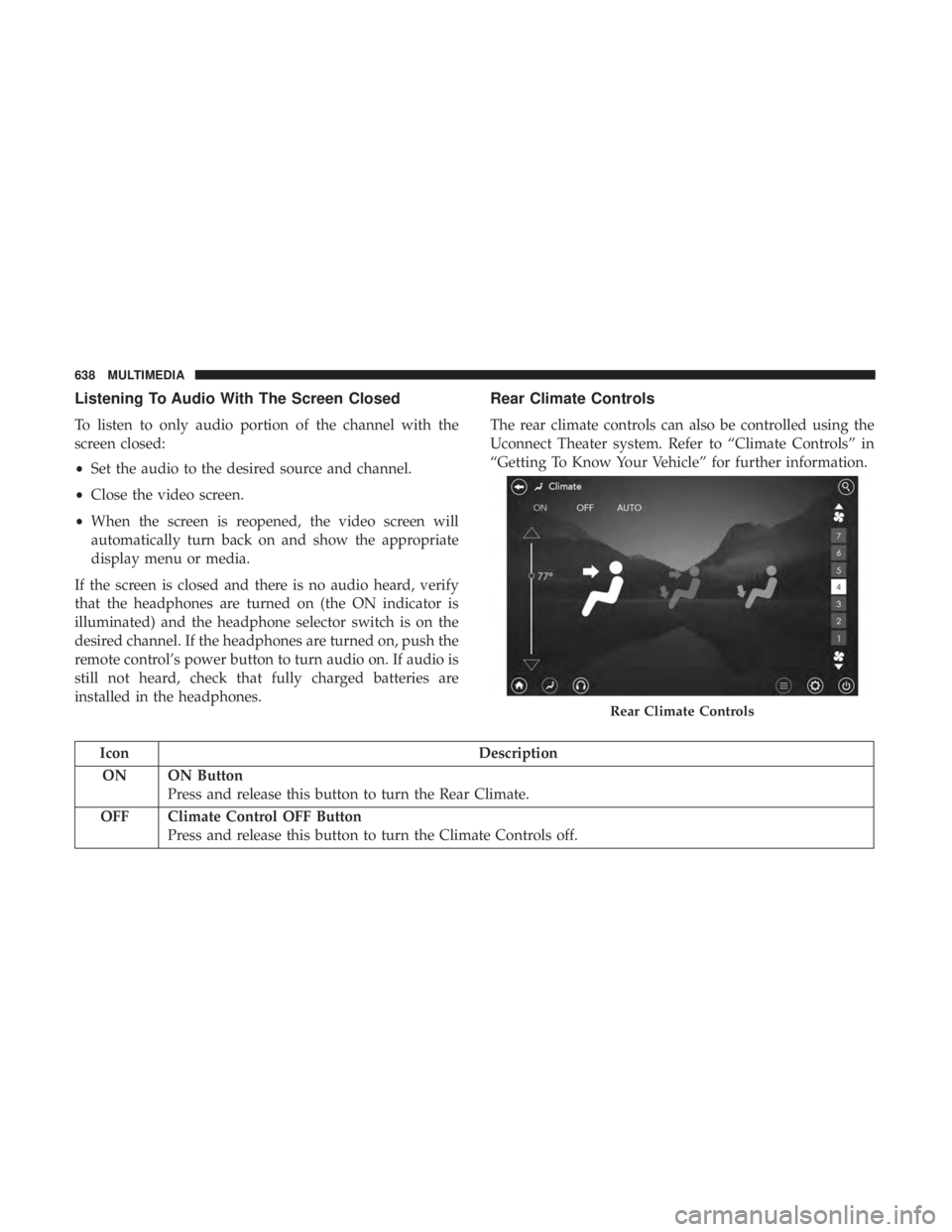
The rear climate controls can also be controlled using the
Uconnect Theater system. Refer to “Climate Controls” in
“Getting To Know Your Vehicle” for further information.
Icon Description
ON ON Button Press and release this button to turn the Rear Climate.
OFF Climate Control OFF Button Press and release this button to turn the Climate Controls off.
Rear Climate Controls
638 MULTIMEDIA
Page 642 of 696
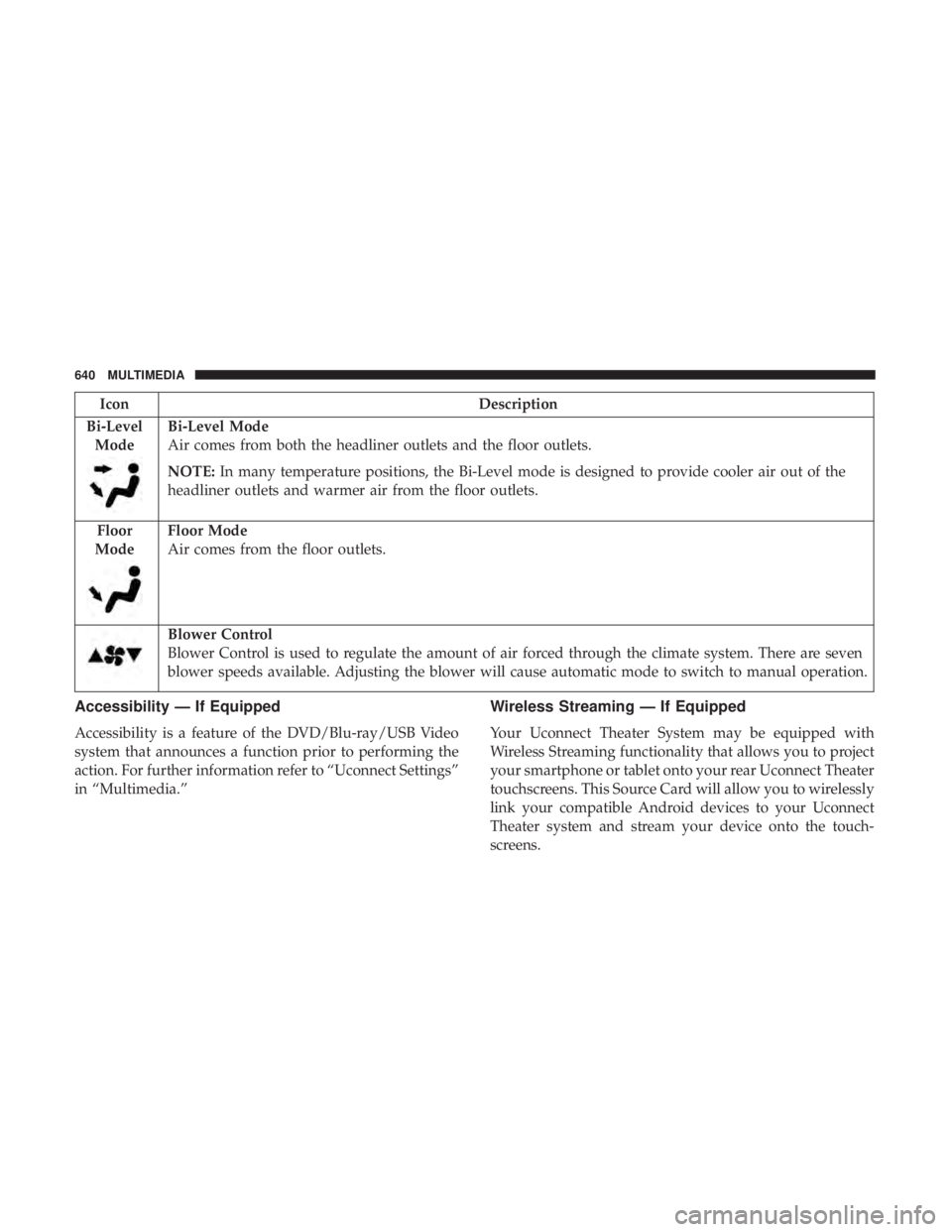
IconDescription
Bi-Level Mode
Bi-Level Mode
Air comes from both the headliner outlets and the floor outlets.
NOTE: In many temperature positions, the Bi-Level mode is designed to provide cooler air out of the
headliner outlets and warmer air from the floor outlets.
Floor
Mode
Floor Mode
Air comes from the floor outlets.
Blower Control
Blower Control is used to regulate the amount of air forced through the climate system. There are seven
blower speeds available. Adjusting the blower will cause automatic mode to switch to manual operation.
Accessibility — If Equipped
Accessibility is a feature of the DVD/Blu-ray/USB Video
system that announces a function prior to performing the
action. For further information refer to “Uconnect Settings”
in “Multimedia.”
Wireless Streaming — If Equipped
Your Uconnect Theater System may be equipped with
Wireless Streaming functionality that allows you to project
your smartphone or tablet onto your rear Uconnect Theater
touchscreens. This Source Card will allow you to wirelessly
link your compatible Android devices to your Uconnect
Theater system and stream your device onto the touch-
screens.
640 MULTIMEDIA
Page 643 of 696
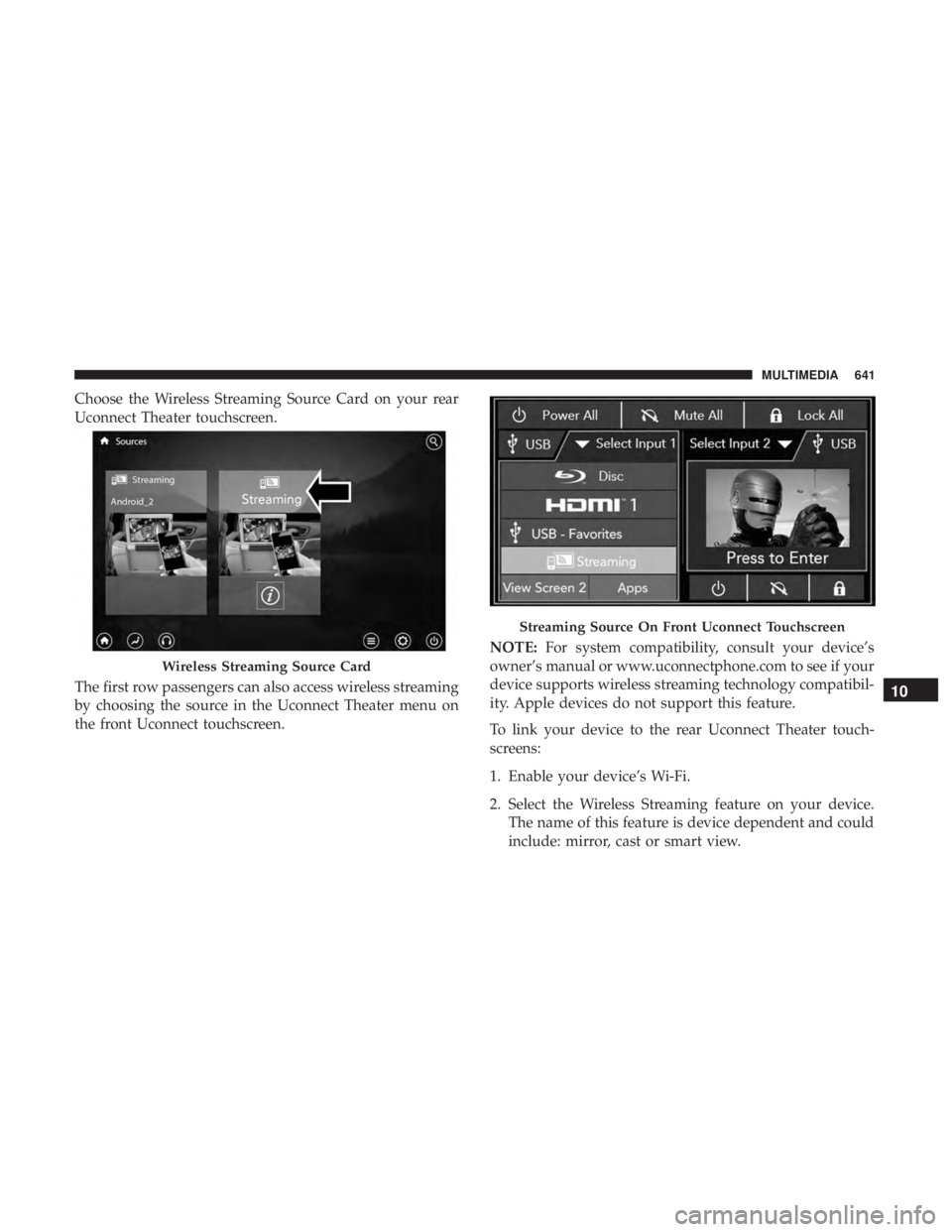
Choose the Wireless Streaming Source Card on your rear
Uconnect Theater touchscreen.
The first row passengers can also access wireless streaming
by choosing the source in the Uconnect Theater menu on
the front Uconnect touchscreen.NOTE:
For system compatibility, consult your device’s
owner’s manual or www.uconnectphone.com to see if your
device supports wireless streaming technology compatibil-
ity. Apple devices do not support this feature.
To link your device to the rear Uconnect Theater touch-
screens:
1. Enable your device’s Wi-Fi.
2. Select the Wireless Streaming feature on your device. The name of this feature is device dependent and could
include: mirror, cast or smart view.
Wireless Streaming Source Card
Streaming Source On Front Uconnect Touchscreen
10
MULTIMEDIA 641
Page 644 of 696
NOTE:Refer to your device’s user manual or www.ucon-
nectphone.com for further information.
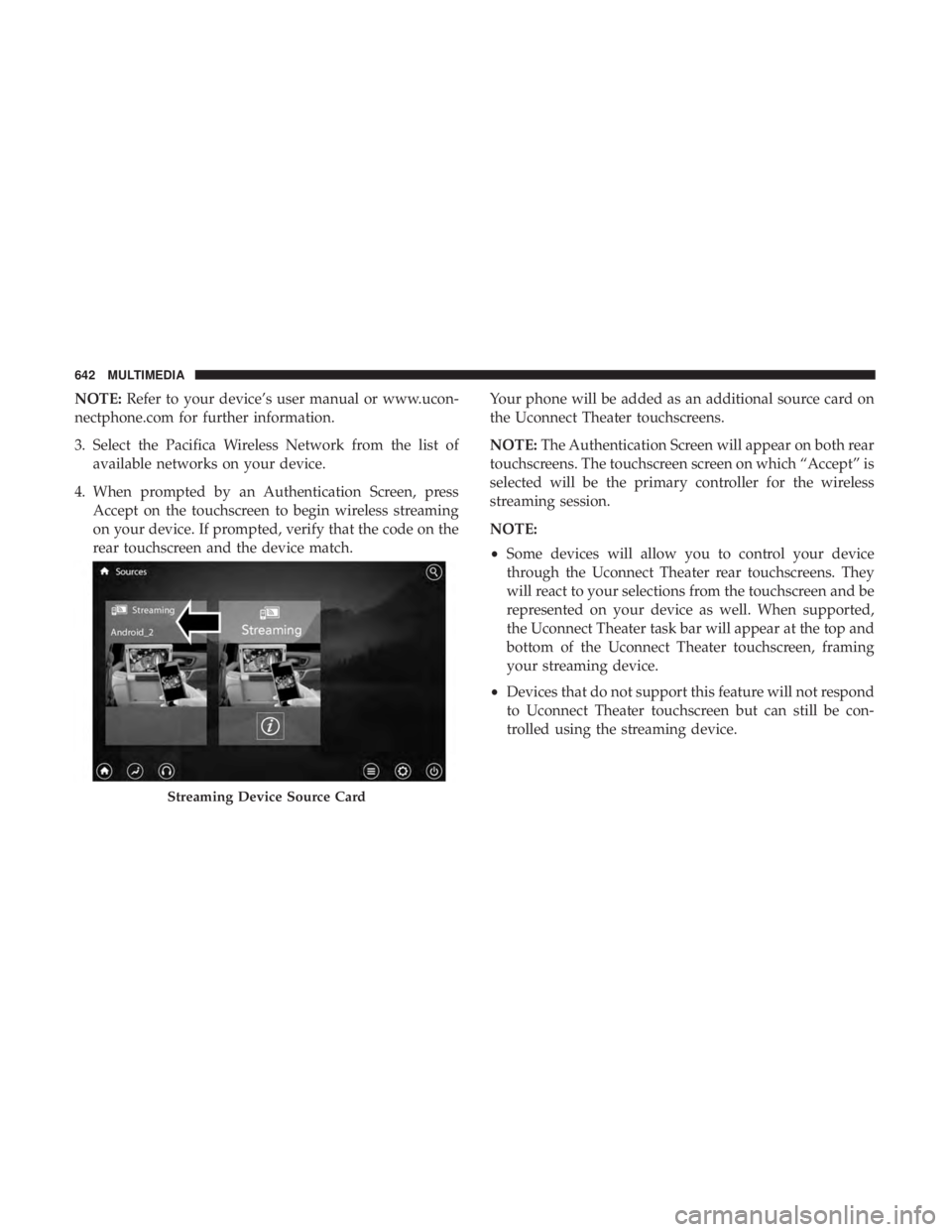
3. Select the Pacifica Wireless Network from the list of available networks on your device.
4. When prompted by an Authentication Screen, press Accept on the touchscreen to begin wireless streaming
on your device. If prompted, verify that the code on the
rear touchscreen and the device match. Your phone will be added as an additional source card on
the Uconnect Theater touchscreens.
NOTE:
The Authentication Screen will appear on both rear
touchscreens. The touchscreen screen on which “Accept” is
selected will be the primary controller for the wireless
streaming session.
NOTE:
• Some devices will allow you to control your device
through the Uconnect Theater rear touchscreens. They
will react to your selections from the touchscreen and be
represented on your device as well. When supported,
the Uconnect Theater task bar will appear at the top and
bottom of the Uconnect Theater touchscreen, framing
your streaming device.
• Devices that do not support this feature will not respond
to Uconnect Theater touchscreen but can still be con-
trolled using the streaming device.
Streaming Device Source Card
642 MULTIMEDIA
Page 645 of 696
Settings
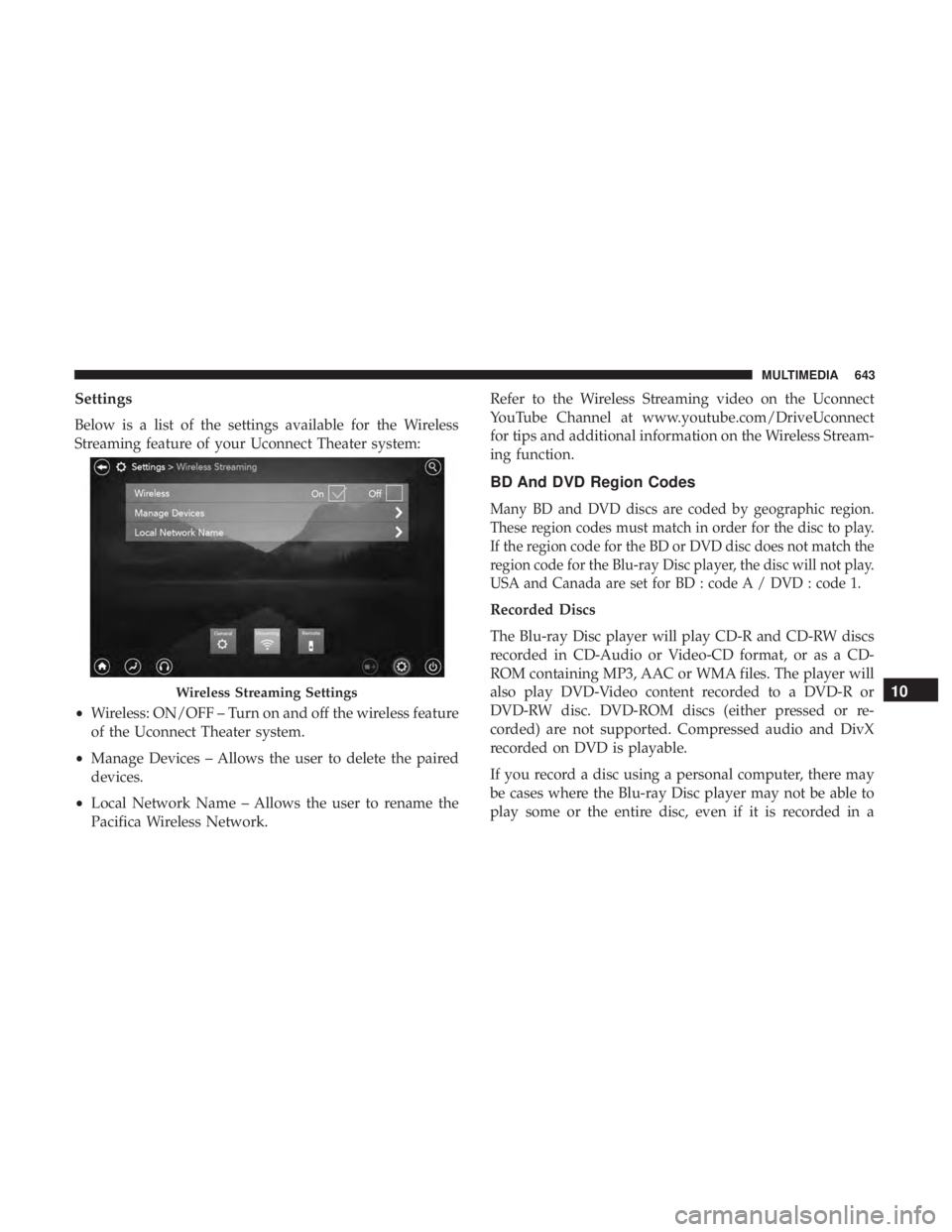
Below is a list of the settings available for the Wireless
Streaming feature of your Uconnect Theater system:
•Wireless: ON/OFF – Turn on and off the wireless feature
of the Uconnect Theater system.
• Manage Devices – Allows the user to delete the paired
devices.
• Local Network Name – Allows the user to rename the
Pacifica Wireless Network. Refer to the Wireless Streaming video on the Uconnect
YouTube Channel at www.youtube.com/DriveUconnect
for tips and additional information on the Wireless Stream-
ing function.
BD And DVD Region Codes
Many BD and DVD discs are coded by geographic region.
These region codes must match in order for the disc to play.
If the region code for the BD or DVD disc does not match the
region code for the Blu-ray Disc player, the disc will not play.
USA and Canada are set for BD : code A / DVD : code 1.
Recorded Discs
The Blu-ray Disc player will play CD-R and CD-RW discs
recorded in CD-Audio or Video-CD format, or as a CD-
ROM containing MP3, AAC or WMA files. The player will
also play DVD-Video content recorded to a DVD-R or
DVD-RW disc. DVD-ROM discs (either pressed or re-
corded) are not supported. Compressed audio and DivX
recorded on DVD is playable.
If you record a disc using a personal computer, there may
be cases where the Blu-ray Disc player may not be able to
play some or the entire disc, even if it is recorded in a
Wireless Streaming Settings10
MULTIMEDIA 643