phone CHRYSLER PACIFICA 2019 User Guide
[x] Cancel search | Manufacturer: CHRYSLER, Model Year: 2019, Model line: PACIFICA, Model: CHRYSLER PACIFICA 2019Pages: 718, PDF Size: 8.6 MB
Page 588 of 718
NOTE:
•FCA US LLC or your dealer may contact you directly
regarding software updates.
• To help further improve vehicle security and minimize
the potential risk of a security breach, vehicle owners
should:
• Routinely check www.driveuconnect.com (U.S. Resi-
dents) or www.driveuconnect.ca (Canadian Residents)
to learn about available Uconnect software updates.
• Only connect and use trusted media devices (e.g.
personal mobile phones, USBs, CDs).
Privacy of any wireless and wired communications cannot
be assured. Third parties may unlawfully intercept infor-
mation and private communications without your consent.
For further information, refer to “Data Collection & Pri-
vacy” in your Uconnect Owner ’s Manual Supplement or
“Onboard Diagnostic System (OBD II) Cybersecurity” in
“Getting To Know Your Instrument Panel”.UCONNECT SETTINGS
The Uconnect system uses a combination of buttons on the
touchscreen and/or buttons on the faceplate located on the
center of the instrument panel that allow you to access and
change the customer programmable features. Many fea-
tures can vary by vehicle.
Buttons on the touchscreen are accessible on the Uconnect
touchscreen.
Buttons on the faceplate are located below, and in the
center of the instrument panel. In addition, there is a
Scroll/Enter control knob located on the right side. Turn
the control knob to scroll through menus and change
settings (i.e., 30, 60, 90), push the center of the control knob
one or more times to select or change a setting (i.e., ON,
OFF).
Your Uconnect system may also have Screen Off and Mute
buttons on the faceplate.
Push the Screen Off button on the faceplate to turn off the
Uconnect screen. Push the Screen Off button on the face-
plate a second time to turn the screen on.
586 MULTIMEDIA
Page 595 of 718
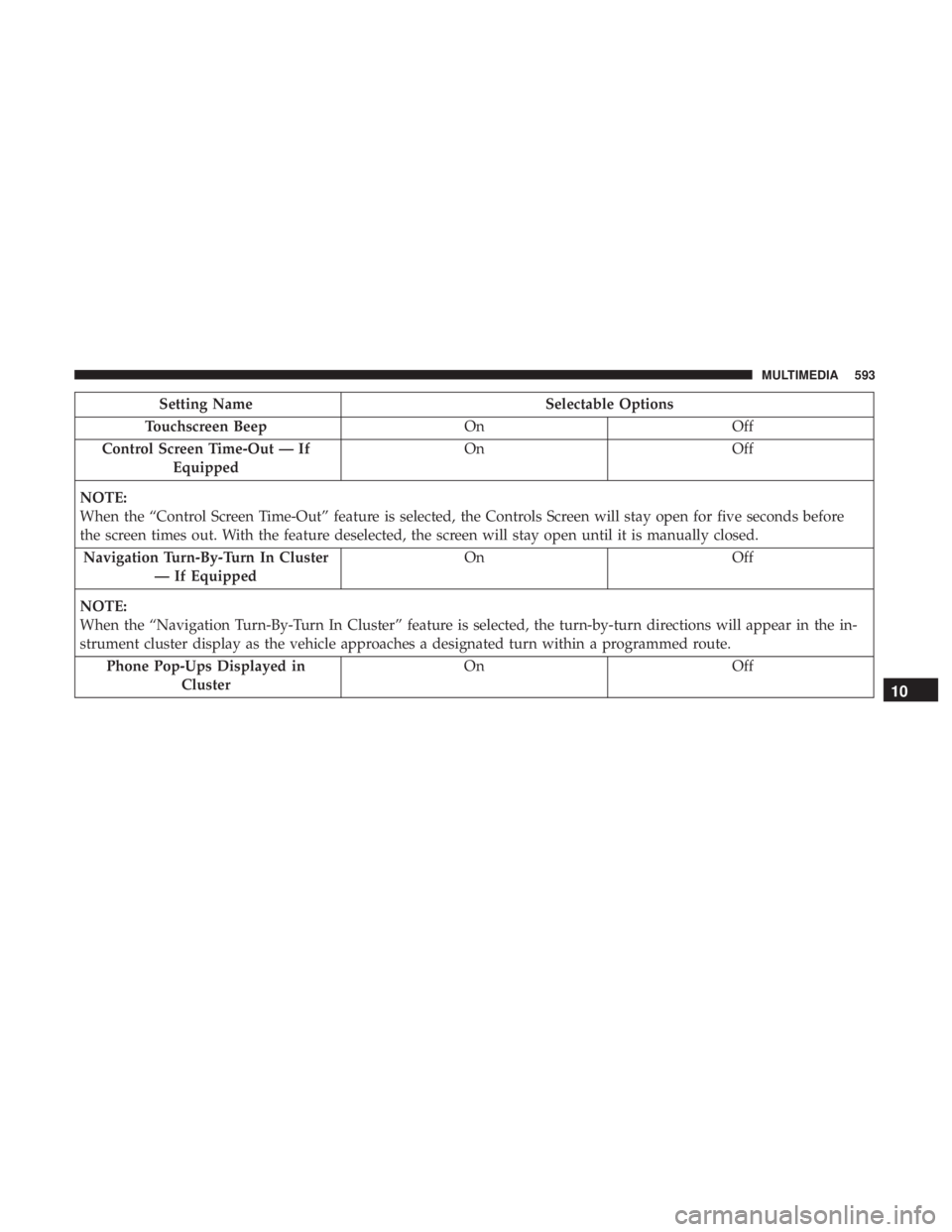
Setting NameSelectable Options
Touchscreen Beep OnOff
Control Screen Time-Out — If Equipped On
Off
NOTE:
When the “Control Screen Time-Out” feature is selected, the Controls Screen will stay open for five seconds before
the screen times out. With the feature deselected, the screen will stay open until it is manually closed. Navigation Turn-By-Turn In Cluster — If Equipped On
Off
NOTE:
When the “Navigation Turn-By-Turn In Cluster” feature is selected, the turn-by-turn directions will appear in the in-
strument cluster display as the vehicle approaches a designated turn within a programmed route. Phone Pop-Ups Displayed in Cluster On
Off
10
MULTIMEDIA 593
Page 607 of 718
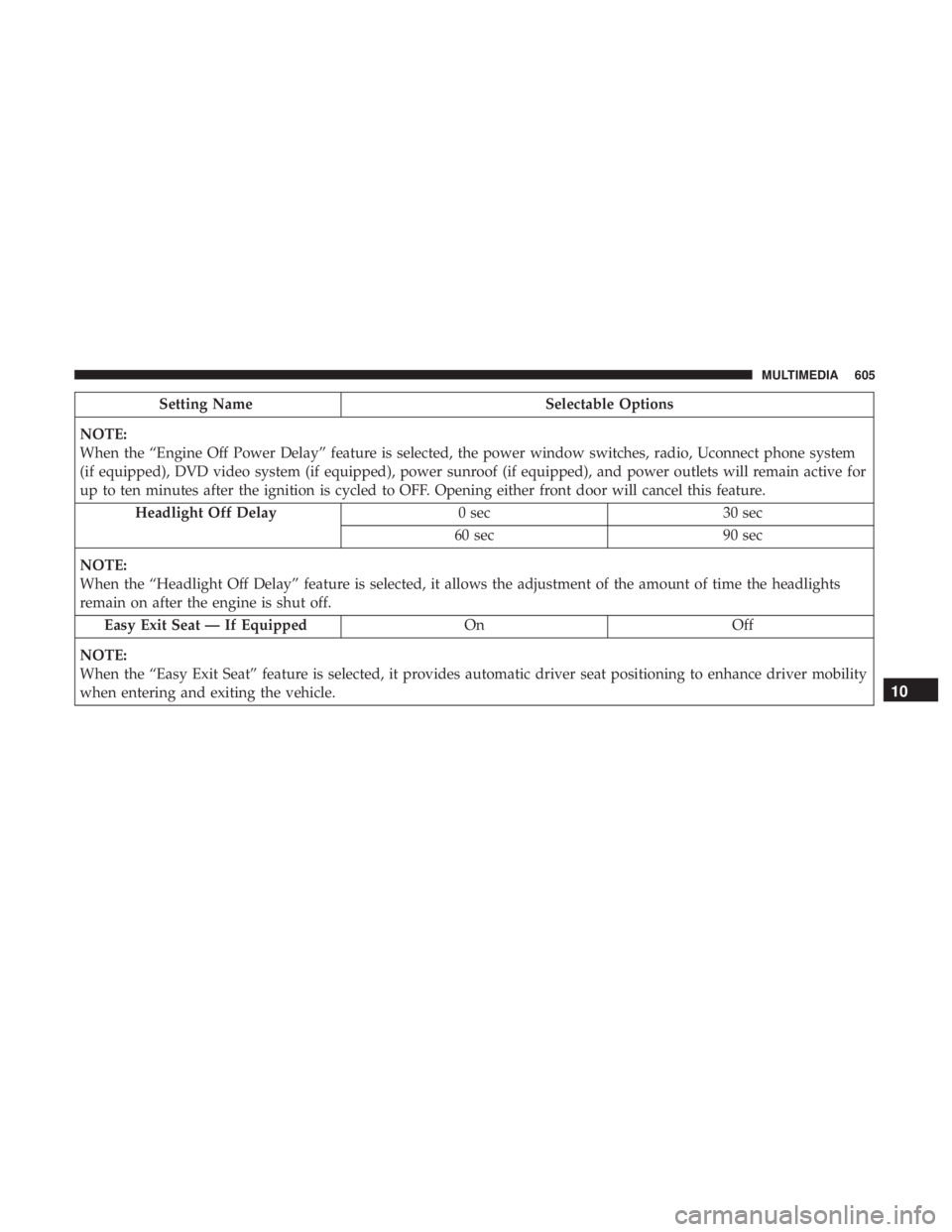
Setting NameSelectable Options
NOTE:
When the “Engine Off Power Delay” feature is selected, the power window switches, radio, Uconnect phone system
(if equipped), DVD video system (if equipped), power sunroof (if equipped), and power outlets will remain active for
up to ten minutes after the ignition is cycled to OFF. Opening either front door will cancel this feature. Headlight Off Delay 0 sec30 sec
60 sec 90 sec
NOTE:
When the “Headlight Off Delay” feature is selected, it allows the adjustment of the amount of time the headlights
remain on after the engine is shut off. Easy Exit Seat — If Equipped OnOff
NOTE:
When the “Easy Exit Seat” feature is selected, it provides automatic driver seat positioning to enhance driver mobility
when entering and exiting the vehicle.
10
MULTIMEDIA 605
Page 610 of 718
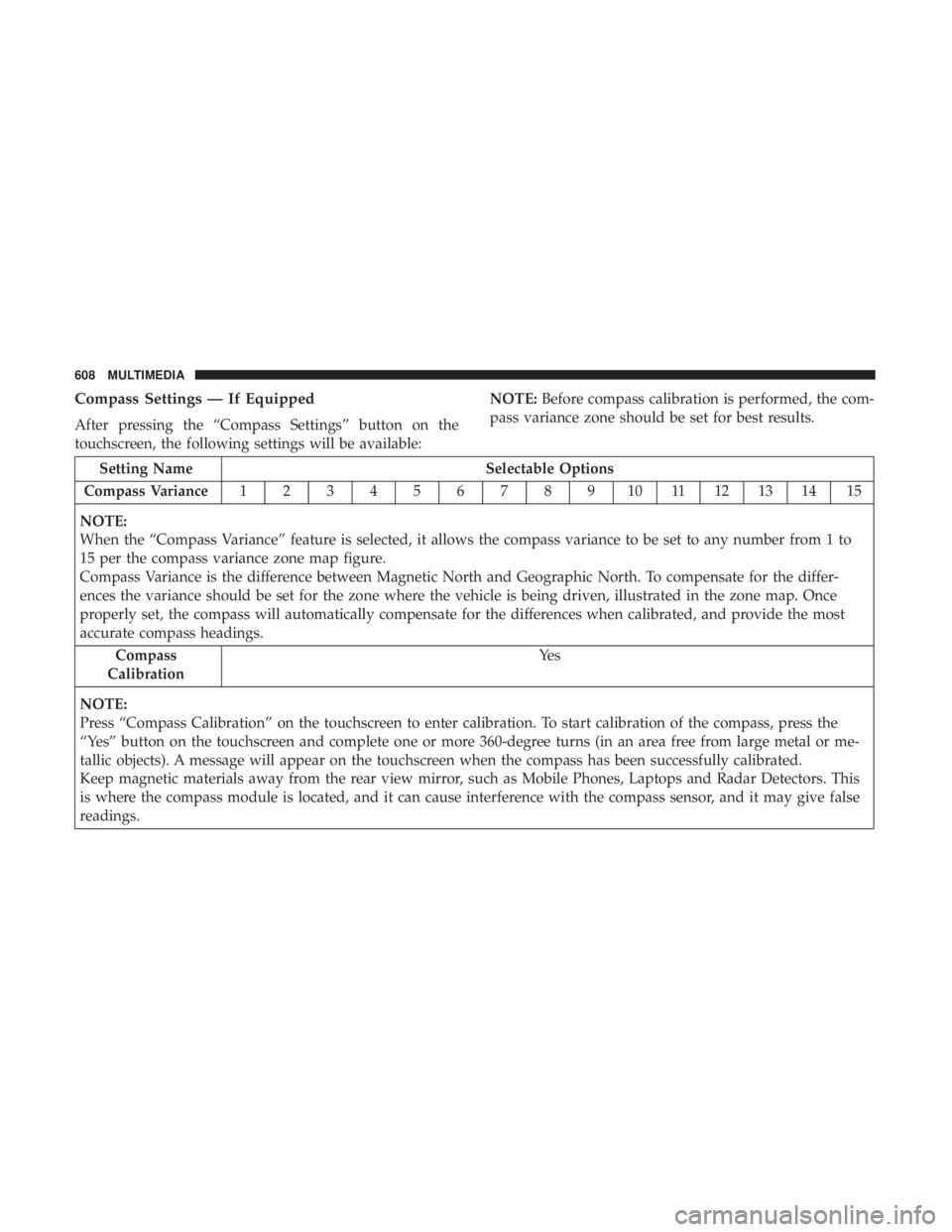
Compass Settings — If Equipped
After pressing the “Compass Settings” button on the
touchscreen, the following settings will be available:NOTE:
Before compass calibration is performed, the com-
pass variance zone should be set for best results.
Setting Name Selectable Options
Compass Variance 1 2 3 4 5 6 7 8 9 10 11 12 13 14 15
NOTE:
When the “Compass Variance” feature is selected, it allows the compass variance to be set to any number from 1 to
15 per the compass variance zone map figure.
Compass Variance is the difference between Magnetic North and Geographic North. To compensate for the differ-
ences the variance should be set for the zone where the vehicle is being driven, illustrated in the zone map. Once
properly set, the compass will automatically compensate for the differences when calibrated, and provide the most
accurate compass headings. Compass
Calibration Ye s
NOTE:
Press “Compass Calibration” on the touchscreen to enter calibration. To start calibration of the compass, press the
“Yes” button on the touchscreen and complete one or more 360-degree turns (in an area free from large metal or me-
tallic objects). A message will appear on the touchscreen when the compass has been successfully calibrated.
Keep magnetic materials away from the rear view mirror, such as Mobile Phones, Laptops and Radar Detectors. This
is where the compass module is located, and it can cause interference with the compass sensor, and it may give false
readings.
608 MULTIMEDIA
Page 612 of 718
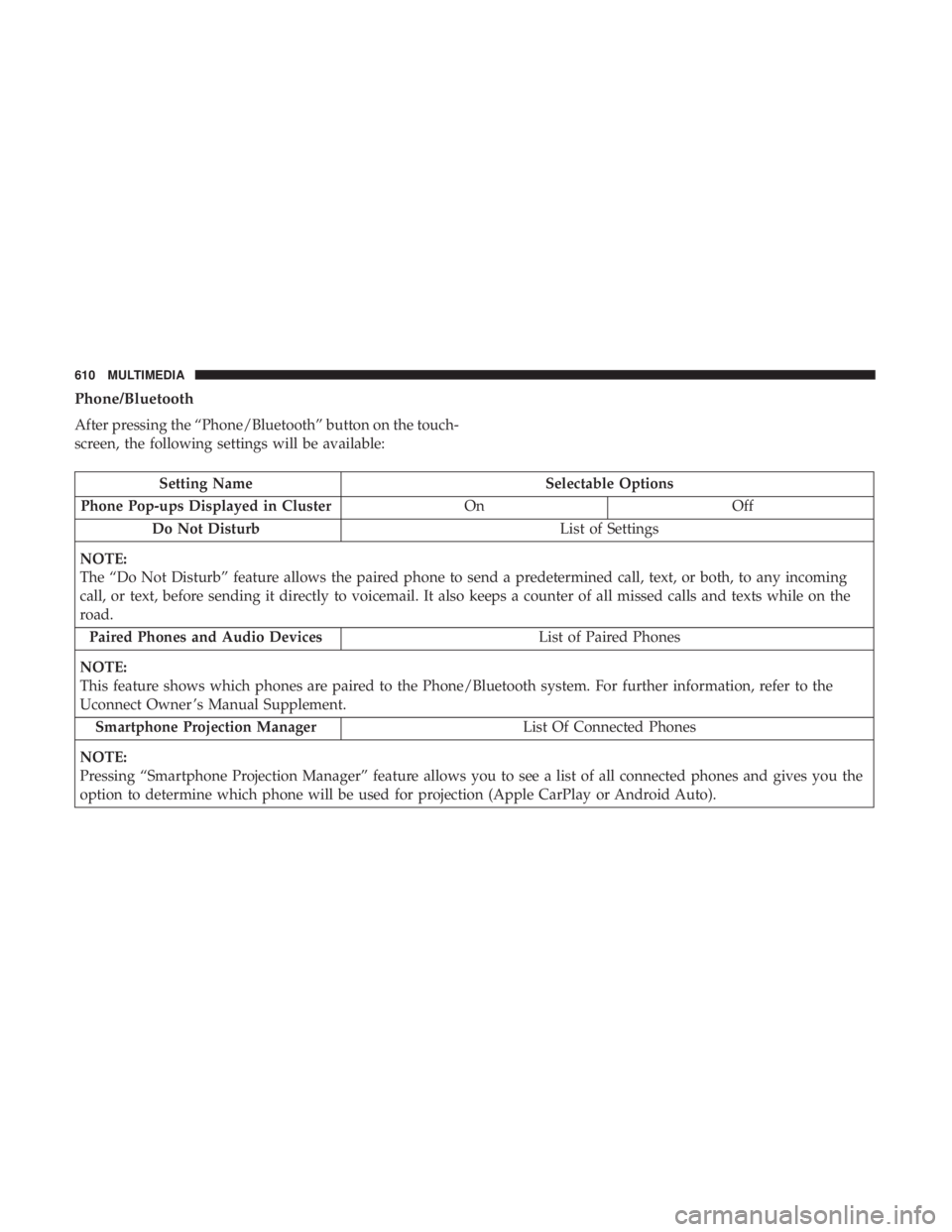
Phone/Bluetooth
After pressing the “Phone/Bluetooth” button on the touch-
screen, the following settings will be available:
Setting NameSelectable Options
Phone Pop-ups Displayed in Cluster OnOff
Do Not Disturb List of Settings
NOTE:
The “Do Not Disturb” feature allows the paired phone to send a predetermined call, text, or both, to any incoming
call, or text, before sending it directly to voicemail. It also keeps a counter of all missed calls and texts while on the
road. Paired Phones and Audio Devices List of Paired Phones
NOTE:
This feature shows which phones are paired to the Phone/Bluetooth system. For further information, refer to the
Uconnect Owner ’s Manual Supplement. Smartphone Projection Manager List Of Connected Phones
NOTE:
Pressing “Smartphone Projection Manager” feature allows you to see a list of all connected phones and gives you the
option to determine which phone will be used for projection (Apple CarPlay or Android Auto).
610 MULTIMEDIA
Page 621 of 718
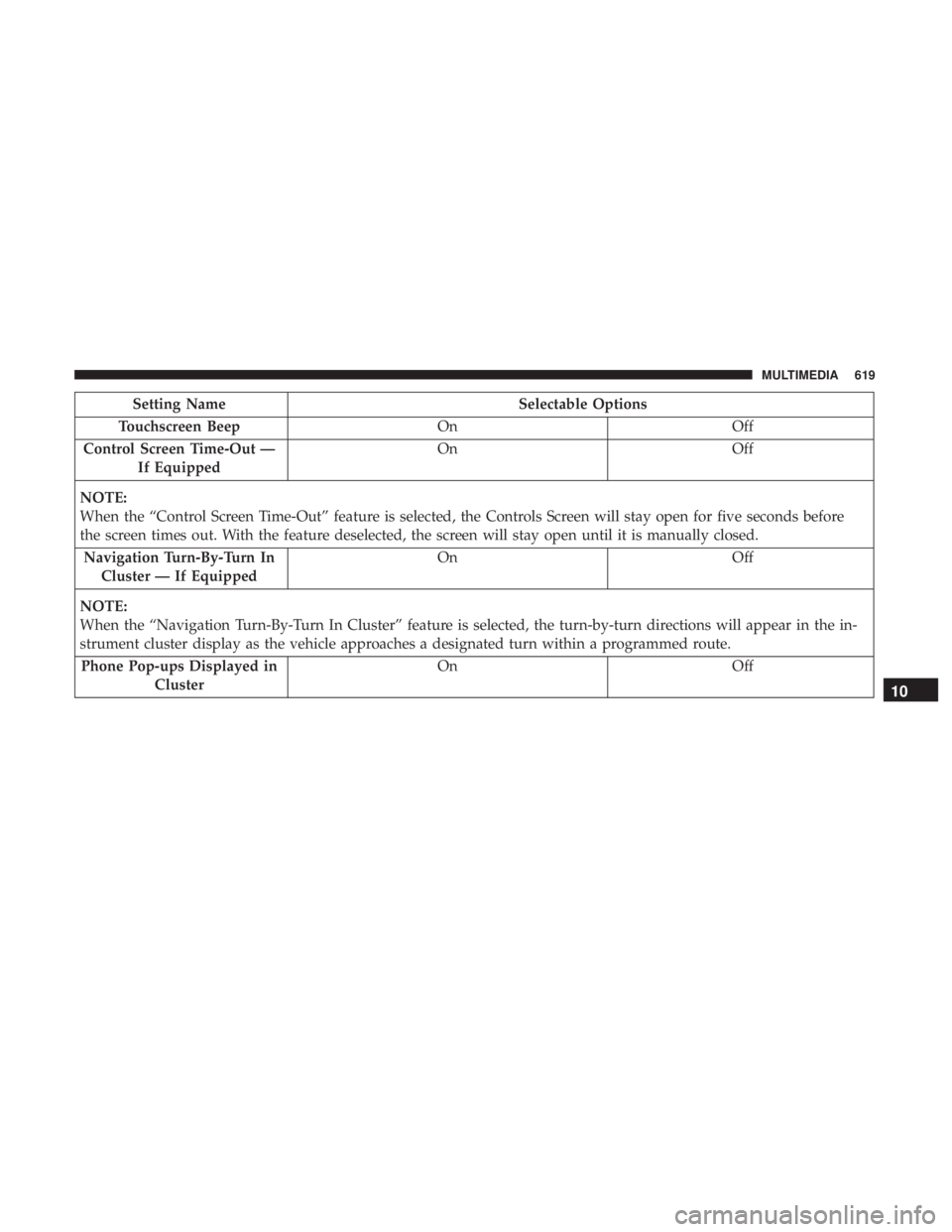
Setting NameSelectable Options
Touchscreen Beep OnOff
Control Screen Time-Out — If Equipped On
Off
NOTE:
When the “Control Screen Time-Out” feature is selected, the Controls Screen will stay open for five seconds before
the screen times out. With the feature deselected, the screen will stay open until it is manually closed. Navigation Turn-By-Turn In Cluster — If Equipped On
Off
NOTE:
When the “Navigation Turn-By-Turn In Cluster” feature is selected, the turn-by-turn directions will appear in the in-
strument cluster display as the vehicle approaches a designated turn within a programmed route. Phone Pop-ups Displayed in Cluster On
Off
10
MULTIMEDIA 619
Page 635 of 718
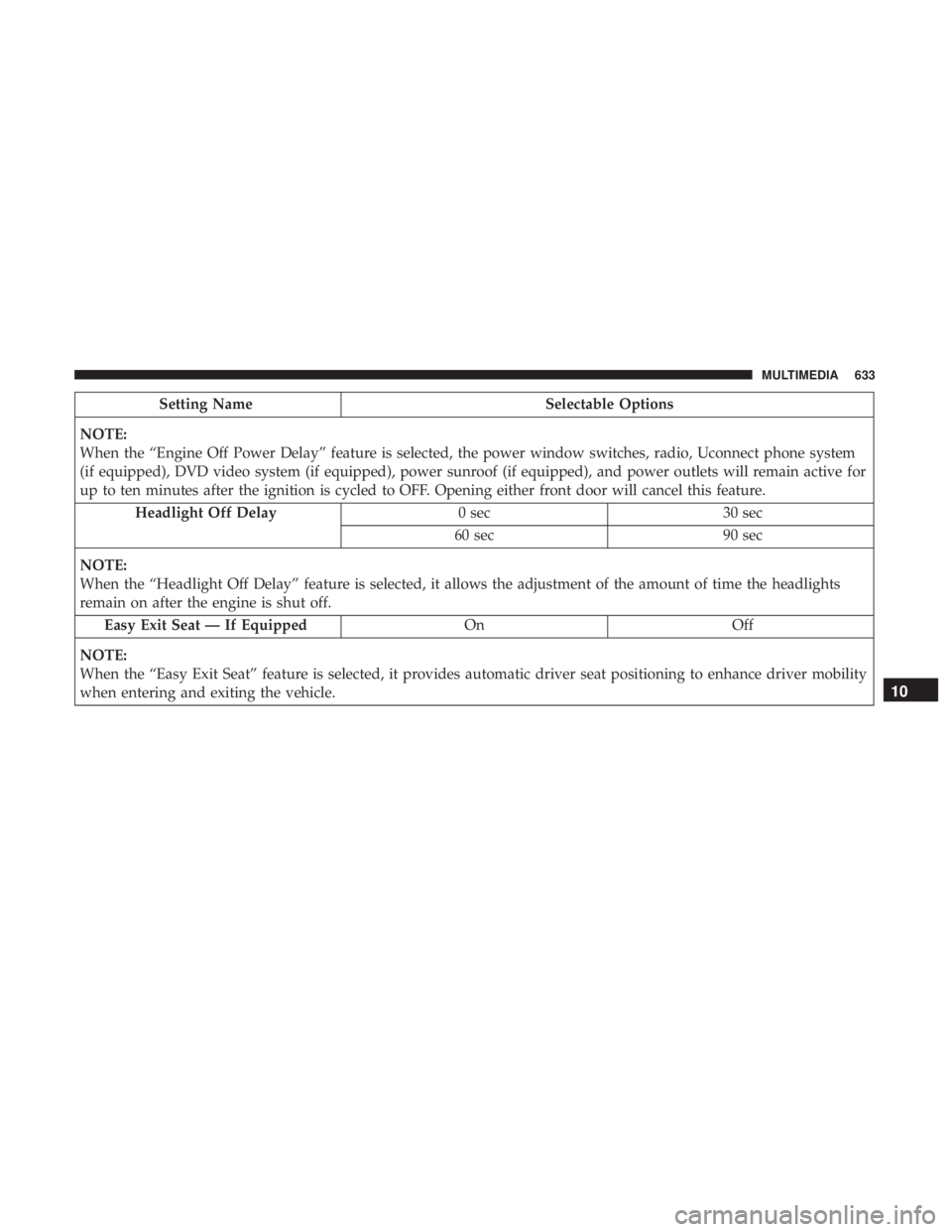
Setting NameSelectable Options
NOTE:
When the “Engine Off Power Delay” feature is selected, the power window switches, radio, Uconnect phone system
(if equipped), DVD video system (if equipped), power sunroof (if equipped), and power outlets will remain active for
up to ten minutes after the ignition is cycled to OFF. Opening either front door will cancel this feature. Headlight Off Delay 0 sec30 sec
60 sec 90 sec
NOTE:
When the “Headlight Off Delay” feature is selected, it allows the adjustment of the amount of time the headlights
remain on after the engine is shut off. Easy Exit Seat — If Equipped OnOff
NOTE:
When the “Easy Exit Seat” feature is selected, it provides automatic driver seat positioning to enhance driver mobility
when entering and exiting the vehicle.
10
MULTIMEDIA 633
Page 637 of 718
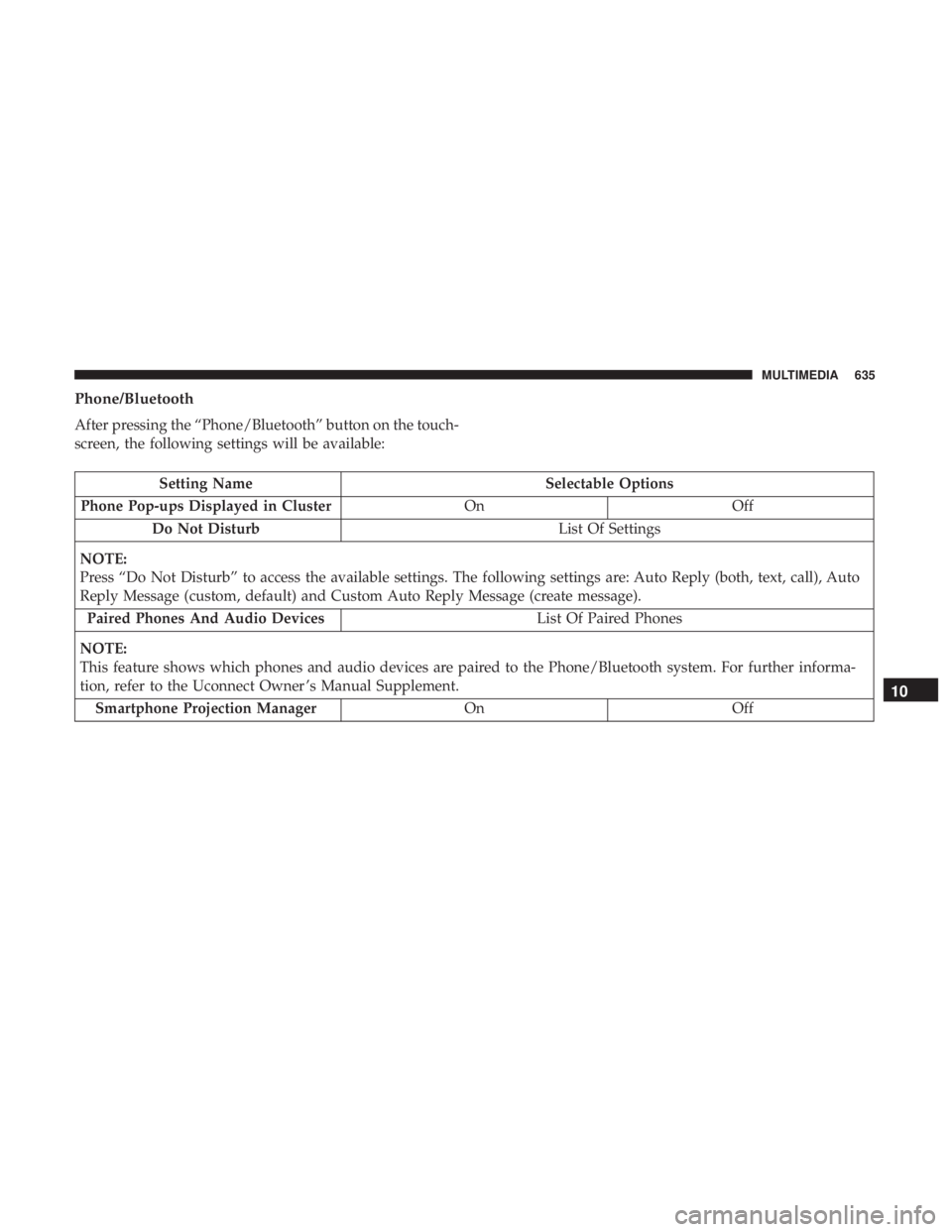
Phone/Bluetooth
After pressing the “Phone/Bluetooth” button on the touch-
screen, the following settings will be available:
Setting NameSelectable Options
Phone Pop-ups Displayed in Cluster OnOff
Do Not Disturb List Of Settings
NOTE:
Press “Do Not Disturb” to access the available settings. The following settings are: Auto Reply (both, text, call), Auto
Reply Message (custom, default) and Custom Auto Reply Message (create message). Paired Phones And Audio Devices List Of Paired Phones
NOTE:
This feature shows which phones and audio devices are paired to the Phone/Bluetooth system. For further informa-
tion, refer to the Uconnect Owner ’s Manual Supplement. Smartphone Projection Manager OnOff
10
MULTIMEDIA 635
Page 643 of 718
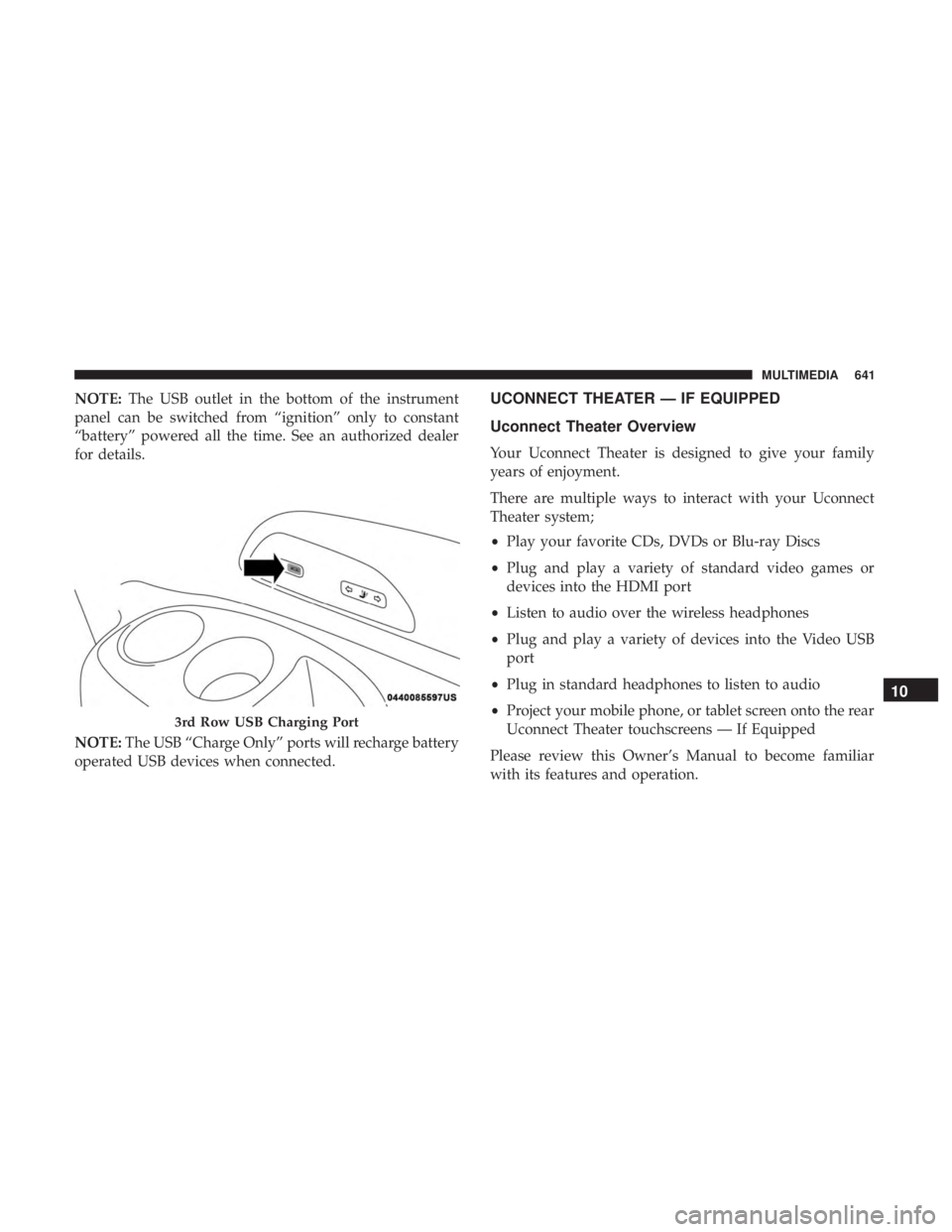
NOTE:The USB outlet in the bottom of the instrument
panel can be switched from “ignition” only to constant
“battery” powered all the time. See an authorized dealer
for details.
NOTE: The USB “Charge Only” ports will recharge battery
operated USB devices when connected.UCONNECT THEATER — IF EQUIPPED
Uconnect Theater Overview
Your Uconnect Theater is designed to give your family
years of enjoyment.
There are multiple ways to interact with your Uconnect
Theater system;
• Play your favorite CDs, DVDs or Blu-ray Discs
• Plug and play a variety of standard video games or
devices into the HDMI port
• Listen to audio over the wireless headphones
• Plug and play a variety of devices into the Video USB
port
• Plug in standard headphones to listen to audio
• Project your mobile phone, or tablet screen onto the rear
Uconnect Theater touchscreens — If Equipped
Please review this Owner’s Manual to become familiar
with its features and operation.
3rd Row USB Charging Port
10
MULTIMEDIA 641
Page 644 of 718
Getting Started
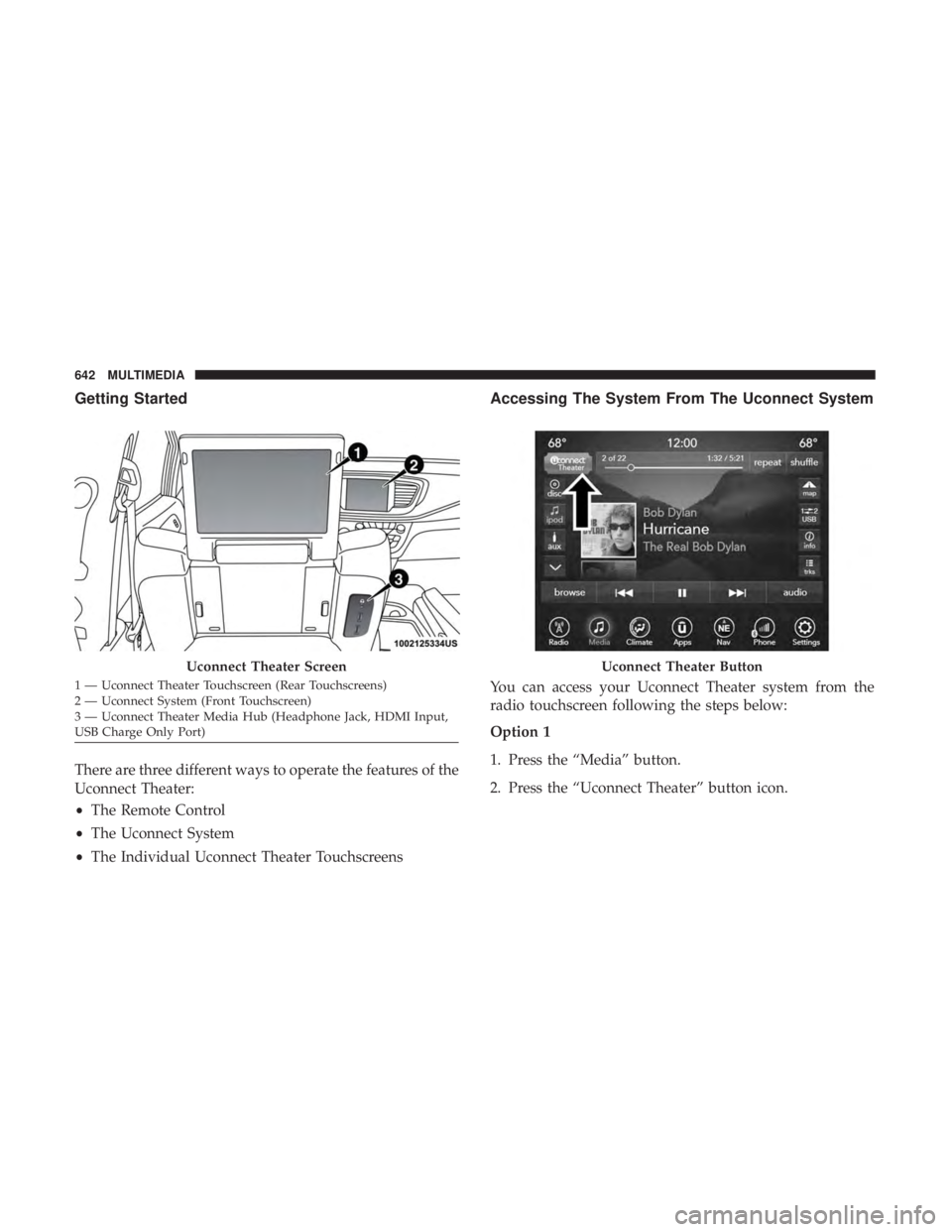
There are three different ways to operate the features of the
Uconnect Theater:
•The Remote Control
• The Uconnect System
• The Individual Uconnect Theater Touchscreens
Accessing The System From The Uconnect System
You can access your Uconnect Theater system from the
radio touchscreen following the steps below:
Option 1
1. Press the “Media” button.
2. Press the “Uconnect Theater” button icon.
Uconnect Theater Screen
1 — Uconnect Theater Touchscreen (Rear Touchscreens)
2 — Uconnect System (Front Touchscreen)
3 — Uconnect Theater Media Hub (Headphone Jack, HDMI Input,
USB Charge Only Port)
Uconnect Theater Button
642 MULTIMEDIA