phone CHRYSLER PACIFICA 2019 Owner's Guide
[x] Cancel search | Manufacturer: CHRYSLER, Model Year: 2019, Model line: PACIFICA, Model: CHRYSLER PACIFICA 2019Pages: 718, PDF Size: 8.6 MB
Page 668 of 718
Your phone will be added as an additional source card on
the Uconnect Theater touchscreens.
NOTE:The Authentication Screen will appear on both rear
touchscreens. The touchscreen screen on which “Accept” is
selected will be the primary controller for the wireless
streaming session.
NOTE:
• Some devices will allow you to control your device
through the Uconnect Theater rear touchscreens. They
will react to your selections from the touchscreen and be
represented on your device as well. When supported,
the Uconnect Theater task bar will appear at the top and
bottom of the Uconnect Theater touchscreen, framing
your streaming device.
• Devices that do not support this feature will not respond
to Uconnect Theater touchscreen but can still be con-
trolled using the streaming device.Settings
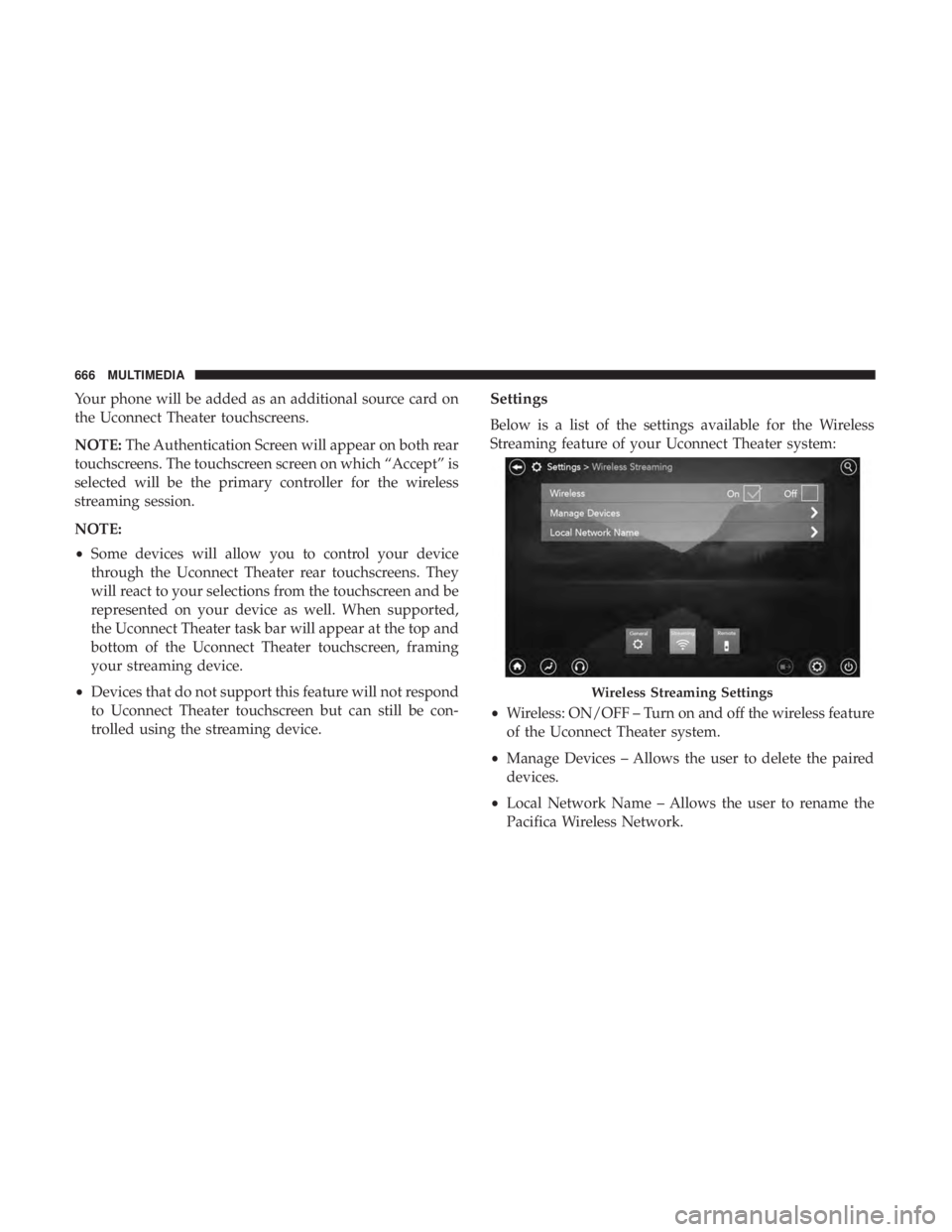
Below is a list of the settings available for the Wireless
Streaming feature of your Uconnect Theater system:
• Wireless: ON/OFF – Turn on and off the wireless feature
of the Uconnect Theater system.
• Manage Devices – Allows the user to delete the paired
devices.
• Local Network Name – Allows the user to rename the
Pacifica Wireless Network.
Wireless Streaming Settings
666 MULTIMEDIA
Page 675 of 718
is no guarantee that interference will not occur in a
particular installation. If this equipment does cause harm-
ful interference to radio or television reception, which can
be determined by turning the equipment off and on, the
user is encouraged to try to correct the interference by one
or more of the following measures:
•Reorient or relocate the receiving antenna.
• Increase the separation between the equipment and
receiver.
• Connect the equipment into an outlet on a circuit
different from that to which the receiver is connected.
• Consult the dealer or an experienced radio/TV techni-
cian for help.
CAN ICES-3 (B) / NMB-3 (B)
This Class B digital apparatus complies with Canadian
ICES-003.
RADIO OPERATION AND MOBILE PHONES
Under certain conditions, the mobile phone being on in
your vehicle can cause erratic or noisy performance from
your radio. This condition may be lessened or eliminated
by relocating the mobile phone antenna. This condition is
not harmful to the radio. If your radio performance does not satisfactorily “clear” by the repositioning of the an-
tenna, it is recommended that the radio volume be turned
down or off during mobile phone operation when not
using Uconnect (if equipped).
Regulatory And Safety Information
USA/CANADA
Exposure to Radio Frequency Radiation
The radiated output power of the internal wireless radio is
far below the FCC and IC radio frequency exposure limits.
Nevertheless, the wireless radio will be used in such a
manner that the radio is 8 in (20 cm) or further from the
human body.
The internal wireless radio operates within guidelines
found in radio frequency safety standards and recommen-
dations, which reflect the consensus of the scientific com-
munity.
The radio manufacturer believes the internal wireless radio
is safe for use by consumers. The level of energy emitted is
far less than the electromagnetic energy emitted by wire-
less devices such as mobile phones. However, the use of
wireless radios may be restricted in some situations or
10
MULTIMEDIA 673
Page 678 of 718
Get Started
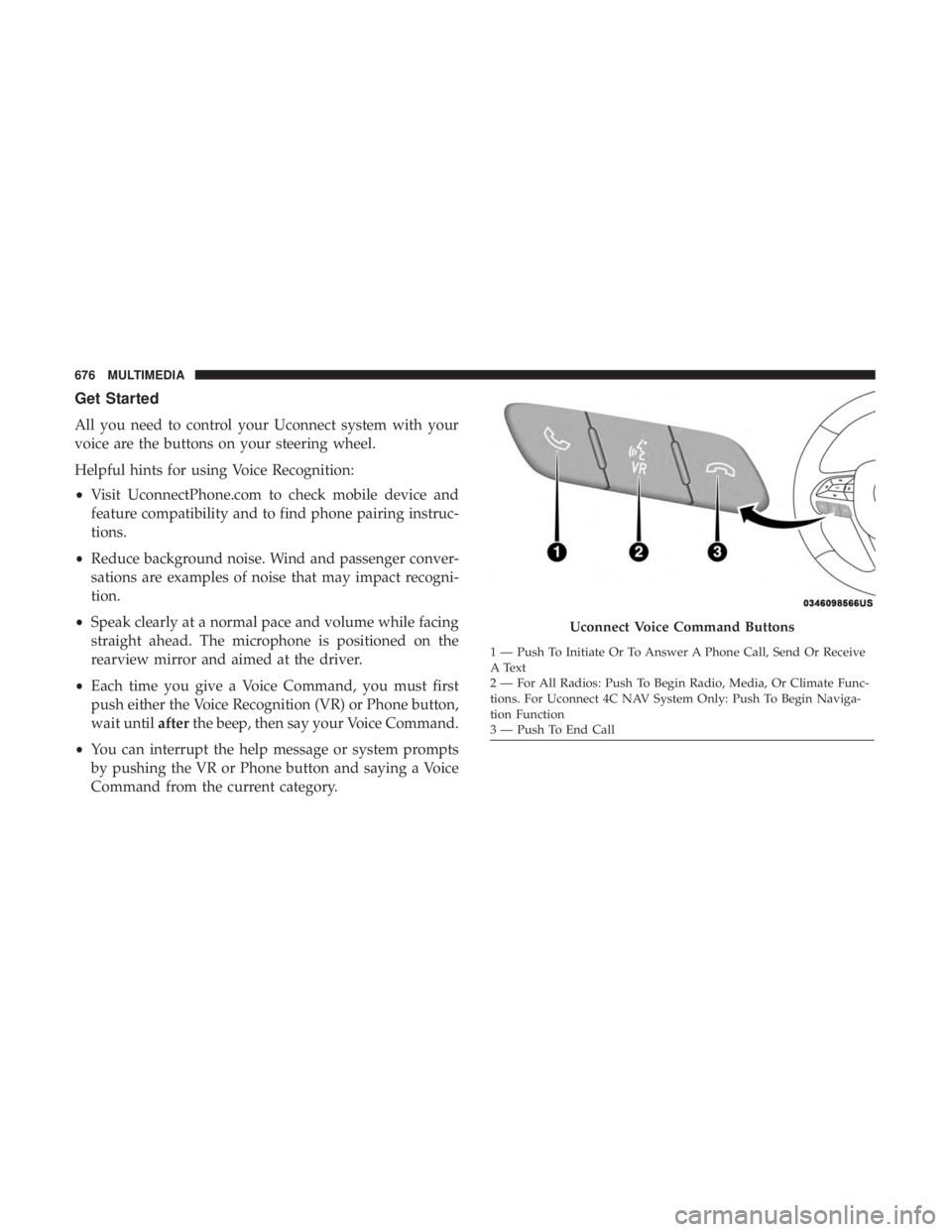
All you need to control your Uconnect system with your
voice are the buttons on your steering wheel.
Helpful hints for using Voice Recognition:
•Visit UconnectPhone.com to check mobile device and
feature compatibility and to find phone pairing instruc-
tions.
• Reduce background noise. Wind and passenger conver-
sations are examples of noise that may impact recogni-
tion.
• Speak clearly at a normal pace and volume while facing
straight ahead. The microphone is positioned on the
rearview mirror and aimed at the driver.
• Each time you give a Voice Command, you must first
push either the Voice Recognition (VR) or Phone button,
wait until afterthe beep, then say your Voice Command.
• You can interrupt the help message or system prompts
by pushing the VR or Phone button and saying a Voice
Command from the current category.
Uconnect Voice Command Buttons
1 — Push To Initiate Or To Answer A Phone Call, Send Or Receive
A Text
2 — For All Radios: Push To Begin Radio, Media, Or Climate Func-
tions. For Uconnect 4C NAV System Only: Push To Begin Naviga-
tion Function
3 — Push To End Call
676 MULTIMEDIA
Page 681 of 718

Phone
Making and answering hands-free phone calls is easy with
Uconnect. When the Phonebook button is illuminated on
your touchscreen, your system is ready. Check
UconnectPhone.com for mobile phone compatibility and
pairing instructions.
Push the Phone button
. After the beep, say one of the
following commands:
• “Call John Smith”
• “Dial 123-456-7890 and follow the system prompts”
• “Redial (call previous outgoing phone number)”
• “Call back (call previous incoming phone number)”
Uconnect 4C/4C NAV Media10
MULTIMEDIA 679
Page 682 of 718
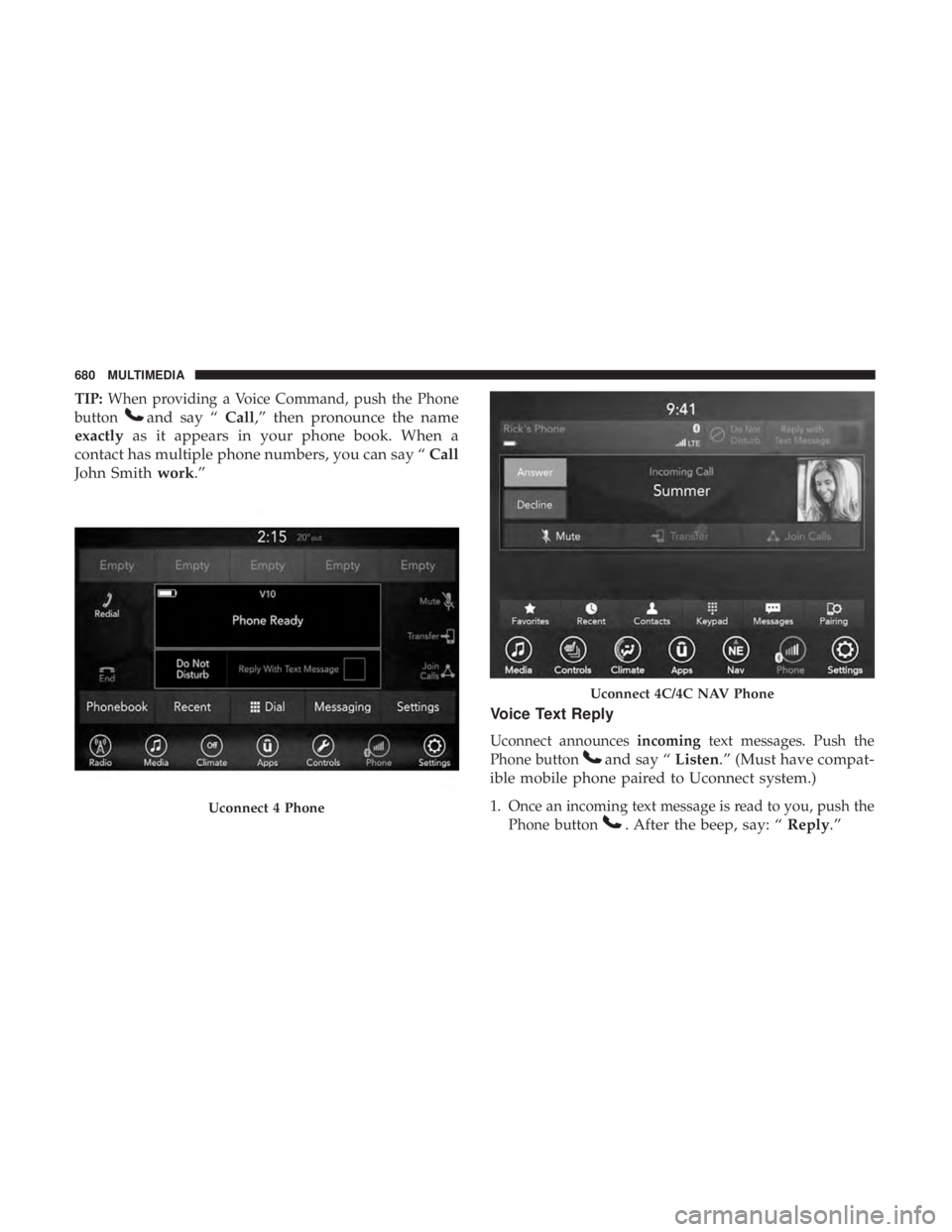
TIP:When providing a Voice Command, push the Phone
button
and say “ Call,” then pronounce the name
exactly as it appears in your phone book. When a
contact has multiple phone numbers, you can say “ Call
John Smith work.”
Voice Text Reply
Uconnect announcesincomingtext messages. Push the
Phone button
and say “ Listen.” (Must have compat-
ible mobile phone paired to Uconnect system.)
1. Once an incoming text message is read to you, push the Phone button
. After the beep, say: “ Reply.”
Uconnect 4 Phone
Uconnect 4C/4C NAV Phone
680 MULTIMEDIA
Page 683 of 718
2. Listen to the Uconnect prompts. After the beep, repeatone of the pre-defined messages and follow the system
prompts.
PRE-DEFINED VOICE TEXT REPLY RESPONSES
Yes. Stuck in traffic. See you later.No. Start without
me. I’ll be late.
Okay. Where are you? I will be
Call me. Are you there
yet?
I’ll call you later. I need directions.See you in
I’m on my way. Can’t talk right
now.
I’m lost. Thanks.
TIP: Your mobile phone must have the full implementation
of the Message Access Profile (MAP) to take advantage of
this feature. For details about MAP, visit
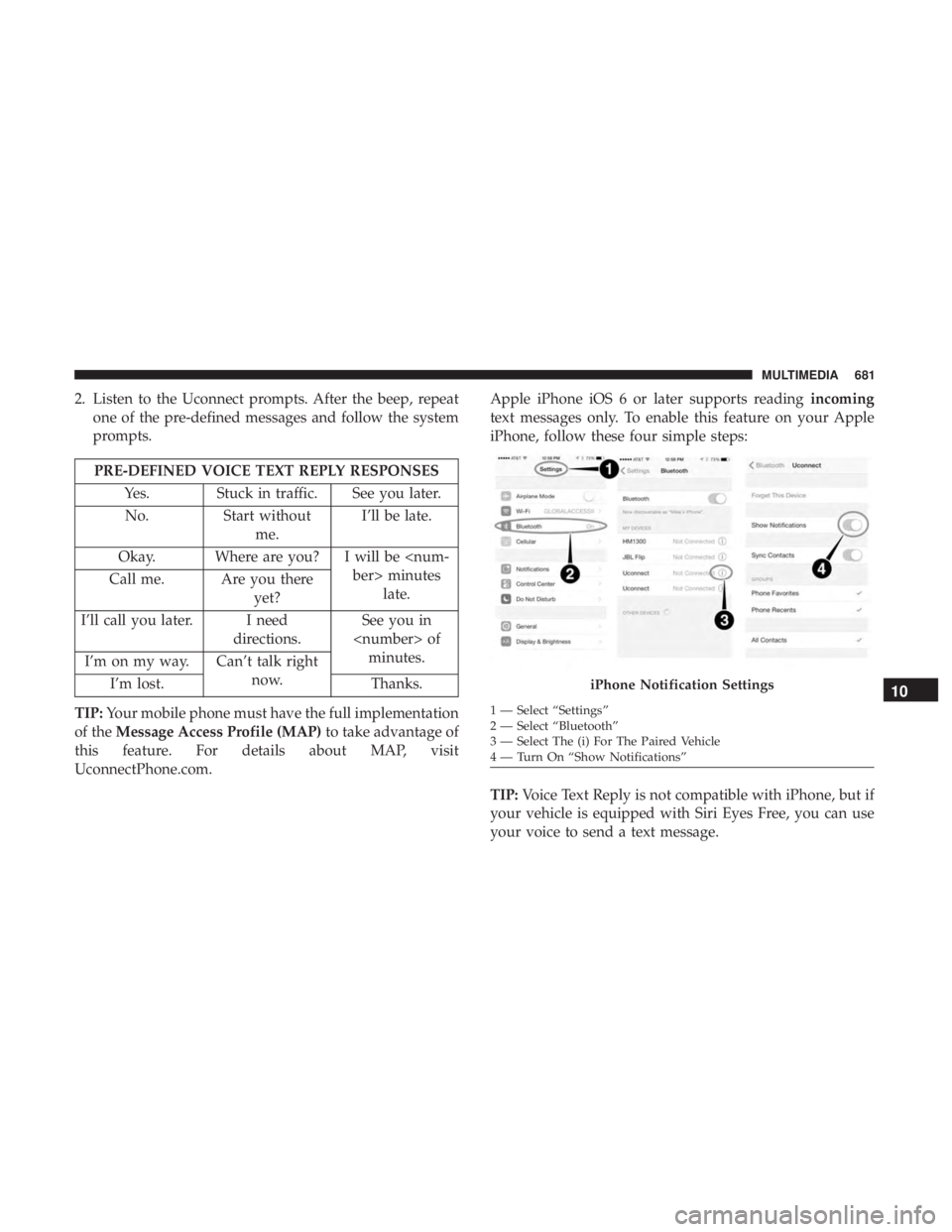
UconnectPhone.com. Apple iPhone iOS 6 or later supports reading
incoming
text messages only. To enable this feature on your Apple
iPhone, follow these four simple steps:
TIP: Voice Text Reply is not compatible with iPhone, but if
your vehicle is equipped with Siri Eyes Free, you can use
your voice to send a text message.
iPhone Notification Settings
1 — Select “Settings”
2 — Select “Bluetooth”
3 — Select The (i) For The Paired Vehicle
4 — Turn On “Show Notifications”
10
MULTIMEDIA 681
Page 687 of 718
3. Select “Customer Care” to speak with a SiriusXMGuardian Customer Care agent who will activate ser-
vices in your vehicle, or select “Enter Email” to activate
on the web.
• U.S. residents visit: www.siriusxm.com/guardian.
• Canadian residents visit: www.siriusxm.ca/guardian.
Vehicle Health Report/Alert (4C/4C NAV)
Your vehicle will send you a monthly email report, which
summarizes the performance of your vehicle’s key systems
so you can stay on top of your vehicle’s maintenance needs
if you are registered for SiriusXM Guardian. Your vehicle
will also send you Vehicle Health Alerts when it detects
issues with its key systems that need your attention. For
further information, refer to your Uconnect Owner ’s
Manual Supplement.
Mobile App (4C/4C NAV)
You’re only a few steps away from using remote com-
mands and sending a destination from your phone to your
vehicle.
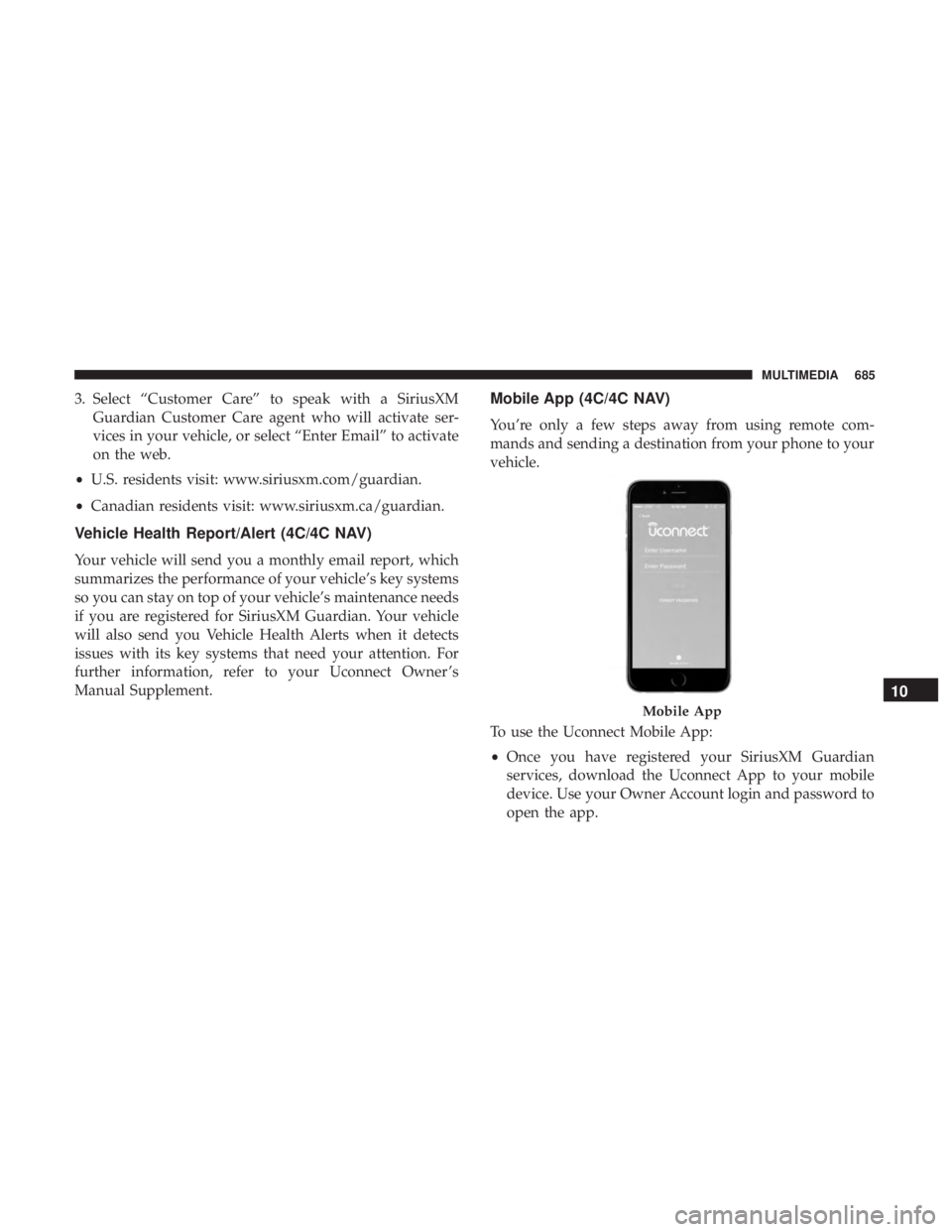
To use the Uconnect Mobile App:
•Once you have registered your SiriusXM Guardian
services, download the Uconnect App to your mobile
device. Use your Owner Account login and password to
open the app.
Mobile App
10
MULTIMEDIA 685
Page 688 of 718
•Once on the “Remote” screen, you can begin using
Remote Door Lock/Unlock, Remote Vehicle Start, and
activate your horn and lights remotely, if equipped.
• Press the “Location” button on the bottom menu bar of
the app to bring up a map to locate your vehicle or send
a location to your Uconnect Navigation using Vehicle
Finder and Send & Go , if equipped.
• Press the “Settings” side menu in the upper left corner of
the app to bring up app settings.
NOTE: For further information please visit
DriveUconnect.com (U.S. Residents) or DriveUconnect.ca
(Canadian Residents).
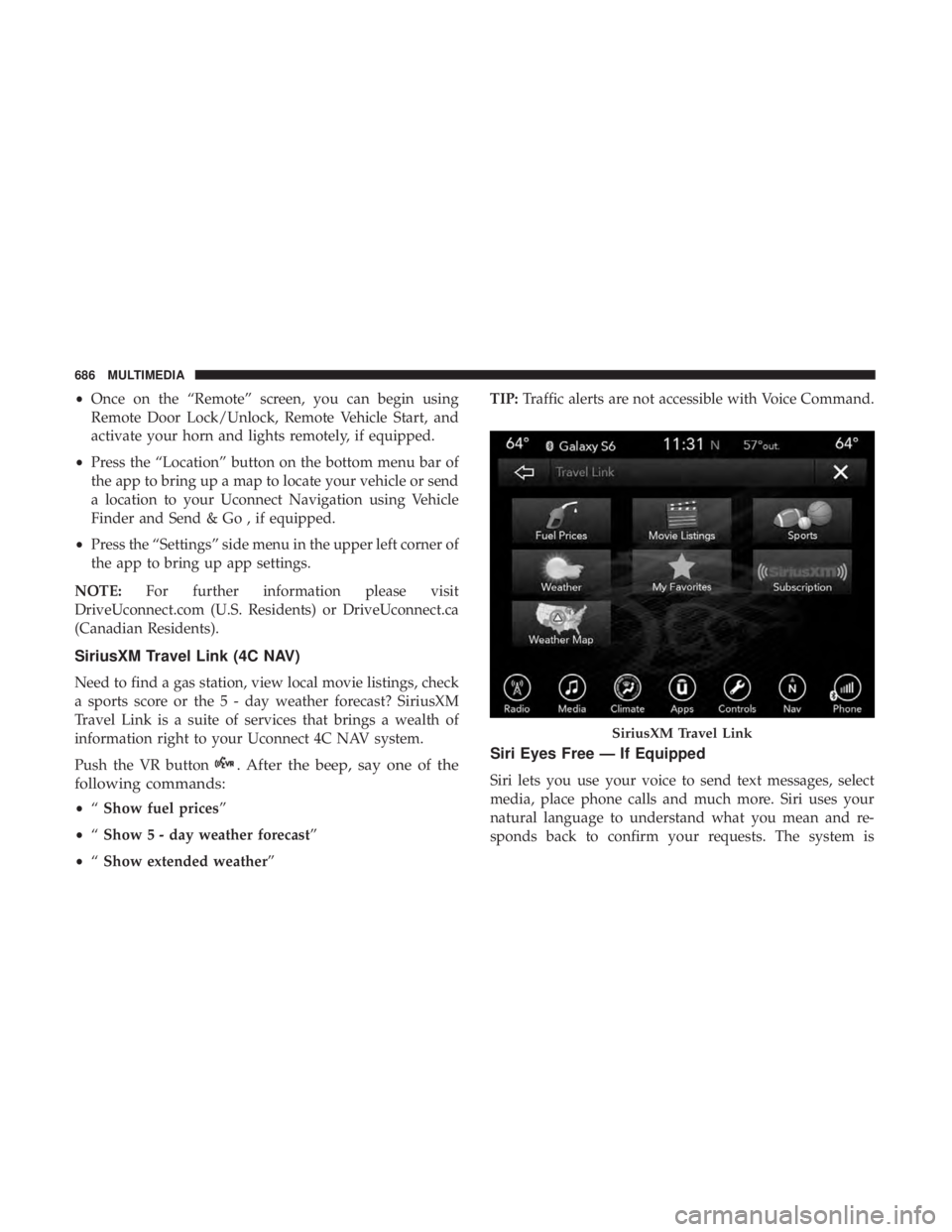
SiriusXM Travel Link (4C NAV)
Need to find a gas station, view local movie listings, check
a sports score or the 5 - day weather forecast? SiriusXM
Travel Link is a suite of services that brings a wealth of
information right to your Uconnect 4C NAV system.
Push the VR button
. After the beep, say one of the
following commands:
• “Show fuel prices”
• “Show 5 - day weather forecast”
• “Show extended weather” TIP:
Traffic alerts are not accessible with Voice Command.
Siri Eyes Free — If Equipped
Siri lets you use your voice to send text messages, select
media, place phone calls and much more. Siri uses your
natural language to understand what you mean and re-
sponds back to confirm your requests. The system is
SiriusXM Travel Link
686 MULTIMEDIA
Page 690 of 718
Do Not Disturb can automatically reply with a text mes-
sage, a call or both, when declining an incoming call and
send it to voicemail.
Automatic reply messages can be:
•“I am driving right now, I will get back to you shortly.”
• Create a custom auto reply message up to 160 characters.
While in Do Not Disturb, Conference Call can be selected
so you can still place a second call without being inter-
rupted by incoming calls.
NOTE:
• Only the beginning of your custom message will be seen
on the touchscreen.
• Reply with text message is not compatible with iPhones.
• Auto reply with text message is only available on
phones that supporting Bluetooth MAP.Android Auto — If Equipped
NOTE: Feature availability depends on your carrier and
mobile phone manufacturer. Some Android Auto features
may or may not be available in every region and/or
language.
Android Auto allows you to use your voice to interact with
Android’s best-in-class speech technology through your
vehicle’s voice recognition system, and use your smart-
phone’s data plan to project your Android powered smart-
phone and a number of its apps onto your Uconnect
touchscreen. Connect your Android 5.0 (Lollipop), or
higher, to one of the media USB ports, using the factory-
provided USB cable, and press the new Android Auto icon
that replaces your “Phone” icon on the main menu bar to
begin Android Auto. Push and hold the VR button on the
steering wheel, or press and hold the “Microphone” icon
within Android Auto, to activate Android’s VR, which
688 MULTIMEDIA
Page 691 of 718
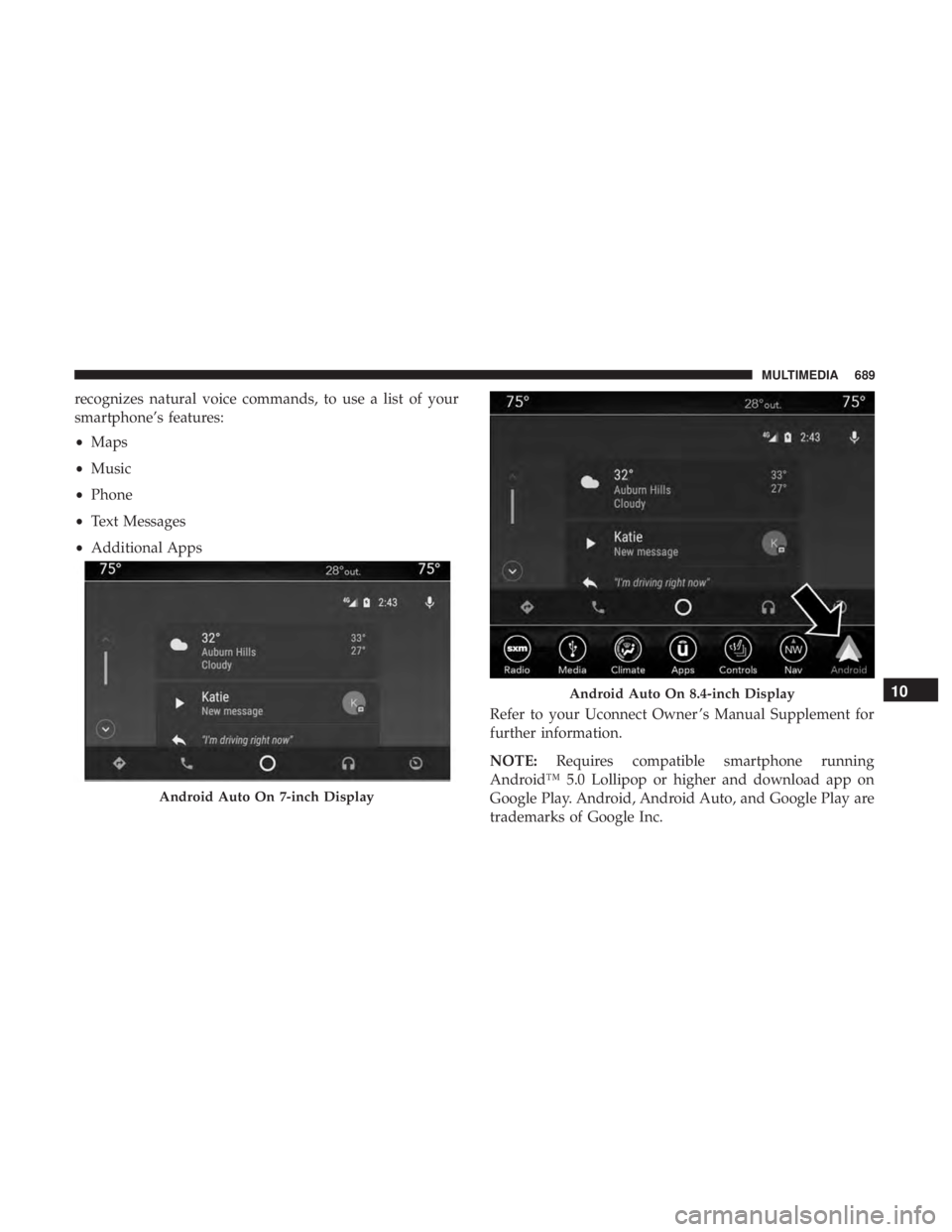
recognizes natural voice commands, to use a list of your
smartphone’s features:
•Maps
• Music
• Phone
• Text Messages
• Additional Apps
Refer to your Uconnect Owner ’s Manual Supplement for
further information.
NOTE:Requires compatible smartphone running
Android™ 5.0 Lollipop or higher and download app on
Google Play. Android, Android Auto, and Google Play are
trademarks of Google Inc.
Android Auto On 7-inch Display
Android Auto On 8.4-inch Display10
MULTIMEDIA 689