Rear CHRYSLER PACIFICA 2020 Owners Manual
[x] Cancel search | Manufacturer: CHRYSLER, Model Year: 2020, Model line: PACIFICA, Model: CHRYSLER PACIFICA 2020Pages: 516, PDF Size: 28.69 MB
Page 268 of 516

266STARTING AND OPERATING
Enabling And Disabling ParkSense
ParkSense can be enabled and
disabled with the ParkSense switch,
located on the switch panel below the
Uconnect display.
When the ParkSense switch is pushed to
disable the system, the instrument cluster will
display the “PARKSENSE OFF” message for
approximately five seconds. Refer to
“Instrument Cluster Display” in “Getting To
Know Your Instrument Panel” for further
information. When the gear selector is moved to
REVERSE and the system is disabled, the
instrument cluster display will show the
“PARKSENSE OFF” message for as long as the
vehicle is in REVERSE.
The ParkSense switch LED will be on when
ParkSense is disabled or requires service. The
ParkSense switch LED will be off when the
system is enabled. If the ParkSense switch is
pushed, and requires service, the ParkSense
switch LED will blink momentarily, and then the
LED will be on. NOTE:
When KeySense feature is present, the Park
-
Sense System will reject customer input to turn
the system off via the hard switch. The instru -
ment cluster display will show "KeySense in Use
Selected Feature Cannot be Disabled" message.
Service The ParkSense Park Assist System
During vehicle start-up, when the ParkSense
System has detected a faulted condition, the
instrument cluster will actuate a single chime,
once per ignition cycle, and it will display the
"PARKSENSE UNAVAILABLE WIPE REAR
SENSORS", "PARKSENSE UNAVAILABLE WIPE
FRONT SENSORS", or the "PARKSENSE
UNAVAILABLE SERVICE REQUIRED" message for
five seconds. When the gear selector is moved to
REVERSE and the system has detected a faulted
condition, the instrument cluster display will
show a "PARKSENSE UNAVAILABLE WIPE REAR
SENSORS", "PARKSENSE UNAVAILABLE WIPE
FRONT SENSORS" or "PARKSENSE UNAVAILABLE
SERVICE REQUIRED" pop up message for five
seconds. After five seconds, a vehicle graphic will
be displayed with a "WIPE OFF" or “SERVICE”
overlay, depending on the location and fault type.
The system will continue to provide arc alerts for
the side that is functioning properly. These arc alerts will interrupt the "PARKSENSE
UNAVAILABLE WIPE REAR SENSORS",
"PARKSENSE UNAVAILABLE WIPE FRONT
SENSORS", or "PARKSENSE UNAVAILABLE
SERVICE REQUIRED" messages if an object is
detected within the five second pop-up duration.
The vehicle graphic will remain displayed for as
long as the vehicle is in REVERSE.
Refer to “Instrument Cluster Display” in
“Getting To Know Your Instrument Panel” for
further information.
If "PARKSENSE UNAVAILABLE WIPE REAR
SENSORS" or "PARKSENSE UNAVAILABLE WIPE
FRONT SENSORS" appears in the instrument
cluster display make sure the outer surface and
the underside of the rear fascia/bumper and/or
front fascia/bumper is clean and clear of snow,
ice, mud, dirt or other obstruction and then
cycle the ignition. If the message continues to
appear see an authorized dealer.
If the "PARKSENSE UNAVAILABLE SERVICE
REQUIRED" message appears in the instrument
cluster display, see an authorized dealer.
20_RU_OM_EN_US_t.book Page 266
Page 269 of 516
STARTING AND OPERATING267
Cleaning The ParkSense System
Clean the ParkSense sensors with water, car
wash soap and a soft cloth. Do not use rough or
hard cloths. Do not scratch or poke the sensors.
Otherwise, you could damage the sensors.
ParkSense System Usage Precautions
NOTE:
Ensure that the front and rear bumper are free
of snow, ice, mud, dirt, and debris to keep the
ParkSense system operating properly.
Construction equipment, large trucks, and
other vibrations could affect the performance
of ParkSense.
When you turn ParkSense off, the instrument
cluster will display “PARKSENSE OFF.”
Furthermore, once you turn ParkSense off, it
remains off until you turn it on again, even if
you cycle the ignition key.
When you move the gear selector to the
REVERSE position and ParkSense is turned
off, the instrument cluster will display “PARK -
SENSE OFF” for five seconds while the
vehicle is in REVERSE.
ParkSense, when on, will reduce the volume
of the radio when it is sounding a tone.
Clean the ParkSense sensors regularly,
taking care not to scratch or damage them.
The sensors must not be covered with ice,
snow, slush, mud, dirt or debris. Failure to do
so can result in the system not working prop -
erly. The ParkSense system might not detect
an obstacle behind or in front of the appro -
priate fascia/bumper, or it could provide a
false indication that an obstacle is behind or
in front of the appropriate fascia/bumper.
Use the ParkSense switch to turn the Park -
Sense system off if objects such as bicycle
carriers, trailer hitches, etc. are placed within
12 inches (30 cm) from the rear fascia/
bumper. Failure to do so can result in the
system misinterpreting a close object as a
sensor problem, causing the “PARKSENSE
UNAVAILABLE SERVICE REQUIRED” message
to be displayed in the instrument cluster.
ParkSense should be disabled when the lift -
gate is in the open position.
There may be a delay in the object detection
rate if the object is moving. This may cause the
automatic braking application to be delayed.
WARNING!
Drivers must be careful when backing up
even when using ParkSense. Always check
carefully behind your vehicle, look behind
you, and be sure to check for pedestrians,
animals, other vehicles, obstructions, and
blind spots before backing up. You are
responsible for safety and must continue to
pay attention to your surroundings. Failure
to do so can result in serious injury or
death.
Before using ParkSense, it is strongly
recommended that the ball mount and
hitch ball assembly is disconnected from
the vehicle when the vehicle is not used for
towing. Failure to do so can result in injury
or damage to vehicles or obstacles
because the hitch ball will be much closer
to the obstacle than the rear fascia when
the loudspeaker sounds the continuous
tone. Also, the sensors could detect the ball
mount and hitch ball assembly, depending
on its size and shape, giving a false indica -
tion that an obstacle is behind the vehicle.5
20_RU_OM_EN_US_t.book Page 267
Page 271 of 516
STARTING AND OPERATING269
Vehicle speed greater than 5 mph (7 km/h)
during active steering guidance into the
parking space.
Touching the steering wheel during active
steering guidance into the parking space.
Pushing the ParkSense Front and Rear Park
Assist switch.
The driver’s door is opened.
The liftgate is opened.
Electronic Stability Control/Anti-Lock Braking
System intervention.
The ParkSense Active Park Assist system will
allow a maximum of eight shifts between
DRIVE and REVERSE. If the maneuver cannot
be completed within eight shifts, the system
will cancel and the instrument cluster display
will instruct the driver to complete the
maneuver manually. The ParkSense Active Park Assist system will
only operate and search for a parking space
when the following conditions are present:
The gear position is in DRIVE.
The ignition is in the RUN position.
The ParkSense Active Park Assist switch is
activated.
The driver’s door is closed.
The liftgate is closed.
Vehicle speed is less than 15 mph (25 km/h).
NOTE:
If the vehicle is driven above approximately
15 mph (25 km/h), the instrument cluster
display will instruct the driver to slow down. If the
vehicle is driven above approximately 18 mph
(30 km/h), the system will cancel. The driver
must then reactivate the system by pushing the
ParkSense Active Park Assist switch.
The outer surface and the underside of the
front and rear fascias/bumpers are clean
and clear of snow, ice, mud, dirt or other
obstruction.
When pushed, the LED on the ParkSense Active
Park Assist switch will blink momentarily, and
then the LED will turn off if any of the above
conditions are not present.
Parallel Parking Space Assistance
Operation/Display
When the ParkSense Active Park Assist system
is enabled the “Active ParkSense Searching -
Push OK for Perpendicular Park” message will
appear in the instrument cluster display. You
may switch to perpendicular parking if you
desire. Push the OK button on the left side
steering wheel switch to change your parking
space setting.5
20_RU_OM_EN_US_t.book Page 269
Page 285 of 516
STARTING AND OPERATING283
PARKVIEW REAR BACK UP CAMERA
The ParkView Rear Back Up Camera allows you
to see an on-screen image of the rear
surroundings of your vehicle whenever the gear
selector is put into REVERSE. The image will be
displayed on the touchscreen display along with
a caution note “Check Entire Surroundings”
across the top of the screen. After five seconds,
this note will disappear. The ParkView Rear
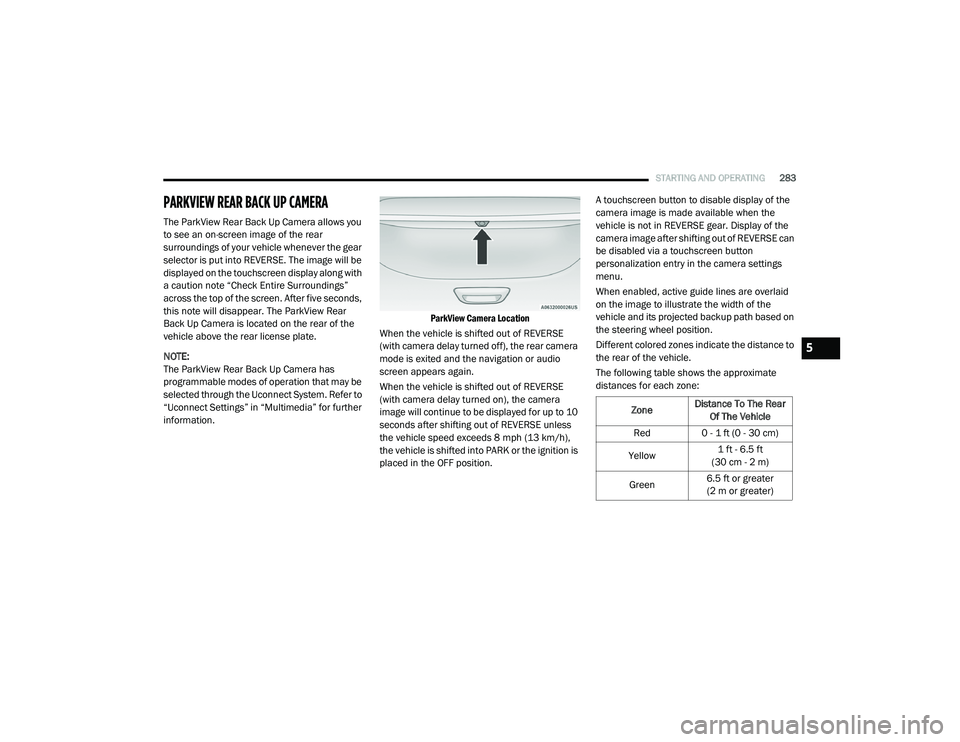
Back Up Camera is located on the rear of the
vehicle above the rear license plate.
NOTE:
The ParkView Rear Back Up Camera has
programmable modes of operation that may be
selected through the Uconnect System. Refer to
“Uconnect Settings” in “Multimedia” for further
information.
ParkView Camera Location
When the vehicle is shifted out of REVERSE
(with camera delay turned off), the rear camera
mode is exited and the navigation or audio
screen appears again.
When the vehicle is shifted out of REVERSE
(with camera delay turned on), the camera
image will continue to be displayed for up to 10
seconds after shifting out of REVERSE unless
the vehicle speed exceeds 8 mph (13 km/h),
the vehicle is shifted into PARK or the ignition is
placed in the OFF position. A touchscreen button to disable display of the
camera image is made available when the
vehicle is not in REVERSE gear. Display of the
camera image after shifting out of REVERSE can
be disabled via a touchscreen button
personalization entry in the camera settings
menu.
When enabled, active guide lines are overlaid
on the image to illustrate the width of the
vehicle and its projected backup path based on
the steering wheel position.
Different colored zones indicate the distance to
the rear of the vehicle.
The following table shows the approximate
distances for each zone:
Zone
Distance To The Rear
Of The Vehicle
Red 0 - 1 ft (0 - 30 cm)
Yellow 1 ft - 6.5 ft
(30 cm - 2 m)
Green 6.5 ft or greater
(2 m or greater)
5
20_RU_OM_EN_US_t.book Page 283
Page 286 of 516
284STARTING AND OPERATING
(Continued)
NOTE:
If snow, ice, mud, or any foreign substance
builds up on the camera lens, clean the lens,
rinse with water, and dry with a soft cloth. Do
not cover the lens.
SURROUND VIEW CAMERA SYSTEM — IF
EQUIPPED
Your vehicle may be equipped with the
Surround View Camera System that allows you
to see an on-screen image of the surroundings
and top view of your vehicle whenever the gear
selector is put into REVERSE or a different view
is selected through the "on screen soft buttons".
The top view of the vehicle will show which
doors are open. The image will be displayed on
the touchscreen display along with a caution
note “Check Entire Surroundings” across the
top of the screen. After five seconds, this note
will disappear. The Surround View Camera
System is comprised of four sequential
cameras located in the front grille, rear liftgate
and side mirrors. NOTE:
The Surround View Camera System has program
-
mable settings that may be selected through the
Uconnect System. Refer to “Uconnect Settings”
in “Multimedia” for further information.
When the vehicle is shifted into REVERSE, the
rear camera view and top view is the default view
of the system.
When the vehicle is shifted out of REVERSE (with
camera delay turned on), the camera image will
continue to be displayed for up to 10 seconds
after shifting out of REVERSE unless the vehicle
speed exceeds 8 mph (13 km/h), the vehicle is
shifted into PARK or the ignition is placed in the
OFF position. There is a touchscreen button “X”
to disable the display of the camera image.
When the vehicle is shifted out of REVERSE (with
camera delay turned off), the Surround View
Camera mode is exited and the last known
screen appears again.
When enabled, active guide lines are overlaid on
the image to illustrate the width of the vehicle,
including the side view mirrors and its projected
backup path based on the steering wheel position.
Different colored zones indicate the distance to
the rear of the vehicle.
WARNING!
Drivers must be careful when backing up
even when using the ParkView Rear Back Up
Camera. Always check carefully behind your
vehicle, and be sure to check for pedestrians,
animals, other vehicles, obstructions, or blind
spots before backing up. You are responsible
for the safety of your surroundings and must
continue to pay attention while backing up.
Failure to do so can result in serious injury or
death.
CAUTION!
To avoid vehicle damage, ParkView should
only be used as a parking aid. The ParkView
camera is unable to view every obstacle or
object in your drive path.
To avoid vehicle damage, the vehicle must
be driven slowly when using ParkView to be
able to stop in time when an obstacle is
seen. It is recommended that the driver
look frequently over his/her shoulder when
using ParkView.
CAUTION! (Continued)
20_RU_OM_EN_US_t.book Page 284
Page 287 of 516
STARTING AND OPERATING285
The following table shows the approximate
distances for each zone:
Modes Of Operation
“Manual” activation of the Surround View
camera is selected by pressing the Surround
View Camera soft key located in the “Controls”
screen within the Uconnect system. Top View
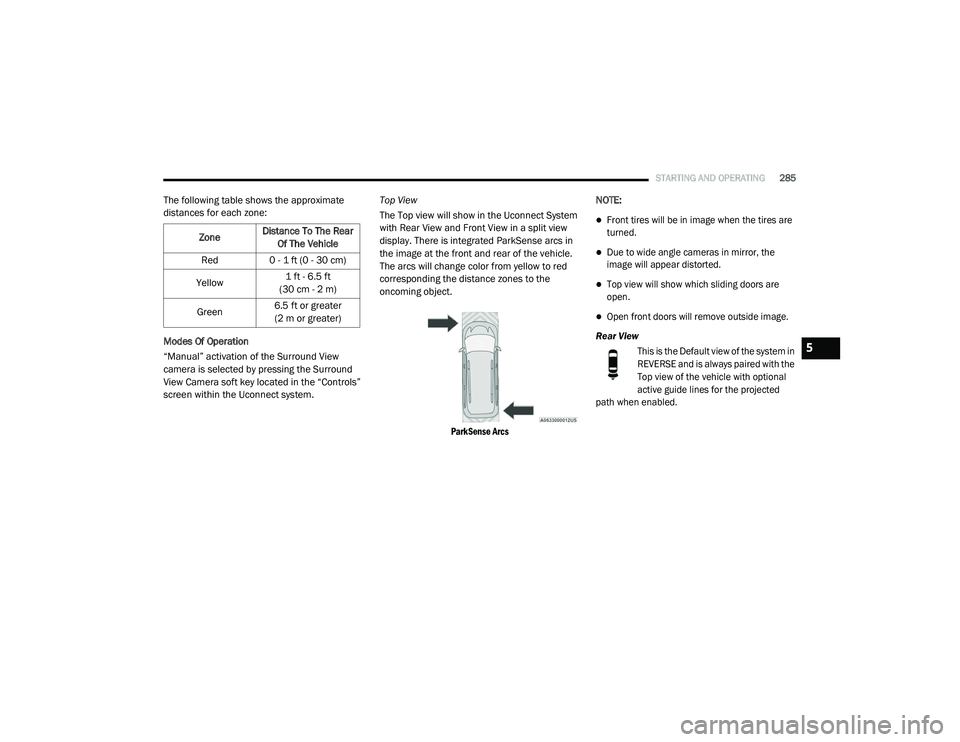
The Top view will show in the Uconnect System
with Rear View and Front View in a split view
display. There is integrated ParkSense arcs in
the image at the front and rear of the vehicle.
The arcs will change color from yellow to red
corresponding the distance zones to the
oncoming object.
ParkSense Arcs
NOTE:
Front tires will be in image when the tires are
turned.
Due to wide angle cameras in mirror, the
image will appear distorted.
Top view will show which sliding doors are
open.
Open front doors will remove outside image.
Rear View This is the Default view of the system in
REVERSE and is always paired with the
Top view of the vehicle with optional
active guide lines for the projected
path when enabled.
Zone
Distance To The Rear
Of The Vehicle
Red 0 - 1 ft (0 - 30 cm)
Yellow 1 ft - 6.5 ft
(30 cm - 2 m)
Green 6.5 ft or greater
(2 m or greater)
5
20_RU_OM_EN_US_t.book Page 285
Page 288 of 516

286STARTING AND OPERATING
(Continued)
Rear Cross Path ViewPressing the Rear Cross Path soft key
will give the driver a wider angle view of
the rear camera system. The Top view
will be disabled when this is selected
Front View The Front view will show you what is
immediately in front of the vehicle and
is always paired with the Top view of
the vehicle.
Front Cross Path View
Pressing the Front Cross Path soft key will
give the driver a wider angle view of the
front camera system. The Top view will be
disabled when this is selected.
Deactivation
The system can be deactivated in the following
conditions:
The speed of the vehicle reaches greater
than 8 mph (13 km/h).
The vehicle shifted into PARK from a different
gear.
If the vehicle is in any gear other than
REVERSE, press the “X” button.
The camera delay system is turned off manu -
ally through the Uconnect settings menu.
Refer to “Uconnect Settings” in “Multimedia”
for further information.
NOTE:
If snow, ice, mud, or any foreign substance
builds up on the camera lenses, clean the
lenses, rinse with water, and dry with a soft
cloth. Do not cover the lenses.
If a malfunction with the system has
occurred, see an authorized dealer.REFUELING THE VEHICLE
There is no fuel filler cap. Two flapper doors
inside the pipe seal the system.
WARNING!
Drivers must be careful when backing up even
when using the Surround View Camera. Always
check carefully behind your vehicle, and be
sure to check for pedestrians, animals, other
vehicles, obstructions, or blind spots before
backing up. You are responsible for the safety
of your surroundings and must continue to pay
attention while backing up. Failure to do so can
result in serious injury or death.
CAUTION!
To avoid vehicle damage, Surround View
should only be used as a parking aid. The
Surround View camera is unable to view
every obstacle or object in your drive path.
To avoid vehicle damage, the vehicle must
be driven slowly when using Surround View
to be able to stop in time when an obstacle
is seen. It is recommended that the driver
look frequently over his/her shoulder when
using Surround View.
WARNING!
Never have any smoking materials lit in or
near the vehicle when the fuel door is open
or the tank is being filled.
Never add fuel when the engine is running.
This is in violation of most state and federal
fire regulations and may cause the
“Malfunction Indicator Light” to turn on.
20_RU_OM_EN_US_t.book Page 286
Page 289 of 516
STARTING AND OPERATING287
1. Put the vehicle in park and switch the
ignition off.
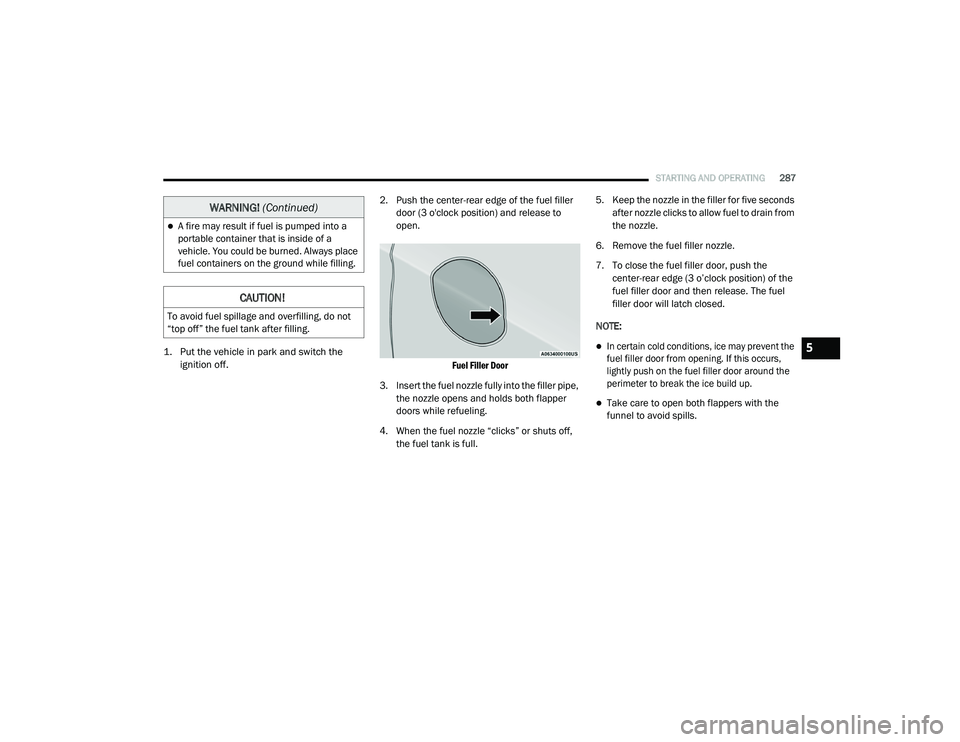
2. Push the center-rear edge of the fuel filler
door (3 o'clock position) and release to
open.
Fuel Filler Door
3. Insert the fuel nozzle fully into the filler pipe, the nozzle opens and holds both flapper
doors while refueling.
4. When the fuel nozzle “clicks” or shuts off, the fuel tank is full. 5. Keep the nozzle in the filler for five seconds
after nozzle clicks to allow fuel to drain from
the nozzle.
6. Remove the fuel filler nozzle.
7. To close the fuel filler door, push the center-rear edge (3 o’clock position) of the
fuel filler door and then release. The fuel
filler door will latch closed.
NOTE:
In certain cold conditions, ice may prevent the
fuel filler door from opening. If this occurs,
lightly push on the fuel filler door around the
perimeter to break the ice build up.
Take care to open both flappers with the
funnel to avoid spills.
A fire may result if fuel is pumped into a
portable container that is inside of a
vehicle. You could be burned. Always place
fuel containers on the ground while filling.
CAUTION!
To avoid fuel spillage and overfilling, do not
“top off” the fuel tank after filling.
WARNING! (Continued)
5
20_RU_OM_EN_US_t.book Page 287
Page 290 of 516
288STARTING AND OPERATING
VEHICLE LOADING
Certification Label
As required by National Highway Traffic Safety
Administration regulations, your vehicle has a
certification label affixed to the driver's side
door or pillar.
This label contains the month and year of
manufacture, Gross Vehicle Weight Rating
(GVWR), Gross Axle Weight Rating (GAWR) front
and rear, and Vehicle Identification Number
(VIN). A Month-Day-Hour (MDH) number is
included on this label and indicates the Month,
Day and Hour of manufacture. The bar code
that appears on the bottom of the label is your
VIN.
Gross Vehicle Weight Rating (GVWR)
The GVWR is the total permissible weight of your
vehicle including driver, passengers, vehicle,
options and cargo. The label also specifies
maximum capacities of front and rear axle
systems (GAWR). Total load must be limited so
GVWR and front and rear GAWR are not
exceeded.
Payload
The payload of a vehicle is defined as the
allowable load weight a truck can carry,
including the weight of the driver, all
passengers, options and cargo.
Gross Axle Weight Rating (GAWR)
The GAWR is the maximum permissible load on
the front and rear axles. The load must be
distributed in the cargo area so that the GAWR
of each axle is not exceeded.
Each axle GAWR is determined by the
components in the system with the lowest load
carrying capacity (axle, springs, tires or wheels).
Heavier axles or suspension components
sometimes specified by purchasers for
increased durability does not necessarily
increase the vehicle's GVWR.
Tire Size
The tire size on the Vehicle Certification Label
represents the actual tire size on your vehicle.
Replacement tires must be equal to the load
capacity of this tire size.
Rim Size
This is the rim size that is appropriate for the tire
size listed.
Inflation Pressure
This is the cold tire inflation pressure for your
vehicle for all loading conditions up to full
GAWR.
Curb Weight
The curb weight of a vehicle is defined as the
total weight of the vehicle with all fluids,
including vehicle fuel, at full capacity
conditions, and with no occupants or cargo
loaded into the vehicle. The front and rear curb
weight values are determined by weighing your
vehicle on a commercial scale before any
occupants or cargo are added.
Loading
The actual total weight and the weight of the
front and rear of your vehicle at the ground can
best be determined by weighing it when it is
loaded and ready for operation.
The entire vehicle should first be weighed on a
commercial scale to ensure that the GVWR has
not been exceeded. The weight on the front and
rear of the vehicle should then be determined
20_RU_OM_EN_US_t.book Page 288
Page 291 of 516
STARTING AND OPERATING289
separately to be sure that the load is properly
distributed over the front and rear axle.
Weighing the vehicle may show that the GAWR
of either the front or rear axles has been
exceeded but the total load is within the
specified GVWR. If so, weight must be shifted
from front to rear or rear to front as appropriate
until the specified weight limitations are met.
Store the heavier items down low and be sure
that the weight is distributed equally. Stow all
loose items securely before driving.
Improper weight distributions can have an
adverse effect on the way your vehicle steers
and handles and the way the brakes operate.TRAILER TOWING
In this section you will find safety tips and
information on limits to the type of towing you
can reasonably do with your vehicle. Before
towing a trailer, carefully review this information
to tow your load as efficiently and safely as
possible.
To maintain the New Vehicle Limited Warranty
coverage, follow the requirements and
recommendations in this manual concerning
vehicles used for trailer towing.
Common Towing Definitions
The following trailer towing related definitions
will assist you in understanding the following
information:
Gross Vehicle Weight Rating (GVWR)
The Gross vehicle Weight Rating (GVWR) is the
total allowable weight of your vehicle. This
includes driver, passengers, cargo and tongue
weight. The total load must be limited so that
you do not exceed the GVWR. Refer to “Vehicle
Loading/Vehicle Certification Label” in this
chapter for further information.
Gross Trailer Weight (GTW)
The Gross Trailer Weight (GTW) is the weight of
the trailer plus the weight of all cargo,
consumables and equipment (permanent or
temporary) loaded in or on the trailer in its
"loaded and ready for operation" condition.
The recommended way to measure GTW is to
put your fully loaded trailer on a vehicle scale.
The entire weight of the trailer must be
supported by the scale.
Gross Axle Weight Rating (GAWR)
The Gross Axle Weight Rating (GAWR) is the
maximum capacity of the front and rear axles.
Distribute the load over the front and rear axles
evenly. Make sure that you do not exceed either
front or rear GAWR. Refer to “Vehicle Loading/
Vehicle Certification Label” in this chapter for
further information.
CAUTION!
Do not load your vehicle any heavier than the
GVWR or the maximum front and rear GAWR.
If you do, parts on your vehicle can break, or
it can change the way your vehicle handles.
This could cause you to lose control. Also
overloading can shorten the life of your
vehicle.
WARNING!
It is important that you do not exceed the
maximum front or rear GAWR. A dangerous
driving condition can result if either rating is
exceeded. You could lose control of the
vehicle and have a collision.
5
20_RU_OM_EN_US_t.book Page 289