Rear CHRYSLER PACIFICA 2020 Owners Manual
[x] Cancel search | Manufacturer: CHRYSLER, Model Year: 2020, Model line: PACIFICA, Model: CHRYSLER PACIFICA 2020Pages: 516, PDF Size: 28.69 MB
Page 426 of 516
424MULTIMEDIA
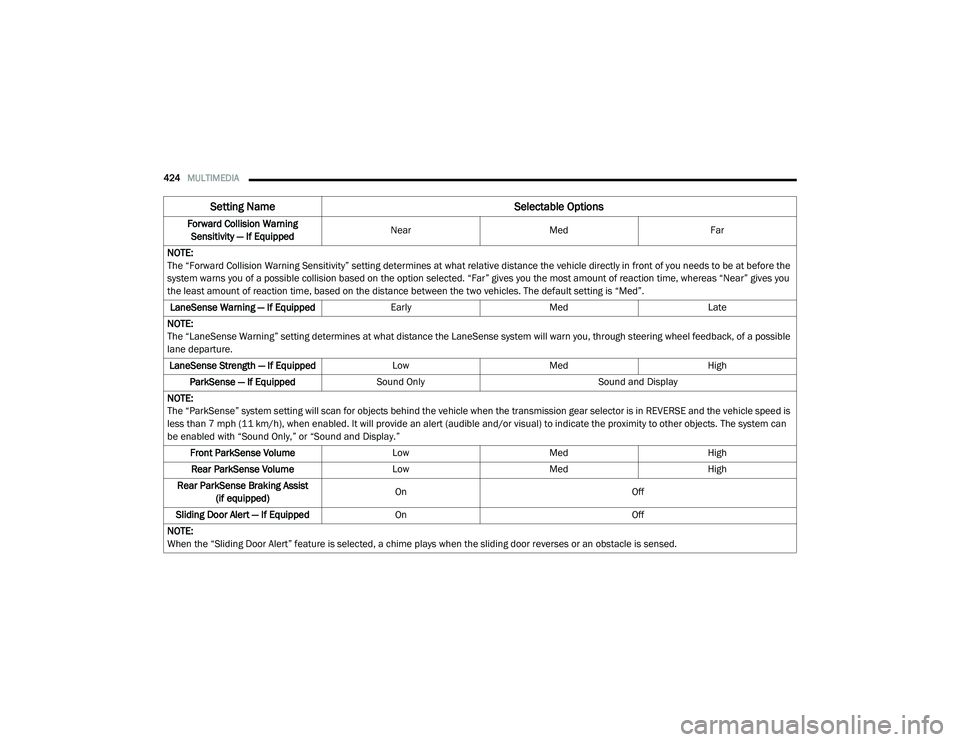
Forward Collision Warning
Sensitivity — If Equipped Near
Med Far
NOTE:
The “Forward Collision Warning Sensitivity” setting determines at what relative distance the vehicle directly in front of you needs to be at before the
system warns you of a possible collision based on the option selected. “Far” gives you the most amount of reaction time, whereas “Near” gives you
the least amount of reaction time, based on the distance between the two vehicles. The default setting is “Med”. LaneSense Warning — If Equipped EarlyMedLate
NOTE:
The “LaneSense Warning” setting determines at what distance the LaneSense system will warn you, through steering wheel feedback, of a possible
lane departure. LaneSense Strength — If Equipped LowMed High
ParkSense — If Equipped Sound Only Sound and Display
NOTE:
The “ParkSense” system setting will scan for objects behind the vehicle when the transmission gear selector is in REVERSE and the vehicle speed is
less than 7 mph (11 km/h), when enabled. It will provide an alert (audible and/or visual) to indicate the proximity to other objects. The system can
be enabled with “Sound Only,” or “Sound and Display.” Front ParkSense Volume LowMed High
Rear ParkSense Volume LowMed High
Rear ParkSense Braking Assist (if equipped) On
Off
Sliding Door Alert — If Equipped On Off
NOTE:
When the “Sliding Door Alert” feature is selected, a chime plays when the sliding door reverses or an obstacle is sensed.
Setting Name Selectable Options
20_RU_OM_EN_US_t.book Page 424
Page 428 of 516
426MULTIMEDIA
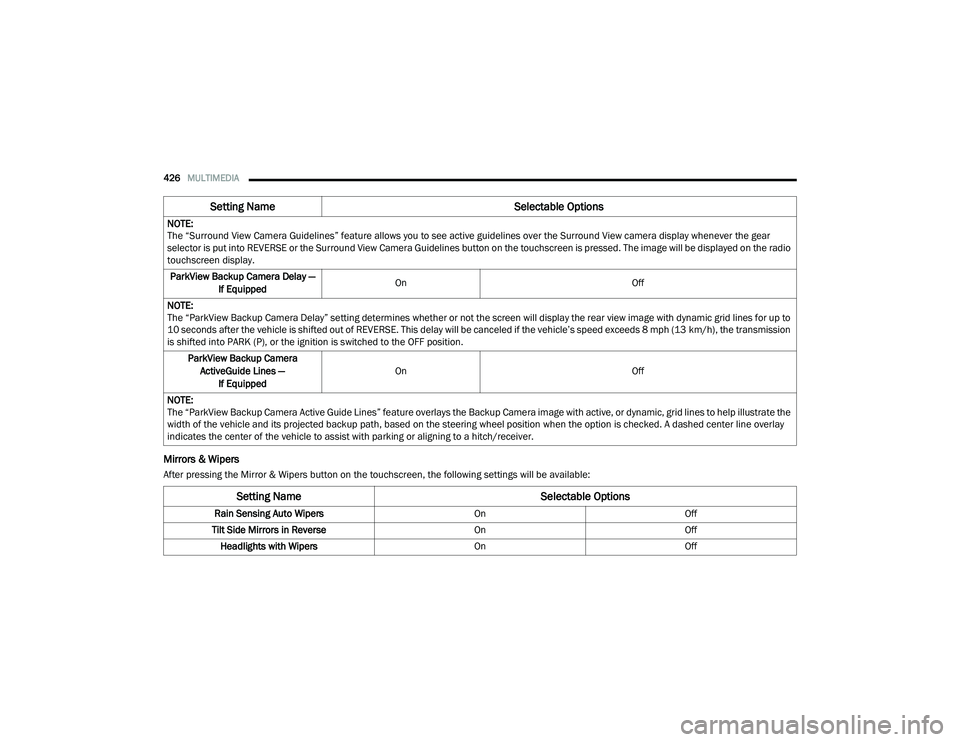
Mirrors & Wipers
After pressing the Mirror & Wipers button on the touchscreen, the following settings will be available:NOTE:
The “Surround View Camera Guidelines” feature allows you to see active guidelines over the Surround View camera display whenever the gear
selector is put into REVERSE or the Surround View Camera Guidelines button on the touchscreen is pressed. The image will be displayed on the radio
touchscreen display.
ParkView Backup Camera Delay — If Equipped On
Off
NOTE:
The “ParkView Backup Camera Delay” setting determines whether or not the screen will display the rear view image with dynamic grid lines for up to
10 seconds after the vehicle is shifted out of REVERSE. This delay will be canceled if the vehicle’s speed exceeds 8 mph (13 km/h), the transmission
is shifted into PARK (P), or the ignition is switched to the OFF position.
ParkView Backup Camera ActiveGuide Lines — If Equipped On
Off
NOTE:
The “ParkView Backup Camera Active Guide Lines” feature overlays the Backup Camera image with active, or dynamic, grid lines to help illustrate the
width of the vehicle and its projected backup path, based on the steering wheel position when the option is checked. A dashed center line overlay
indicates the center of the vehicle to assist with parking or aligning to a hitch/receiver.
Setting Name Selectable Options
Setting NameSelectable Options
Rain Sensing Auto WipersOnOff
Tilt Side Mirrors in Reverse OnOff
Headlights with Wipers OnOff
20_RU_OM_EN_US_t.book Page 426
Page 446 of 516
444MULTIMEDIA
Select Teams
Press the Select Teams button on the
touchscreen to activate the League Scroll list.
Press the chosen league and a scroll list of all
teams within the league will appear, then you
can select a team by pressing the
corresponding box. A check mark appears for all
teams that are chosen.
Remove Selection
Press the Remove Selection tab at the top of the
screen. Press the Delete All button on the
touchscreen to delete all of the Selections or
press the Trash Can Icon next to the Selection to
be deleted.
Alert Settings
Press the Alert Setting tab at the top of the
screen. The Alert Settings menu allows you to
choose from “Alert me to on-air games upon
start” or “Alert upon score update” or both when
one or more of your selections is airing on any
of the SiriusXM® channels.
Featured
Press the Featured button, located on the left of
the Browse screen. This feature provides a list
of your featured favorite stations.Audio Settings
Press the Audio button on the Satellite Radio
main menu or within the Settings main menu, to
activate the Audio settings screen for adjusting
Balance & Fade, Equalizer, Speed Adjusted
Volume, Loudness, AUX Volume Offset, Auto
Play, and Radio Off With Door.
You can return to the Radio screen by pressing
the X located at the top right.
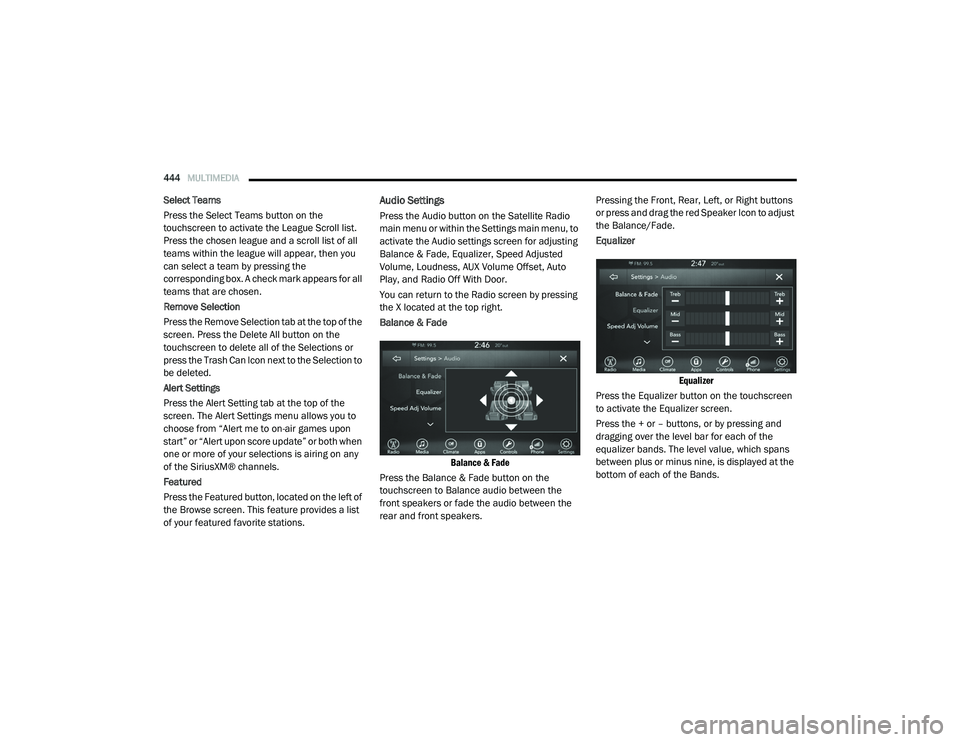
Balance & Fade
Balance & Fade
Press the Balance & Fade button on the
touchscreen to Balance audio between the
front speakers or fade the audio between the
rear and front speakers. Pressing the Front, Rear, Left, or Right buttons
or press and drag the red Speaker Icon to adjust
the Balance/Fade.
Equalizer
Equalizer
Press the Equalizer button on the touchscreen
to activate the Equalizer screen.
Press the + or – buttons, or by pressing and
dragging over the level bar for each of the
equalizer bands. The level value, which spans
between plus or minus nine, is displayed at the
bottom of each of the Bands.
20_RU_OM_EN_US_t.book Page 444
Page 467 of 516
MULTIMEDIA465
Join Calls
When two calls are in progress (one active and
one on hold), press the Join Calls button on the
Phone main screen to combine all calls into a
Conference Call.
Call Termination
To end a call in progress, momentarily press the
Phone End button on the touchscreen or the
Phone End button on the steering wheel. Only
the active call(s) will be terminated and if there
is a call on hold, it will become the new active
call.
Redial
Press the Redial button on the touchscreen, or
push the VR button and after the “Listening”
prompt and the following beep, say “Redial.”
The Uconnect Phone will call the last number
that was dialed from your mobile phone.
Call Continuation
Call continuation is the progression of a phone
call on the Uconnect Phone after the vehicle
ignition has been switched to OFF. NOTE:
The call will remain within the vehicle audio
system until the phone becomes out of range
for the Bluetooth® connection. It is recom
-
mended to press the Transfer button on the
touchscreen when leaving the vehicle.
Browsing SMS
Using the steering wheel commands, you can
view and manage the last 10 SMS messages
received on the instrument panel. To use this
function, the mobile phone must support the
SMS exchange function through Bluetooth®.
Select the PHONE button on the instrument
panel menu, and then select “SMS Reader”
using the arrow keys on the steering wheel
controls.
The “SMS Reader” submenu allows the last
10 SMS messages to be displayed.
Advanced Phone Connectivity
Transfer Call To And From Mobile Phone
The Uconnect Phone allows ongoing calls to be
transferred from your mobile phone to the
Uconnect Phone without terminating the call. To
transfer an ongoing call from your connected mobile phone to the Uconnect Phone or vice
versa, press the Transfer button on the Phone
main screen.
Connect Or Disconnect Link Between The
Uconnect Phone And Mobile Phone
If you would like to connect or disconnect the
Bluetooth® connection between a Uconnect
Phone paired mobile phone and the Uconnect
Phone, follow the instructions described in your
mobile phone User's Manual.
Things You Should Know About Your
Uconnect Phone
Voice Command
For the best performance:
Adjust the rearview mirror to provide at least
½-inch (1 cm) gap between the overhead
console (if equipped) and the mirror.
Always wait for the beep before speaking.
Speak normally, without pausing, just as you
would speak to a person sitting a few feet/
meters away from you.
Ensure that no one other than you is
speaking during a voice command period.
9
20_RU_OM_EN_US_t.book Page 465
Page 469 of 516
MULTIMEDIA467
STEERING WHEEL AUDIO CONTROLS — IF
EQUIPPED
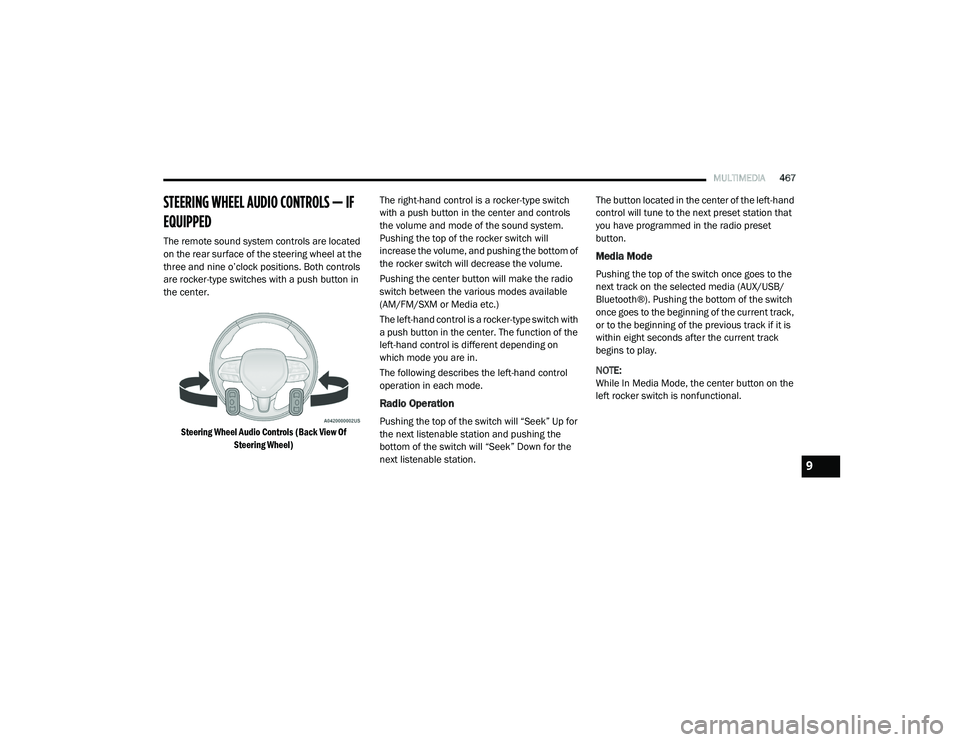
The remote sound system controls are located
on the rear surface of the steering wheel at the
three and nine o’clock positions. Both controls
are rocker-type switches with a push button in
the center.
Steering Wheel Audio Controls (Back View Of Steering Wheel)
The right-hand control is a rocker-type switch
with a push button in the center and controls
the volume and mode of the sound system.
Pushing the top of the rocker switch will
increase the volume, and pushing the bottom of
the rocker switch will decrease the volume.
Pushing the center button will make the radio
switch between the various modes available
(AM/FM/SXM or Media etc.)
The left-hand control is a rocker-type switch with
a push button in the center. The function of the
left-hand control is different depending on
which mode you are in.
The following describes the left-hand control
operation in each mode.
Radio Operation
Pushing the top of the switch will “Seek” Up for
the next listenable station and pushing the
bottom of the switch will “Seek” Down for the
next listenable station. The button located in the center of the left-hand
control will tune to the next preset station that
you have programmed in the radio preset
button.
Media Mode
Pushing the top of the switch once goes to the
next track on the selected media (AUX/USB/
Bluetooth®). Pushing the bottom of the switch
once goes to the beginning of the current track,
or to the beginning of the previous track if it is
within eight seconds after the current track
begins to play.
NOTE:
While In Media Mode, the center button on the
left rocker switch is nonfunctional.
9
20_RU_OM_EN_US_t.book Page 467
Page 470 of 516
468MULTIMEDIA
AUX/USB/MP3 CONTROL
There are numerous USB ports located
throughout the vehicle. This feature allows an
external USB device to be plugged into the USB
port.
Plugging in a smartphone device to a USB Port
may activate Android Auto™ or Apple CarPlay®
features, if equipped. For further information,
refer to “Android Auto™” or “Apple CarPlay®” in
the Owner’s Manual Supplement.
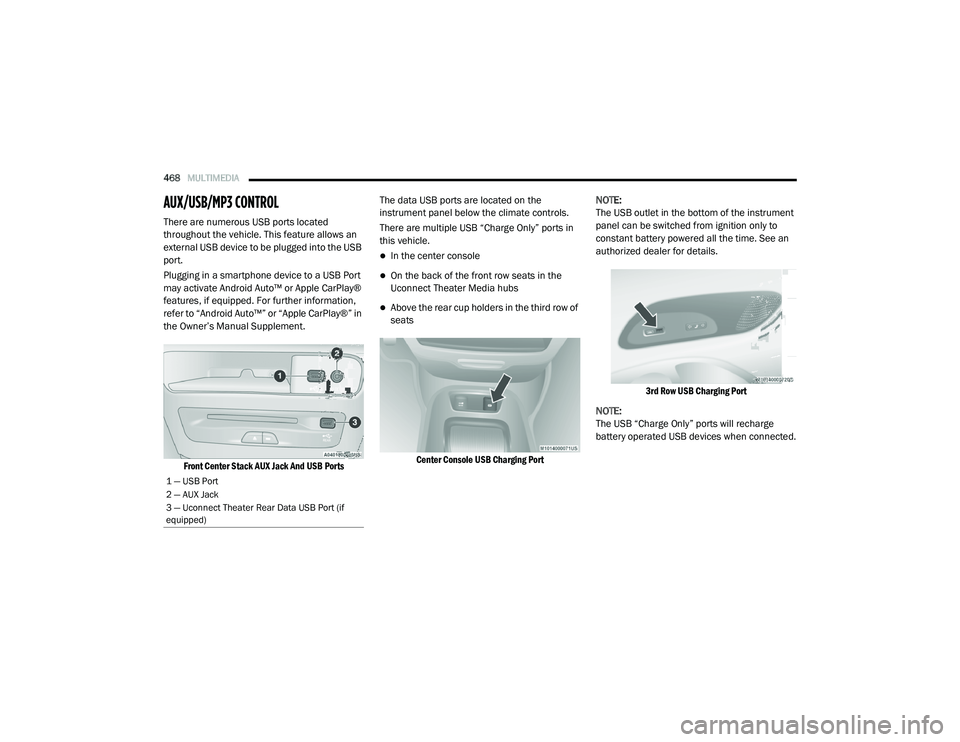
Front Center Stack AUX Jack And USB Ports
The data USB ports are located on the
instrument panel below the climate controls.
There are multiple USB “Charge Only” ports in
this vehicle.
In the center console
On the back of the front row seats in the
Uconnect Theater Media hubs
Above the rear cup holders in the third row of
seats
Center Console USB Charging Port
NOTE:
The USB outlet in the bottom of the instrument
panel can be switched from ignition only to
constant battery powered all the time. See an
authorized dealer for details.
3rd Row USB Charging Port
NOTE:
The USB “Charge Only” ports will recharge
battery operated USB devices when connected.
1 — USB Port
2 — AUX Jack
3 — Uconnect Theater Rear Data USB Port (if
equipped)
20_RU_OM_EN_US_t.book Page 468
Page 471 of 516
MULTIMEDIA469
UCONNECT THEATER — IF EQUIPPED
Uconnect Theater Overview
Your Uconnect Theater is designed to give your
family years of enjoyment.
There are multiple ways to interact with your
Uconnect Theater system;
Play your favorite CDs, DVDs, or Blu-ray™
Discs
Plug and play a variety of standard video
games or devices into the HDMI port
Listen to audio over the wireless headphones
Plug and play a variety of devices into the
Video USB port
Plug in standard headphones to listen to
audio
Project your mobile phone or tablet screen
onto the rear Uconnect Theater touchscreens
Please review this Owner's Manual to become
familiar with its features and operation.
Getting Started
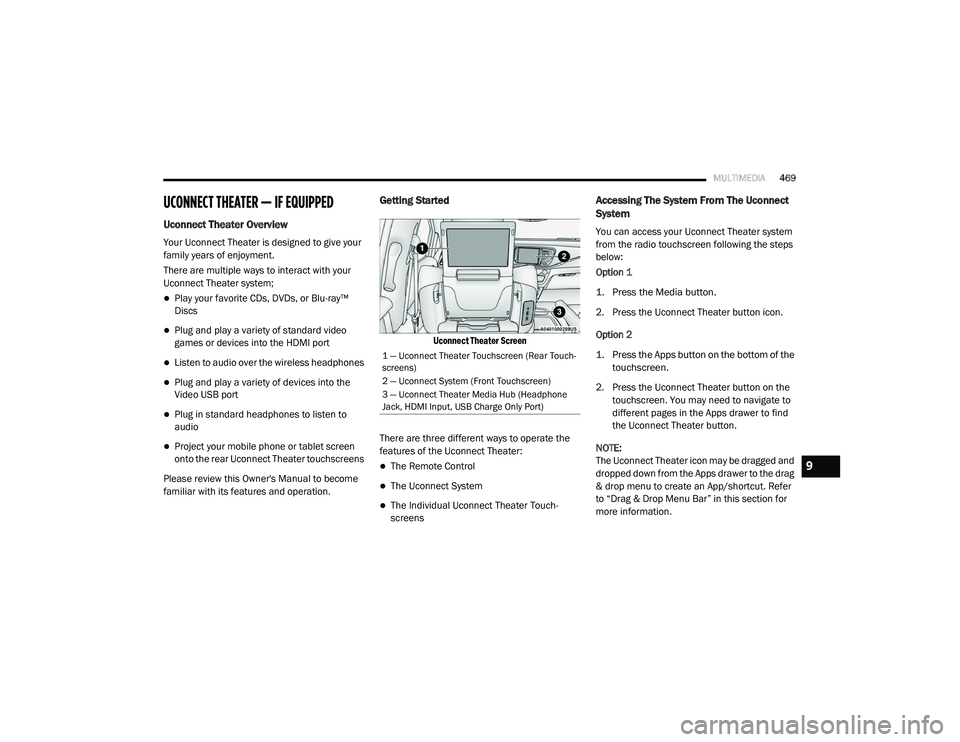
Uconnect Theater Screen
There are three different ways to operate the
features of the Uconnect Theater:
The Remote Control
The Uconnect System
The Individual Uconnect Theater Touch -
screens
Accessing The System From The Uconnect
System
You can access your Uconnect Theater system
from the radio touchscreen following the steps
below:
Option 1
1. Press the Media button.
2. Press the Uconnect Theater button icon.
Option 2
1. Press the Apps button on the bottom of the
touchscreen.
2. Press the Uconnect Theater button on the touchscreen. You may need to navigate to
different pages in the Apps drawer to find
the Uconnect Theater button.
NOTE:
The Uconnect Theater icon may be dragged and
dropped down from the Apps drawer to the drag
& drop menu to create an App/shortcut. Refer
to “Drag & Drop Menu Bar” in this section for
more information.
1 — Uconnect Theater Touchscreen (Rear Touch -
screens)
2 — Uconnect System (Front Touchscreen)
3 — Uconnect Theater Media Hub (Headphone
Jack, HDMI Input, USB Charge Only Port)
9
20_RU_OM_EN_US_t.book Page 469
Page 472 of 516
470MULTIMEDIA
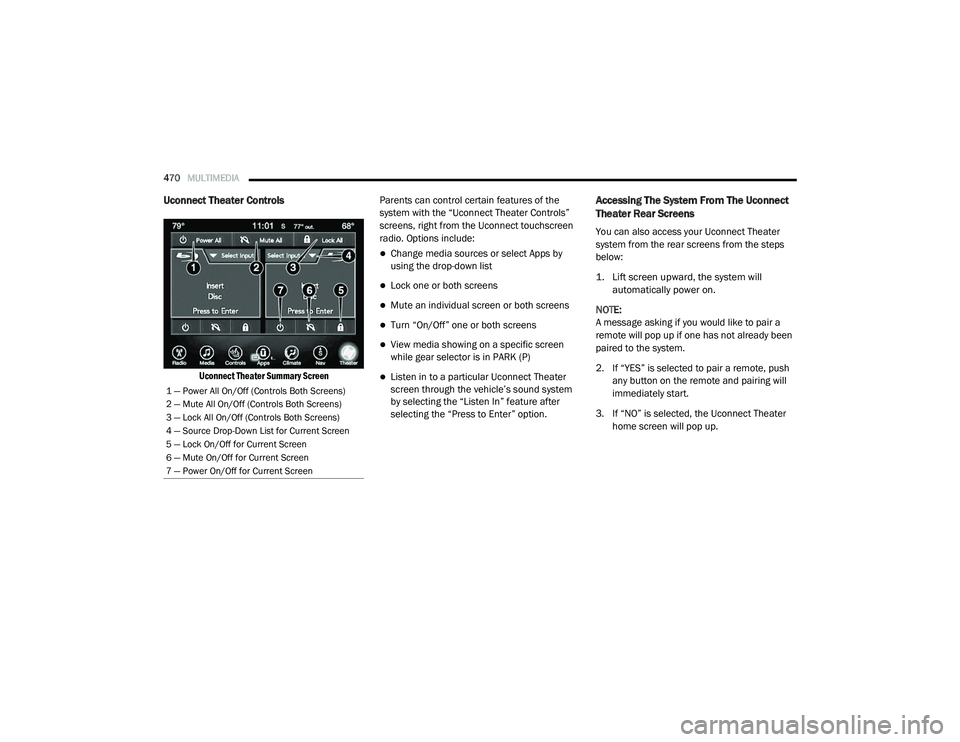
Uconnect Theater Controls
Uconnect Theater Summary Screen
Parents can control certain features of the
system with the “Uconnect Theater Controls”
screens, right from the Uconnect touchscreen
radio. Options include:
Change media sources or select Apps by
using the drop-down list
Lock one or both screens
Mute an individual screen or both screens
Turn “On/Off” one or both screens
View media showing on a specific screen
while gear selector is in PARK (P)
Listen in to a particular Uconnect Theater
screen through the vehicle’s sound system
by selecting the “Listen In” feature after
selecting the “Press to Enter” option.
Accessing The System From The Uconnect
Theater Rear Screens
You can also access your Uconnect Theater
system from the rear screens from the steps
below:
1. Lift screen upward, the system will
automatically power on.
NOTE:
A message asking if you would like to pair a
remote will pop up if one has not already been
paired to the system.
2. If “YES” is selected to pair a remote, push any button on the remote and pairing will
immediately start.
3. If “NO” is selected, the Uconnect Theater home screen will pop up.
1 — Power All On/Off (Controls Both Screens)
2 — Mute All On/Off (Controls Both Screens)
3 — Lock All On/Off (Controls Both Screens)
4 — Source Drop-Down List for Current Screen
5 — Lock On/Off for Current Screen
6 — Mute On/Off for Current Screen
7 — Power On/Off for Current Screen
20_RU_OM_EN_US_t.book Page 470
Page 473 of 516
MULTIMEDIA471
NOTE:
There will be a touchscreen notification
message when pairing is successful.
Test to make sure the remote is successfully
paired by dragging your finger across the
gesture pad. If you do not see the On-screen
Arrow, try using the Screen button on the
remote to switch between rear screen one
and rear screen two to make sure the remote
is controlling the intended screen. It may take
several seconds for the remote to react when
initially paired.
If remote does not pair, refer to “Pairing The
Remote” in this section for an alternative
pairing process.
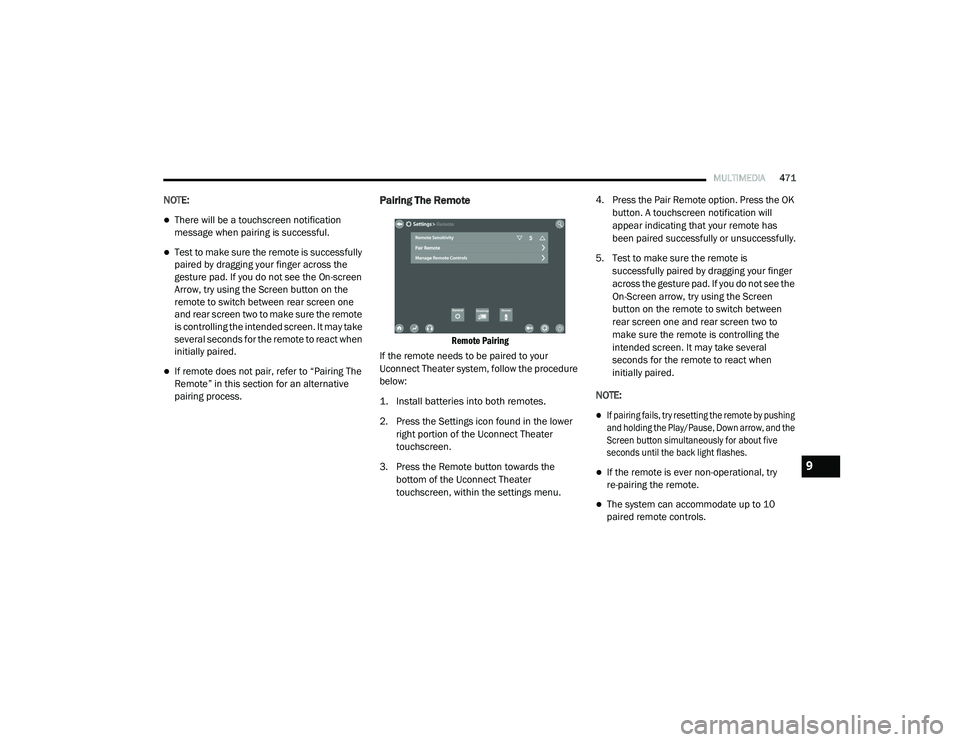
Pairing The Remote
Remote Pairing
If the remote needs to be paired to your
Uconnect Theater system, follow the procedure
below:
1. Install batteries into both remotes.
2. Press the Settings icon found in the lower right portion of the Uconnect Theater
touchscreen.
3. Press the Remote button towards the bottom of the Uconnect Theater
touchscreen, within the settings menu. 4. Press the Pair Remote option. Press the OK
button. A touchscreen notification will
appear indicating that your remote has
been paired successfully or unsuccessfully.
5. Test to make sure the remote is successfully paired by dragging your finger
across the gesture pad. If you do not see the
On-Screen arrow, try using the Screen
button on the remote to switch between
rear screen one and rear screen two to
make sure the remote is controlling the
intended screen. It may take several
seconds for the remote to react when
initially paired.
NOTE:
If pairing fails, try resetting the remote by pushing
and holding the Play/Pause, Down arrow, and the
Screen button simultaneously for about five
seconds until the back light flashes.
If the remote is ever non-operational, try
re-pairing the remote.
The system can accommodate up to 10
paired remote controls.
9
20_RU_OM_EN_US_t.book Page 471
Page 474 of 516
472MULTIMEDIA
Unpairing The Remote
In events such as updating the Uconnect
Theater software, or taking a remote to another
vehicle, the remote will need to be unpaired
from your Uconnect Theater system. To unpair
the remote:
1. Press the Settings icon found in the lower
right portion of the Uconnect Theater
touchscreen.
2. Press the Remote button towards the bottom of the Uconnect Theater
touchscreen, within the settings menu.
3. Select Manage Remote Controls from the Remote section of "Settings” and follow the
on-screen instructions to complete the
unpairing process.
4. Once complete, the remote will be ready to pair again. NOTE:
There will be a touchscreen notification
message when unpairing is successful. Repeat
the above steps to unpair a second remote.
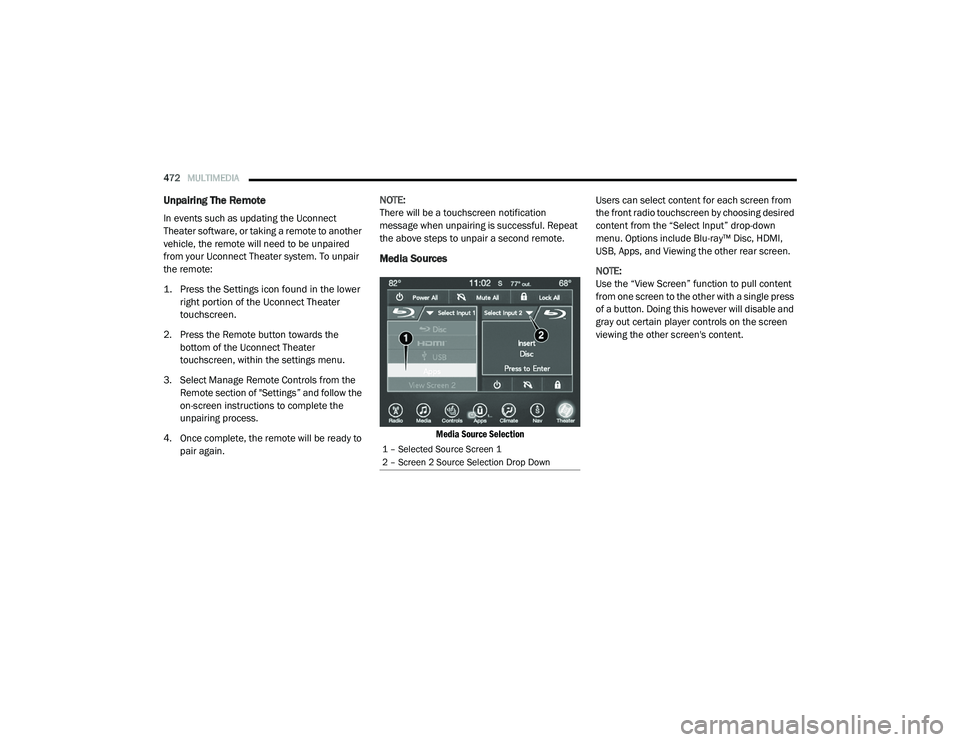
Media Sources
Media Source Selection
Users can select content for each screen from
the front radio touchscreen by choosing desired
content from the “Select Input” drop-down
menu. Options include Blu-ray™ Disc, HDMI,
USB, Apps, and Viewing the other rear screen.
NOTE:
Use the “View Screen” function to pull content
from one screen to the other with a single press
of a button. Doing this however will disable and
gray out certain player controls on the screen
viewing the other screen's content.
1 – Selected Source Screen 1
2 – Screen 2 Source Selection Drop Down
20_RU_OM_EN_US_t.book Page 472