Rear CHRYSLER PACIFICA 2020 Owners Manual
[x] Cancel search | Manufacturer: CHRYSLER, Model Year: 2020, Model line: PACIFICA, Model: CHRYSLER PACIFICA 2020Pages: 516, PDF Size: 28.69 MB
Page 476 of 516
474MULTIMEDIA
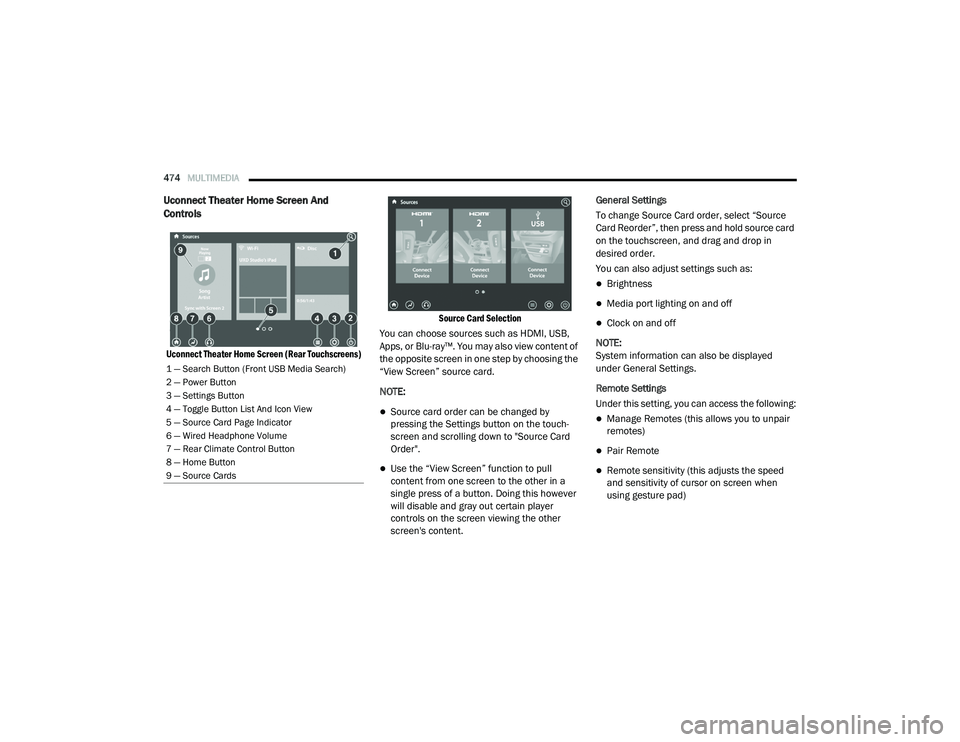
Uconnect Theater Home Screen And
Controls
Uconnect Theater Home Screen (Rear Touchscreens) Source Card Selection
You can choose sources such as HDMI, USB,
Apps, or Blu-ray™. You may also view content of
the opposite screen in one step by choosing the
“View Screen” source card.
NOTE:
Source card order can be changed by
pressing the Settings button on the touch -
screen and scrolling down to "Source Card
Order".
Use the “View Screen” function to pull
content from one screen to the other in a
single press of a button. Doing this however
will disable and gray out certain player
controls on the screen viewing the other
screen's content. General Settings
To change Source Card order, select “Source
Card Reorder”, then press and hold source card
on the touchscreen, and drag and drop in
desired order.
You can also adjust settings such as:
Brightness
Media port lighting on and off
Clock on and off
NOTE:
System information can also be displayed
under General Settings.
Remote Settings
Under this setting, you can access the following:
Manage Remotes (this allows you to unpair
remotes)
Pair Remote
Remote sensitivity (this adjusts the speed
and sensitivity of cursor on screen when
using gesture pad)
1 — Search Button (Front USB Media Search)
2 — Power Button
3 — Settings Button
4 — Toggle Button List And Icon View
5 — Source Card Page Indicator
6 — Wired Headphone Volume
7 — Rear Climate Control Button
8 — Home Button
9 — Source Cards
20_RU_OM_EN_US_t.book Page 474
Page 477 of 516
MULTIMEDIA475
General Information
The following regulatory statement applies to all
Radio Frequency (RF) devices equipped in this
vehicle:
This device complies with Part 15 of the FCC
Rules and with Innovation, Science and
Economic Development Canada license-exempt
RSS standard(s). Operation is subject to the
following two conditions:
1. This device may not cause harmful
interference, and
2. This device must accept any interference received, including interference that may
cause undesired operation.
Brand: Delphi
Model: FCA REMOTE
Le présent appareil est conforme aux CNR
d`Innovation, Science and Economic
Development applicables aux appareils radio
exempts de licence. L'exploitation est autorisée
aux deux conditions suivantes:
1. l'appareil ne doit pas produire de
brouillage, et
2. l'utilisateur de l'appareil doit accepter tout brouillage radioélectrique subi, même si le
brouillage est susceptible d'en compro -
mettre le fonctionnement.
Marque: Delphi
Modèle: FCA REMOTE
La operación de este equipo está sujeta a las
siguientes dos condiciones:
1. es posible que este equipo o dispositivo no cause interferencia perjudicial y
2. este equipo o dispositivo debe aceptar cualquier interferencia, incluyendo la que
pueda causar su operación no deseada.
Marca: Delphi
Modelo: FCA REMOTE
NOTE:
Changes or modifications not expressly
approved by the party responsible for compli -
ance could void the user’s authority to operate
the equipment.
Play A DVD/Blu-ray™ Or USB Media File
From Uconnect System
1. Insert a Blu-ray™ Disc or DVD disc into the disc player with the label facing up, or
insert a USB drive into rear Video USB port.
NOTE:
The DVD/Blu-ray™ Disc player and Video USB
port are both located under the radio controls in
the instrument panel.
2. Press the Uconnect Theater button on the radio touchscreen.
Refer to “Accessing The System From The
Uconnect System” in this section for further
information.
3. Select Disc or USB from the source controls (i.e. select the desired source from the
“Select Input 1” or “Select Input 2” menu
for the respective screen).
9
20_RU_OM_EN_US_t.book Page 475
Page 478 of 516
476MULTIMEDIA
4. For DVD/Blu-ray™ disc — press the Press to
Enter feature in the Movie Snapshot on the
radio touchscreen, then press “OK” on the
following screen. The steps to start a DVD
are dependent on the steps required by that
specific DVD. For USB Media Files — Press
“Music”, “Movie”, or “Folders”, then select
media title from list(s).
5. To play a DVD/Blu-ray™ disc on both screens simultaneously, select “Disc” from
both screen drop downs, or choose “Disc
Source” on one screen and push the View
Screen button on the other.
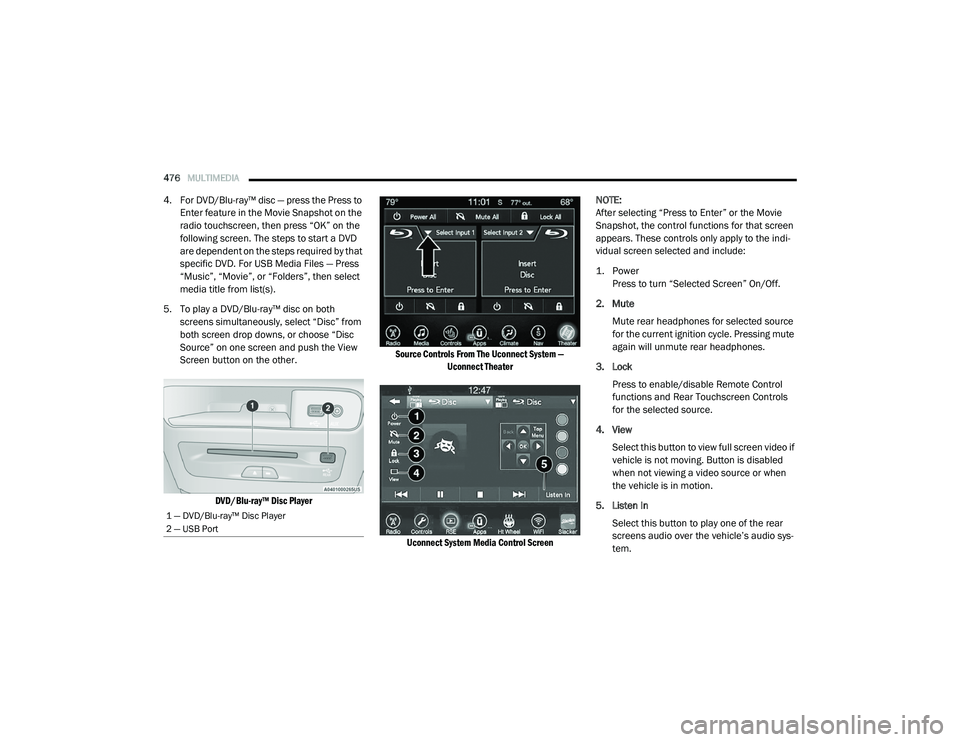
DVD/Blu-ray™ Disc Player Source Controls From The Uconnect System —
Uconnect Theater
Uconnect System Media Control Screen
NOTE:
After selecting “Press to Enter” or the Movie
Snapshot, the control functions for that screen
appears. These controls only apply to the indi
-
vidual screen selected and include:
1. Power
Press to turn “Selected Screen” On/Off.
2. Mute Mute rear headphones for selected source
for the current ignition cycle. Pressing mute
again will unmute rear headphones.
3. Lock Press to enable/disable Remote Control
functions and Rear Touchscreen Controls
for the selected source.
4. View Select this button to view full screen video if
vehicle is not moving. Button is disabled
when not viewing a video source or when
the vehicle is in motion.
5. Listen In Select this button to play one of the rear
screens audio over the vehicle’s audio sys -
tem.
1 — DVD/Blu-ray™ Disc Player
2 — USB Port
20_RU_OM_EN_US_t.book Page 476
Page 479 of 516
MULTIMEDIA477
NOTE:
To view video content on the radio screen, bring
the vehicle to a stop.
Disc Menu
When listening to a CD Audio disc, CD Data disc,
DVD, or Blu-ray™, pushing the remote control’s
Arrow buttons will navigate the cursor on the
rear touchscreen in the desired direction, on
whichever touchscreen is selected. The UP,
DOWN, LEFT, and RIGHT Arrow buttons, and the
OK and MENU buttons on the remote, along
with the corresponding buttons overlaid on the
radio touchscreen, can be used to navigate the
disc menu when it appears. This can be used to
select specific chapters in a movie, to navigate
special features, or to play the movie from the
menu.
NOTE:
Inserting a disc into the player will “auto play” the
disc if already in the “Disc" source menu on the
rear screens, and the disc supports “auto play.”
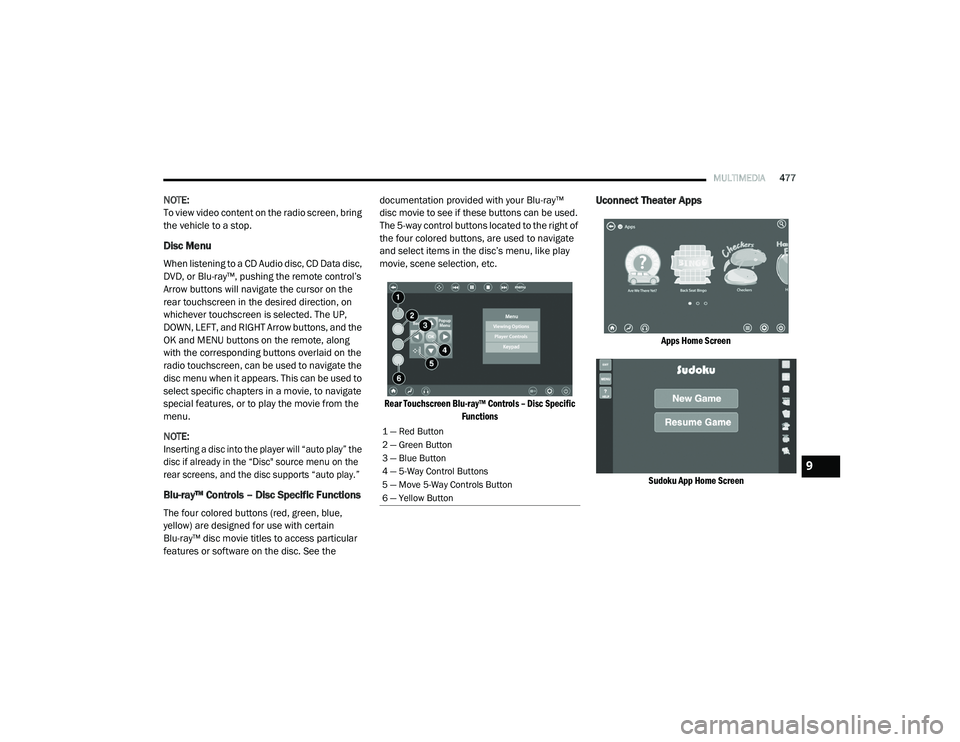
Blu-ray™ Controls – Disc Specific Functions
The four colored buttons (red, green, blue,
yellow) are designed for use with certain
Blu-ray™ disc movie titles to access particular
features or software on the disc. See the documentation provided with your Blu-ray™
disc movie to see if these buttons can be used.
The 5-way control buttons located to the right of
the four colored buttons, are used to navigate
and select items in the disc’s menu, like play
movie, scene selection, etc.
Rear Touchscreen Blu-ray™ Controls – Disc Specific Functions
Uconnect Theater Apps
Apps Home Screen
Sudoku App Home Screen
1 — Red Button
2 — Green Button
3 — Blue Button
4 — 5-Way Control Buttons
5 — Move 5-Way Controls Button
6 — Yellow Button
9
20_RU_OM_EN_US_t.book Page 477
Page 481 of 516
MULTIMEDIA479
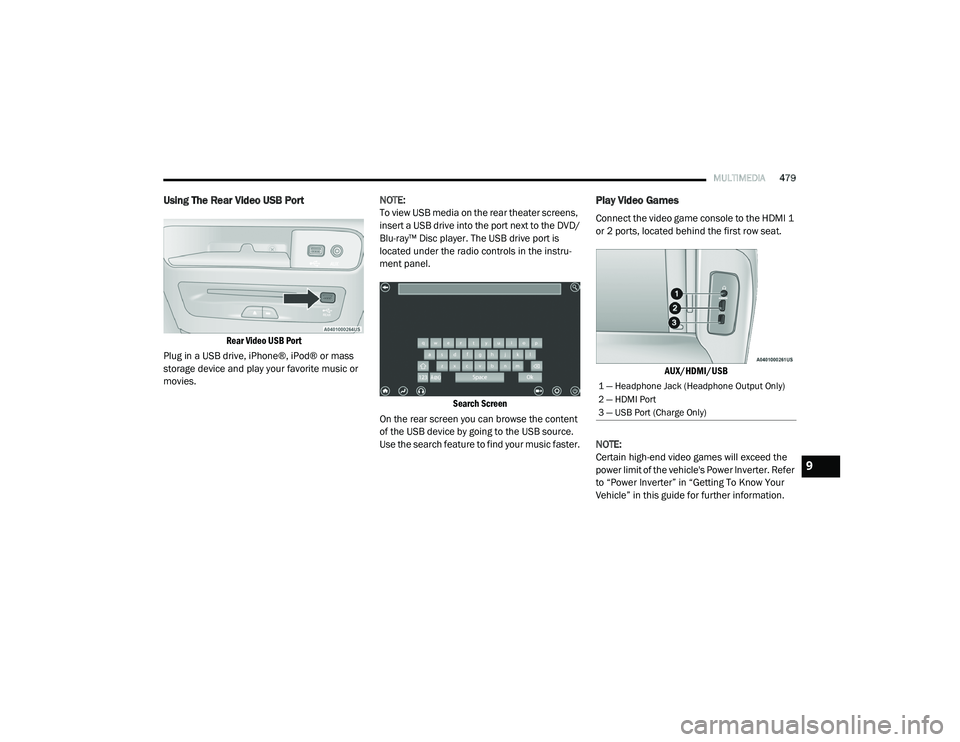
Using The Rear Video USB Port
Rear Video USB Port
Plug in a USB drive, iPhone®, iPod® or mass
storage device and play your favorite music or
movies. NOTE:
To view USB media on the rear theater screens,
insert a USB drive into the port next to the DVD/
Blu-ray™ Disc player. The USB drive port is
located under the radio controls in the instru
-
ment panel.
Search Screen
On the rear screen you can browse the content
of the USB device by going to the USB source.
Use the search feature to find your music faster.
Play Video Games
Connect the video game console to the HDMI 1
or 2 ports, located behind the first row seat.
AUX/HDMI/USB
NOTE:
Certain high-end video games will exceed the
power limit of the vehicle's Power Inverter. Refer
to “Power Inverter” in “Getting To Know Your
Vehicle” in this guide for further information.
1 — Headphone Jack (Headphone Output Only)
2 — HDMI Port
3 — USB Port (Charge Only)
9
20_RU_OM_EN_US_t.book Page 479
Page 484 of 516
482MULTIMEDIA
Listening To Audio With The Screen Closed
To listen to only audio portion of the channel
with the screen closed:
Set the audio to the desired source and
channel.
Close the video screen.
When the screen is reopened, the video
screen will automatically turn back on and
show the appropriate display menu or media. If the screen is closed and there is no audio
heard, verify that the headphones are turned on
(the ON indicator is illuminated) and the
headphone selector switch is on the desired
channel. If the headphones are turned on, push
the remote control’s power button to turn audio
on. If audio is still not heard, check that fully
charged batteries are installed in the
headphones.
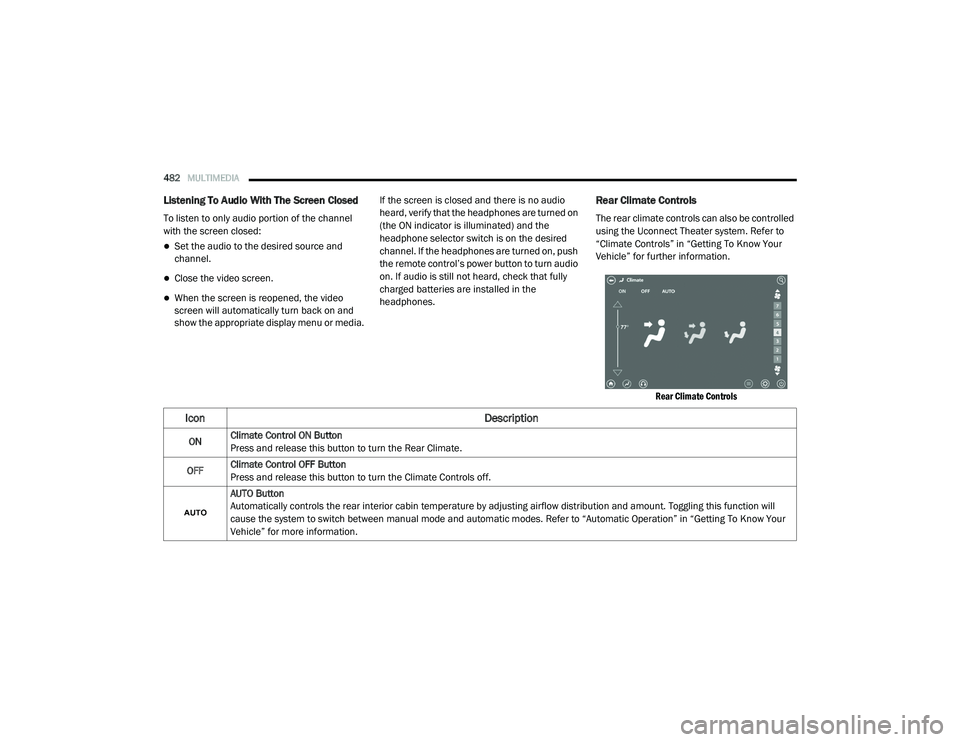
Rear Climate Controls
The rear climate controls can also be controlled
using the Uconnect Theater system. Refer to
“Climate Controls” in “Getting To Know Your
Vehicle” for further information.
Rear Climate Controls
Icon Description
ONClimate Control ON Button
Press and release this button to turn the Rear Climate.
OFF Climate Control OFF Button
Press and release this button to turn the Climate Controls off.
AUTO Button
Automatically controls the rear interior cabin temperature by adjusting airflow distribution and amount. Toggling this function will
cause the system to switch between manual mode and automatic modes. Refer to “Automatic Operation” in “Getting To Know Your
Vehicle” for more information.
20_RU_OM_EN_US_t.book Page 482
Page 485 of 516
MULTIMEDIA483
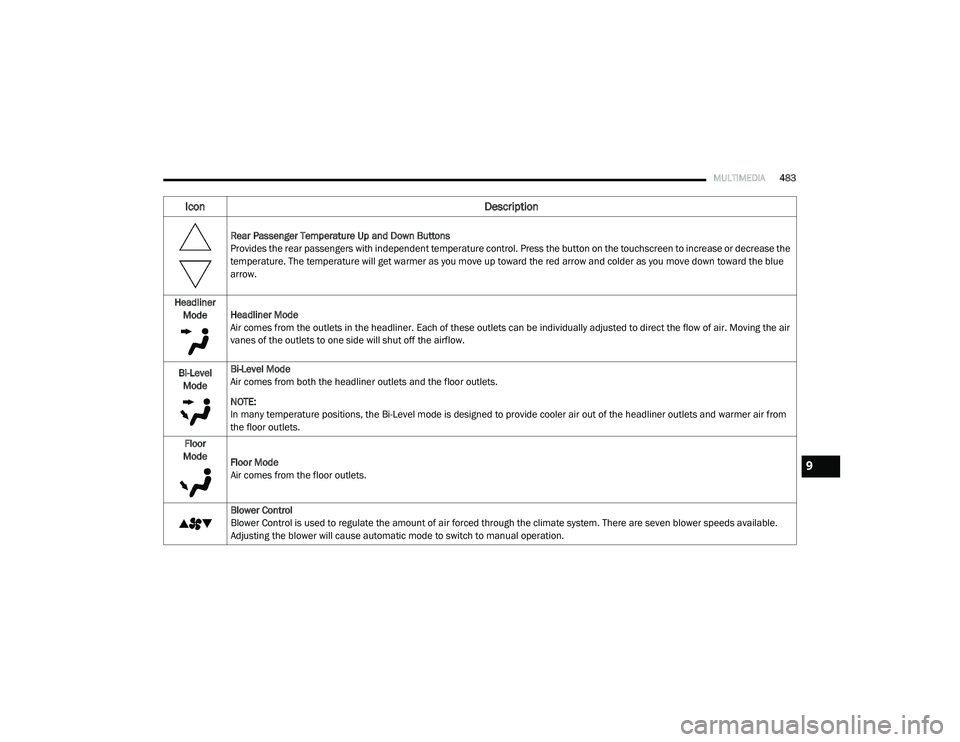
Rear Passenger Temperature Up and Down Buttons
Provides the rear passengers with independent temperature control. Press the button on the touchscreen to increase or decrease the
temperature. The temperature will get warmer as you move up toward the red arrow and colder as you move down toward the blue
arrow.
Headliner Mode Headliner Mode
Air comes from the outlets in the headliner. Each of these outlets can be individually adjusted to direct the flow of air. Moving the air
vanes of the outlets to one side will shut off the airflow.
Bi-Level Mode Bi-Level Mode
Air comes from both the headliner outlets and the floor outlets.
NOTE:
In many temperature positions, the Bi-Level mode is designed to provide cooler air out of the headliner outlets and warmer air from
the floor outlets.
Floor
Mode Floor Mode
Air comes from the floor outlets.
Blower Control
Blower Control is used to regulate the amount of air forced through the climate system. There are seven blower speeds available.
Adjusting the blower will cause automatic mode to switch to manual operation.
Icon Description
9
20_RU_OM_EN_US_t.book Page 483
Page 486 of 516
484MULTIMEDIA
Accessibility — If Equipped
Accessibility is a feature of the DVD/Blu-ray™/USB
Video system that announces a function prior to
performing the action. Refer to “Uconnect
Settings” in this chapter for further information.
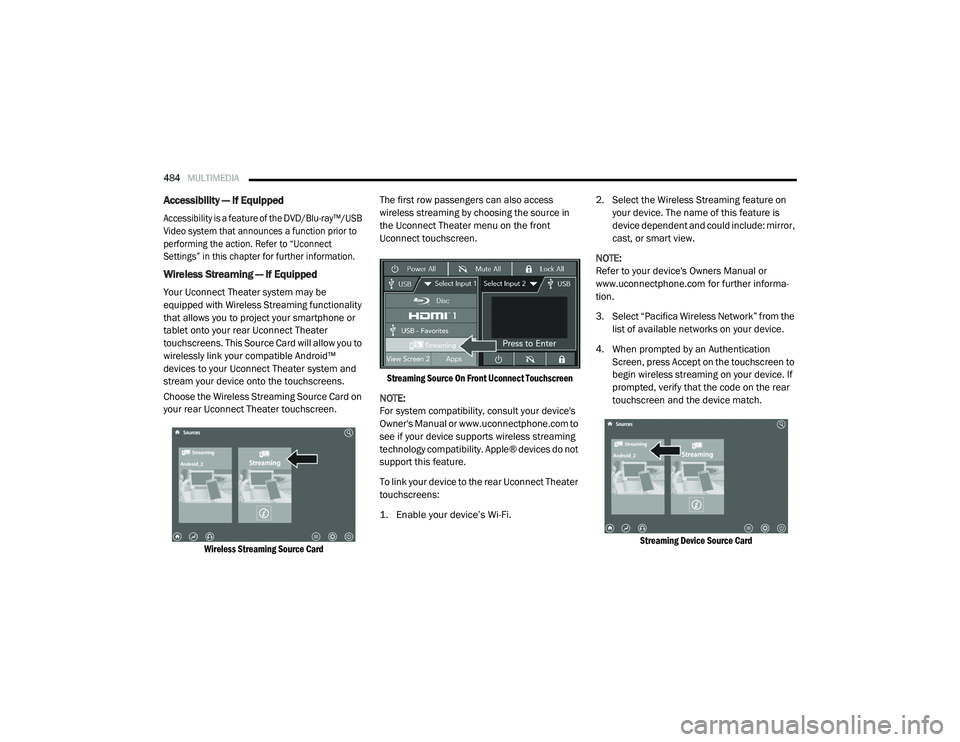
Wireless Streaming — If Equipped
Your Uconnect Theater system may be
equipped with Wireless Streaming functionality
that allows you to project your smartphone or
tablet onto your rear Uconnect Theater
touchscreens. This Source Card will allow you to
wirelessly link your compatible Android™
devices to your Uconnect Theater system and
stream your device onto the touchscreens.
Choose the Wireless Streaming Source Card on
your rear Uconnect Theater touchscreen.
Wireless Streaming Source Card
The first row passengers can also access
wireless streaming by choosing the source in
the Uconnect Theater menu on the front
Uconnect touchscreen.
Streaming Source On Front Uconnect Touchscreen
NOTE:
For system compatibility, consult your device's
Owner's Manual or www.uconnectphone.com to
see if your device supports wireless streaming
technology compatibility. Apple® devices do not
support this feature.
To link your device to the rear Uconnect Theater
touchscreens:
1. Enable your device’s Wi-Fi.
2. Select the Wireless Streaming feature on
your device. The name of this feature is
device dependent and could include: mirror,
cast, or smart view.
NOTE:
Refer to your device's Owners Manual or
www.uconnectphone.com for further informa -
tion.
3. Select “Pacifica Wireless Network” from the list of available networks on your device.
4. When prompted by an Authentication Screen, press Accept on the touchscreen to
begin wireless streaming on your device. If
prompted, verify that the code on the rear
touchscreen and the device match.
Streaming Device Source Card
20_RU_OM_EN_US_t.book Page 484
Page 487 of 516
MULTIMEDIA485
Your phone will be added as an additional
Source Card on the Uconnect Theater
touchscreens.
NOTE:
The Authentication Screen will appear on both
rear touchscreens. The touchscreen screen on
which Accept is selected will be the primary
controller for the wireless streaming session.
NOTE:
Some devices will allow you to control your
device through the Uconnect Theater rear
touchscreens. They will react to your selec -
tions from the touchscreen and be repre -
sented on your device as well. When
supported, the Uconnect Theater task bar will
appear at the top and bottom of the
Uconnect Theater touchscreen, framing your
streaming device.
Devices that do not support this feature will
not respond to Uconnect Theater touch -
screen but can still be controlled using the
streaming device.
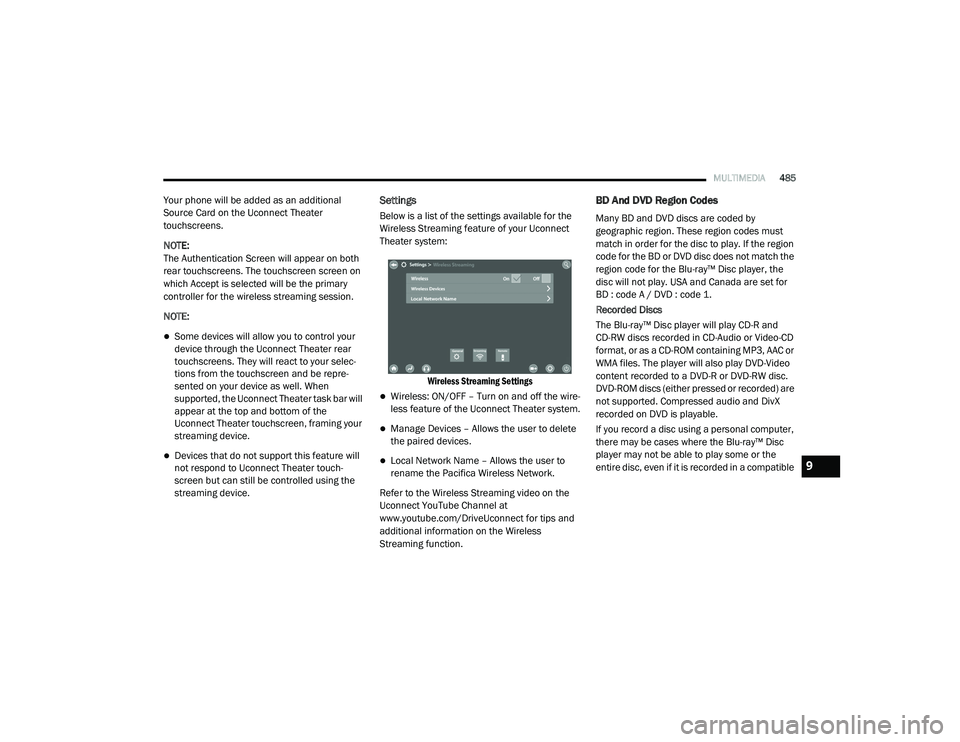
Settings
Below is a list of the settings available for the
Wireless Streaming feature of your Uconnect
Theater system:
Wireless Streaming Settings
Wireless: ON/OFF – Turn on and off the wire -
less feature of the Uconnect Theater system.
Manage Devices – Allows the user to delete
the paired devices.
Local Network Name – Allows the user to
rename the Pacifica Wireless Network.
Refer to the Wireless Streaming video on the
Uconnect YouTube Channel at
www.youtube.com/DriveUconnect for tips and
additional information on the Wireless
Streaming function.
BD And DVD Region Codes
Many BD and DVD discs are coded by
geographic region. These region codes must
match in order for the disc to play. If the region
code for the BD or DVD disc does not match the
region code for the Blu-ray™ Disc player, the
disc will not play. USA and Canada are set for
BD : code A / DVD : code 1.
Recorded Discs
The Blu-ray™ Disc player will play CD-R and
CD-RW discs recorded in CD-Audio or Video-CD
format, or as a CD-ROM containing MP3, AAC or
WMA files. The player will also play DVD-Video
content recorded to a DVD-R or DVD-RW disc.
DVD-ROM discs (either pressed or recorded) are
not supported. Compressed audio and DivX
recorded on DVD is playable.
If you record a disc using a personal computer,
there may be cases where the Blu-ray™ Disc
player may not be able to play some or the
entire disc, even if it is recorded in a compatible
9
20_RU_OM_EN_US_t.book Page 485
Page 489 of 516
MULTIMEDIA487
AAC (MPEG-4 AAC, Low Complexity Profile)
support.
AAC HE v1 (AAC High Efficiency v1 aka. AAC/
MPEG4v2 AAC+) support.
HE-AAC v1, v2 support.
Disc Errors
If the Blu-ray™ Disc player is unable to read the
disc, a "Disc Error" message is displayed on the
rear screen and Radio displays. A dirty,
damaged, or incompatible disc format are all
potential causes for a "Disc Error" message.
If a disc has a damaged track which results in
audible or visible errors that persists for two
seconds, the Blu-ray™ Disc player will attempt
to continue playing the disc by skipping forward
one to three seconds at a time. If the end of the
disc is reached, the Blu-ray™ Disc player will
return to the beginning of the disc and attempt
to play the start of the first track. The Blu-ray™ Disc player may shut down during
extremely hot conditions, such as when the
vehicle’s interior temperature is above 140°F
(60.0°C). When this occurs, the player will
display "High Temp" and will shut off the Rear
Seat displays until a safe temperature is
reached. This shutdown is necessary to protect
the optics of the Blu-ray™ Disc player.
Product Agreement
Open Source Software
The software built into this product, are
composed of multiple software components,
and there are the copyrights of our company or
third parties in each software component. Also,
in this product, the following open source
software has been installed.
The licensed software for our company is based
on GNU GENERAL PUBLIC LICENSE V2.0 ("GPL").
The licensed software for our company is
based on GNU LESSER GENERAL PUBLIC
LICENSE V2.1 ("LGPL").
The software which has the copyrights of a
third party and is distributed as free software.Please refer the contract details which are
disclosed in the following websites, for
example, concerning these above software.
http://www.gnu.org/licenses/old-licenses/
gpl-2.0-standalone.html, http://www.gnu.org/
licenses/lgpl-2.1-standalone.html.
You have the right of acquisition, modification,
and distribution of the source code of the GPL/
LGPL software. These are distributed in the
hope that it will be useful by itself. However,
including the absence of an implied warranty on
the "suitability for a particular purpose" or
"merchantability", the warranty of any kind will
not be made. You may download Source Code
from the indicating URL by the pressed button
of “Open Source Software” on the Setup Menu.
Also, please refrain from contact about the
contents of the source code of open source. The
source code of the software in which there are
the copyrights of our company or third parties, is
not subject to distribution.
9
20_RU_OM_EN_US_t.book Page 487