Eco CHRYSLER PACIFICA 2020 Owners Manual
[x] Cancel search | Manufacturer: CHRYSLER, Model Year: 2020, Model line: PACIFICA, Model: CHRYSLER PACIFICA 2020Pages: 516, PDF Size: 28.69 MB
Page 405 of 516
MULTIMEDIA403
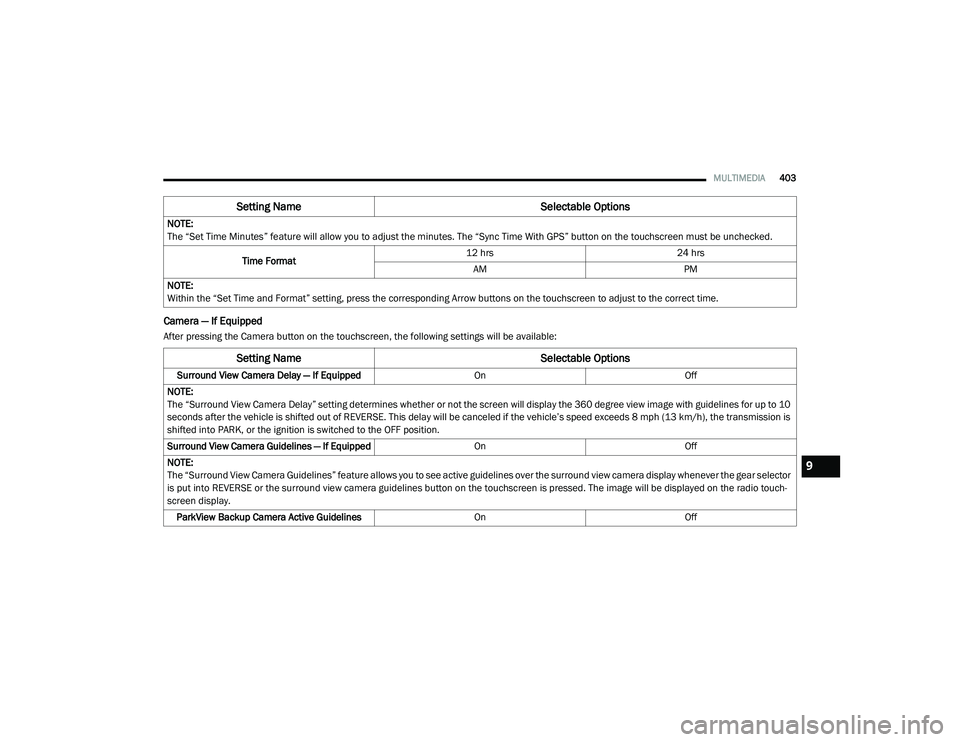
Camera — If Equipped
After pressing the Camera button on the touchscreen, the following settings will be available:NOTE:
The “Set Time Minutes” feature will allow you to adjust the minutes. The “Sync Time With GPS” button on the touchscreen must be unchecked.
Time Format 12 hrs
24 hrs
AM PM
NOTE:
Within the “Set Time and Format” setting, press the corresponding Arrow buttons on the touchscreen to adjust to the correct time.
Setting Name Selectable Options
Setting NameSelectable Options
Surround View Camera Delay — If Equipped OnOff
NOTE:
The “Surround View Camera Delay” setting determines whether or not the screen will display the 360 degree view image with guidelines for up to 10
seconds after the vehicle is shifted out of REVERSE. This delay will be canceled if the vehicle’s speed exceeds 8 mph (13 km/h), the transmission is
shifted into PARK, or the ignition is switched to the OFF position.
Surround View Camera Guidelines — If Equipped OnOff
NOTE:
The “Surround View Camera Guidelines” feature allows you to see active guidelines over the surround view camera display whenever the gear selector
is put into REVERSE or the surround view camera guidelines button on the touchscreen is pressed. The image will be displayed on the radio touch-
screen display. ParkView Backup Camera Active Guidelines OnOff
9
20_RU_OM_EN_US_t.book Page 403
Page 407 of 516
MULTIMEDIA405
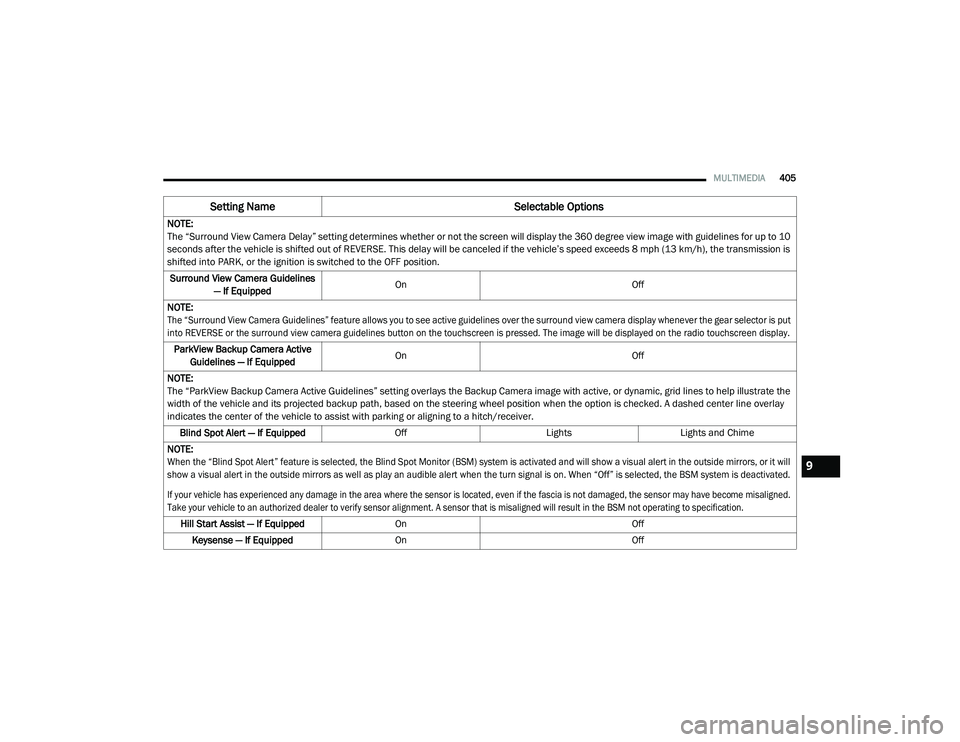
NOTE:
The “Surround View Camera Delay” setting determines whether or not the screen will display the 360 degree view image with guidelines for up to 10
seconds after the vehicle is shifted out of REVERSE. This delay will be canceled if the vehicle’s speed exceeds 8 mph (13 km/h), the transmission is
shifted into PARK, or the ignition is switched to the OFF position.
Surround View Camera Guidelines — If Equipped On
Off
NOTE:
The “Surround View Camera Guidelines” feature allows you to see active guidelines over the surround view camera display whenever the gear selector is put
into REVERSE or the surround view camera guidelines button on the touchscreen is pressed. The image will be displayed on the radio touchscreen display.
ParkView Backup Camera Active Guidelines — If Equipped On
Off
NOTE:
The “ParkView Backup Camera Active Guidelines” setting overlays the Backup Camera image with active, or dynamic, grid lines to help illustrate the
width of the vehicle and its projected backup path, based on the steering wheel position when the option is checked. A dashed center line overlay
indicates the center of the vehicle to assist with parking or aligning to a hitch/receiver. Blind Spot Alert — If Equipped OffLightsLights and Chime
NOTE:
When the “Blind Spot Alert” feature is selected, the Blind Spot Monitor (BSM) system is activated and will show a visual alert in the outside mirrors, or it will
show a visual alert in the outside mirrors as well as play an audible alert when the turn signal is on. When “Off” is selected, the BSM system is deactivated.
If your vehicle has experienced any damage in the area where the sensor is located, even if the fascia is not damaged, the sensor may have become misaligned.
Take your vehicle to an authorized dealer to verify sensor alignment. A sensor that is misaligned will result in the BSM not operating to specification.
Hill Start Assist — If Equipped On Off
Keysense — If Equipped On Off
Setting Name Selectable Options
9
20_RU_OM_EN_US_t.book Page 405
Page 418 of 516
416MULTIMEDIA
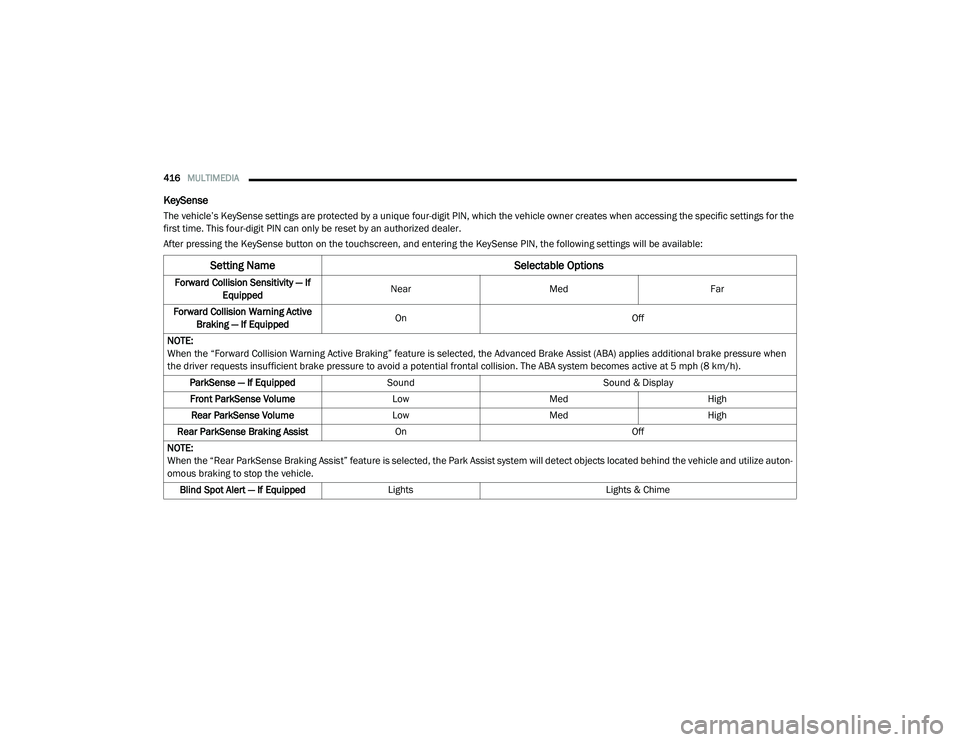
KeySense
The vehicle’s KeySense settings are protected by a unique four-digit PIN, which the vehicle owner creates when accessing the specific settings for the
first time. This four-digit PIN can only be reset by an authorized dealer.
After pressing the KeySense button on the touchscreen, and entering the KeySense PIN, the following settings will be available:
Setting Name Selectable Options
Forward Collision Sensitivity — If
Equipped Near
Med Far
Forward Collision Warning Active Braking — If Equipped On
Off
NOTE:
When the “Forward Collision Warning Active Braking” feature is selected, the Advanced Brake Assist (ABA) applies additional brake pressure when
the driver requests insufficient brake pressure to avoid a potential frontal collision. The ABA system becomes active at 5 mph (8 km/h). ParkSense — If Equipped Sound Sound & Display
Front ParkSense Volume LowMed High
Rear ParkSense Volume LowMed High
Rear ParkSense Braking Assist On Off
NOTE:
When the “Rear ParkSense Braking Assist” feature is selected, the Park Assist system will detect objects located behind the vehicle and utilize auton -
omous braking to stop the vehicle.
Blind Spot Alert — If Equipped Lights Lights & Chime
20_RU_OM_EN_US_t.book Page 416
Page 419 of 516
MULTIMEDIA417
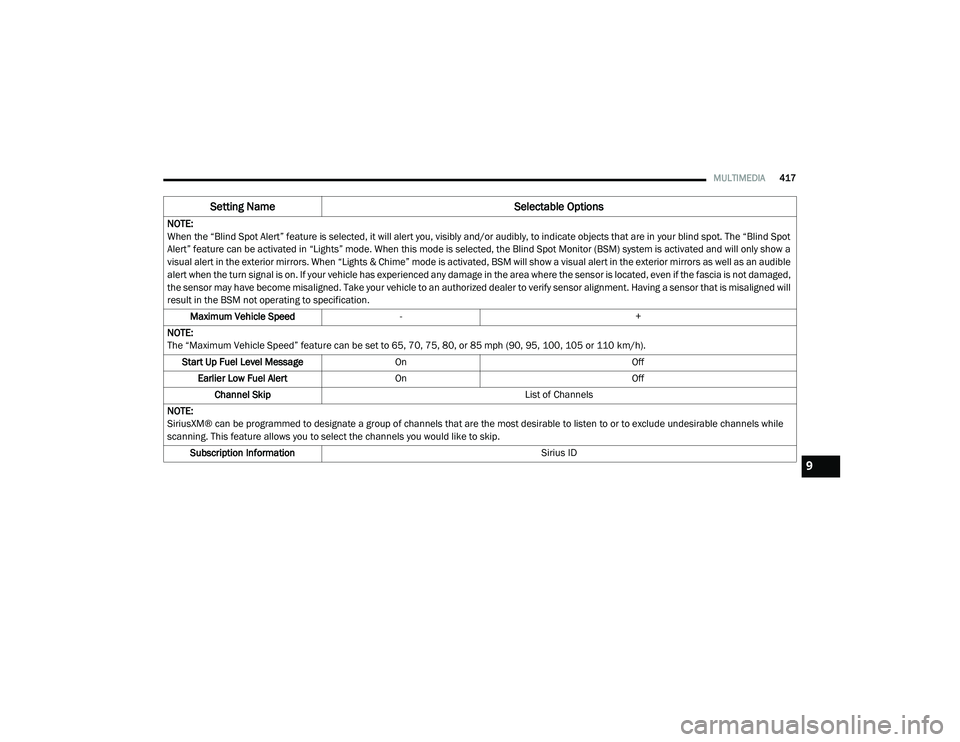
NOTE:
When the “Blind Spot Alert” feature is selected, it will alert you, visibly and/or audibly, to indicate objects that are in your blind spot. The “Blind Spot
Alert” feature can be activated in “Lights” mode. When this mode is selected, the Blind Spot Monitor (BSM) system is activated and will only show a
visual alert in the exterior mirrors. When “Lights & Chime” mode is activated, BSM will show a visual alert in the exterior mirrors as well as an audible
alert when the turn signal is on. If your vehicle has experienced any damage in the area where the sensor is located, even if the fascia is not damaged,
the sensor may have become misaligned. Take your vehicle to an authorized dealer to verify sensor alignment. Having a sensor that is misaligned will
result in the BSM not operating to specification.
Maximum Vehicle Speed - +
NOTE:
The “Maximum Vehicle Speed” feature can be set to 65, 70, 75, 80, or 85 mph (90, 95, 100, 105 or 110 km/h). Start Up Fuel Level Message On Off
Earlier Low Fuel Alert On Off
Channel Skip List of Channels
NOTE:
SiriusXM® can be programmed to designate a group of channels that are the most desirable to listen to or to exclude undesirable channels while
scanning. This feature allows you to select the channels you would like to skip. Subscription Information Sirius ID
Setting NameSelectable Options
9
20_RU_OM_EN_US_t.book Page 417
Page 422 of 516
420MULTIMEDIA
Units
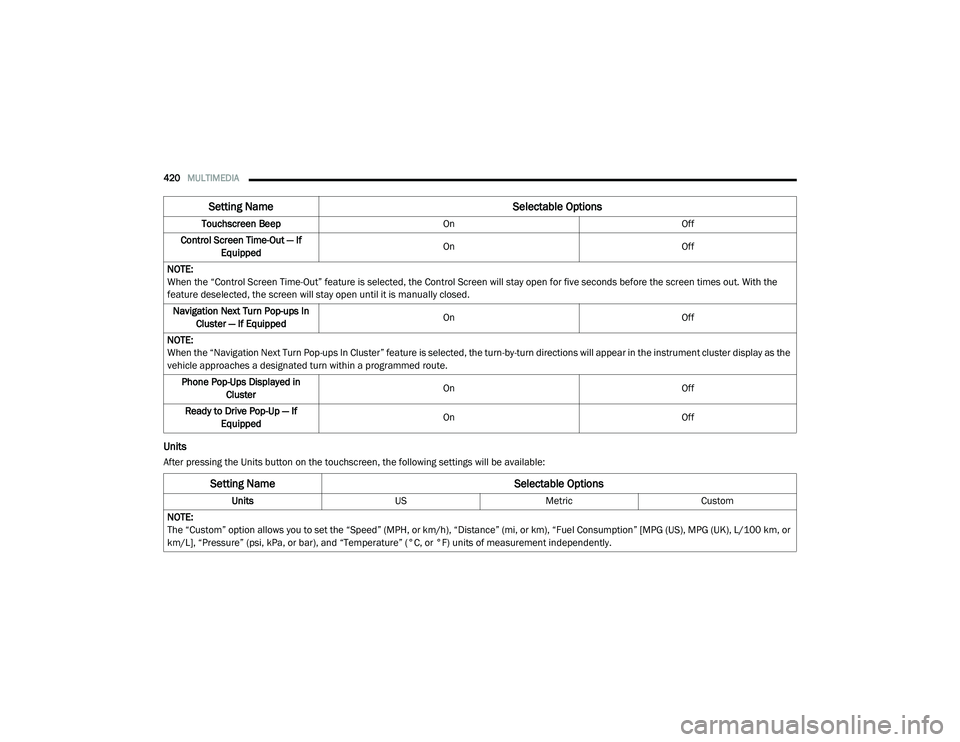
After pressing the Units button on the touchscreen, the following settings will be available:Touchscreen Beep
OnOff
Control Screen Time-Out — If Equipped On
Off
NOTE:
When the “Control Screen Time-Out” feature is selected, the Control Screen will stay open for five seconds before the screen times out. With the
feature deselected, the screen will stay open until it is manually closed. Navigation Next Turn Pop-ups In Cluster — If Equipped On
Off
NOTE:
When the “Navigation Next Turn Pop-ups In Cluster” feature is selected, the turn-by-turn directions will appear in the instrument cluster display as the
vehicle approaches a designated turn within a programmed route. Phone Pop-Ups Displayed in Cluster On
Off
Ready to Drive Pop-Up — If Equipped On
Off
Setting Name Selectable Options
Setting NameSelectable Options
UnitsUSMetric Custom
NOTE:
The “Custom” option allows you to set the “Speed” (MPH, or km/h), “Distance” (mi, or km), “Fuel Consumption” [MPG (US), MPG (UK), L/100 km, or
km/L], “Pressure” (psi, kPa, or bar), and “Temperature” (°C, or °F) units of measurement independently.
20_RU_OM_EN_US_t.book Page 420
Page 424 of 516
422MULTIMEDIA
Camera — If Equipped
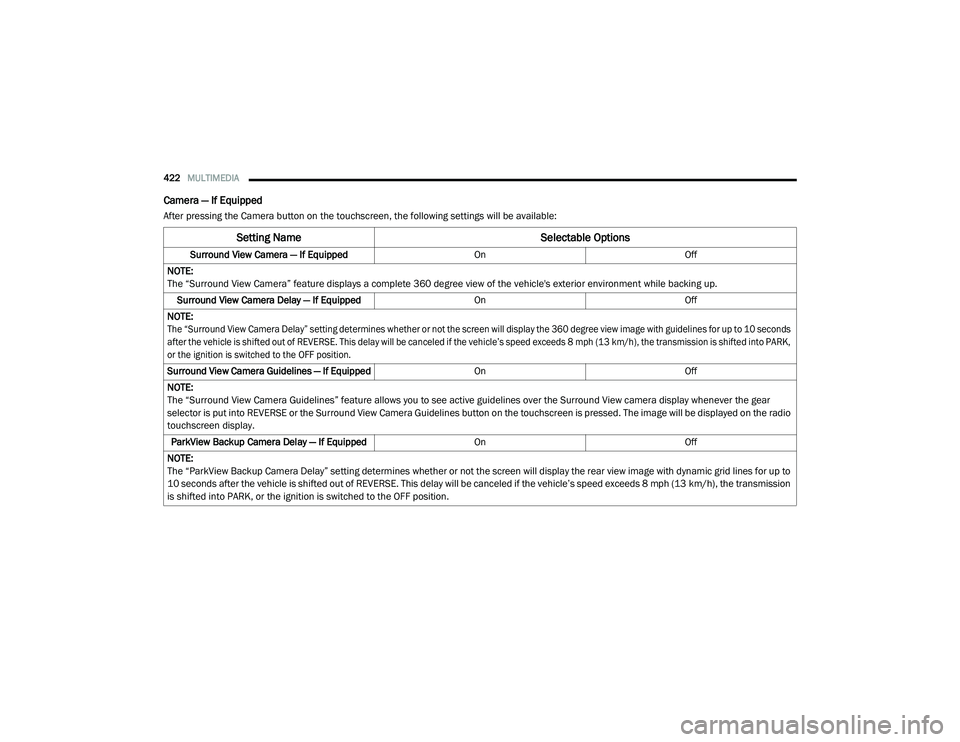
After pressing the Camera button on the touchscreen, the following settings will be available:
Setting Name Selectable Options
Surround View Camera — If Equipped OnOff
NOTE:
The “Surround View Camera” feature displays a complete 360 degree view of the vehicle's exterior environment while backing up. Surround View Camera Delay — If Equipped OnOff
NOTE:
The “Surround View Camera Delay” setting determines whether or not the screen will display the 360 degree view image with guidelines for up to 10 seconds
after the vehicle is shifted out of REVERSE. This delay will be canceled if the vehicle’s speed exceeds 8 mph (13 km/h), the transmission is shifted into PARK,
or the ignition is switched to the OFF position.
Surround View Camera Guidelines — If Equipped OnOff
NOTE:
The “Surround View Camera Guidelines” feature allows you to see active guidelines over the Surround View camera display whenever the gear
selector is put into REVERSE or the Surround View Camera Guidelines button on the touchscreen is pressed. The image will be displayed on the radio
touchscreen display. ParkView Backup Camera Delay — If Equipped OnOff
NOTE:
The “ParkView Backup Camera Delay” setting determines whether or not the screen will display the rear view image with dynamic grid lines for up to
10 seconds after the vehicle is shifted out of REVERSE. This delay will be canceled if the vehicle’s speed exceeds 8 mph (13 km/h), the transmission
is shifted into PARK, or the ignition is switched to the OFF position.
20_RU_OM_EN_US_t.book Page 422
Page 427 of 516
MULTIMEDIA425
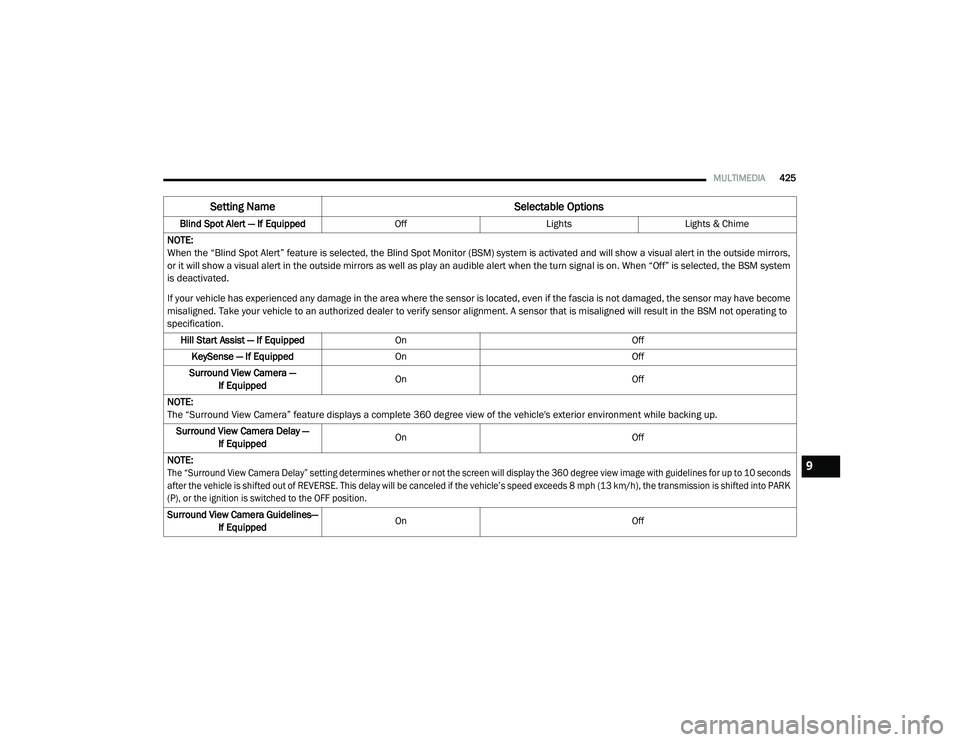
Blind Spot Alert — If Equipped OffLightsLights & Chime
NOTE:
When the “Blind Spot Alert” feature is selected, the Blind Spot Monitor (BSM) system is activated and will show a visual alert in the outside mirrors,
or it will show a visual alert in the outside mirrors as well as play an audible alert when the turn signal is on. When “Off” is selected, the BSM system
is deactivated.
If your vehicle has experienced any damage in the area where the sensor is located, even if the fascia is not damaged, the sensor may have become
misaligned. Take your vehicle to an authorized dealer to verify sensor alignment. A sensor that is misaligned will result in the BSM not operating to
specification. Hill Start Assist — If Equipped On Off
KeySense — If Equipped On Off
Surround View Camera — If Equipped On
Off
NOTE:
The “Surround View Camera” feature displays a complete 360 degree view of the vehicle's exterior environment while backing up. Surround View Camera Delay — If Equipped On
Off
NOTE:
The “Surround View Camera Delay” setting determines whether or not the screen will display the 360 degree view image with guidelines for up to 10 seconds
after the vehicle is shifted out of REVERSE. This delay will be canceled if the vehicle’s speed exceeds 8 mph (13 km/h), the transmission is shifted into PARK
(P), or the ignition is switched to the OFF position.
Surround View Camera Guidelines— If Equipped On
Off
Setting Name Selectable Options
9
20_RU_OM_EN_US_t.book Page 425
Page 428 of 516
426MULTIMEDIA
Mirrors & Wipers
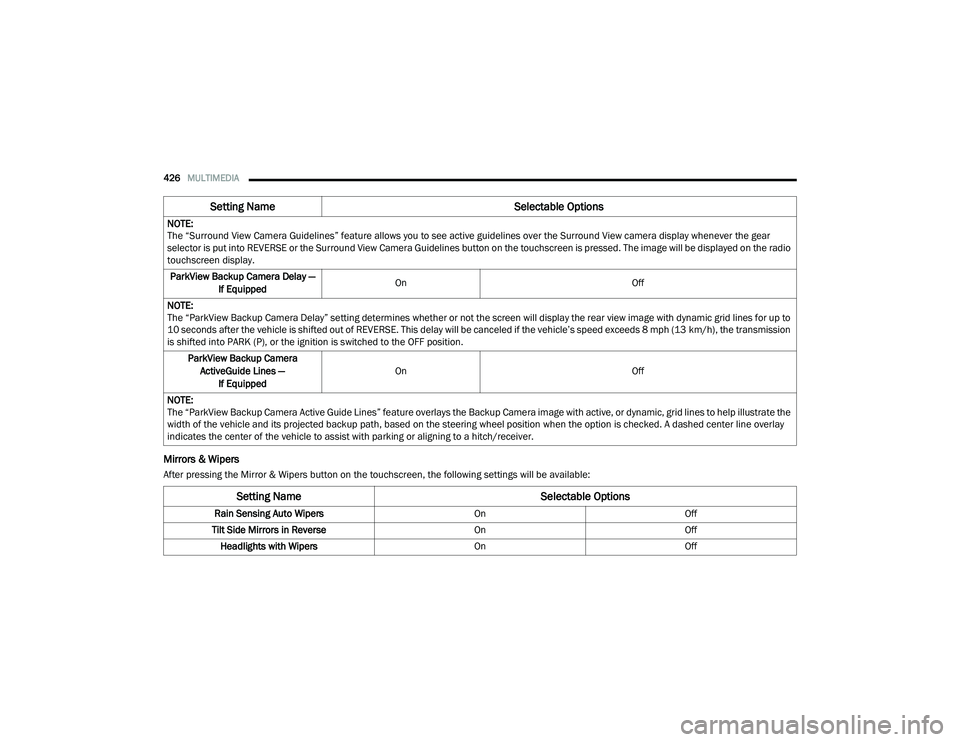
After pressing the Mirror & Wipers button on the touchscreen, the following settings will be available:NOTE:
The “Surround View Camera Guidelines” feature allows you to see active guidelines over the Surround View camera display whenever the gear
selector is put into REVERSE or the Surround View Camera Guidelines button on the touchscreen is pressed. The image will be displayed on the radio
touchscreen display.
ParkView Backup Camera Delay — If Equipped On
Off
NOTE:
The “ParkView Backup Camera Delay” setting determines whether or not the screen will display the rear view image with dynamic grid lines for up to
10 seconds after the vehicle is shifted out of REVERSE. This delay will be canceled if the vehicle’s speed exceeds 8 mph (13 km/h), the transmission
is shifted into PARK (P), or the ignition is switched to the OFF position.
ParkView Backup Camera ActiveGuide Lines — If Equipped On
Off
NOTE:
The “ParkView Backup Camera Active Guide Lines” feature overlays the Backup Camera image with active, or dynamic, grid lines to help illustrate the
width of the vehicle and its projected backup path, based on the steering wheel position when the option is checked. A dashed center line overlay
indicates the center of the vehicle to assist with parking or aligning to a hitch/receiver.
Setting Name Selectable Options
Setting NameSelectable Options
Rain Sensing Auto WipersOnOff
Tilt Side Mirrors in Reverse OnOff
Headlights with Wipers OnOff
20_RU_OM_EN_US_t.book Page 426
Page 438 of 516
436MULTIMEDIA
SAFETY AND GENERAL INFORMATION
Safety Guidelines
Ensure that all persons read this manual
carefully before using the system. It contains
instructions on how to use the system in a safe
and effective manner.
Do NOT attach any object to the touchscreen.
Doing so can result in damage to the
touchscreen.
Please read and follow these safety
precautions. Failure to do so may result in injury
or property damage.
Glance at the screen only when safe to do so.
If prolonged viewing of the screen is required,
park in a safe location and set the parking
brake.
Stop use immediately if a problem occurs.
Failure to do so may cause injury or damage
to the product. Return it to an authorized
dealer for repair.
Ensure the volume level of the system is set
to a level that still allows you to hear outside
traffic and emergency vehicles.
Safe Usage Of The Uconnect System
Read all instructions in this manual carefully
before using your system to ensure proper
usage.
The Uconnect system is a sophisticated elec -
tronic device. Do not let young children use
the system.
Permanent hearing loss may occur if you play
your music or the system at loud volumes.
Exercise caution when setting the volume on
the system.
Keep drinks, rain and other sources of mois -
ture away from the system. Besides damage
to the system, moisture can cause electric
shocks as with any electronic device. NOTE:
Many features of this system are speed depen
-
dent. For your own safety, it is not possible to
use some of the touchscreen features while the
vehicle is in motion.
Exposure To Radio Frequency Radiation
The internal wireless radio operates within
guidelines found in radio frequency safety
standards and recommendations, which reflect
the consensus of the scientific community. The
radio manufacturer believes the internal
wireless radio is safe for use by consumers. The
level of energy emitted is far less than the
electromagnetic energy emitted by wireless
devices such as mobile phones. However, the
use of wireless radios may be restricted in some
situations or environments, such as aboard
airplanes. If you are unsure of restrictions, you
are encouraged to ask for authorization before
turning on the wireless radio.
WARNING!
ALWAYS drive safely with your hands on the
steering wheel. You have full responsibility
and assume all risks related to the use of the
Uconnect features and applications in this
vehicle. Only use Uconnect when it is safe to
do so. Failure to do so may result in an
accident involving serious injury or death.
20_RU_OM_EN_US_t.book Page 436
Page 441 of 516
MULTIMEDIA439
Volume/Power Control
Push the Volume/Power control knob to turn off
the screen and mute the radio. Push the
Volume/Power control knob a second time to
turn the screen back on and unmute the radio.
The electronic volume control turns
continuously (360 degrees) in either direction,
without stopping. Turning the Volume/Power
control knob clockwise increases the volume,
and counterclockwise decreases it.
Tune/Scroll Control
When the audio system is turned on, the sound
will be set at the same volume level as last
played.
Turn the rotary Tune/Scroll control knob
clockwise to increase or counterclockwise to
decrease the radio station frequency. Push the
Enter/Browse button to choose a selection.
Screen Close
The X button on the touchscreen at the top right,
provides a means to close the Direct Tune
Screen. The Direct Tune Screen also auto
closes if no activity occurs within a few seconds. Seek And Direct Tune Functions
The Seek Up and Down functions are activated
by pressing the double arrow buttons on the
touchscreen to the right and left of the radio
station display or by pressing the left Steering
Wheel Audio Control up or down.
Seek Up
Press and release the Seek Up button on the
touchscreen to tune the radio to the next
listenable station or channel. During a Seek Up
function, if the radio reaches the starting station
after passing through the entire band two times,
the radio will stop at the station where it began.
Fast Seek Up
Press and hold the Seek Up button on the
touchscreen to advance the radio through the
available stations or channels at a faster rate. The
radio stops at the next available station or channel
when the button on the touchscreen is released.
Seek Down
Press and release the Seek Down button on the
touchscreen to tune the radio to the next
listenable station or channel. During a Seek
Down function, if the radio reaches the starting
station after passing through the entire band
two times, the radio will stop at the station
where it began.Fast Seek Down
Press and hold the Seek Down button on the
touchscreen to advance the radio through the
available stations or channel at a faster rate.
The radio stops at the next available station or
channel when the button on the touchscreen is
released.
Direct Tune
Press the Tune button on the touchscreen
located at the bottom of the radio screen. The
Direct Tune button on the touchscreen is
available in AM, FM, and SXM radio modes and
can be used to direct tune the radio to a desired
station or channel.
Press the available number button on the
touchscreen to begin selecting a desired
station. Once a number has been entered, any
numbers that are no longer possible (stations
that cannot be reached) will become
deactivated/grayed out.
Undo
You can backspace an entry by pressing the
bottom left on the touchscreen.
OK
Once the last digit of a station has been
entered, press the OK button, and the Direct
9
20_RU_OM_EN_US_t.book Page 439