REMOTE CHRYSLER PACIFICA 2020 Owner's Manual
[x] Cancel search | Manufacturer: CHRYSLER, Model Year: 2020, Model line: PACIFICA, Model: CHRYSLER PACIFICA 2020Pages: 516, PDF Size: 28.69 MB
Page 431 of 516
MULTIMEDIA429
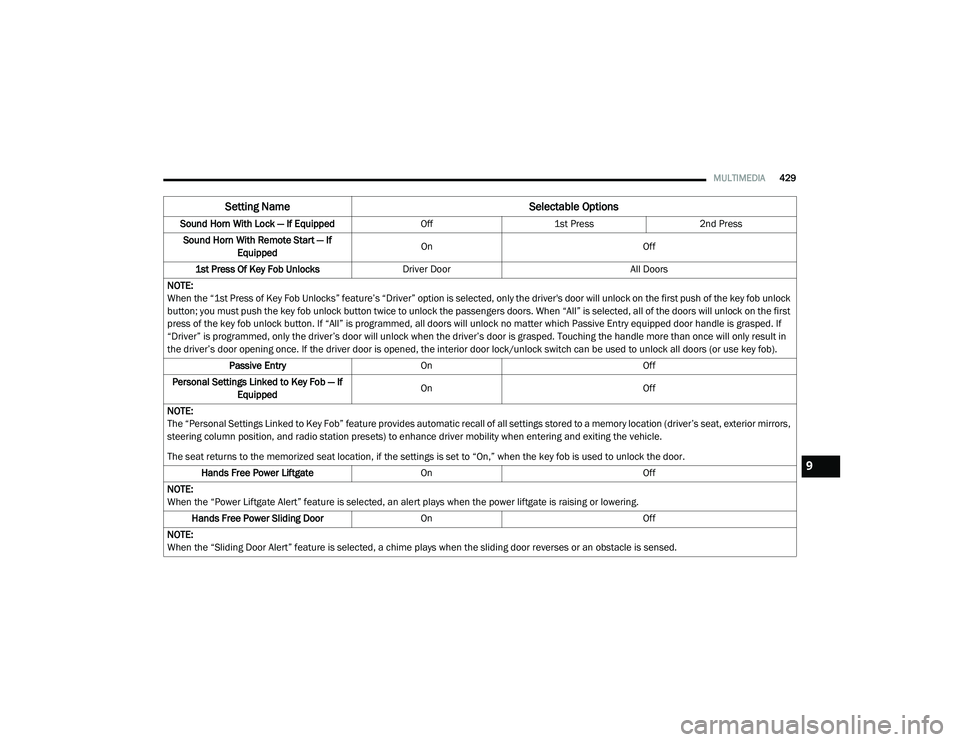
Sound Horn With Lock — If Equipped Off1st Press 2nd Press
Sound Horn With Remote Start — If Equipped On
Off
1st Press Of Key Fob Unlocks Driver Door All Doors
NOTE:
When the “1st Press of Key Fob Unlocks” feature’s “Driver” option is selected, only the driver's door will unlock on the first push of the key fob unlock
button; you must push the key fob unlock button twice to unlock the passengers doors. When “All” is selected, all of the doors will unlock on the first
press of the key fob unlock button. If “All” is programmed, all doors will unlock no matter which Passive Entry equipped door handle is grasped. If
“Driver” is programmed, only the driver’s door will unlock when the driver’s door is grasped. Touching the handle more than once will only result in
the driver’s door opening once. If the driver door is opened, the interior door lock/unlock switch can be used to unlock all doors (or use key fob). Passive Entry On Off
Personal Settings Linked to Key Fob — If Equipped On
Off
NOTE:
The “Personal Settings Linked to Key Fob” feature provides automatic recall of all settings stored to a memory location (driver’s seat, exterior mirrors,
steering column position, and radio station presets) to enhance driver mobility when entering and exiting the vehicle.
The seat returns to the memorized seat location, if the settings is set to “On,” when the key fob is used to unlock the door. Hands Free Power Liftgate On Off
NOTE:
When the “Power Liftgate Alert” feature is selected, an alert plays when the power liftgate is raising or lowering. Hands Free Power Sliding Door OnOff
NOTE:
When the “Sliding Door Alert” feature is selected, a chime plays when the sliding door reverses or an obstacle is sensed.
Setting Name Selectable Options
9
20_RU_OM_EN_US_t.book Page 429
Page 432 of 516
430MULTIMEDIA
Seats & Comfort — If Equipped
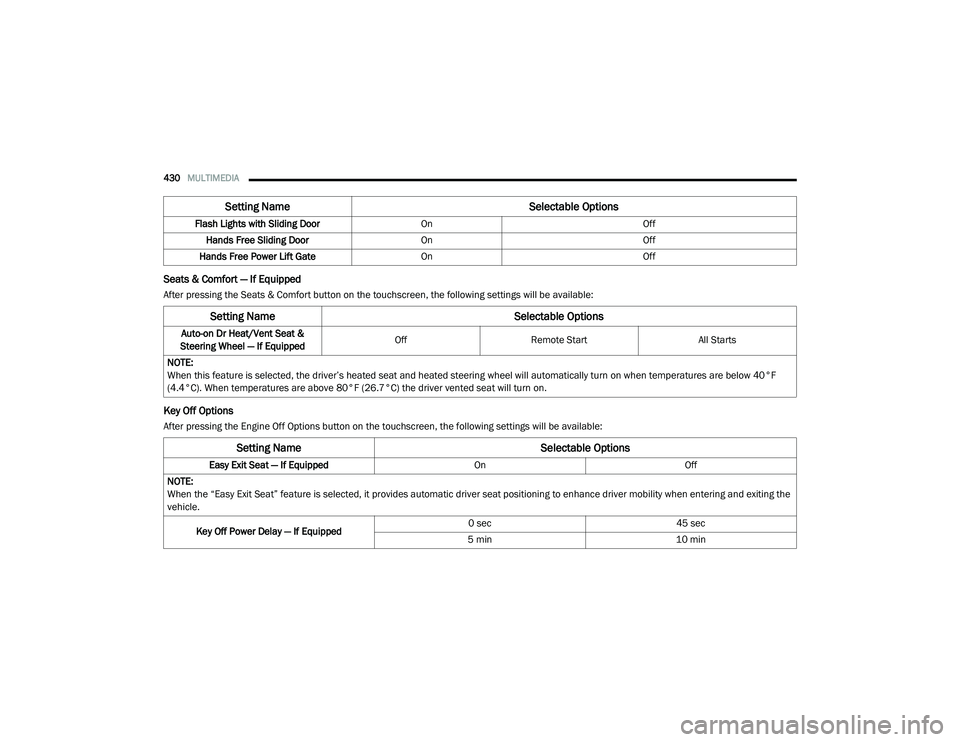
After pressing the Seats & Comfort button on the touchscreen, the following settings will be available:
Key Off Options
After pressing the Engine Off Options button on the touchscreen, the following settings will be available:Flash Lights with Sliding Door
OnOff
Hands Free Sliding Door On Off
Hands Free Power Lift Gate On Off
Setting Name Selectable Options
Setting NameSelectable Options
Auto-on Dr Heat/Vent Seat &
Steering Wheel — If Equipped Off
Remote Start All Starts
NOTE:
When this feature is selected, the driver’s heated seat and heated steering wheel will automatically turn on when temperatures are below 40°F
(4.4°C). When temperatures are above 80°F (26.7°C) the driver vented seat will turn on.
Setting Name Selectable Options
Easy Exit Seat — If EquippedOnOff
NOTE:
When the “Easy Exit Seat” feature is selected, it provides automatic driver seat positioning to enhance driver mobility when entering and exiting the
vehicle.
Key Off Power Delay — If Equipped 0 sec
45 sec
5 min 10 min
20_RU_OM_EN_US_t.book Page 430
Page 469 of 516
MULTIMEDIA467
STEERING WHEEL AUDIO CONTROLS — IF
EQUIPPED
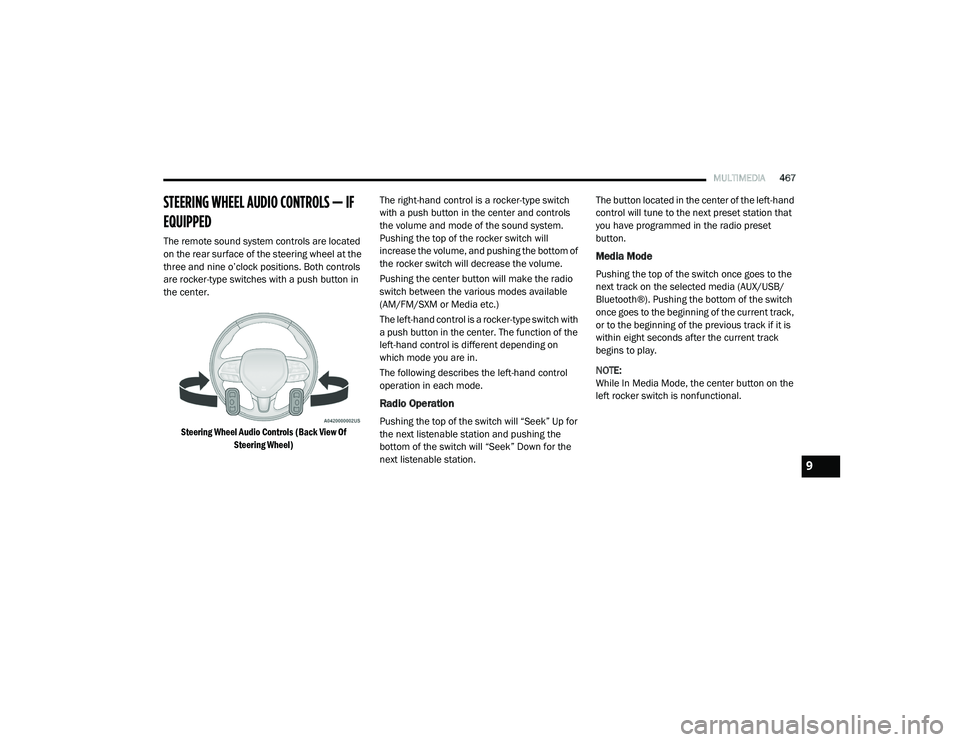
The remote sound system controls are located
on the rear surface of the steering wheel at the
three and nine o’clock positions. Both controls
are rocker-type switches with a push button in
the center.
Steering Wheel Audio Controls (Back View Of Steering Wheel)
The right-hand control is a rocker-type switch
with a push button in the center and controls
the volume and mode of the sound system.
Pushing the top of the rocker switch will
increase the volume, and pushing the bottom of
the rocker switch will decrease the volume.
Pushing the center button will make the radio
switch between the various modes available
(AM/FM/SXM or Media etc.)
The left-hand control is a rocker-type switch with
a push button in the center. The function of the
left-hand control is different depending on
which mode you are in.
The following describes the left-hand control
operation in each mode.
Radio Operation
Pushing the top of the switch will “Seek” Up for
the next listenable station and pushing the
bottom of the switch will “Seek” Down for the
next listenable station. The button located in the center of the left-hand
control will tune to the next preset station that
you have programmed in the radio preset
button.
Media Mode
Pushing the top of the switch once goes to the
next track on the selected media (AUX/USB/
Bluetooth®). Pushing the bottom of the switch
once goes to the beginning of the current track,
or to the beginning of the previous track if it is
within eight seconds after the current track
begins to play.
NOTE:
While In Media Mode, the center button on the
left rocker switch is nonfunctional.
9
20_RU_OM_EN_US_t.book Page 467
Page 471 of 516
MULTIMEDIA469
UCONNECT THEATER — IF EQUIPPED
Uconnect Theater Overview
Your Uconnect Theater is designed to give your
family years of enjoyment.
There are multiple ways to interact with your
Uconnect Theater system;
Play your favorite CDs, DVDs, or Blu-ray™
Discs
Plug and play a variety of standard video
games or devices into the HDMI port
Listen to audio over the wireless headphones
Plug and play a variety of devices into the
Video USB port
Plug in standard headphones to listen to
audio
Project your mobile phone or tablet screen
onto the rear Uconnect Theater touchscreens
Please review this Owner's Manual to become
familiar with its features and operation.
Getting Started
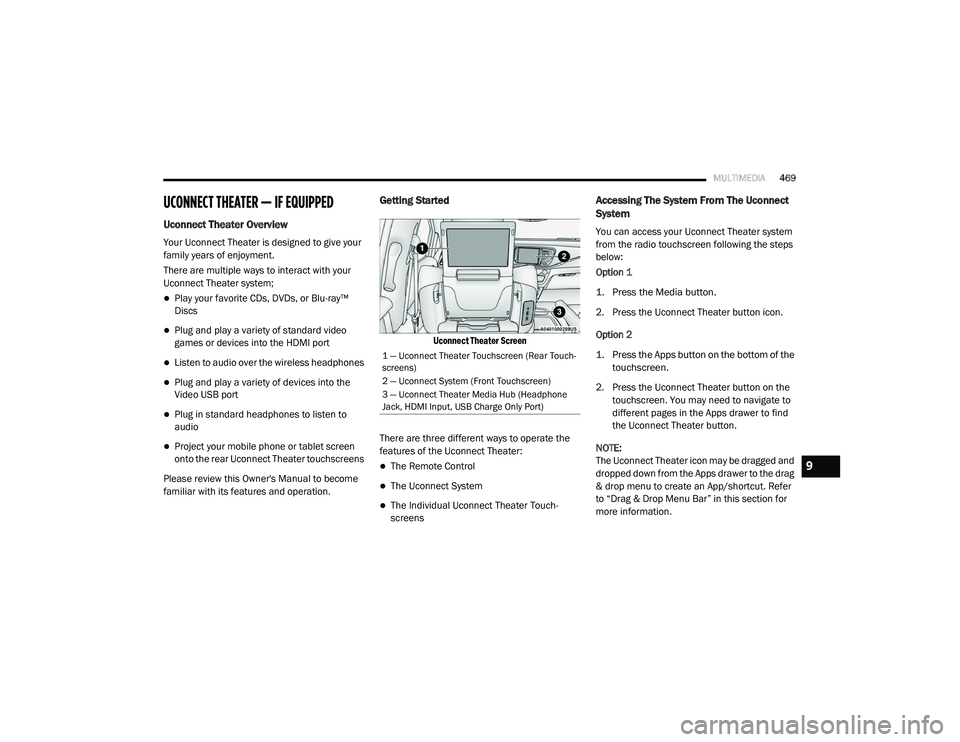
Uconnect Theater Screen
There are three different ways to operate the
features of the Uconnect Theater:
The Remote Control
The Uconnect System
The Individual Uconnect Theater Touch -
screens
Accessing The System From The Uconnect
System
You can access your Uconnect Theater system
from the radio touchscreen following the steps
below:
Option 1
1. Press the Media button.
2. Press the Uconnect Theater button icon.
Option 2
1. Press the Apps button on the bottom of the
touchscreen.
2. Press the Uconnect Theater button on the touchscreen. You may need to navigate to
different pages in the Apps drawer to find
the Uconnect Theater button.
NOTE:
The Uconnect Theater icon may be dragged and
dropped down from the Apps drawer to the drag
& drop menu to create an App/shortcut. Refer
to “Drag & Drop Menu Bar” in this section for
more information.
1 — Uconnect Theater Touchscreen (Rear Touch -
screens)
2 — Uconnect System (Front Touchscreen)
3 — Uconnect Theater Media Hub (Headphone
Jack, HDMI Input, USB Charge Only Port)
9
20_RU_OM_EN_US_t.book Page 469
Page 472 of 516
470MULTIMEDIA
Uconnect Theater Controls
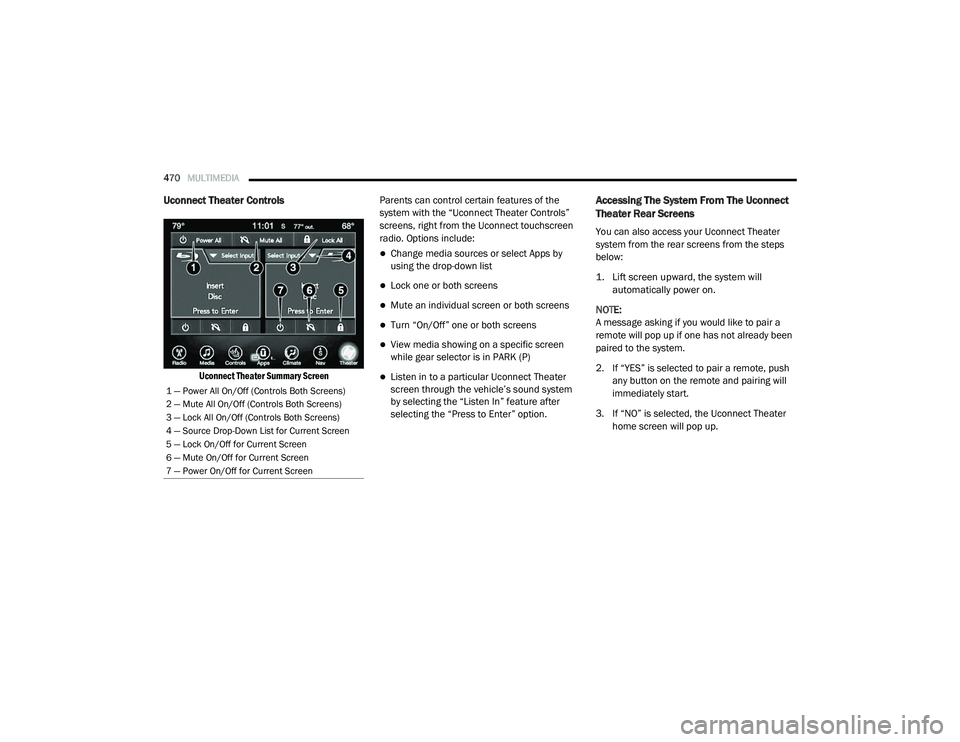
Uconnect Theater Summary Screen
Parents can control certain features of the
system with the “Uconnect Theater Controls”
screens, right from the Uconnect touchscreen
radio. Options include:
Change media sources or select Apps by
using the drop-down list
Lock one or both screens
Mute an individual screen or both screens
Turn “On/Off” one or both screens
View media showing on a specific screen
while gear selector is in PARK (P)
Listen in to a particular Uconnect Theater
screen through the vehicle’s sound system
by selecting the “Listen In” feature after
selecting the “Press to Enter” option.
Accessing The System From The Uconnect
Theater Rear Screens
You can also access your Uconnect Theater
system from the rear screens from the steps
below:
1. Lift screen upward, the system will
automatically power on.
NOTE:
A message asking if you would like to pair a
remote will pop up if one has not already been
paired to the system.
2. If “YES” is selected to pair a remote, push any button on the remote and pairing will
immediately start.
3. If “NO” is selected, the Uconnect Theater home screen will pop up.
1 — Power All On/Off (Controls Both Screens)
2 — Mute All On/Off (Controls Both Screens)
3 — Lock All On/Off (Controls Both Screens)
4 — Source Drop-Down List for Current Screen
5 — Lock On/Off for Current Screen
6 — Mute On/Off for Current Screen
7 — Power On/Off for Current Screen
20_RU_OM_EN_US_t.book Page 470
Page 473 of 516
MULTIMEDIA471
NOTE:
There will be a touchscreen notification
message when pairing is successful.
Test to make sure the remote is successfully
paired by dragging your finger across the
gesture pad. If you do not see the On-screen
Arrow, try using the Screen button on the
remote to switch between rear screen one
and rear screen two to make sure the remote
is controlling the intended screen. It may take
several seconds for the remote to react when
initially paired.
If remote does not pair, refer to “Pairing The
Remote” in this section for an alternative
pairing process.
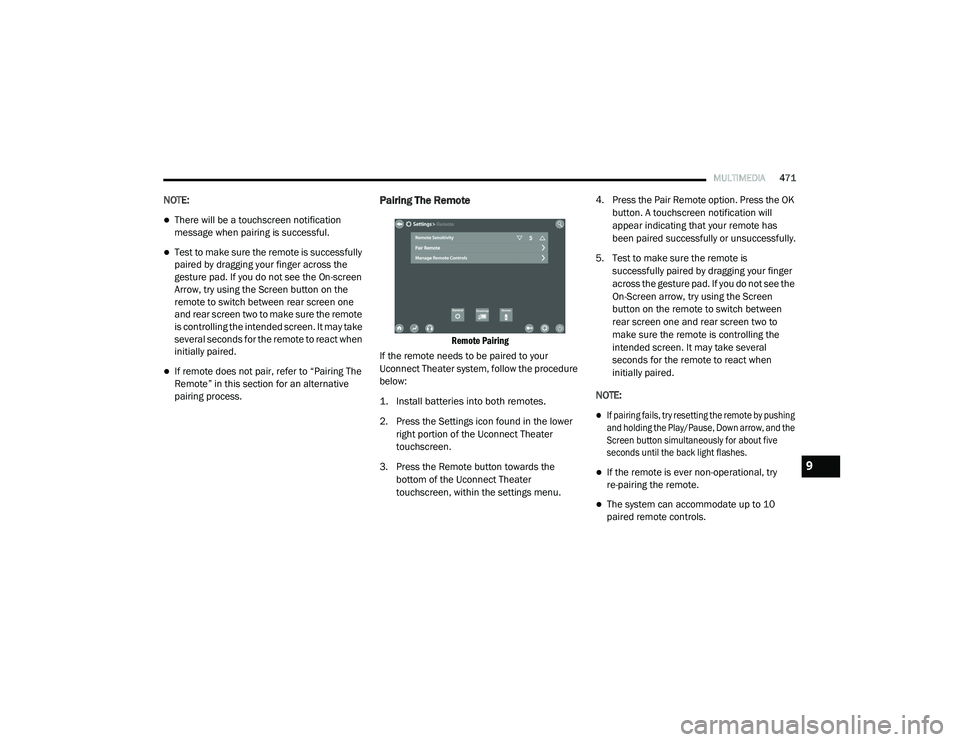
Pairing The Remote
Remote Pairing
If the remote needs to be paired to your
Uconnect Theater system, follow the procedure
below:
1. Install batteries into both remotes.
2. Press the Settings icon found in the lower right portion of the Uconnect Theater
touchscreen.
3. Press the Remote button towards the bottom of the Uconnect Theater
touchscreen, within the settings menu. 4. Press the Pair Remote option. Press the OK
button. A touchscreen notification will
appear indicating that your remote has
been paired successfully or unsuccessfully.
5. Test to make sure the remote is successfully paired by dragging your finger
across the gesture pad. If you do not see the
On-Screen arrow, try using the Screen
button on the remote to switch between
rear screen one and rear screen two to
make sure the remote is controlling the
intended screen. It may take several
seconds for the remote to react when
initially paired.
NOTE:
If pairing fails, try resetting the remote by pushing
and holding the Play/Pause, Down arrow, and the
Screen button simultaneously for about five
seconds until the back light flashes.
If the remote is ever non-operational, try
re-pairing the remote.
The system can accommodate up to 10
paired remote controls.
9
20_RU_OM_EN_US_t.book Page 471
Page 474 of 516
472MULTIMEDIA
Unpairing The Remote
In events such as updating the Uconnect
Theater software, or taking a remote to another
vehicle, the remote will need to be unpaired
from your Uconnect Theater system. To unpair
the remote:
1. Press the Settings icon found in the lower
right portion of the Uconnect Theater
touchscreen.
2. Press the Remote button towards the bottom of the Uconnect Theater
touchscreen, within the settings menu.
3. Select Manage Remote Controls from the Remote section of "Settings” and follow the
on-screen instructions to complete the
unpairing process.
4. Once complete, the remote will be ready to pair again. NOTE:
There will be a touchscreen notification
message when unpairing is successful. Repeat
the above steps to unpair a second remote.
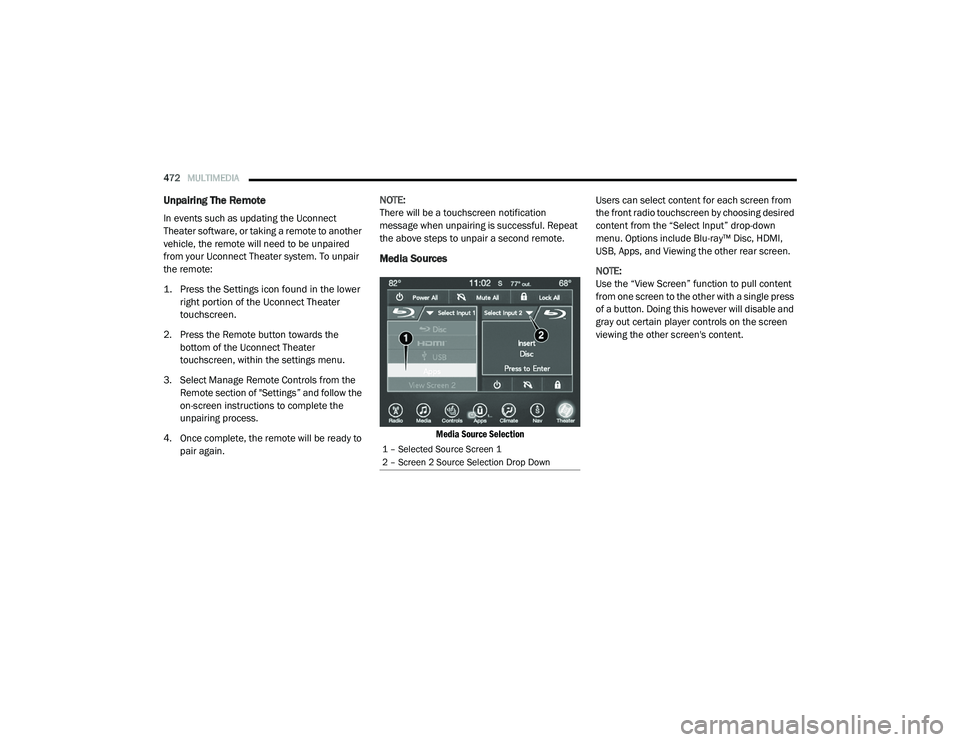
Media Sources
Media Source Selection
Users can select content for each screen from
the front radio touchscreen by choosing desired
content from the “Select Input” drop-down
menu. Options include Blu-ray™ Disc, HDMI,
USB, Apps, and Viewing the other rear screen.
NOTE:
Use the “View Screen” function to pull content
from one screen to the other with a single press
of a button. Doing this however will disable and
gray out certain player controls on the screen
viewing the other screen's content.
1 – Selected Source Screen 1
2 – Screen 2 Source Selection Drop Down
20_RU_OM_EN_US_t.book Page 472
Page 475 of 516
MULTIMEDIA473
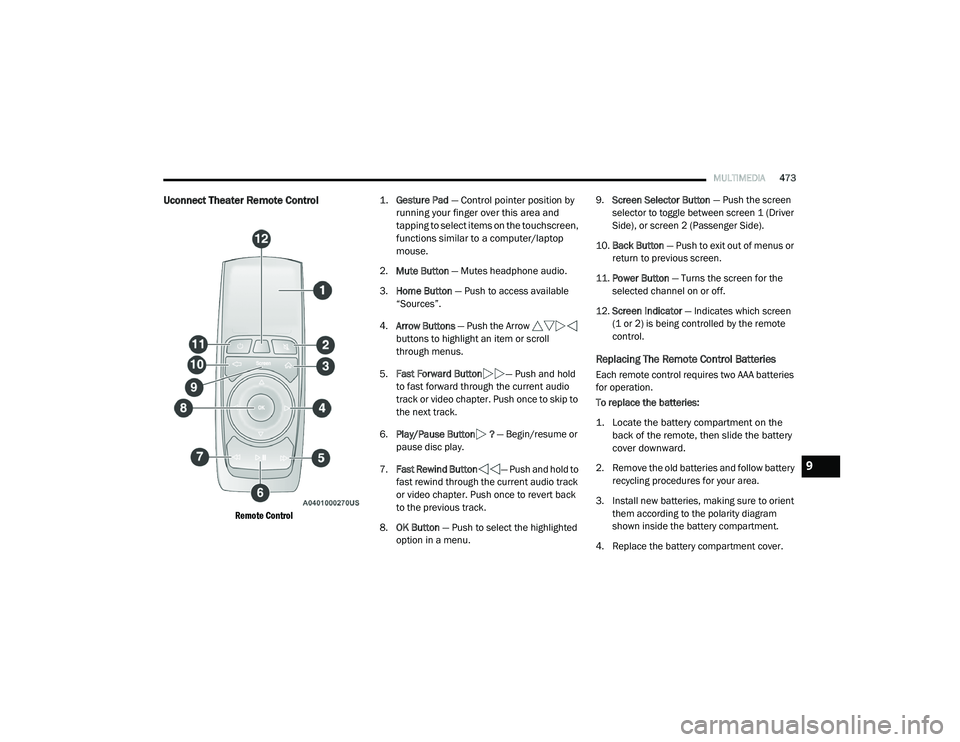
Uconnect Theater Remote Control
Remote Control
1.
Gesture Pad
— Control pointer position by
running your finger over this area and
tapping to select items on the touchscreen,
functions similar to a computer/laptop
mouse.
2. Mute Button — Mutes headphone audio.
3. Home Button — Push to access available
“Sources”.
4. Arrow Buttons — Push the Arrow
buttons to highlight an item or scroll
through menus.
5. Fast Forward Button — Push and hold
to fast forward through the current audio
track or video chapter. Push once to skip to
the next track.
6. Play/Pause Button ? — Begin/resume or
pause disc play.
7. Fast Rewind Button — Push and hold to
fast rewind through the current audio track
or video chapter. Push once to revert back
to the previous track.
8. OK Button — Push to select the highlighted
option in a menu. 9.
Screen Selector Button — Push the screen
selector to toggle between screen 1 (Driver
Side), or screen 2 (Passenger Side).
10. Back Button — Push to exit out of menus or
return to previous screen.
11. Power Button — Turns the screen for the
selected channel on or off.
12. Screen Indicator — Indicates which screen
(1 or 2) is being controlled by the remote
control.
Replacing The Remote Control Batteries
Each remote control requires two AAA batteries
for operation.
To replace the batteries:
1. Locate the battery compartment on the back of the remote, then slide the battery
cover downward.
2. Remove the old batteries and follow battery recycling procedures for your area.
3. Install new batteries, making sure to orient them according to the polarity diagram
shown inside the battery compartment.
4. Replace the battery compartment cover.
9
20_RU_OM_EN_US_t.book Page 473
Page 476 of 516
474MULTIMEDIA
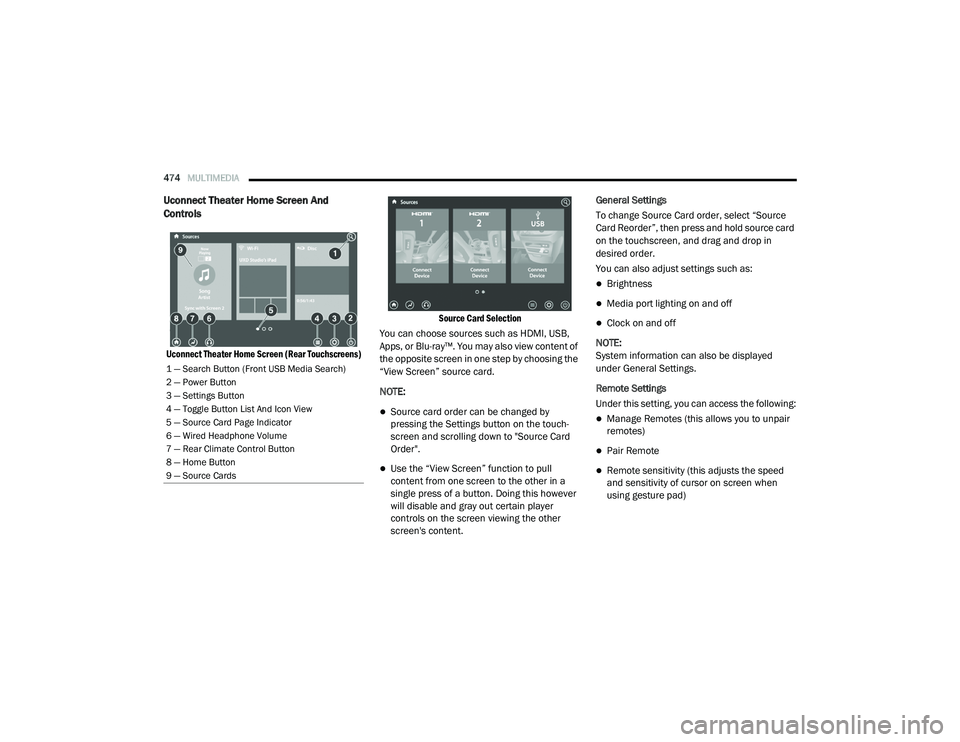
Uconnect Theater Home Screen And
Controls
Uconnect Theater Home Screen (Rear Touchscreens) Source Card Selection
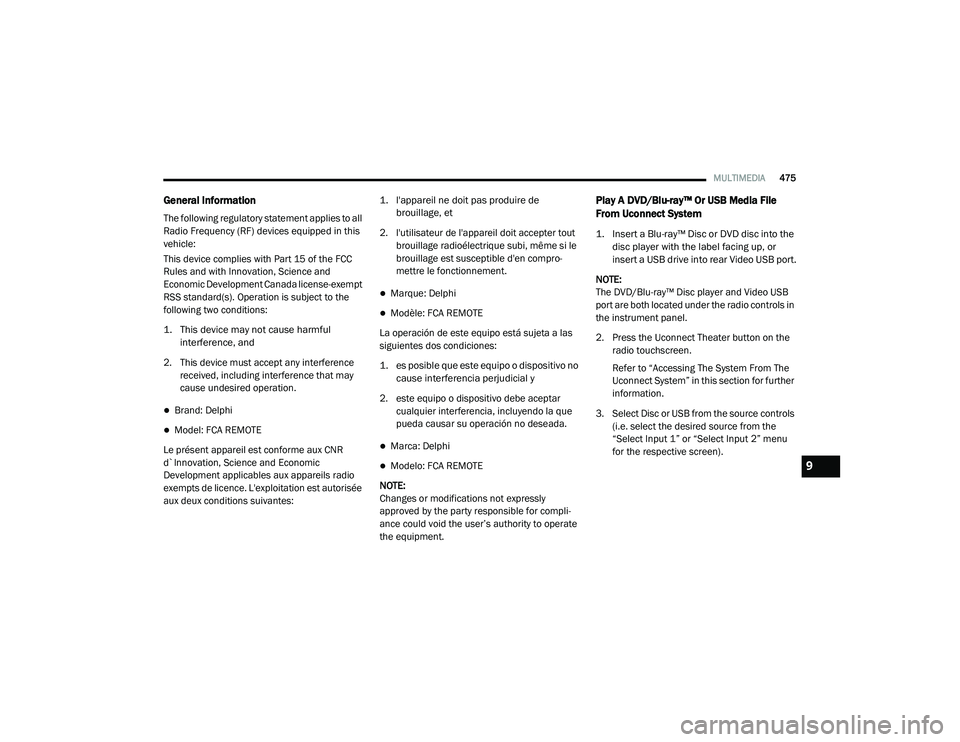
You can choose sources such as HDMI, USB,
Apps, or Blu-ray™. You may also view content of
the opposite screen in one step by choosing the
“View Screen” source card.
NOTE:
Source card order can be changed by
pressing the Settings button on the touch -
screen and scrolling down to "Source Card
Order".
Use the “View Screen” function to pull
content from one screen to the other in a
single press of a button. Doing this however
will disable and gray out certain player
controls on the screen viewing the other
screen's content. General Settings
To change Source Card order, select “Source
Card Reorder”, then press and hold source card
on the touchscreen, and drag and drop in
desired order.
You can also adjust settings such as:
Brightness
Media port lighting on and off
Clock on and off
NOTE:
System information can also be displayed
under General Settings.
Remote Settings
Under this setting, you can access the following:
Manage Remotes (this allows you to unpair
remotes)
Pair Remote
Remote sensitivity (this adjusts the speed
and sensitivity of cursor on screen when
using gesture pad)
1 — Search Button (Front USB Media Search)
2 — Power Button
3 — Settings Button
4 — Toggle Button List And Icon View
5 — Source Card Page Indicator
6 — Wired Headphone Volume
7 — Rear Climate Control Button
8 — Home Button
9 — Source Cards
20_RU_OM_EN_US_t.book Page 474
Page 477 of 516
MULTIMEDIA475
General Information
The following regulatory statement applies to all
Radio Frequency (RF) devices equipped in this
vehicle:
This device complies with Part 15 of the FCC
Rules and with Innovation, Science and
Economic Development Canada license-exempt
RSS standard(s). Operation is subject to the
following two conditions:
1. This device may not cause harmful
interference, and
2. This device must accept any interference received, including interference that may
cause undesired operation.
Brand: Delphi
Model: FCA REMOTE
Le présent appareil est conforme aux CNR
d`Innovation, Science and Economic
Development applicables aux appareils radio
exempts de licence. L'exploitation est autorisée
aux deux conditions suivantes:
1. l'appareil ne doit pas produire de
brouillage, et
2. l'utilisateur de l'appareil doit accepter tout brouillage radioélectrique subi, même si le
brouillage est susceptible d'en compro -
mettre le fonctionnement.
Marque: Delphi
Modèle: FCA REMOTE
La operación de este equipo está sujeta a las
siguientes dos condiciones:
1. es posible que este equipo o dispositivo no cause interferencia perjudicial y
2. este equipo o dispositivo debe aceptar cualquier interferencia, incluyendo la que
pueda causar su operación no deseada.
Marca: Delphi
Modelo: FCA REMOTE
NOTE:
Changes or modifications not expressly
approved by the party responsible for compli -
ance could void the user’s authority to operate
the equipment.
Play A DVD/Blu-ray™ Or USB Media File
From Uconnect System
1. Insert a Blu-ray™ Disc or DVD disc into the disc player with the label facing up, or
insert a USB drive into rear Video USB port.
NOTE:
The DVD/Blu-ray™ Disc player and Video USB
port are both located under the radio controls in
the instrument panel.
2. Press the Uconnect Theater button on the radio touchscreen.
Refer to “Accessing The System From The
Uconnect System” in this section for further
information.
3. Select Disc or USB from the source controls (i.e. select the desired source from the
“Select Input 1” or “Select Input 2” menu
for the respective screen).
9
20_RU_OM_EN_US_t.book Page 475