buttons CHRYSLER PACIFICA 2020 Workshop Manual
[x] Cancel search | Manufacturer: CHRYSLER, Model Year: 2020, Model line: PACIFICA, Model: CHRYSLER PACIFICA 2020Pages: 516, PDF Size: 28.69 MB
Page 464 of 516
462MULTIMEDIA
Depending on the maximum number of
entries downloaded, there may be a short
delay before the latest downloaded names
can be used. Until then, if available, the previ -
ously downloaded phonebook is available for
use.
Only the phonebook of the currently
connected mobile phone is accessible.
This downloaded phonebook cannot be
edited or deleted on the Uconnect Phone.
These can only be edited on the mobile
phone. The changes are transferred and
updated to Uconnect Phone on the next
phone connection.
Managing Your Favorites
There are two ways you can add an entry to your
Favorites.
1. After loading the mobile phonebook, press the Favorites button on the touchscreen,
and then press one of the +Add favorite
Contact buttons that appears on the list.
2. After loading the mobile phonebook, select
Contacts from the Phone main screen, and
then select the appropriate number. Press
the Down arrow symbol button next to the
selected number to display the options
pop-up. In the pop-up select Add to
Favorites.
NOTE:
If the Favorites list is full, you will be asked to
remove an existing favorite.
To Remove A Favorite
1. To remove a Favorite, select “Favorites” from the Phone main screen.
2. Next select the Down arrow icon next to the contact you want to remove from your
favorites. This will bring up the options for
that favorite contact.
3. Press Remove from Favs.
Phone Call Features
The following features can be accessed through
the Uconnect Phone if the feature(s) are
available and supported by Bluetooth® on your
mobile service plan. For example, if your mobile
service plan provides three-way calling, this
feature can be accessed through the Uconnect
Phone. Check with your mobile service provider
for the features that you have.
Ways To Initiate A Phone Call
Listed below are all the ways you can initiate a
phone call with Uconnect Phone.
Redial
Dial by pressing in the number
Voice Commands (Dial by Saying a Name,
Call by Saying a Phonebook Name, Redial or
Call Back)
Favorites
Mobile Phonebook
Recent Call Log
SMS Message Viewer
20_RU_OM_EN_US_t.book Page 462
Page 465 of 516
MULTIMEDIA463
Dial By Saying A Number
1. Push the VR button on your steering wheel
to begin.
2. After the “Listening” prompt and the following beep, say “Dial 151-123-4444.”
3. The Uconnect Phone will dial the number 151-123-4444.
Call By Saying A Phonebook Name
1. Push the VR button on your steering wheel to begin.
2. After the “Listening” prompt and the following beep, say “Call John Doe Mobile.”
3. The Uconnect Phone will dial the number associated with John Doe, or if there are
multiple numbers it will ask which number
you want to call for John Doe. Call Controls
The touchscreen allows you to control the
following call features:
Answer
End
Ignore
Hold/unhold
Mute/unmute
Transfer the call to/from the phone
Swap two active calls
Join two active calls together
Touch-Tone Number Entry
1. Press the Phone button on the touchscreen.
2. Press the Dial button on the touchscreen.
3. The Touch-Tone screen will be displayed.
4. Use the numbered buttons on the touchscreens to enter the number and
press Call. If your vehicle has two or three buttons on the
steering wheel (VR, Phone Send, and Phone
End) press the VR button to send a touch-tone
and say “Send 1234#” or you can say “Send
Voicemail Password” if Voicemail password is
stored in your mobile phonebook.
Recent Calls
You may browse a list of the most recent of each
of the following call types:
All Calls
Incoming Calls
Outgoing Calls
Missed Calls
These can be accessed by pressing the recent
calls button on the Phone main screen.
You can also push the VR button on your
steering wheel and say “Show my incoming
calls” from any screen and the incoming calls
will be displayed.
NOTE:
Incoming can also be replaced with “Outgoing,”
“Recent”, or “Missed.”
9
20_RU_OM_EN_US_t.book Page 463
Page 475 of 516
MULTIMEDIA473
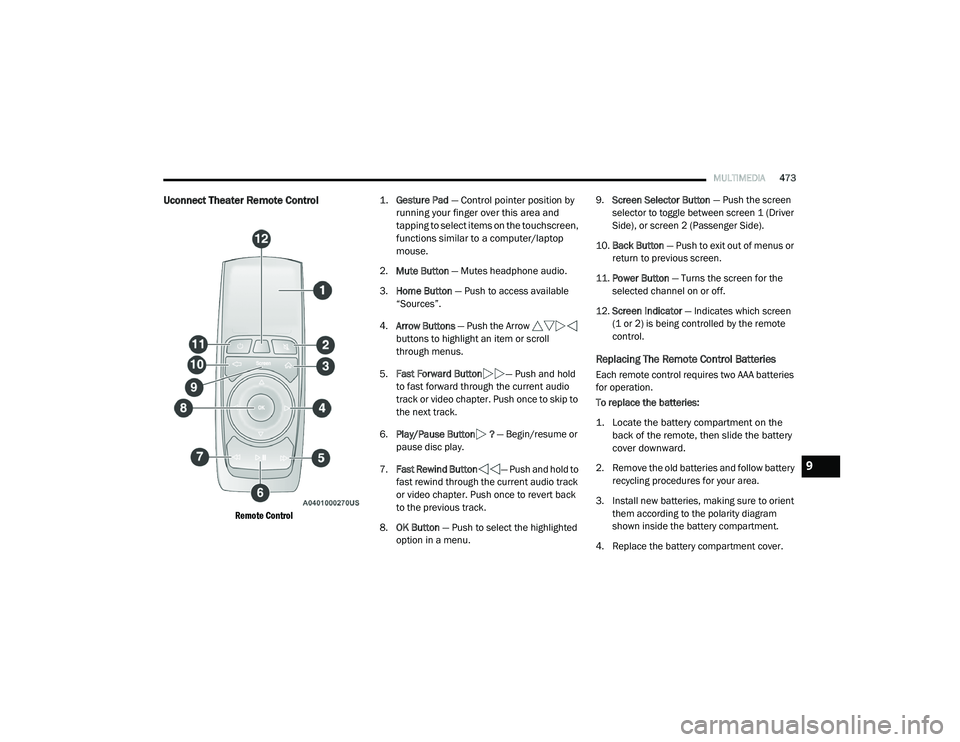
Uconnect Theater Remote Control
Remote Control
1.
Gesture Pad
— Control pointer position by
running your finger over this area and
tapping to select items on the touchscreen,
functions similar to a computer/laptop
mouse.
2. Mute Button — Mutes headphone audio.
3. Home Button — Push to access available
“Sources”.
4. Arrow Buttons — Push the Arrow
buttons to highlight an item or scroll
through menus.
5. Fast Forward Button — Push and hold
to fast forward through the current audio
track or video chapter. Push once to skip to
the next track.
6. Play/Pause Button ? — Begin/resume or
pause disc play.
7. Fast Rewind Button — Push and hold to
fast rewind through the current audio track
or video chapter. Push once to revert back
to the previous track.
8. OK Button — Push to select the highlighted
option in a menu. 9.
Screen Selector Button — Push the screen
selector to toggle between screen 1 (Driver
Side), or screen 2 (Passenger Side).
10. Back Button — Push to exit out of menus or
return to previous screen.
11. Power Button — Turns the screen for the
selected channel on or off.
12. Screen Indicator — Indicates which screen
(1 or 2) is being controlled by the remote
control.
Replacing The Remote Control Batteries
Each remote control requires two AAA batteries
for operation.
To replace the batteries:
1. Locate the battery compartment on the back of the remote, then slide the battery
cover downward.
2. Remove the old batteries and follow battery recycling procedures for your area.
3. Install new batteries, making sure to orient them according to the polarity diagram
shown inside the battery compartment.
4. Replace the battery compartment cover.
9
20_RU_OM_EN_US_t.book Page 473
Page 479 of 516
MULTIMEDIA477
NOTE:
To view video content on the radio screen, bring
the vehicle to a stop.
Disc Menu
When listening to a CD Audio disc, CD Data disc,
DVD, or Blu-ray™, pushing the remote control’s
Arrow buttons will navigate the cursor on the
rear touchscreen in the desired direction, on
whichever touchscreen is selected. The UP,
DOWN, LEFT, and RIGHT Arrow buttons, and the
OK and MENU buttons on the remote, along
with the corresponding buttons overlaid on the
radio touchscreen, can be used to navigate the
disc menu when it appears. This can be used to
select specific chapters in a movie, to navigate
special features, or to play the movie from the
menu.
NOTE:
Inserting a disc into the player will “auto play” the
disc if already in the “Disc" source menu on the
rear screens, and the disc supports “auto play.”
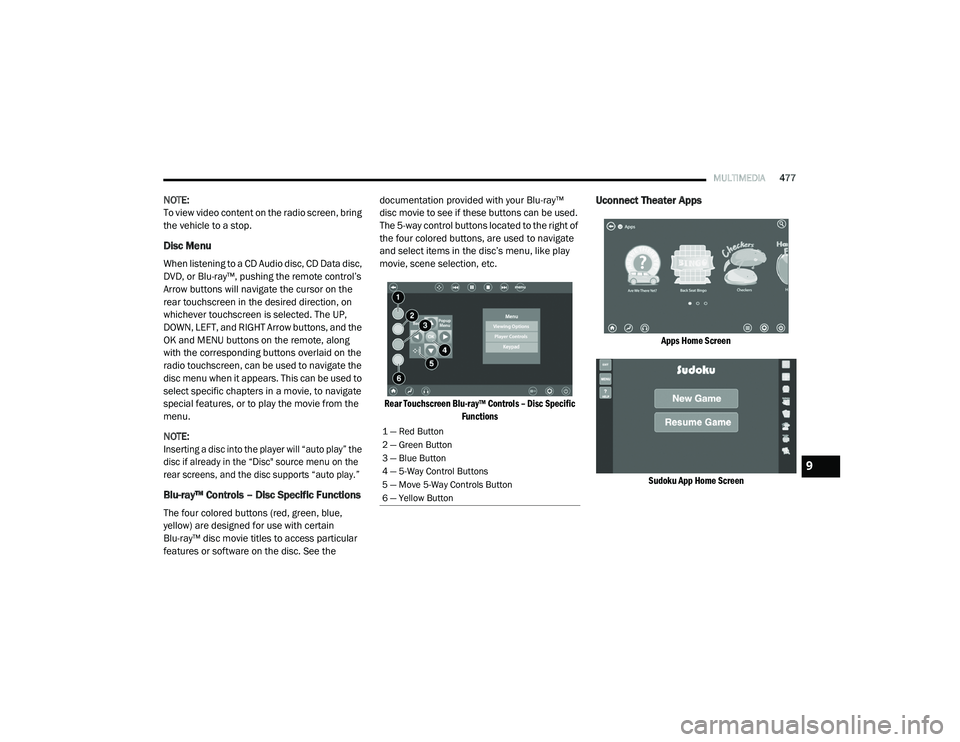
Blu-ray™ Controls – Disc Specific Functions
The four colored buttons (red, green, blue,
yellow) are designed for use with certain
Blu-ray™ disc movie titles to access particular
features or software on the disc. See the documentation provided with your Blu-ray™
disc movie to see if these buttons can be used.
The 5-way control buttons located to the right of
the four colored buttons, are used to navigate
and select items in the disc’s menu, like play
movie, scene selection, etc.
Rear Touchscreen Blu-ray™ Controls – Disc Specific Functions
Uconnect Theater Apps
Apps Home Screen
Sudoku App Home Screen
1 — Red Button
2 — Green Button
3 — Blue Button
4 — 5-Way Control Buttons
5 — Move 5-Way Controls Button
6 — Yellow Button
9
20_RU_OM_EN_US_t.book Page 477
Page 480 of 516
478MULTIMEDIA
Select the Apps source card to play pre-loaded
games. Pressing the Help button teaches users
how to play each game. Pick from games:
Back Seat Bingo
Checkers
Hanging Fruit
License Plate Game
Math Flash Cards
Solitaire
Sudoku
Tic Tac Toe
NOTE:
To exit a game, press Exit button then Back
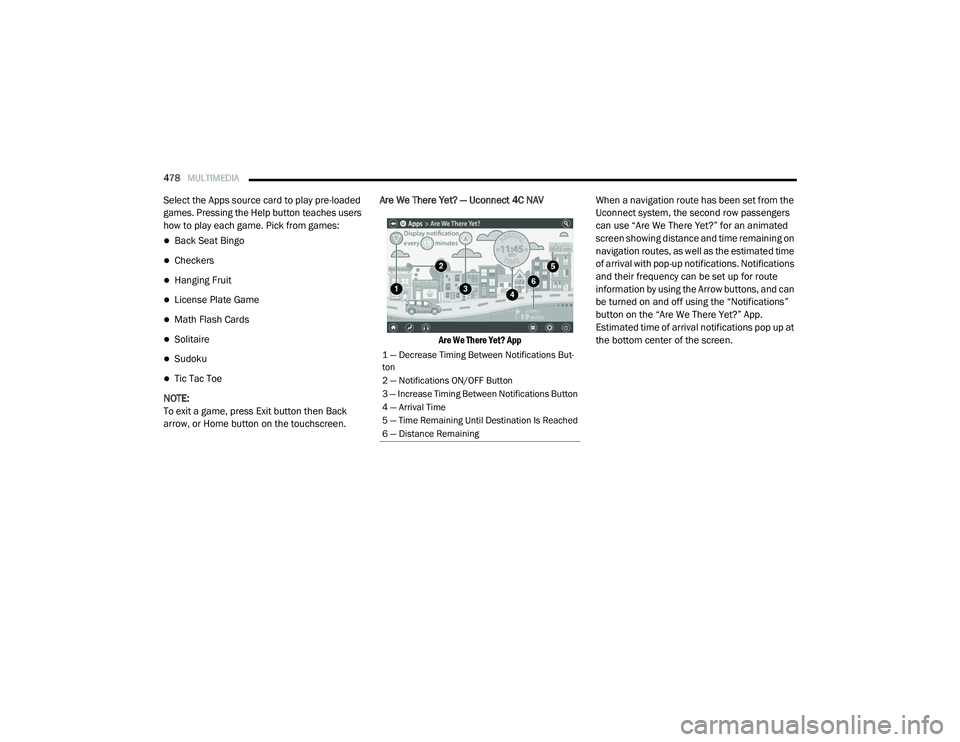
arrow, or Home button on the touchscreen. Are We There Yet? — Uconnect 4C NAV
Are We There Yet? App
When a navigation route has been set from the
Uconnect system, the second row passengers
can use “Are We There Yet?” for an animated
screen showing distance and time remaining on
navigation routes, as well as the estimated time
of arrival with pop-up notifications. Notifications
and their frequency can be set up for route
information by using the Arrow buttons, and can
be turned on and off using the “Notifications”
button on the “Are We There Yet?” App.
Estimated time of arrival notifications pop up at
the bottom center of the screen.
1 — Decrease Timing Between Notifications But
-
ton
2 — Notifications ON/OFF Button
3 — Increase Timing Between Notifications Button
4 — Arrival Time
5 — Time Remaining Until Destination Is Reached
6 — Distance Remaining
20_RU_OM_EN_US_t.book Page 478
Page 482 of 516
480MULTIMEDIA
Headphones Operation
The headphones receive two separate channels
of audio using an infrared transmitter from the
video screens.
If no audio is heard after increasing the volume
control, there are a number of things that can
be done to troubleshoot the issue:
Verify that the screen is turned on.
Check to see that the channel is not muted.
Make sure that the headphones are on.
Verify that the headphone channel selector
button is on the desired channel. This button
switches between the audio of screen 1 and
screen 2.
Install two new AAA type batteries in the
headphones.
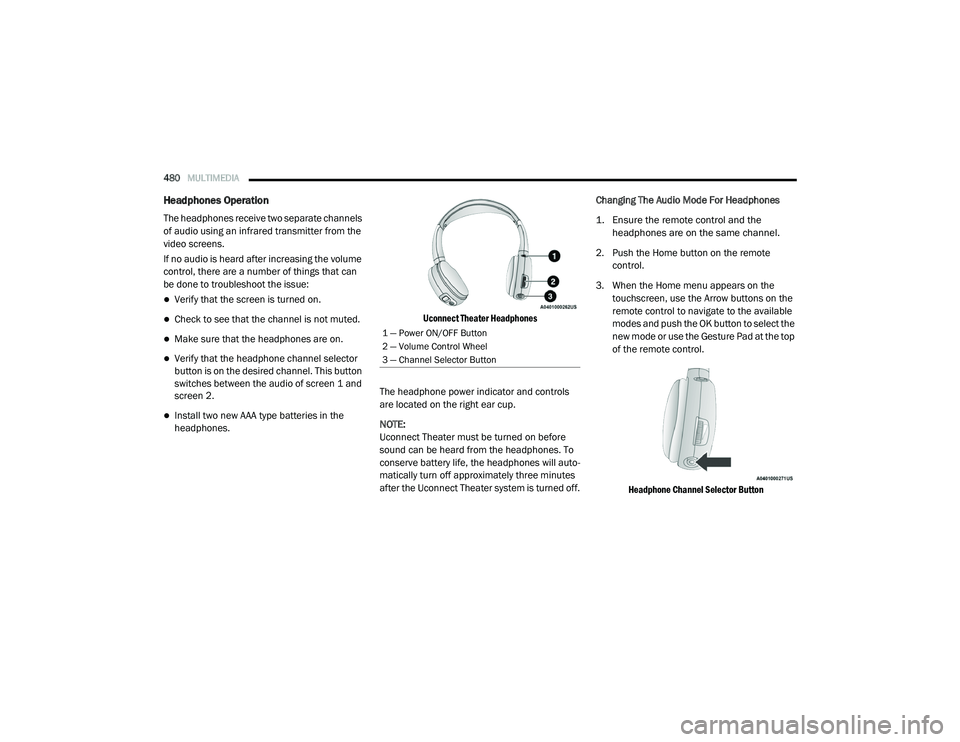
Uconnect Theater Headphones
The headphone power indicator and controls
are located on the right ear cup.
NOTE:
Uconnect Theater must be turned on before
sound can be heard from the headphones. To
conserve battery life, the headphones will auto -
matically turn off approximately three minutes
after the Uconnect Theater system is turned off. Changing The Audio Mode For Headphones
1. Ensure the remote control and the
headphones are on the same channel.
2. Push the Home button on the remote control.
3. When the Home menu appears on the touchscreen, use the Arrow buttons on the
remote control to navigate to the available
modes and push the OK button to select the
new mode or use the Gesture Pad at the top
of the remote control.
Headphone Channel Selector Button
1 — Power ON/OFF Button
2 — Volume Control Wheel
3 — Channel Selector Button
20_RU_OM_EN_US_t.book Page 480
Page 485 of 516
MULTIMEDIA483
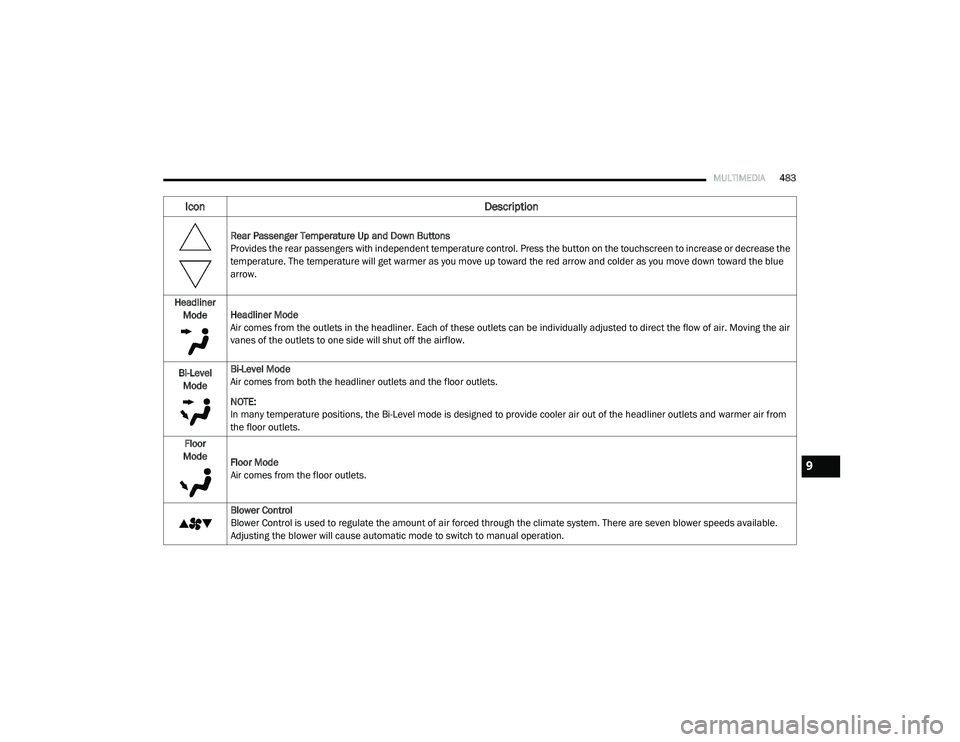
Rear Passenger Temperature Up and Down Buttons
Provides the rear passengers with independent temperature control. Press the button on the touchscreen to increase or decrease the
temperature. The temperature will get warmer as you move up toward the red arrow and colder as you move down toward the blue
arrow.
Headliner Mode Headliner Mode
Air comes from the outlets in the headliner. Each of these outlets can be individually adjusted to direct the flow of air. Moving the air
vanes of the outlets to one side will shut off the airflow.
Bi-Level Mode Bi-Level Mode
Air comes from both the headliner outlets and the floor outlets.
NOTE:
In many temperature positions, the Bi-Level mode is designed to provide cooler air out of the headliner outlets and warmer air from
the floor outlets.
Floor
Mode Floor Mode
Air comes from the floor outlets.
Blower Control
Blower Control is used to regulate the amount of air forced through the climate system. There are seven blower speeds available.
Adjusting the blower will cause automatic mode to switch to manual operation.
Icon Description
9
20_RU_OM_EN_US_t.book Page 483
Page 488 of 516
486MULTIMEDIA
format and is playable on other players. To help
avoid playback problems, use the following
guidelines when recording discs.
Open sessions are ignored. Only sessions
that are closed are playable.
For multi-session CDs that contain only
multiple CD-Audio sessions, the player will
renumber the tracks so each track number is
unique.
For CD Data (or CD-ROM) discs, always use
the ISO-9660 (Level 1 or Level 2), Joliet, or
Romeo format. Other formats (such as HFS,
or others) are not supported.
The player recognizes a maximum of 2000
files and 255 folders (includes the ROOT
folder) per CD-R and CD-RW disc.
Mixed media recordable DVD formats will
only play the Video_TS portion of the disc.
If you are still having trouble writing a disc that
is playable in the Blu-ray™ Disc player, check
with the disc recording software publisher for
more information about burning playable discs. The recommended method for labeling
recordable discs (CD-R, CD-RW, and DVD-R) is
with a permanent marker. Do not use adhesive
labels as they may separate from the disc,
become stuck, and cause permanent damage
to the DVD player.
Compressed Audio Files (MP3, WMA and AAC)
The Blu-ray™ Disc player is capable of playing
MP3 (MPEG-1 Audio Layer 3), WMA (Windows
Media Audio) files and AAC (Advanced Audio
Coding) from a CD Data disc (usually a CD-R or
CD-RW) or DVD Data disc (usually a DVD-R or
DVD-RW).
The Blu-ray™ Disc player always uses the file
extension to determine the audio format, so
MP3 files must always end with the extension
“.mp3” or “.MP3” and WMA files must always
end with the extension “.wma” or “.WMA”
and AAC files must always end with the exten
-
sion and “.aac” or “.AAC” or “m4a”. To
prevent incorrect playback, do not use these
extensions for any other types of files.
For MP3 files, ID3v1, ID3v2 tag data (such as
artist name, track title, album, etc.) are
supported.
Any file that is copy protected (such as those
downloaded from many online music stores)
will not play. The Blu-ray™ player will auto -
matically skip the file and begin playing the
next available file.
Other compression formats such as MP3 Pro,
Ogg Vorbis, and ATRAC3 will not play. The
Blu-ray™ player will automatically skip the file
and begin playing the next available file.
If you are creating your own files, the recom -
mended fixed bit rate for MP3 files is
between 32 and 320Kbps and the recom -
mended fixed bit rate for WMA files is
between 16 and 192Kbps. Variable bit rates
are also supported. For both formats, the
recommended sample rate is either 44.1kHz
or 48kHz.
To change the current file, use the remote
control “Seek Forward” or “Seek Back”
buttons to return to the start of the current or
previous file.
20_RU_OM_EN_US_t.book Page 486
Page 495 of 516
MULTIMEDIA493
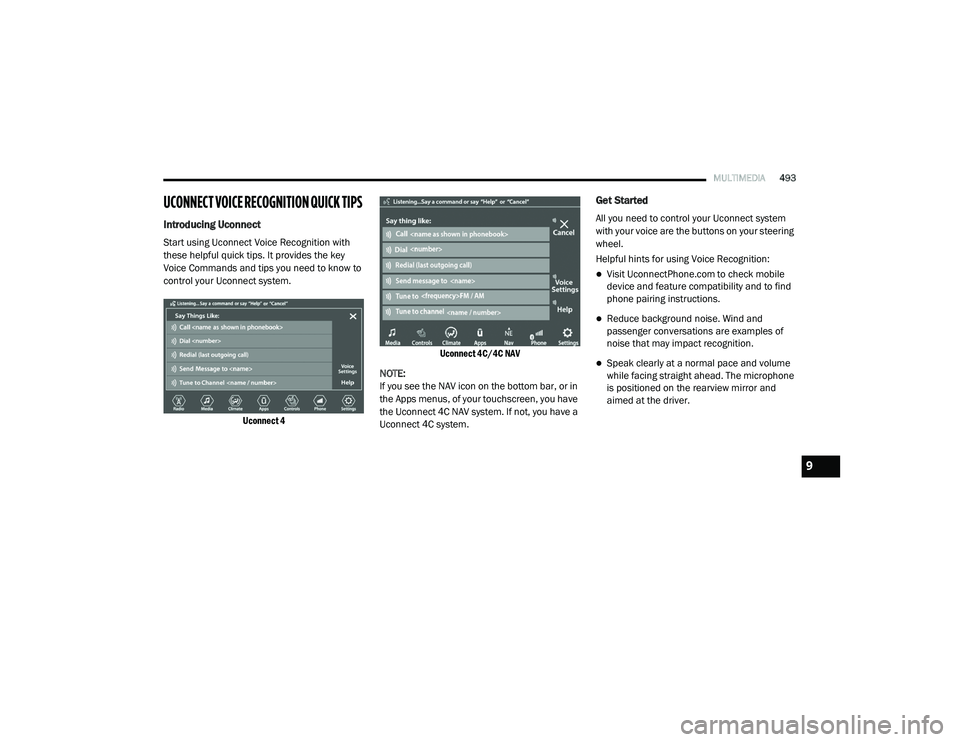
UCONNECT VOICE RECOGNITION QUICK TIPS
Introducing Uconnect
Start using Uconnect Voice Recognition with
these helpful quick tips. It provides the key
Voice Commands and tips you need to know to
control your Uconnect system.
Uconnect 4 Uconnect 4C/4C NAV
NOTE:
If you see the NAV icon on the bottom bar, or in
the Apps menus, of your touchscreen, you have
the Uconnect 4C NAV system. If not, you have a
Uconnect 4C system.
Get Started
All you need to control your Uconnect system
with your voice are the buttons on your steering
wheel.
Helpful hints for using Voice Recognition:
Visit UconnectPhone.com to check mobile
device and feature compatibility and to find
phone pairing instructions.
Reduce background noise. Wind and
passenger conversations are examples of
noise that may impact recognition.
Speak clearly at a normal pace and volume
while facing straight ahead. The microphone
is positioned on the rearview mirror and
aimed at the driver.
9
20_RU_OM_EN_US_t.book Page 493
Page 496 of 516
494MULTIMEDIA
Each time you give a Voice Command, you
must first push either the Voice Recognition
(VR) or Phone button, wait until after the
beep, then say your Voice Command.
You can interrupt the help message or
system prompts by pushing the VR or Phone
button and saying a Voice Command from
the current category.
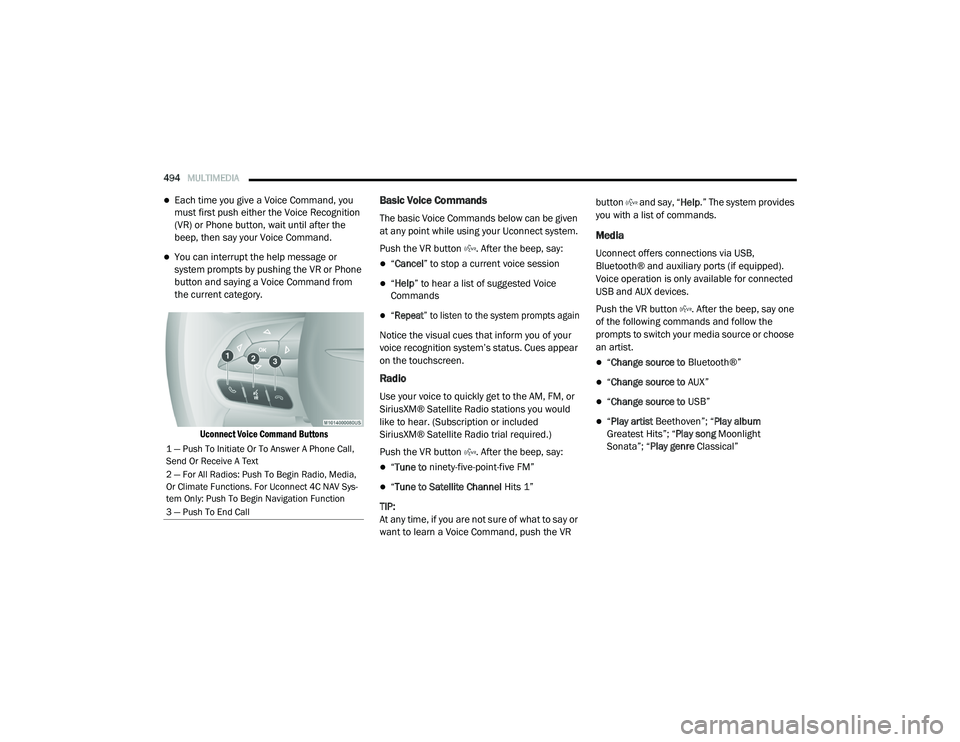
Uconnect Voice Command Buttons
Basic Voice Commands
The basic Voice Commands below can be given
at any point while using your Uconnect system.
Push the VR button . After the beep, say:
“Cancel ” to stop a current voice session
“Help ” to hear a list of suggested Voice
Commands
“Repeat ” to listen to the system prompts again
Notice the visual cues that inform you of your
voice recognition system’s status. Cues appear
on the touchscreen.
Radio
Use your voice to quickly get to the AM, FM, or
SiriusXM® Satellite Radio stations you would
like to hear. (Subscription or included
SiriusXM® Satellite Radio trial required.)
Push the VR button . After the beep, say:
“ Tune to ninety-five-point-five FM”
“Tune to Satellite Channel Hits 1”
TIP:
At any time, if you are not sure of what to say or
want to learn a Voice Command, push the VR button and say, “
Help.” The system provides
you with a list of commands.
Media
Uconnect offers connections via USB,
Bluetooth® and auxiliary ports (if equipped).
Voice operation is only available for connected
USB and AUX devices.
Push the VR button . After the beep, say one
of the following commands and follow the
prompts to switch your media source or choose
an artist.
“ Change source to Bluetooth®”
“Change source to AUX”
“Change source to USB”
“Play artist Beethoven”; “ Play album
Greatest Hits”; “ Play song Moonlight
Sonata”; “ Play genre Classical”
1 — Push To Initiate Or To Answer A Phone Call,
Send Or Receive A Text
2 — For All Radios: Push To Begin Radio, Media,
Or Climate Functions. For Uconnect 4C NAV Sys-
tem Only: Push To Begin Navigation Function
3 — Push To End Call
20_RU_OM_EN_US_t.book Page 494