buttons CHRYSLER PACIFICA 2020 Owner's Manual
[x] Cancel search | Manufacturer: CHRYSLER, Model Year: 2020, Model line: PACIFICA, Model: CHRYSLER PACIFICA 2020Pages: 516, PDF Size: 28.69 MB
Page 108 of 516
106GETTING TO KNOW YOUR VEHICLE
(Continued)
NOTE:
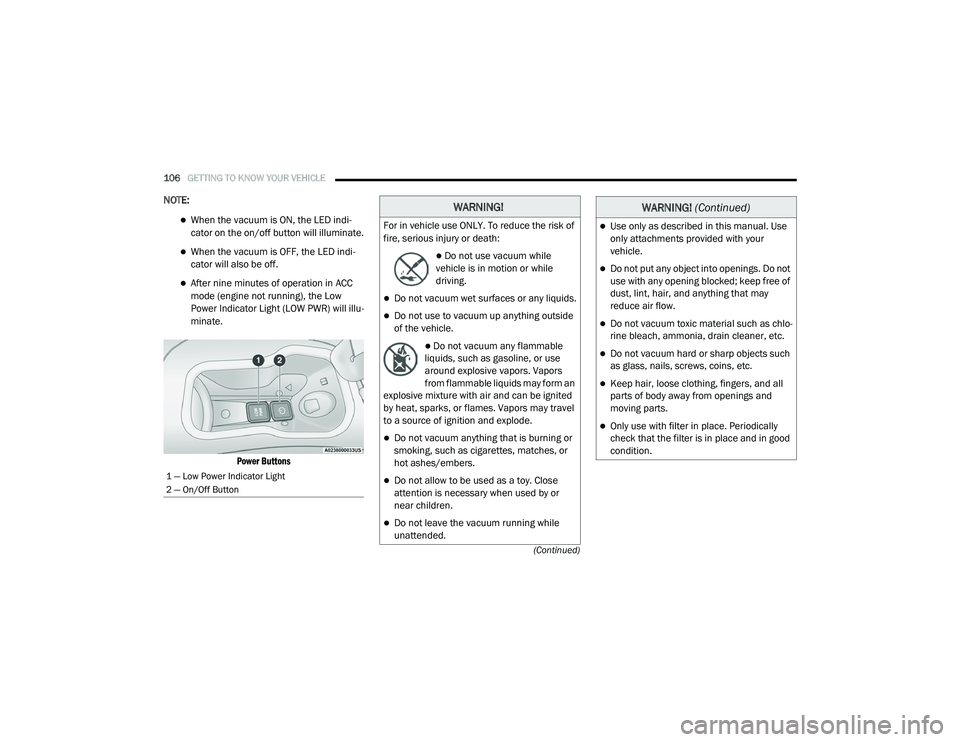
When the vacuum is ON, the LED indi-
cator on the on/off button will illuminate.
When the vacuum is OFF, the LED indi -
cator will also be off.
After nine minutes of operation in ACC
mode (engine not running), the Low
Power Indicator Light (LOW PWR) will illu -
minate.
Power Buttons
1 — Low Power Indicator Light
2 — On/Off Button
WARNING!
For in vehicle use ONLY. To reduce the risk of
fire, serious injury or death:
Do not use vacuum while
vehicle is in motion or while
driving.
Do not vacuum wet surfaces or any liquids.
Do not use to vacuum up anything outside
of the vehicle.
Do not vacuum any flammable
liquids, such as gasoline, or use
around explosive vapors. Vapors
from flammable liquids may form an
explosive mixture with air and can be ignited
by heat, sparks, or flames. Vapors may travel
to a source of ignition and explode.
Do not vacuum anything that is burning or
smoking, such as cigarettes, matches, or
hot ashes/embers.
Do not allow to be used as a toy. Close
attention is necessary when used by or
near children.
Do not leave the vacuum running while
unattended.
Use only as described in this manual. Use
only attachments provided with your
vehicle.
Do not put any object into openings. Do not
use with any opening blocked; keep free of
dust, lint, hair, and anything that may
reduce air flow.
Do not vacuum toxic material such as chlo -
rine bleach, ammonia, drain cleaner, etc.
Do not vacuum hard or sharp objects such
as glass, nails, screws, coins, etc.
Keep hair, loose clothing, fingers, and all
parts of body away from openings and
moving parts.
Only use with filter in place. Periodically
check that the filter is in place and in good
condition.
WARNING! (Continued)
20_RU_OM_EN_US_t.book Page 106
Page 111 of 516
GETTING TO KNOW YOUR VEHICLE109
GARAGE DOOR OPENER — IF EQUIPPED
HomeLink® replaces up to three hand-held
transmitters that operate devices such as
garage door openers, motorized gates, lighting
or home security systems. The HomeLink® unit
is powered by your vehicle’s 12 Volt battery.
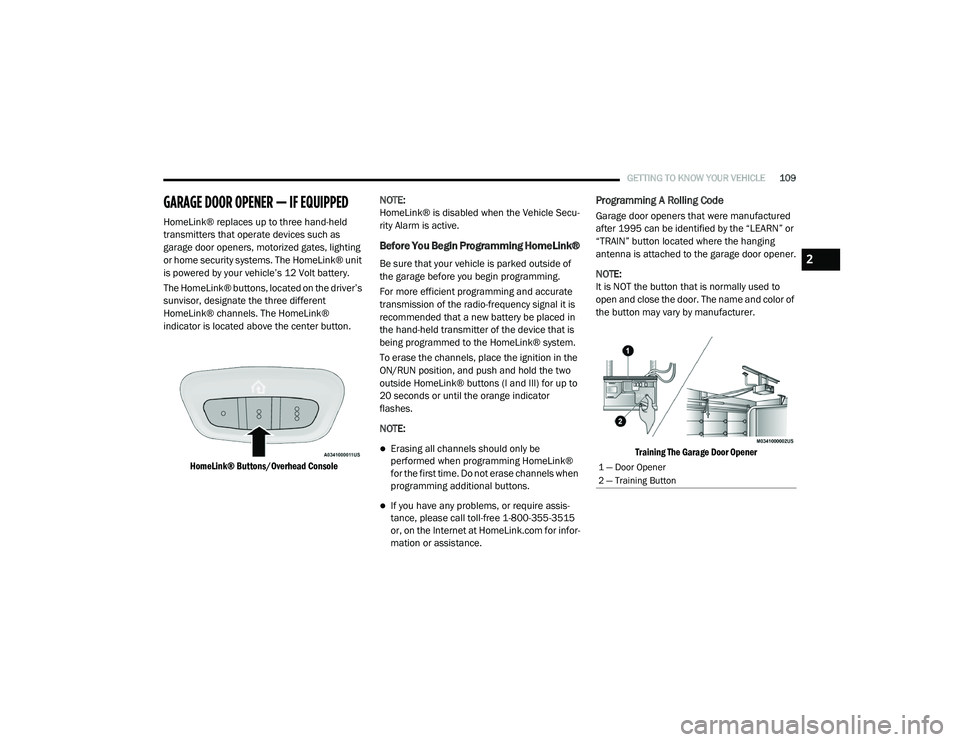
The HomeLink® buttons, located on the driver’s
sunvisor, designate the three different
HomeLink® channels. The HomeLink®
indicator is located above the center button.
HomeLink® Buttons/Overhead Console
NOTE:
HomeLink® is disabled when the Vehicle Secu
-
rity Alarm is active.
Before You Begin Programming HomeLink®
Be sure that your vehicle is parked outside of
the garage before you begin programming.
For more efficient programming and accurate
transmission of the radio-frequency signal it is
recommended that a new battery be placed in
the hand-held transmitter of the device that is
being programmed to the HomeLink® system.
To erase the channels, place the ignition in the
ON/RUN position, and push and hold the two
outside HomeLink® buttons (I and III) for up to
20 seconds or until the orange indicator
flashes.
NOTE:
Erasing all channels should only be
performed when programming HomeLink®
for the first time. Do not erase channels when
programming additional buttons.
If you have any problems, or require assis -
tance, please call toll-free 1-800-355-3515
or, on the Internet at HomeLink.com for infor -
mation or assistance.
Programming A Rolling Code
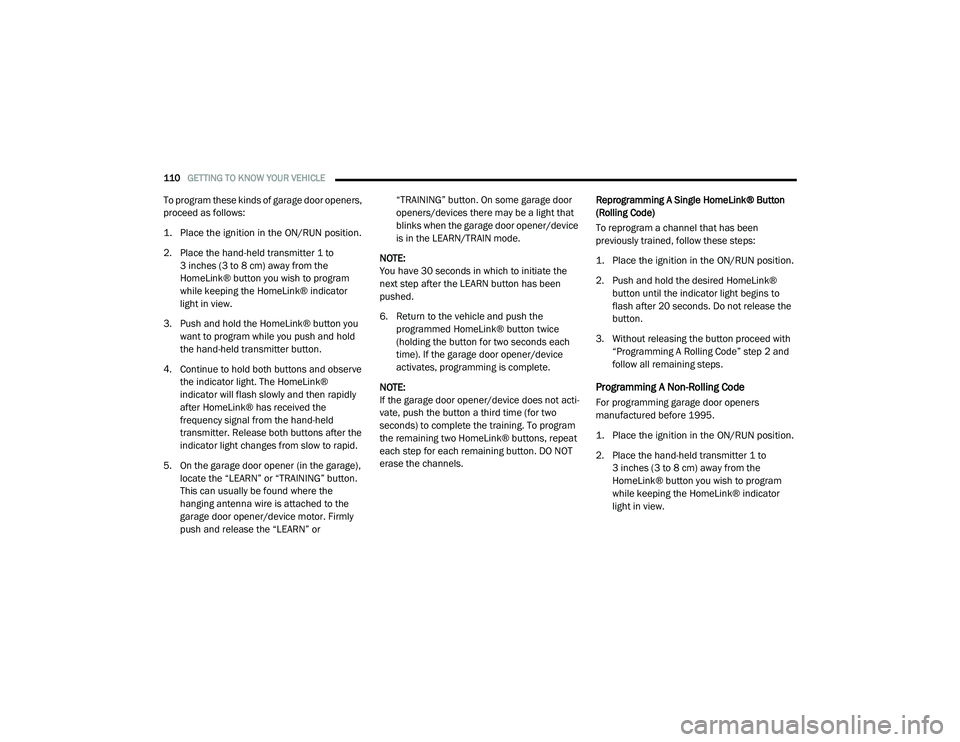
Garage door openers that were manufactured
after 1995 can be identified by the “LEARN” or
“TRAIN” button located where the hanging
antenna is attached to the garage door opener.
NOTE:
It is NOT the button that is normally used to
open and close the door. The name and color of
the button may vary by manufacturer.
Training The Garage Door Opener
1 — Door Opener
2 — Training Button
2
20_RU_OM_EN_US_t.book Page 109
Page 112 of 516
110GETTING TO KNOW YOUR VEHICLE
To program these kinds of garage door openers,
proceed as follows:
1. Place the ignition in the ON/RUN position.
2. Place the hand-held transmitter 1 to
3 inches (3 to 8 cm) away from the
HomeLink® button you wish to program
while keeping the HomeLink® indicator
light in view.
3. Push and hold the HomeLink® button you want to program while you push and hold
the hand-held transmitter button.
4. Continue to hold both buttons and observe the indicator light. The HomeLink®
indicator will flash slowly and then rapidly
after HomeLink® has received the
frequency signal from the hand-held
transmitter. Release both buttons after the
indicator light changes from slow to rapid.
5. On the garage door opener (in the garage), locate the “LEARN” or “TRAINING” button.
This can usually be found where the
hanging antenna wire is attached to the
garage door opener/device motor. Firmly
push and release the “LEARN” or “TRAINING” button. On some garage door
openers/devices there may be a light that
blinks when the garage door opener/device
is in the LEARN/TRAIN mode.
NOTE:
You have 30 seconds in which to initiate the
next step after the LEARN button has been
pushed.
6. Return to the vehicle and push the programmed HomeLink® button twice
(holding the button for two seconds each
time). If the garage door opener/device
activates, programming is complete.
NOTE:
If the garage door opener/device does not acti -
vate, push the button a third time (for two
seconds) to complete the training. To program
the remaining two HomeLink® buttons, repeat
each step for each remaining button. DO NOT
erase the channels. Reprogramming A Single HomeLink® Button
(Rolling Code)
To reprogram a channel that has been
previously trained, follow these steps:
1. Place the ignition in the ON/RUN position.
2. Push and hold the desired HomeLink®
button until the indicator light begins to
flash after 20 seconds. Do not release the
button.
3. Without releasing the button proceed with “Programming A Rolling Code” step 2 and
follow all remaining steps.
Programming A Non-Rolling Code
For programming garage door openers
manufactured before 1995.
1. Place the ignition in the ON/RUN position.
2. Place the hand-held transmitter 1 to 3 inches (3 to 8 cm) away from the
HomeLink® button you wish to program
while keeping the HomeLink® indicator
light in view.
20_RU_OM_EN_US_t.book Page 110
Page 113 of 516
GETTING TO KNOW YOUR VEHICLE111
3. Press and hold the HomeLink® button you
want to program while you press and hold
the hand-held transmitter button.
4. Continue to hold both buttons and observe the indicator light. The HomeLink®
indicator will flash slowly and then rapidly
after HomeLink® has received the
frequency signal from the hand-held
transmitter. Release both buttons after the
indicator light changes from slow to rapid.
5. Press and hold the programmed HomeLink® button and observe the
indicator light.
If the indicator light stays on constantly,
programming is complete and the garage
door/device should activate when the
HomeLink® button is pressed.
To program the two remaining Home -
Link® buttons, repeat each step for each
remaining button. DO NOT erase the
channels. Reprogramming A Single HomeLink® Button
(Non-Rolling Code)
To reprogram a channel that has been
previously trained, follow these steps:
1. Place the ignition in the ON/RUN position.
2. Press and hold the desired HomeLink®
button until the indicator light begins to flash
after 20 seconds. Do not release the button.
3. Without releasing the button, proceed with “Programming A Non-Rolling Code” step 2
and follow all remaining steps.
Canadian/Gate Operator Programming
For programming transmitters in Canada/
United States that require the transmitter
signals to “time-out” after several seconds of
transmission.
Canadian radio frequency laws require
transmitter signals to time-out (or quit) after
several seconds of transmission – which may
not be long enough for HomeLink® to pick up
the signal during programming. Similar to this
Canadian law, some U.S. gate operators are
designed to time-out in the same manner. It may be helpful to unplug the device during the
cycling process to prevent possible overheating
of the garage door or gate motor.
1. Place the ignition in the ON/RUN position.
2. Place the hand-held transmitter 1 to
3 inches (3 to 8 cm) away from the
HomeLink® button you wish to program
while keeping the HomeLink® indicator
light in view.
3. Continue to press and hold the HomeLink® button, while you press and release
(“cycle”) your hand-held transmitter every
two seconds until HomeLink® has
successfully accepted the frequency signal.
The indicator light will flash slowly and then
rapidly when fully trained.
4. Watch for the HomeLink® indicator to change flash rates. When it changes, it is
programmed. It may take up to 30 seconds
or longer in rare cases. The garage door
may open and close while you are
programming.
5. Press and hold the programmed HomeLink® button and observe the
indicator light.
2
20_RU_OM_EN_US_t.book Page 111
Page 114 of 516
112GETTING TO KNOW YOUR VEHICLE
(Continued)
NOTE:
If the indicator light stays on constantly,
programming is complete and the garage
door/device should activate when the
HomeLink® button is pressed.
To program the two remaining Home-
Link® buttons, repeat each step for each
remaining button. DO NOT erase the
channels.
If you unplugged the garage door opener/
device for programming, plug it back in at this
time.
Reprogramming A Single HomeLink® Button
(Canadian/Gate Operator)
To reprogram a channel that has been
previously trained, follow these steps:
1. Place the ignition in the ON/RUN position.
2. Press and hold the desired HomeLink® button until the indicator light begins to
flash after 20 seconds. Do not release the
button.
3. Without releasing the button, proceed with “Canadian/Gate Operator Programming”
step 2 and follow all remaining steps.
Using HomeLink®
To operate, push and release the programmed
HomeLink® button. Activation will now occur for
the programmed device (i.e. garage door
opener, gate operator, security system, entry
door lock, home/office lighting, etc.). The
hand-held transmitter of the device may also be
used at any time.
Security
It is advised to erase all channels before you sell
or turn in your vehicle.
To do this, push and hold the two outside
buttons for 20 seconds until the orange
indicator flashes. Note that all channels will be
erased. Individual channels cannot be erased.
The HomeLink Universal Transceiver is disabled
when the Vehicle Security Alarm is active.
Troubleshooting Tips
If you are having trouble programming
HomeLink®, here are some of the most
common solutions:
Replace the battery in the garage door
opener hand-held transmitter.
Push the LEARN button on the garage door
opener to complete the training for a Rolling
Code.
Did you unplug the device for programming
and remember to plug it back in?
If you have any problems, or require assistance,
please call toll-free 1-800-355-3515 or, on the
Internet at HomeLink.com for information or
assistance.
WARNING!
Vehicle exhaust contains carbon monoxide,
a dangerous gas. Do not run your vehicle in
the garage while programming the trans -
ceiver. Exhaust gas can cause serious
injury or death.
20_RU_OM_EN_US_t.book Page 112
Page 130 of 516
128GETTING TO KNOW YOUR INSTRUMENT PANEL
Instrument Cluster Display Location And
Controls
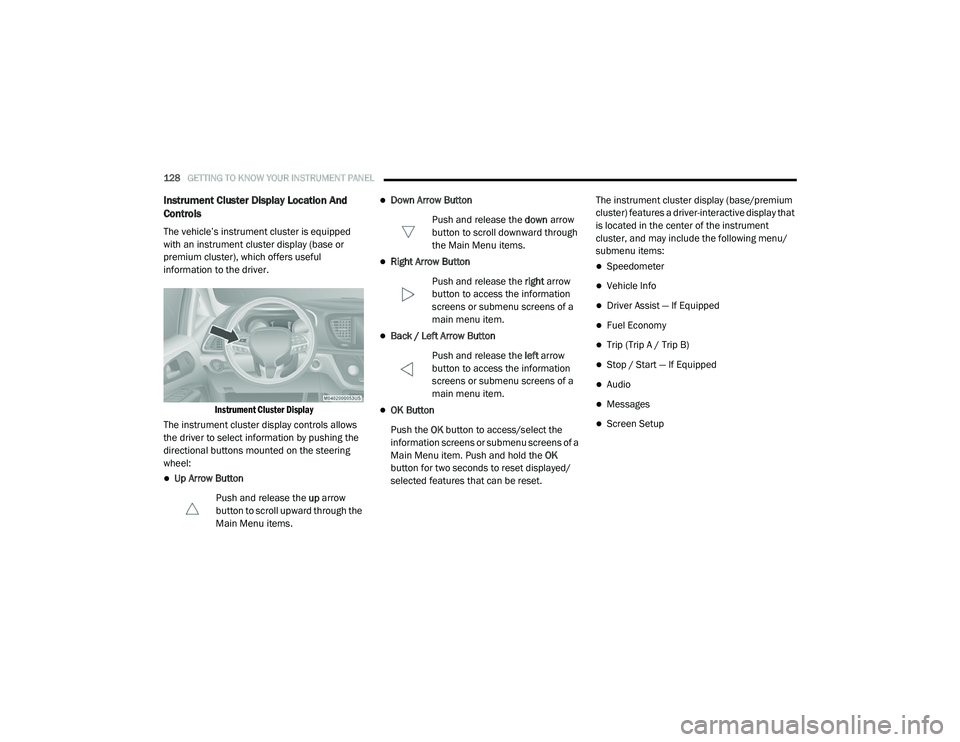
The vehicle’s instrument cluster is equipped
with an instrument cluster display (base or
premium cluster), which offers useful
information to the driver.
Instrument Cluster Display
The instrument cluster display controls allows
the driver to select information by pushing the
directional buttons mounted on the steering
wheel:
Up Arrow Button
Push and release the up arrow
button to scroll upward through the
Main Menu items.
Down Arrow Button
Push and release the down arrow
button to scroll downward through
the Main Menu items.
Right Arrow Button
Push and release the right arrow
button to access the information
screens or submenu screens of a
main menu item.
Back / Left Arrow Button
Push and release the left arrow
button to access the information
screens or submenu screens of a
main menu item.
OK Button
Push the OK button to access/select the
information screens or submenu screens of a
Main Menu item. Push and hold the OK
button for two seconds to reset displayed/
selected features that can be reset. The instrument cluster display (base/premium
cluster) features a driver-interactive display that
is located in the center of the instrument
cluster, and may include the following menu/
submenu items:
Speedometer
Vehicle Info
Driver Assist — If Equipped
Fuel Economy
Trip (Trip A / Trip B)
Stop / Start — If Equipped
Audio
Messages
Screen Setup
20_RU_OM_EN_US_t.book Page 128
Page 133 of 516
GETTING TO KNOW YOUR INSTRUMENT PANEL131
Instrument Cluster Display Menu Items
The instrument cluster display can be used to
view the main menu items for several features.
Use the up and down arrow buttons to scroll
through the driver interactive display menu
options until the desired menu is reached.
NOTE:
The instrument cluster display menu items
display in the center of the instrument cluster.
Menu items may vary depending on your vehicle
features.
Refer to “Instrument Cluster Display” in this
chapter for further information.
Speedometer
Push and release the up or down arrow button
until Speedometer is highlighted in the
instrument cluster display. Push and release the
OK button to toggle between MPH and km/h.
Vehicle Info
Push and release the up or down arrow button
until Vehicle Info is highlighted in the
instrument cluster display. Push the left or right
arrow button to scroll through the following
information submenus:
Tire Pressure
If tire pressure is OK for all tires, a vehicle ICON
is displayed with tire pressure values in each
corner of the ICON.
If one or more tires have low pressure, “Inflate
Tire To XX” is displayed with the vehicle ICON,
and the tire pressure values in each corner of
the ICON with the pressure value of the low tire
displayed in a different color than the other tire
pressure value.
If the Tire Pressure system requires service,
“Service Tire Pressure System” is displayed.
Tire PSI is an information only function and
cannot be reset. Refer to “Tire Pressure
Monitoring System (TPMS)” under “Safety” for
further information. Coolant Temp
Displays the actual coolant temperature.
Transmission Temp
Displays the actual transmission temperature.
Oil Temp
Displays the actual oil temperature.
Oil Pressure
Displays the actual oil pressure.
Battery Voltage
Displays the actual battery voltage.
Engine Hours — If Equipped
Displays the number of hours of engine
operation.
Oil Life
Displays the remaining engine oil life as a
percentage.
3
20_RU_OM_EN_US_t.book Page 131
Page 134 of 516
132GETTING TO KNOW YOUR INSTRUMENT PANEL
To reset the Oil Life, you must hold the OK
button. The “Hold OK to Reset” instruction will
be displayed at all times, but the following
conditions will need to be met in order to reset
Oil Life:
The ignition must be in the ON/RUN position
If the conditions are met, holding the OK button
will reset the gauge and the numeric display will
return to 100%.
If the conditions are not met, a popup message
will display for five seconds, describing the
required conditions, and then the Oil Life screen
will reappear.
Driver Assist
Push and release the up or down arrow button
until the Driver Assist display icon is highlighted
in the instrument cluster display. Refer to
“Adaptive Cruise Control (ACC) — If Equipped” in
“Starting And Operating” for further
information.
Fuel Economy
Push and release the up or down arrow button
until the Fuel Economy Menu item is highlighted
in the instrument cluster display. The Fuel
Economy Menu will display the following:
Two submenu pages that can be toggled
between using the left and right arrow
buttons; one with Current Value displayed
and one without the Current Value displayed:
Average Fuel Economy (MPG, L/100 km,
or km/L)
Range To Empty (miles or km)
Current Fuel Economy (MPG, L/100 km,
or km/L)
The Max and Min values will correspond
to the particular engine requirements
Hold OK to reset average fuel economy infor -
mation.
Trip Info
Push and release the up or down arrow button
until the Trip Menu item is highlighted in the
instrument cluster display. Push the left or right
arrow button to scroll through the Trip A and Trip
B submenus. The Trip information will display
the following:
Distance
Average Fuel Economy
Elapsed Time
Hold the OK button to reset feature information.
Stop / Start – If Equipped
Push and release the up or down arrow button
until the Stop/Start menu title is displayed in
the instrument cluster display.
Audio
Push and release the up or down arrow button
until the Audio Menu displays in the instrument
cluster display.
20_RU_OM_EN_US_t.book Page 132
Page 239 of 516
STARTING AND OPERATING237
while exiting. These interior warnings will
occur regardless of whether the key fob
remains in the vehicle or is removed.
For the exterior of the vehicle, the horn will
sound three times if the fob is removed from
the vehicle and the vehicle is in the “READY”
mode.
Please consider this feature when intentionally
running the vehicle for extended periods of time
over one hour. To restart the vehicle, follow the
normal vehicle starting process.
NOTE:
If the vehicle is left in the ACC or RUN (engine
not running) position and the transmission is in
PARK, the system will automatically time out
(shut down) after an initial 30 minutes of inac -
tivity, followed by the additional amount of time
for power accessory delay selected in the radio
settings menu. Once the vehicle times out, it will
switch to the OFF position.
To Manually Turn On The Stop/Start System
After turning off the Stop/Start system, push
the Stop/Start OFF switch again (located on the
instrument panel). The light on the switch will
turn off.
System Malfunction
If there is a malfunction in the Stop/Start
system, the system will not shut down the
engine. A “SERVICE STOP/START SYSTEM”
message will appear in the instrument cluster
display and the Stop/Start telltale will remain
yellow. Refer to “Instrument Cluster Display” in
“Getting To Know Your Instrument Panel” for
further information.
If the “SERVICE STOP/START SYSTEM”
message appears in the instrument cluster
display, have the system checked by an
authorized dealer.
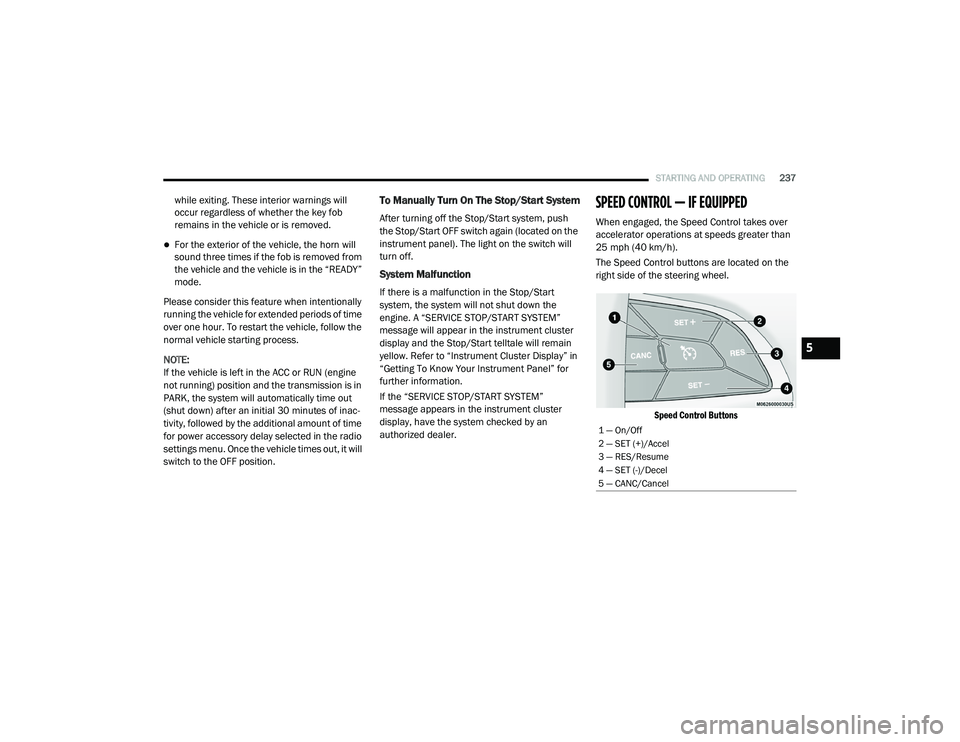
SPEED CONTROL — IF EQUIPPED
When engaged, the Speed Control takes over
accelerator operations at speeds greater than
25 mph (40 km/h).
The Speed Control buttons are located on the
right side of the steering wheel.
Speed Control Buttons
1 — On/Off
2 — SET (+)/Accel
3 — RES/Resume
4 — SET (-)/Decel
5 — CANC/Cancel
5
20_RU_OM_EN_US_t.book Page 237
Page 242 of 516
240STARTING AND OPERATING
(Continued)
NOTE:
If the sensor does not detect a vehicle ahead
of you, ACC will maintain a fixed set speed.
If the ACC sensor detects a vehicle ahead, ACC
will apply limited braking or accelerate (not to
exceed the original set speed) automatically to
maintain a preset following distance, while
matching the speed of the vehicle ahead.
The Cruise Control system has two control
modes:
Adaptive Cruise Control mode for maintaining
an appropriate distance between vehicles.
Normal (Fixed Speed) Cruise Control mode for
cruising at a constant preset speed. For addi -
tional information, refer to “Normal (Fixed
Speed) Cruise Control Mode” in this section.
NOTE:
Normal (Fixed Speed) Cruise Control will not
react to preceding vehicles. Always be aware of
the mode selected.
You can change the mode by using the Cruise
Control buttons. The two control modes
function differently. Always confirm which mode
is selected.
WARNING!
Adaptive Cruise Control (ACC) is a conve -
nience system. It is not a substitute for
active driver involvement. It is always the
driver’s responsibility to be attentive of
road, traffic, and weather conditions,
vehicle speed, distance to the vehicle
ahead; and, most importantly, brake opera -
tion to ensure safe operation of the vehicle
under all road conditions. Your complete
attention is always required while driving to
maintain safe control of your vehicle.
Failure to follow these warnings can result
in a collision and death or serious personal
injury.
The ACC system:
Does not react to pedestrians,
oncoming vehicles, and stationary
objects (e.g., a stopped vehicle in a
traffic jam or a disabled vehicle).
Cannot take street, traffic, and weather
conditions into account, and may be
limited upon adverse sight distance
conditions.
Does not always fully recognize
complex driving conditions, which can
result in wrong or missing distance
warnings.
Will bring the vehicle to a complete stop
while following a target vehicle and hold
the vehicle for approximately 3 minutes
in the stop position. If the target vehicle
does not start moving within 3 minutes
the parking brake will be activated, and
the ACC system will be cancelled.
You should switch off the ACC system:
When driving in fog, heavy rain, heavy
snow, sleet, heavy traffic, and complex
driving situations (i.e., in highway construc -
tion zones).
When entering a turn lane or highway off
ramp; when driving on roads that are
winding, icy, snow-covered, slippery, or
have steep uphill or downhill slopes.
When towing a trailer up or down steep
slopes.
When circumstances do not allow safe
driving at a constant speed.
WARNING! (Continued)
20_RU_OM_EN_US_t.book Page 240