steering wheel CHRYSLER PACIFICA 2020 Workshop Manual
[x] Cancel search | Manufacturer: CHRYSLER, Model Year: 2020, Model line: PACIFICA, Model: CHRYSLER PACIFICA 2020Pages: 516, PDF Size: 28.69 MB
Page 426 of 516
424MULTIMEDIA
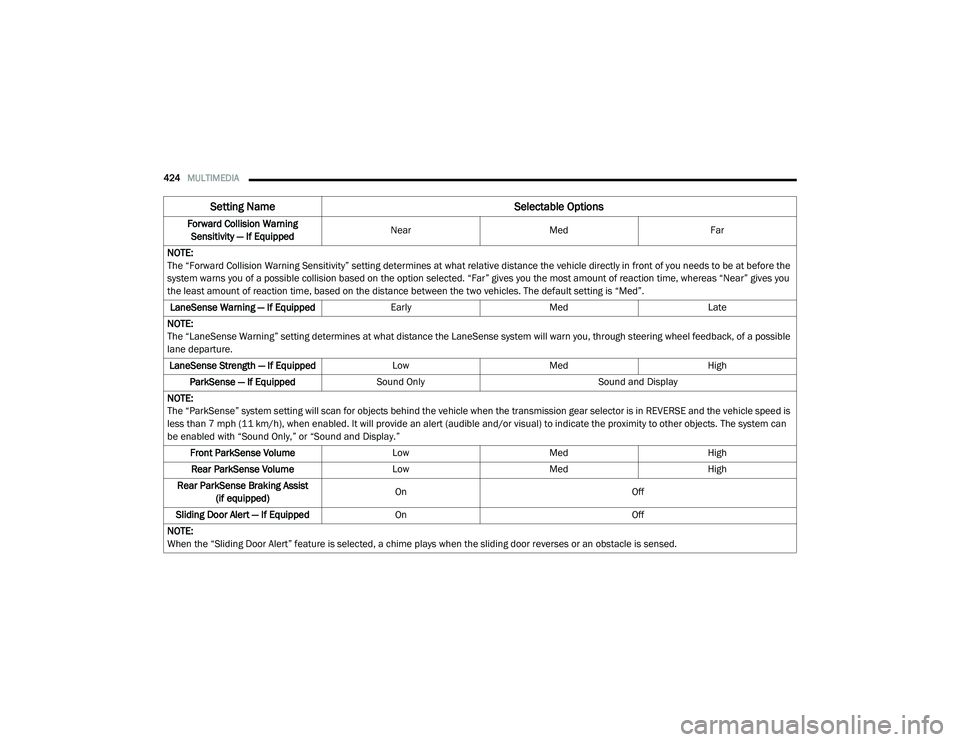
Forward Collision Warning
Sensitivity — If Equipped Near
Med Far
NOTE:
The “Forward Collision Warning Sensitivity” setting determines at what relative distance the vehicle directly in front of you needs to be at before the
system warns you of a possible collision based on the option selected. “Far” gives you the most amount of reaction time, whereas “Near” gives you
the least amount of reaction time, based on the distance between the two vehicles. The default setting is “Med”. LaneSense Warning — If Equipped EarlyMedLate
NOTE:
The “LaneSense Warning” setting determines at what distance the LaneSense system will warn you, through steering wheel feedback, of a possible
lane departure. LaneSense Strength — If Equipped LowMed High
ParkSense — If Equipped Sound Only Sound and Display
NOTE:
The “ParkSense” system setting will scan for objects behind the vehicle when the transmission gear selector is in REVERSE and the vehicle speed is
less than 7 mph (11 km/h), when enabled. It will provide an alert (audible and/or visual) to indicate the proximity to other objects. The system can
be enabled with “Sound Only,” or “Sound and Display.” Front ParkSense Volume LowMed High
Rear ParkSense Volume LowMed High
Rear ParkSense Braking Assist (if equipped) On
Off
Sliding Door Alert — If Equipped On Off
NOTE:
When the “Sliding Door Alert” feature is selected, a chime plays when the sliding door reverses or an obstacle is sensed.
Setting Name Selectable Options
20_RU_OM_EN_US_t.book Page 424
Page 428 of 516
426MULTIMEDIA
Mirrors & Wipers
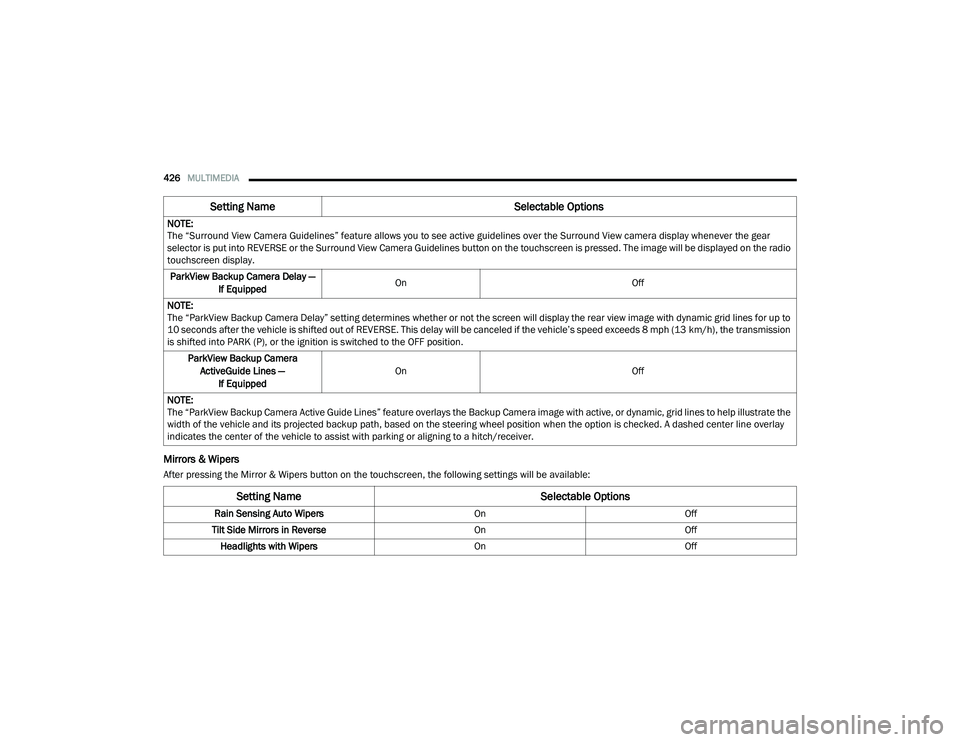
After pressing the Mirror & Wipers button on the touchscreen, the following settings will be available:NOTE:
The “Surround View Camera Guidelines” feature allows you to see active guidelines over the Surround View camera display whenever the gear
selector is put into REVERSE or the Surround View Camera Guidelines button on the touchscreen is pressed. The image will be displayed on the radio
touchscreen display.
ParkView Backup Camera Delay — If Equipped On
Off
NOTE:
The “ParkView Backup Camera Delay” setting determines whether or not the screen will display the rear view image with dynamic grid lines for up to
10 seconds after the vehicle is shifted out of REVERSE. This delay will be canceled if the vehicle’s speed exceeds 8 mph (13 km/h), the transmission
is shifted into PARK (P), or the ignition is switched to the OFF position.
ParkView Backup Camera ActiveGuide Lines — If Equipped On
Off
NOTE:
The “ParkView Backup Camera Active Guide Lines” feature overlays the Backup Camera image with active, or dynamic, grid lines to help illustrate the
width of the vehicle and its projected backup path, based on the steering wheel position when the option is checked. A dashed center line overlay
indicates the center of the vehicle to assist with parking or aligning to a hitch/receiver.
Setting Name Selectable Options
Setting NameSelectable Options
Rain Sensing Auto WipersOnOff
Tilt Side Mirrors in Reverse OnOff
Headlights with Wipers OnOff
20_RU_OM_EN_US_t.book Page 426
Page 432 of 516
430MULTIMEDIA
Seats & Comfort — If Equipped
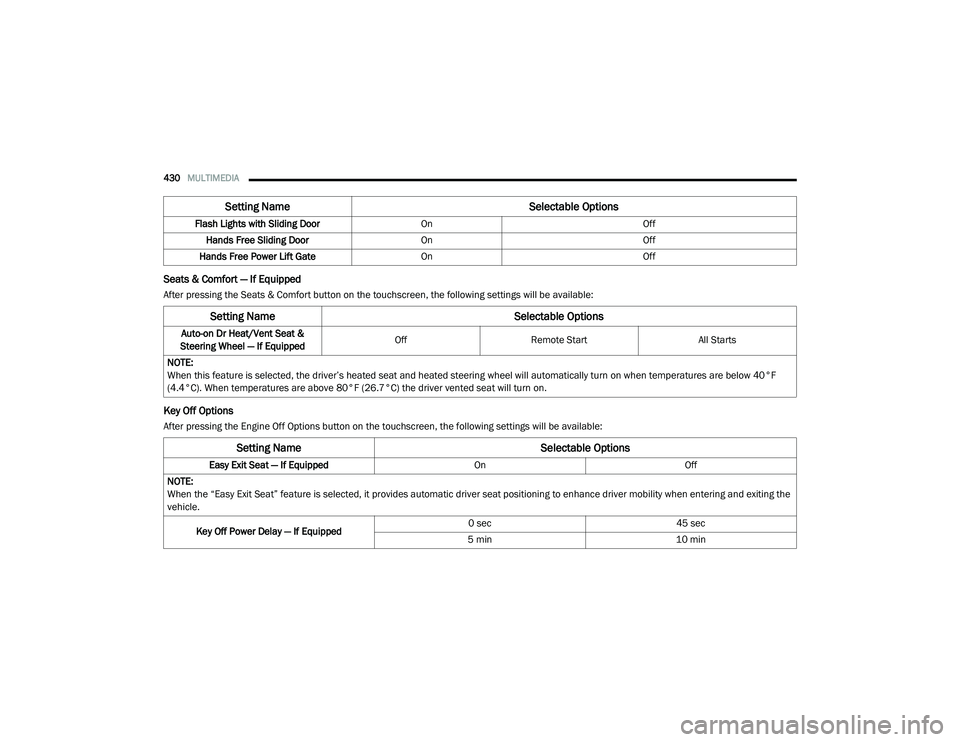
After pressing the Seats & Comfort button on the touchscreen, the following settings will be available:
Key Off Options
After pressing the Engine Off Options button on the touchscreen, the following settings will be available:Flash Lights with Sliding Door
OnOff
Hands Free Sliding Door On Off
Hands Free Power Lift Gate On Off
Setting Name Selectable Options
Setting NameSelectable Options
Auto-on Dr Heat/Vent Seat &
Steering Wheel — If Equipped Off
Remote Start All Starts
NOTE:
When this feature is selected, the driver’s heated seat and heated steering wheel will automatically turn on when temperatures are below 40°F
(4.4°C). When temperatures are above 80°F (26.7°C) the driver vented seat will turn on.
Setting Name Selectable Options
Easy Exit Seat — If EquippedOnOff
NOTE:
When the “Easy Exit Seat” feature is selected, it provides automatic driver seat positioning to enhance driver mobility when entering and exiting the
vehicle.
Key Off Power Delay — If Equipped 0 sec
45 sec
5 min 10 min
20_RU_OM_EN_US_t.book Page 430
Page 438 of 516
436MULTIMEDIA
SAFETY AND GENERAL INFORMATION
Safety Guidelines
Ensure that all persons read this manual
carefully before using the system. It contains
instructions on how to use the system in a safe
and effective manner.
Do NOT attach any object to the touchscreen.
Doing so can result in damage to the
touchscreen.
Please read and follow these safety
precautions. Failure to do so may result in injury
or property damage.
Glance at the screen only when safe to do so.
If prolonged viewing of the screen is required,
park in a safe location and set the parking
brake.
Stop use immediately if a problem occurs.
Failure to do so may cause injury or damage
to the product. Return it to an authorized
dealer for repair.
Ensure the volume level of the system is set
to a level that still allows you to hear outside
traffic and emergency vehicles.
Safe Usage Of The Uconnect System
Read all instructions in this manual carefully
before using your system to ensure proper
usage.
The Uconnect system is a sophisticated elec -
tronic device. Do not let young children use
the system.
Permanent hearing loss may occur if you play
your music or the system at loud volumes.
Exercise caution when setting the volume on
the system.
Keep drinks, rain and other sources of mois -
ture away from the system. Besides damage
to the system, moisture can cause electric
shocks as with any electronic device. NOTE:
Many features of this system are speed depen
-
dent. For your own safety, it is not possible to
use some of the touchscreen features while the
vehicle is in motion.
Exposure To Radio Frequency Radiation
The internal wireless radio operates within
guidelines found in radio frequency safety
standards and recommendations, which reflect
the consensus of the scientific community. The
radio manufacturer believes the internal
wireless radio is safe for use by consumers. The
level of energy emitted is far less than the
electromagnetic energy emitted by wireless
devices such as mobile phones. However, the
use of wireless radios may be restricted in some
situations or environments, such as aboard
airplanes. If you are unsure of restrictions, you
are encouraged to ask for authorization before
turning on the wireless radio.
WARNING!
ALWAYS drive safely with your hands on the
steering wheel. You have full responsibility
and assume all risks related to the use of the
Uconnect features and applications in this
vehicle. Only use Uconnect when it is safe to
do so. Failure to do so may result in an
accident involving serious injury or death.
20_RU_OM_EN_US_t.book Page 436
Page 440 of 516
438MULTIMEDIA
5. Controls
Press the Controls button on the touch -
screen to adjust the heated and vented
seats or heated steering wheel (If
Equipped).
6. Phone Press the Phone button on the touchscreen
to access the Uconnect Phone feature.
7. Settings Press the Settings button on the touch -
screen to access the Uconnect Settings
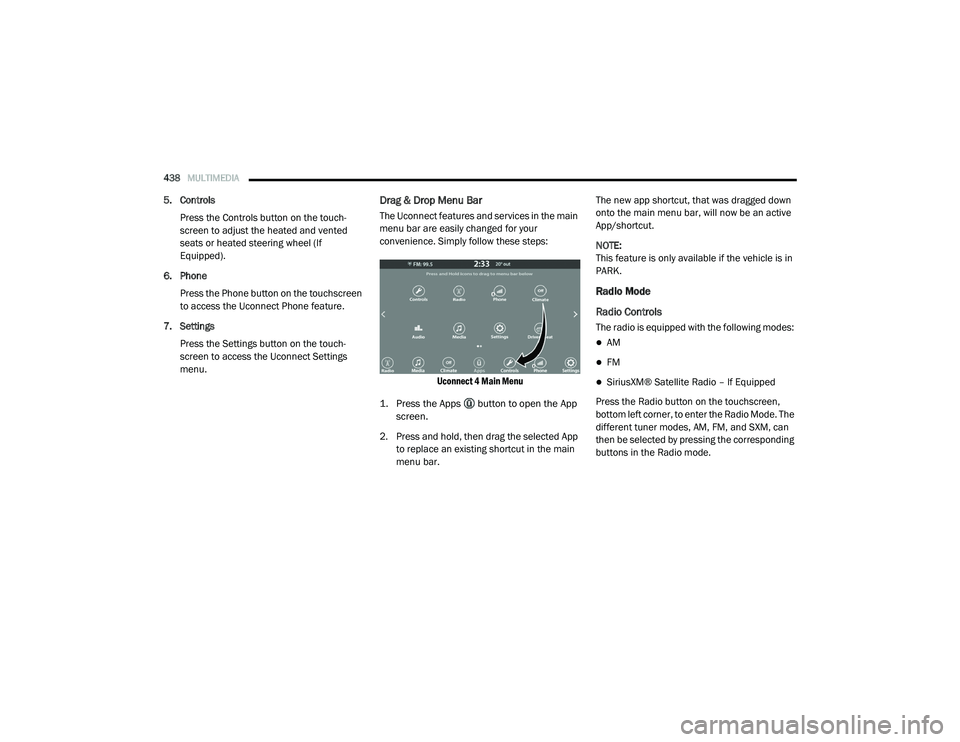
menu.Drag & Drop Menu Bar
The Uconnect features and services in the main
menu bar are easily changed for your
convenience. Simply follow these steps:
Uconnect 4 Main Menu
1. Press the Apps button to open the App screen.
2. Press and hold, then drag the selected App to replace an existing shortcut in the main
menu bar. The new app shortcut, that was dragged down
onto the main menu bar, will now be an active
App/shortcut.
NOTE:
This feature is only available if the vehicle is in
PARK.
Radio Mode
Radio Controls
The radio is equipped with the following modes:
AM
FM
SiriusXM® Satellite Radio – If Equipped
Press the Radio button on the touchscreen,
bottom left corner, to enter the Radio Mode. The
different tuner modes, AM, FM, and SXM, can
then be selected by pressing the corresponding
buttons in the Radio mode.
20_RU_OM_EN_US_t.book Page 438
Page 441 of 516
MULTIMEDIA439
Volume/Power Control
Push the Volume/Power control knob to turn off
the screen and mute the radio. Push the
Volume/Power control knob a second time to
turn the screen back on and unmute the radio.
The electronic volume control turns
continuously (360 degrees) in either direction,
without stopping. Turning the Volume/Power
control knob clockwise increases the volume,
and counterclockwise decreases it.
Tune/Scroll Control
When the audio system is turned on, the sound
will be set at the same volume level as last
played.
Turn the rotary Tune/Scroll control knob
clockwise to increase or counterclockwise to
decrease the radio station frequency. Push the
Enter/Browse button to choose a selection.
Screen Close
The X button on the touchscreen at the top right,
provides a means to close the Direct Tune
Screen. The Direct Tune Screen also auto
closes if no activity occurs within a few seconds. Seek And Direct Tune Functions
The Seek Up and Down functions are activated
by pressing the double arrow buttons on the
touchscreen to the right and left of the radio
station display or by pressing the left Steering
Wheel Audio Control up or down.
Seek Up
Press and release the Seek Up button on the
touchscreen to tune the radio to the next
listenable station or channel. During a Seek Up
function, if the radio reaches the starting station
after passing through the entire band two times,
the radio will stop at the station where it began.
Fast Seek Up
Press and hold the Seek Up button on the
touchscreen to advance the radio through the
available stations or channels at a faster rate. The
radio stops at the next available station or channel
when the button on the touchscreen is released.
Seek Down
Press and release the Seek Down button on the
touchscreen to tune the radio to the next
listenable station or channel. During a Seek
Down function, if the radio reaches the starting
station after passing through the entire band
two times, the radio will stop at the station
where it began.Fast Seek Down
Press and hold the Seek Down button on the
touchscreen to advance the radio through the
available stations or channel at a faster rate.
The radio stops at the next available station or
channel when the button on the touchscreen is
released.
Direct Tune
Press the Tune button on the touchscreen
located at the bottom of the radio screen. The
Direct Tune button on the touchscreen is
available in AM, FM, and SXM radio modes and
can be used to direct tune the radio to a desired
station or channel.
Press the available number button on the
touchscreen to begin selecting a desired
station. Once a number has been entered, any
numbers that are no longer possible (stations
that cannot be reached) will become
deactivated/grayed out.
Undo
You can backspace an entry by pressing the
bottom left on the touchscreen.
OK
Once the last digit of a station has been
entered, press the OK button, and the Direct
9
20_RU_OM_EN_US_t.book Page 439
Page 451 of 516
MULTIMEDIA449
Media Mode
Press the Media button on the touchscreen to
select the desired audio source: Bluetooth®.
Tracks
If the Bluetooth® device supports this feature,
press the Tracks button on the touchscreen to
display a pop-up with the Song List. The
currently playing song is indicated by a red
arrow and lines above and below the song title.
Pressing the Tracks button on the touchscreen
while the pop-up is displayed will close the
pop-up.
Audio
Refer to Radio Mode for adjusting the audio
settings.
Android Auto™ & Apple CarPlay® — If
Equipped
Android Auto™
NOTE:
Feature availability depends on your carrier and
mobile phone manufacturer. Some Android
Auto™ features may or may not be available in
every region and/or language. Android Auto™ is a feature of your Uconnect
system, and your Android™ 5.0 Lollipop or
higher powered smartphone with a data plan,
that allows you to project your smartphone and
a number of its apps onto the touchscreen radio
display. Android Auto™ automatically brings you
useful information, and organizes it into simple
cards that appear just when they are needed.
Android Auto™ can be used with Google's
best-in-class speech technology, the steering
wheel controls, the knobs and buttons on your
radio faceplate, and the radio display’s
touchscreen to control many of your apps. To
use Android Auto™, follow the following
procedure:
1. Download the Android Auto™ app from the
Google Play store on your
Android™-powered smartphone.
2. Connect your Android™-powered smartphone to one of the media USB ports
in your vehicle. If the Android Auto™ app
was not downloaded, the first time you plug
your device in, the app will begin to
download. NOTE:
Be sure to use the factory-provided USB cable
that came with your phone, as aftermarket
cables may not work.
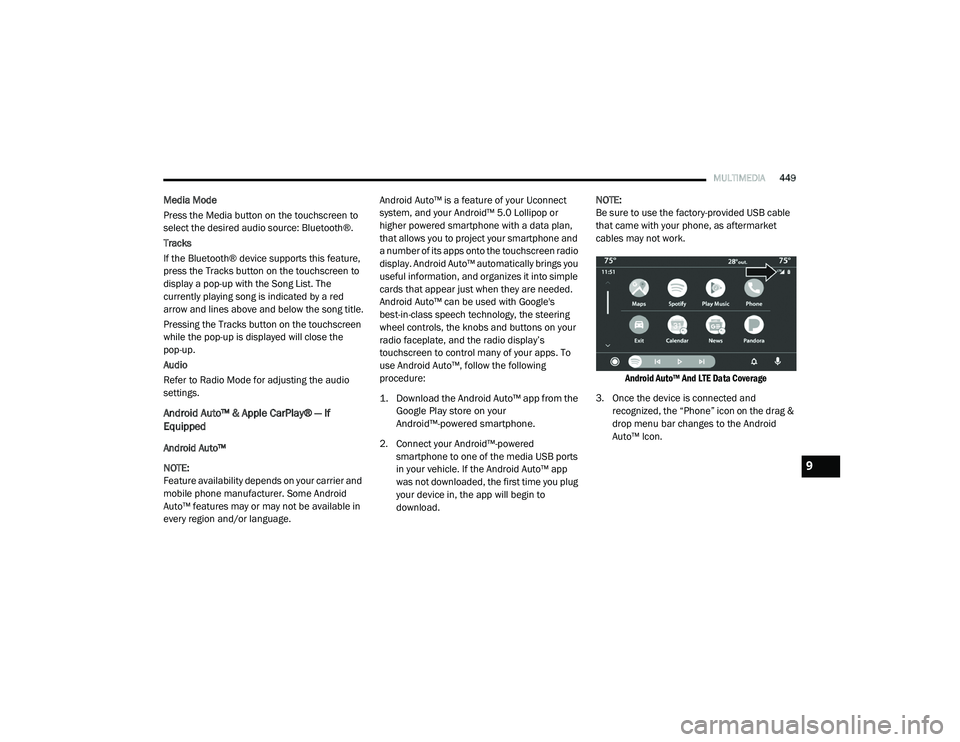
Android Auto™ And LTE Data Coverage
3. Once the device is connected and recognized, the “Phone” icon on the drag &
drop menu bar changes to the Android
Auto™ Icon.
9
20_RU_OM_EN_US_t.book Page 449
Page 452 of 516
450MULTIMEDIA
Once Android Auto™ is up and running on your
Uconnect system, the following features can be
utilized using your smartphone’s data plan:
Google Maps™ for navigation
Google Play Music, Spotify, iHeart Radio, etc.
for music
Hands-free Calling, and Texting for communi -
cation
Hundred of compatible apps
NOTE:
To use Android Auto™, make sure you are in an
area with cellular coverage. Android Auto™ may
use cellular data and your cellular coverage is
shown in the upper right corner of the radio
screen.
NOTE:
Requires compatible smartphone running
Android™ 5.0 Lollipop or higher and download
app on Google Play. Android™, Android Auto™
and Google Play are trademarks of Google Inc.
Android Auto™ Maps
Push and hold the VR button on the steering
wheel or tap the microphone icon to ask Google
to take you to a desired destination by voice. You can also touch the Navigation icon in
Android Auto™ to access Google Maps™.
NOTE:
If the VR button is not held, and is only pushed,
the built-in Uconnect VR prompts you and any
navigation command said launches the built-in
Uconnect navigation system.
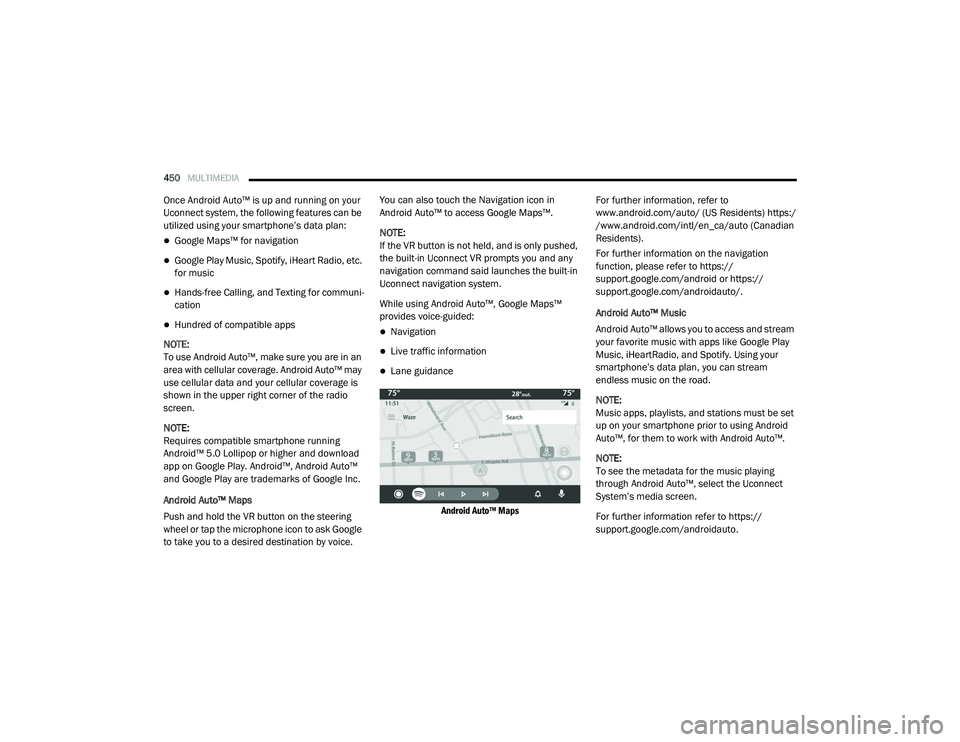
While using Android Auto™, Google Maps™
provides voice-guided:Navigation
Live traffic information
Lane guidance
Android Auto™ Maps
For further information, refer to
www.android.com/auto/ (US Residents) https:/
/www.android.com/intl/en_ca/auto (Canadian
Residents).
For further information on the navigation
function, please refer to https://
support.google.com/android or https:// support.google.com/androidauto/.
Android Auto™ Music
Android Auto™ allows you to access and stream
your favorite music with apps like Google Play
Music, iHeartRadio, and Spotify. Using your
smartphone’s data plan, you can stream
endless music on the road.
NOTE:
Music apps, playlists, and stations must be set
up on your smartphone prior to using Android
Auto™, for them to work with Android Auto™.
NOTE:
To see the metadata for the music playing
through Android Auto™, select the Uconnect
System’s media screen.
For further information refer to https://
support.google.com/androidauto.
20_RU_OM_EN_US_t.book Page 450
Page 453 of 516
MULTIMEDIA451
Android Auto™ Communication
With Android Auto™ connected, press and hold
the VR button on the steering wheel to activate
voice recognition specific to the Android Auto™.
This will allow you to send and reply to text
messages, have incoming text messages read
out loud, and place and receive hands-free calls.
Android Auto™ Apps
The Android Auto™ App will display all the
compatible apps that are available to use with
Android Auto™, every time it is launched. You
must have the compatible app downloaded,
and you must be signed in to the app for it to
work with Android Auto™.
Refer to g.co/androidauto to see the latest list
of available apps for Android Auto™.
Apple CarPlay® Integration
NOTE:
Feature availability depends on your carrier and
mobile phone manufacturer. Some Apple
CarPlay® features may or may not be available
in every region and/or language. Uconnect works seamlessly with Apple
CarPlay®, the smarter, more secure way to use
your iPhone® in the car, and stay focused on
the road. Use your Uconnect Touchscreen
display, the vehicle's knobs and controls, and
your voice with Siri to get access to Apple
Music®, Maps, Messages, and more.
To use Apple CarPlay®, make sure you are
using iPhone® 5 or later, have Siri enabled in
Settings, ensure your iPhone® is unlocked for
the very first connection only, and then use the
following procedure:
1. Connect your iPhone® to one of the media
USB ports in your vehicle.
NOTE:
Be sure to use the factory-provided Lightning
cable that came with your phone, as after -
market cables may not work.
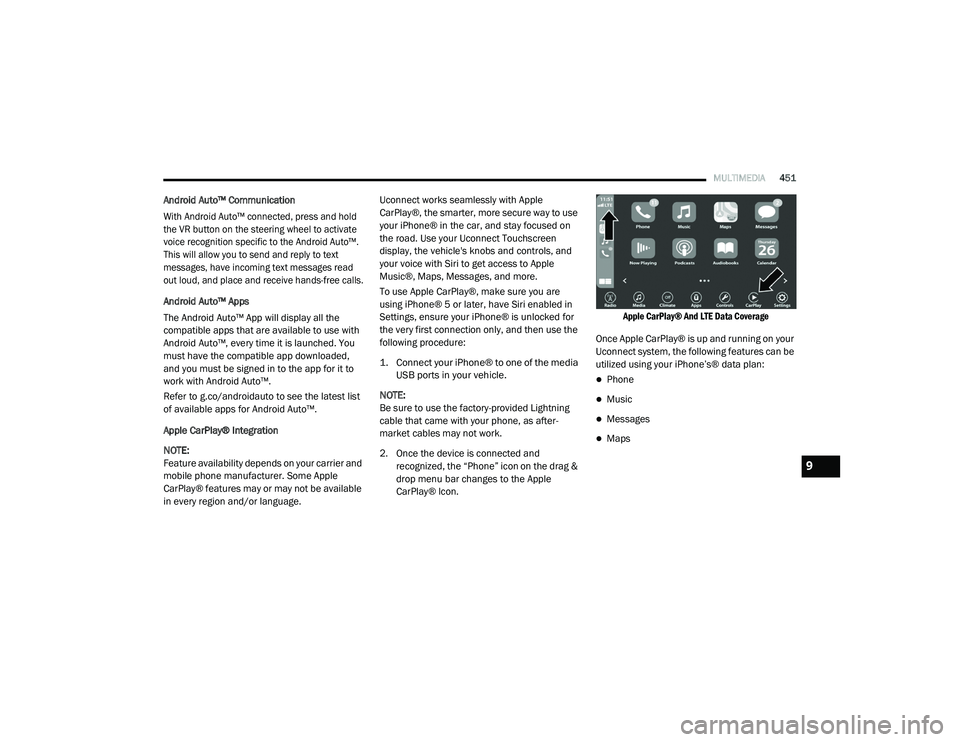
2. Once the device is connected and recognized, the “Phone” icon on the drag &
drop menu bar changes to the Apple
CarPlay® Icon.
Apple CarPlay® And LTE Data Coverage
Once Apple CarPlay® is up and running on your
Uconnect system, the following features can be
utilized using your iPhone’s® data plan:
Phone
Music
Messages
Maps
9
20_RU_OM_EN_US_t.book Page 451
Page 454 of 516
452MULTIMEDIA
NOTE:
To use Apple CarPlay® make sure that cellular
data is turned on, and that you are in an area
with cellular coverage. Your data and cellular
coverage is shown on the left side of the radio
screen.
NOTE:
Requires compatible iPhone®. See dealer for
phone compatibility. Data plan rates apply.
Vehicle user interface is a product of Apple®.
Apple CarPlay® is a trademark of Apple® Inc.
iPhone® is a trademark of Apple® Inc., regis -
tered in the US and other countries. Apple®
terms of use and privacy statements apply.
Apple CarPlay® Phone
With Apple CarPlay®, press and hold the VR
button on the steering wheel to activate a Siri
voice recognition session. You can also press
and hold the Home button within Apple
CarPlay® to start talking to Siri. This allows you
to make calls or listen to voice mail as you
normally would using Siri on your iPhone®. NOTE:
Only temporarily pushing the VR button on the
steering wheel launches a built-in VR session,
not a Siri session, and it will not function with
Apple CarPlay®.
Apple CarPlay® Music
Apple CarPlay® allows you to access all your
artists, playlists, and music from iTunes®.
Using your iPhone’s® data plan, you can also
use select third party audio apps including
music, news, sports, podcasts and more.
Apple CarPlay® Messages
Just like Phone, Apple CarPlay® allows you to
use Siri to send or reply to text messages. Siri
can also read incoming text messages, but
driver’s will not be able to read messages, as
everything is done via voice.
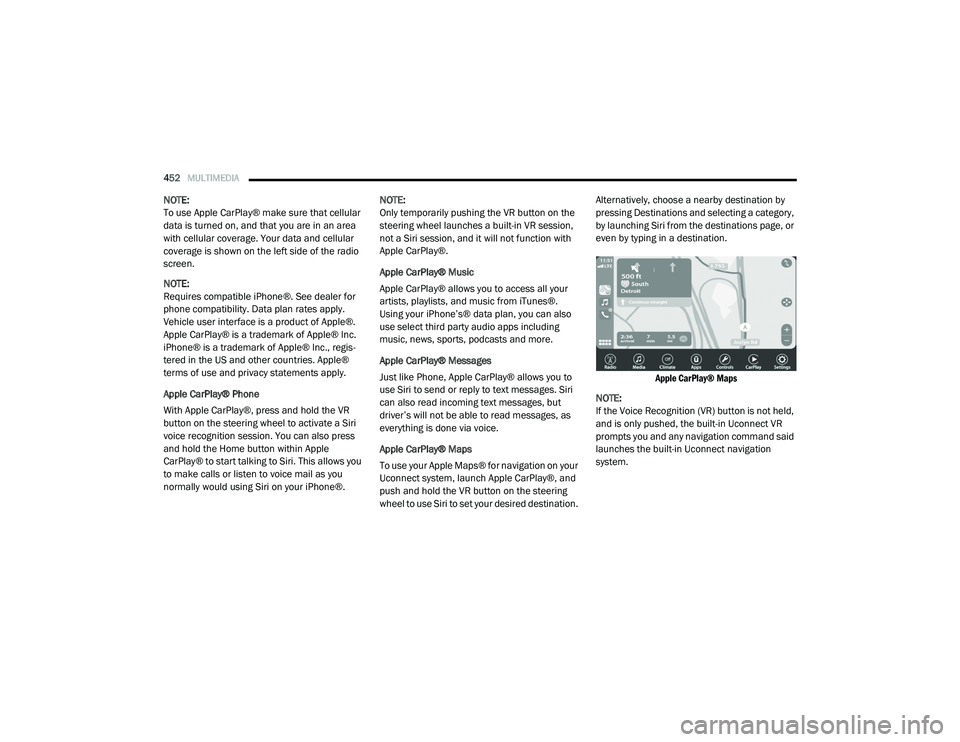
Apple CarPlay® Maps
To use your Apple Maps® for navigation on your
Uconnect system, launch Apple CarPlay®, and
push and hold the VR button on the steering
wheel to use Siri to set your desired destination. Alternatively, choose a nearby destination by
pressing Destinations and selecting a category,
by launching Siri from the destinations page, or
even by typing in a destination.
Apple CarPlay® Maps
NOTE:
If the Voice Recognition (VR) button is not held,
and is only pushed, the built-in Uconnect VR
prompts you and any navigation command said
launches the built-in Uconnect navigation
system.
20_RU_OM_EN_US_t.book Page 452