instrument panel CHRYSLER PACIFICA 2020 Repair Manual
[x] Cancel search | Manufacturer: CHRYSLER, Model Year: 2020, Model line: PACIFICA, Model: CHRYSLER PACIFICA 2020Pages: 516, PDF Size: 28.69 MB
Page 240 of 516
238STARTING AND OPERATING
NOTE:
In order to ensure proper operation, the Speed
Control System has been designed to shut down
if multiple Speed Control functions are operated
at the same time. If this occurs, the Speed
Control System can be reactivated by pushing
the Speed Control on/off button and resetting
the desired vehicle set speed.
To Activate
Push the on/off button to activate the Speed
Control. The cruise indicator light in the
instrument cluster display will illuminate. To turn
the system off, push the on/off button a second
time. The cruise indicator light will turn off. The
system should be turned off when not in use.
To Set A Desired Speed
Turn the Speed Control on.
NOTE:
The vehicle should be traveling at a steady
speed and on level ground before pushing the
SET (+) or SET (-) button.
When the vehicle has reached the desired
speed, push the SET (+) or SET (-) button and
release. Release the accelerator and the
vehicle will operate at the selected speed.
To Vary The Speed Setting
To Increase Speed
When the Speed Control is set, you can increase
speed by pushing the SET (+) button.
The driver’s preferred units can be selected
through the instrument panel settings. Refer to ”Instrument Cluster Display” in “Getting To
Know Your Instrument Panel” for more
information. The speed increment shown is
dependent on the chosen speed unit of U.S.
(mph) or Metric (km/h):
U.S. Speed (mph)
Pushing the SET
(+) button once will result in
a 1 mph increase in set speed. Each subse -
quent tap of the button results in an increase
of 1 mph.
If the button is continually pushed, the set
speed will continue to increase until the
button is released, then the new set speed
will be established.
Metric Speed (km/h)
Pushing the SET (+) button once will result in
a 1 km/h increase in set speed. Each subse -
quent tap of the button results in an increase
of 1 km/h.
If the button is continually pushed, the set
speed will continue to increase until the
button is released, then the new set speed
will be established.
WARNING!
Speed Control can be dangerous where the
system cannot maintain a constant speed.
Your vehicle could go too fast for the
conditions, and you could lose control and
have an accident. Do not use Speed Control
in heavy traffic or on roads that are winding,
icy, snow-covered or slippery.
WARNING!
Leaving the Speed Control system on when
not in use is dangerous. You could
accidentally set the system or cause it to go
faster than you want. You could lose control
and have an accident. Always leave the
system off when you are not using it.
20_RU_OM_EN_US_t.book Page 238
Page 241 of 516
STARTING AND OPERATING239
To Decrease Speed
When the Speed Control is set, you can
decrease speed by pushing the SET (-) button.
The driver’s preferred units can be selected
through the instrument panel settings. Refer to
”Instrument Cluster Display” in “Getting To
Know Your Instrument Panel” for more
information. The speed increment shown is
dependent on the chosen speed unit of U.S.
(mph) or Metric (km/h):
U.S. Speed (mph)
Pushing the SET (-) button once will result in
a 1 mph decrease in set speed. Each subse -
quent tap of the button results in a decrease
of 1 mph.
If the button is continually pushed, the set
speed will continue to decrease until the
button is released, then the new set speed
will be established. Metric Speed (km/h)
Pushing the SET
(-) button once will result in
a 1 km/h decrease in set speed. Each subse -
quent tap of the button results in a decrease
of 1 km/h.
If the button is continually pushed, the set
speed will continue to decrease until the
button is released, then the new set speed
will be established.
To Accelerate For Passing
Press the accelerator as you would normally.
When the pedal is released, the vehicle will
return to the set speed.
To Resume Speed
To resume a previously set speed, push the RES
button and release. Resume can be used at any
speed above 20 mph (32 km/h).
To Deactivate
A soft tap on the brake pedal, pushing the CANC
(cancel) button, or normal brake pressure while
slowing the vehicle will deactivate the Speed
Control without erasing the set speed from
memory. Pushing the on/off button or placing the ignition
in the OFF position erases the set speed from
memory.
ADAPTIVE CRUISE CONTROL (ACC) — IF
EQUIPPED
Adaptive Cruise Control (ACC) increases the
driving convenience provided by cruise control
while traveling on highways and major
roadways. However, it is not a safety system
and not designed to prevent collisions.
Speed
Control function performs differently. Please
refer to the proper section within this chapter.
ACC will allow you to keep cruise control
engaged in light to moderate traffic conditions
without the constant need to reset your cruise
control. ACC utilizes a radar sensor and a
forward facing camera designed to detect a
vehicle directly ahead of you.
5
20_RU_OM_EN_US_t.book Page 239
Page 245 of 516
STARTING AND OPERATING243
To Cancel
The following conditions cancel the system:
The brake pedal is applied.
The CANC (cancel) button is pushed.
An Anti-Lock Brake System (ABS) event
occurs.
The gear selector is removed from the DRIVE
position.
The Electronic Stability Control/Traction
Control System (ESC/TCS) activates.
The vehicle parking brake is applied.
Driver seat belt is unbuckled at low speeds.
Driver door is opened at low speeds.
To Turn Off
The system will turn off and clear the set speed
in memory if:
The Adaptive Cruise Control (ACC) on/off
button is pushed.
The Normal (Fixed Speed) Cruise Control on/
off button is pushed.
The ignition is placed in the OFF position.
To Resume
If there is a set speed in memory, push the RES
(resume) button and then remove your foot
from the accelerator pedal. The instrument
cluster display will display the last set speed.
NOTE:
If your vehicle stays at standstill for longer
than two seconds, then the driver will either
have to push the RES (resume) button, or
apply the accelerator pedal to reengage the
ACC to the existing set speed.
ACC cannot be resumed if there is a
stationary vehicle in-front of your vehicle in
close proximity.
To Vary The Speed Setting
To Increase Speed
While ACC is set, you can increase the set speed
by pushing the SET (+) button.
The driver's preferred units can be selected
through the instrument cluster. Refer to
“Instrument Cluster Display” in “Getting To
Know Your Instrument Panel” for more
information. The speed increment shown is
dependent on the chosen speed unit of U.S.
(mph) or Metric (km/h):
U.S. Speed (mph)
Pushing the SET (+) button once will result in
a 1 mph increase in set speed. Each subse -
quent tap of the button results in an increase
of 1 mph.
If the button is continually pushed, the set
speed will continue to increase in 5 mph
increments until the button is released. The
increase in set speed is reflected in the
instrument cluster display.WARNING!
The Resume function should only be used if
traffic and road conditions permit. Resuming
a set speed that is too high or too low for
prevailing traffic and road conditions could
cause the vehicle to accelerate or decelerate
too sharply for safe operation. Failure to
follow these warnings can result in a collision
and death or serious personal injury.
5
20_RU_OM_EN_US_t.book Page 243
Page 246 of 516
244STARTING AND OPERATING
Metric Speed (km/h)
Pushing the SET (+) button once will result in
a 1 km/h increase in set speed. Each subse -
quent tap of the button results in an increase
of 1 km/h.
If the button is continually pushed, the set
speed will continue to increase in 10 km/h
increments until the button is released. The
increase in set speed is reflected in the
instrument cluster display.
To Decrease Speed
While ACC is set, the set speed can be
decreased by pushing the SET (-) button.
The driver's preferred units can be selected
through the instrument cluster. Refer to
“Instrument Cluster Display” in “Getting To
Know Your Instrument Panel” for more
information. The speed decrement shown is
dependent on the chosen speed unit of U.S.
(mph) or Metric (km/h): U.S. Speed (mph)
Pushing the SET (-) button once will result in
a 1 mph decrease in set speed. Each subse -
quent tap of the button results in a decrease
of 1 mph.
If the button is continually pushed, the set
speed will continue to decrease in 5 mph
decrements until the button is released. The
decrease in set speed is reflected in the
instrument cluster display.
Metric Speed (km/h)
Pushing the SET (-) button once will result in
a 1 km/h decrease in set speed. Each subse -
quent tap of the button results in a decrease
of 1 km/h.
If the button is continually pushed, the set
speed will continue to decrease in 10 km/h
decrements until the button is released. The
decrease in set speed is reflected in the
instrument cluster display. NOTE:
When you override and push the SET (+)
button or SET (-) buttons, the new set speed
will be the current speed of the vehicle.
When you use the SET (-) button to decel
-
erate, if the powertrain braking power does
not slow the vehicle sufficiently to reach the
set speed, the brake system will automati -
cally slow the vehicle.
The ACC system decelerates the vehicle to a
full stop when following a target vehicle. If an
ACC host vehicle follows a target vehicle to a
standstill, after two seconds the driver will
either have to push the RES (resume) button,
or apply the accelerator pedal to reengage
the ACC to the existing set speed.
The ACC system maintains set speed when
driving up hill and down hill. However, a slight
speed change on moderate hills is normal. In
addition, downshifting may occur while climbing
uphill or descending downhill. This is normal
operation and necessary to maintain set speed.
When driving up hill and down hill, the ACC
system will cancel if the braking temperature
exceeds normal range (overheated).
20_RU_OM_EN_US_t.book Page 244
Page 254 of 516
252STARTING AND OPERATING
Normal (Fixed Speed) Cruise Control Mode
In addition to Adaptive Cruise Control mode, a
Normal (Fixed Speed) Cruise Control mode is
available for cruising at fixed speeds. The
Normal (Fixed Speed) Cruise Control mode is
designed to maintain a set cruising speed
without requiring the driver to operate the
accelerator. Cruise Control can only be
operated if the vehicle speed is above 20 mph
(32 km/h).
To change between the different control modes,
push the Adaptive Cruise Control (ACC) on/off
button which turns the ACC and the Normal
(Fixed Speed) Cruise Control off. Pushing the
Normal (Fixed Speed) Cruise Control on/off
button will result in turning on (changing to) the
Normal (Fixed Speed) Cruise Control mode.
To Set A Desired Speed
Turn the Normal (Fixed Speed) Cruise
Control on. When the vehicle has
reached the desired speed, push the
SET (+) or SET (-) button and release.
Release the accelerator and the vehicle will
operate at the selected speed. Once a speed
has been set a message “CRUISE CONTROL SET
TO MPH (km/h)” will appear indicating what
speed was set. This light will turn on when the
system is turned on via the on/off control. It
turns green when the cruise control is set.
To Vary The Speed Setting
To Increase Speed
When the Normal (Fixed Speed) Cruise Control
is set, you can increase speed by pushing the
SET (+) button.
The driver’s preferred units can be selected
through the instrument cluster. Refer to
“Instrument Cluster Display” in “Getting To
Know Your Instrument Panel” for more
information. The speed increment shown is
dependent on the speed of U.S. (mph) or Metric
(km/h) units:
U.S. Speed (mph)
Pushing the SET (+) button once will result in
a 1 mph increase in set speed. Each subse -
quent tap of the button results in an increase
of 1 mph.
If the button is continually pushed, the set
speed will continue to increase in 5 mph
increments until the button is released. The
increase in set speed is reflected in the
instrument cluster display.
WARNING!
In the Normal (Fixed Speed) Cruise Control
mode, the system will not react to vehicles
ahead. In addition, the proximity warning
does not activate and no alarm will sound
even if you are too close to the vehicle ahead
since neither the presence of the vehicle
ahead nor the vehicle-to-vehicle distance is
detected. Be sure to maintain a safe distance
between your vehicle and the vehicle ahead.
Always be aware which mode is selected.
20_RU_OM_EN_US_t.book Page 252
Page 255 of 516
STARTING AND OPERATING253
Metric Speed (km/h)
Pushing the SET (+) button once will result in a
1 km/h increase in set speed. Each subsequent
tap of the button results in an increase of 1 km/h.
If the button is continually pushed, the set
speed will continue to increase in 10 km/h
increments until the button is released. The
increase in set speed is reflected in the
instrument cluster display.
To Decrease Speed
When the Normal (Fixed Speed) Cruise Control
is set, you can decrease speed by pushing the
SET (-) button.
The driver’s preferred units can be selected
through the instrument cluster. Refer to
“Instrument Cluster Display” in “Getting To
Know Your Instrument Panel” for more
information. The speed decrement shown is
dependent on the speed of U.S. (mph) or Metric
(km/h) units:
U.S. Speed (mph)
Pushing the SET (-) button once will result in
a 1 mph decrease in set speed. Each subse -
quent tap of the button results in a decrease
of 1 mph.
If the button is continually pushed, the set
speed will continue to decrease in 5 mph
decrements until the button is released. The
decrease in set speed is reflected in the
instrument cluster display.
Metric Speed (km/h)
Pushing the SET (-) button once will result in
a 1 km/h decrease in set speed. Each subse -
quent tap of the button results in a decrease
of 1 km/h.
If the button is continually pushed, the set
speed will continue to decrease in 10 km/h
decrements until the button is released. The
decrease in set speed is reflected in the
instrument cluster display.
To Cancel
The following conditions will cancel the Normal
(Fixed Speed) Cruise Control without clearing
the memory:
The brake pedal is applied.
The CANC (cancel) button is pushed.
The Electronic Stability Control/Traction
Control System (ESC/TCS) activates.
The vehicle parking brake is applied.
The braking temperature exceeds normal
range (overheated).
The gear selector is removed from the DRIVE
position.
To Resume Speed
To resume a previously set speed, push the RES
button and release. Resume can be used at any
speed above 20 mph (32 km/h).
To Turn Off
The system will turn off and erase the set speed
in memory if:
The Normal (Fixed Speed) Cruise Control on/
off button is pushed.
The ignition is placed in the OFF position.
The Adaptive Cruise Control (ACC) on/off
button is pushed.
5
20_RU_OM_EN_US_t.book Page 253
Page 257 of 516
STARTING AND OPERATING255
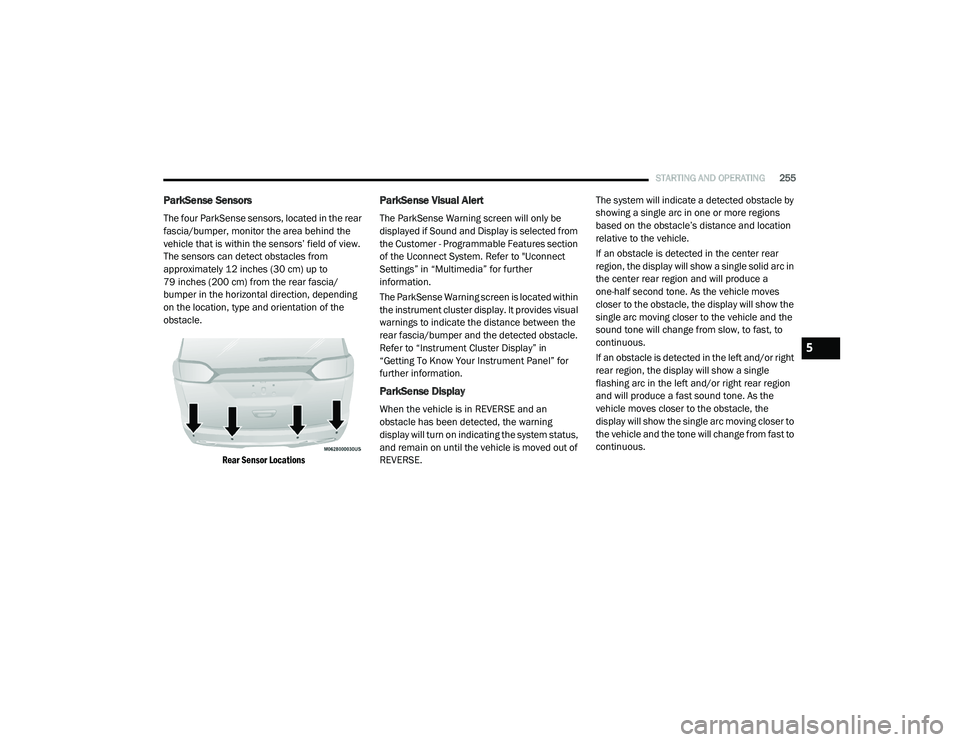
ParkSense Sensors
The four ParkSense sensors, located in the rear
fascia/bumper, monitor the area behind the
vehicle that is within the sensors’ field of view.
The sensors can detect obstacles from
approximately 12 inches (30 cm) up to
79 inches (200 cm) from the rear fascia/
bumper in the horizontal direction, depending
on the location, type and orientation of the
obstacle.
Rear Sensor Locations
ParkSense Visual Alert
The ParkSense Warning screen will only be
displayed if Sound and Display is selected from
the Customer - Programmable Features section
of the Uconnect System. Refer to "Uconnect
Settings” in “Multimedia” for further
information.
The ParkSense Warning screen is located within
the instrument cluster display. It provides visual
warnings to indicate the distance between the
rear fascia/bumper and the detected obstacle.
Refer to “Instrument Cluster Display” in
“Getting To Know Your Instrument Panel” for
further information.
ParkSense Display
When the vehicle is in REVERSE and an
obstacle has been detected, the warning
display will turn on indicating the system status,
and remain on until the vehicle is moved out of
REVERSE. The system will indicate a detected obstacle by
showing a single arc in one or more regions
based on the obstacle’s distance and location
relative to the vehicle.
If an obstacle is detected in the center rear
region, the display will show a single solid arc in
the center rear region and will produce a
one-half second tone. As the vehicle moves
closer to the obstacle, the display will show the
single arc moving closer to the vehicle and the
sound tone will change from slow, to fast, to
continuous.
If an obstacle is detected in the left and/or right
rear region, the display will show a single
flashing arc in the left and/or right rear region
and will produce a fast sound tone. As the
vehicle moves closer to the obstacle, the
display will show the single arc moving closer to
the vehicle and the tone will change from fast to
continuous.
5
20_RU_OM_EN_US_t.book Page 255
Page 259 of 516
STARTING AND OPERATING257
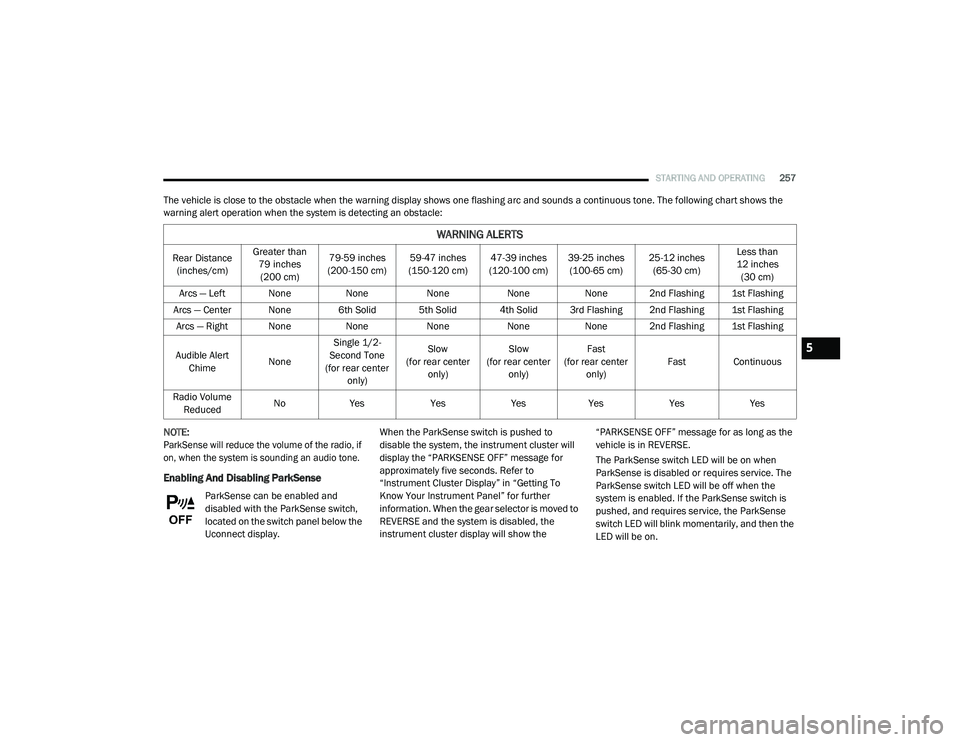
The vehicle is close to the obstacle when the warning display shows one flashing arc and sounds a continuous tone. The following chart shows the
warning alert operation when the system is detecting an obstacle:
NOTE:
ParkSense will reduce the volume of the radio, if
on, when the system is sounding an audio tone.
Enabling And Disabling ParkSense
ParkSense can be enabled and
disabled with the ParkSense switch,
located on the switch panel below the
Uconnect display. When the ParkSense switch is pushed to
disable the system, the instrument cluster will
display the “PARKSENSE OFF” message for
approximately five seconds. Refer to
“Instrument Cluster Display” in “Getting To
Know Your Instrument Panel” for further
information. When the gear selector is moved to
REVERSE and the system is disabled, the
instrument cluster display will show the “PARKSENSE OFF” message for as long as the
vehicle is in REVERSE.
The ParkSense switch LED will be on when
ParkSense is disabled or requires service. The
ParkSense switch LED will be off when the
system is enabled. If the ParkSense switch is
pushed, and requires service, the ParkSense
switch LED will blink momentarily, and then the
LED will be on.
WARNING ALERTS
Rear Distance
(inches/cm) Greater than
79 inches (200 cm) 79-59 inches
(200-150 cm) 59-47 inches
(150-120 cm) 47-39 inches
(120-100 cm) 39-25 inches
(100-65 cm) 25-12 inches
(65-30 cm) Less than
12 inches (30 cm)
Arcs — Left None NoneNoneNoneNone 2nd Flashing 1st Flashing
Arcs — Center None 6th Solid 5th Solid 4th Solid 3rd Flashing 2nd Flashing 1st Flashing Arcs — Right None NoneNoneNoneNone 2nd Flashing 1st Flashing
Audible Alert Chime NoneSingle 1/2-
Second Tone
(for rear center only) Slow
(for rear center only) Slow
(for rear center only) Fast
(for rear center only) Fast Continuous
Radio Volume Reduced No
Yes YesYesYes YesYes
5
20_RU_OM_EN_US_t.book Page 257
Page 260 of 516
258STARTING AND OPERATING
NOTE:
When the KeySense feature is in use, the Park -
Sense System will reject customer input to turn
the system off via the switch. The instrument
cluster display will show the "KeySense in Use
Selected Feature Cannot be Disabled"
message.
Service The ParkSense Rear Park Assist
System
During vehicle start-up, when the ParkSense
Rear Park Assist System has detected a faulted
condition, the instrument cluster will actuate a
single chime, once per ignition cycle, and it will
display the “PARKSENSE UNAVAILABLE WIPE
REAR SENSORS” or the “PARKSENSE
UNAVAILABLE SERVICE REQUIRED” message.
Refer to “Instrument Cluster Display” in “Getting
To Know Your Instrument Panel” for further
information. When the gear selector is moved to
REVERSE and the system has detected a faulted
condition, the instrument cluster display will
show the "PARKSENSE UNAVAILABLE WIPE REAR
SENSORS" or "PARKSENSE UNAVAILABLE
SERVICE REQUIRED" message for five seconds
while the vehicle is in REVERSE. Under this
condition, ParkSense will not operate and
“PARKSENSE OFF” message will be displayed.
If “PARKSENSE UNAVAILABLE WIPE REAR
SENSORS” appears in the instrument cluster
display, make sure the outer surface and the
underside of the rear fascia/bumper is clean
and clear of snow, ice, mud, dirt, or other
obstruction and then cycle the ignition. If the
message continues to appear, see an
authorized dealer.
If “PARKSENSE UNAVAILABLE SERVICE
REQUIRED” appears in the instrument cluster
display, see an authorized dealer.
Cleaning The ParkSense System
Clean the ParkSense sensors with water, car
wash soap, and a soft cloth. Do not use rough or
hard cloths. Do not scratch or poke the sensors.
Otherwise, you could damage the sensors.
ParkSense System Usage Precautions
NOTE:
Ensure that the rear bumper is free of snow,
ice, mud, dirt, and debris to keep the Park
-
Sense system operating properly.
Jackhammers, large trucks, and other vibra -
tions could affect the performance of Park -
Sense.
When you turn ParkSense off, the instrument
cluster will display “PARKSENSE OFF”.
Furthermore, once you turn ParkSense off, it
remains off until you turn it on again, even if
you cycle the ignition.
When you move the gear selector to the
REVERSE position and ParkSense is turned
off, the instrument cluster display will show
“PARKSENSE OFF” message for as long as
the vehicle is in REVERSE.
ParkSense, when on, will reduce the volume
of the radio when it is sounding a tone.
Clean the ParkSense sensors regularly,
taking care not to scratch or damage them.
The sensors must not be covered with ice,
snow, slush, mud, dirt, or debris. Failure to do
so can result in the system not working prop -
erly. The ParkSense system might not detect
an obstacle behind the fascia/bumper, or it
could provide a false indication that an
obstacle is behind the fascia/bumper.
20_RU_OM_EN_US_t.book Page 258
Page 263 of 516
STARTING AND OPERATING261
ParkSense Sensors
The six ParkSense sensors, located in the rear
fascia/bumper, monitor the area behind the
vehicle that is within the sensors’ field of view.
The sensors can detect obstacles from
approximately 12 inches (30 cm) up to 79 in
(200 cm) from the rear fascia/bumper in the
horizontal direction, depending on the location,
type and orientation of the obstacle.
Rear Sensor Locations
The six ParkSense sensors, located in the front
fascia/bumper, monitor the area in front of the
vehicle that is within the sensors’ field of view.
The sensors can detect obstacles from
approximately 12 inches (30 cm) up to 47 in
(120 cm) from the front fascia/bumper in the
horizontal direction, depending on the location,
type and orientation of the obstacle.
ParkSense Visual Alert
The ParkSense Warning screen will only be
displayed if “Sound and Display” is selected
from the Customer - Programmable Features
section of the Uconnect System. Refer to
"Uconnect Settings” in “Multimedia” for further
information.
The ParkSense Warning screen is located within
the instrument cluster display. It provides visual
warnings to indicate the distance between the
rear fascia/bumper and/or front fascia/bumper
and the detected obstacle. Refer to “Instrument
Cluster Display” in “Getting To Know Your
Instrument Panel” for further information.
ParkSense Display
Rear Park Assist
When the vehicle is in REVERSE, the warning
display will turn on indicating the system status.
The system will indicate a detected obstacle by
showing a single arc in one or more regions
based on the obstacle’s distance and location
relative to the vehicle.
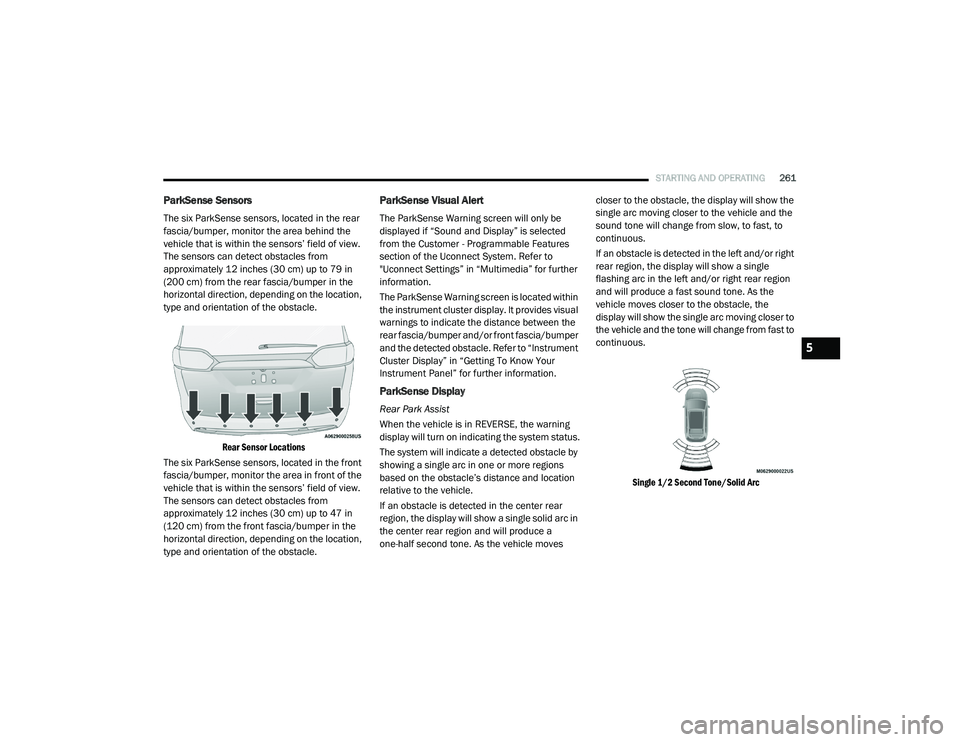
If an obstacle is detected in the center rear
region, the display will show a single solid arc in
the center rear region and will produce a
one-half second tone. As the vehicle moves closer to the obstacle, the display will show the
single arc moving closer to the vehicle and the
sound tone will change from slow, to fast, to
continuous.
If an obstacle is detected in the left and/or right
rear region, the display will show a single
flashing arc in the left and/or right rear region
and will produce a fast sound tone. As the
vehicle moves closer to the obstacle, the
display will show the single arc moving closer to
the vehicle and the tone will change from fast to
continuous.
Single 1/2 Second Tone/Solid Arc
5
20_RU_OM_EN_US_t.book Page 261