uconnect CHRYSLER PACIFICA 2021 Repair Manual
[x] Cancel search | Manufacturer: CHRYSLER, Model Year: 2021, Model line: PACIFICA, Model: CHRYSLER PACIFICA 2021Pages: 401, PDF Size: 26.88 MB
Page 227 of 401
MULTIMEDIA225
What Does This Warranty Not Cover? This
warranty does not cover any damage or defect that
results from misuse, abuse or modification of the
Product other than by Aptiv. Foam earpieces,
which will wear over time through normal use, are
specifically not covered (replacement foam is
available for a nominal charge). APTIV IS NOT
LIABLE FOR ANY INJURIES OR DAMAGES TO
PERSONS OR PROPERTY RESULTING FROM THE
USE OF, OR ANY FAILURE OR DEFECT IN, THE
PRODUCT, NOR IS APTIV LIABLE FOR ANY
GENERAL, SPECIAL, DIRECT, INDIRECT,
INCIDENTAL, CONSEQUENTIAL, EXEMPLARY,
PUNITIVE OR OTHER DAMAGES OF ANY KIND OR
NATURE WHATSOEVER. Some states and
jurisdictions may not allow the exclusion or
limitation of incidental or consequential damages,
so the above limitation may not apply to you. This
warranty gives you specific legal rights. You may
also have other rights, which vary from jurisdiction
to jurisdiction.
What Will Aptiv Do? Aptiv, at its option, will repair
or replace any defective Product. Aptiv reserves
the right to replace any discontinued Product with
a comparable model. THIS WARRANTY IS THE
SOLE WARRANTY FOR THIS PRODUCT, SETS
FORTH YOUR EXCLUSIVE REMEDY REGARDING
DEFECTIVE PRODUCTS, AND IS IN LIEU OF ALL
OTHER WARRANTIES (EXPRESS OR IMPLIED), INCLUDING ANY WARRANTY FOR
MERCHANTABILITY OR FITNESS FOR A
PARTICULAR PURPOSE.
If you have any questions or comments regarding
your Aptiv wireless headphones, please email
[email protected] or phone: 888-293-3332.
DISPLAY SETTINGS
When watching a video source, pressing the
Settings icon on the touchscreen activates the
Settings menu. These settings control the
appearance of the video on the screen. The factory
default settings are already set for optimum
viewing, so there is no need to change these
settings under normal circumstances.
To change the settings, use one of the
touchscreens or remote. To reset all values back to
the original settings, select “Reset to Defaults”,
then select “YES.”
LISTENING TO AUDIO WITH THE SCREEN
C
LOSED
To listen to only the audio portion of the channel
with the screen closed:
Set the audio to the desired source and
channel.
Close the video screen.
When the screen is reopened, the video screen
will automatically turn back on and show the
appropriate display menu or media.
If the screen is closed and there is no audio heard,
verify that the headphones are turned on (the ON
indicator is illuminated) and the headphone
selector switch is on the desired channel. If the
headphones are turned on, push the remote
control’s power button to turn audio on. If audio is
still not heard, check that fully charged batteries
are installed in the headphones.
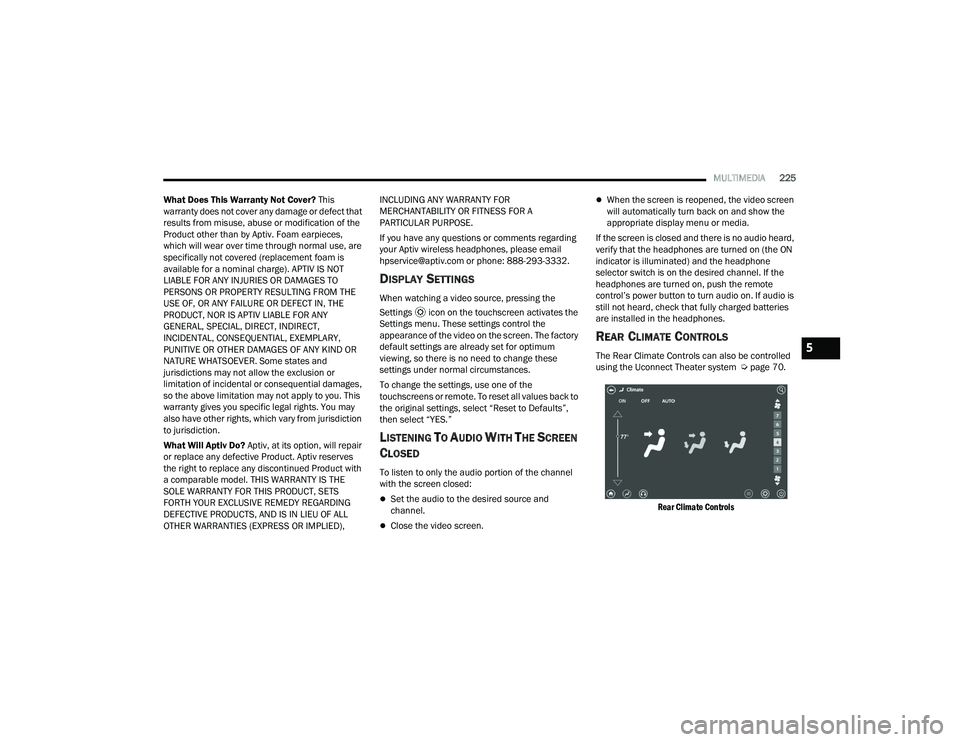
REAR CLIMATE CONTROLS
The Rear Climate Controls can also be controlled
using the Uconnect Theater system Ú page 70.
Rear Climate Controls
5
21_RUP_OM_EN_USC_t.book Page 225
Page 229 of 401
MULTIMEDIA227
ACCESSIBILITY — IF EQUIPPED
Accessibility is a feature of the DVD/Blu-ray™/USB
Video system that announces a function prior to
performing the action.
WIRELESS STREAMING — IF EQUIPPED
Your Uconnect Theater system may be equipped
with Wireless Streaming functionality that allows
you to project your smartphone or tablet onto your
rear Uconnect Theater touchscreens. This Source
Card will allow you to wirelessly link your
compatible Android™ devices to your Uconnect
Theater system and stream your device onto the
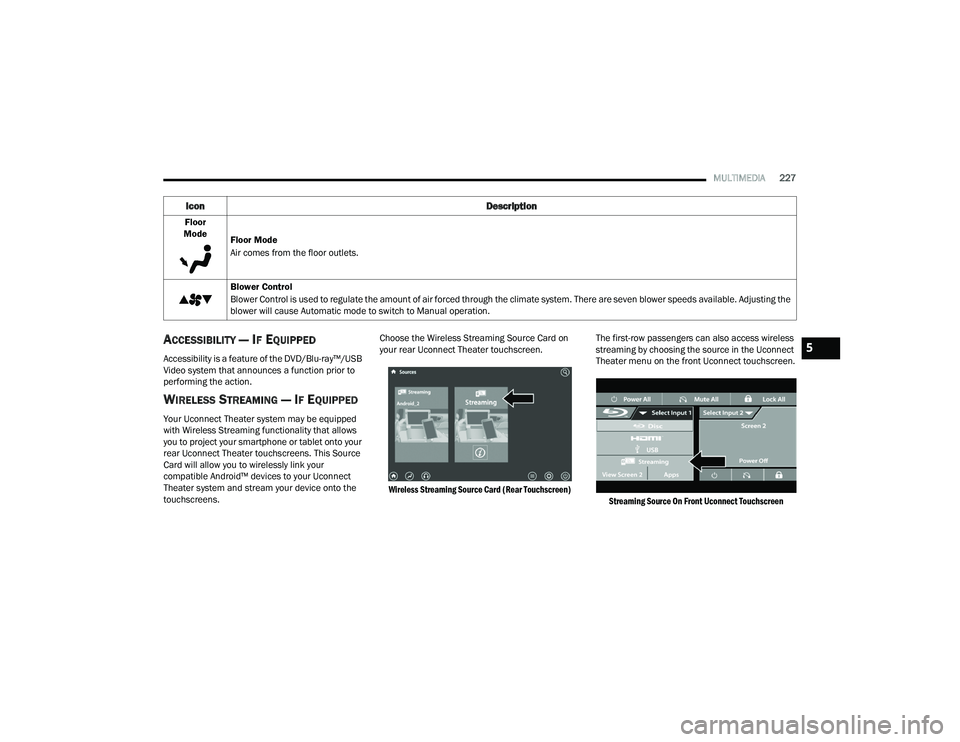
touchscreens. Choose the Wireless Streaming Source Card on
your rear Uconnect Theater touchscreen.
Wireless Streaming Source Card (Rear Touchscreen)
The first-row passengers can also access wireless
streaming by choosing the source in the Uconnect
Theater menu on the front Uconnect touchscreen.
Streaming Source On Front Uconnect Touchscreen
Floor
Mode Floor Mode
Air comes from the floor outlets.
Blower Control
Blower Control is used to regulate the amount of air forced through the climate system. There are seven blower speeds available. Adjusting the
blower will cause Automatic mode to switch to Manual operation.
Icon Description
5
21_RUP_OM_EN_USC_t.book Page 227
Page 230 of 401
228MULTIMEDIA
NOTE:For system compatibility, consult your device's
Owner's Manual or www.uconnectphone.com to
see if your device supports wireless streaming
technology compatibility. Apple® devices do not
support this feature.
To link your device to the rear Uconnect Theater
touchscreens:
1. Enable your device’s Wi-Fi.
2. Select the Wireless Streaming feature on your device. The name of this feature is device
dependent and could include: mirror, cast, or
smart view.
NOTE:Refer to your device's Owner’s Manual or www.uconnectphone.com for further infor -
mation.
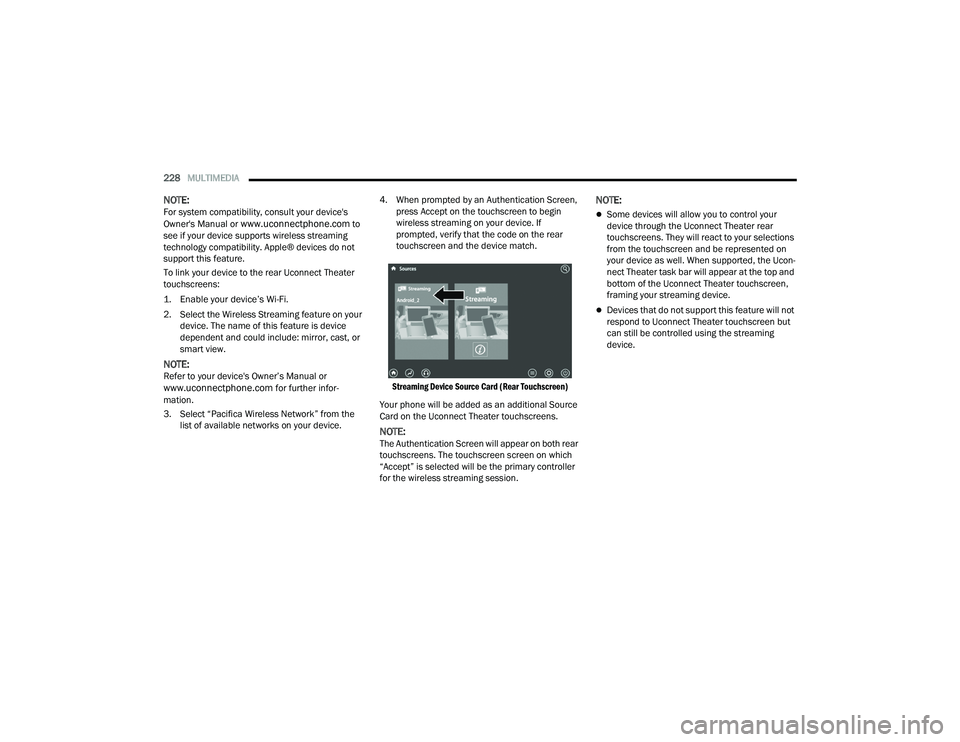
3. Select “Pacifica Wireless Network” from the list of available networks on your device. 4. When prompted by an Authentication Screen,
press Accept on the touchscreen to begin
wireless streaming on your device. If
prompted, verify that the code on the rear
touchscreen and the device match.
Streaming Device Source Card (Rear Touchscreen)
Your phone will be added as an additional Source
Card on the Uconnect Theater touchscreens.
NOTE:The Authentication Screen will appear on both rear
touchscreens. The touchscreen screen on which
“Accept” is selected will be the primary controller
for the wireless streaming session.
NOTE:
Some devices will allow you to control your
device through the Uconnect Theater rear
touchscreens. They will react to your selections
from the touchscreen and be represented on
your device as well. When supported, the Ucon -
nect Theater task bar will appear at the top and
bottom of the Uconnect Theater touchscreen,
framing your streaming device.
Devices that do not support this feature will not
respond to Uconnect Theater touchscreen but
can still be controlled using the streaming
device.
21_RUP_OM_EN_USC_t.book Page 228
Page 231 of 401
MULTIMEDIA229
Settings
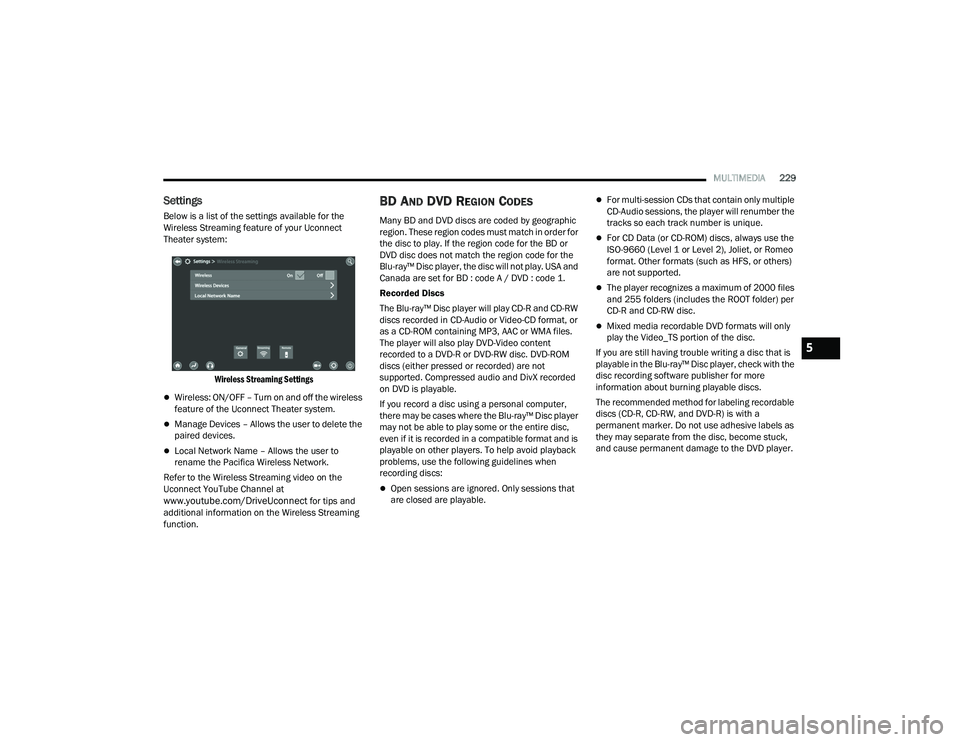
Below is a list of the settings available for the
Wireless Streaming feature of your Uconnect
Theater system:
Wireless Streaming Settings
Wireless: ON/OFF – Turn on and off the wireless
feature of the Uconnect Theater system.
Manage Devices – Allows the user to delete the
paired devices.
Local Network Name – Allows the user to
rename the Pacifica Wireless Network.
Refer to the Wireless Streaming video on the
Uconnect YouTube Channel at
www.youtube.com/DriveUconnect for tips and
additional information on the Wireless Streaming
function.
BD AND DVD REGION CODES
Many BD and DVD discs are coded by geographic
region. These region codes must match in order for
the disc to play. If the region code for the BD or
DVD disc does not match the region code for the
Blu-ray™ Disc player, the disc will not play. USA and
Canada are set for BD : code A / DVD : code 1.
Recorded Discs
The Blu-ray™ Disc player will play CD-R and CD-RW
discs recorded in CD-Audio or Video-CD format, or
as a CD-ROM containing MP3, AAC or WMA files.
The player will also play DVD-Video content
recorded to a DVD-R or DVD-RW disc. DVD-ROM
discs (either pressed or recorded) are not
supported. Compressed audio and DivX recorded
on DVD is playable.
If you record a disc using a personal computer,
there may be cases where the Blu-ray™ Disc player
may not be able to play some or the entire disc,
even if it is recorded in a compatible format and is
playable on other players. To help avoid playback
problems, use the following guidelines when
recording discs:
Open sessions are ignored. Only sessions that
are closed are playable.
For multi-session CDs that contain only multiple
CD-Audio sessions, the player will renumber the
tracks so each track number is unique.
For CD Data (or CD-ROM) discs, always use the
ISO-9660 (Level 1 or Level 2), Joliet, or Romeo
format. Other formats (such as HFS, or others)
are not supported.
The player recognizes a maximum of 2000 files
and 255 folders (includes the ROOT folder) per
CD-R and CD-RW disc.
Mixed media recordable DVD formats will only
play the Video_TS portion of the disc.
If you are still having trouble writing a disc that is
playable in the Blu-ray™ Disc player, check with the
disc recording software publisher for more
information about burning playable discs.
The recommended method for labeling recordable
discs (CD-R, CD-RW, and DVD-R) is with a
permanent marker. Do not use adhesive labels as
they may separate from the disc, become stuck,
and cause permanent damage to the DVD player.
5
21_RUP_OM_EN_USC_t.book Page 229
Page 235 of 401
MULTIMEDIA233
FCC/IC REGULATORY NOTICES
Modification Statement
Wireless Notice
This device complies with FCC/IC radiation
exposure limits set forth for an uncontrolled
environment and meets the FCC radio frequency
(RF) Exposure Guidelines and RSS-102 of the IC
radio frequency (RF) Exposure rules. This
transmitter must not be co-located or operating in
conjunction with any other antenna or transmitter.
FCC Class B Digital Device Notice
This equipment has been tested and found to
comply with the limits for a Class B digital device,
pursuant to part 15 of the FCC Rules. These limits
are designed to provide reasonable protection
against harmful interference in a residential
installation. This equipment generates, uses and
can radiate radio frequency energy and, if not
installed and used in accordance with the
instructions, may cause harmful interference to
radio communications. However, there is no
guarantee that interference will not occur in a
particular installation. If this equipment does cause harmful interference
to radio or television reception, which can be
determined by turning the equipment off and on,
the user is encouraged to try to correct the
interference by one or more of the following
measures:
Reorient or relocate the receiving antenna.
Increase the separation between the equipment
and receiver.
Connect the equipment into an outlet on a
circuit different from that to which the receiver
is connected.
Consult the dealer or an experienced radio/TV
technician for help.
CAN ICES-3 (B) / NMB-3 (B)
This Class B digital apparatus complies with
Canadian ICES-003 Ú page 387.
RADIO OPERATION AND MOBILE PHONES
Under certain conditions, the mobile phone being
on in your vehicle can cause erratic or noisy
performance from your radio. This condition may
be lessened or eliminated by repositioning the
mobile phone within the vehicle. This condition is
not harmful to the radio. If your radio performance
does not satisfactorily improve from repositioning
the mobile phone, it is recommended that the
volume be turned down or off during mobile phone
operation when not using the Uconnect system.
REGULATORY AND SAFETY
I
NFORMATION
US/CANADA
Exposure to Radio Frequency Radiation
The radiated output power of the internal wireless
radio is far below the FCC and IC radio frequency
exposure limits. Nevertheless, the wireless radio
will be used in such a manner that the radio is 8 in
(20 cm) or further from the human body.
The internal wireless radio operates within
guidelines found in radio frequency safety
standards and recommendations, which reflect
the consensus of the scientific community.
The radio manufacturer believes the internal
wireless radio is safe for use by consumers. The
level of energy emitted is far less than the
electromagnetic energy emitted by wireless
devices such as mobile phones. However, the use
of wireless radios may be restricted in some
situations or environments, such as aboard
airplanes. If you are unsure of restrictions, you are
encouraged to ask for authorization before turning
on the wireless radio Ú page 387.
5
21_RUP_OM_EN_USC_t.book Page 233
Page 245 of 401

SAFETY243
Rear Cross Path (RCP)
RCP is intended to aid the driver when backing out
of parking spaces where their vision of oncoming
vehicles may be blocked. Proceed slowly and
cautiously out of the parking space until the rear
end of the vehicle is exposed. The RCP system will
then have a clear view of the cross traffic and if an
oncoming vehicle is detected, alert the driver.
RCP Detection Zones
RCP monitors the rear detection zones on both
sides of the vehicle, for objects that are moving
toward the side of the vehicle with a minimum
speed of approximately 3 mph (5 km/h), to objects
moving a maximum of approximately 20 mph
(32 km/h), such as in parking lot situations.
NOTE:In a parking lot situation, oncoming vehicles can be
blocked by vehicles parked on either side. If the
sensors are blocked by other structures or
vehicles, the system will not be able to alert the
driver. Additionally, if your vehicle is obscured by a
flat object on one side the system can false alert
on vehicles approaching from the opposite
direction.
When RCP is on and the vehicle is in REVERSE (R),
the driver is alerted using both the visual and
audible alarms, including reducing the radio
volume.Blind Spot Modes
Three selectable modes of operation are available
in the Uconnect system.
Blind Spot Alert Lights Only — Default Setting
When operating in Blind Spot Alert mode, the BSM
system will provide a visual alert in the appropriate
side view mirror based on a detected object.
However, when the system is operating in Rear
Cross Path (RCP) mode, the system will respond
with both visual and audible alerts when a
detected object is present. Whenever an audible
alert is requested, the radio is muted.
Blind Spot Alert Lights/Chime
When operating in Blind Spot Alert Lights/Chime
mode, the BSM system will provide a visual alert in
the appropriate side view mirror based on a
detected object. If the turn signal is then activated,
and it corresponds to an alert present on that side
of the vehicle, an audible chime will also be
sounded. Whenever a turn signal and detected
object are present on the same side at the same
time, both the visual and audible alerts will be
issued. In addition to the audible alert the radio (if
on) will also be muted.
NOTE:Whenever an audible alert is requested by the
BSM system, the radio is also muted.
WARNING!
Rear Cross Path Detection (RCP) is not a back up
aid system. It is intended to be used to help a
driver detect an oncoming vehicle in a parking
lot situation. Drivers must be careful when
backing up, even when using RCP. Always check
carefully behind your vehicle, look behind you,
and be sure to check for pedestrians, animals,
other vehicles, obstructions, and blind spots
before backing up. Failure to do so can result in
serious injury or death.6
21_RUP_OM_EN_USC_t.book Page 243
Page 247 of 401
SAFETY245
It is unsafe to test the FCW system. To prevent
such misuse of the system, after four Active
Braking events within a key cycle, the Active
Braking portion of FCW will be deactivated until
the next key cycle.
The FCW system is intended for on-road use
only. If the vehicle is taken off-road, the FCW
system should be deactivated to prevent unnec -
essary warnings to the surroundings.
Turning FCW On Or Off
The Forward Collision menu setting is located in
the Uconnect settings.
NOTE:The default status of FCW is “on”, this allows the
system to warn you of a possible collision with the
vehicle in front of you. Changing the FCW status to “off” deactivates the
system, so no warning or active braking will be
available in case of a possible collision.
NOTE:
The FCW system state is kept in memory from
one key cycle to the next. If the system is turned
off, it will remain off when the vehicle is
restarted.
FCW can work in conjunction with the KeySense
function of the vehicle (if equipped)
Ú
page 115.
FCW Braking Status And Sensitivity
The FCW Sensitivity and Active Braking status are
programmable through the Uconnect system
Úpage 189.
The default sensitivity of FCW is the “Medium”
setting and the system status is “Warning &
Braking”. This allows the system to warn the driver
of a possible collision with the vehicle in front using
audible/visual warnings and it applies
autonomous braking.
By changing the FCW status setting to "Far", the
system provides possible collision warnings on
objects farther away. This results in earlier
warnings and provides the most reaction time to
avoid possible collisions By changing the FCW status setting to "Near", the
system provides possible collision warnings on
objects closer to the vehicle. This results in later
warnings and provides less reaction time than the
"Far" and "Medium" settings, which allows for a
more dynamic driving experience.
NOTE:
Changing the FCW status to “Only Warning”
prevents the system from providing limited
active braking, or additional brake support if the
driver is not braking adequately in the event of
a potential frontal collision, but maintains the
audible and visual warnings.
Changing the FCW status to “Off” prevents the
system from providing autonomous braking, or
additional brake support if the driver is not
braking adequately in the event of a potential
frontal collision.
The system will retain the last setting selected
by the driver after ignition shut down.
FCW may not react to irrelevant objects such as
overhead objects, ground reflections, objects
not in the path of the vehicle, stationary objects
that are far away, oncoming traffic, or leading
vehicles with the same or higher rates of speed.
FCW will be disabled like ACC, with the
unavailable screens.
WARNING!
Forward Collision Warning (FCW) is not intended
to avoid a collision on its own, nor can FCW
detect every type of potential collision. The driver
has the responsibility to avoid a collision by
controlling the vehicle via braking and steering.
Failure to follow this warning could lead to
serious injury or death.
6
21_RUP_OM_EN_USC_t.book Page 245
Page 248 of 401
246SAFETY
FCW Limited Warning
If the instrument cluster displays “ACC/FCW
Limited Functionality” or “ACC/FCW Limited
Functionality Clean Front Windshield”
momentarily, there may be a condition that limits
FCW functionality. Although the vehicle is still
drivable under normal conditions, the active
braking may not be fully available. Once the
condition that limited the system performance is
no longer present, the system will return to its full
performance state. If the problem persists, see an
authorized dealer.
Service FCW Warning
If the system turns off, and the instrument cluster
displays:
ACC/FCW Unavailable Service Required
Cruise/FCW Unavailable Service Required
This indicates there is an internal system fault.
Although the vehicle is still drivable under normal
conditions, have the system checked by an
authorized dealer.
Pedestrian Emergency Braking (PEB) — If
Equipped
The Pedestrian Emergency Braking (PEB) is a
subsystem of the FCW system which provides the
driver with audible and visual warnings in the
instrument cluster display, and may apply
automatic braking when it detects a potential
frontal collision with a pedestrian.
If a PEB event begins at a speed below 37 mph
(60 km/h), the system may provide braking to
mitigate the potential collision with a pedestrian. If
the PEB event stops the vehicle completely, the
system will hold the vehicle at a standstill for two
seconds and then release the brakes. When the
system determines a collision with the pedestrian
in front of you is no longer probable, the warning
message will be deactivated.
The minimum speed for PEB activation is 3 mph
(5 km/h). Turning PEB On Or Off
NOTE:The default status of PEB is “On.” This allows the
system to warn you of a possible frontal collision
with the pedestrian.
The PEB button is located in the Uconnect display
in the Controls settings Ú
page 189.
To turn the PEB system off, push the Pedestrian
Emergency Braking OFF button.
To turn the PEB system back on, push the Warning
Active Braking button.
Changing the PEB status to “Off” deactivates the
system, so no warning or active braking will be
available in case of a possible frontal collision with
the pedestrian.
NOTE:The PEB system will NOT retain the last setting
selected by the driver after ignition shut down. The
system will reset to the default setting when the
vehicle is restarted.
WARNING!
Pedestrian Emergency Braking (PEB) is not
intended to avoid a collision on its own, nor can
PEB detect every type of potential collision with
a pedestrian. The driver has the responsibility to
avoid a collision by controlling the vehicle via
braking and steering. Failure to follow this
warning could lead to serious injury or death.
21_RUP_OM_EN_USC_t.book Page 246
Page 249 of 401
SAFETY247
TIRE PRESSURE MONITORING SYSTEM
(TPMS)
The Tire Pressure Monitoring System (TPMS) will
warn the driver of a low tire pressure based on the
vehicle recommended cold placard pressure.
NOTE:The TPMS Warning Light will illuminate in the
instrument cluster and a chime will sound when
tire pressure is low in one or more of the four active
road tires. In addition, the instrument cluster will
display a graphic showing the pressure values of
each tire with the low tire pressure values in a
different color, or the Uconnect radio will display a
TPMS message. When this occurs you must
increase the tire pressure to the recommended
cold placard pressure in order for the TPMS
Warning Light to turn off.
The tire pressure will vary with temperature by
approximately 1 psi (7 kPa) for every 12°F (6.5°C).
This means that when the outside temperature
decreases, the tire pressure will decrease. Tire
pressure should always be set based on cold
inflation tire pressure. This is defined as the tire
pressure after the vehicle has not been driven for at least three hours, or driven less than 1 mile
(1.6 km) after a three hour period. The cold tire
inflation pressure must not exceed the maximum
inflation pressure molded into the tire sidewall.
The tire pressure will also increase as the vehicle
is driven. This is normal and there should be no
adjustment for this increased pressure.
See Ú
page 363 for information on how to
properly inflate the vehicle’s tires.
The TPMS will warn the driver of a low tire pressure
if the tire pressure falls below the low-pressure
warning limit for any reason, including low
temperature effects and natural pressure loss
through the tire.
The TPMS will continue to warn the driver of low
tire pressure as long as the condition exists, and
will not turn off until the tire pressure is at or above
the recommended cold placard pressure. Once the
low tire pressure warning (TPMS Warning Light)
illuminates, you must increase the tire pressure to
the recommended cold placard pressure in order
for the TPMS Warning Light to turn off. The system will automatically update and the
TPMS Warning Light will turn off once the system
receives the updated tire pressures. The vehicle
may need to be driven for up to 20 minutes above
15 mph (24 km/h) in order for the TPMS to receive
this information.
For example, your vehicle may have a
recommended cold (parked for more than three
hours) placard pressure of 33 psi (227 kPa). If the
ambient temperature is 68°F (20°C) and the
measured tire pressure is 28 psi (193 kPa), a
temperature drop to 20°F (-7°C) will decrease the
tire pressure to approximately 24 psi (165 kPa).
This tire pressure is low enough to turn on the
TPMS Warning Light. Driving the vehicle may cause
the tire pressure to rise to approximately 28 psi
(193 kPa), but the TPMS Warning Light will still be
on. In this situation, the TPMS Warning Light will
turn off only after the tires are inflated to the
vehicle’s recommended cold placard pressure
value Ú
page 387.
NOTE:When filling warm tires, the tire pressure may need
to be increased up to an additional 4 psi (28 kPa)
above the recommended cold placard pressure in
order to turn the TPMS Warning Light off.
6
21_RUP_OM_EN_USC_t.book Page 247
Page 297 of 401
295
IN CASE OF EMERGENCY
HAZARD WARNING FLASHERS
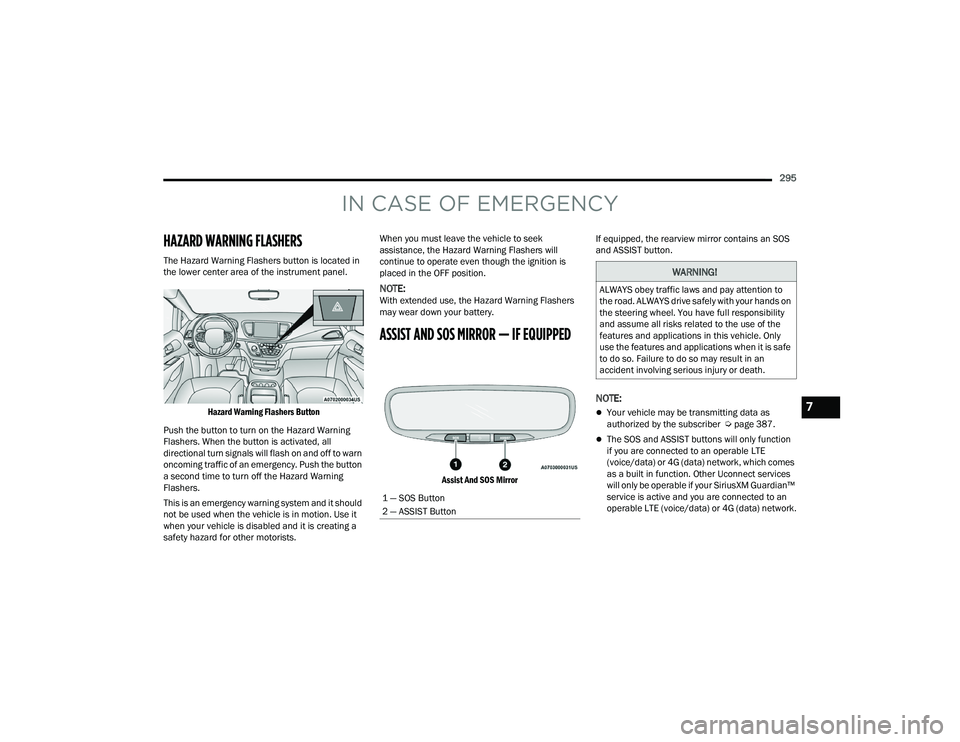
The Hazard Warning Flashers button is located in
the lower center area of the instrument panel.
Hazard Warning Flashers Button
Push the button to turn on the Hazard Warning
Flashers. When the button is activated, all
directional turn signals will flash on and off to warn
oncoming traffic of an emergency. Push the button
a second time to turn off the Hazard Warning
Flashers.
This is an emergency warning system and it should
not be used when the vehicle is in motion. Use it
when your vehicle is disabled and it is creating a
safety hazard for other motorists. When you must leave the vehicle to seek
assistance, the Hazard Warning Flashers will
continue to operate even though the ignition is
placed in the OFF position.
NOTE:With extended use, the Hazard Warning Flashers
may wear down your battery.
ASSIST AND SOS MIRROR — IF EQUIPPED
Assist And SOS Mirror
If equipped, the rearview mirror contains an SOS
and ASSIST button.
NOTE:
Your vehicle may be transmitting data as
authorized by the subscriber Ú
page 387.
The SOS and ASSIST buttons will only function
if you are connected to an operable LTE
(voice/data) or 4G (data) network, which comes
as a built in function. Other Uconnect services
will only be operable if your SiriusXM Guardian™
service is active and you are connected to an
operable LTE (voice/data) or 4G (data) network.
1 — SOS Button
2 — ASSIST Button
WARNING!
ALWAYS obey traffic laws and pay attention to
the road. ALWAYS drive safely with your hands on
the steering wheel. You have full responsibility
and assume all risks related to the use of the
features and applications in this vehicle. Only
use the features and applications when it is safe
to do so. Failure to do so may result in an
accident involving serious injury or death.
7
21_RUP_OM_EN_USC_t.book Page 295