phone CHRYSLER PACIFICA 2022 User Guide
[x] Cancel search | Manufacturer: CHRYSLER, Model Year: 2022, Model line: PACIFICA, Model: CHRYSLER PACIFICA 2022Pages: 384, PDF Size: 23.92 MB
Page 92 of 384
90GETTING TO KNOW YOUR VEHICLE
(Continued)
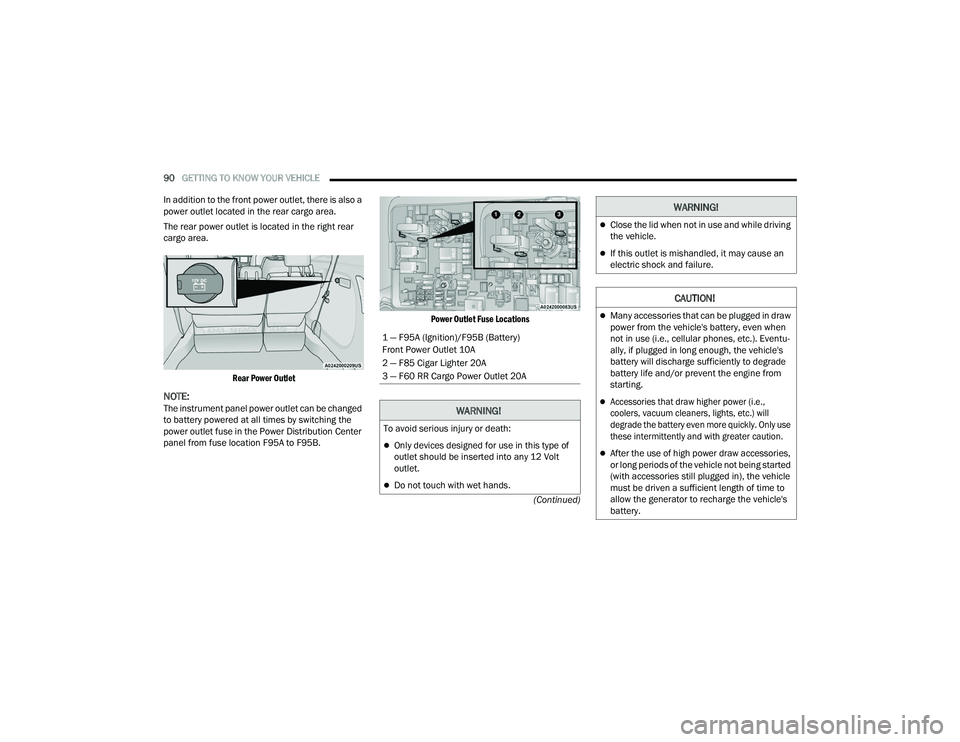
In addition to the front power outlet, there is also a
power outlet located in the rear cargo area.
The rear power outlet is located in the right rear
cargo area.
Rear Power Outlet
NOTE:The instrument panel power outlet can be changed
to battery powered at all times by switching the
power outlet fuse in the Power Distribution Center
panel from fuse location F95A to F95B.
Power Outlet Fuse Locations
1 — F95A (Ignition)/F95B (Battery)
Front Power Outlet 10A
2 — F85 Cigar Lighter 20A
3 — F60 RR Cargo Power Outlet 20A
WARNING!
To avoid serious injury or death:
Only devices designed for use in this type of
outlet should be inserted into any 12 Volt
outlet.
Do not touch with wet hands.
Close the lid when not in use and while driving
the vehicle.
If this outlet is mishandled, it may cause an
electric shock and failure.
CAUTION!
Many accessories that can be plugged in draw
power from the vehicle's battery, even when
not in use (i.e., cellular phones, etc.). Eventu
-
ally, if plugged in long enough, the vehicle's
battery will discharge sufficiently to degrade
battery life and/or prevent the engine from
starting.
Accessories that draw higher power (i.e.,
coolers, vacuum cleaners, lights, etc.) will
degrade the battery even more quickly. Only use
these intermittently and with greater caution.
After the use of high power draw accessories,
or long periods of the vehicle not being started
(with accessories still plugged in), the vehicle
must be driven a sufficient length of time to
allow the generator to recharge the vehicle's
battery.
WARNING!
22_RUP_OM_EN_USC_t.book Page 90
Page 93 of 384
GETTING TO KNOW YOUR VEHICLE91
POWER INVERTER — IF EQUIPPED
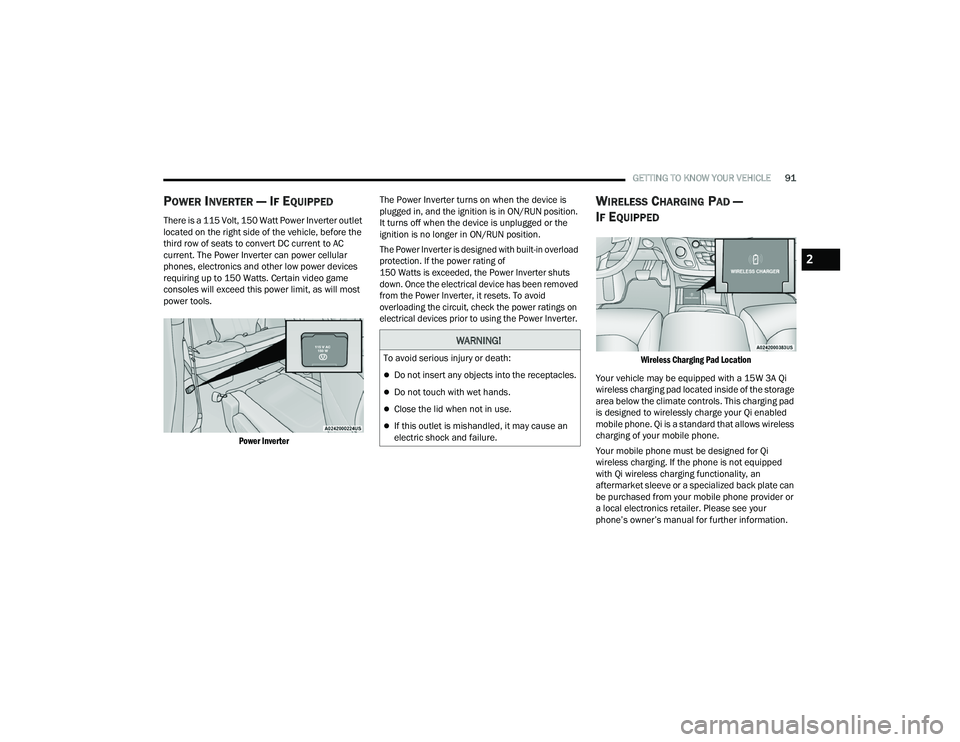
There is a 115 Volt, 150 Watt Power Inverter outlet
located on the right side of the vehicle, before the
third row of seats to convert DC current to AC
current. The Power Inverter can power cellular
phones, electronics and other low power devices
requiring up to 150 Watts. Certain video game
consoles will exceed this power limit, as will most
power tools.
Power Inverter
The Power Inverter turns on when the device is
plugged in, and the ignition is in ON/RUN position.
It turns off when the device is unplugged or the
ignition is no longer in ON/RUN position.
The Power Inverter is designed with built-in overload
protection. If the power rating of
150 Watts is exceeded, the Power Inverter shuts
down. Once the electrical device has been removed
from the Power Inverter, it resets. To avoid
overloading the circuit, check the power ratings on
electrical devices prior to using the Power Inverter.
WIRELESS CHARGING PAD —
I
F EQUIPPED
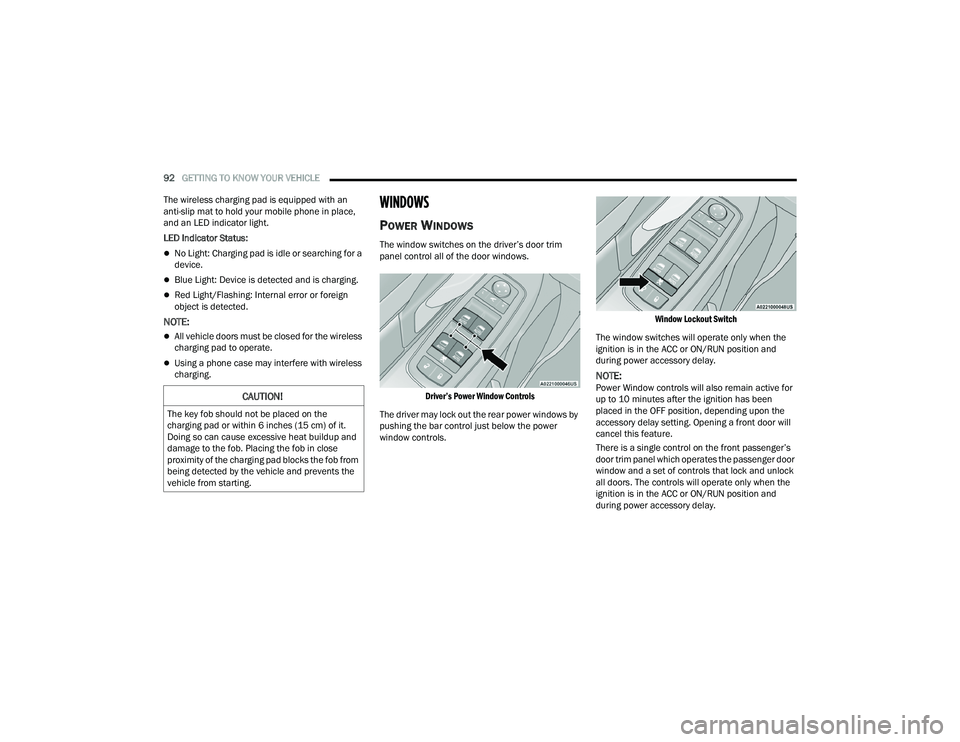
Wireless Charging Pad Location
Your vehicle may be equipped with a 15W 3A Qi
wireless charging pad located inside of the storage
area below the climate controls. This charging pad
is designed to wirelessly charge your Qi enabled
mobile phone. Qi is a standard that allows wireless
charging of your mobile phone.
Your mobile phone must be designed for Qi
wireless charging. If the phone is not equipped
with Qi wireless charging functionality, an
aftermarket sleeve or a specialized back plate can
be purchased from your mobile phone provider or
a local electronics retailer. Please see your
phone’s owner’s manual for further information.
WARNING!
To avoid serious injury or death:
Do not insert any objects into the receptacles.
Do not touch with wet hands.
Close the lid when not in use.
If this outlet is mishandled, it may cause an
electric shock and failure.
2
22_RUP_OM_EN_USC_t.book Page 91
Page 94 of 384
92GETTING TO KNOW YOUR VEHICLE
The wireless charging pad is equipped with an
anti-slip mat to hold your mobile phone in place,
and an LED indicator light.
LED Indicator Status:
No Light: Charging pad is idle or searching for a
device.
Blue Light: Device is detected and is charging.
Red Light/Flashing: Internal error or foreign
object is detected.
NOTE:
All vehicle doors must be closed for the wireless
charging pad to operate.
Using a phone case may interfere with wireless
charging.
WINDOWS
POWER WINDOWS
The window switches on the driver’s door trim
panel control all of the door windows.
Driver’s Power Window Controls
The driver may lock out the rear power windows by
pushing the bar control just below the power
window controls.
Window Lockout Switch
The window switches will operate only when the
ignition is in the ACC or ON/RUN position and
during power accessory delay.
NOTE:Power Window controls will also remain active for
up to 10 minutes after the ignition has been
placed in the OFF position, depending upon the
accessory delay setting. Opening a front door will
cancel this feature.
There is a single control on the front passenger’s
door trim panel which operates the passenger door
window and a set of controls that lock and unlock
all doors. The controls will operate only when the
ignition is in the ACC or ON/RUN position and
during power accessory delay.CAUTION!
The key fob should not be placed on the
charging pad or within 6 inches (15 cm) of it.
Doing so can cause excessive heat buildup and
damage to the fob. Placing the fob in close
proximity of the charging pad blocks the fob from
being detected by the vehicle and prevents the
vehicle from starting.
22_RUP_OM_EN_USC_t.book Page 92
Page 120 of 384
118GETTING TO KNOW YOUR INSTRUMENT PANEL
Odometer (Premium Instrument Cluster)
Show
Hide (Odometer will still appear when door
is open) Defaults
Restore
Cancel
Premium Instrument Cluster Display
Screen Setup Options:
Lower Left
None Compass Outside Temp
Time Range Average
(MPG,
L/100km,
or km/L)
Current
(MPG,
L/100km,
or km/L) Trip B Distance Trip A Distance
Premium Instrument Cluster Display
Screen Setup Options:
Upper Center
None Compass Outside Temp
Time Range Average
(MPG,
L/100km,
or km/L)
Current
(MPG,
L/100km,
or km/L) Average
(L/100km,
or km/L)
Current
(L/100km,
or km/L)
Trip A Distance Trip B Distance Audio/Phone
Digital Speed Menu Title
Premium Instrument Cluster Display
Screen Setup Options:
Lower Right
None Compass Outside Temp
Time Range Average
(MPG,
L/100km,
or km/L)
Current
(MPG,
L/100km,
or km/L) Trip B Distance Trip A Distance
Premium Instrument Cluster Display
Screen Setup Options:
Upper Center
Base Instrument Cluster Display Screen Setup Options:
Upper Left
None Compass Outside Temp
Time Range Average
(MPG,
L/100km,
or km/L)
Current
(MPG,
L/100km,
or km/L) Trip B Distance Trip A Distance
Base Instrument Cluster Display
Screen Setup Options:
Upper Right
None Compass Outside Temp
Time Range Average
(MPG,
L/100km,
or km/L)
22_RUP_OM_EN_USC_t.book Page 118
Page 145 of 384
STARTING AND OPERATING143
ALL-WHEEL DRIVE (AWD) — IF EQUIPPED
This feature provides on-demand All-Wheel Drive
(AWD). The system is automatic with no driver
inputs or additional driving skills required. Under
normal driving conditions, the front wheels provide
most of the traction. If the front wheels begin to
lose traction, power is shifted automatically to the
rear wheels. The greater the front wheel traction
loss, the greater the power transfer to the rear
wheels.
Additionally, on dry pavement under heavy throttle
input (where one may have no wheel spin), torque
will be sent to the rear in a preemptive effort to
improve vehicle launch and performance
characteristics.
ACTIVE NOISE CANCELLATION
Your vehicle is equipped with an Active Noise
Cancellation system. This system is designed to
address exhaust and engine noise. The system
relies on four microphones embedded in the
headliner, which monitor exhaust and engine noise, and assists an onboard frequency
generator, which creates counteracting sound
waves in the audio system’s speakers. This helps
keep the vehicle quiet at idle and during drive.
POWER STEERING
The electric power steering system will provide
increased vehicle response and ease of
maneuverability. The power steering system
adapts to different driving conditions.
If the Steering icon is displayed and the “POWER
STEERING SYSTEM OVER TEMP” message is
displayed on the instrument cluster screen, this
indicates an over temperature condition in the
power steering system. Once driving conditions are
safe, pull over and let the vehicle idle for a few
moments until the icon and message turn off
Ú
page 121.
If the “SERVICE POWER STEERING" or
"POWER STEERING ASSIST OFF -
SERVICE SYSTEM” message and a
steering wheel icon are displayed on the
instrument cluster screen, it indicates that the vehicle needs to be taken to an authorized dealer
for service. It is likely the vehicle has lost power
steering assistance Ú
page 121.
NOTE:
Even if the power steering assistance is no
longer operational, it is still possible to steer
the vehicle. Under these conditions there will be
a substantial increase in steering effort,
especially at low speeds and during parking
maneuvers.
The power steering system is fully electric; it
requires no power steering fluid.
If the condition persists, see an authorized
dealer for service.
STOP/START SYSTEM — IF EQUIPPED
The Stop/Start function is developed to reduce
fuel consumption. The system will stop the engine
automatically during a vehicle stop if the required
conditions are met. Releasing the brake pedal,
pressing the accelerator pedal or shifting out of
DRIVE (D) will automatically re-start the engine.
This vehicle has been upgraded with a heavy-duty
starter, enhanced battery, and other upgraded
engine parts to handle the additional engine starts.CAUTION!
All wheels must have the same size and type
tires. Unequal tire sizes must not be used.
Unequal tire size may cause premature wear of
the driveline components.
WARNING!
Continued operation with reduced assist could
pose a safety risk to yourself and others. Service
should be obtained as soon as possible.
4
22_RUP_OM_EN_USC_t.book Page 143
Page 189 of 384
187
MULTIMEDIA
UCONNECT SYSTEMS
For detailed information about your Uconnect 5
With 7-inch Display or Uconnect 5/5 NAV With
10.1-inch Display system, refer to your Uconnect
Owner’s Manual Supplement.
NOTE:Uconnect screen images are for illustration
purposes only and may not reflect exact software
for your vehicle.
CYBERSECURITY
Your vehicle may be a connected vehicle and may
be equipped with both wired and wireless
networks. These networks allow your vehicle to
send and receive information. This information
allows systems and features in your vehicle to
function properly.Your vehicle may be equipped with certain security
features to reduce the risk of unauthorized and
unlawful access to vehicle systems and wireless
communications. Vehicle software technology
continues to evolve over time and FCA US LLC,
working with its suppliers, evaluates and takes
appropriate steps as needed.
The risk of unauthorized and unlawful access to
your vehicle systems may still exist, even if the
most recent version of vehicle software (such as
Uconnect software) is installed.
NOTE:
To help further improve user experience,
features, stability, etc., and minimize the poten
-
tial risk of a security breach, vehicle owners
should:
Routinely check www.driveuconnect.com
(US Residents) or www.driveuconnect.ca
(Canadian Residents) to learn about avail -
able Uconnect software updates.
Only connect and use trusted media
devices (e.g. personal mobile phones,
USBs, CDs).
WARNING!
ONLY insert trusted devices/components into
your vehicle. Media of unknown origin could
possibly contain malicious software, and if
installed in your vehicle, it may increase the
possibility for vehicle systems to be breached.
As always, if you experience unusual vehicle
behavior, take your vehicle to your nearest
authorized dealer immediately.
5
22_RUP_OM_EN_USC_t.book Page 187
Page 193 of 384
MULTIMEDIA191
Display Brightness Headlights On This setting will allow you to set the brightness when the headlights are on. To
access this setting, Display Mode must be set to “Manual”. The “+” setting will
increase the brightness; the “-” will decrease the brightness.
Display Brightness Headlights Off This setting will allow you to set the brightness when the headlights are off. To
access this setting, Display Mode must be set to “Manual”. The “+” setting will
increase the brightness; the “-” will decrease the brightness.
Set Theme This setting will allow you to change the theme of the radio.
Units This setting changes the “Speed” (MPH or km/h), “Distance” (mi or km), “Fuel
Consumption” (MPG [US], MPG [UK], L/100 km, or km/L), “Pressure” (psi,
kPa, or bar), “Temperature” (°C or °F), and “Current Consumption” (MPG
[US], MPG [UK], L/100 km, or km/L) units of measurement independently.
Touchscreen Beep This setting will allow you to turn the touchscreen beep on or off.
Show Main Category Bar Labels This setting will allow the main category bar labels to be shown on or off.
Navigation Next Turn Displayed in Cluster This setting will display navigation prompts in the Instrument Cluster Display.
Phone Pop-Ups Displayed In Cluster This setting will display smartphone notifications and messages in the
Instrument Cluster Display.
System Text Size This setting will allow you to change the text on the radio to “Standard”,
“Large”, and “Taller”.
Time Format This setting will allow you to set the time format (AM/PM). Sync Time With
GPS must be “Off” for this setting to be available. The “12 hrs” setting will set
the time to a 12-hour format. The “24 hrs” setting will set the time to a
24-hour format.
Setting Name
Description
5
22_RUP_OM_EN_USC_t.book Page 191
Page 197 of 384
MULTIMEDIA195
Safety & Driving Assistance
Control Screen Timeout This setting allows you to set the Control Screen to turn off automatically after
five seconds or stay open until manually closed.
Navigation Next Turn Displayed in Cluster This setting will display navigation prompts in the Instrument Cluster Display.
Phone Pop-Ups Displayed In Cluster This setting will display smartphone notifications and messages in the
Instrument Cluster Display.
Ready To Drive Pop-Ups This setting will enable the Ready To Drive Pop-Ups in the Instrument
Cluster Display.
Setting Name
Description
After pressing the Safety & Driving Assistance button on the touchscreen, the following settings will be available:
NOTE:Depending on the vehicle’s options, feature settings may vary.
Setting NameDescription
Forward Collision Warning Sensitivity — Located In Automatic Emergency
Braking Submenu This setting will change the distance at which the Forward Collision Warning
(FCW) alert sounds. The “Medium” setting will have the FCW system signal
when an object is in view, and the possibility of a collision is detected. The
“Near” setting will have the FCW system signal when the object is closer to the
vehicle. The “Far” setting will have the FCW system signal when an object is at
a far distance from the vehicle.
Forward Collision Warning — Located In Automatic Emergency Braking
Submenu This setting will turn the Forward Collision Warning system on or off. The “Off”
setting will deactivate the FCW system. The “Warning Only” setting will provide
only an audible chime when a collision is detected. The “Warning + Active
Braking” setting will provide an audible chime and apply some brake pressure
when a collision is detected.
5
22_RUP_OM_EN_USC_t.book Page 195
Page 200 of 384
198MULTIMEDIA
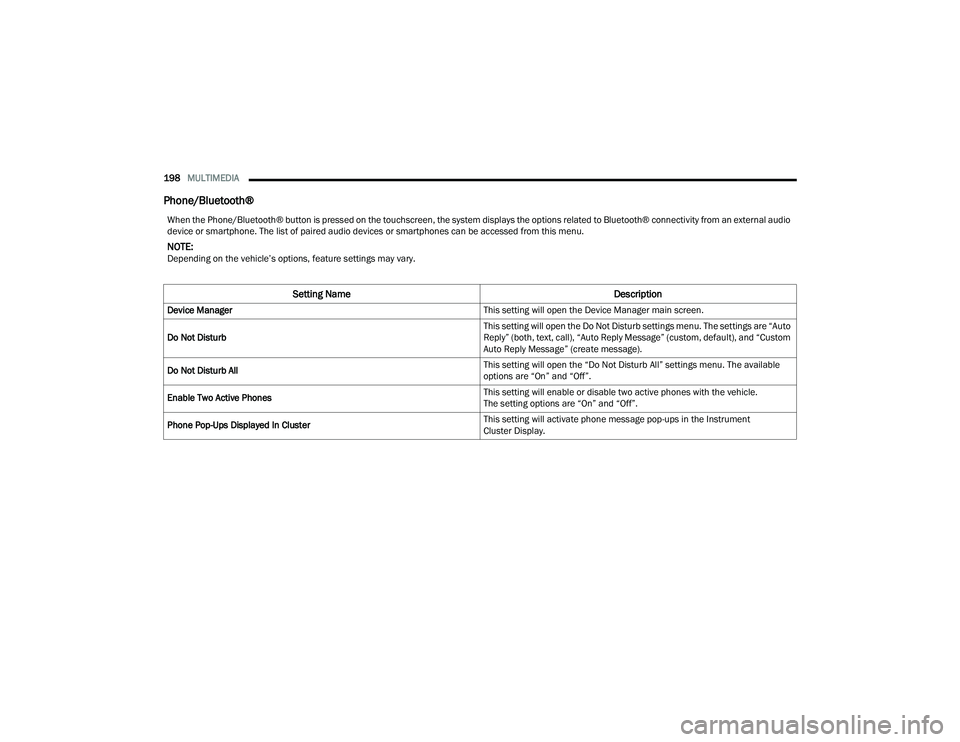
Phone/Bluetooth®
When the Phone/Bluetooth® button is pressed on the touchscreen, the system displays the options related to Bluetooth® connectivity from an external audio
device or smartphone. The list of paired audio devices or smartphones can be accessed from this menu.
NOTE:Depending on the vehicle’s options, feature settings may vary.
Setting Name Description
Device Manager This setting will open the Device Manager main screen.
Do Not Disturb This setting will open the Do Not Disturb settings menu. The settings are “Auto
Reply” (both, text, call), “Auto Reply Message” (custom, default), and “Custom
Auto Reply Message” (create message).
Do Not Disturb All This setting will open the “Do Not Disturb All” settings menu. The available
options are “On” and “Off”.
Enable Two Active Phones This setting will enable or disable two active phones with the vehicle.
The setting options are “On” and “Off”.
Phone Pop-Ups Displayed In Cluster This setting will activate phone message pop-ups in the Instrument
Cluster Display.
22_RUP_OM_EN_USC_t.book Page 198
Page 209 of 384
MULTIMEDIA207
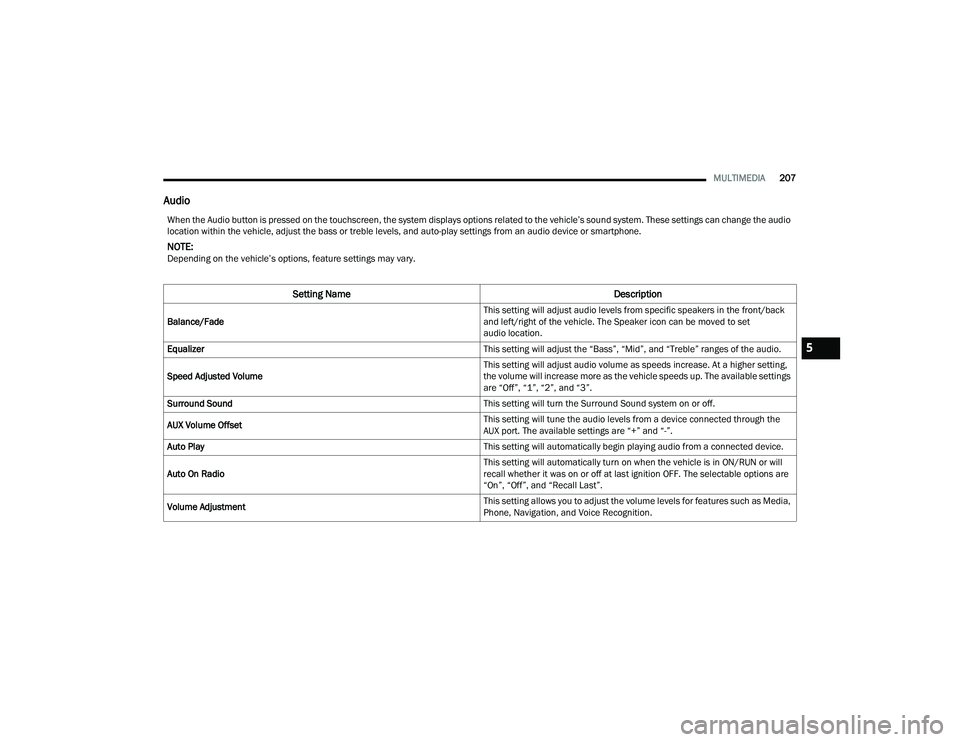
Audio
When the Audio button is pressed on the touchscreen, the system displays options related to the vehicle’s sound system. These settings can change the audio
location within the vehicle, adjust the bass or treble levels, and auto-play settings from an audio device or smartphone.
NOTE:Depending on the vehicle’s options, feature settings may vary.
Setting Name Description
Balance/Fade This setting will adjust audio levels from specific speakers in the front/back
and left/right of the vehicle. The Speaker icon can be moved to set
audio location.
Equalizer This setting will adjust the “Bass”, “Mid”, and “Treble” ranges of the audio.
Speed Adjusted Volume This setting will adjust audio volume as speeds increase. At a higher setting,
the volume will increase more as the vehicle speeds up. The available settings
are “Off”, “1”, “2”, and “3”.
Surround Sound This setting will turn the Surround Sound system on or off.
AUX Volume Offset This setting will tune the audio levels from a device connected through the
AUX port. The available settings are “+” and “-”.
Auto Play This setting will automatically begin playing audio from a connected device.
Auto On Radio This setting will automatically turn on when the vehicle is in ON/RUN or will
recall whether it was on or off at last ignition OFF. The selectable options are
“On”, “Off”, and “Recall Last”.
Volume Adjustment This setting allows you to adjust the volume levels for features such as Media,
Phone, Navigation, and Voice Recognition.
5
22_RUP_OM_EN_USC_t.book Page 207