phone CHRYSLER PACIFICA 2022 Owner's Manual
[x] Cancel search | Manufacturer: CHRYSLER, Model Year: 2022, Model line: PACIFICA, Model: CHRYSLER PACIFICA 2022Pages: 384, PDF Size: 23.92 MB
Page 210 of 384
208MULTIMEDIA
Notifications
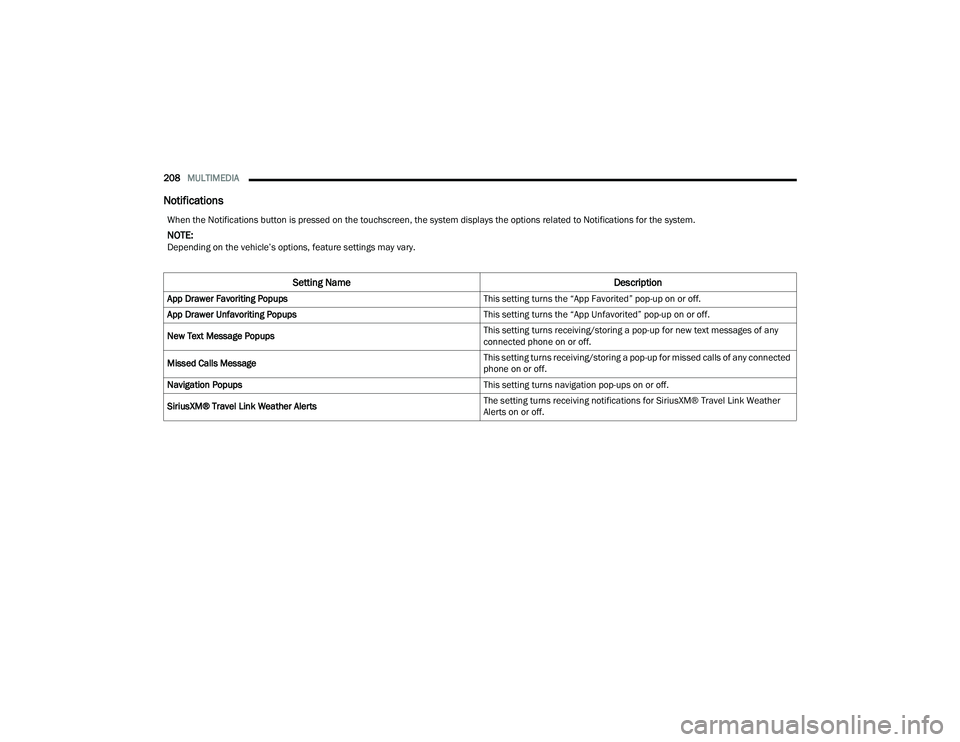
When the Notifications button is pressed on the touchscreen, the system displays the options related to Notifications for the system.
NOTE:Depending on the vehicle’s options, feature settings may vary.
Setting Name Description
App Drawer Favoriting Popups This setting turns the “App Favorited” pop-up on or off.
App Drawer Unfavoriting Popups This setting turns the “App Unfavorited” pop-up on or off.
New Text Message Popups This setting turns receiving/storing a pop-up for new text messages of any
connected phone on or off.
Missed Calls Message This setting turns receiving/storing a pop-up for missed calls of any connected
phone on or off.
Navigation Popups This setting turns navigation pop-ups on or off.
SiriusXM® Travel Link Weather Alerts The setting turns receiving notifications for SiriusXM® Travel Link Weather
Alerts on or off.
22_RUP_OM_EN_USC_t.book Page 208
Page 215 of 384
MULTIMEDIA213
REAR SEAT ENTERTAINMENT WITH
AMAZON FIRE TV BUILT-IN — IF EQUIPPED
OVERVIEW
Rear Seat Entertainment with Fire TV built-in is
designed to give your family years of enjoyment.
Fire TV lets passengers enjoy a wide variety of
content from popular apps (subscriptions may be
required). Stream videos, play games, listen to
music, get information, and watch downloaded
programs all while on the road. In addition to
streaming and downloaded content, changing the
input in Fire TV also allows users to:
Play your favorite CDs, DVDs, or Blu-ray™ Discs
Mirror what’s on your phone or tablet to Fire TV
via Miracast capable devices (see support
here):
https://www.amazon.com/gp/help/
customer/display
Plug and play a variety of standard video games
or devices into the HDMI port
Listen to audio over wireless headphones
(not included, customer will have to provide
their own)
Plug and play a variety of devices into the
Video USB port
Plug in standard headphones to listen to audio
NOTE:Vehicle must be in an active and usable cellular
range and properly equipped with a Uconnect
5 NAV system and Rear Seat Entertainment with
Fire TV package. Streaming requires a Wi-Fi
connection and registered Amazon account to run
Fire TV in the vehicle. Streaming service subscrip -
tions are not included. Certain services are subject
to change or withdrawal at any time, may not be
available in all areas and languages, and may
require separate subscriptions.
GETTING STARTED
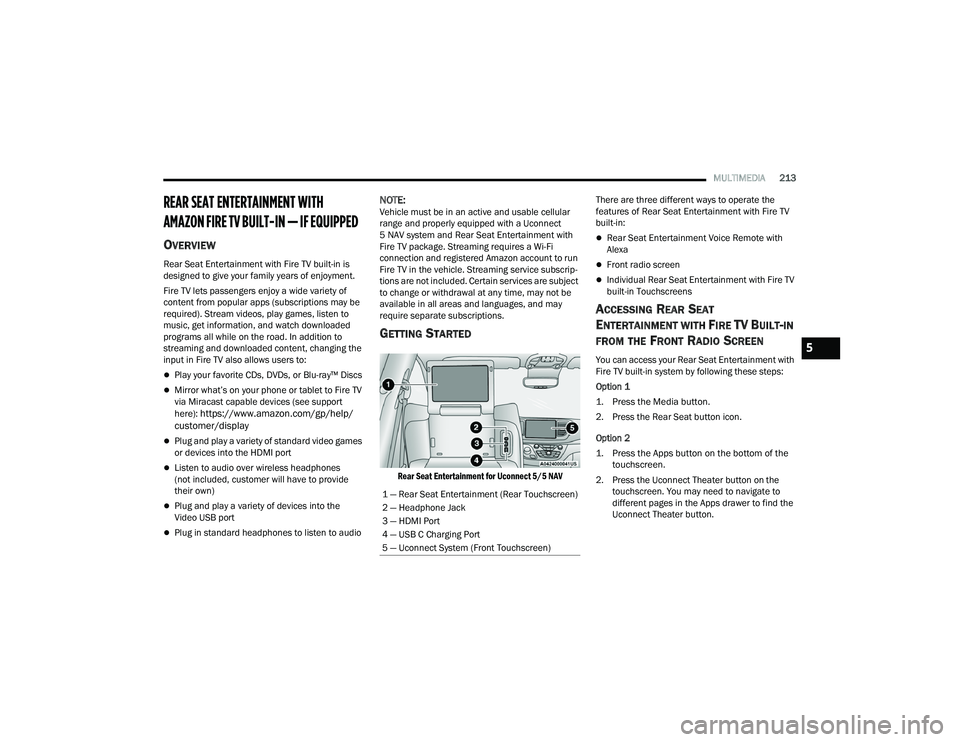
Rear Seat Entertainment for Uconnect 5/5 NAV
There are three different ways to operate the
features of Rear Seat Entertainment with Fire TV
built-in:
Rear Seat Entertainment Voice Remote with
Alexa
Front radio screen
Individual Rear Seat Entertainment with Fire TV
built-in Touchscreens
ACCESSING REAR SEAT
E
NTERTAINMENT WITH FIRE TV BUILT-IN
FROM THE FRONT RADIO SCREEN
You can access your Rear Seat Entertainment with
Fire TV built-in system by following these steps:
Option 1
1. Press the Media button.
2. Press the Rear Seat button icon.
Option 2
1. Press the Apps button on the bottom of the
touchscreen.
2. Press the Uconnect Theater button on the touchscreen. You may need to navigate to
different pages in the Apps drawer to find the
Uconnect Theater button.
1 — Rear Seat Entertainment (Rear Touchscreen)
2 — Headphone Jack
3 — HDMI Port
4 — USB C Charging Port
5 — Uconnect System (Front Touchscreen)5
22_RUP_OM_EN_USC_t.book Page 213
Page 216 of 384
214MULTIMEDIA
ACCESSING REAR SEAT
E
NTERTAINMENT WITH FIRE TV BUILT-IN
FROM THE REAR SCREENS
You can access your Rear Seat Entertainment with
Fire TV built-in system from the rear screens by just
flipping the screens open. Flipping open the rear
screens will automatically turn the system on.
Pushing the Power button on the Rear Seat
Entertainment Voice Remote with Alexa.
NOTE:While accessing on the rear screens, the system
will launch with the integrated Fire TV.
FIRST TIME STARTING UP
(U
SING THE REAR SCREENS)
Boot-Up Screen
When turning on the system for the first time from
the rear screens, a boot-up screen will appear on
the system displaying the Fire TV logo.
During this boot up sequence, language options
will be available for the system.
Voice Remote with Alexa Pairing
After the boot-up sequence is complete, the
system will then give the option to pair a Voice
Remote with Alexa (two are included with the
system). Follow the on-screen instructions to pair the Voice
Remote with Alexa to the system.
NOTE:If the Voice Remote with Alexa pairing fails,
on-screen instructions will appear for trying to pair
again.
Connecting to a Network
During the start-up process, the system will need to
be connected to a network. Multiple network
sources can be options for the system, and one will
need to be selected for the system to function.
Some options for a network connection are:
Wi-Fi Hotspot using a capable smartphone
(if activated, it will show as a possible network
for the system on the screen).
Outside connection like a home Wi-Fi network.
In-vehicle Wi-Fi.
NOTE:When a network is connected to the system for the
first time, an over-the-air software update will take
place using the Wi-Fi connection. After this
first-time update, updates will only accrue when
one is available. It is recommended that you
connect your RSE/Amazon Fire OS to a Wi-Fi
Hotspot with unlimited data and a good signal
(such as a home Wi-Fi network) in order to check
for future Fire OS updates.
Account Sign-in
The next step will be the option to sign in to your
Amazon account.
There are two options to sign into the system:
I already have an Amazon account:
Sign in with
an already existing Amazon account
I am new to Amazon: Create a new Amazon
Account
If “I am new to Amazon” is selected, follow the
on-screen steps to set up an Amazon account with
the system.
Parental Controls
Another feature that will appear during this first
time set up is parental controls.
When the parental controls page appears, it will
give the options to “Enable Parental Controls” and
“No Parental Controls”. If “Enable Parental
Controls” is selected, follow the on-screen steps to
set up parental controls for the system.
REAR SEAT ENTERTAINMENT WITH FIRE
TV B
UILT-IN ALEXA
A feature with Rear Seat Entertainment with Fire
TV built-in that enhances your experience is Alexa.
It is simple to get started using this feature. Push
the Voice button at the top of the Voice Remote
with Alexa to activate Alexa and get started.
22_RUP_OM_EN_USC_t.book Page 214
Page 218 of 384
216MULTIMEDIA
MEDIA SOURCES INPUT (USING THE
F
RONT RADIO AND REAR SCREENS)
Front Radio Screen
Inputs available within Launch Source under
“Inputs” are “Fire TV”, “HDMI”, “Blu-ray™”, “DVD’,
and “USB”.
Rear Screens
To select inputs on the rear screen, scroll down on
the Fire TV Home screen and select your desired
input under “Inputs”.
Inputs can also be selected from the Brand tab in
the top menu. While in this tab, scroll down to
“Inputs” for selection.
NOTE:The Brand tab naming in the top menu will depend
on the naming of the vehicle’s brand.
REAR SEAT ENTERTAINMENT WITH FIRE
TV B
UILT-IN VOICE REMOTE WITH ALEXA
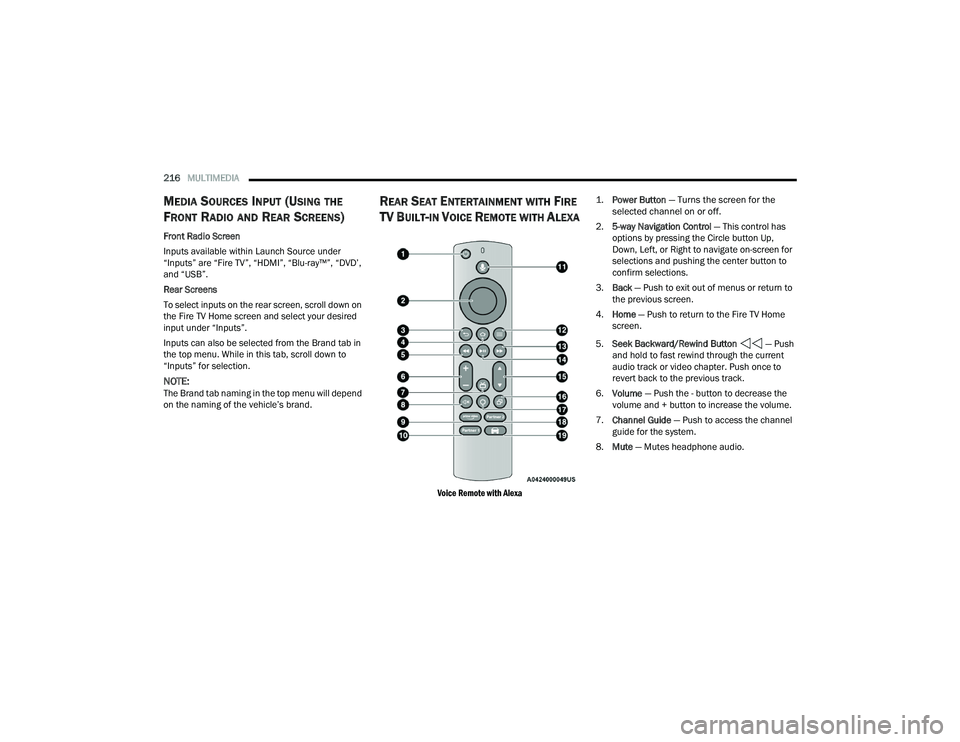
Voice Remote with Alexa
1.
Power Button
— Turns the screen for the
selected channel on or off.
2. 5-way Navigation Control — This control has
options by pressing the Circle button Up,
Down, Left, or Right to navigate on-screen for
selections and pushing the center button to
confirm selections.
3. Back — Push to exit out of menus or return to
the previous screen.
4. Home — Push to return to the Fire TV Home
screen.
5. Seek Backward/Rewind Button — Push
and hold to fast rewind through the current
audio track or video chapter. Push once to
revert back to the previous track.
6. Volume — Push the - button to decrease the
volume and + button to increase the volume.
7. Channel Guide — Push to access the channel
guide for the system.
8. Mute — Mutes headphone audio.
22_RUP_OM_EN_USC_t.book Page 216
Page 221 of 384
MULTIMEDIA219
4. To play a Blu-ray™ or DVD disc on both screens simultaneously, select “Launch Source” and
then under Inputs, select “View Screen 1 or 2”.
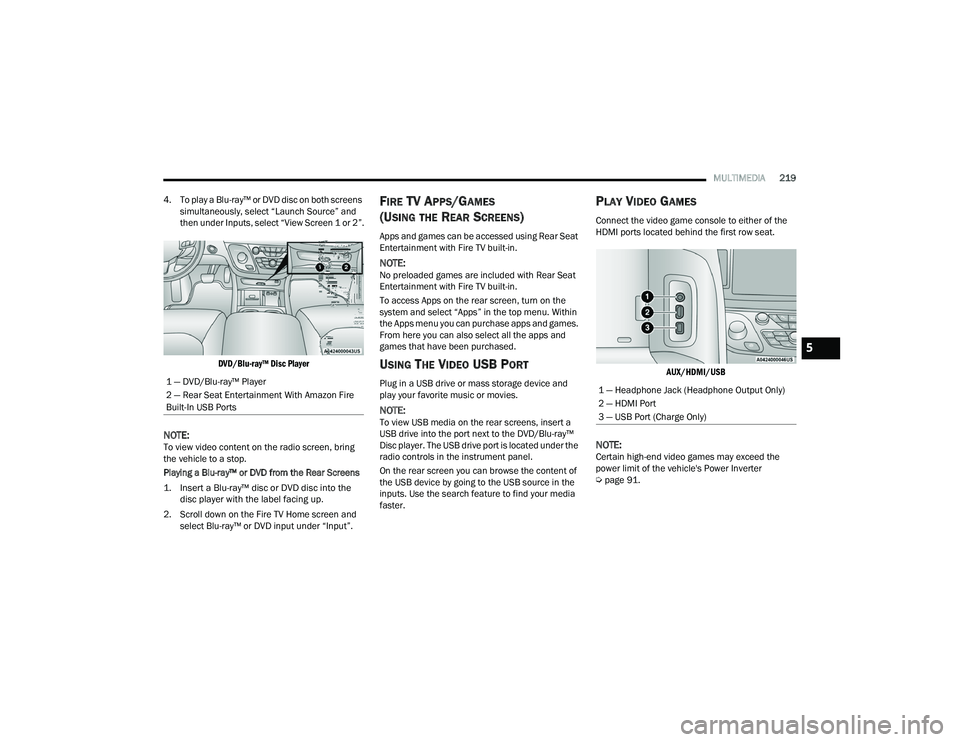
DVD/Blu-ray™ Disc Player
NOTE:To view video content on the radio screen, bring
the vehicle to a stop.
Playing a Blu-ray™ or DVD from the Rear Screens
1. Insert a Blu-ray™ disc or DVD disc into the disc player with the label facing up.
2. Scroll down on the Fire TV Home screen and select Blu-ray™ or DVD input under “Input”.
FIRE TV APPS/GAMES
(U
SING THE REAR SCREENS)
Apps and games can be accessed using Rear Seat
Entertainment with Fire TV built-in.
NOTE:No preloaded games are included with Rear Seat
Entertainment with Fire TV built-in.
To access Apps on the rear screen, turn on the
system and select “Apps” in the top menu. Within
the Apps menu you can purchase apps and games.
From here you can also select all the apps and
games that have been purchased.
USING THE VIDEO USB PORT
Plug in a USB drive or mass storage device and
play your favorite music or movies.
NOTE:To view USB media on the rear screens, insert a
USB drive into the port next to the DVD/Blu-ray™
Disc player. The USB drive port is located under the
radio controls in the instrument panel.
On the rear screen you can browse the content of
the USB device by going to the USB source in the
inputs. Use the search feature to find your media
faster.
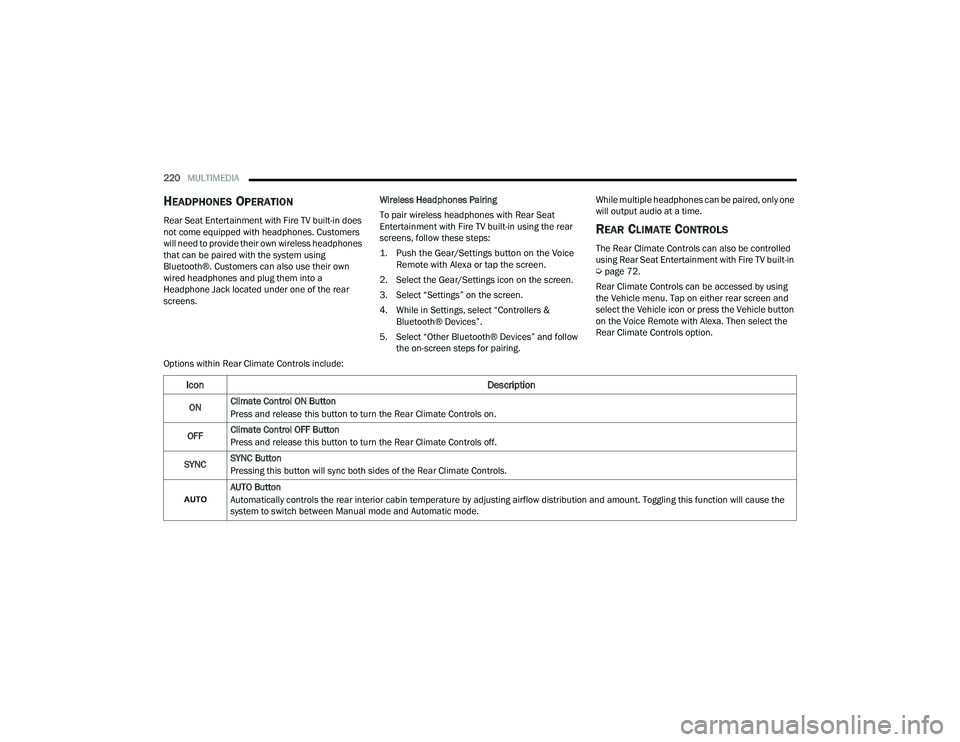
PLAY VIDEO GAMES
Connect the video game console to either of the
HDMI ports located behind the first row seat.
AUX/HDMI/USB
NOTE:Certain high-end video games may exceed the
power limit of the vehicle's Power Inverter
Úpage 91.
1 — DVD/Blu-ray™ Player
2 — Rear Seat Entertainment With Amazon Fire
Built-In USB Ports
1 — Headphone Jack (Headphone Output Only)
2 — HDMI Port
3 — USB Port (Charge Only)
5
22_RUP_OM_EN_USC_t.book Page 219
Page 222 of 384
220MULTIMEDIA
HEADPHONES OPERATION
Rear Seat Entertainment with Fire TV built-in does
not come equipped with headphones. Customers
will need to provide their own wireless headphones
that can be paired with the system using
Bluetooth®. Customers can also use their own
wired headphones and plug them into a
Headphone Jack located under one of the rear
screens. Wireless Headphones Pairing
To pair wireless headphones with Rear Seat
Entertainment with Fire TV built-in using the rear
screens, follow these steps:
1. Push the Gear/Settings button on the Voice
Remote with Alexa or tap the screen.
2. Select the Gear/Settings icon on the screen.
3. Select “Settings” on the screen.
4. While in Settings, select “Controllers & Bluetooth® Devices”.
5. Select “Other Bluetooth® Devices” and follow the on-screen steps for pairing. While multiple headphones can be paired, only one
will output audio at a time.REAR CLIMATE CONTROLS
The Rear Climate Controls can also be controlled
using Rear Seat Entertainment with Fire TV built-in
Ú
page 72.
Rear Climate Controls can be accessed by using
the Vehicle menu. Tap on either rear screen and
select the Vehicle icon or press the Vehicle button
on the Voice Remote with Alexa. Then select the
Rear Climate Controls option.
Options within Rear Climate Controls include:
Icon Description
ONClimate Control ON Button
Press and release this button to turn the Rear Climate Controls on.
OFF Climate Control OFF Button
Press and release this button to turn the Rear Climate Controls off.
SYNC SYNC Button
Pressing this button will sync both sides of the Rear Climate Controls.
AUTO Button
Automatically controls the rear interior cabin temperature by adjusting airflow distribution and amount. Toggling this function will cause the
system to switch between Manual mode and Automatic mode.
22_RUP_OM_EN_USC_t.book Page 220
Page 224 of 384
222MULTIMEDIA
LEGAL & COMPLIANCE
To access Legal and Compliance information
about Rear Seat Entertainment with Fire TV Built-in
from the rear screens, follow these steps:
1. Push the Gear/Settings button on the Voice
Remote with Alexa or tap the screen.
2. Select the Gear/Settings icon on the screen.
3. Select “Settings” on the screen.
4. While in the Settings menu, select “My Fire TV” and then “Legal & Compliance”.
RADIO OPERATION AND MOBILE PHONES
Under certain conditions, the mobile phone being
on in your vehicle can cause erratic or noisy
performance from your radio. This condition may
be lessened or eliminated by repositioning the
mobile phone within the vehicle. This condition is
not harmful to the radio. If your radio performance
does not satisfactorily improve from repositioning
the mobile phone, it is recommended that the
volume be turned down or off during mobile phone
operation when not using the Uconnect system.
REGULATORY AND SAFETY
I
NFORMATION
US/CANADA
Exposure to Radio Frequency Radiation
The radiated output power of the internal wireless
radio is far below the FCC and IC radio frequency
exposure limits. Nevertheless, the wireless radio
will be used in such a manner that the radio is 8 in
(20 cm) or further from the human body. The internal wireless radio operates within
guidelines found in radio frequency safety
standards and recommendations, which reflect
the consensus of the scientific community.
The radio manufacturer believes the internal
wireless radio is safe for use by consumers. The
level of energy emitted is far less than the
electromagnetic energy emitted by wireless
devices such as mobile phones. However, the use
of wireless radios may be restricted in some
situations or environments, such as aboard
airplanes. If you are unsure of restrictions, you are
encouraged to ask for authorization before turning
on the wireless radio Ú
page 370.
22_RUP_OM_EN_USC_t.book Page 222
Page 285 of 384
IN CASE OF EMERGENCY283
If equipped, the rearview mirror contains an SOS
and ASSIST button.
NOTE:
Your vehicle may be transmitting data as
authorized by the subscriber Ú page 370.
The SOS and ASSIST buttons will only function
if you are connected to an operable LTE
(voice/data) or 4G (data) network, which comes
as a built in function. Other Uconnect services
will only be operable if your SiriusXM Guardian™
service is active and you are connected to an
operable LTE (voice/data) or 4G (data) network. ASSIST Call
The ASSIST Button is used to automatically
connect you to any one of the following support
centers:
Roadside Assistance – If you get a flat tire, or
need a tow, just push the ASSIST button and you
will be connected to a representative for assis-
tance. Roadside Assistance will know what
vehicle is being driven and its location. Addi-
tional fees may apply for roadside assistance.
SiriusXM Guardian™ Customer Care – In-vehicle
support for SiriusXM Guardian™.
Vehicle Customer Care – Total support for all
other vehicle issues.
Uconnect Customer Care - Total support for
Radio, Phone and NAV issues.
SOS Call
1. Push the SOS Call button on the Rearview Mirror.
NOTE:In case the SOS Call button is pushed in error,
there will be a 10 second delay before the SOS Call
system initiates a call to a SOS operator. To cancel
the SOS Call connection, push the SOS call button
on the Rearview Mirror or press the cancellation
button on the Device Screen. Termination of the
SOS Call will turn off the green LED light on the
Rearview Mirror. 2. The LED light located between the SOS and
ASSIST buttons on the Rearview Mirror will
turn green once a connection to a SOS
operator has been made.
3. Once a connection between the vehicle and a SOS operator is made, the SOS Call system
may transmit the following important vehicle
information to a SOS operator:
Indication that the occupant placed a SOS
Call
The vehicle brand
The last known GPS coordinates of the
vehicle
4. You should be able to speak with the SOS operator through the vehicle audio system to
determine if additional assistance is needed.
WARNING!
ALWAYS obey traffic laws and pay attention to
the road. ALWAYS drive safely with your hands on
the steering wheel. You have full responsibility
and assume all risks related to the use of the
features and applications in this vehicle. Only
use the features and applications when it is safe
to do so. Failure to do so may result in an
accident involving serious injury or death.
WARNING!
ALWAYS obey traffic laws and pay attention to
the road. ALWAYS drive safely with your hands on
the steering wheel. You have full responsibility
and assume all risks related to the use of the
features and applications in this vehicle. Only
use the features and applications when it is safe
to do so. Failure to do so may result in an
accident involving serious injury or death.
7
22_RUP_OM_EN_USC_t.book Page 283
Page 369 of 384
367
CUSTOMER ASSISTANCE
SUGGESTIONS FOR OBTAINING SERVICE
FOR YOUR VEHICLE
PREPARE FOR THE APPOINTMENT
All work to be performed may not be covered by the
warranty. Discuss additional charges with the
service manager. Keep a maintenance log of your
vehicle's service history. This can often provide a
clue to the current problem.
PREPARE A LIST
Make a written list of your vehicle's problems or the
specific work you want done. If you've had an
accident or work done that is not on your
maintenance log, let the service advisor know.
BE REASONABLE WITH REQUESTS
If you list a number of items and you must have
your vehicle by the end of the day, discuss the
situation with the service advisor and list the items
in order of priority. At many authorized dealers, you
may obtain a rental vehicle (additional charges
may apply). If you need a rental, it is advisable to
make these arrangements when you call for an
appointment.
IF YOU NEED ASSISTANCE
FCA US LLC and its authorized dealers are vitally
interested in your satisfaction. We want you to be
happy with our products and services.
Warranty service must be done by an authorized
dealer. We strongly recommend that you take the
vehicle to an authorized dealer. They know your
vehicle the best, and are most concerned that you
get prompt and high quality service. FCA US LLC’s
authorized dealers have the facilities,
factory-trained technicians, special tools, and the
latest information to ensure the vehicle is fixed
correctly and in a timely manner.
This is why you should always talk to an authorized
dealer’s service manager first. If for some reason
you are still not satisfied, talk to the general
manager or owner of the authorized dealer. They
want to know if you need assistance. If an
authorized dealer is unable to resolve the concern,
you may contact FCA US LLC's Customer
Assistance center.Any communication to FCA US LLC’s customer
center should include the following information:Owner's name and address
Owner's telephone number (home, mobile, and
office)
Authorized dealer name
Vehicle Identification Number (VIN)
Vehicle delivery date and mileage
FCA U S LLC CUSTOMER CENTER
P.O. Box 21–8004
Auburn Hills, MI 48321–8004
Phone: (800) 247-9753
FCA CANADA INC. CUSTOMER CENTER
P.O. Box 1621
Windsor, Ontario N9A 4H6
Phone: (800) 465-2001 English /
(800) 387-9983 French
10
22_RUP_OM_EN_USC_t.book Page 367
Page 370 of 384
368CUSTOMER ASSISTANCE
MEXICO
Av. Prolongacion Paseo de la Reforma, 1240
Sante Fe C.P. 05109
Mexico, D.F.
In Mexico City: 800-505-1300
Outside Mexico City: +(52)55 50817568
PUERTO RICO AND US VIRGIN ISLANDS
FCA Caribbean LLC
P.O. Box 191857
San Juan 00919-1857
Phone: (800) 247-9753
Fax: (787) 782-3345
CUSTOMER ASSISTANCE FOR THE
H
EARING OR SPEECH IMPAIRED
(TDD/TTY)
To assist customers who have hearing difficulties,
FCA US LLC has installed special TDD (Telecommu -
nication Devices for the Deaf) equipment at its
customer center. Any hearing or speech impaired
customer, who has access to a TDD or a
conventional teletypewriter (TTY) in the United
States, can communicate with FCA US LLC by
dialing 1-800-380-2479. Canadian residents with hearing difficulties that
require assistance can use the special needs relay
service offered by Bell Canada. For TTY
teletypewriter users, dial 711 and for Voice callers,
dial 1-800-855-0511 to connect with a Bell Relay
Service operator.
SERVICE CONTRACT
You may have purchased a service contract for a
vehicle to help protect you from the high cost of
unexpected repairs after FCA US LLC's New Vehicle
Limited Warranty expires. The Mopar® Vehicle
Protection plans are the ONLY vehicle extended
protection plans authorized, endorsed and backed
by FCA US LLC to provide additional protection
beyond your vehicle’s warranty. If you purchased a
Mopar® Vehicle Protection Plan, you will receive
Plan Provisions and an Owner Identification Card in
the mail within three weeks of the vehicle delivery
date. If you have any questions about the service
contract, call FCA US LLC's Service Contract
National Customer Hotline at 1-800-521-9922
(Canadian residents, call (800) 465-2001
English / (800) 387-9983 French).
FCA US LLC is not responsible for any service
contract you may have purchased from another
manufacturer. If you require service after the
FCA US LLC New Vehicle Limited Warranty expires,
please refer to the contract documents, and
contact the person listed in those documents.
We appreciate that you have made a major
investment when you purchased the vehicle. An
authorized dealer has also made a major
investment in facilities, tools, and training to
assure that you are absolutely delighted with the
ownership experience.
WARNING!
Engine exhaust (internal combustion engines
only), some of its constituents, and certain
vehicle components contain, or emit, chemicals
known to the State of California to cause cancer
and birth defects, or other reproductive harm. In
addition, certain fluids contained in vehicles and
certain products of component wear contain, or
emit, chemicals known to the State of California
to cause cancer and birth defects, or other
reproductive harm.
22_RUP_OM_EN_USC_t.book Page 368