change time CHRYSLER PACIFICA 2023 User Guide
[x] Cancel search | Manufacturer: CHRYSLER, Model Year: 2023, Model line: PACIFICA, Model: CHRYSLER PACIFICA 2023Pages: 328, PDF Size: 16.37 MB
Page 78 of 328
76GETTING TO KNOW YOUR VEHICLE
NOTE:All accessories connected to the battery powered outlets
should be removed or turned off when the vehicle is not in
use to protect the battery against discharge.
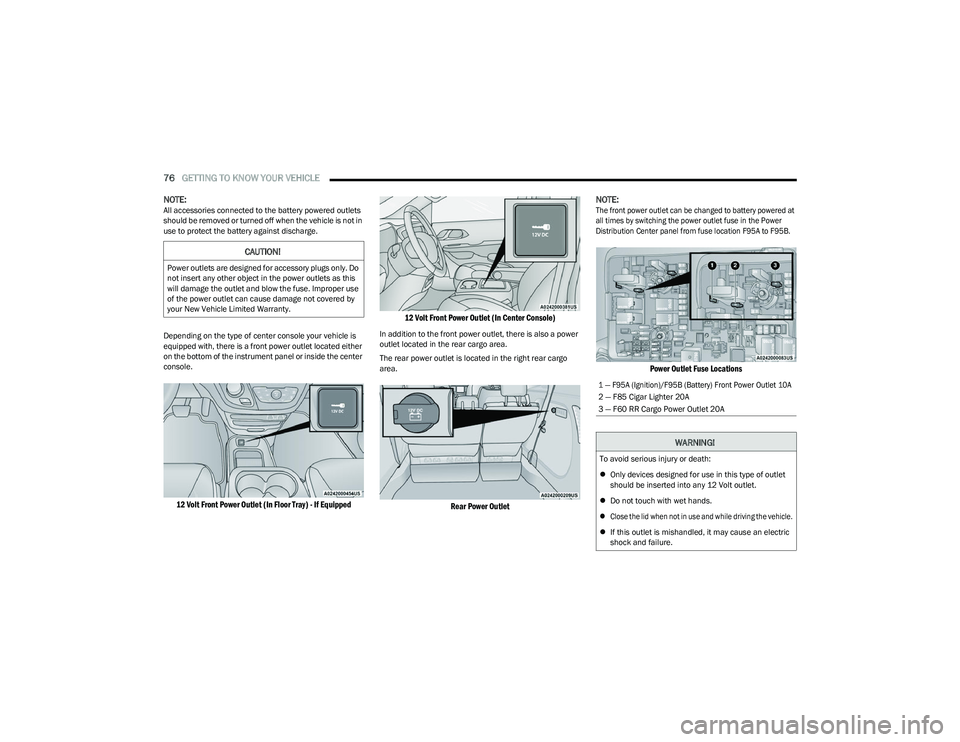
Depending on the type of center console your vehicle is
equipped with, there is a front power outlet located either
on the bottom of the instrument panel or inside the center
console.
12 Volt Front Power Outlet (In Floor Tray) - If Equipped 12 Volt Front Power Outlet (In Center Console)
In addition to the front power outlet, there is also a power
outlet located in the rear cargo area.
The rear power outlet is located in the right rear cargo
area.
Rear Power Outlet
NOTE:
The front power outlet can be changed to battery powered at
all times by switching the power outlet fuse in the Power
Distribution Center panel from fuse location F95A to F95B.
Power Outlet Fuse Locations
CAUTION!
Power outlets are designed for accessory plugs only. Do
not insert any other object in the power outlets as this
will damage the outlet and blow the fuse. Improper use
of the power outlet can cause damage not covered by
your New Vehicle Limited Warranty.
1 — F95A (Ignition)/F95B (Battery) Front Power Outlet 10A
2 — F85 Cigar Lighter 20A
3 — F60 RR Cargo Power Outlet 20A
WARNING!
To avoid serious injury or death:
Only devices designed for use in this type of outlet
should be inserted into any 12 Volt outlet.
Do not touch with wet hands.
Close the lid when not in use and while driving the vehicle.
If this outlet is mishandled, it may cause an electric
shock and failure.
23_RUP_OM_EN_USC_t.book Page 76
Page 100 of 328
98GETTING TO KNOW YOUR INSTRUMENT PANEL
Back / Left Arrow Button
Push and release the left arrow button to access
the information screens or submenu screens of a main
menu item.
Up Arrow Button
Push and release the up arrow button to scroll
upward through the Main Menu items.
Right Arrow Button
Push and release the right arrow button to access
the information screens or submenu screens of a main
menu item.
Down Arrow Button
Push and release the down arrow button to scroll
downward through the Main Menu items.
OK Button
Push the OK button to access/select the information
screens or submenu screens of a Main Menu item.
Push and hold the OK button for two seconds to reset
displayed/selected features that can be reset.
ENGINE OIL LIFE
Use this QR code to access your digital
experience.
Your vehicle is equipped with an
engine oil change indicator system.
The “Oil Change Required”
message will display for approxi -
mately five seconds after a single
chime has sounded, to indicate it is
time to change the engine oil. The engine oil change indicator system is duty cycle based, which means the
engine oil change interval may fluctuate, dependent
upon your personal driving style.
Unless reset, this message will continue to display
each time the ignition is cycled to the ON/RUN position.
To reset the oil change indicator after performing the
scheduled maintenance, refer to the following proce -
dure.
NOTE:This procedure should only be performed after scheduled
maintenance is completed. Resetting oil life other than
when associated with a scheduled maintenance may
result in damage due to not properly maintaining the
engine oil.
Oil Life Reset
1. Without pressing the brake pedal, push the ENGINE START/STOP button and place the ignition in the
ON/RUN position (do not start the vehicle.)
2. Push the OK button to enter the instrument cluster
display menu screen.
3. Push and release the down arrow button to
access the ”Vehicle Info” menu screen.
4. Push the left arrow button or right arrow button
to access the “Oil Life” submenu.
5. Hold the OK button to reset the “Oil Life” to 100%.
6. Push the up arrow button to exit the instrument
cluster display menu screen. Secondary Method For Oil Life Reset Procedure
1. Without pushing the brake pedal, place the ignition
in the ON/RUN position (do not start the engine).
2. Fully press the accelerator pedal, slowly, three times within 10 seconds.
3. Without pushing the brake pedal, place the ignition in the OFF position.
NOTE:If the indicator message illuminates when you start the
vehicle, the oil change indicator system did not reset. If
necessary, repeat this procedure.
KEYSENSE CLUSTER MESSAGES —
I
F EQUIPPED
When the KeySense key is in use there will be:
Continuous, dedicated telltale
Unique Display Splash Screen
With KeySense in use there will be multiple associated
messages shown in the following table:
Setting Instrument Cluster Display
Message
None – With vehicle ignition ON “KeySense in use. Max
vehicle speed set to xx MPH/or km/h”
23_RUP_OM_EN_USC_t.book Page 98
Page 102 of 328
100GETTING TO KNOW YOUR INSTRUMENT PANEL
Oil Life
Displays the remaining engine oil life as a percentage.
To reset the Oil Life, you must hold the OK button. The
“Hold OK to Reset” instruction will be displayed at all
times, but the following conditions will need to be met in
order to reset Oil Life:
The ignition must be in the ON/RUN position.
If the conditions are met, holding the OK button will reset
the gauge and the numeric display will return to 100%.
If the conditions are not met, a pop-up message will
display for five seconds, describing the required
conditions, and then the Oil Life screen will reappear.
Battery Voltage
Displays the actual battery voltage.
Engine Hours — If Equipped
Displays the number of hours of engine operation.
Driver Assist — If Equipped
Push and release the up or down arrow button until
the Driver Assist display icon is highlighted in the
instrument cluster display.
Adaptive Cruise Control
LaneSense
Fuel Economy
Push and release the up or down arrow button until
the Fuel Economy Menu item is highlighted in the
instrument cluster display. The Fuel Economy Menu will
display the following:
Two submenu pages that can be toggled between
using the left and right arrow buttons; one with
Current Value displayed and one without the Current
Value displayed:
Average Fuel Economy (MPG, L/100 km, or km/L)
Range To Empty (miles or km)
Current Fuel Economy (MPG, L/100 km, or km/L)
The Max and Min values will correspond to the
particular engine requirements
Hold OK to reset average fuel economy information.
Trip Info
Push and release the up or down arrow button until
the Trip Menu item is highlighted in the instrument cluster
display. Push the left or right arrow button to scroll
through the Trip A and Trip B submenus. The Trip
information will display the following:
Distance
Average Fuel Economy
Elapsed Time
Hold the OK button to reset feature information.
Stop / Start – If Equipped
Push and release the up or down arrow button until
the Stop/Start menu title is displayed in the instrument
cluster display.
Audio
Push and release the up or down arrow button until
the Audio Menu displays in the instrument cluster display.
Messages
Push and release the up or down arrow button until
Messages is highlighted in the instrument cluster display.
This feature shows the number of stored warning
messages. Pushing the right arrow button will allow you
to see what the stored messages are.
NOTE:The pop-up messages indicate the status of the system
and/or the conditions that need to be met. Messages
remain in the stored stack until condition is cleared.
Screen Setup
Push and release the up or down arrow button until
the Screen Setup Menu displays in the instrument cluster
display. Push and release the OK button to enter the
submenus. The Screen Setup feature allows you to
change what information is displayed in the instrument
cluster as well as the location that information is
displayed.
23_RUP_OM_EN_USC_t.book Page 100
Page 113 of 328

111
STARTING AND OPERATING
STARTING THE ENGINE
Before starting your vehicle, adjust your seat, adjust both
inside and outside mirrors, and fasten your seat belts.Start the engine with the gear selector in the NEUTRAL (N)
or PARK (P) position. Apply the brake before shifting to any
driving range.
NORMAL STARTING
To Turn On The Engine Using the ENGINE START/STOP
Button
1. The transmission must be in PARK or NEUTRAL.
2. Press and hold the brake pedal while pushing the
ENGINE START/STOP button once.
3. The system starts the vehicle. If the vehicle fails to start, the starter will disengage automatically after 10
seconds.
4. If you wish to stop the cranking of the engine prior to the engine starting, push the button again.
ENGINE START/STOP Button Functions — With Driver’s
Foot Off The Brake Pedal (In PARK Or NEUTRAL Position)
The ENGINE START/STOP button operates similar to an
ignition switch. It has three positions; OFF, ACC, and ON/
RUN. To change the ignition positions without starting the
vehicle and to use the accessories, follow these steps:
Start with the ignition in the OFF position.
Push the ENGINE START/STOP button once to place
the ignition to the ACC position (instrument cluster will
display “ACC”).
Push the ENGINE START/STOP button a second time to
place the ignition to the ON/RUN position (instrument
cluster will display “ON/RUN”).
Push the ENGINE START/STOP button a third time to
return the ignition to the OFF position (instrument
cluster will display “OFF”).
NOTE:Only press one pedal at a time while driving the vehicle.
Torque performance of the vehicle could be reduced if
both pedals are pressed at the same time. If pressure is
detected on both pedals simultaneously, a warning
message will display in the instrument cluster
Úpage 97.
AUTOPARK
AutoPark is a supplemental feature to assist with placing
the vehicle in PARK under certain situations. It is a
back-up system and should not be relied upon as the
primary method by which the driver shifts the vehicle into
PARK.
The conditions under which AutoPark will engage are
outlined on the following pages.
WARNING!
When exiting the vehicle, always remove the key fob
from the vehicle and lock your vehicle.
Never leave children alone in a vehicle, or with
access to an unlocked vehicle.
Allowing children to be in a vehicle unattended is
dangerous for a number of reasons. A child or others
could be seriously or fatally injured. Children should
be warned not to touch the parking brake, brake
pedal or the transmission gear selector.
Do not leave the key fob in or near the vehicle, or in
a location accessible to children, and do not leave
the ignition of a vehicle equipped with Keyless
Enter ‘n Go™ in the ACC or ON/RUN position. A child
could operate power windows, other controls, or
move the vehicle.
Do not leave children or animals inside parked vehi -
cles in hot weather. Interior heat buildup may cause
serious injury or death.
4
23_RUP_OM_EN_USC_t.book Page 111
Page 128 of 328
126STARTING AND OPERATING
Adaptive Cruise Control (ACC) Menu
The instrument cluster displays the current ACC system
settings. The information it displays depends on ACC
system status.
Push the Adaptive Cruise Control (ACC) on/off button until
one of the following displays in the instrument cluster
display:
Adaptive Cruise Control Off
When ACC is deactivated, the display will read “Adaptive
Cruise Control Off.”
Adaptive Cruise Control Ready
When ACC is activated but the vehicle speed setting has
not been selected, the display will read “Adaptive Cruise
Control Ready.”
Push the SET (+) or the SET (-) button (located on the
steering wheel) and the following will display in the
instrument cluster display:
Adaptive Cruise Control Set
When the SET (+) or the SET (-) button is pushed, the
display will read “ACC SET.”
When ACC is set, the set speed will display in the
instrument cluster.
The ACC screen may display once again if any of the
following ACC activity occurs:
System Cancel
Driver Override
System Off
ACC Proximity Warning
ACC Unavailable Warning The instrument cluster display will return to the last
display selected after five seconds of no ACC display
activity.
Activating Adaptive Cruise Control (ACC)
The minimum set speed for the ACC system is 20 mph
(32 km/h).
When the system is turned on and in the READY state, the
instrument cluster displays “ACC Ready.”
When the system is off, the instrument cluster display
“Adaptive Cruise Control (ACC) Off.”
NOTE:You cannot engage ACC under the following conditions:
When the brakes are applied
When the parking brake is applied
When the gear selector is in PARK, REVERSE or
NEUTRAL
When the vehicle speed is below the minimum speed
range
When the brakes are overheated
When the driver’s door is open at low speeds
When the driver’s seat belt is unbuckled at low speeds
To Activate/Deactivate
Push and release the Adaptive Cruise Control (ACC) on/off
button. The ACC menu in the instrument cluster will read
“ACC Ready.”
To turn the system off, push and release the Adaptive
Cruise Control (ACC) on/off button again. At this time, the
system will turn off and the instrument cluster display will
show “Adaptive Cruise Control (ACC) Off.”
To Set A Desired Speed
When the vehicle reaches the speed desired, push the
SET (+) button or the SET (-) button and release. The
instrument cluster display will show the set speed.
NOTE:Fixed Speed Cruise Control can be used without ACC
enabled. To change between the different modes, push
the ACC on/off button which turns the ACC and the Fixed
Speed Cruise Control off. Pushing the Fixed Speed Cruise
Control on/off button will result in turning on (changing to)
Fixed Speed Cruise Control mode.
WARNING!
Leaving the Adaptive Cruise Control (ACC) system on
when not in use is dangerous. You could accidentally
set the system or cause it to go faster than you want.
You could lose control and have a collision. Always leave
the system off when you are not using it.
WARNING!
In Fixed Speed Cruise Control mode, the system will not
react to vehicles ahead. In addition, the proximity
warning does not activate and no alarm will sound even
if you are too close to the vehicle ahead since neither
the presence of the vehicle ahead nor the
vehicle-to-vehicle distance is detected. Be sure to
maintain a safe distance between your vehicle and the
vehicle ahead. Always be aware which mode is
selected.
23_RUP_OM_EN_USC_t.book Page 126
Page 130 of 328
128STARTING AND OPERATING
NOTE:When you override and push the SET (+) button or SET (-)
buttons, the new set speed will be the current speed of the
vehicle.
When ACC Is Active
When you use the SET (-) button to decelerate, if the
engine’s braking power does not slow the vehicle suffi -
ciently to reach the set speed, the brake system will
automatically slow the vehicle.
The ACC system decelerates the vehicle to a full stop
when following the vehicle in front. If your vehicle
follows the vehicle in front to a standstill, after two
seconds the driver will either have to push the RES
(resume) button, or apply the accelerator pedal to reen -
gage the ACC to the existing set speed.
The ACC system maintains set speed when driving
uphill and downhill. However, a slight speed change on
moderate hills is normal. In addition, downshifting may
occur while climbing uphill or descending downhill. This
is normal operation and necessary to maintain set
speed. When driving uphill and downhill, the ACC
system will cancel if the braking temperature exceeds
normal range (overheated).
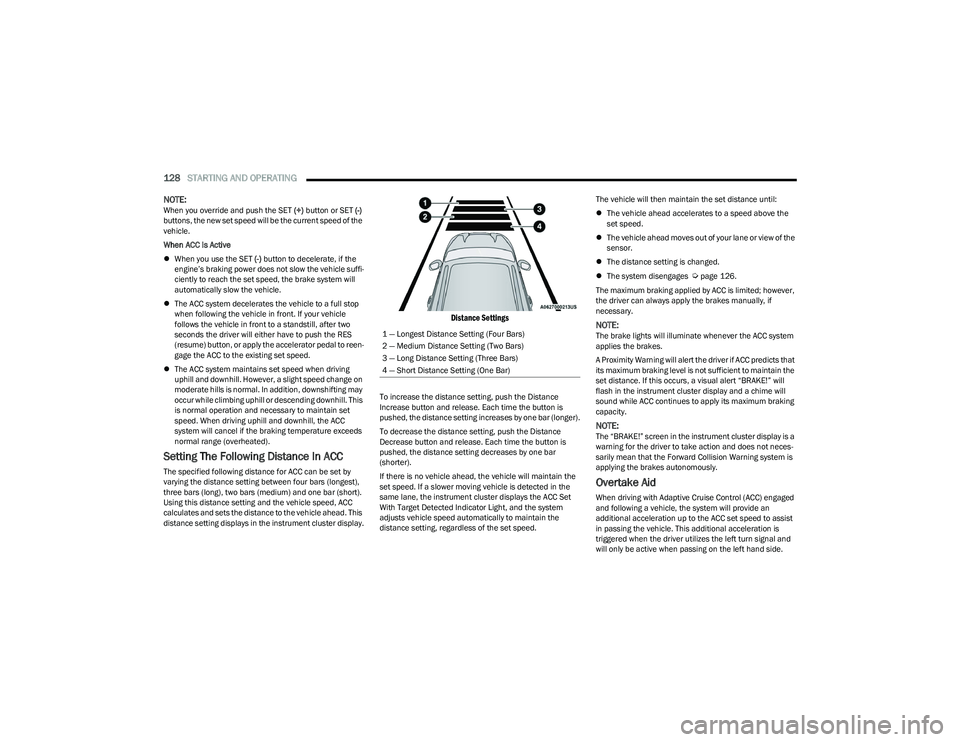
Setting The Following Distance In ACC
The specified following distance for ACC can be set by
varying the distance setting between four bars (longest),
three bars (long), two bars (medium) and one bar (short).
Using this distance setting and the vehicle speed, ACC
calculates and sets the distance to the vehicle ahead. This
distance setting displays in the instrument cluster display.
Distance Settings
To increase the distance setting, push the Distance
Increase button and release. Each time the button is
pushed, the distance setting increases by one bar (longer).
To decrease the distance setting, push the Distance
Decrease button and release. Each time the button is
pushed, the distance setting decreases by one bar
(shorter).
If there is no vehicle ahead, the vehicle will maintain the
set speed. If a slower moving vehicle is detected in the
same lane, the instrument cluster displays the ACC Set
With Target Detected Indicator Light, and the system
adjusts vehicle speed automatically to maintain the
distance setting, regardless of the set speed. The vehicle will then maintain the set distance until:
The vehicle ahead accelerates to a speed above the
set speed.
The vehicle ahead moves out of your lane or view of the
sensor.
The distance setting is changed.
The system disengages
Úpage 126.
The maximum braking applied by ACC is limited; however,
the driver can always apply the brakes manually, if
necessary.
NOTE:The brake lights will illuminate whenever the ACC system
applies the brakes.
A Proximity Warning will alert the driver if ACC predicts that
its maximum braking level is not sufficient to maintain the
set distance. If this occurs, a visual alert “BRAKE!” will
flash in the instrument cluster display and a chime will
sound while ACC continues to apply its maximum braking
capacity.
NOTE:The “BRAKE!” screen in the instrument cluster display is a
warning for the driver to take action and does not neces -
sarily mean that the Forward Collision Warning system is
applying the brakes autonomously.
Overtake Aid
When driving with Adaptive Cruise Control (ACC) engaged
and following a vehicle, the system will provide an
additional acceleration up to the ACC set speed to assist
in passing the vehicle. This additional acceleration is
triggered when the driver utilizes the left turn signal and
will only be active when passing on the left hand side.
1 — Longest Distance Setting (Four Bars)
2 — Medium Distance Setting (Two Bars)
3 — Long Distance Setting (Three Bars)
4 — Short Distance Setting (One Bar)
23_RUP_OM_EN_USC_t.book Page 128
Page 142 of 328
140STARTING AND OPERATING
LANESENSE — IF EQUIPPED
LANESENSE OPERATION
The LaneSense system is operational at speeds above
37 mph (60 km/h) and below 112 mph (180 km/h). It
uses a forward facing camera to detect lane markings and
measure vehicle position within the lane boundaries.
When both lane markings are detected and the driver
drifts out of the lane (no turn signal applied), the
LaneSense system provides a haptic warning in the form
of torque applied to the steering wheel, as well as a visual
warning in the instrument cluster display, to prompt the
driver to remain within the lane boundaries.
The driver may manually override the haptic warning by
applying force to the steering wheel at any time.
When only a single lane marking is detected and the driver
unintentionally drifts across that lane marking (no turn
signal applied), the LaneSense system provides a visual
warning through the instrument cluster display to prompt
the driver to remain within the lane. When only a single
lane marking is detected, a haptic or a torque warning will
not be provided.
NOTE:When operating conditions have been met, the
LaneSense system will monitor if the driver’s hands are on
the steering wheel and provide an audible and visual
warning to the driver when the driver’s hands are not
detected on the steering wheel. The system will cancel if
the driver does not return their hands to the wheel.
TURNING LANESENSE ON OR OFF
The LaneSense button is located on the switch
panel below the Uconnect display.
To turn the LaneSense system on, push the
LaneSense button (LED turns off). A
“LaneSense On” message is shown in the instrument
cluster display.
To turn the LaneSense system off, push the LaneSense
button again (LED turns on).
NOTE:The LaneSense system will retain the last system state on
or off from the last ignition cycle when the ignition is
changed to the ON/RUN position.
LANESENSE WARNING MESSAGE
The LaneSense system will indicate the current lane drift
condition through the instrument cluster display.
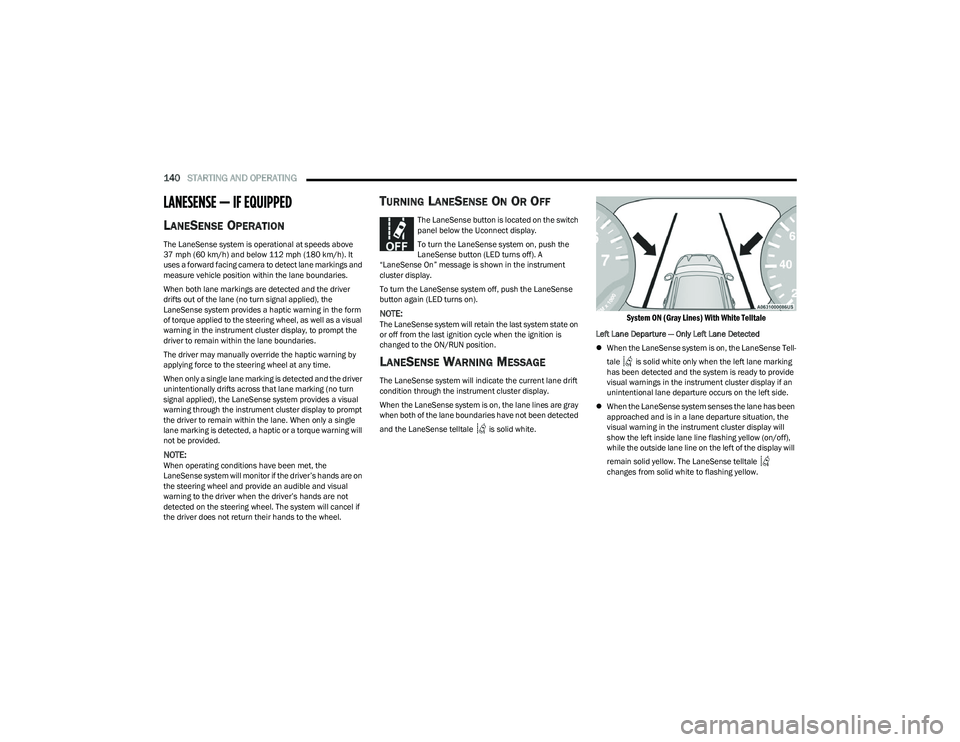
When the LaneSense system is on, the lane lines are gray
when both of the lane boundaries have not been detected
and the LaneSense telltale is solid white.
System ON (Gray Lines) With White Telltale
Left Lane Departure — Only Left Lane Detected
When the LaneSense system is on, the LaneSense Tell -
tale is solid white only when the left lane marking
has been detected and the system is ready to provide
visual warnings in the instrument cluster display if an
unintentional lane departure occurs on the left side.
When the LaneSense system senses the lane has been
approached and is in a lane departure situation, the
visual warning in the instrument cluster display will
show the left inside lane line flashing yellow (on/off),
while the outside lane line on the left of the display will
remain solid yellow. The LaneSense telltale
changes from solid white to flashing yellow.
23_RUP_OM_EN_USC_t.book Page 140
Page 143 of 328
STARTING AND OPERATING141
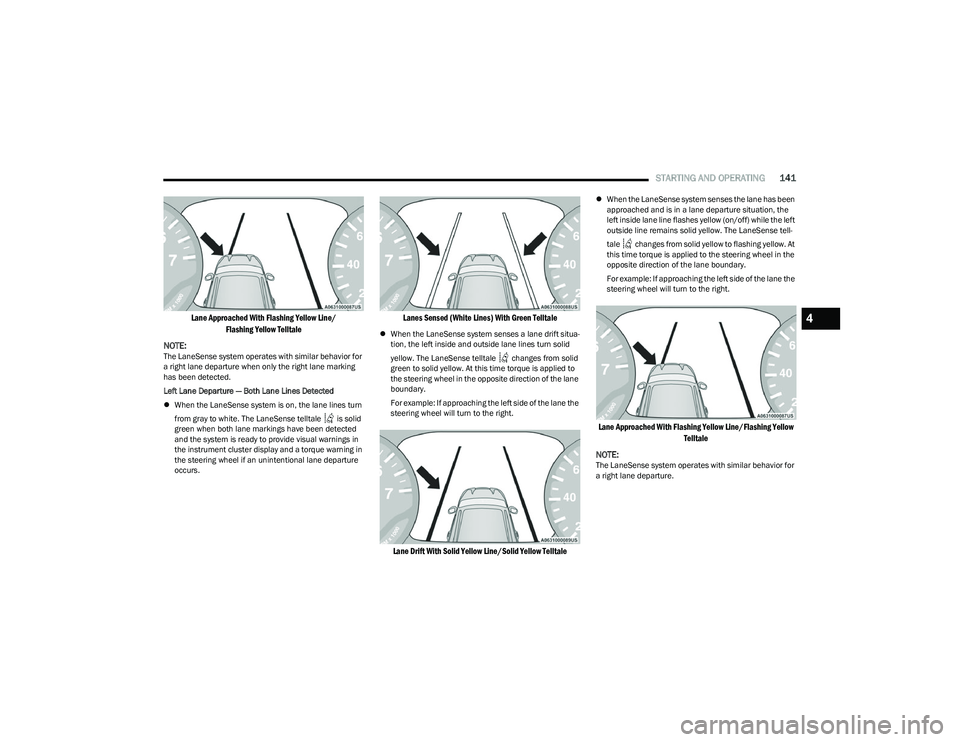
Lane Approached With Flashing Yellow Line/
Flashing Yellow Telltale
NOTE:
The LaneSense system operates with similar behavior for
a right lane departure when only the right lane marking
has been detected.
Left Lane Departure — Both Lane Lines Detected
When the LaneSense system is on, the lane lines turn
from gray to white. The LaneSense telltale is solid
green when both lane markings have been detected
and the system is ready to provide visual warnings in
the instrument cluster display and a torque warning in
the steering wheel if an unintentional lane departure
occurs.
Lanes Sensed (White Lines) With Green Telltale
When the LaneSense system senses a lane drift situa -
tion, the left inside and outside lane lines turn solid
yellow. The LaneSense telltale changes from solid
green to solid yellow. At this time torque is applied to
the steering wheel in the opposite direction of the lane
boundary.
For example: If approaching the left side of the lane the
steering wheel will turn to the right.
Lane Drift With Solid Yellow Line/Solid Yellow Telltale
When the LaneSense system senses the lane has been
approached and is in a lane departure situation, the
left inside lane line flashes yellow (on/off) while the left
outside line remains solid yellow. The LaneSense tell -
tale changes from solid yellow to flashing yellow. At
this time torque is applied to the steering wheel in the
opposite direction of the lane boundary.
For example: If approaching the left side of the lane the
steering wheel will turn to the right.
Lane Approached With Flashing Yellow Line/Flashing Yellow Telltale
NOTE:
The LaneSense system operates with similar behavior for
a right lane departure.
4
23_RUP_OM_EN_USC_t.book Page 141
Page 146 of 328
144STARTING AND OPERATING
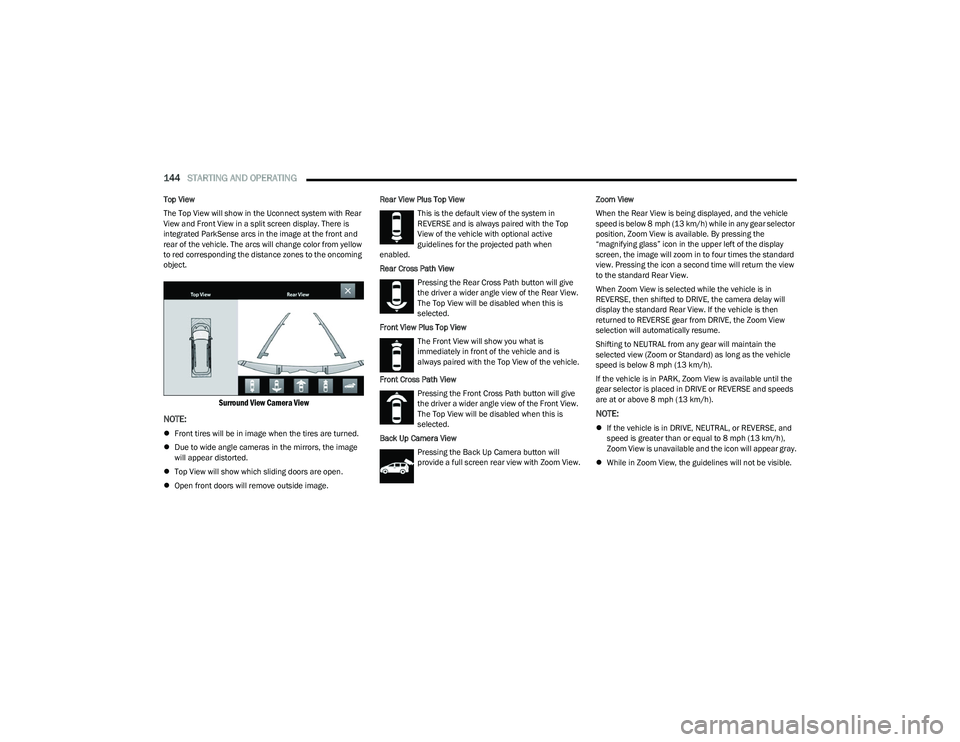
Top View
The Top View will show in the Uconnect system with Rear
View and Front View in a split screen display. There is
integrated ParkSense arcs in the image at the front and
rear of the vehicle. The arcs will change color from yellow
to red corresponding the distance zones to the oncoming
object.
Surround View Camera View
NOTE:
Front tires will be in image when the tires are turned.
Due to wide angle cameras in the mirrors, the image
will appear distorted.
Top View will show which sliding doors are open.
Open front doors will remove outside image. Rear View Plus Top View
This is the default view of the system in
REVERSE and is always paired with the Top
View of the vehicle with optional active
guidelines for the projected path when
enabled.
Rear Cross Path View
Pressing the Rear Cross Path button will give
the driver a wider angle view of the Rear View.
The Top View will be disabled when this is
selected.
Front View Plus Top View The Front View will show you what is
immediately in front of the vehicle and is
always paired with the Top View of the vehicle.
Front Cross Path View Pressing the Front Cross Path button will give
the driver a wider angle view of the Front View.
The Top View will be disabled when this is
selected.
Back Up Camera View Pressing the Back Up Camera button will
provide a full screen rear view with Zoom View. Zoom View
When the Rear View is being displayed, and the vehicle
speed is below 8 mph (13 km/h) while in any gear selector
position, Zoom View is available. By pressing the
“magnifying glass” icon in the upper left of the display
screen, the image will zoom in to four times the standard
view. Pressing the icon a second time will return the view
to the standard Rear View.
When Zoom View is selected while the vehicle is in
REVERSE, then shifted to DRIVE, the camera delay will
display the standard Rear View. If the vehicle is then
returned to REVERSE gear from DRIVE, the Zoom View
selection will automatically resume.
Shifting to NEUTRAL from any gear will maintain the
selected view (Zoom or Standard) as long as the vehicle
speed is below 8 mph (13 km/h).
If the vehicle is in PARK, Zoom View is available until the
gear selector is placed in DRIVE or REVERSE and speeds
are at or above 8 mph (13 km/h).
NOTE:
If the vehicle is in DRIVE, NEUTRAL, or REVERSE, and
speed is greater than or equal to 8 mph (13 km/h),
Zoom View is unavailable and the icon will appear gray.
While in Zoom View, the guidelines will not be visible.
23_RUP_OM_EN_USC_t.book Page 144
Page 147 of 328
STARTING AND OPERATING145
Deactivation
The system can be deactivated under the following
conditions:
The speed of the vehicle is greater than 8 mph
(13 km/h).
The vehicle shifted into PARK.
The vehicle is in any gear other than REVERSE and the
touchscreen X button is pressed.
The camera delay system is turned off manually
through the Uconnect Settings
Úpage 157.
NOTE:
If snow, ice, mud, or any foreign substance builds up on
the camera lenses, clean the lenses, rinse with water,
and dry with a soft cloth. Do not cover the lenses.
If a malfunction with the system has occurred, see an
authorized dealer.FAMCAM SYSTEM — IF EQUIPPED
Your vehicle may be equipped with a FamCam system that
consists of an interior monitoring camera mounted on the
headliner that allows you to view cargo/passengers in the
rear interior of the vehicle through the Uconnect screen.
To activate the feature, press the FamCam button under
“Controls” in the Vehicle Menu of the Uconnect system
Úpage 157. Alternatively, the feature can be accessed
through the App Drawer or a shortcut for the feature can
be added to the Favorites bar at the top of the screen for
quick access.
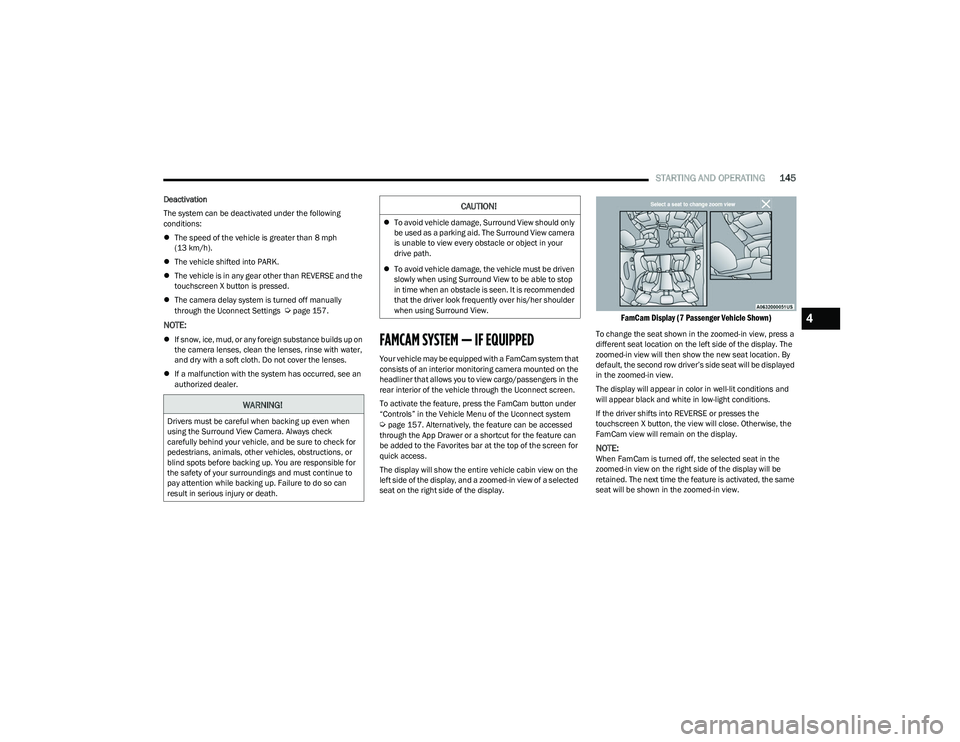
The display will show the entire vehicle cabin view on the
left side of the display, and a zoomed-in view of a selected
seat on the right side of the display.
FamCam Display (7 Passenger Vehicle Shown)
To change the seat shown in the zoomed-in view, press a
different seat location on the left side of the display. The
zoomed-in view will then show the new seat location. By
default, the second row driver’s side seat will be displayed
in the zoomed-in view.
The display will appear in color in well-lit conditions and
will appear black and white in low-light conditions.
If the driver shifts into REVERSE or presses the
touchscreen X button, the view will close. Otherwise, the
FamCam view will remain on the display.
NOTE:When FamCam is turned off, the selected seat in the
zoomed-in view on the right side of the display will be
retained. The next time the feature is activated, the same
seat will be shown in the zoomed-in view.
WARNING!
Drivers must be careful when backing up even when
using the Surround View Camera. Always check
carefully behind your vehicle, and be sure to check for
pedestrians, animals, other vehicles, obstructions, or
blind spots before backing up. You are responsible for
the safety of your surroundings and must continue to
pay attention while backing up. Failure to do so can
result in serious injury or death.
CAUTION!
To avoid vehicle damage, Surround View should only
be used as a parking aid. The Surround View camera
is unable to view every obstacle or object in your
drive path.
To avoid vehicle damage, the vehicle must be driven
slowly when using Surround View to be able to stop
in time when an obstacle is seen. It is recommended
that the driver look frequently over his/her shoulder
when using Surround View.
4
23_RUP_OM_EN_USC_t.book Page 145