keys CHRYSLER VOYAGER 2020 User Guide
[x] Cancel search | Manufacturer: CHRYSLER, Model Year: 2020, Model line: VOYAGER, Model: CHRYSLER VOYAGER 2020Pages: 516, PDF Size: 28.69 MB
Page 167 of 516
SAFETY165
It is unsafe to test the FCW system. To
prevent such misuse of the system, after four
Active Braking events within a key cycle, the
Active Braking portion of FCW will be deacti -
vated until the next key cycle.
The FCW system is intended for on-road use
only. If the vehicle is taken off-road, the FCW
system should be deactivated to prevent
unnecessary warnings to the surroundings.
Turning FCW On Or Off
The Forward Collision menu setting is located in
the Uconnect settings.
NOTE:
The default status of FCW is “on”, this allows
the system to warn you of a possible collision
with the vehicle in front of you.
Changing the FCW status to “off” deactivates
the system, so no warning or active braking will
be available in case of a possible collision.
NOTE:
The FCW system state is kept in memory from
one key cycle to the next. If the system is
turned off, it will remain off when the vehicle
is restarted.
FCW can work in conjunction with the
KeySense function of the vehicle (if
equipped). Refer to “KeySense Cluster
Messages" in “Getting To Know Your Instru -
ment Panel” for further information.
FCW Braking Status And Sensitivity
The FCW Sensitivity and Active Braking status
are programmable through the Uconnect
System. Refer to “Uconnect Settings” in
“Multimedia” for further information.
The default sensitivity of FCW is the “Medium”
setting and the system status is “Warning &
Braking”. This allows the system to warn the
driver of a possible collision with the vehicle in
front using audible/visual warnings and it
applies autonomous braking.
Changing the FCW status to the “Far” setting
allows the system to warn the driver of a possible
collision with the vehicle in front using audible/
visual warning when the latter is at a farther
distance than the “Medium” setting. This
provides the most reaction time to avoid a
possible collision.
Changing the FCW status to the “Near” setting,
allows the system to warn the driver of a possible
collision with the vehicle in front when the
distance between the vehicle in the front is much
closer. This setting provides less reaction time
than the “Far” and “Medium” settings, which
allows for a more dynamic driving experience.
WARNING!
Forward Collision Warning (FCW) is not
intended to avoid a collision on its own, nor
can FCW detect every type of potential
collision. The driver has the responsibility to
avoid a collision by controlling the vehicle via
braking and steering. Failure to follow this
warning could lead to serious injury or death.
4
20_RU_OM_EN_US_t.book Page 165
Page 220 of 516
218SAFETY
(Continued)
Periodic Safety Checks You Should Make
Outside The Vehicle
Tires
Examine tires for excessive tread wear and
uneven wear patterns. Check for stones, nails,
glass, or other objects lodged in the tread or
sidewall. Inspect the tread for cuts and cracks. Inspect sidewalls for cuts, cracks, and bulges.
Check the wheel nuts for tightness. Check the
tires (including spare) for proper cold inflation
pressure.
Lights
Have someone observe the operation of brake
lights and exterior lights while you work the
controls. Check turn signal and high beam
indicator lights on the instrument panel.
Door Latches
Check for proper closing, latching, and locking.
Fluid Leaks
Check area under the vehicle after overnight
parking for fuel, coolant, oil, or other fluid leaks.
Also, if gasoline fumes are detected or if fuel, or
brake fluid leaks are suspected, the cause
should be located and corrected immediately.
ONLY use the driver’s side floor mat on the
driver’s side floor area. To check for inter
-
ference, with the vehicle properly parked
with the engine off, fully depress the accel -
erator, the brake, and the clutch pedal (if
present) to check for interference. If your
floor mat interferes with the operation of
any pedal, or is not secure to the floor,
remove the floor mat from the vehicle and
place the floor mat in your trunk.
ONLY use the passenger’s side floor mat on
the passenger’s side floor area.
ALWAYS make sure objects cannot fall or
slide into the driver’s side floor area when
the vehicle is moving. Objects can become
trapped under accelerator, brake, or clutch
pedals and could cause a loss of vehicle
control.
NEVER place any objects under the floor
mat (e.g., towels, keys, etc.). These objects
could change the position of the floor mat
and may cause interference with the accel -
erator, brake, or clutch pedals.
WARNING! (Continued)
If the vehicle carpet has been removed and
re-installed, always properly attach carpet
to the floor and check the floor mat
fasteners are secure to the vehicle carpet.
Fully depress each pedal to check for inter -
ference with the accelerator, brake, or
clutch pedals then re-install the floor mats.
It is recommended to only use mild soap
and water to clean your floor mats. After
cleaning, always check your floor mat has
been properly installed and is secured to
your vehicle using the floor mat fasteners
by lightly pulling mat.
WARNING! (Continued)
20_RU_OM_EN_US_t.book Page 218
Page 260 of 516
258STARTING AND OPERATING
NOTE:
When the KeySense feature is in use, the Park -
Sense System will reject customer input to turn
the system off via the switch. The instrument
cluster display will show the "KeySense in Use
Selected Feature Cannot be Disabled"
message.
Service The ParkSense Rear Park Assist
System
During vehicle start-up, when the ParkSense
Rear Park Assist System has detected a faulted
condition, the instrument cluster will actuate a
single chime, once per ignition cycle, and it will
display the “PARKSENSE UNAVAILABLE WIPE
REAR SENSORS” or the “PARKSENSE
UNAVAILABLE SERVICE REQUIRED” message.
Refer to “Instrument Cluster Display” in “Getting
To Know Your Instrument Panel” for further
information. When the gear selector is moved to
REVERSE and the system has detected a faulted
condition, the instrument cluster display will
show the "PARKSENSE UNAVAILABLE WIPE REAR
SENSORS" or "PARKSENSE UNAVAILABLE
SERVICE REQUIRED" message for five seconds
while the vehicle is in REVERSE. Under this
condition, ParkSense will not operate and
“PARKSENSE OFF” message will be displayed.
If “PARKSENSE UNAVAILABLE WIPE REAR
SENSORS” appears in the instrument cluster
display, make sure the outer surface and the
underside of the rear fascia/bumper is clean
and clear of snow, ice, mud, dirt, or other
obstruction and then cycle the ignition. If the
message continues to appear, see an
authorized dealer.
If “PARKSENSE UNAVAILABLE SERVICE
REQUIRED” appears in the instrument cluster
display, see an authorized dealer.
Cleaning The ParkSense System
Clean the ParkSense sensors with water, car
wash soap, and a soft cloth. Do not use rough or
hard cloths. Do not scratch or poke the sensors.
Otherwise, you could damage the sensors.
ParkSense System Usage Precautions
NOTE:
Ensure that the rear bumper is free of snow,
ice, mud, dirt, and debris to keep the Park
-
Sense system operating properly.
Jackhammers, large trucks, and other vibra -
tions could affect the performance of Park -
Sense.
When you turn ParkSense off, the instrument
cluster will display “PARKSENSE OFF”.
Furthermore, once you turn ParkSense off, it
remains off until you turn it on again, even if
you cycle the ignition.
When you move the gear selector to the
REVERSE position and ParkSense is turned
off, the instrument cluster display will show
“PARKSENSE OFF” message for as long as
the vehicle is in REVERSE.
ParkSense, when on, will reduce the volume
of the radio when it is sounding a tone.
Clean the ParkSense sensors regularly,
taking care not to scratch or damage them.
The sensors must not be covered with ice,
snow, slush, mud, dirt, or debris. Failure to do
so can result in the system not working prop -
erly. The ParkSense system might not detect
an obstacle behind the fascia/bumper, or it
could provide a false indication that an
obstacle is behind the fascia/bumper.
20_RU_OM_EN_US_t.book Page 258
Page 268 of 516

266STARTING AND OPERATING
Enabling And Disabling ParkSense
ParkSense can be enabled and
disabled with the ParkSense switch,
located on the switch panel below the
Uconnect display.
When the ParkSense switch is pushed to
disable the system, the instrument cluster will
display the “PARKSENSE OFF” message for
approximately five seconds. Refer to
“Instrument Cluster Display” in “Getting To
Know Your Instrument Panel” for further
information. When the gear selector is moved to
REVERSE and the system is disabled, the
instrument cluster display will show the
“PARKSENSE OFF” message for as long as the
vehicle is in REVERSE.
The ParkSense switch LED will be on when
ParkSense is disabled or requires service. The
ParkSense switch LED will be off when the
system is enabled. If the ParkSense switch is
pushed, and requires service, the ParkSense
switch LED will blink momentarily, and then the
LED will be on. NOTE:
When KeySense feature is present, the Park
-
Sense System will reject customer input to turn
the system off via the hard switch. The instru -
ment cluster display will show "KeySense in Use
Selected Feature Cannot be Disabled" message.
Service The ParkSense Park Assist System
During vehicle start-up, when the ParkSense
System has detected a faulted condition, the
instrument cluster will actuate a single chime,
once per ignition cycle, and it will display the
"PARKSENSE UNAVAILABLE WIPE REAR
SENSORS", "PARKSENSE UNAVAILABLE WIPE
FRONT SENSORS", or the "PARKSENSE
UNAVAILABLE SERVICE REQUIRED" message for
five seconds. When the gear selector is moved to
REVERSE and the system has detected a faulted
condition, the instrument cluster display will
show a "PARKSENSE UNAVAILABLE WIPE REAR
SENSORS", "PARKSENSE UNAVAILABLE WIPE
FRONT SENSORS" or "PARKSENSE UNAVAILABLE
SERVICE REQUIRED" pop up message for five
seconds. After five seconds, a vehicle graphic will
be displayed with a "WIPE OFF" or “SERVICE”
overlay, depending on the location and fault type.
The system will continue to provide arc alerts for
the side that is functioning properly. These arc alerts will interrupt the "PARKSENSE
UNAVAILABLE WIPE REAR SENSORS",
"PARKSENSE UNAVAILABLE WIPE FRONT
SENSORS", or "PARKSENSE UNAVAILABLE
SERVICE REQUIRED" messages if an object is
detected within the five second pop-up duration.
The vehicle graphic will remain displayed for as
long as the vehicle is in REVERSE.
Refer to “Instrument Cluster Display” in
“Getting To Know Your Instrument Panel” for
further information.
If "PARKSENSE UNAVAILABLE WIPE REAR
SENSORS" or "PARKSENSE UNAVAILABLE WIPE
FRONT SENSORS" appears in the instrument
cluster display make sure the outer surface and
the underside of the rear fascia/bumper and/or
front fascia/bumper is clean and clear of snow,
ice, mud, dirt or other obstruction and then
cycle the ignition. If the message continues to
appear see an authorized dealer.
If the "PARKSENSE UNAVAILABLE SERVICE
REQUIRED" message appears in the instrument
cluster display, see an authorized dealer.
20_RU_OM_EN_US_t.book Page 266
Page 401 of 516
MULTIMEDIA399
KeySense
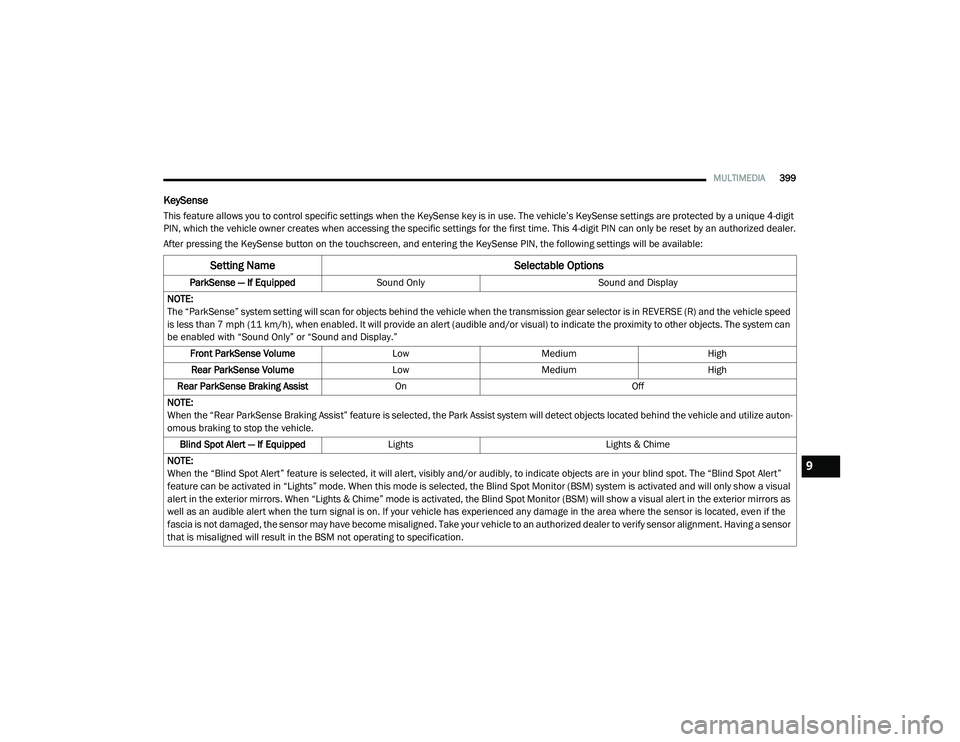
This feature allows you to control specific settings when the KeySense key is in use. The vehicle’s KeySense settings are protected by a unique 4-digit
PIN, which the vehicle owner creates when accessing the specific settings for the first time. This 4-digit PIN can only be reset by an authorized dealer.
After pressing the KeySense button on the touchscreen, and entering the KeySense PIN, the following settings will be available:
Setting Name Selectable Options
ParkSense — If EquippedSound Only Sound and Display
NOTE:
The “ParkSense” system setting will scan for objects behind the vehicle when the transmission gear selector is in REVERSE (R) and the vehicle speed
is less than 7 mph (11 km/h), when enabled. It will provide an alert (audible and/or visual) to indicate the proximity to other objects. The system can be enabled with “Sound Only” or “Sound and Display.”
Front ParkSense Volume LowMedium High
Rear ParkSense Volume LowMedium High
Rear ParkSense Braking Assist On Off
NOTE:
When the “Rear ParkSense Braking Assist” feature is selected, the Park Assist system will detect objects located behind the vehicle and utilize auton -
omous braking to stop the vehicle.
Blind Spot Alert — If Equipped Lights Lights & Chime
NOTE:
When the “Blind Spot Alert” feature is selected, it will alert, visibly and/or audibly, to indicate objects are in your blind spot. The “Blind Spot Alert”
feature can be activated in “Lights” mode. When this mode is selected, the Blind Spot Monitor (BSM) system is activated and will only show a visual
alert in the exterior mirrors. When “Lights & Chime” mode is activated, the Blind Spot Monitor (BSM) will show a visual alert in the exterior mirrors as
well as an audible alert when the turn signal is on. If your vehicle has experienced any damage in the area where the sensor is located, even if the
fascia is not damaged, the sensor may have become misaligned. Take your vehicle to an authorized dealer to verify sensor alignment. Having a sensor
that is misaligned will result in the BSM not operating to specification.
9
20_RU_OM_EN_US_t.book Page 399
Page 407 of 516
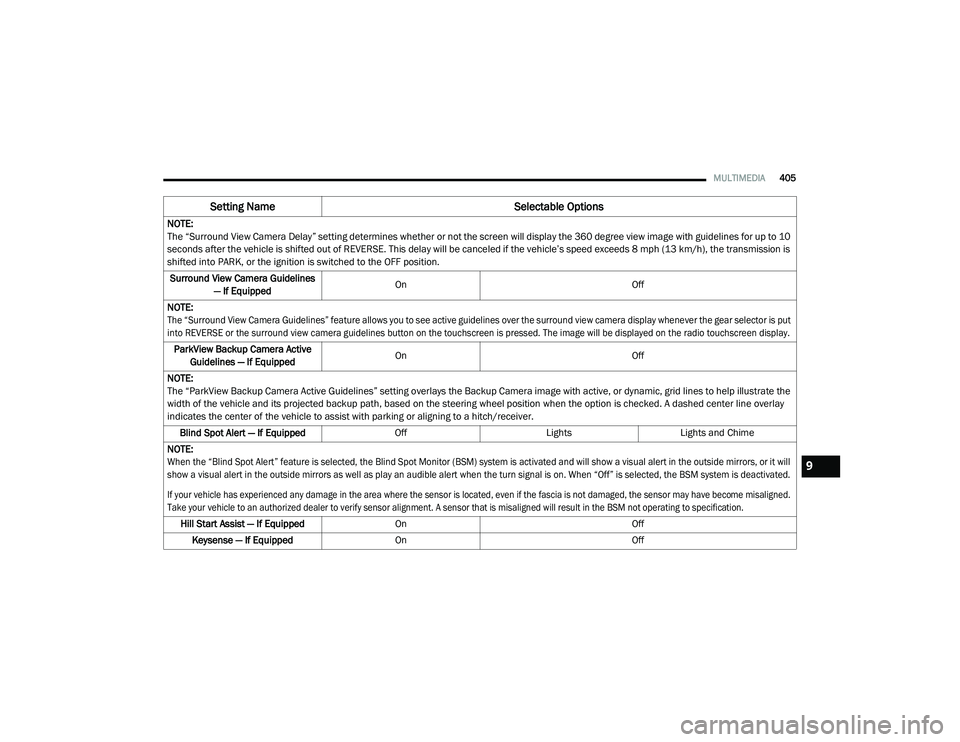
MULTIMEDIA405
NOTE:
The “Surround View Camera Delay” setting determines whether or not the screen will display the 360 degree view image with guidelines for up to 10
seconds after the vehicle is shifted out of REVERSE. This delay will be canceled if the vehicle’s speed exceeds 8 mph (13 km/h), the transmission is
shifted into PARK, or the ignition is switched to the OFF position.
Surround View Camera Guidelines — If Equipped On
Off
NOTE:
The “Surround View Camera Guidelines” feature allows you to see active guidelines over the surround view camera display whenever the gear selector is put
into REVERSE or the surround view camera guidelines button on the touchscreen is pressed. The image will be displayed on the radio touchscreen display.
ParkView Backup Camera Active Guidelines — If Equipped On
Off
NOTE:
The “ParkView Backup Camera Active Guidelines” setting overlays the Backup Camera image with active, or dynamic, grid lines to help illustrate the
width of the vehicle and its projected backup path, based on the steering wheel position when the option is checked. A dashed center line overlay
indicates the center of the vehicle to assist with parking or aligning to a hitch/receiver. Blind Spot Alert — If Equipped OffLightsLights and Chime
NOTE:
When the “Blind Spot Alert” feature is selected, the Blind Spot Monitor (BSM) system is activated and will show a visual alert in the outside mirrors, or it will
show a visual alert in the outside mirrors as well as play an audible alert when the turn signal is on. When “Off” is selected, the BSM system is deactivated.
If your vehicle has experienced any damage in the area where the sensor is located, even if the fascia is not damaged, the sensor may have become misaligned.
Take your vehicle to an authorized dealer to verify sensor alignment. A sensor that is misaligned will result in the BSM not operating to specification.
Hill Start Assist — If Equipped On Off
Keysense — If Equipped On Off
Setting Name Selectable Options
9
20_RU_OM_EN_US_t.book Page 405
Page 418 of 516
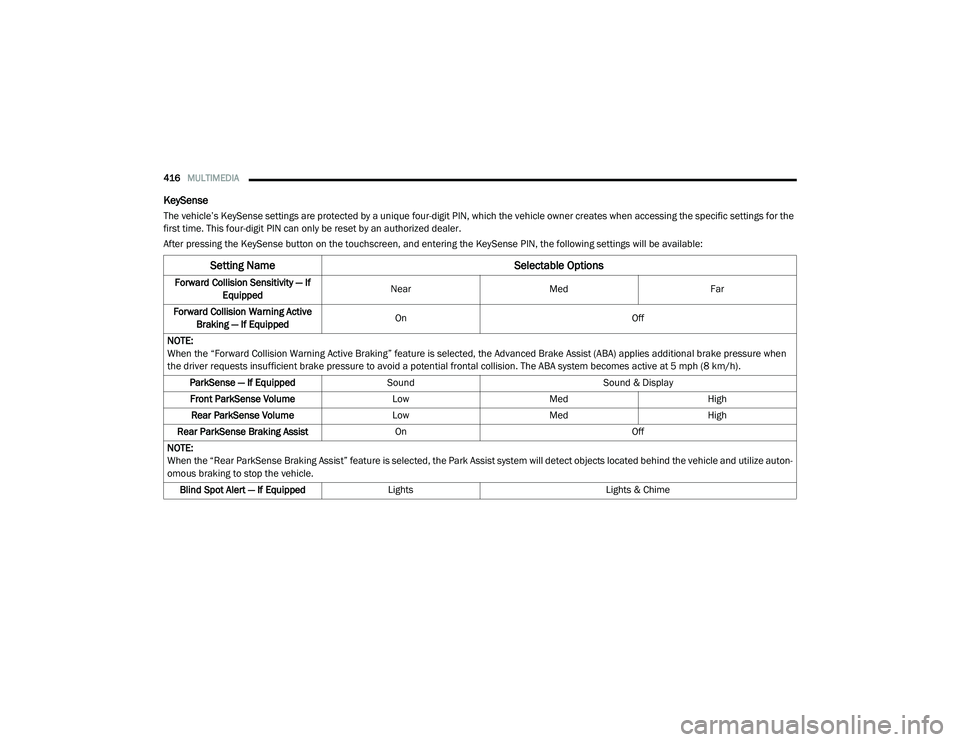
416MULTIMEDIA
KeySense
The vehicle’s KeySense settings are protected by a unique four-digit PIN, which the vehicle owner creates when accessing the specific settings for the
first time. This four-digit PIN can only be reset by an authorized dealer.
After pressing the KeySense button on the touchscreen, and entering the KeySense PIN, the following settings will be available:
Setting Name Selectable Options
Forward Collision Sensitivity — If
Equipped Near
Med Far
Forward Collision Warning Active Braking — If Equipped On
Off
NOTE:
When the “Forward Collision Warning Active Braking” feature is selected, the Advanced Brake Assist (ABA) applies additional brake pressure when
the driver requests insufficient brake pressure to avoid a potential frontal collision. The ABA system becomes active at 5 mph (8 km/h). ParkSense — If Equipped Sound Sound & Display
Front ParkSense Volume LowMed High
Rear ParkSense Volume LowMed High
Rear ParkSense Braking Assist On Off
NOTE:
When the “Rear ParkSense Braking Assist” feature is selected, the Park Assist system will detect objects located behind the vehicle and utilize auton -
omous braking to stop the vehicle.
Blind Spot Alert — If Equipped Lights Lights & Chime
20_RU_OM_EN_US_t.book Page 416
Page 427 of 516
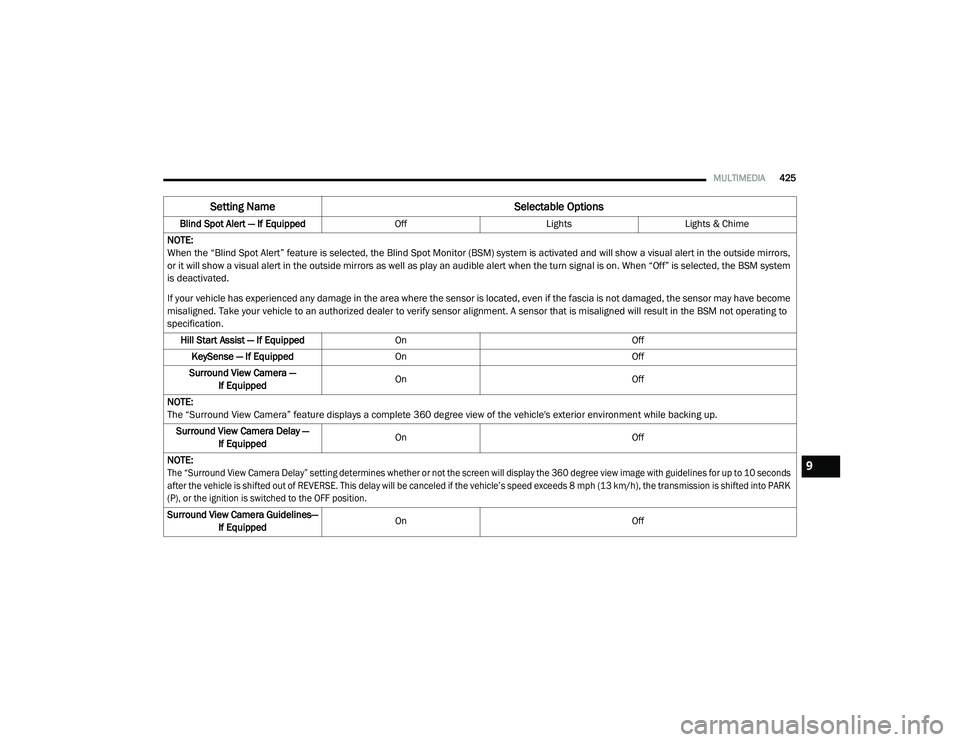
MULTIMEDIA425
Blind Spot Alert — If Equipped OffLightsLights & Chime
NOTE:
When the “Blind Spot Alert” feature is selected, the Blind Spot Monitor (BSM) system is activated and will show a visual alert in the outside mirrors,
or it will show a visual alert in the outside mirrors as well as play an audible alert when the turn signal is on. When “Off” is selected, the BSM system
is deactivated.
If your vehicle has experienced any damage in the area where the sensor is located, even if the fascia is not damaged, the sensor may have become
misaligned. Take your vehicle to an authorized dealer to verify sensor alignment. A sensor that is misaligned will result in the BSM not operating to
specification. Hill Start Assist — If Equipped On Off
KeySense — If Equipped On Off
Surround View Camera — If Equipped On
Off
NOTE:
The “Surround View Camera” feature displays a complete 360 degree view of the vehicle's exterior environment while backing up. Surround View Camera Delay — If Equipped On
Off
NOTE:
The “Surround View Camera Delay” setting determines whether or not the screen will display the 360 degree view image with guidelines for up to 10 seconds
after the vehicle is shifted out of REVERSE. This delay will be canceled if the vehicle’s speed exceeds 8 mph (13 km/h), the transmission is shifted into PARK
(P), or the ignition is switched to the OFF position.
Surround View Camera Guidelines— If Equipped On
Off
Setting Name Selectable Options
9
20_RU_OM_EN_US_t.book Page 425
Page 442 of 516
440MULTIMEDIA
Tune screen will close. The system will
automatically tune to that station.
The selected Station or Channel number is
displayed in the Direct Tune text box.
Setting Presets
The Presets are available for all Radio Modes,
and are activated by pressing any of the six
Preset buttons on the touchscreen, located at
the top of the screen.
When you are receiving a station that you wish
to commit into memory, press and hold the
desired numbered button on the touchscreen
for more than two seconds or until you hear a
confirmation beep.
The Radio stores up to 12 presets in each of the
Radio modes. A set of six presets are visible at
the top of the radio screen.
You can switch between the two radio presets
by pressing the Arrow button located in the
upper right of the radio touchscreen. Browse In AM/FM
When in either AM or FM, the Browse Screen
provides a means to edit the Presets List and is
entered by pushing the ENTER/BROWSE
button.
Scrolling Preset List
Once in the Browse Presets screen, you can
scroll the preset list by rotation of the TUNE/
SCROLL knob, or by pressing the Up and Down
arrow keys, located on the right of the screen.
Preset Selection From List
A Preset can be selected by pressing any of the
listed Presets or by pushing the ENTER/
BROWSE button on the TUNE/SCROLL knob to
select the currently highlighted Preset.
When selected, the radio tunes to the station
stored in the Preset and returns to the main
radio screen.
Deleting Presets
A Preset can be deleted in the Presets Browse
screen by pressing the Trash Can icon for the
corresponding Preset.Return To Main Radio Screen
You can return to the Main Radio Screen, by
pressing the X button on the touchscreen when
in the Browse Presets screen.
SiriusXM® Satellite Radio Mode — If
Equipped
SiriusXM® Satellite Radio uses direct
satellite-to-receiver broadcasting technology to
provide clear, coast to coast radio content.
SiriusXM® is a subscription based service.
SiriusXM® All Access Package
All satellite radio equipped vehicles come with a
one year trial to the SiriusXM® All Access
package, providing over 160 channels of the
best programming for all the places life takes
you.
In your vehicle — You’ll get every channel
available on your radio, including all the
premium programming like Howard Stern,
every NFL® game, every MLB® game, every
NASCAR® race, Oprah Radio, and more.
20_RU_OM_EN_US_t.book Page 440
Page 467 of 516
MULTIMEDIA465
Join Calls
When two calls are in progress (one active and
one on hold), press the Join Calls button on the
Phone main screen to combine all calls into a
Conference Call.
Call Termination
To end a call in progress, momentarily press the
Phone End button on the touchscreen or the
Phone End button on the steering wheel. Only
the active call(s) will be terminated and if there
is a call on hold, it will become the new active
call.
Redial
Press the Redial button on the touchscreen, or
push the VR button and after the “Listening”
prompt and the following beep, say “Redial.”
The Uconnect Phone will call the last number
that was dialed from your mobile phone.
Call Continuation
Call continuation is the progression of a phone
call on the Uconnect Phone after the vehicle
ignition has been switched to OFF. NOTE:
The call will remain within the vehicle audio
system until the phone becomes out of range
for the Bluetooth® connection. It is recom
-
mended to press the Transfer button on the
touchscreen when leaving the vehicle.
Browsing SMS
Using the steering wheel commands, you can
view and manage the last 10 SMS messages
received on the instrument panel. To use this
function, the mobile phone must support the
SMS exchange function through Bluetooth®.
Select the PHONE button on the instrument
panel menu, and then select “SMS Reader”
using the arrow keys on the steering wheel
controls.
The “SMS Reader” submenu allows the last
10 SMS messages to be displayed.
Advanced Phone Connectivity
Transfer Call To And From Mobile Phone
The Uconnect Phone allows ongoing calls to be
transferred from your mobile phone to the
Uconnect Phone without terminating the call. To
transfer an ongoing call from your connected mobile phone to the Uconnect Phone or vice
versa, press the Transfer button on the Phone
main screen.
Connect Or Disconnect Link Between The
Uconnect Phone And Mobile Phone
If you would like to connect or disconnect the
Bluetooth® connection between a Uconnect
Phone paired mobile phone and the Uconnect
Phone, follow the instructions described in your
mobile phone User's Manual.
Things You Should Know About Your
Uconnect Phone
Voice Command
For the best performance:
Adjust the rearview mirror to provide at least
½-inch (1 cm) gap between the overhead
console (if equipped) and the mirror.
Always wait for the beep before speaking.
Speak normally, without pausing, just as you
would speak to a person sitting a few feet/
meters away from you.
Ensure that no one other than you is
speaking during a voice command period.
9
20_RU_OM_EN_US_t.book Page 465