phone CHRYSLER VOYAGER 2023 User Guide
[x] Cancel search | Manufacturer: CHRYSLER, Model Year: 2023, Model line: VOYAGER, Model: CHRYSLER VOYAGER 2023Pages: 256, PDF Size: 13.97 MB
Page 109 of 256
MULTIMEDIA107
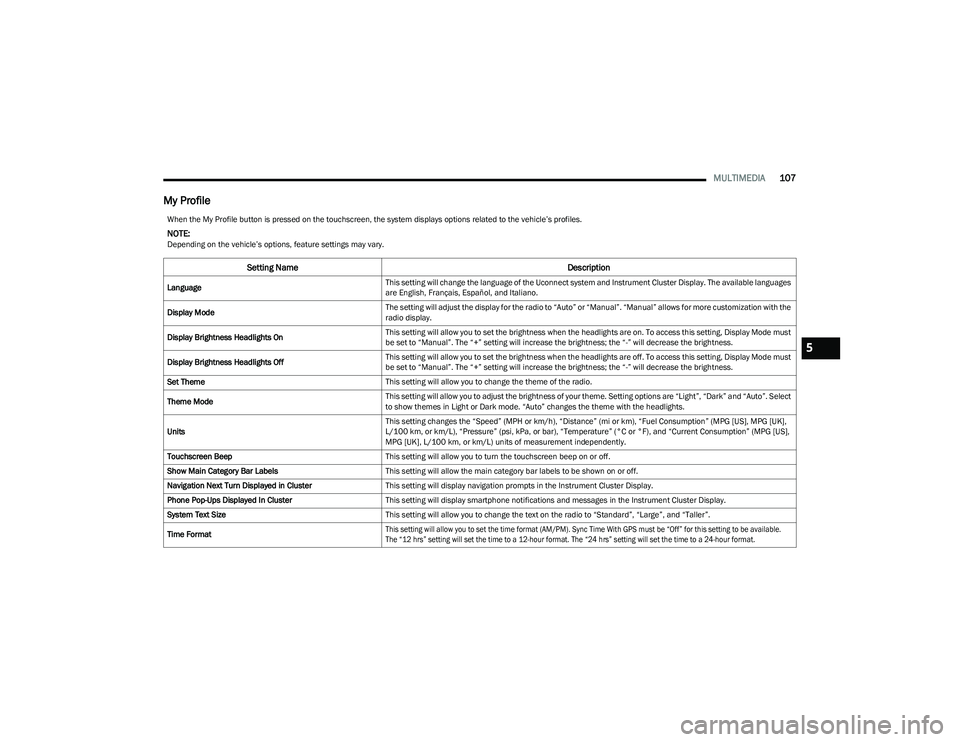
My Profile
When the My Profile button is pressed on the touchscreen, the system displays options related to the vehicle’s profiles.
NOTE:Depending on the vehicle’s options, feature settings may vary.
Setting Name Description
LanguageThis setting will change the language of the Uconnect system and Instrument Cluster Display. The available languages
are English, Français, Español, and Italiano.
Display Mode The setting will adjust the display for the radio to “Auto” or “Manual”. “Manual” allows for more customization with the
radio display.
Display Brightness Headlights On This setting will allow you to set the brightness when the headlights are on. To access this setting, Display Mode must
be set to “Manual”. The “+” setting will increase the brightness; the “-” will decrease the brightness.
Display Brightness Headlights Off This setting will allow you to set the brightness when the headlights are off. To access this setting, Display Mode must
be set to “Manual”. The “+” setting will increase the brightness; the “-” will decrease the brightness.
Set Theme This setting will allow you to change the theme of the radio.
Theme Mode This setting will allow you to adjust the brightness of your theme. Setting options are “Light”, “Dark” and “Auto”. Select
to show themes in Light or Dark mode. “Auto” changes the theme with the headlights.
Units This setting changes the “Speed” (MPH or km/h), “Distance” (mi or km), “Fuel Consumption” (MPG [US], MPG [UK],
L/100 km, or km/L), “Pressure” (psi, kPa, or bar), “Temperature” (°C or °F), and “Current Consumption” (MPG [US],
MPG [UK], L/100 km, or km/L) units of measurement independently.
Touchscreen Beep This setting will allow you to turn the touchscreen beep on or off.
Show Main Category Bar Labels This setting will allow the main category bar labels to be shown on or off.
Navigation Next Turn Displayed in Cluster This setting will display navigation prompts in the Instrument Cluster Display.
Phone Pop-Ups Displayed In Cluster This setting will display smartphone notifications and messages in the Instrument Cluster Display.
System Text Size This setting will allow you to change the text on the radio to “Standard”, “Large”, and “Taller”.
Time Format
This setting will allow you to set the time format (AM/PM). Sync Time With GPS must be “Off” for this setting to be available.
The “12 hrs” setting will set the time to a 12-hour format. The “24 hrs” setting will set the time to a 24-hour format.
5
23_RUV_OM_EN_US_t.book Page 107
Page 111 of 256
MULTIMEDIA109
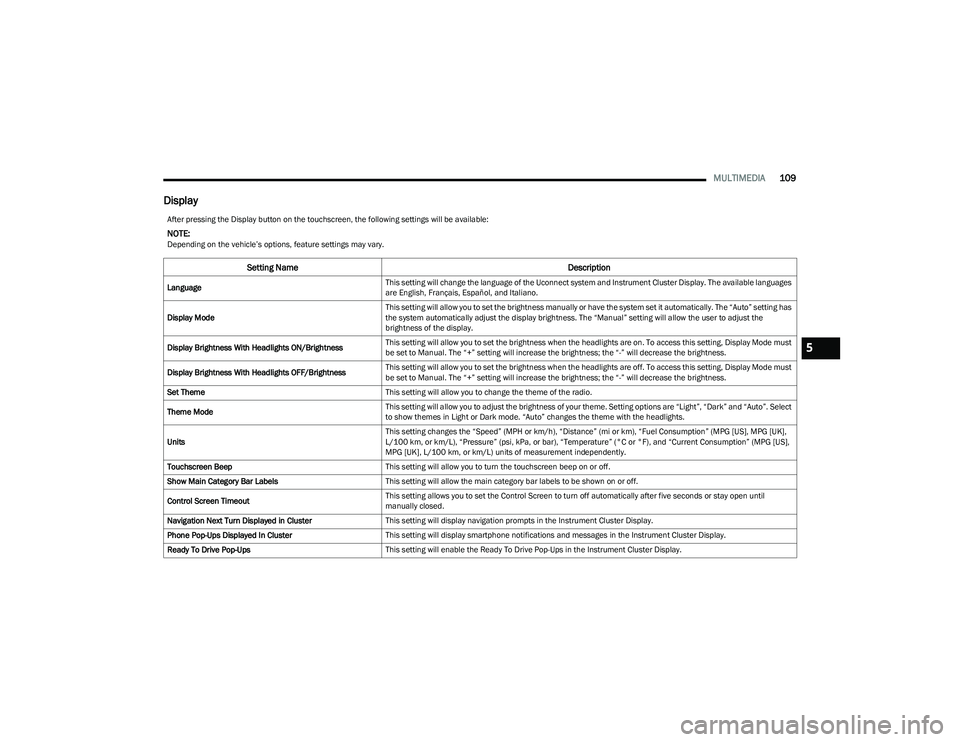
Display
After pressing the Display button on the touchscreen, the following settings will be available:
NOTE:Depending on the vehicle’s options, feature settings may vary.
Setting Name Description
LanguageThis setting will change the language of the Uconnect system and Instrument Cluster Display. The available languages
are English, Français, Español, and Italiano.
Display Mode This setting will allow you to set the brightness manually or have the system set it automatically. The “Auto” setting has
the system automatically adjust the display brightness. The “Manual” setting will allow the user to adjust the
brightness of the display.
Display Brightness With Headlights ON/Brightness This setting will allow you to set the brightness when the headlights are on. To access this setting, Display Mode must
be set to Manual. The “+” setting will increase the brightness; the “-” will decrease the brightness.
Display Brightness With Headlights OFF/Brightness This setting will allow you to set the brightness when the headlights are off. To access this setting, Display Mode must
be set to Manual. The “+” setting will increase the brightness; the “-” will decrease the brightness.
Set Theme This setting will allow you to change the theme of the radio.
Theme Mode This setting will allow you to adjust the brightness of your theme. Setting options are “Light”, “Dark” and “Auto”. Select
to show themes in Light or Dark mode. “Auto” changes the theme with the headlights.
Units This setting changes the “Speed” (MPH or km/h), “Distance” (mi or km), “Fuel Consumption” (MPG [US], MPG [UK],
L/100 km, or km/L), “Pressure” (psi, kPa, or bar), “Temperature” (°C or °F), and “Current Consumption” (MPG [US],
MPG [UK], L/100 km, or km/L) units of measurement independently.
Touchscreen Beep This setting will allow you to turn the touchscreen beep on or off.
Show Main Category Bar Labels This setting will allow the main category bar labels to be shown on or off.
Control Screen Timeout This setting allows you to set the Control Screen to turn off automatically after five seconds or stay open until
manually closed.
Navigation Next Turn Displayed in Cluster This setting will display navigation prompts in the Instrument Cluster Display.
Phone Pop-Ups Displayed In Cluster This setting will display smartphone notifications and messages in the Instrument Cluster Display.
Ready To Drive Pop-Ups This setting will enable the Ready To Drive Pop-Ups in the Instrument Cluster Display.
5
23_RUV_OM_EN_US_t.book Page 109
Page 113 of 256
MULTIMEDIA111
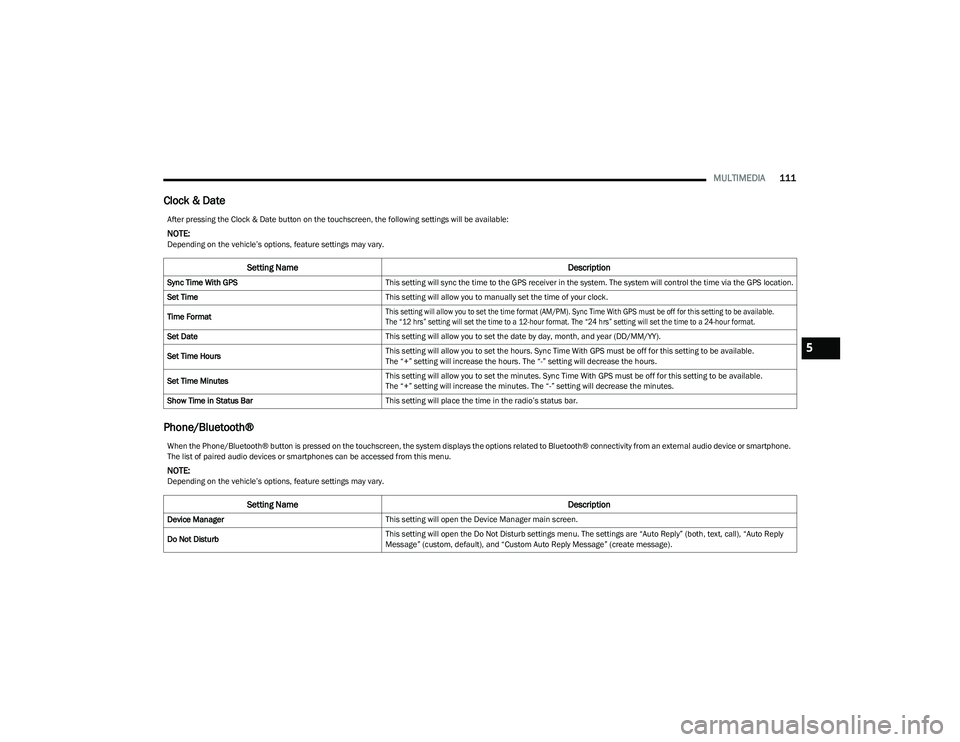
Clock & Date
Phone/Bluetooth®
After pressing the Clock & Date button on the touchscreen, the following settings will be available:
NOTE:Depending on the vehicle’s options, feature settings may vary.
Setting Name Description
Sync Time With GPSThis setting will sync the time to the GPS receiver in the system. The system will control the time via the GPS location.
Set Time This setting will allow you to manually set the time of your clock.
Time Format
This setting will allow you to set the time format (AM/PM). Sync Time With GPS must be off for this setting to be available.
The “12 hrs” setting will set the time to a 12-hour format. The “24 hrs” setting will set the time to a 24-hour format.
Set Date This setting will allow you to set the date by day, month, and year (DD/MM/YY).
Set Time Hours This setting will allow you to set the hours. Sync Time With GPS must be off for this setting to be available.
The “+” setting will increase the hours. The “-” setting will decrease the hours.
Set Time Minutes This setting will allow you to set the minutes. Sync Time With GPS must be off for this setting to be available.
The “+” setting will increase the minutes. The “-” setting will decrease the minutes.
Show Time in Status Bar This setting will place the time in the radio’s status bar.
When the Phone/Bluetooth® button is pressed on the touchscreen, the system displays the options related to Bluetooth® connectivity from an external audio device or smartphone.
The list of paired audio devices or smartphones can be accessed from this menu.
NOTE:Depending on the vehicle’s options, feature settings may vary.
Setting Name Description
Device ManagerThis setting will open the Device Manager main screen.
Do Not Disturb This setting will open the Do Not Disturb settings menu. The settings are “Auto Reply” (both, text, call), “Auto Reply
Message” (custom, default), and “Custom Auto Reply Message” (create message).
5
23_RUV_OM_EN_US_t.book Page 111
Page 114 of 256
112MULTIMEDIA
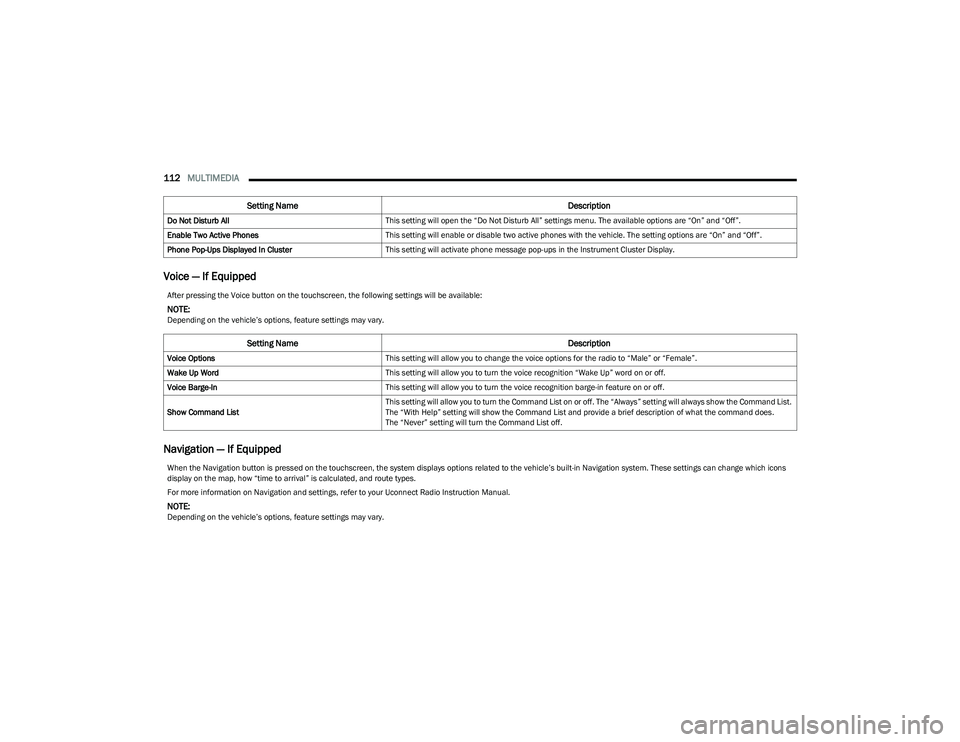
Voice — If Equipped
Navigation — If Equipped
Do Not Disturb All This setting will open the “Do Not Disturb All” settings menu. The available options are “On” and “Off”.
Enable Two Active Phones This setting will enable or disable two active phones with the vehicle. The setting options are “On” and “Off”.
Phone Pop-Ups Displayed In Cluster This setting will activate phone message pop-ups in the Instrument Cluster Display.
Setting Name Description
After pressing the Voice button on the touchscreen, the following settings will be available:
NOTE:Depending on the vehicle’s options, feature settings may vary.
Setting NameDescription
Voice OptionsThis setting will allow you to change the voice options for the radio to “Male” or “Female”.
Wake Up Word This setting will allow you to turn the voice recognition “Wake Up” word on or off.
Voice Barge-In This setting will allow you to turn the voice recognition barge-in feature on or off.
Show Command List This setting will allow you to turn the Command List on or off. The “Always” setting will always show the Command List.
The “With Help” setting will show the Command List and provide a brief description of what the command does.
The “Never” setting will turn the Command List off.
When the Navigation button is pressed on the touchscreen, the system displays options related to the vehicle’s built-in Navigation system. These settings can change which icons
display on the map, how “time to arrival” is calculated, and route types.
For more information on Navigation and settings, refer to your Uconnect Radio Instruction Manual.
NOTE:Depending on the vehicle’s options, feature settings may vary.
23_RUV_OM_EN_US_t.book Page 112
Page 119 of 256
MULTIMEDIA117
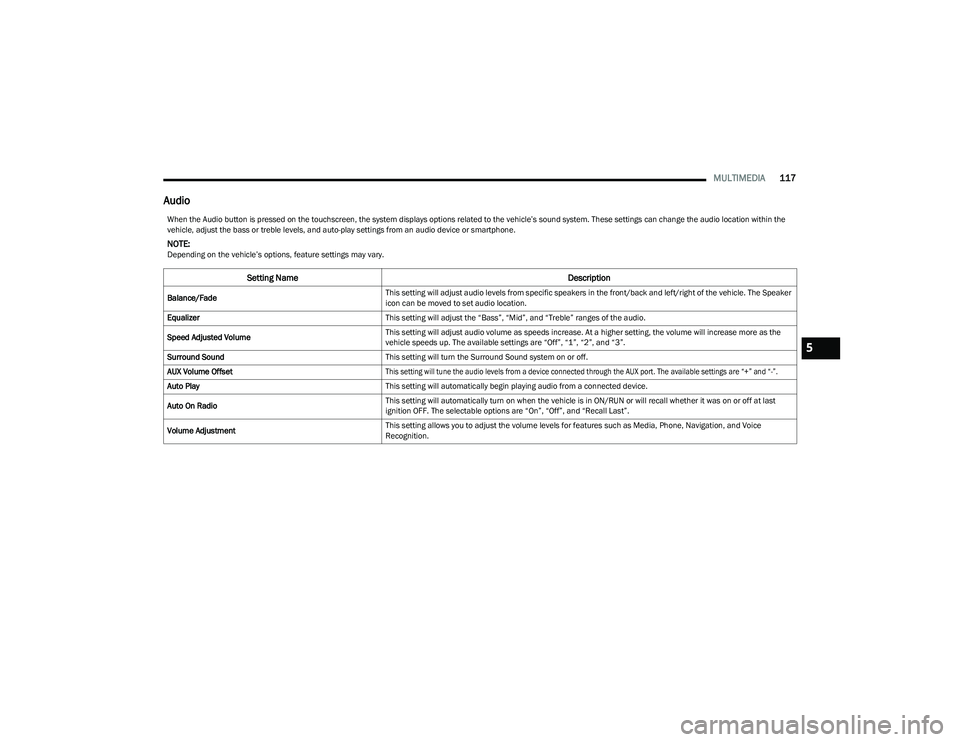
Audio
When the Audio button is pressed on the touchscreen, the system displays options related to the vehicle’s sound system. These settings can change the audio location within the
vehicle, adjust the bass or treble levels, and auto-play settings from an audio device or smartphone.
NOTE:Depending on the vehicle’s options, feature settings may vary.
Setting Name Description
Balance/FadeThis setting will adjust audio levels from specific speakers in the front/back and left/right of the vehicle. The Speaker
icon can be moved to set audio location.
Equalizer This setting will adjust the “Bass”, “Mid”, and “Treble” ranges of the audio.
Speed Adjusted Volume This setting will adjust audio volume as speeds increase. At a higher setting, the volume will increase more as the
vehicle speeds up. The available settings are “Off”, “1”, “2”, and “3”.
Surround Sound This setting will turn the Surround Sound system on or off.
AUX Volume Offset
This setting will tune the audio levels from a device connected through the AUX port. The available settings are “+” and “-”.
Auto Play This setting will automatically begin playing audio from a connected device.
Auto On Radio This setting will automatically turn on when the vehicle is in ON/RUN or will recall whether it was on or off at last
ignition OFF. The selectable options are “On”, “Off”, and “Recall Last”.
Volume Adjustment This setting allows you to adjust the volume levels for features such as Media, Phone, Navigation, and Voice
Recognition.
5
23_RUV_OM_EN_US_t.book Page 117
Page 120 of 256
118MULTIMEDIA
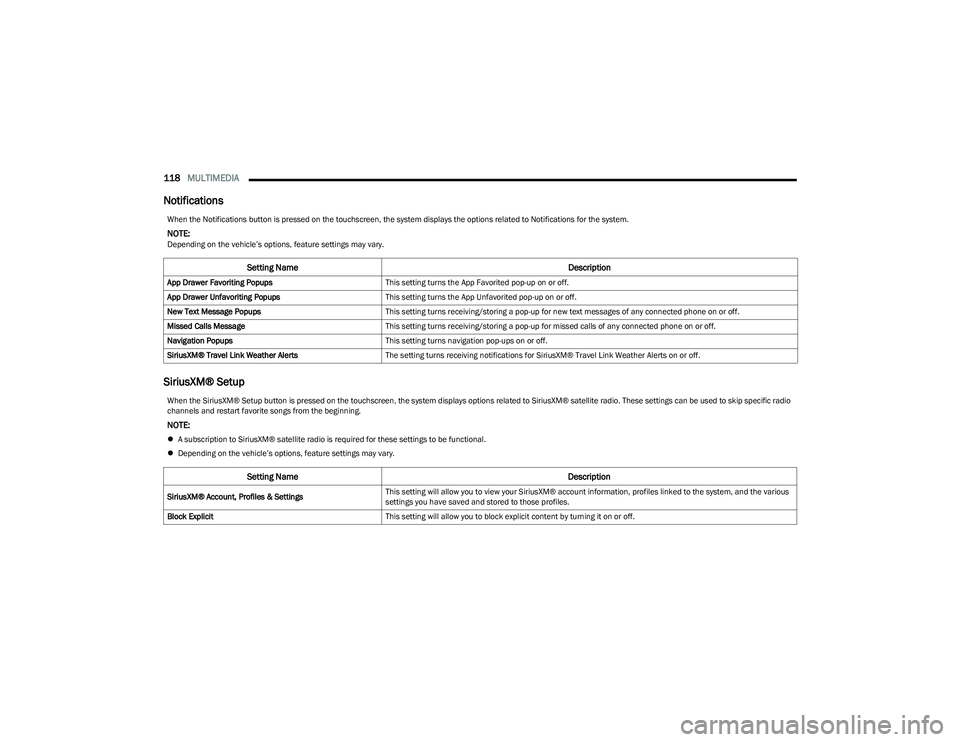
Notifications
SiriusXM® Setup
When the Notifications button is pressed on the touchscreen, the system displays the options related to Notifications for the system.
NOTE:Depending on the vehicle’s options, feature settings may vary.
Setting Name Description
App Drawer Favoriting PopupsThis setting turns the App Favorited pop-up on or off.
App Drawer Unfavoriting Popups This setting turns the App Unfavorited pop-up on or off.
New Text Message Popups This setting turns receiving/storing a pop-up for new text messages of any connected phone on or off.
Missed Calls Message This setting turns receiving/storing a pop-up for missed calls of any connected phone on or off.
Navigation Popups This setting turns navigation pop-ups on or off.
SiriusXM® Travel Link Weather Alerts The setting turns receiving notifications for SiriusXM® Travel Link Weather Alerts on or off.
When the SiriusXM® Setup button is pressed on the touchscreen, the system displays options related to SiriusXM® satellite radio. These settings can be used to skip specific radio
channels and restart favorite songs from the beginning.
NOTE:
A subscription to SiriusXM® satellite radio is required for these settings to be functional.
Depending on the vehicle’s options, feature settings may vary.
Setting Name Description
SiriusXM® Account, Profiles & SettingsThis setting will allow you to view your SiriusXM® account information, profiles linked to the system, and the various
settings you have saved and stored to those profiles.
Block Explicit This setting will allow you to block explicit content by turning it on or off.
23_RUV_OM_EN_US_t.book Page 118
Page 122 of 256
120MULTIMEDIA
RADIO OPERATION AND MOBILE PHONES
Under certain conditions, the mobile phone being on in
your vehicle can cause erratic or noisy performance from
your radio. This condition may be lessened or eliminated
by repositioning the mobile phone within the vehicle.
This condition is not harmful to the radio. If your radio
performance does not satisfactorily improve from
repositioning the mobile phone, it is recommended that
the volume be turned down or off during mobile phone
operation when not using the Uconnect system.
REGULATORY AND SAFETY
I
NFORMATION
US/CANADA
Exposure to Radio Frequency Radiation
The radiated output power of the internal wireless radio is
far below the FCC and IC radio frequency exposure limits.
Nevertheless, the wireless radio will be used in such a
manner that the radio is 8 inches (20 cm) or further from
the human body.
The internal wireless radio operates within guidelines
found in radio frequency safety standards and
recommendations, which reflect the consensus of the
scientific community. The radio manufacturer believes the internal wireless
radio is safe for use by consumers. The level of energy
emitted is far less than the electromagnetic energy
emitted by wireless devices such as mobile phones.
However, the use of wireless radios may be restricted
in some situations or environments, such as aboard
airplanes. If you are unsure of restrictions, you are
encouraged to ask for authorization before turning on
the wireless radio
Úpage 244.
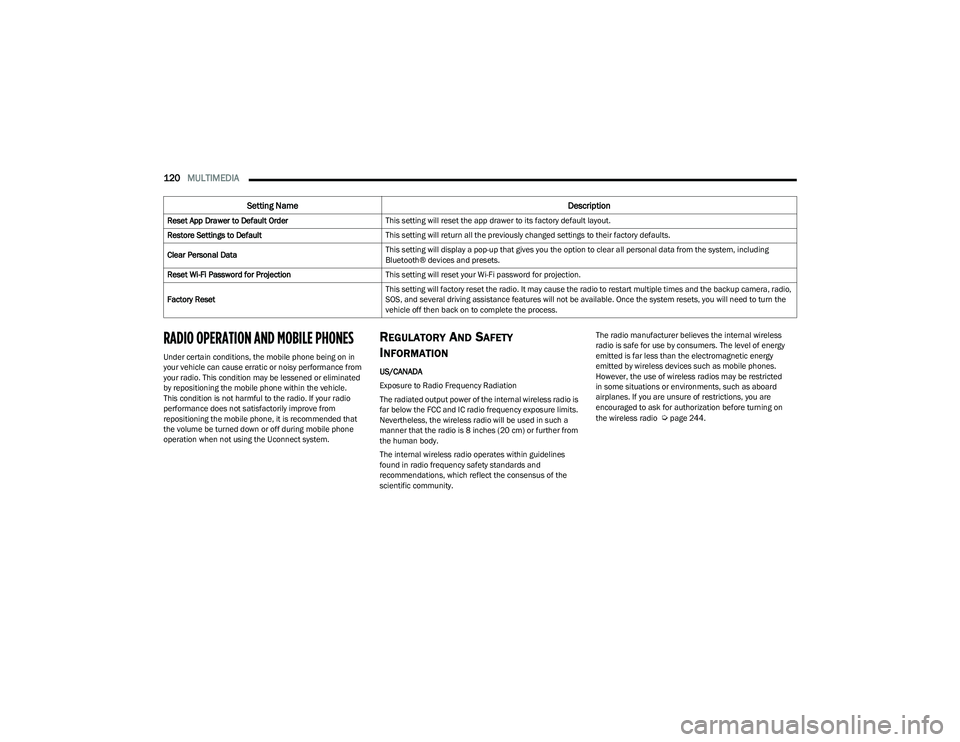
Reset App Drawer to Default Order
This setting will reset the app drawer to its factory default layout.
Restore Settings to Default This setting will return all the previously changed settings to their factory defaults.
Clear Personal Data This setting will display a pop-up that gives you the option to clear all personal data from the system, including
Bluetooth® devices and presets.
Reset Wi-Fi Password for Projection This setting will reset your Wi-Fi password for projection.
Factory Reset This setting will factory reset the radio. It may cause the radio to restart multiple times and the backup camera, radio,
SOS, and several driving assistance features will not be available. Once the system resets, you will need to turn the
vehicle off then back on to complete the process.
Setting Name
Description
23_RUV_OM_EN_US_t.book Page 120
Page 175 of 256
IN CASE OF EMERGENCY173
(Continued)
Vehicle Customer Care – Total support for all other
vehicle issues.
Uconnect Customer Care - Total support for Radio,
Phone and NAV issues.
JACKING AND TIRE CHANGING —
IF EQUIPPED
Use this QR code to access your digital
experience.PREPARATIONS FOR JACKING
1. Park the vehicle on a firm, level surface. Avoid ice or
slippery areas.
2. Turn on the Hazard Warning Flashers.
3. Apply the parking brake. 4. Place the gear selector into PARK (P).
5. Place the ignition in OFF mode.
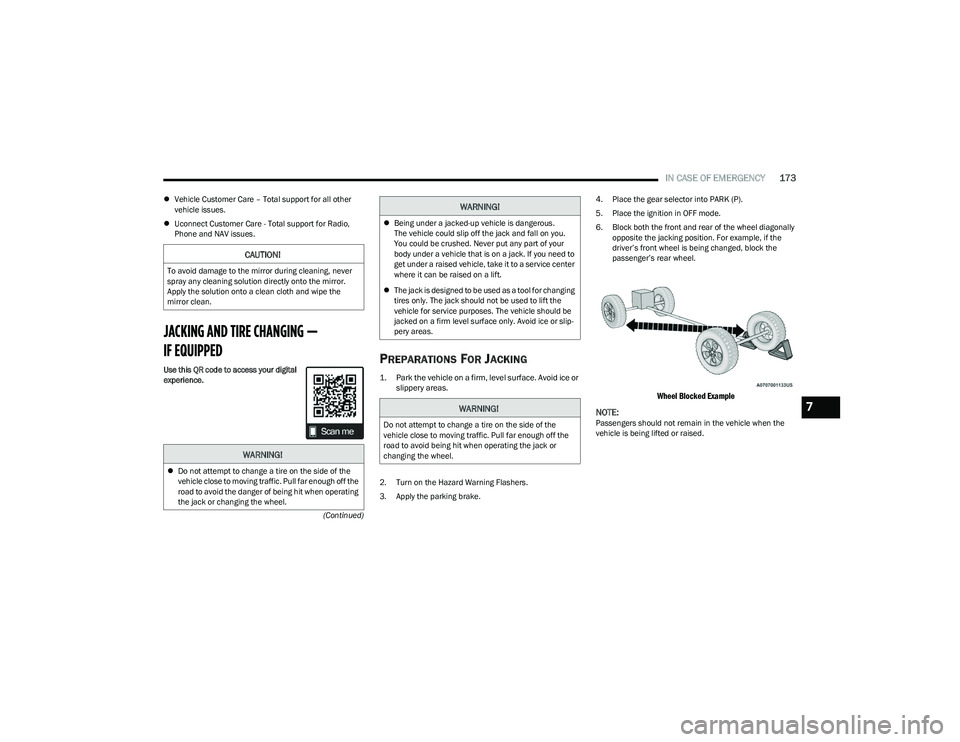
6. Block both the front and rear of the wheel diagonally
opposite the jacking position. For example, if the
driver’s front wheel is being changed, block the
passenger’s rear wheel.
Wheel Blocked Example
NOTE:
Passengers should not remain in the vehicle when the
vehicle is being lifted or raised.
CAUTION!
To avoid damage to the mirror during cleaning, never
spray any cleaning solution directly onto the mirror.
Apply the solution onto a clean cloth and wipe the
mirror clean.
WARNING!
Do not attempt to change a tire on the side of the
vehicle close to moving traffic. Pull far enough off the
road to avoid the danger of being hit when operating
the jack or changing the wheel.
Being under a jacked-up vehicle is dangerous.
The vehicle could slip off the jack and fall on you.
You could be crushed. Never put any part of your
body under a vehicle that is on a jack. If you need to
get under a raised vehicle, take it to a service center
where it can be raised on a lift.
The jack is designed to be used as a tool for changing
tires only. The jack should not be used to lift the
vehicle for service purposes. The vehicle should be
jacked on a firm level surface only. Avoid ice or slip -
pery areas.
WARNING!
Do not attempt to change a tire on the side of the
vehicle close to moving traffic. Pull far enough off the
road to avoid being hit when operating the jack or
changing the wheel.
WARNING!
7
23_RUV_OM_EN_US_t.book Page 173
Page 242 of 256
240
CUSTOMER ASSISTANCE
SUGGESTIONS FOR OBTAINING SERVICE
FOR YOUR VEHICLE
PREPARE FOR THE APPOINTMENT
All work to be performed may not be covered by the
warranty. Discuss additional charges with the service
manager. Keep a maintenance log of your vehicle's
service history. This can often provide a clue to the current
problem.
PREPARE A LIST
Make a written list of your vehicle's problems or the
specific work you want done. If you've had an accident or
work done that is not on your maintenance log, let the
service advisor know.
BE REASONABLE WITH REQUESTS
If you list a number of items and you must have your
vehicle by the end of the day, discuss the situation with
the service advisor and list the items in order of priority.
At many authorized dealers, you may obtain a rental
vehicle (additional charges may apply). If you need a
rental, it is advisable to make these arrangements
when you call for an appointment.
IF YOU NEED ASSISTANCE
FCA US LLC and its authorized dealers are vitally
interested in your satisfaction. We want you to be happy
with our products and services.
Warranty service must be done by an authorized dealer.
We strongly recommend that you take the vehicle to an
authorized dealer. They know your vehicle the best, and
are most concerned that you get prompt and high quality
service. FCA US LLC’s authorized dealers have the
facilities, factory-trained technicians, special tools, and
the latest information to ensure the vehicle is fixed
correctly and in a timely manner.
This is why you should always talk to an authorized
dealer’s service manager first. If for some reason you are
still not satisfied, talk to the general manager or owner
of the authorized dealer. They want to know if you need
assistance. If an authorized dealer is unable to resolve
the concern, you may contact FCA US LLC's Customer
Assistance center.
Any communication to FCA US LLC’s customer center
should include the following information:
Owner's name and address
Owner's telephone number (home, mobile, and office)
Authorized dealer name
Vehicle Identification Number (VIN)
Vehicle delivery date and mileage
ROADSIDE ASSISTANCE
Available 24 hours, 7 days a week.
Call 1-800-521-2779 or visit chrysler.rsahelp.com(USA)
Call 1-800-363-4869 or visit fca.roadsideaid.com
(Canada)
Who is Covered
You are covered by Roadside Assistance services if you
are a purchaser for use of the vehicle. Roadside
Assistance services last for five years or 60,000 miles on
the odometer, whichever occurs first, calculated from the
start date of the Basic Limited Warranty, as set forth in
“section 2.1 E” in your Warranty Information book.
1
1. Towing services provided through Cross Country Motor Club, Inc.
Medford, MA 02155, except in AK,CA, HI, OR, WI, and WY, where services
are provided by Cross Country Motor Club of California, Inc., Thousand
Oaks, CA 91360.
23_RUV_OM_EN_US_t.book Page 240
Page 243 of 256
CUSTOMER ASSISTANCE241
What to Do
If your vehicle requires jump start assistance, out of gas/fuel
delivery, tire service, lockout service or towing as a result of a
mechanical breakdown, dial toll-free: USA: 1-800-521-2779/
Canada: 1-800-363-4869. Provide your name, Vehicle
Identification Number (VIN) required for covered services,
license plate number, and your location, including the
telephone number from which you are calling. Briefly describe
the nature of the problem and answer a few simple questions.
You will be given the name of the service provider and an
estimated time of arrival. If you feel you are in an unsafe
situation, please let us know. With your consent, we will
contact local police or safety authorities.
If Unable to Contact Roadside Assistance
If you are unable to contact Roadside Assistance or unable to
provide a valid Vehicle Identification Number (VIN), and you
obtain towing services on your own, you may submit your
original receipts from the licensed towing or service facility, for
services rendered within30 days of the occurrence. Be sure to
include your VIN, odometer mileage at the time of service, and
current mailing address. We will process the claim based on
vehicle and service eligibility. If eligible, we will reimburse you
for the reasonable amount actually paid, based on the usual
and customary charges for that service in the area where they
were provided. FCA US LLC’s determination relating to
reimbursement is final. Correspondence should be mailed to:
FCA US LLC Customer Assistance
P.O. Box 9145
Medford, MA 02155
Attention Claims Department FCA US LLC reserves the right to modify the terms or
discontinue the Roadside Assistance Program at any time.
The Roadside Assistance program is subject to restrictions
and conditions of use, which are determined solely by FCA
US LLC.
Flat Tire Service
If you are inconvenienced by a flat tire, we will dispatch a
service provider to use your vehicle’s temporary spare tire
(if equipped) as recommended in your Owner’s Manual.
This is not a permanent flat tire repair.
Out of Gas/Fuel Delivery
Drivers cannot always count on a gas station being
nearby, especially when traveling away from home. We will
dispatch a service provider to deliver a small amount of
fuel (maximum two gallons) to get you to a nearby station.
This service is limited to two occurrences in a 12-month
period.
Battery Jump Assistance
No time is a good time for a depleted battery. With
Roadside Assistance, you do not have to worry about
being stranded. We will dispatch a service provider to
provide you with a battery jump anytime, day or night.
Lockout Service
Whether the keys are locked in your vehicle or frozen locks
are keeping you from getting on your way, help is just a
phone call away. This service is limited to providing access
to the vehicle’s seating area. It does not cover the cost of
replacement keys.
Towing Service
Our towing service gives you peace of mind and
confidence. If your vehicle becomes disabled as a result
of a mechanical breakdown, Roadside Assistance will
dispatch a towing service to transport your vehicle to the
closest authorized Chrysler, Dodge, Jeep®, or Ram dealer.
If you choose to go to another dealer, you will be
responsible for the cost if the extra distance exceeds
10 miles.
FCA U S LLC CUSTOMER CENTER
P.O. Box 21–8004
Auburn Hills, MI 48321–8004
Phone: (800) 247-9753
FCA CANADA INC. CUSTOMER CENTER
P.O. Box 1621
Windsor, Ontario N9A 4H6
Phone: (800) 465-2001 English / (800) 387-9983 French
MEXICO
Av. Prolongacion Paseo de la Reforma, 1240
Sante Fe C.P. 05109
Mexico, D.F.
In Mexico City: 800-505-1300
Outside Mexico City: +(52)55 50817568
10
23_RUV_OM_EN_US_t.book Page 241