display Citroen C1 2015 1.G Workshop Manual
[x] Cancel search | Manufacturer: CITROEN, Model Year: 2015, Model line: C1, Model: Citroen C1 2015 1.GPages: 271, PDF Size: 7.18 MB
Page 220 of 271

218
C1_en_Chap12a_Autoradio_Toyota_tactile-1_ed01-2015
Frequently asked questions
The following table groups together the answers to the most frequently asked questions concerning your audio system.
Telephone, Bluetooth®
QUESTIONANSWER SOLUTION
I cannot connect my
Bluetooth telephone. The telephone's Bluetooth function may be switched off or the
telephone may not be visible. -
C
heck that your telephone's Bluetooth
function is switched on.
-
C
heck in the telephone settings that it is
"visible to all".
The Bluetooth telephone is not compatible with the system. You can check the compatibility of your
telephone at www.citroen.co.uk (services).
The volume of the
telephone connected
in Bluetooth mode is
inaudible. The volume depends both on the system and on the telephone. Increase the volume of the audio system, to
maximum if required, and increase the volume of
the telephone if necessary.
The ambient noise level has an influence on the quality of
telephone communication. Reduce the ambient noise level (close the
windows, reduce the booster fan speed, slow
down, ...).
Contacts are not shown in
alphabetical order. Some telephones offer display options. Depending on the settings
chosen, contacts can be transferred in a specific order. Modify the display setting in the telephone
di r e c to r y.
The system does
not receive SMS text
messages. The Bluetooth mode on your telephone does not permit sending
SMS text messages to the system.
Audio and Telematics
Page 221 of 271
219
C1_en_Chap12a_Autoradio_Toyota_tactile-1_ed01-2015
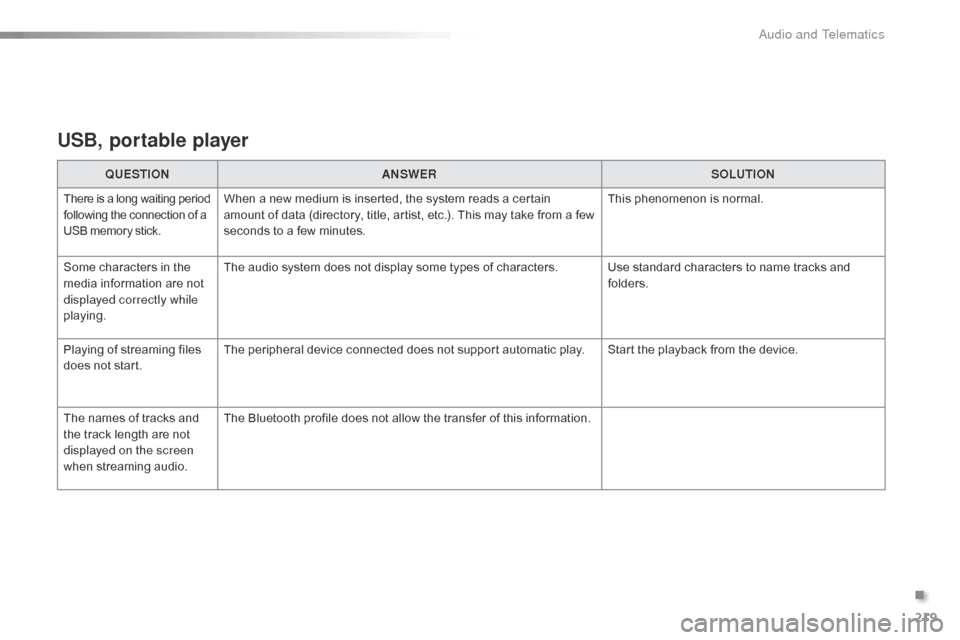
USB, portable player
QUESTIONANSWER SOLUTION
There is a long waiting period
following the connection of a
USB memory stick.When a new medium is inserted, the system reads a certain
amount of data (directory, title, artist, etc.). This may take from a few
seconds to a few minutes. This phenomenon is normal.
Some characters in the
media information are not
displayed correctly while
playing. The audio system does not display some types of characters. Use standard characters to name tracks and
folders.
Playing of streaming files
does not start. The peripheral device connected does not support automatic play. Start the playback from the device.
The names of tracks and
the track length are not
displayed on the screen
when streaming audio. The Bluetooth profile does not allow the transfer of this information.
.
Audio and Telematics
Page 222 of 271
220
C1_en_Chap12a_Autoradio_Toyota_tactile-1_ed01-2015
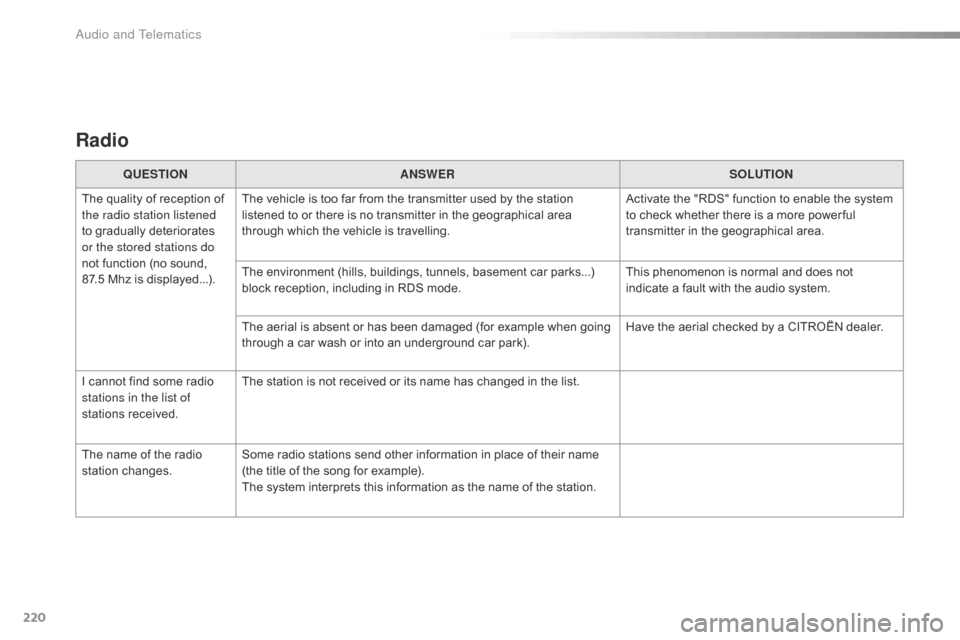
Radio
QUESTIONANSWER SOLUTION
The quality of reception of
the radio station listened
to gradually deteriorates
or the stored stations do
not function (no sound,
87.5
Mhz is displayed...). The vehicle is too far from the transmitter used by the station
listened to or there is no transmitter in the geographical area
through which the vehicle is travelling.
Activate the "RDS" function to enable the system
to check whether there is a more power ful
transmitter in the geographical area.
The environment (hills, buildings, tunnels, basement car parks...)
block reception, including in RDS mode. This phenomenon is normal and does not
indicate a fault with the audio system.
The aerial is absent or has been damaged (for example when going
through a car wash or into an underground car park). Have the aerial checked by a CITROËN dealer.
I cannot find some radio
stations in the list of
stations received. The station is not received or its name has changed in the list.
The name of the radio
station changes. Some radio stations send other information in place of their name
(the title of the song for example).
The system interprets this information as the name of the station.
Audio and Telematics
Page 227 of 271

225
C1_en_Chap12b_Autoradio_Toyota-2_ed01-2015
Menu itemSignificance /
Corresponding action
Incoming calls Incoming calls.
List Audio Display the list of registered audio
devices.
List Phone Display the list of registered
telephones.
Missed calls Missed calls.
No entry No data available.
No history No history available.
No connected Not connected.
Outgoing calls Outgoing calls.
Overwrite all Replace all.
Pairing Connect a device by Bluetooth.
Menu item
Significance /
Corresponding action
Device name Name of the system.
DAB Digital radio.
Dial by number Enter a telephone number.
Disconnect Disconnect your telephone.
Display Setting Activate or deactivate automatic
display of connections.
Enter new passkey Enter a new password.
FM AF On/Off Activate or deactivate FM AF
mode.
FM List Display the list of FM stations.
FM TA On/Off Activate or deactivate FM TA
mode - alert messages.
HF Sound Setting High frequency sound setting.
.
Audio and Telematics
Page 228 of 271

226
C1_en_Chap12b_Autoradio_Toyota-2_ed01-2015
Menu itemSignificance /
Corresponding action
Passkey Change the password.
Phonebook Phone directory.
Radio Display radio mode.
Region Code Activate or deactivate RDS mode.
Reset Reset settings.
Reset all Reset all.
Ringtone Choose a ringtone
Ringtone volume Adjust the ringtone volume.
Searching Searching...
Select Select. Menu item
Significance /
Corresponding action
Setup Settings.
Skip Go to the next step.
Sound Setting Display the sound settings.
Speed dials Speed dialling.
TA Traffic announcements.
TEL Display the list of telephone
settings.
Transfer history Transfer the calls history.
Treble Adjust the treble level.
Update Update the list.
Updating Updating...
Audio and Telematics
Page 229 of 271

227
C1_en_Chap12b_Autoradio_Toyota-2_ed01-2015
First steps
On/Off.
Volume (each source is
independent).
Accept an incoming call.AM radio buttons 1 to 6: select a
preset radio station.
FM buttons 1 to 5: select a preset
radio station.
FM list: display the radio stations
received.
Press and hold: preset a radio
station.
Back: abandon current operation, up
on level in the menu.Display menu and set options.
Rotate: scroll through a list or change
radio station.
Press: confirm the option displayed in
the screen.
Reject an incoming call.
End call. Select AM, FM and DAB*
wavebands.
Select the BTA (Bluetooth Audio) and
AUX (auxiliary) source.
Select:
-
t
he next radio frequency up
automatically.
-
t
he next line in a list or a menu.
- t he next media folder.
Select:
-
t
he next radio frequency down
automatically.
-
t
he previous line in a list or a
menu.
-
t
he previous media folder.
* Depending on equipment.
Audio system with Bluetooth®
.
Audio and Telematics
Page 230 of 271

228
C1_en_Chap12b_Autoradio_Toyota-2_ed01-2015
On/Off.
Volume (each source is
independent).
Select:
-
t
he next radio frequency up/down
automatically.
-
t
he previous/next line in a list or a
menu. AM radio buttons 1 to 6: select a
preset radio station.
FM radio buttons 1 to 5: select a
preset radio station.
FM
list: display the radio stations
received.
Press and hold: preset a radio
station.
Back: abandon the current operation,
go up one level in a menu. Display menu and set options.
Rotate: scroll through a list or change
radio station.
Press: confirm the option displayed in
the screen.
Select AM and FM
wavebands.
Select the BTA (Bluetooth Audio) and
AUX (Auxiliary) source.
Select previous/next media folder.
Audio system
Audio and Telematics
Page 232 of 271
230
C1_en_Chap12b_Autoradio_Toyota-2_ed01-2015
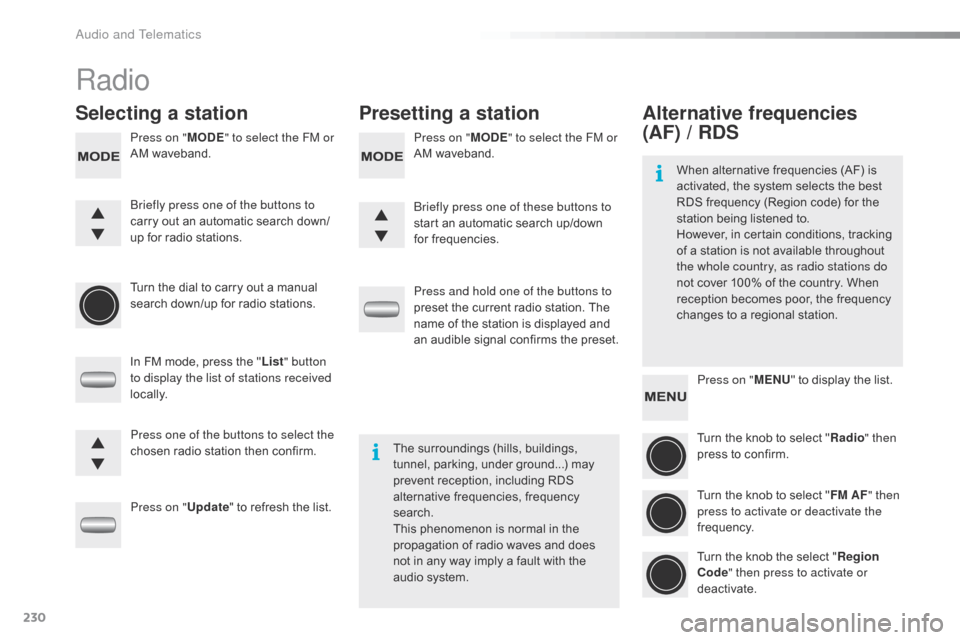
Radio
Selecting a stationPresetting a station
Press on "MODE" to select the FM or
AM waveband. Press on "
MODE" to select the FM or
AM waveband.
Turn the dial to carry out a manual
search down/up for radio stations.
In FM mode, press the " List" button
to display the list of stations received
locally.
Press on " Update" to refresh the list. Press and hold one of the buttons to
preset the current radio station. The
name of the station is displayed and
an audible signal confirms the preset.
Briefly press one of the buttons to
carry out an automatic search down/
up for radio stations.
Briefly press one of these buttons to
start an automatic search up/down
for frequencies.
Press one of the buttons to select the
chosen radio station then confirm. The surroundings (hills, buildings,
tunnel, parking, under ground...) may
prevent reception, including RDS
alternative frequencies, frequency
search.
This phenomenon is normal in the
propagation of radio waves and does
not in any way imply a fault with the
audio system.
Alternative frequencies
(AF) / RDS
Press on "
MENU" to display the list.
Turn the knob to select " Radio" then
press to confirm.
Turn the knob to select " FM AF" then
press to activate or deactivate the
frequency.
Turn the knob the select " Region
Code " then press to activate or
deactivate.
When alternative frequencies (AF) is
activated, the system selects the best
RDS frequency (Region code) for the
station being listened to.
However, in certain conditions, tracking
of a station is not available throughout
the whole country, as radio stations do
not cover 100% of the country. When
reception becomes poor, the frequency
changes to a regional station.
Audio and Telematics
Page 233 of 271
231
C1_en_Chap12b_Autoradio_Toyota-2_ed01-2015
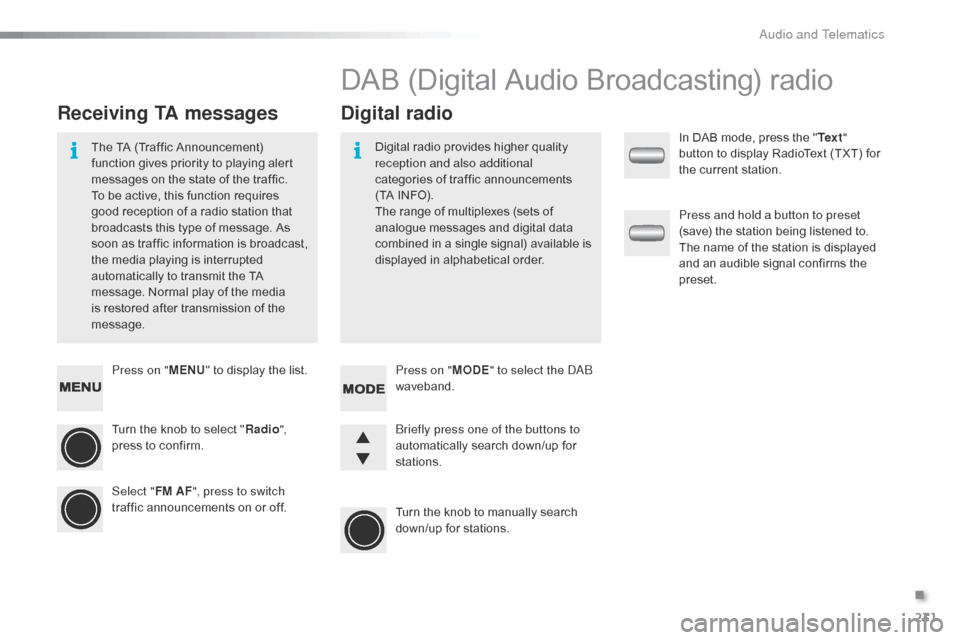
Press on "MENU" to display the list.
Turn the knob to select " Radio",
press to confirm.
Select " FM AF", press to switch
traffic announcements on or off.
Receiving TA messages Digital radio
The TA (Traffic Announcement)
function gives priority to playing alert
messages on the state of the traffic.
To be active, this function requires
good reception of a radio station that
broadcasts this type of message. As
soon as traffic information is broadcast,
the media playing is interrupted
automatically to transmit the TA
message. Normal play of the media
is restored after transmission of the
message. Digital radio provides higher quality
reception and also additional
categories of traffic announcements
(TA INFO).
The range of multiplexes (sets of
analogue messages and digital data
combined in a single signal) available is
displayed in alphabetical order.
DAB (Digital Audio Broadcasting) radio
Press on "
MODE" to select the DAB
waveband.
Turn the knob to manually search
down/up for stations. Briefly press one of the buttons to
automatically search down/up for
stations. In DAB mode, press the "
Te x t"
button to display RadioText (TXT) for
the current station.
Press and hold a button to preset
(save) the station being listened to.
The name of the station is displayed
and an audible signal confirms the
preset.
.
Audio and Telematics
Page 234 of 271

232
C1_en_Chap12b_Autoradio_Toyota-2_ed01-2015
Press on MENU to display the list.
Turn the knob to select " Radio" then
press to confirm.
Turn the knob to select " DAB AF",
press to activate or deactivate the
frequency.
DAB / FM station tracking
Digital radio does not cover 100% of
the country.
When the digital signal is weak, the
alternative DAB frequency option,
" DAB AF ", makes it possible to
continue listening to the same station,
by automatically switching to the
corresponding "FM" station (if there is
o n e). If "
DAB AF " tracking is activated,
there is a difference of a few seconds
when the system switches to the "FM"
analogue radio station with sometimes
a variation in volume.
When the digital signal is restored, the
system automatically changes back
to
"DAB".
If the "DAB" station being listened to
is not available, or if " DAB AF" is not
activated, the sound will cut out while
the digital signal is too weak.
Audio and Telematics