com Citroen C3 2012 2.G Owner's Manual
[x] Cancel search | Manufacturer: CITROEN, Model Year: 2012, Model line: C3, Model: Citroen C3 2012 2.GPages: 252, PDF Size: 8.11 MB
Page 184 of 252
182
01 FIRST STEPS
MyWay CONTROL PANEL
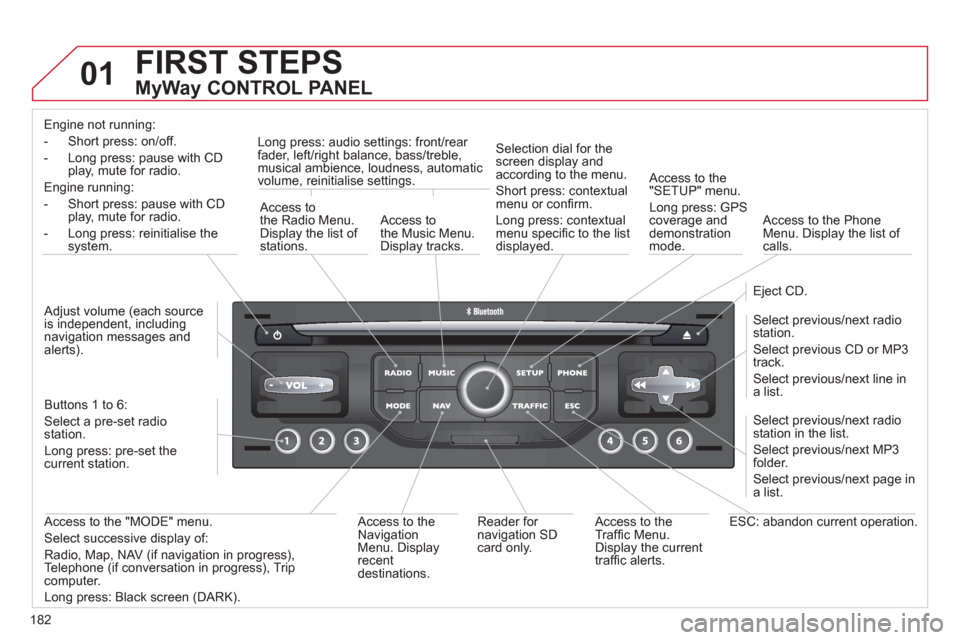
Engine not running:
-
Short press: on/off.
- Long press: pause with
CD play, mute for radio.
Engine running:
- Short
press: pause with CD play, mute for radio.
-
Long press: reinitialise thesystem.
Access to
the Radio Menu. Display the list of stations.
Access to
the Music Menu.Display tracks. Lon
g press: audio settings: front/rear fader, left/right balance, bass/treble,
musical ambience, loudness, automatic
volume, reinitialise settings.
Selection dial for the
screen display and according to the menu.
Short press: contextual
menu or confi rm.
Long press: contextual
menu specifi c to the list
displayed.
A
ccess to the"SETUP" menu.
Lon
g press: GPS coverage anddemonstration
mode.
Access to the PhoneMenu. Display the list of calls.
E
ject CD.
Select previous/next radio station.
Select previous CD or MP3
track.
Select previous/next line in a list.
Select
previous/next radio station in the list.
Select previous/next MP3
folder.
Select previous/next page in a list.
E
SC: abandon current operation.
Access to theTraffi c Menu. Display the current
traffi c alerts. R
eader for navigation SDcard only.
A
ccess to theNavigation Menu. Displayrecent destinations.
A
ccess to the "MODE" menu.
Select successive display of:
Radio, Map, NAV (if navigation in progress),
Telephone (if conversation in progress), Tripcomputer.
Long press: Black screen (DARK). Buttons 1 to
6:
Select a pre-set radiostation.
Long press: pre-set the current station.
Ad
just volume (each source
is independent, including
navigation messages andalerts).
Page 186 of 252
184
03 GENERAL OPERATION
For a detailed global view of the menus available, refer to the"Screen menu map" section.
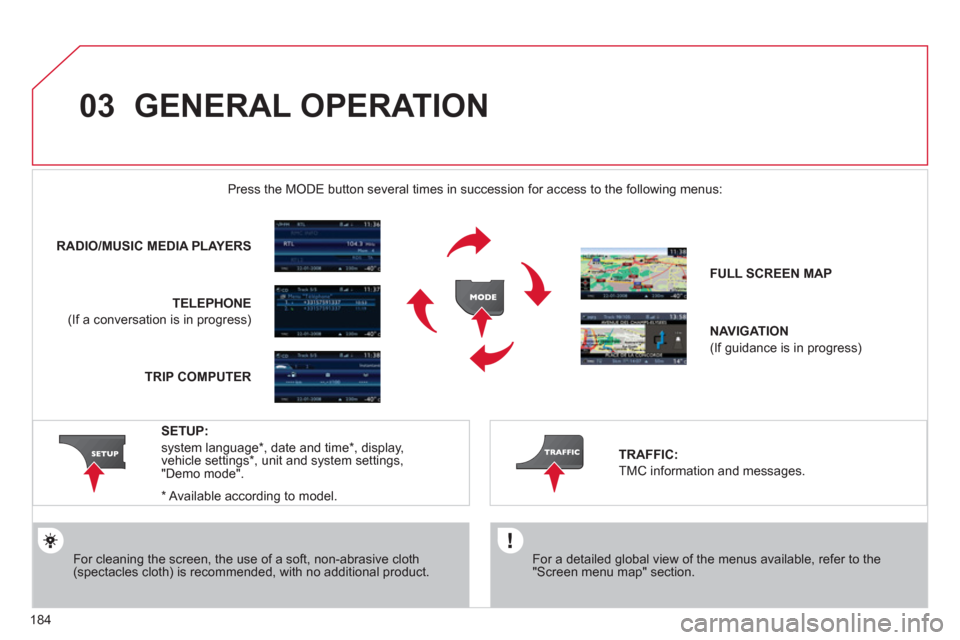
Press the M
ODE button several times in succession for access to the following menus:
For cleaning the screen, the use of a soft, non-abrasive cloth (spectacles cloth) is recommended, with no additional product. RADIO/MU
SIC MEDIA PLAYERS
TELEPHONE
(If a conversation is in progress)
FULL SCREEN MA
P
NAVIGATION
(If guidance is in progress)
SETUP:
system language *
, date and time *
, display,
vehicle settings * , unit and system settings,
"Demo mode".
TRAFFIC:
TMC information and messages.
*
Available accordin
g to model. TRIP COMPUTE
R
Page 187 of 252
185
03
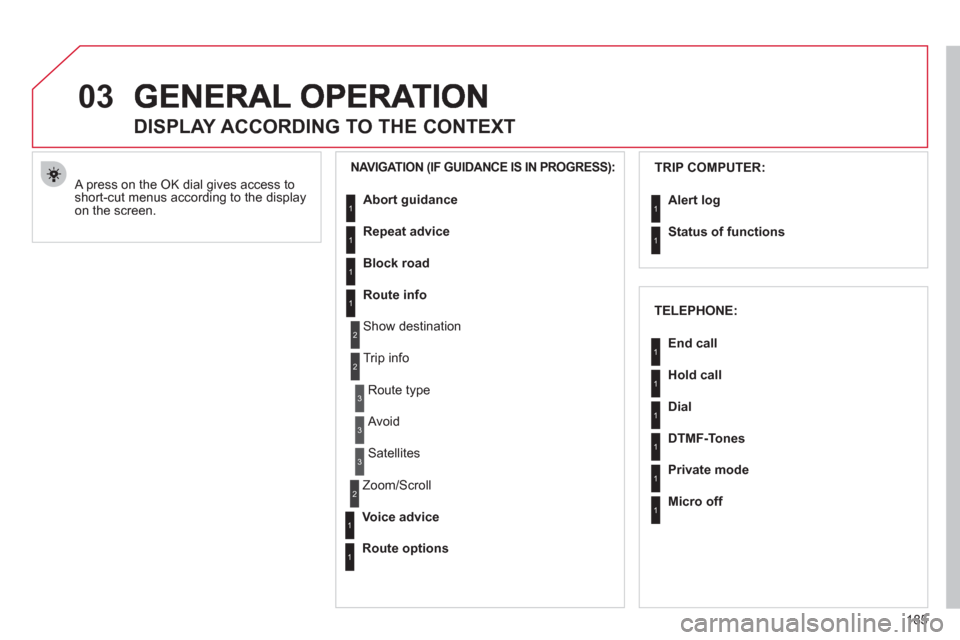
A press on the OK dial gives access to short-cut menus according to the displayon the screen.
DISPLAY ACCORDING TO THE CONTEXT
NAVIGATION (IF GUIDANCE IS IN PROGRESS):TRIP COMPUTER:
Abort
guidance
Repeat advice
Block road
Route info
Show destination
Tri
p info
Route t
ype
Avoid
Satellites
Zoom
/Scroll
Voice advice
Route options
Alert log
Status of functions
1
2
3
3
2
1
1
1
3
1
1
1
1
2
TELEPHONE:
End call
Hold call
Dial
DTMF-Tones
Private mode
Micro off
1
1
1
1
1
1
Page 191 of 252
189
04
1
2
3
5
4
NAVIGATION - GUIDANCE
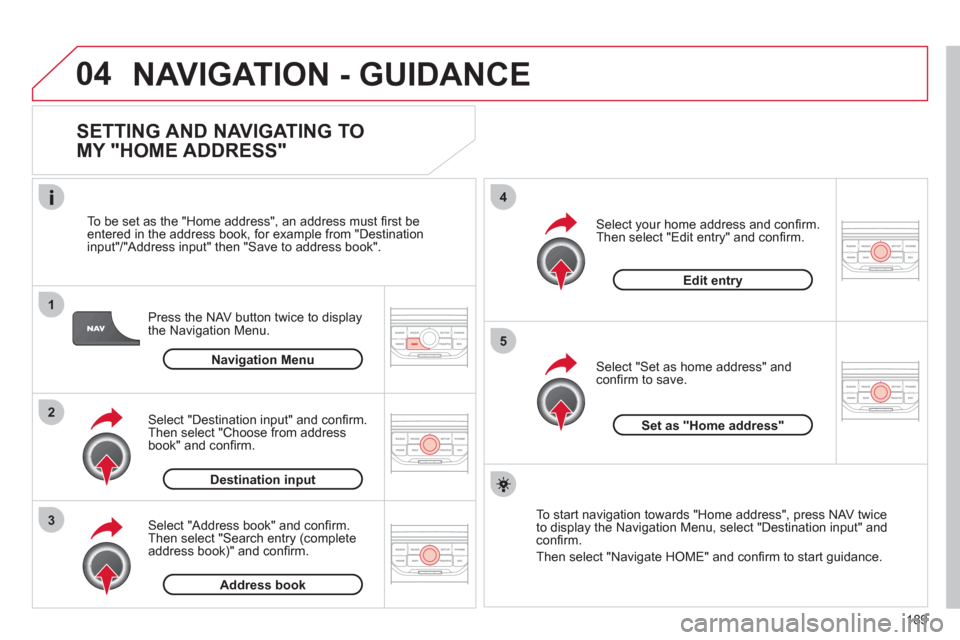
SETTING AND NAVIGATING TO
MY "HOME ADDRESS"
Press the NAV button twice to display
the Navigation Menu.
To be set as the "Home address"
, an address must fi rst be entered in the address book, for example from "Destination
input"/"Address input" then "Save to address book".
Select "Address book" and confi rm.
Then select "Search entry (complete address book)" and confi rm. Select "Destination in
put" and confi rm.
Then select "Choose from addressbook" and confi rm.
Select "Set as home address" andconfi rm to save.
Select
your home address and confi rm.
Then select "Edit entry" and confi rm.
To start navi
gation towards "Home address", press NAV twice
to display the Navigation Menu, select "Destination input" and confi rm.
Then select "Navi
gate HOME" and confi rm to start guidance.
Navigation Menu
Destination input
Address book
Edit entry
Set as "Home address"
Page 192 of 252
190
04
4
3
2
1
7
6
5
NAVIGATION - GUIDANCE
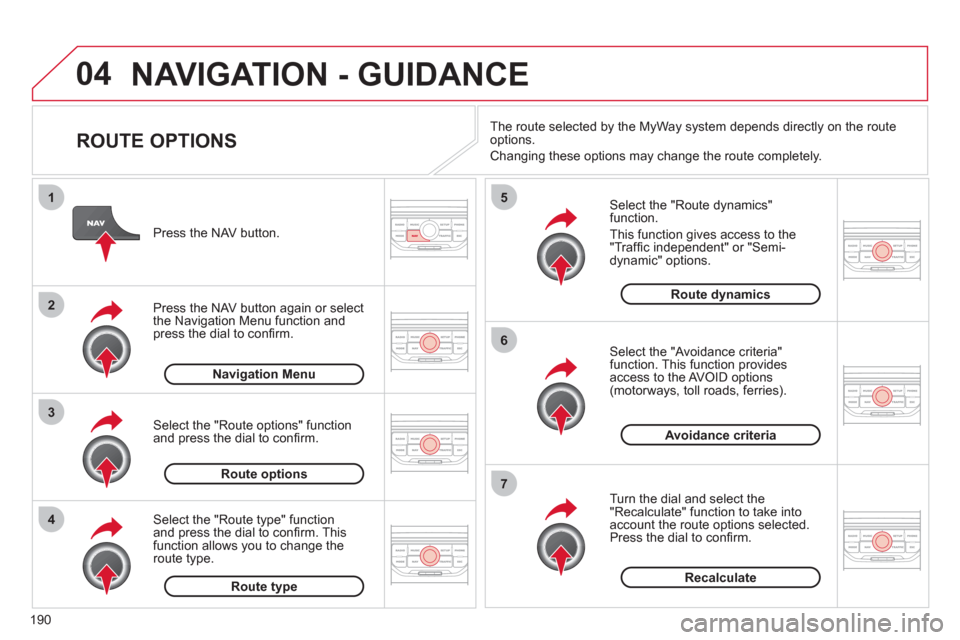
ROUTE OPTIONS
Select the "Route dynamics"function.
This
function gives access to the "Traffi c independent" or "Semi-
dynamic" options.
Select the "Avoidance criteria"function. This function provides
access to the AVOID options (motorways, toll roads, ferries).
T
urn the dial and select the "Recalculate" function to take intoaccount the route options selected.
Press the dial to confi rm. Pr
ess the NAV button.
Press the NAV button a
gain or select
the Navigation Menu function andpress the dial to confi rm.
Select the "Route type" functionand press the dial to confi rm. Thisfunction allows you to change theroute type.
Select the "Route options" functionand press the dial to confi rm.
Recalculate
Avoidance criteria
Route dynamics
Route type
Route options
Navigation MenuThe route selected b
y the MyWay system depends directly on the route
options.
Chan
ging these options may change the route completely.
Page 193 of 252
191
04
7
6
5
4
3
2
1
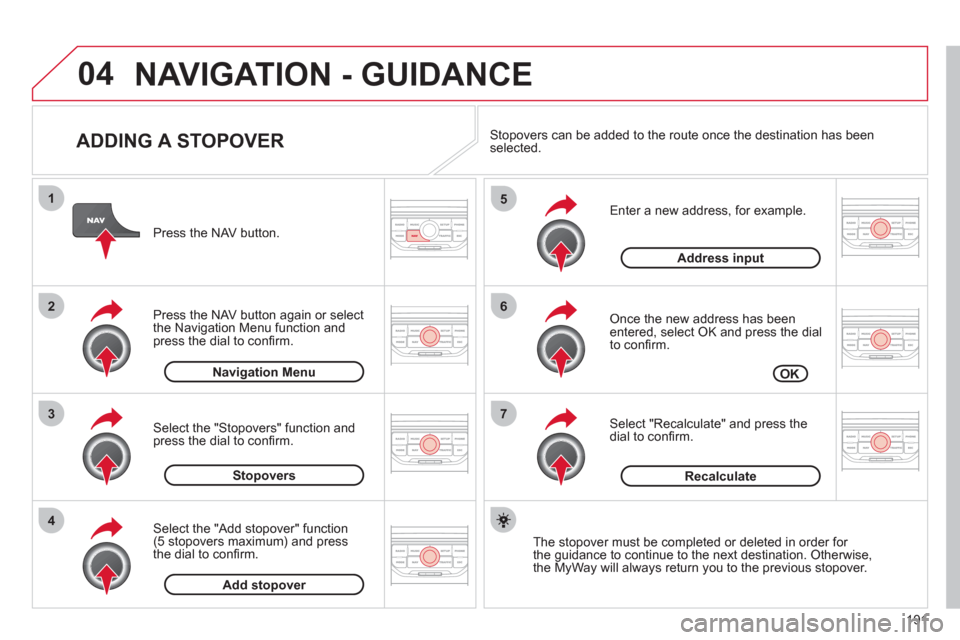
ADDING A STOPOVER
Enter a new address, for example.
Once the new address has been entered, select OK and press the dial
to confi rm.
Select "Recalculate" and press thedial to confi rm. Pr
ess the NAV button.
Press the NAV button again or select
the Navi
gation Menu function and
press the dial to confi rm.
Select the "Add stopover" function(5 stopovers maximum) and press
the dial to confi rm.
Select the "Stopovers" function and
press the dial to confi rm.
OK Address in
put
Add stopover Sto
povers Navi
gation Menu
Recalculate
The stopover must be completed or deleted in order for
the guidance to continue to the next destination. Otherwise,
the MyWay will always return you to the previous stopover.
Stopovers can be added to the route once the destination has been selected.
NAVIGATION - GUIDANCE
Page 196 of 252
194
04
5
6
3 2 1
4
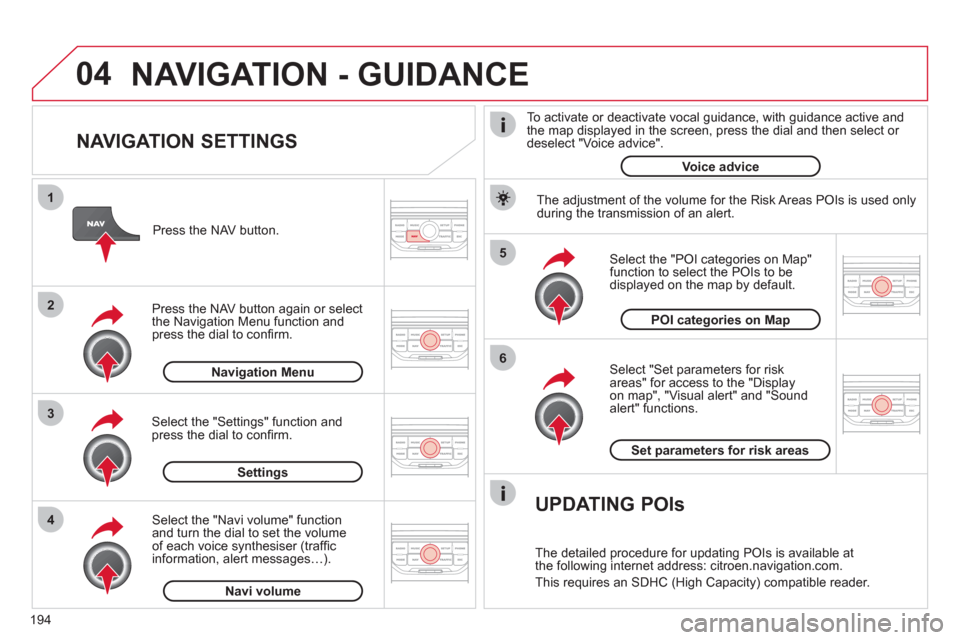
NAVIGATION SETTINGS
Select "Set parameters for risk
areas" for access to the "Display
on map", "Visual alert" and "Soundalert" functions.
Select the "POI categories on Map"function to select the POIs to be
displayed on the map by default. Pr
ess the NAV button.
Press the NAV button a
gain or select
the Navigation Menu function and
press the dial to confi rm.
Select the "Settings" function andpress the dial to confi rm.
POI categories on Map
Settin
gsSet parameters for risk area
s
Navigation Menu
NAVIGATION - GUIDANCE
Select the "Navi volume" function and turn the dial to set the volume
of each voice synthesiser (traffi c
information, alert messagesÖ).
Navi volum
e
The adjustment of the volume for the Risk Areas POIs is used only
during the transmission of an alert.
UPDATING POIs
The detailed procedure for updating POIs is available at
the following internet address: citroen.navigation.com.
This requires an SDHC
(High Capacity) compatible reader.
To activate or deactivate vocal
guidance, with guidance active and
the map displayed in the screen, press the dial and then select or deselect "Voice advice".
Voice advice
Page 197 of 252
195
05
2 1
3
4
5
TRAFFIC INFORMATION
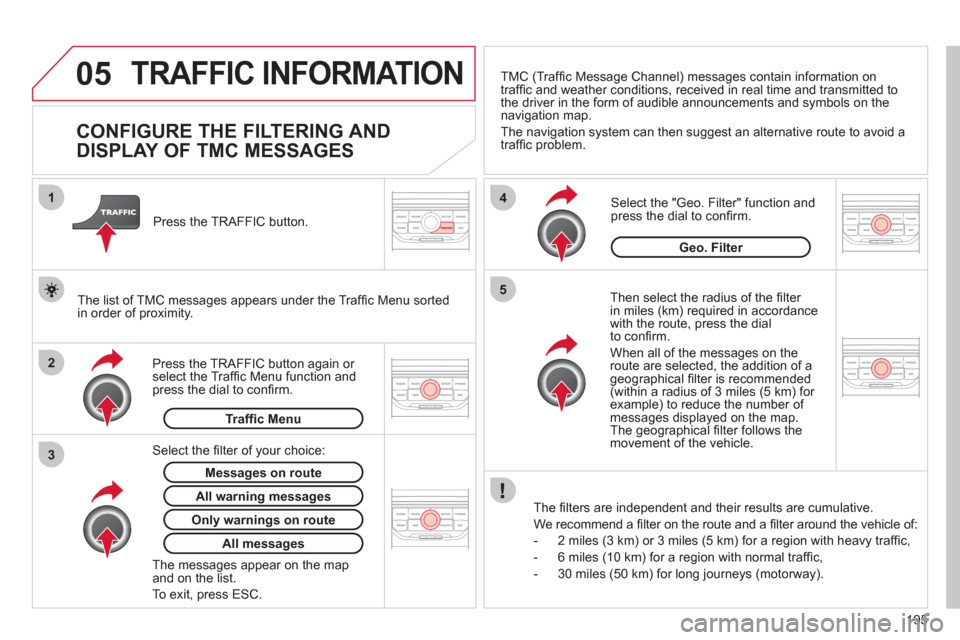
CONFIGURE THE FILTERING AND
DISPLAY OF TMC MESSAGES
Then select the radius of the fi lter
in miles (km) required in accordance
with the route, press the dial
to confi rm.
When all of the messa
ges on the route are selected, the addition of ageographical fi lter is recommended(within a radius of 3 miles (5 km) for example) to reduce the number of messages displayed on the map.The geographical fi lter follows the movement of the vehicle.
The
fi lters are independent and their results are cumulative.
W
e recommend a fi lter on the route and a fi lter around the vehicle of:
- 2 miles
(3 km) or 3 miles (5 km) for a region with heavy traffi c,
- 6 miles
(10 km) for a region with normal traffi c,
- 30 miles
(50 km) for long journeys (motorway).
Press the TRAFFI
C button again or select the Traffi c Menu function andpress the dial to confi rm. Press the TRAFFI
C button.
TM
C (Traffi c Message Channel) messages contain information on
traffi c and weather conditions, received in real time and transmitted to
the driver in the form of audible announcements and symbols on thenavigation map.
The navi
gation system can then suggest an alternative route to avoid a
traffi c problem.
Select the "Geo. Filter" function and press the dial to confi rm.
Messages on route
The list of TMC messages appears under the Traffi c Menu sorted
in order of proximity.
All warnin
g messages
Traffi c Menu
Select the fi lter of
your choice:
Onl
y warnings on route
All messages
The messages appear on the map and on the list.
To exit, press E
SC.
Geo. Filter
Page 200 of 252
198
07MUSIC MEDIA PLAYERS
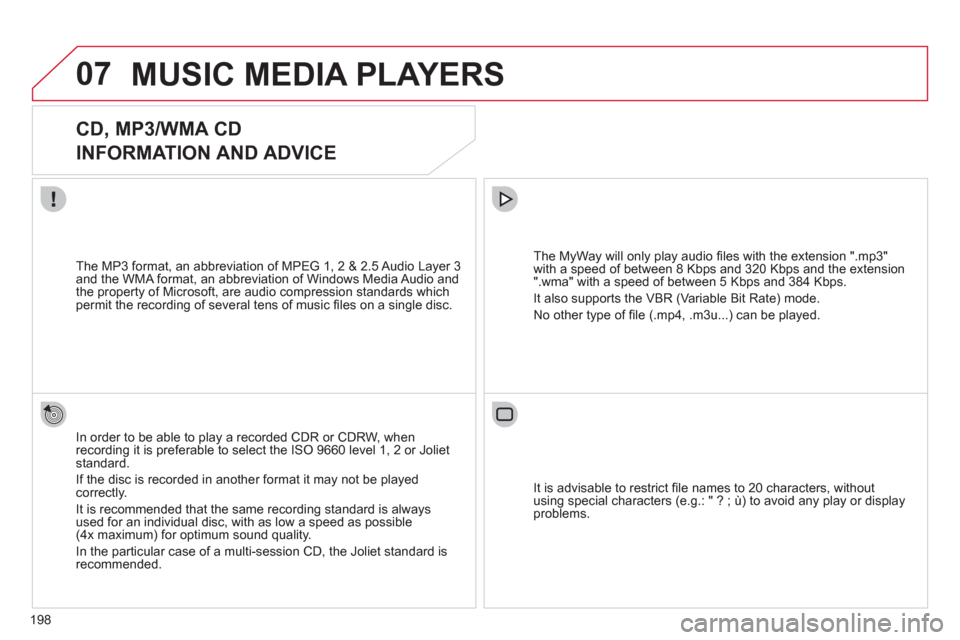
CD, MP3/WMA CD
INFORMATION AND ADVICE
In order to be able to play a recorded CDR or CDRW, when recording it is preferable to select the ISO 9660 level 1, 2 or Jolietstandard.
I
f the disc is recorded in another format it may not be playedcorrectly.
It is recommended that the same recordin
g standard is alwaysused for an individual disc, with as low a speed as possible(4x maximum) for optimum sound quality.
In the particular case o
f a multi-session CD, the Joliet standard is recommended.
The M
yWay will only play audio fi les with the extension ".mp3"
with a speed of between 8 Kbps and 320 Kbps and the extension
".wma" with a speed of between 5 Kbps and 384 Kbps.
It also supports the VBR
(Variable Bit Rate) mode.
No other t
ype of fi le (.mp4, .m3u...) can be played. The MP3
format, an abbreviation of MPEG 1, 2 & 2.5 Audio Layer 3 and the WMA format, an abbreviation of Windows Media Audio and
the property of Microsoft, are audio compression standards which permit the recording of several tens of music fi les on a single disc.
It is advisable to restrict fi le names to 20 characters
, without
using special characters (e.g.: " ? ; ù) to avoid any play or display
problems.
Page 201 of 252
199
07
3 2 1
6
4
5
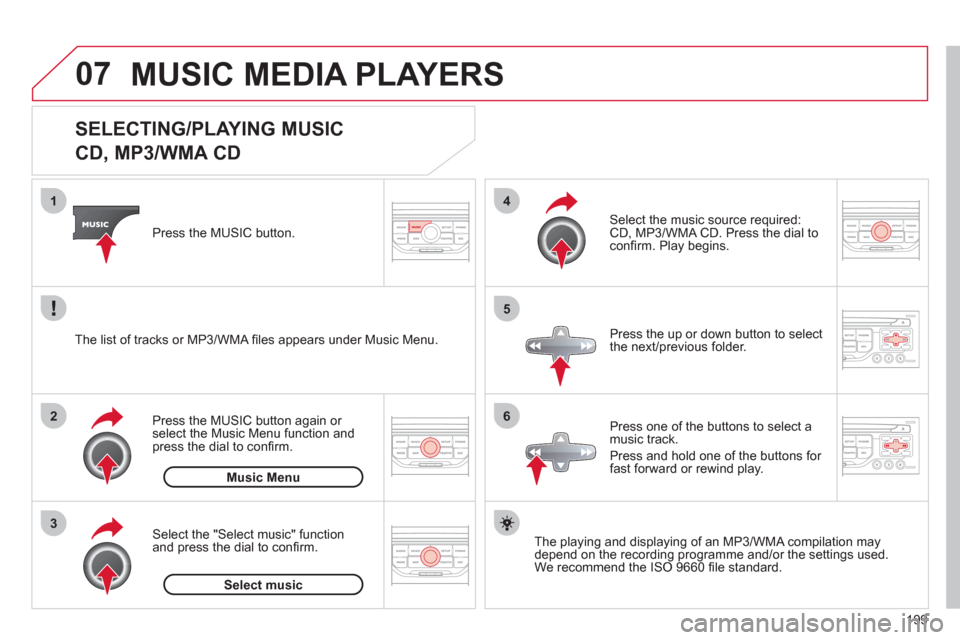
SELECTING/PLAYING MUSIC
CD, MP3/WMA CD
The playing and displaying of an MP3/WMA compilation may
depend on the recording programme and/or the settings used.
We recommend the ISO 9660 fi le standard.
Press the M
USIC button.
Select the "Select music" function
and press the dial to confi rm.
Press the up or down button to select
the next
/previous folder.
Select the music source required:
CD, MP3/WMA CD. Press the dial to
confi rm. Play begins.
Select music Press the MUSIC button a
gain or select the Music Menu function and press the dial to confi rm.
Pr
ess one of the buttons to select amusic track.
Pr
ess and hold one of the buttons for
fast forward or rewind play. Music Menu The list of tracks or MP3/WMA fi les a
ppears under Music Menu.
MUSIC MEDIA PLAYERS