connected Citroen C3 2017 2.G User Guide
[x] Cancel search | Manufacturer: CITROEN, Model Year: 2017, Model line: C3, Model: Citroen C3 2017 2.GPages: 450, PDF Size: 10.11 MB
Page 275 of 450
1
.
Audio and Telematics
CITROËN Connect Nav
GPS satellite navigation - Applications - Multimedia audio - Bluetooth ® GPS satellite navigation - Applications - Multimedia audio - Bluetooth ® GPS satellite navigation - Applications - Multimedia audio - Bluetooth telephone ® telephone ®
Contents First steps 2
Steering mounted controls 5
Menus 6
Voice commands 8
Navigation 14
Connected navigation 30
Applications 40
Radio Media 54
Telephone 66
Settings 78
Frequently asked questions 88
The system is protected in such a way that it will only operate in your vehicle. Displaying of the Energy Economy Mode message signals that a change to standby is imminent.
The different functions and settings described vary according to the version and configuration of your vehicle.
The link below gives access to OSS (Open Source Software) codes for the system. http://www.psa-peugeot-citroen.com/oss
As a safety measure and because it requires sustained attention by the driver, the pairing of a Bluetooth mobile telephone with the Bluetooth hands-free system of your audio system must be done with the vehicle stationaryand the ignition on.
Page 277 of 450
3
.
12:13
18,5 21,5
23 °C
Audio and Telematics
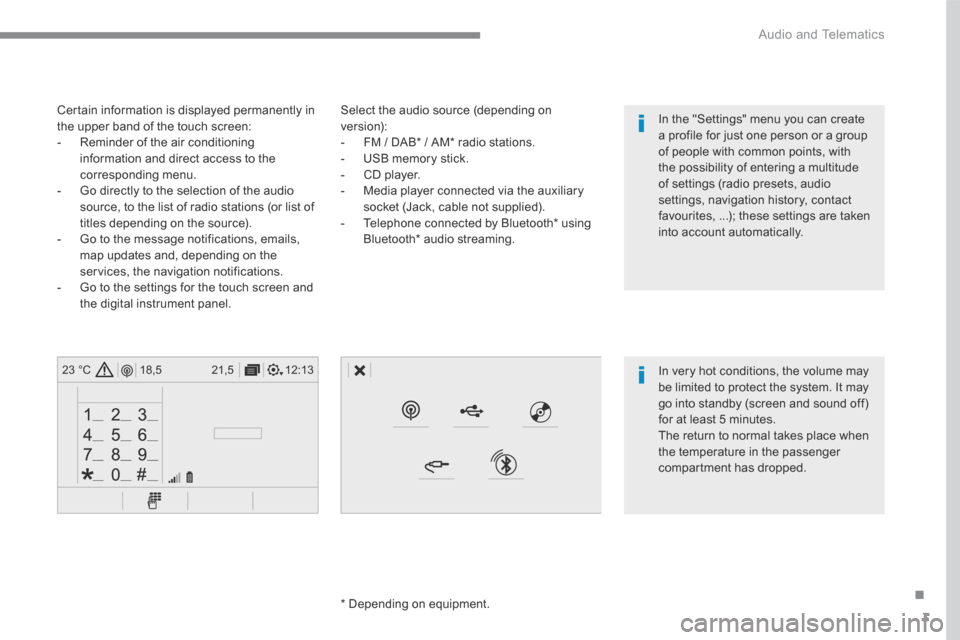
Select the audio source (depending on version): - FM / DAB * / AM * radio stations. - USB memory stick. - CD player. - Media player connected via the auxiliary socket (Jack, cable not supplied). - Telephone connected by Bluetooth * using
Bluetooth * audio streaming.
* Depending on equipment.
Certain information is displayed permanently in the upper band of the touch screen: - Reminder of the air conditioning information and direct access to the corresponding menu. - Go directly to the selection of the audio source, to the list of radio stations (or list of titles depending on the source).
- Go to the message notifications, emails, map updates and, depending on the services, the navigation notifications. - Go to the settings for the touch screen and the digital instrument panel.
In very hot conditions, the volume may be limited to protect the system. It may go into standby (screen and sound off) for at least 5 minutes.
The return to normal takes place when the temperature in the passenger compartment has dropped.
In the "Settings" menu you can create a profile for just one person or a group of people with common points, with the possibility of entering a multitude of settings (radio presets, audio settings, navigation history, contact favourites, ...); these settings are taken into account automatically.
Page 280 of 450
6
12:13
18,5 21,5
23 °C
21,518,5
12:1323 °C12:13
18,5 21,5
23 °C
12:13
18,5 21,5
23 °C
Audio and Telematics
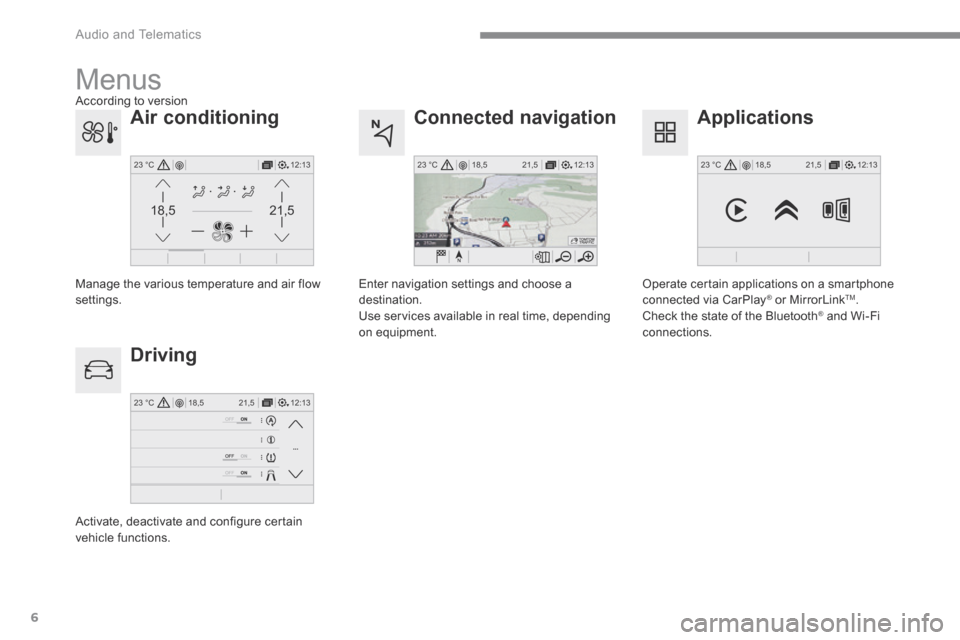
Connected navigation
Driving
Applications
Enter navigation settings and choose a destination. Use services available in real time, depending on equipment.
Activate, deactivate and configure certain vehicle functions.
Operate certain applications on a smartphone connected via CarPlay ® or MirrorLink ® or MirrorLink ®TM . Check the state of the Bluetooth ® and Wi-Fi ® and Wi-Fi ®
connections.
Menus
Air conditioning
Manage the various temperature and air flow settings.
A c c o r d i n g t o v e r s i o n
Page 286 of 450
12
Audio and Telematics
"Voice command"Help message
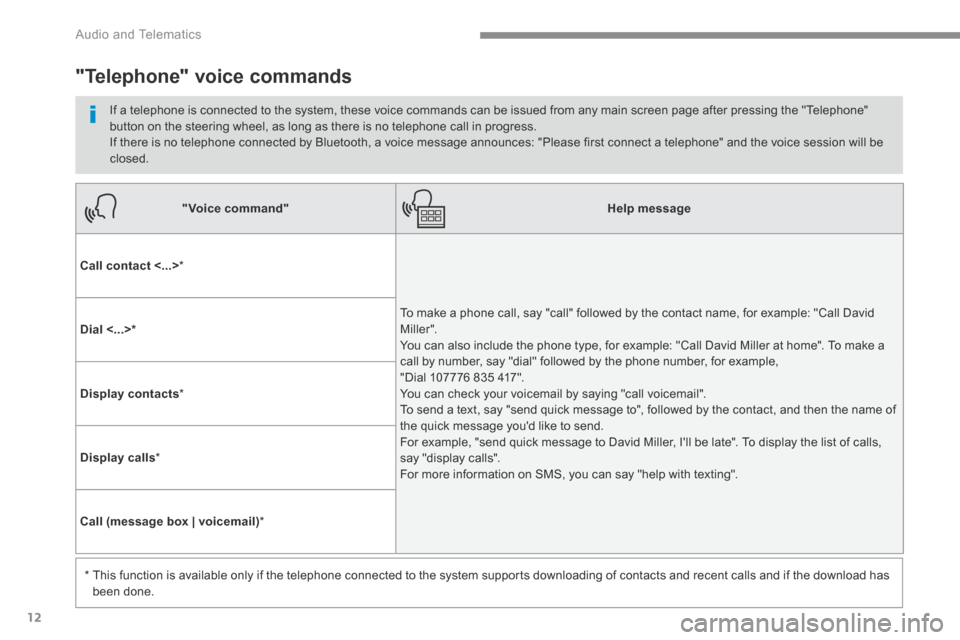
Call contact <...> *
To make a phone call, say "call" followed by the contact name, for example: "Call David M iller ". You can also include the phone type, for example: "Call David Miller at home". To make a call by number, say "dial" followed by the phone number, for example, "Dial 107776 835 417". You can check your voicemail by saying "call voicemail". To send a text, say "send quick message to", followed by the contact, and then the name of the quick message you'd like to send. For example, "send quick message to David Miller, I'll be late". To display the list of calls, say "display calls". For more information on SMS, you can say "help with texting".
Dial <...> *
Display contacts *
Display calls *
Call (message box | voicemail) *
* This function is available only if the telephone connected to the system supports downloading of contacts and recent calls and if the download has
been done.
"Telephone" voice commands
If a telephone is connected to the system, these voice commands can be issued from any main screen page after pressing the "Telephone" button on the steering wheel, as long as there is no telephone call in progress. If there is no telephone connected by Bluetooth, a voice message announces: "Please first connect a telephone" and the voice session will be closed.
Page 287 of 450
13
.
Audio and Telematics
"Voice command"Help message
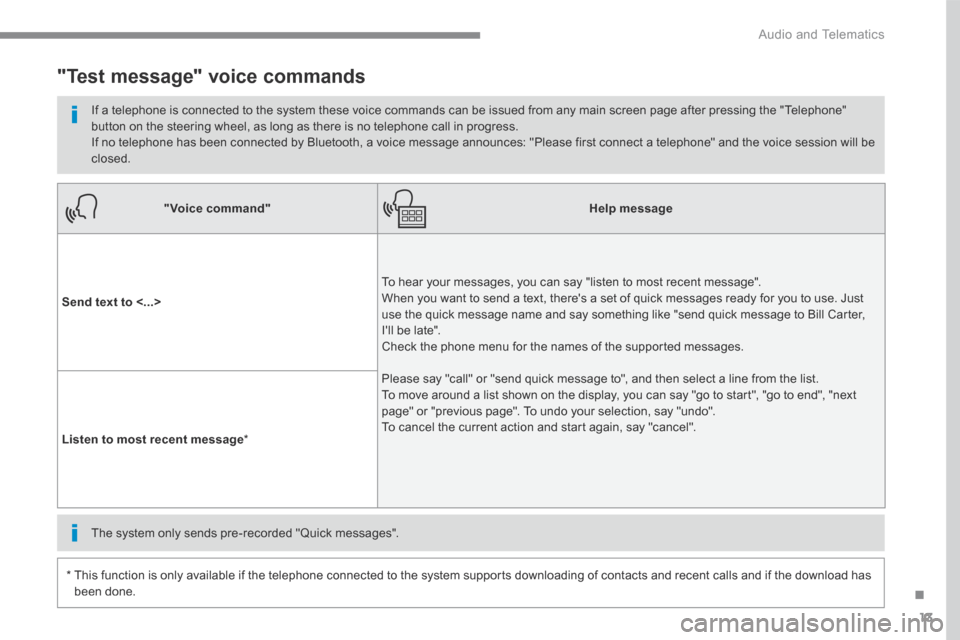
Send text to <...>
To hear your messages, you can say "listen to most recent message". When you want to send a text, there's a set of quick messages ready for you to use. Just use the quick message name and say something like "send quick message to Bill Carter, I'll be late". Check the phone menu for the names of the supported messages.
Please say "call" or "send quick message to", and then select a line from the list. To move around a list shown on the display, you can say "go to start", "go to end", "next page" or "previous page". To undo your selection, say "undo". To cancel the current action and start again, say "cancel". Listen to most recent message *
"Test message" voice commands
If a telephone is connected to the system these voice commands can be issued from any main screen page after pressing the "Telephone" button on the steering wheel, as long as there is no telephone call in progress. If no telephone has been connected by Bluetooth, a voice message announces: "Please first connect a telephone" and the voice session will be closed.
* This function is only available if the telephone connected to the system supports downloading of contacts and recent calls and if the download has
been done.
The system only sends pre-recorded "Quick messages".
Page 291 of 450
17
.
7
2
3
4
5
6
Audio and Telematics
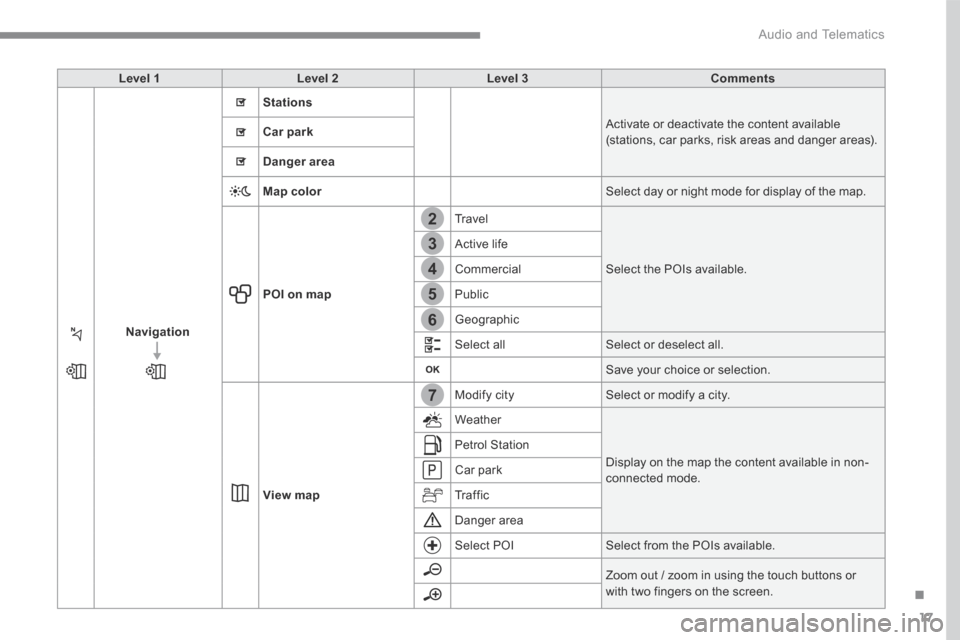
Level 1Level 2Level 3Comments
Navigation
Stations
Activate or deactivate the content available (stations, car parks, risk areas and danger areas). Car park
Danger area
Map color Select day or night mode for display of the map.
POI on map
Travel
Select the POIs available.
Active life
Commercial
Public
Geographic
Select all Select or deselect all.
Save your choice or selection.
View map
Modify city Select or modify a city.
Weather
Display on the map the content available in non-connected mode.
Petrol Station
Car park
Tr a f f i c
Danger area
Select POI Select from the POIs available.
Zoom out / zoom in using the touch buttons or
with two fingers on the screen.
Page 297 of 450
23
.
1
1
1
1
17
18
8
11
9
12
10
13
16
14
15
Audio and Telematics
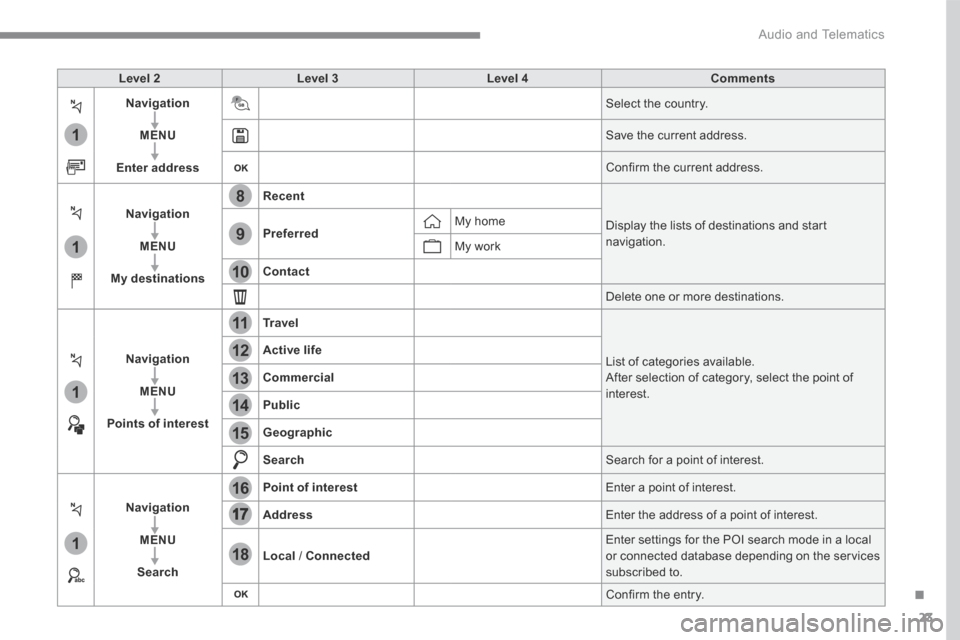
Level 2Level 3Level 4Comments
Navigation
MENU
Enter address
Select the country.
Save the current address.
Confirm the current address.
Navigation
MENU
My destinations
Recent
Display the lists of destinations and start navigation. Preferred My home
My work
Contact
Delete one or more destinations.
Navigation
MENU
Points of interest
Tr a v e l
List of categories available. After selection of category, select the point of interest.
Active life
Commercial
Public
Geographic
Search Search for a point of interest.
Navigation
MENU
Search
Point of interest Enter a point of interest.
Address Enter the address of a point of interest.
Local / Connected Enter settings for the POI search mode in a local or connected database depending on the services subscribed to.
Confirm the entry.
Page 304 of 450
30
12:13
18,5 21,5
23 °C
Audio and Telematics
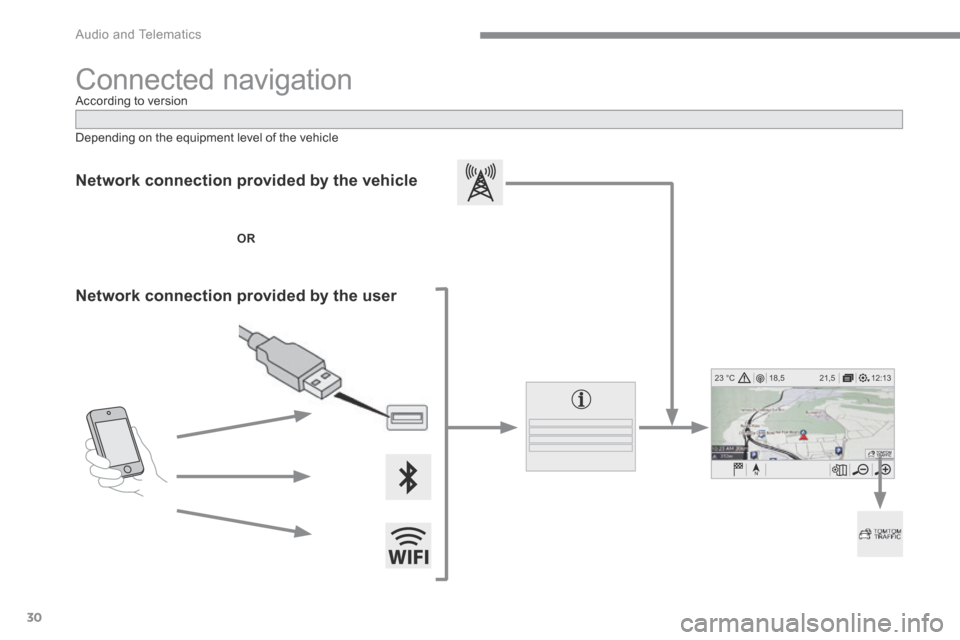
Connected navigation
Network connection provided by the vehicle
OR
Network connection provided by the user
Depending on the equipment level of the vehicle
According to version
Page 305 of 450
31
.
Audio and Telematics
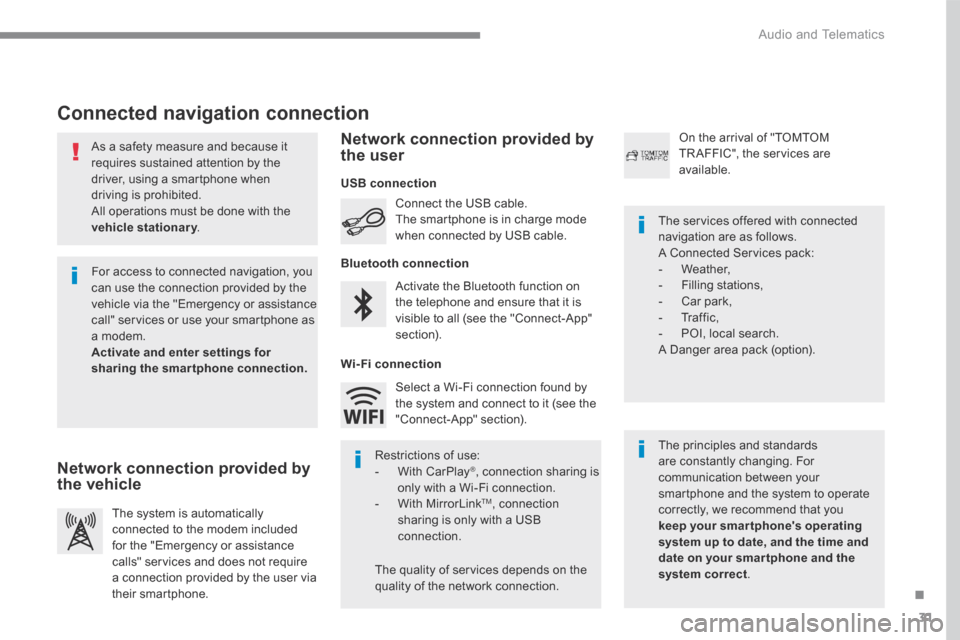
As a safety measure and because it requires sustained attention by the driver, using a smartphone when driving is prohibited. All operations must be done with the
vehicle stationary . vehicle stationary . vehicle stationary
Connected navigation connection
The principles and standards are constantly changing. For communication between your smartphone and the system to operate correctly, we recommend that you keep your smar tphone's operating system up to date, and the time and date on your smar tphone and the system correct.
The services offered with connected navigation are as follows. A Connected Services pack: - Weather, - Filling stations, - Car park, - Traffic, - POI, local search. A Danger area pack (option).
Activate the Bluetooth function on the telephone and ensure that it is visible to all (see the "Connect-App" section).
Connect the USB cable. The smartphone is in charge mode when connected by USB cable.
The system is automatically connected to the modem included for the "Emergency or assistance calls" services and does not require a connection provided by the user via
their smartphone.
On the arrival of "TOMTOM TR AFFIC", the services are available.
For access to connected navigation, you can use the connection provided by the vehicle via the "Emergency or assistance call" services or use your smartphone as a modem. Activate and enter settings for sharing the smartphone connection.
Restrictions of use: - With CarPlay ® , connection sharing is only with a Wi-Fi connection. - W i t h M i r r o r L i n k TM , connection sharing is only with a USB connection.
The quality of services depends on the quality of the network connection.
Select a Wi-Fi connection found by the system and connect to it (see the "Connect-App" section).
USB connection
Network connection provided by the vehicle
Network connection provided by the user
Bluetooth connection
Wi-Fi connection
Page 312 of 450
38
22
23
1
Audio and Telematics
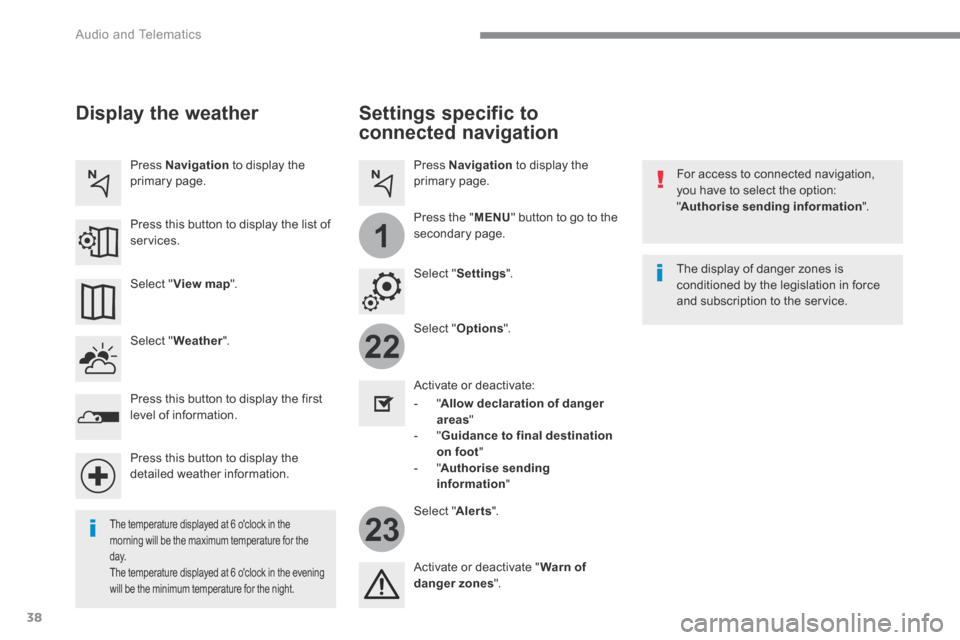
Settings specific to
connected navigation
For access to connected navigation, you have to select the option: " Authorise sending information ".
Select " Options ".
Select " Alerts ".
- " Allow declaration of danger areas "
- " Guidance to final destination on foot " - " Authorise sending information "
Activate or deactivate:
Activate or deactivate " Warn of danger zones ".
The display of danger zones is conditioned by the legislation in force and subscription to the service.
The temperature displayed at 6 o'clock in the morning will be the maximum temperature for the d ay. The temperature displayed at 6 o'clock in the evening
will be the minimum temperature for the night.
Select " Settings ".
Press Navigation to display the primary page.
Press the " MENU " button to go to the
secondary page.
Display the weather
Select " Weather ".
Press this button to display the first level of information.
Press this button to display the detailed weather information.
Select " View map ".
Press Navigation to display the primary page.
Press this button to display the list of services.