Radi Citroen C3 2017 2.G Owner's Guide
[x] Cancel search | Manufacturer: CITROEN, Model Year: 2017, Model line: C3, Model: Citroen C3 2017 2.GPages: 450, PDF Size: 10.11 MB
Page 328 of 450
54
FM/87.5 MHz
87.5MHz
12:13
18,5 21,5
23 °C
2143
FM/87.5 MHz
87.5MH z
12:13
18,5 21,5
23 °C
AM/531 kHz
PO
kHz
12:13
18,5 21,5
23 °C
2134
Audio and Telematics
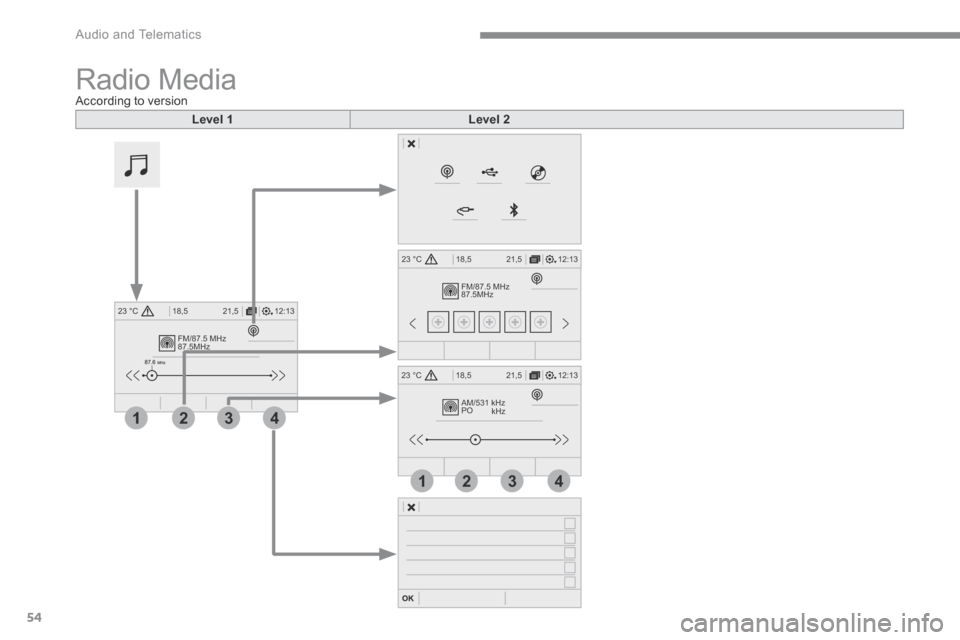
Radio Media A c c o r d i n g t o v e r s i o n
Level 1Level 2
Page 329 of 450
55
.
3
2
4
Audio and Telematics
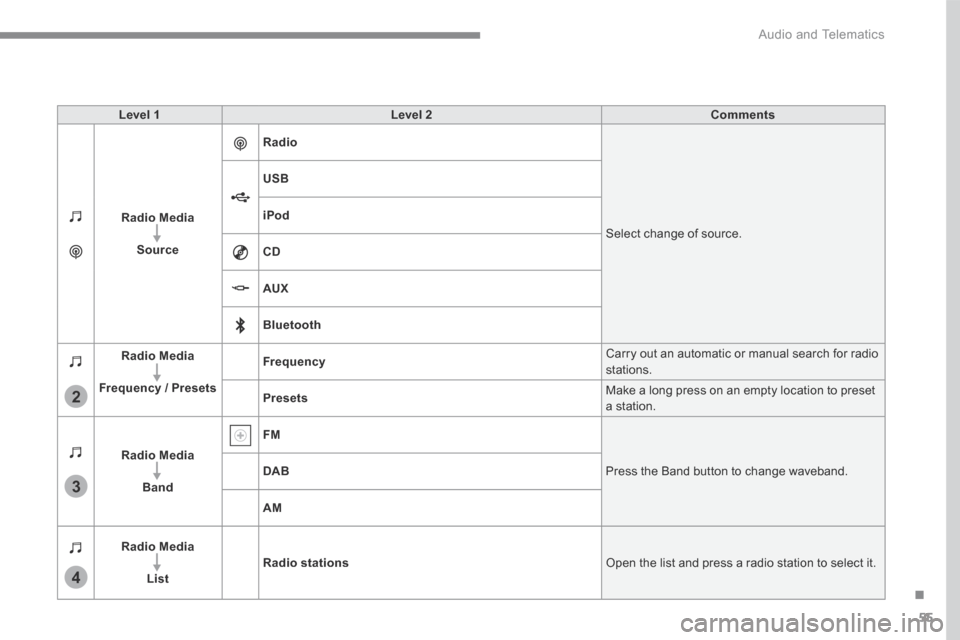
Level 1Level 2Comments
Radio Media
Source
Radio
Select change of source.
USB
iPod
CD
AUX
Bluetooth
Radio Media
Frequency / Presets
Frequency Carry out an automatic or manual search for radio stations.
Presets Make a long press on an empty location to preset a station.
Radio Media
Band
FM
Press the Band button to change waveband. DAB
AM
Radio Media
ListRadio stations Open the list and press a radio station to select it.
Page 331 of 450

57
.
5
12
8
6
13
14
15
9
7
10
11
1
1
1
Audio and Telematics
Level 2Level 3Comments
Radio Media
OPTIONS
Audio settings
Ambience Select the sound ambience.
Distribution Sound distribution by the Arkamys ® system. ® system. ®
Sound Adjust the volume or activate volume linked to speed.
Voice Adjust the voice volume.
Ringtone Adjust the ringtone volume.
Save settings.
Radio Media
OPTIONS
Radio settings
General Activate or deactivate settings. Announcements
Save settings.
Radio Media
OPTIONS
Radio stations
FM
Display the list of radio stations for the band selected. DAB
AM
Presets Select a preset radio station.
Frequency Enter a frequency manually.
Change the screen display mode.
Update the list according to reception.
Page 333 of 450
59
.
17
20
18
21
19
1
1
16
Audio and Telematics
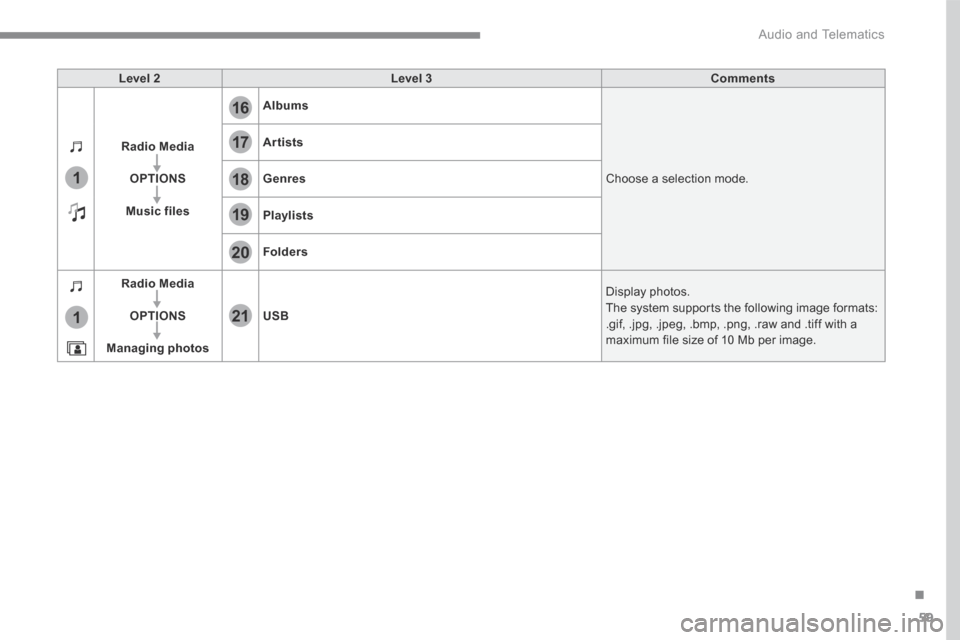
Level 2Level 3Comments
Radio Media
OPTIONS
Music files
Albums
Choose a selection mode.
Artists
Genres
Playlists
Folders
Radio Media
OPTIONS
Managing photos
USB
Display photos. The system supports the following image formats: .gif, .jpg, .jpeg, .bmp, .png, .raw and .tiff with a maximum file size of 10 Mb per image.
Page 335 of 450

61
.
1
2
2
2
Audio and Telematics
Press Radio Media to display the menu.
Press the " OPTIONS " button to go to the secondary page.
Press " Frequency ".
Press " Frequency ".
Enter the values using the virtual keypad. First enter the units then click on the decimals zone to enter the figures after the decimal point. Press one of the buttons for an automatic search for radio stations.
Press Radio Media to display the primary page.
Radio
Selecting a station
Radio reception may be affected by the use of electrical equipment not approved by the Brand, such as a USB
charger connected to the 12 V socket. The exterior environment (hills, buildings, tunnel, car park, below ground...) may prevent reception, even in RDS station tracking mode. This phenomenon is normal in the propagation of radio waves and is in no way indicative of a fault with the audio system. Select " Radio stations " in the secondary page.
Or
Or
Move the cursor for a manual search for frequencies up or down.
Select a radio station or frequency. (refer to the corresponding section)
Press " Presets ".
Make a long press on one of the buttons to preset the station.
Preset a station
Press " OK " to confirm.
Page 336 of 450
62
1
110
1011
Audio and Telematics
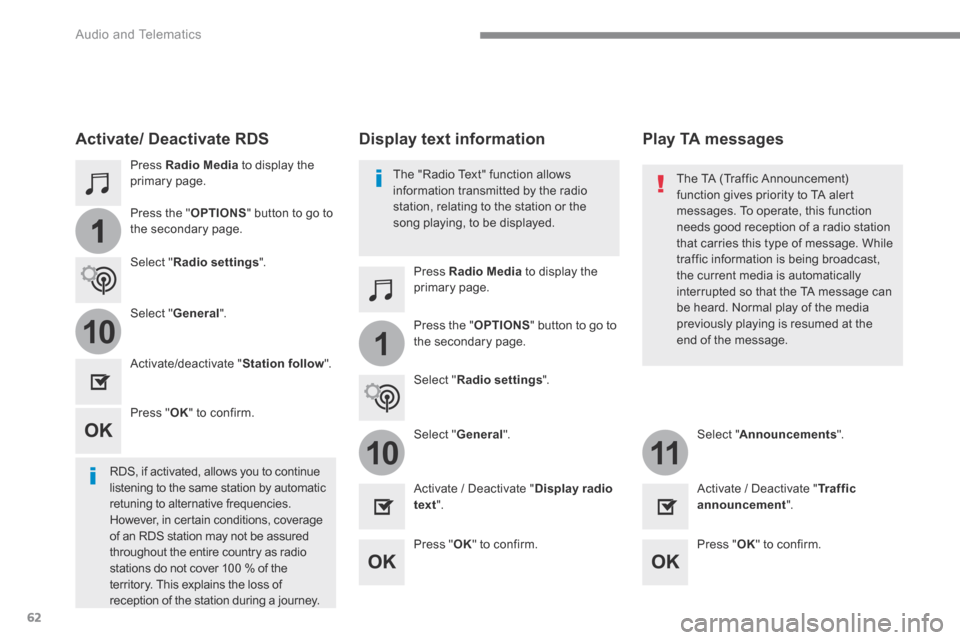
Press Radio Media to display the primary page.
Press Radio Media to display the primary page.
Press the " OPTIONS " button to go to
the secondary page.
Press the " OPTIONS " button to go to the secondary page.
Select " Radio settings ".
Select " Radio settings ".
Select " General ".
Select " General ". Select " Announcements ".
Activate/deactivate " Station follow ".
Activate / Deactivate " Display radio text ". Activate / Deactivate " Tr a f f i c announcement ".
Activate/ Deactivate RDS
RDS, if activated, allows you to continue listening to the same station by automatic retuning to alternative frequencies. However, in certain conditions, coverage of an RDS station may not be assured throughout the entire country as radio stations do not cover 100 % of the
territory. This explains the loss of reception of the station during a journey.
Press " OK " to confirm.
Press " OK " to confirm. Press " OK " to confirm.
The "Radio Text" function allows information transmitted by the radio station, relating to the station or the song playing, to be displayed.
Display text information Play TA messages
The TA (Traffic Announcement) function gives priority to TA alert messages. To operate, this function
needs good reception of a radio station that carries this type of message. While traffic information is being broadcast, the current media is automatically interrupted so that the TA message can be heard. Normal play of the media previously playing is resumed at the end of the message.
Page 337 of 450
63
.
1
10
3
Audio and Telematics
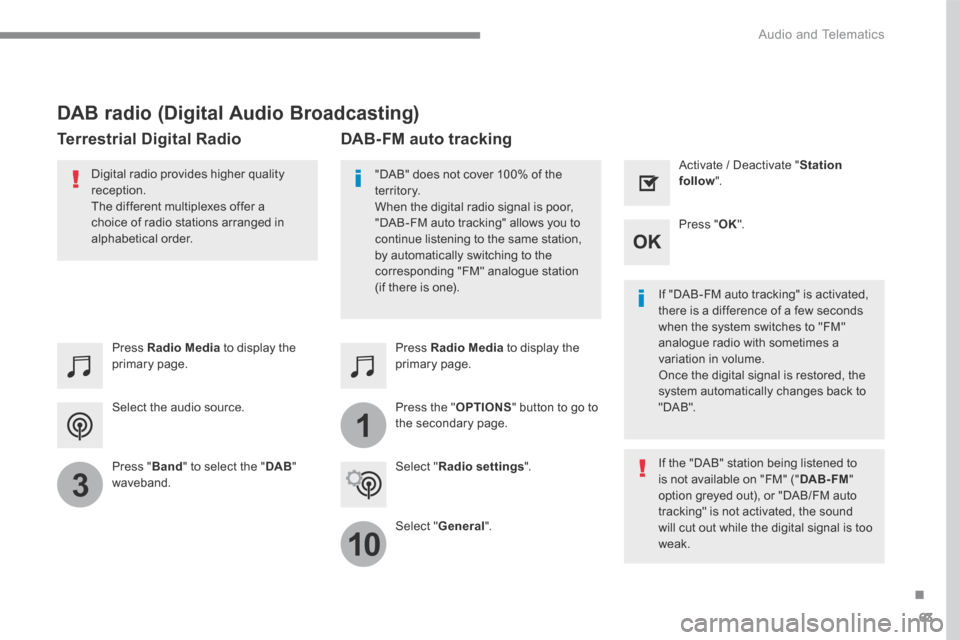
Select the audio source.
Press Radio Media to display the primary page.
Press " Band " to select the " DAB " waveband.
Press Radio Media to display the primary page.
Press the " OPTIONS " button to go to the secondary page.
DAB-FM auto tracking
"DAB" does not cover 100% of the te r r i to r y. When the digital radio signal is poor, "DAB-FM auto tracking" allows you to continue listening to the same station, by automatically switching to the corresponding "FM" analogue station (if there is one). If "DAB-FM auto tracking" is activated, there is a difference of a few seconds when the system switches to "FM" analogue radio with sometimes a variation in volume. Once the digital signal is restored, the system automatically changes back to " D A B " .
Digital radio provides higher quality reception. The different multiplexes offer a choice of radio stations arranged in
alphabetical order.
If the "DAB" station being listened to is not available on "FM" (" DAB- FM " option greyed out), or "DAB/FM auto tracking" is not activated, the sound will cut out while the digital signal is too w e a k .
Select " Radio settings ".
Select " General ".
Activate / Deactivate " Station follow ".
Press " OK ".
DAB radio (Digital Audio Broadcasting)
Terrestrial Digital Radio
Page 338 of 450
64
Audio and Telematics
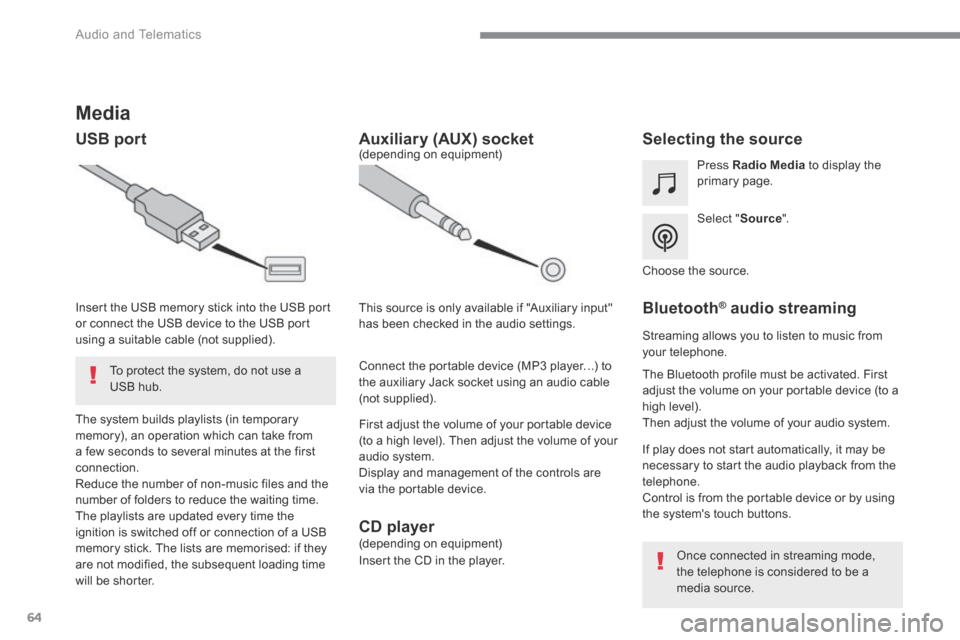
Media
USB port Selecting the source
Select " Source ".
Press Radio Media to display the primary page.
The system builds playlists (in temporary memory), an operation which can take from a few seconds to several minutes at the first connection. Reduce the number of non-music files and the number of folders to reduce the waiting time. The playlists are updated every time the ignition is switched off or connection of a USB memory stick. The lists are memorised: if they are not modified, the subsequent loading time will be shorter.
Insert the USB memory stick into the USB port or connect the USB device to the USB port using a suitable cable (not supplied).
Auxiliary (AUX) socket
First adjust the volume of your portable device (to a high level). Then adjust the volume of your audio system. Display and management of the controls are via the portable device.
This source is only available if "Auxiliary input" has been checked in the audio settings.
(depending on equipment)
Connect the portable device (MP3 player…) to the auxiliary Jack socket using an audio cable (not supplied).
Choose the source.
Bluetooth ® Bluetooth ® Bluetooth audio streaming ® audio streaming ®
Streaming allows you to listen to music from your telephone.
The Bluetooth profile must be activated. First adjust the volume on your portable device (to a high level). Then adjust the volume of your audio system.
If play does not start automatically, it may be necessary to start the audio playback from the telephone. Control is from the portable device or by using the system's touch buttons.
Once connected in streaming mode, the telephone is considered to be a media source.
To protect the system, do not use a USB hub.
CD player (depending on equipment)
Insert the CD in the player.
Page 364 of 450
90
Audio and Telematics
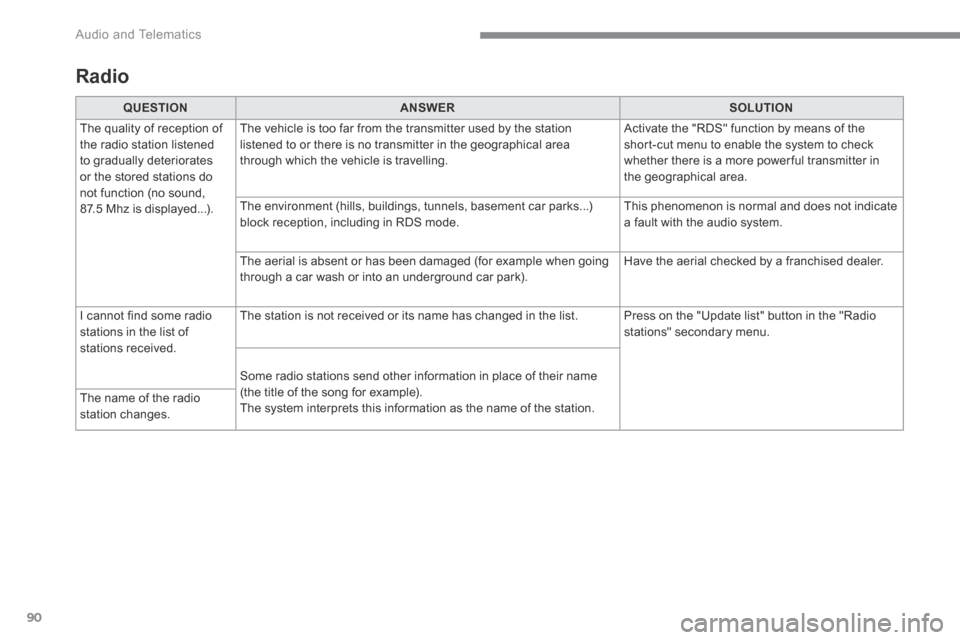
Radio
QUESTIONANSWERSOLUTION
The quality of reception of the radio station listened to gradually deteriorates or the stored stations do not function (no sound, 87.5 Mhz is displayed...).
The vehicle is too far from the transmitter used by the station listened to or there is no transmitter in the geographical area through which the vehicle is travelling.
Activate the "RDS" function by means of the short-cut menu to enable the system to check whether there is a more power ful transmitter in the geographical area.
The environment (hills, buildings, tunnels, basement car parks...) block reception, including in RDS mode. This phenomenon is normal and does not indicate a fault with the audio system.
The aerial is absent or has been damaged (for example when going through a car wash or into an underground car park). Have the aerial checked by a franchised dealer.
I cannot find some radio stations in the list of stations received.
The station is not received or its name has changed in the list. Press on the "Update list" button in the "Radio stations" secondary menu.
Some radio stations send other information in place of their name (the title of the song for example). The system interprets this information as the name of the station. The name of the radio station changes.
Page 368 of 450
94
Audio and Telematics
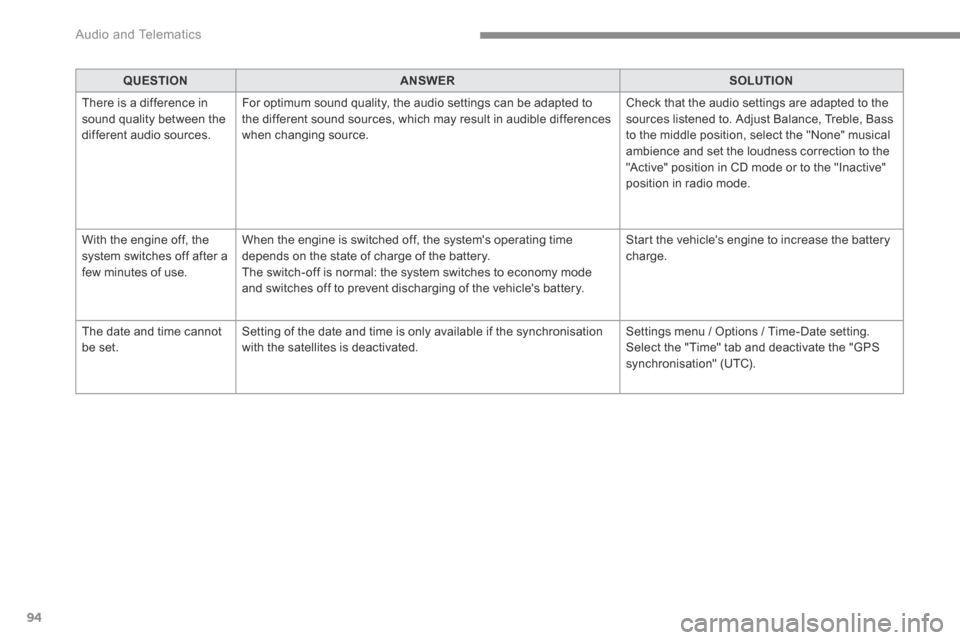
QUESTIONANSWERSOLUTION
There is a difference in sound quality between the different audio sources.
For optimum sound quality, the audio settings can be adapted to the different sound sources, which may result in audible differences when changing source.
Check that the audio settings are adapted to the sources listened to. Adjust Balance, Treble, Bass to the middle position, select the "None" musical ambience and set the loudness correction to the "Active" position in CD mode or to the "Inactive" position in radio mode.
With the engine off, the system switches off after a few minutes of use.
When the engine is switched off, the system's operating time depends on the state of charge of the battery. The switch-off is normal: the system switches to economy mode and switches off to prevent discharging of the vehicle's battery.
Start the vehicle's engine to increase the battery charge.
The date and time cannot be set. Setting of the date and time is only available if the synchronisation with the satellites is deactivated. Settings menu / Options / Time-Date setting. Select the "Time" tab and deactivate the "GPS synchronisation" (UTC).