start CITROEN C3 2021 Owners Manual
[x] Cancel search | Manufacturer: CITROEN, Model Year: 2021, Model line: C3, Model: CITROEN C3 2021Pages: 450, PDF Size: 10.11 MB
Page 343 of 450
69
.
1
1
1
19
20
21
22
15
16
17
18
Audio and Telematics
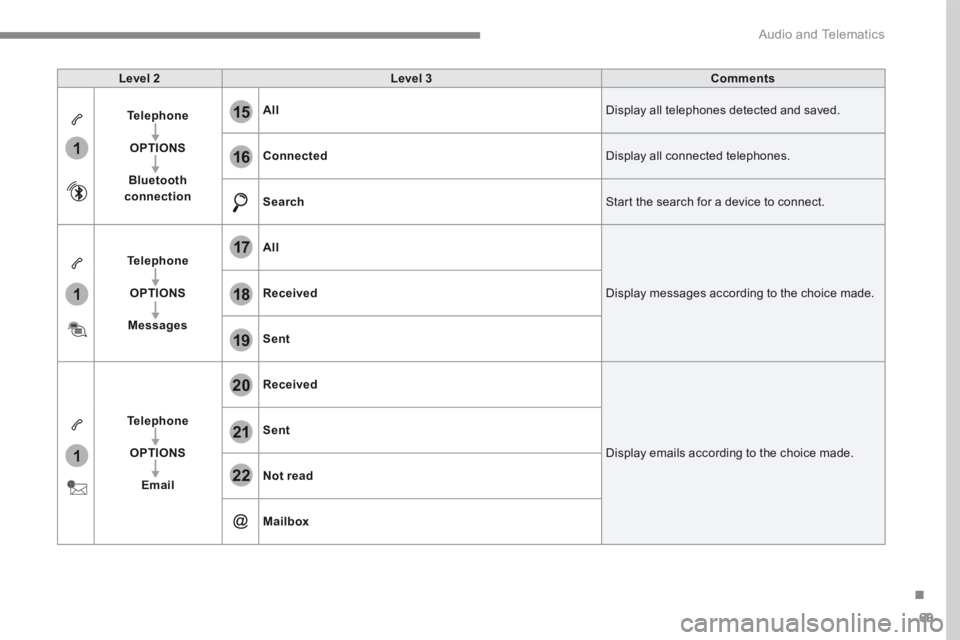
Level 2Level 3Comments
Telephone
OPTIONS
Bluetooth connection
All Display all telephones detected and saved.
Connected Display all connected telephones.
Search Start the search for a device to connect.
Telephone
OPTIONS
Messages
All
Display messages according to the choice made. Received
Sent
Telephone
OPTIONS
Email
Received
Display emails according to the choice made.
Sent
Not read
Mailbox
Page 349 of 450
75
.
2
3
Audio and Telematics
on the steering mounted button.
Using the telephone is not recommended while driving. Park the vehicle. Make the call using the steering
mounted controls.
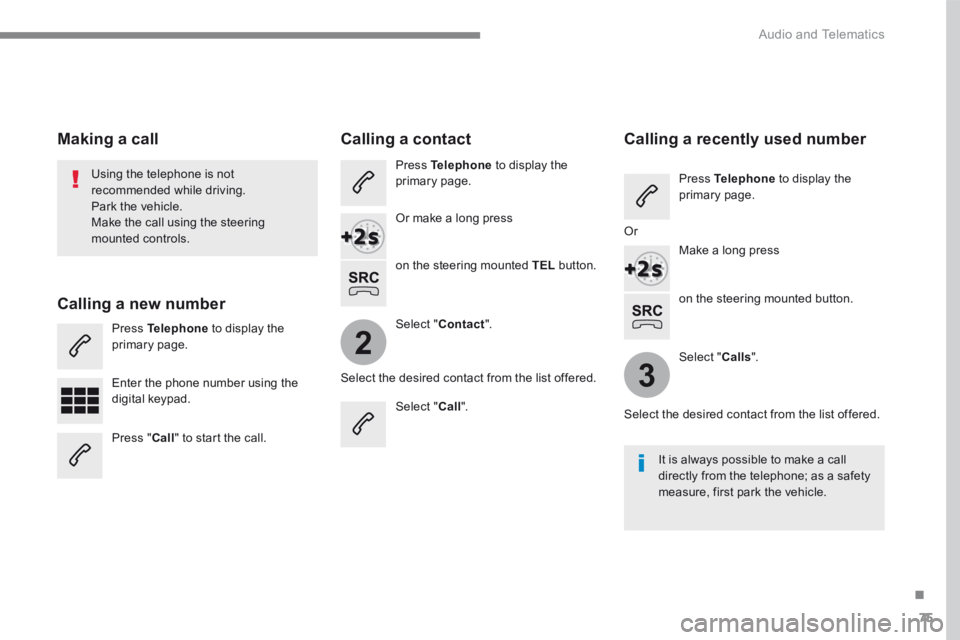
Making a call
Calling a new number
Press Telephone to display the primary page.
Enter the phone number using the digital keypad.
Press " Call " to start the call.
Calling a contact
Press Telephone to display the primary page.
Or make a long press
on the steering mounted TEL button.
Select " Contact ".
Select the desired contact from the list offered.
Select " Call ".
Calling a recently used number
Press Telephone to display the primary page.
Make a long press
Select " Calls ".
Select the desired contact from the list offered.
It is always possible to make a call directly from the telephone; as a safety measure, first park the vehicle.
Or
Page 350 of 450
76
2
12
13
14
1
Audio and Telematics
The access to " Messages " depends on the compatibility of the smartphone and the integral system. Depending on the smartphone, access to your messages or email may be
slow.
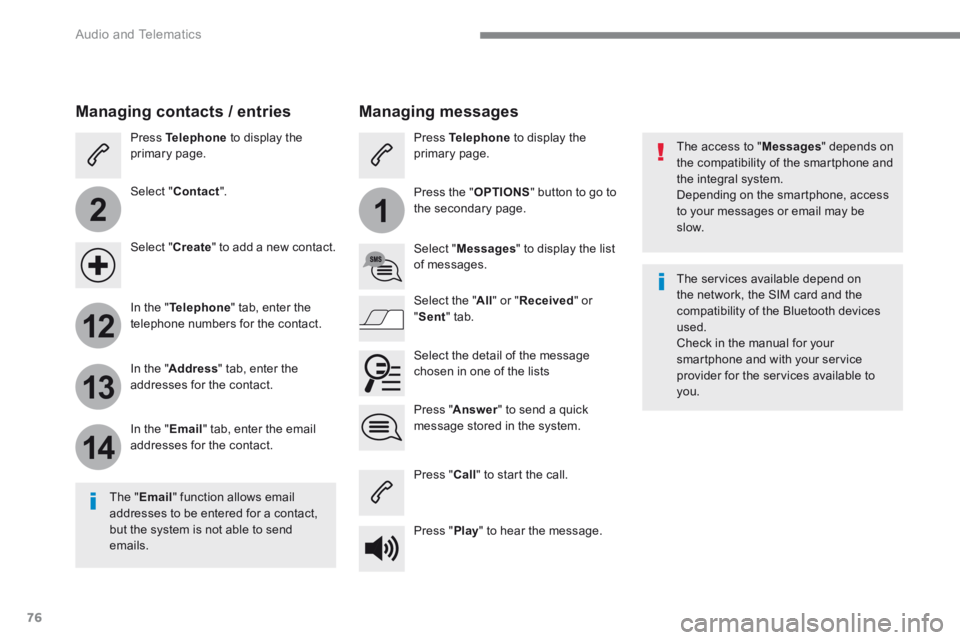
Managing messages
The " Email " function allows email addresses to be entered for a contact, but the system is not able to send emails.
Managing contacts / entries
Press Telephone to display the primary page.
Select " Contact ".
Select " Create " to add a new contact.
In the " Telephone " tab, enter the telephone numbers for the contact.
In the " Address " tab, enter the addresses for the contact.
In the " Email " tab, enter the email addresses for the contact.
Pres s " Answer " to send a quick message stored in the system.
Press Telephone to display the primary page.
Press the " OPTIONS " button to go to the secondary page.
Select " Messages " to display the list of messages.
Select the " All " or " Received " or " Sent " tab.
Select the detail of the message chosen in one of the lists
Press " Call " to start the call.
Press " Play " to hear the message.
The services available depend on the network, the SIM card and the compatibility of the Bluetooth devices used. Check in the manual for your smartphone and with your service provider for the services available to you.
Page 351 of 450
77
.
11
Audio and Telematics
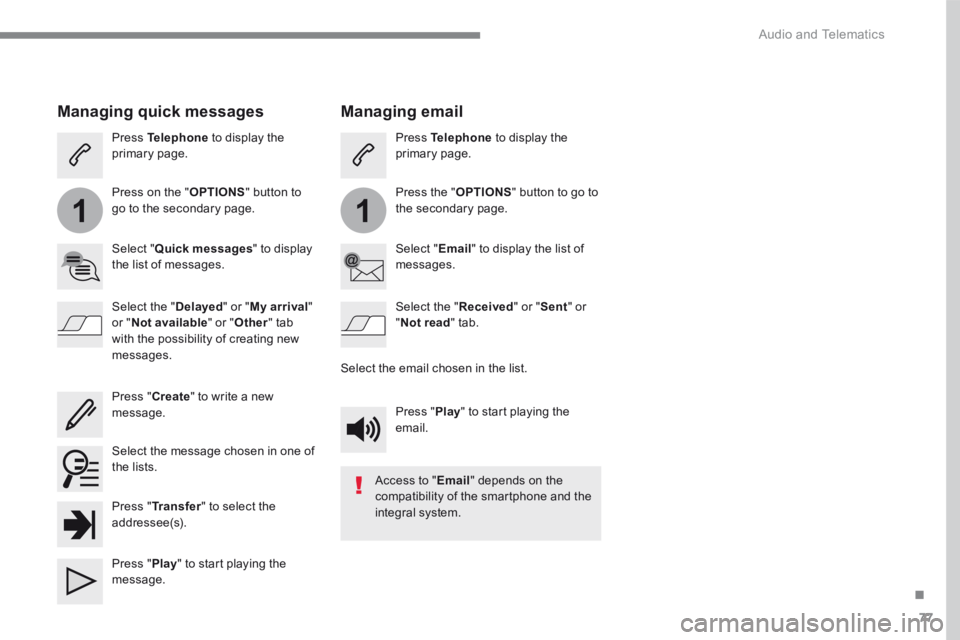
Managing email
Press Telephone to display the primary page.
Press the " OPTIONS " button to go to the secondary page.
Select " Email " to display the list of messages.
Select the " Received " or " Sent " or " Not read " tab.
Select the email chosen in the list.
Press " Play " to start playing the email.
Access to " Email " depends on the compatibility of the smartphone and the integral system.
Managing quick messages
Press Telephone to display the primary page.
Press on the " OPTIONS " button to go to the secondary page.
Select " Quick messages " to display the list of messages.
Select the " Delayed " or " My arrival " or " Not available " or " Other " tab with the possibility of creating new messages.
Select the message chosen in one of the lists.
Press " Create " to write a new message.
Press " Transfer " to select the addressee(s).
Press " Play " to start playing the m e s s a g e .
Page 361 of 450
87
.
1
17
18
Audio and Telematics
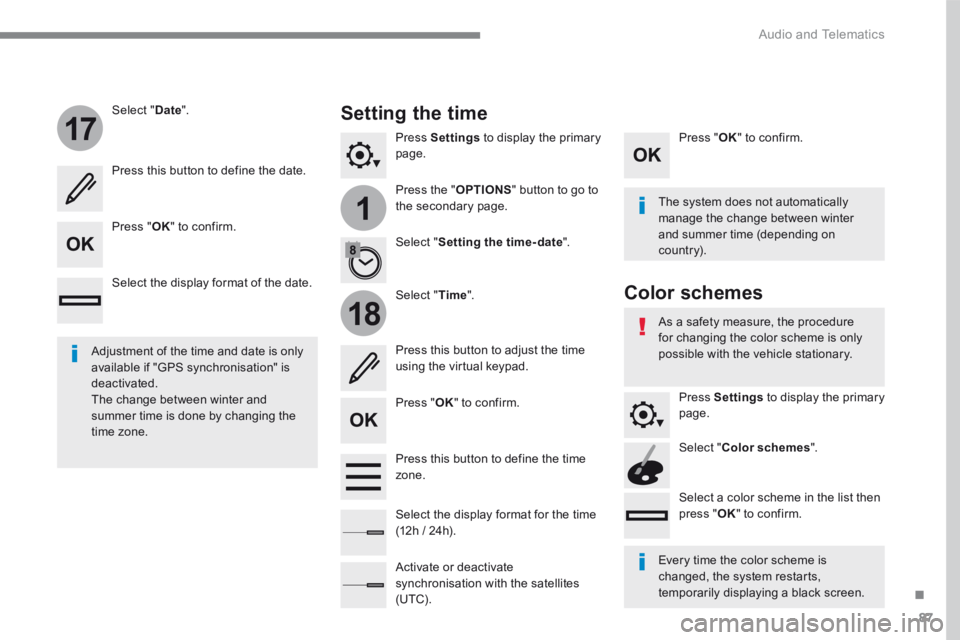
Press Settings to display the primary page.
Press the " OPTIONS " button to go to the secondary page.
Select " Date ".
Select " Time ".
Select " Setting the time- date ".
Adjustment of the time and date is only available if "GPS synchronisation" is deactivated. The change between winter and summer time is done by changing the time zone.
The system does not automatically manage the change between winter and summer time (depending on c ountr y).
Setting the time
Press this button to define the date.
Press this button to adjust the time using the virtual keypad.
Press " OK " to confirm.
Press " OK " to confirm.
Press " OK " to confirm.
Press this button to define the time z o n e .
Select the display format of the date.
Select the display format for the time (12h / 24h).
Activate or deactivate synchronisation with the satellites (UTC).
Every time the color scheme is changed, the system restarts, temporarily displaying a black screen.
As a safety measure, the procedure for changing the color scheme is only possible with the vehicle stationary.
Press Settings to display the primary page.
Select " Color schemes ".
Select a color scheme in the list then press " OK " to confirm.
Color schemes
Page 363 of 450
89
.
Audio and Telematics
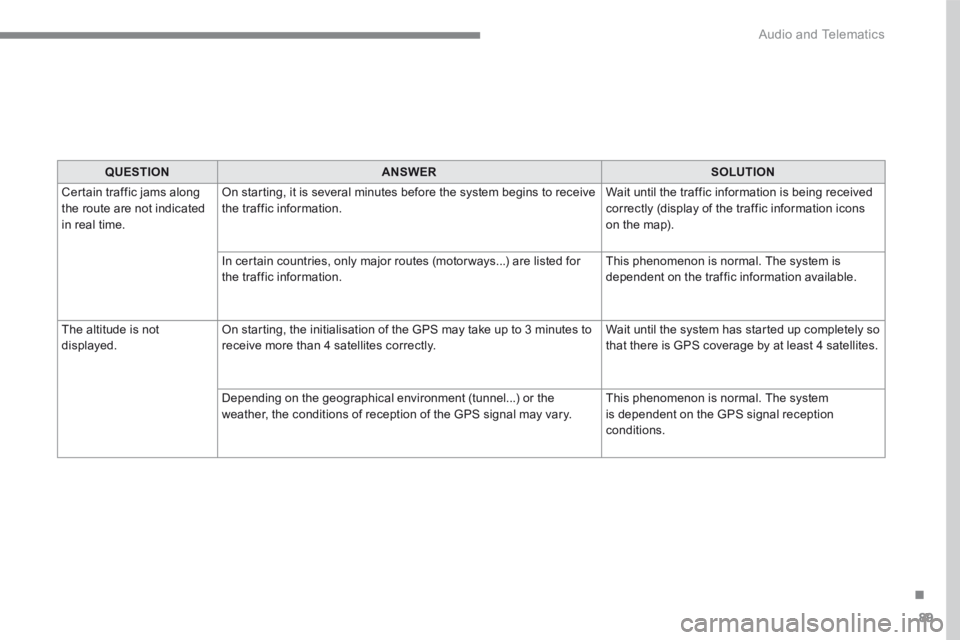
QUESTIONANSWERSOLUTION
Certain traffic jams along the route are not indicated in real time.
On starting, it is several minutes before the system begins to receive the traffic information. Wait until the traffic information is being received correctly (display of the traffic information icons on the map).
In certain countries, only major routes (motor ways...) are listed for the traffic information. This phenomenon is normal. The system is dependent on the traffic information available.
The altitude is not displayed. On starting, the initialisation of the GPS may take up to 3 minutes to receive more than 4 satellites correctly. Wait until the system has started up completely so that there is GPS coverage by at least 4 satellites.
Depending on the geographical environment (tunnel...) or the weather, the conditions of reception of the GPS signal may vary. This phenomenon is normal. The system is dependent on the GPS signal reception
conditions.
Page 365 of 450
91
.
Audio and Telematics
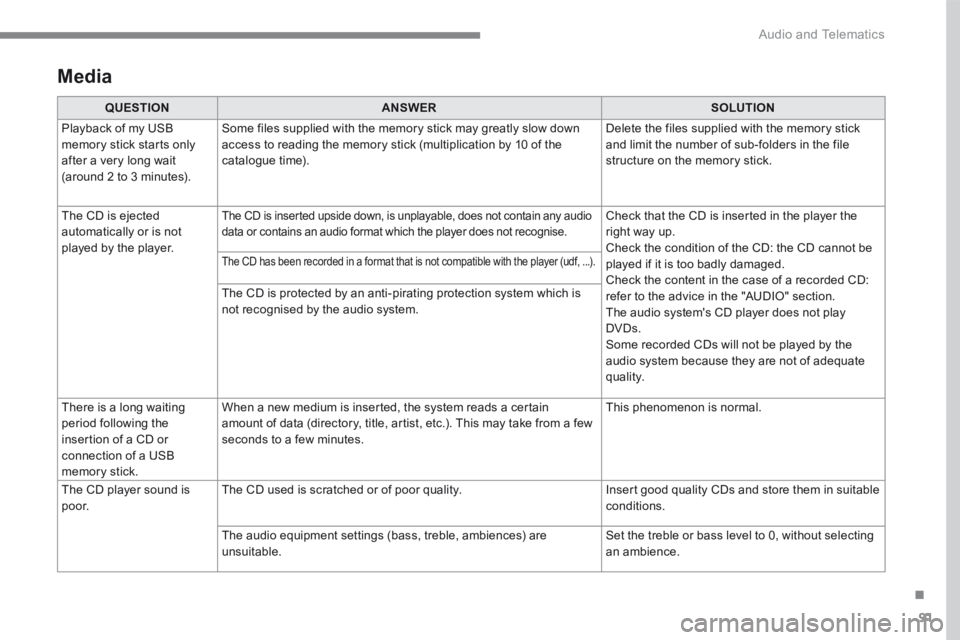
Media
QUESTIONANSWERSOLUTION
Playback of my USB memory stick starts only after a very long wait (around 2 to 3 minutes).
Some files supplied with the memory stick may greatly slow down access to reading the memory stick (multiplication by 10 of the catalogue time).
Delete the files supplied with the memory stick and limit the number of sub-folders in the file structure on the memory stick.
The CD is ejected automatically or is not played by the player.
The CD is inserted upside down, is unplayable, does not contain any audio data or contains an audio format which the player does not recognise. Check that the CD is inserted in the player the right way up. Check the condition of the CD: the CD cannot be played if it is too badly damaged. Check the content in the case of a recorded CD: refer to the advice in the "AUDIO" section. The audio system's CD player does not play DVDs. Some recorded CDs will not be played by the audio system because they are not of adequate quality.
The CD has been recorded in a format that is not compatible with the player (udf, ...).
The CD is protected by an anti-pirating protection system which is not recognised by the audio system.
There is a long waiting period following the insertion of a CD or connection of a USB memory stick.
When a new medium is inserted, the system reads a certain amount of data (directory, title, artist, etc.). This may take from a few seconds to a few minutes.
This phenomenon is normal.
The CD player sound is p o o r. The CD used is scratched or of poor quality. Insert good quality CDs and store them in suitable conditions.
The audio equipment settings (bass, treble, ambiences) are unsuitable. Set the treble or bass level to 0, without selecting an ambience.
Page 366 of 450
92
Audio and Telematics
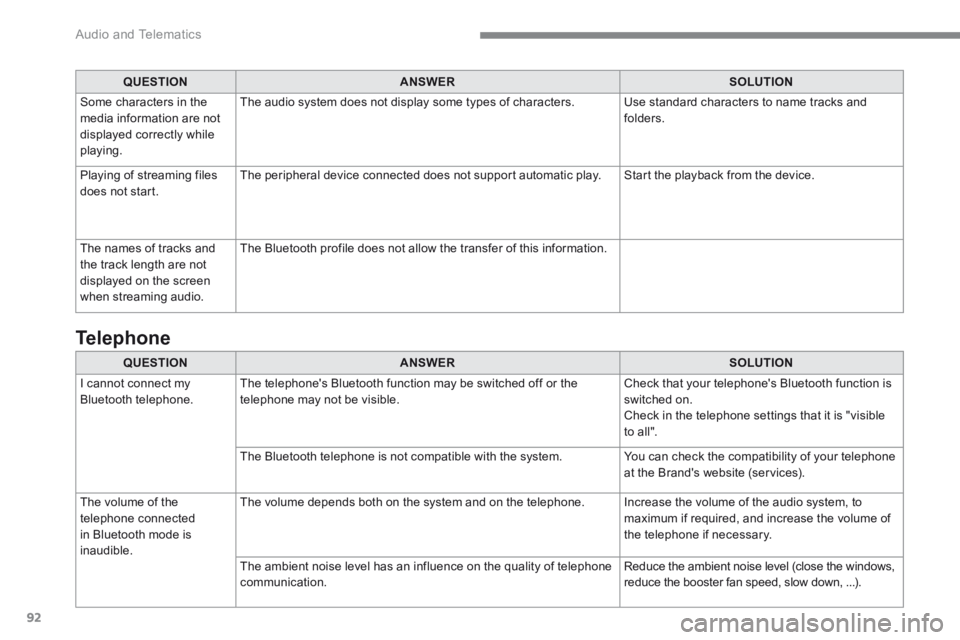
QUESTIONANSWERSOLUTION
I cannot connect my Bluetooth telephone. The telephone's Bluetooth function may be switched off or the telephone may not be visible. Check that your telephone's Bluetooth function is switched on. Check in the telephone settings that it is "visible
to all".
The Bluetooth telephone is not compatible with the system. You can check the compatibility of your telephone at the Brand's website (services).
The volume of the telephone connected in Bluetooth mode is inaudible.
The volume depends both on the system and on the telephone. Increase the volume of the audio system, to maximum if required, and increase the volume of the telephone if necessary.
The ambient noise level has an influence on the quality of telephone communication. Reduce the ambient noise level (close the windows, reduce the booster fan speed, slow down, ...).
Telephone
QUESTIONANSWERSOLUTION
Some characters in the media information are not displayed correctly while playing.
The audio system does not display some types of characters. Use standard characters to name tracks and folders.
Playing of streaming files does not start. The peripheral device connected does not support automatic play. Start the playback from the device.
The names of tracks and the track length are not displayed on the screen when streaming audio.
The Bluetooth profile does not allow the transfer of this information.
Page 368 of 450
94
Audio and Telematics
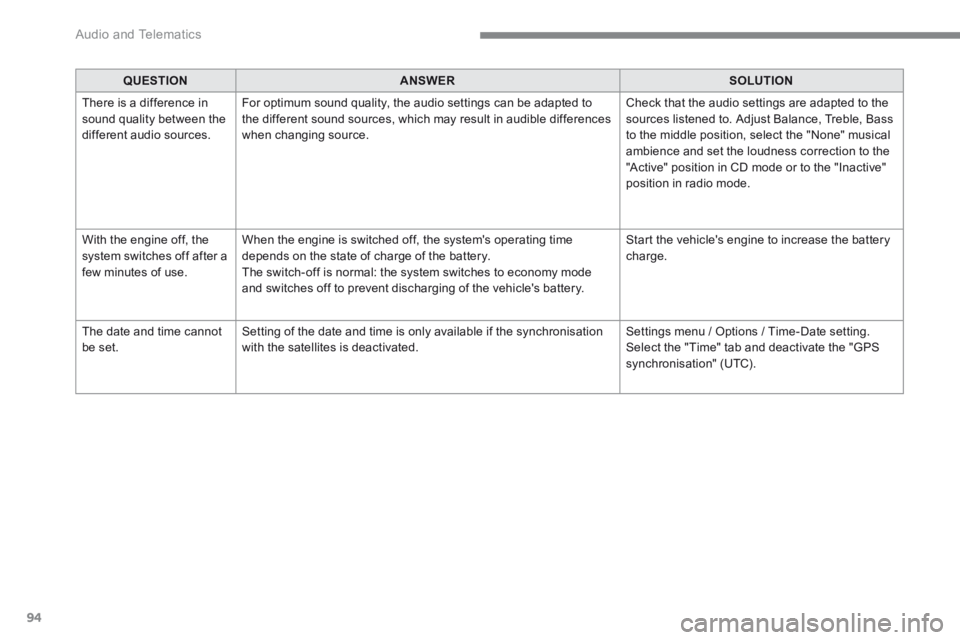
QUESTIONANSWERSOLUTION
There is a difference in sound quality between the different audio sources.
For optimum sound quality, the audio settings can be adapted to the different sound sources, which may result in audible differences when changing source.
Check that the audio settings are adapted to the sources listened to. Adjust Balance, Treble, Bass to the middle position, select the "None" musical ambience and set the loudness correction to the "Active" position in CD mode or to the "Inactive" position in radio mode.
With the engine off, the system switches off after a few minutes of use.
When the engine is switched off, the system's operating time depends on the state of charge of the battery. The switch-off is normal: the system switches to economy mode and switches off to prevent discharging of the vehicle's battery.
Start the vehicle's engine to increase the battery charge.
The date and time cannot be set. Setting of the date and time is only available if the synchronisation with the satellites is deactivated. Settings menu / Options / Time-Date setting. Select the "Time" tab and deactivate the "GPS synchronisation" (UTC).
Page 377 of 450
103
.
1
4
5
6
2
3
Audio and Telematics
Transversal-Citroen_en_Chap02_RCC-2-2-0_ed01-2016
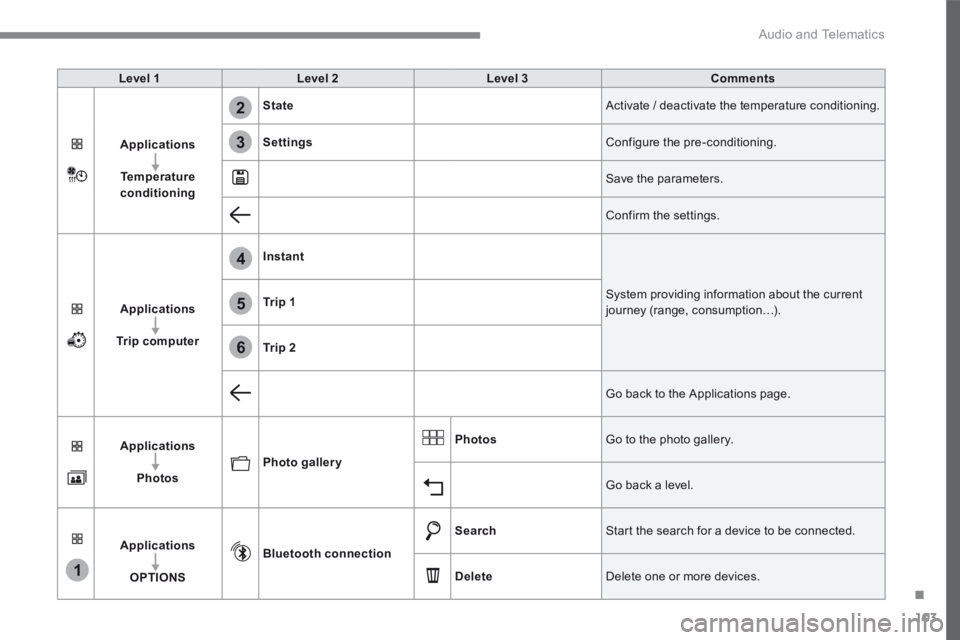
Level 1Level 2Level 3Comments
Applications
Temperature conditioning
State Activate / deactivate the temperature conditioning.
Settings Configure the pre-conditioning.
Save the parameters.
Confirm the settings.
Applications
Trip computer
Instant
System providing information about the current journey (range, consumption…). Tr i p 1
Tr i p 2
Go back to the Applications page.
Applications
PhotosPhoto gallery
Photos Go to the photo gallery.
Go back a level.
Applications
OPTIONS
Bluetooth connection
Search Start the search for a device to be connected.
Delete Delete one or more devices.