audio Citroen C4 2014 2.G Repair Manual
[x] Cancel search | Manufacturer: CITROEN, Model Year: 2014, Model line: C4, Model: Citroen C4 2014 2.GPages: 340, PDF Size: 28.99 MB
Page 303 of 340
04
301
AUDIO
APPLE ®
players or portable player
Management of the device is via the audio system controls.
The audio fi les on a Mass Storage portable player * can
be heard through the vehicle's speakers by connecting
it to the USB port (cable not supplied).
If the portable player is not recognised by the USB port, connect it to
the auxiliary Jack socket.
The Apple
®
player must be updated regularly for the best connection.
The playlists are those defi ned in the Apple
®
player.
The Apple
®
player must be generation 5 or later.
* Check your player's manual.
Page 304 of 340
04
302
AUDIO
Auxiliary socket (AUX)
Auxiliary Jack socket
Do not connect a device to the USB port and to the auxiliary Jack
socket at the same time.
The auxiliary Jack socket permits the connection of a portable non-
mass storage device or an Apple
® player if not recognised by the
USB port.
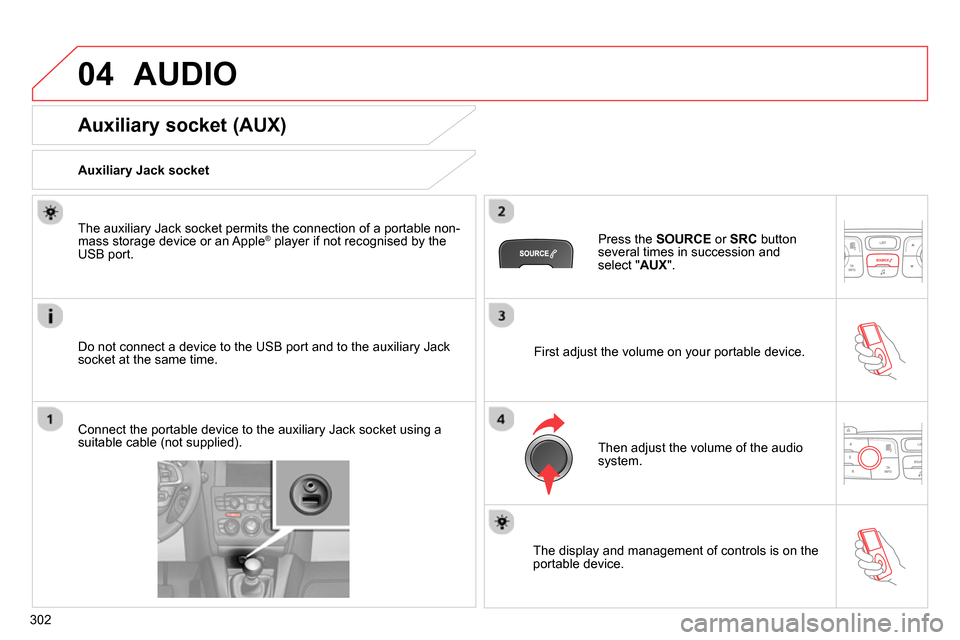
Connect the portable device to the auxiliary Jack socket using a
suitable cable (not supplied).
Press the SOURCE
or SRC
button
several times in succession and
select " AUX
".
First adjust the volume on your portable device.
Then adjust the volume of the audio
system.
The display and management of controls is on the
portable device.
Page 305 of 340
04
303
AUDIO
Streaming - Playing audio files via
Bluetooth
Depending on the compatibility of the phone
Pair/connect the telephone: see the "USING THE
TELEPHONE" section.
Streaming allows music fi les on a telephone to be heard via the
vehicle's speakers.
The telephone must support the appropriate bluetooth profi les
(Profi les A2DP / AVRCP).
Activate the streaming source by pressing SOURCE
or
SRC
. Control of playback is via the audio system. The
contextual information can be displayed in the screen.
In certain cases, playing of the audio fi les must be initiated from the
telephone.
The audio quality depends on the quality of the transmission from
the telephone.
Play mode
The play modes available are:
- Normal: the tracks are played in order, depending on the
classifi cation of the selected fi les.
- Random: the tracks in an album or folder are played in a
random order.
- Random all: all of the tracks saved in the media are played in
random order.
- Repeat: the tracks played are only those from the current
album or folder.
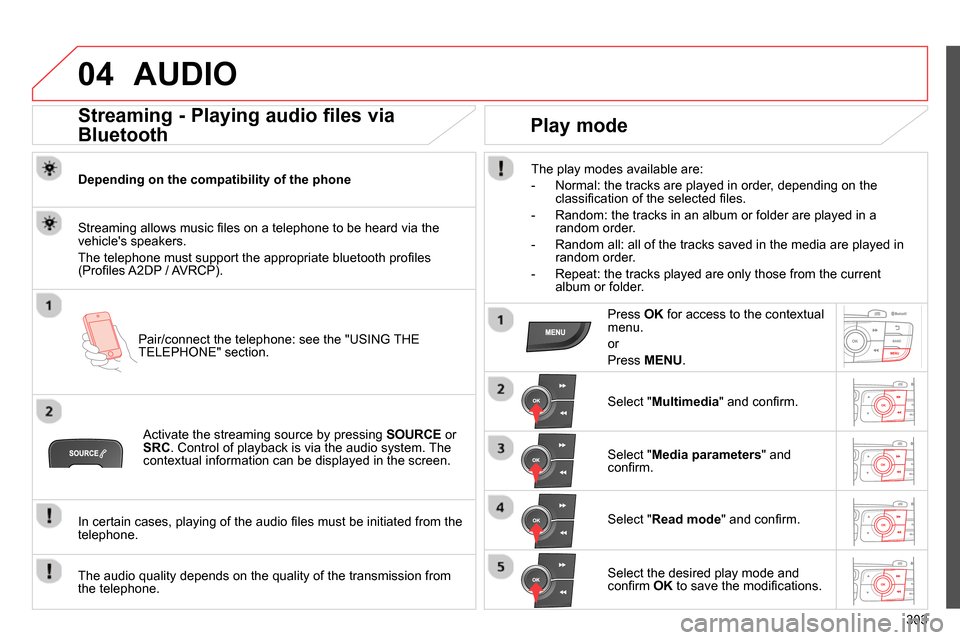
Press OK
for access to the contextual
menu.
or
Press MENU
.
Select " Multimedia
" and confi rm.
Select " Media parameters
" and
confi rm.
Select " Read mode
" and confi rm.
Select the desired play mode and
confi rm OK
to save the modifi cations.
Page 306 of 340
05
304
USING THE TELEPHONE
Pairing a telephone
First connection
The services offered depend on the network, the SIM card and the compatibility of the Bluetooth telephone used.
Consult your telephone's manual and your operator to fi nd out which services are available to you.
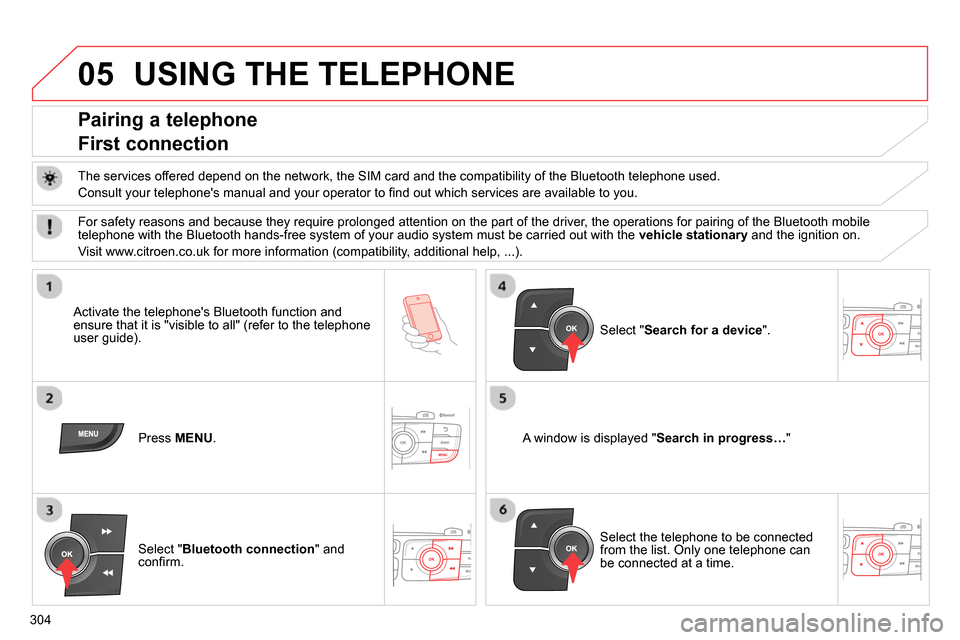
Activate the telephone's Bluetooth function and
ensure that it is "visible to all" (refer to the telephone
user guide).
Press MENU
.
A window is displayed " Search in progress…
"
Select the telephone to be connected
from the list. Only one telephone can
be connected at a time.
Select " Search for a device
".
For safety reasons and because they require prolonged attention on the part of the driver, the operations for pairing of the Bluetooth mobile
telephone with the Bluetooth hands-free system of your audio system must be carried out with the vehicle stationary
and the ignition on.
Visit www.citroen.co.uk for more information (compatibility, additional help, ...).
Select " Bluetooth connection
" and
confi rm.
Page 307 of 340
05
Saisir code authentification
01
OK Del23456789 _
305
USING THE TELEPHONE
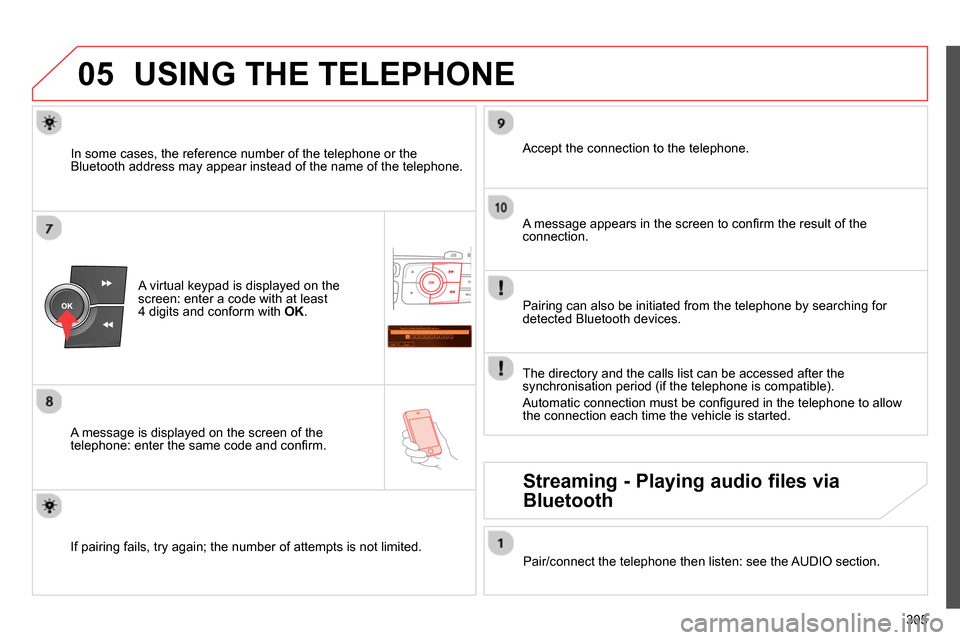
A virtual keypad is displayed on the
screen: enter a code with at least
4 digits and conform with OK
.
A message is displayed on the screen of the
telephone: enter the same code and confi rm.
A message appears in the screen to confi rm the result of the
connection.
Pairing can also be initiated from the telephone by searching for
detected Bluetooth devices.
Accept the connection to the telephone.
If pairing fails, try again; the number of attempts is not limited.
The directory and the calls list can be accessed after the
synchronisation period (if the telephone is compatible).
Automatic connection must be confi gured in the telephone to allow
the connection each time the vehicle is started.
In some cases, the reference number of the telephone or the
Bluetooth address may appear instead of the name of the telephone.
Pair/connect the telephone then listen: see the AUDIO section.
Streaming - Playing audio files via
Bluetooth
Page 308 of 340
05
306
USING THE TELEPHONE
The telephone connection automatically includes hands free operation
and audio streaming.
The ability of the system to connect to just one profi le depends on the
telephone. Both profi les may connect by default.
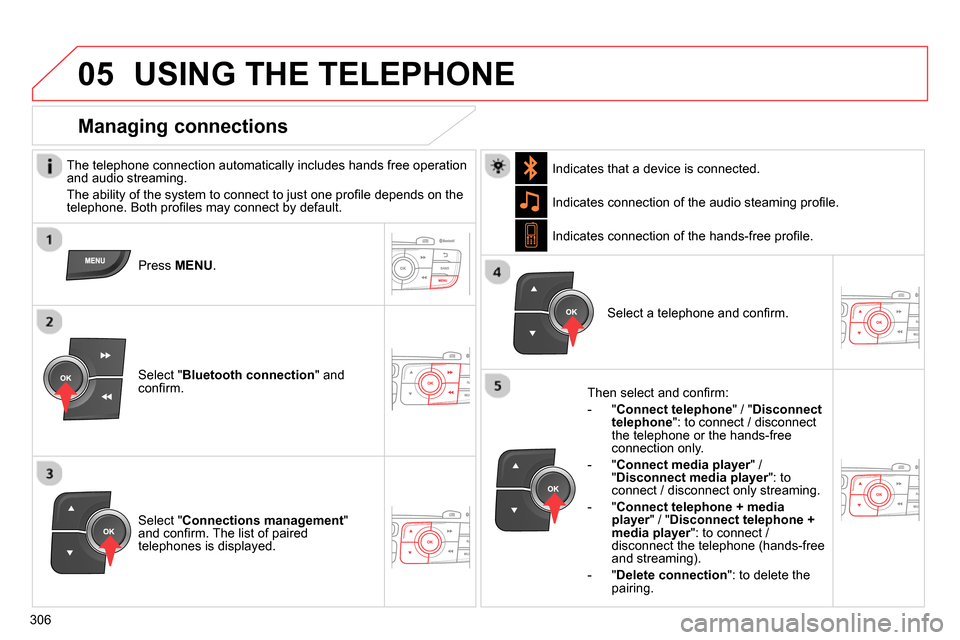
Press MENU
.
Select " Bluetooth connection
" and
confi rm. Indicates connection of the audio steaming profi le.
Managing connections
Select " Connections management
"
and confi rm. The list of paired
telephones is displayed.
Select a telephone and confi rm. Indicates connection of the hands-free profi le.
Then select and confi rm:
- " Connect telephone
" / " Disconnect
telephone
": to connect / disconnect
the telephone or the hands-free
connection only.
- " Connect media player
" /
" Disconnect media player
": to
connect / disconnect only streaming.
- " Connect telephone + media
player
" / " Disconnect telephone +
media player
": to connect /
disconnect the telephone (hands-free
and streaming).
- " Delete connection
": to delete the
pairing.
Indicates that a device is connected.
Page 313 of 340
05
311
USING THE TELEPHONE
Directory
The system accesses the telephone's contacts directory, depending
on compatibility, and while the Bluetooth connection with it is
maintained.
With certain telephones connected by Bluetooth you can send a
contact to the directory of the audio system.
Contacts imported in this way are saved in a permanent directory
visible to all, whatever the telephone connected.
The menu for the directory is not accessible if it is empty.
To modify the contacts saved in the
system, press MENU
then select
" Telephone
" and confi rm.
Select " Directory management
" and
confi rm.
You can:
- " Consult an entry
",
- " Delete an entry
",
- " Delete all entries
".
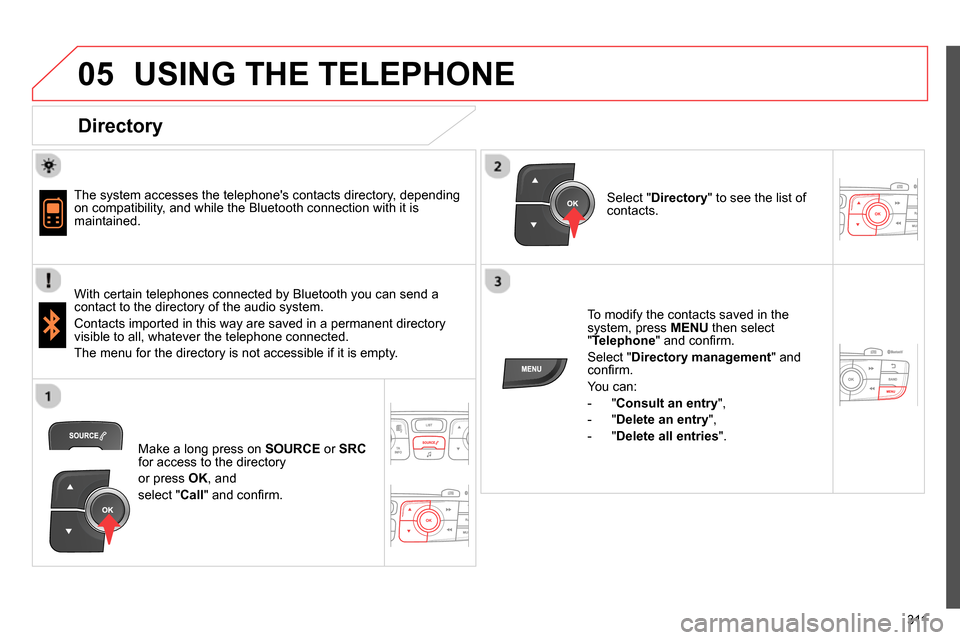
Select " Directory
" to see the list of
contacts.
Make a long press on SOURCE
or SRC
for access to the directory
or press OK
, and
select " Call
" and confi rm.
Page 314 of 340
06
312
AUDIO SETTINGS
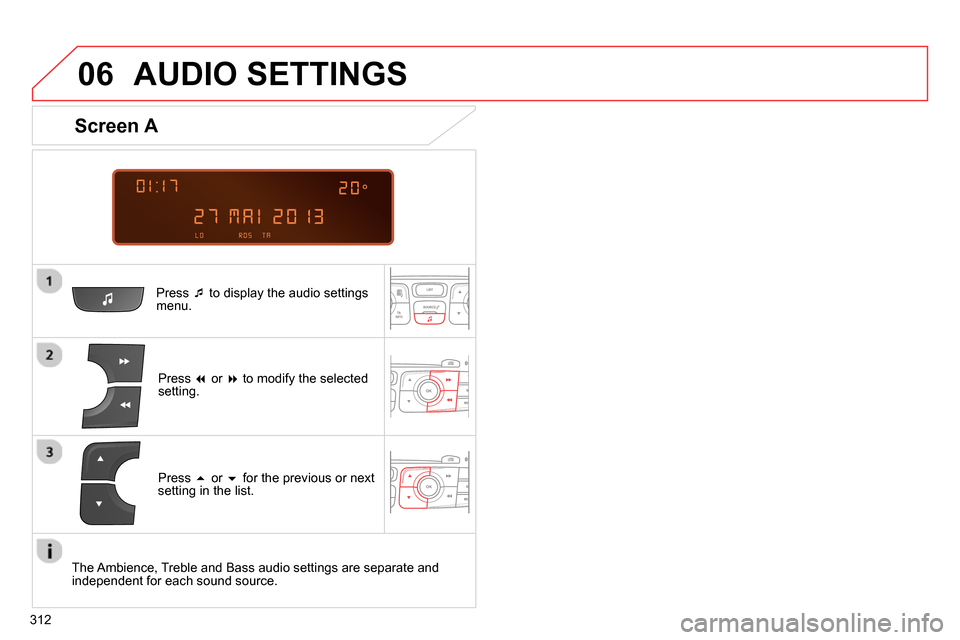
Press
to display the audio settings
menu.
Press
or
to modify the selected
setting.
Screen A
Press
or
for the previous or next
setting in the list.
The Ambience, Treble and Bass audio settings are separate and
independent for each sound source.
Page 315 of 340
06
313
Press
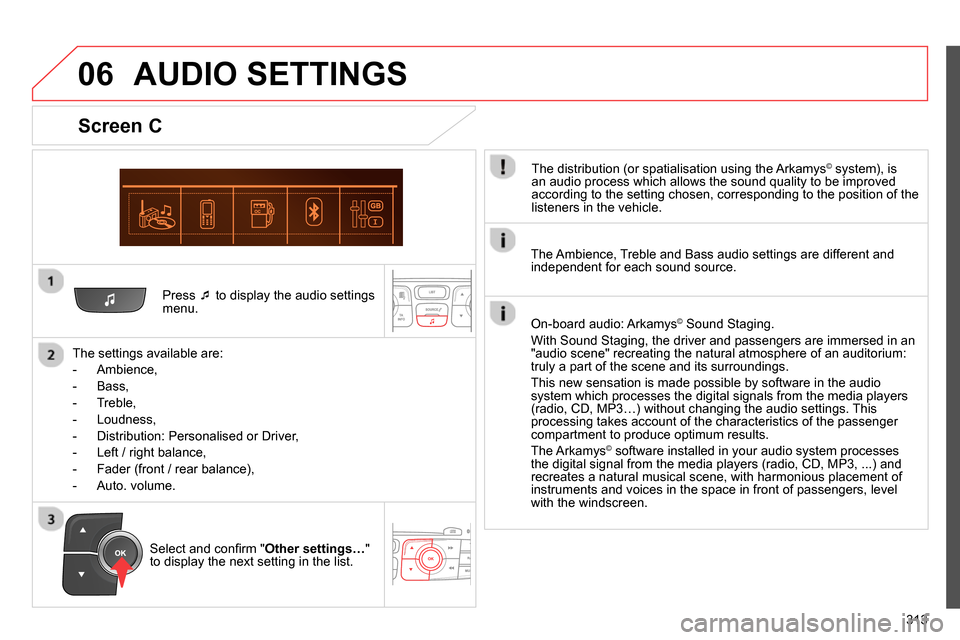
to display the audio settings
menu.
The settings available are:
- Ambience,
- Bass,
- Treble,
- Loudness,
- Distribution: Personalised or Driver,
- Left / right balance,
- Fader (front / rear balance),
- Auto. volume.
Screen C
The distribution (or spatialisation using the Arkamys© system), is
an audio process which allows the sound quality to be improved
according to the setting chosen, corresponding to the position of the
listeners in the vehicle.
AUDIO SETTINGS
Select and confi rm " Other settings…
"
to display the next setting in the list.
The Ambience, Treble and Bass audio settings are different and
independent for each sound source.
On-board audio: Arkamys
©
Sound Staging.
With Sound Staging, the driver and passengers are immersed in an
"audio scene" recreating the natural atmosphere of an auditorium:
truly a part of the scene and its surroundings.
This new sensation is made possible by software in the audio
system which processes the digital signals from the media players
(radio, CD, MP3…) without changing the audio settings. This
processing takes account of the characteristics of the passenger
compartment to produce optimum results.
The Arkamys
© software installed in your audio system processes
the digital signal from the media players (radio, CD, MP3, ...) and
recreates a natural musical scene, with harmonious placement of
instruments and voices in the space in front of passengers, level
with the windscreen.
Page 319 of 340
317
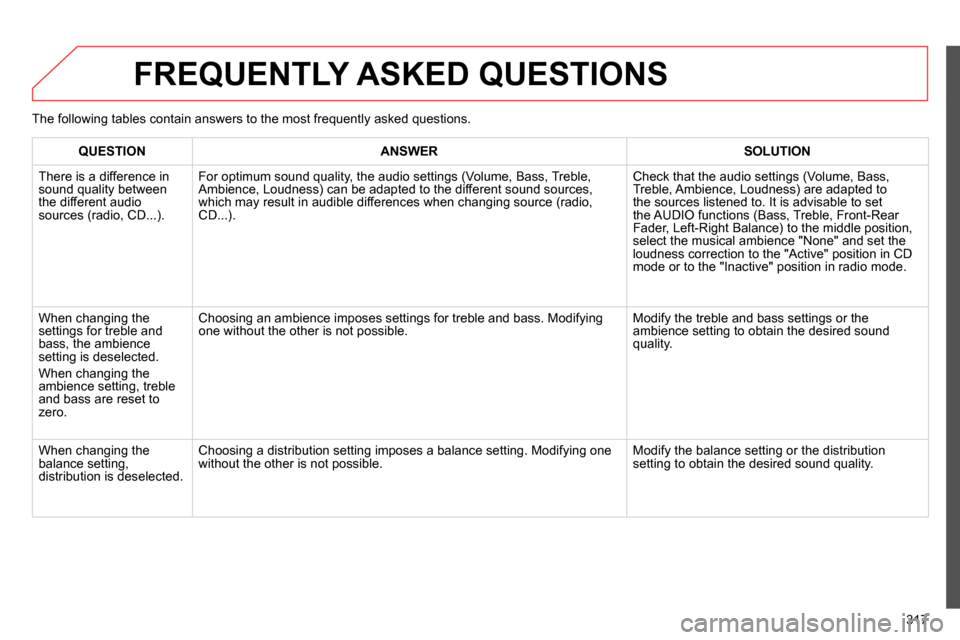
FREQUENTLY ASKED QUESTIONS
QUESTION
ANSWER
SOLUTION
There is a difference in
sound quality between
the different audio
sources (radio, CD...).
For optimum sound quality, the audio settings (Volume, Bass, Treble,
Ambience, Loudness) can be adapted to the different sound sources,
which may result in audible differences when changing source (radio,
CD...). Check that the audio settings (Volume, Bass,
Treble, Ambience, Loudness) are adapted to
the sources listened to. It is advisable to set
the AUDIO functions (Bass, Treble, Front-Rear
Fader, Left-Right Balance) to the middle position,
select the musical ambience "None" and set the
loudness correction to the "Active" position in CD
mode or to the "Inactive" position in radio mode.
When changing the
settings for treble and
bass, the ambience
setting is deselected.
When changing the
ambience setting, treble
and bass are reset to
zero. Choosing an ambience imposes settings for treble and bass. Modifying
one without the other is not possible. Modify the treble and bass settings or the
ambience setting to obtain the desired sound
quality.
When changing the
balance setting,
distribution is deselected. Choosing a distribution setting imposes a balance setting. Modifying one
without the other is not possible. Modify the balance setting or the distribution
setting to obtain the desired sound quality. The following tables contain answers to the most frequently asked questions.