navigation Citroen C4 2015 2.G Owner's Guide
[x] Cancel search | Manufacturer: CITROEN, Model Year: 2015, Model line: C4, Model: Citroen C4 2015 2.GPages: 494, PDF Size: 20.49 MB
Page 326 of 494
05
324
C4-2_en_Chap13b_SMEGplus_ed01-2015
C4-2_en_Chap13b_SMEGplus_ed01-2015
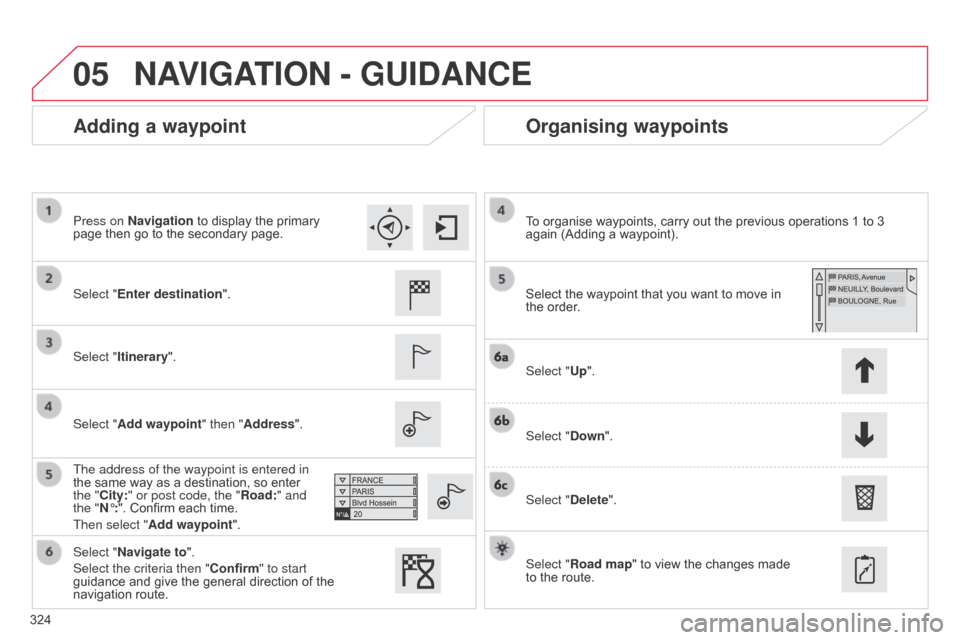
Adding a waypointOrganising waypoints
Select "Enter destination".
Select "Itinerary".
Select "Add waypoint" then "Address".
The address of the waypoint is entered in
the
same way as a destination, so enter
the "
City:" or post code, the "Road:" and
the "N°:".
Confirm each time.
Then select "Add waypoint ". Select
the waypoint that you want to move in the
order.
To
organise waypoints, carry out the previous operations 1 to 3
again
(Adding a waypoint).
Select "Up".
Select "Down".
Select "Delete".
Select "Road map"
to view the changes made
to
the route.
Select "Navigate to".
Select the criteria then "Confirm" to start
guidance
and give the general direction of the
navigation
route.
Press on Navigation
to display the primary
page
then go to the secondary page.
NAVIGATION - GUIDANCE
Page 327 of 494
05
325
C4-2_en_Chap13b_SMEGplus_ed01-2015
C4-2_en_Chap13b_SMEGplus_ed01-2015
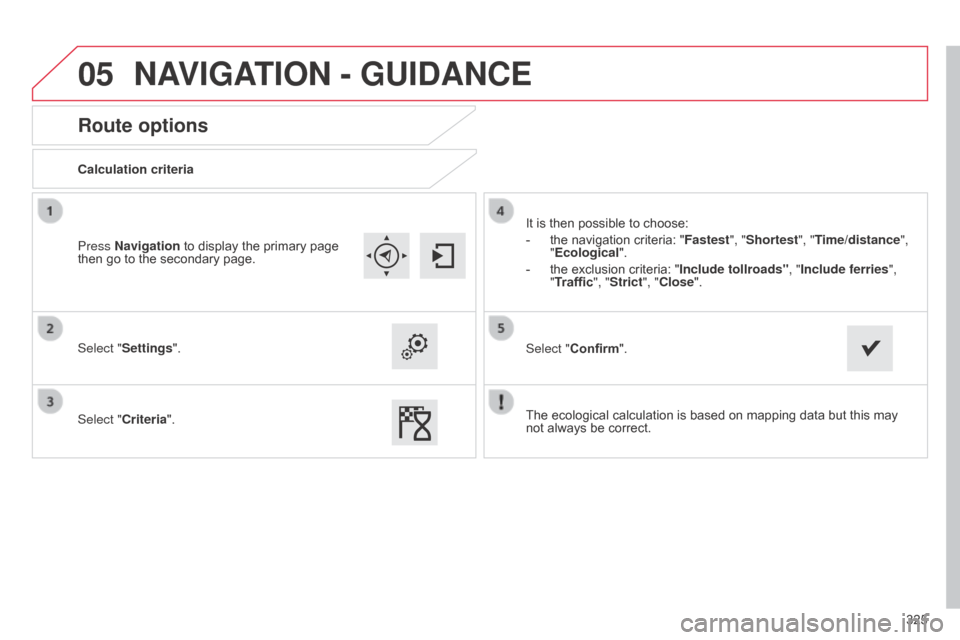
Route options
Calculation criteria
Select "Settings".
Select "Criteria".It
is then possible to choose:
-
the
navigation criteria: "Fastest", "Shortest", "Time/distance",
"Ecological ".
-
the
exclusion criteria: "Include tollroads" , "Include ferries",
"Traffic", "Strict", "Close".
Select "Confirm".
Press Navigation
to display the primary page
then
go to the secondary page.
NAVIGATION - GUIDANCE
The ecological calculation is based on mapping data but this may not always be correct.
Page 328 of 494
05
326
C4-2_en_Chap13b_SMEGplus_ed01-2015
C4-2_en_Chap13b_SMEGplus_ed01-2015
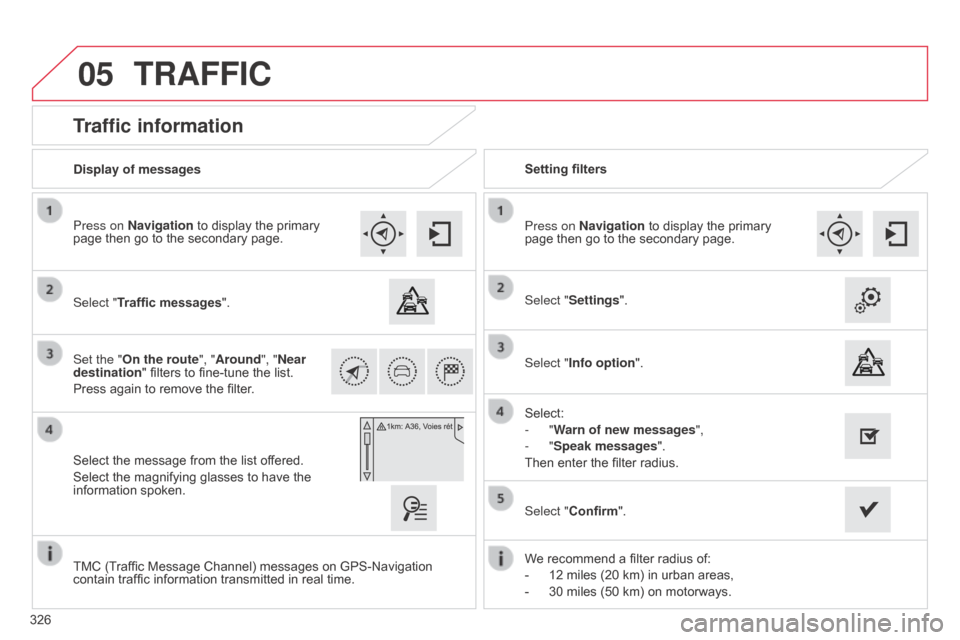
Traffic information
Select "Traffic messages".
Press on Navigation to display the primary
page
then go to the secondary page.
Select the message from the list offered.
Select
the magnifying glasses to have the
information
spoken.
Set the "On the route
", "Around", "Near
destination "
filters to fine-tune the list.
Press
again to remove the filter. Select "Settings".
Select:
-
"Warn of new messages",
-
"Speak messages".
Then
enter the filter radius.
Press on Navigation
to display the primary
page
then go to the secondary page.
Display of messages
Setting filters
We
recommend a filter radius of:
-
12
miles (20 km) in urban areas,
-
30
miles (50 km) on motorways.
TMC
(Traffic Message Channel) messages on GPS-Navigation
contain
traffic information transmitted in real time.Select "Confirm".
TRAFFIC
Select "Info option
".
Page 329 of 494
05
327
C4-2_en_Chap13b_SMEGplus_ed01-2015
C4-2_en_Chap13b_SMEGplus_ed01-2015
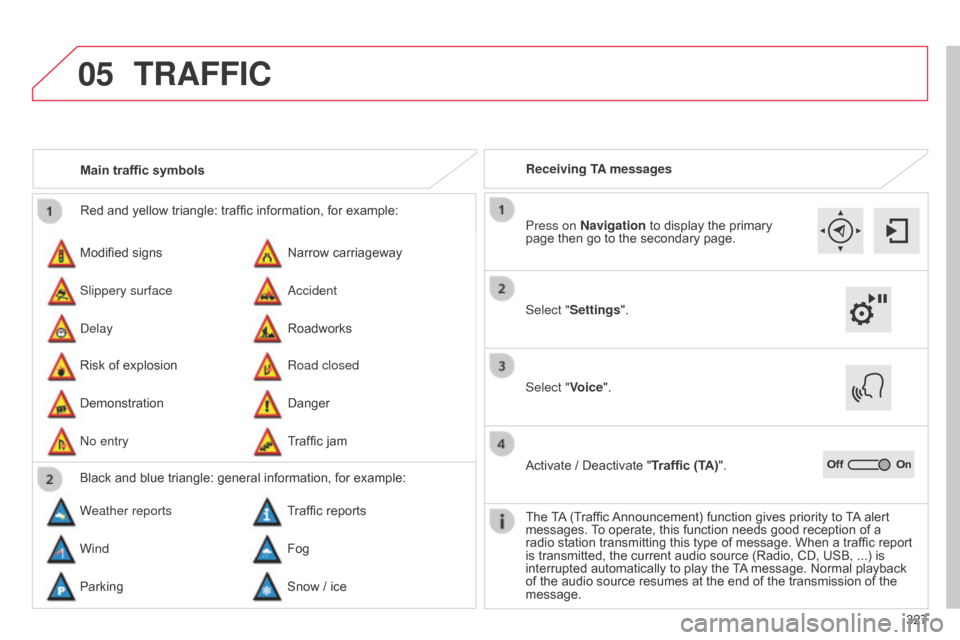
Red and yellow triangle: traffic information, for example:
Modified signs
Risk
of explosion Narrow
carriageway
Road closed
Slippery surface
Demonstration
a
ccident
Danger
d
elay
n
o entry Roadworks
Traffic
jam
Main traffic symbols
Black and blue triangle: general information, for example:
Weather reports Traffic
reports
Wind Fog
Parking Snow
/ iceReceiving TA messages
TRAFFIC
Select "Settings". Press on Navigation
to display the primary
page
then go to the secondary page.
Select "Voice".
Activate
/ Deactivate "Traffic (TA)".
The
T
A
(Traffic
Announcement)
function gives priority to
T
A
alert
messages.
T
o operate, this function needs good reception of a
radio
station transmitting this type of message. When a traffic report
is
transmitted, the current audio source (Radio, CD, USB, ...) is
interrupted
automatically to play the
T
A
message. Normal playback
of
the audio source resumes at the end of the transmission of the
message.
Page 330 of 494
05
C4-2_en_Chap13b_SMEGplus_ed01-2015
C4-2_en_Chap13b_SMEGplus_ed01-2015
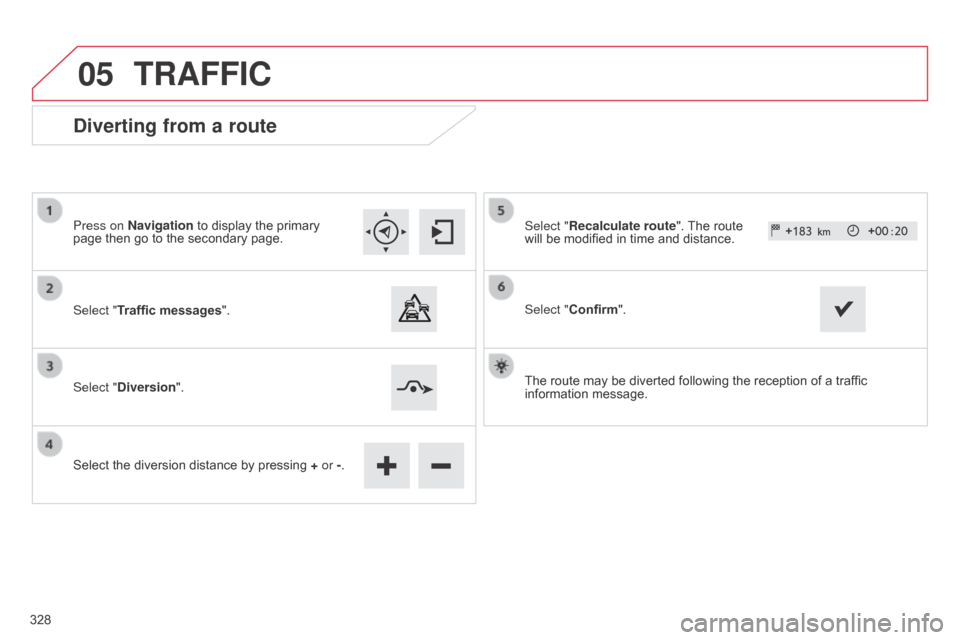
Diverting from a route
Press on Navigation to display the primary page then go to the secondary page.
Select "Traffic messages ".
Select "Diversion".
Select
the diversion distance by pressing
+
or -.Select "Recalculate route".
The route will
be modified in time and distance.
Select "Confirm".
The
route may be diverted following the reception of a traffic
information
message.
TRAFFIC
328
Page 331 of 494
05
329
C4-2_en_Chap13b_SMEGplus_ed01-2015
C4-2_en_Chap13b_SMEGplus_ed01-2015
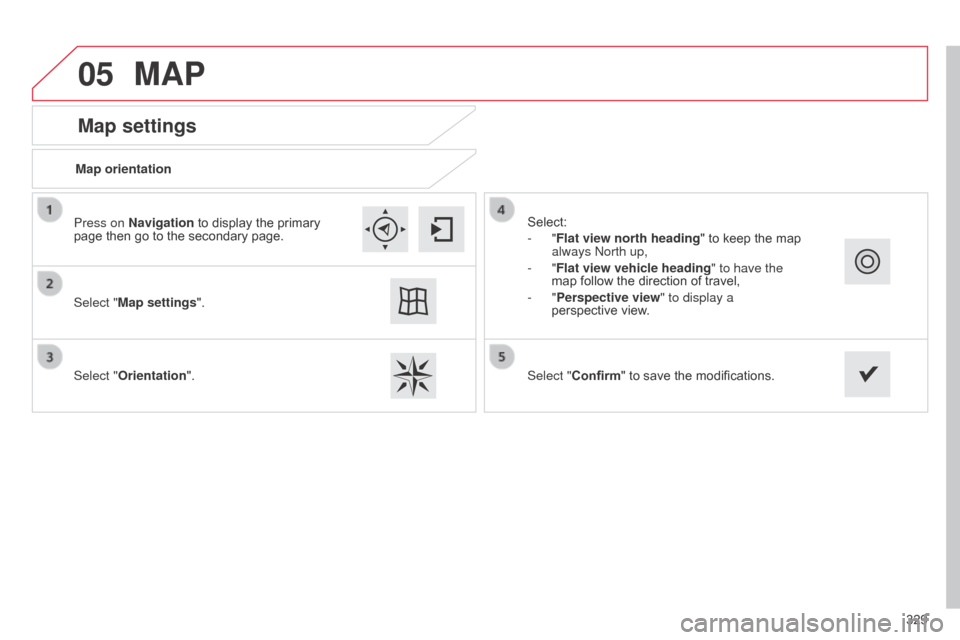
Map settings
MAP
Map orientation
Select "Map settings".
Select "Orientation". Select:
-
"Flat view north heading"
to keep the map
always
n orth up,
-
"Flat view vehicle heading" to have the
map
follow the direction of travel,
-
"Perspective view" to display a
perspective
view.
Press on Navigation
to display the primary
page
then go to the secondary page.
Select "Confirm"
to save the modifications.
Page 332 of 494
05
C4-2_en_Chap13b_SMEGplus_ed01-2015
C4-2_en_Chap13b_SMEGplus_ed01-2015
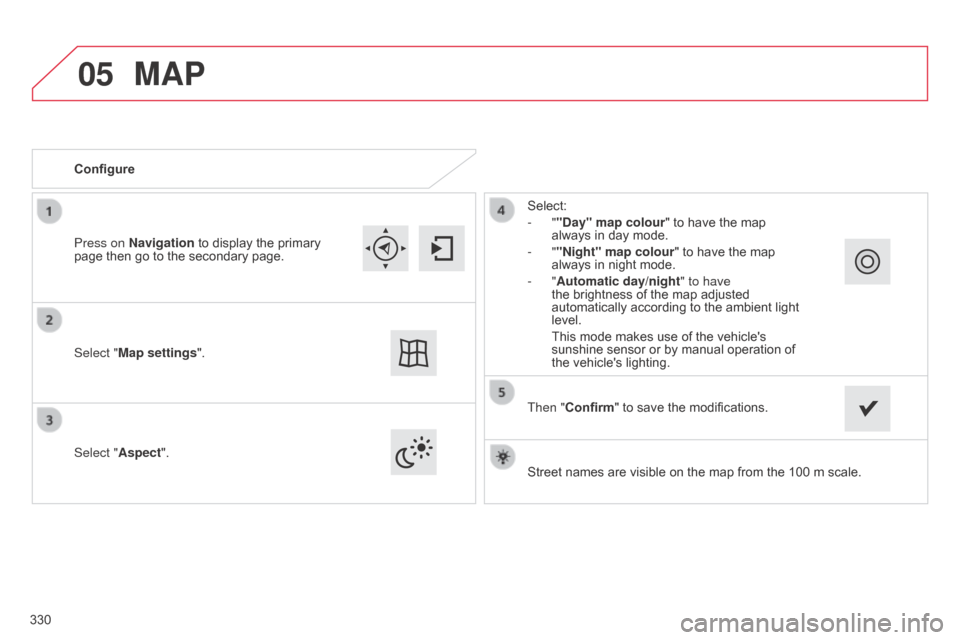
Street names are visible on the map from the 100 m scale.
Configure
Select "
Aspect". Select:
- ""Day" map colour" to have the map
always
in day mode.
- ""Night" map colour
" to have the map
always
in night mode.
- "Automatic day/night
" to have
the brightness of the map adjusted
automatically
according to the ambient light
level.
This
mode makes use of the vehicle's
sunshine
sensor or by manual operation of
the
vehicle's lighting.
Select "Map settings". Press on Navigation
to
display
the
primary
page
then
go
to
the
secondary
page.
MAP
Then "Confirm" to save the modifications.
330
Page 333 of 494

05
331
C4-2_en_Chap13b_SMEGplus_ed01-2015
C4-2_en_Chap13b_SMEGplus_ed01-2015
Navigation speech synthesis
Volume / Street names
Select "Settings".
Select "Voice".Select "Confirm"
to save the modifications.
Press on Navigation
to display the primary
page
then go to the secondary page.
SETTINGS
Select "Voice synthesis" and/or "Male voice"
and/or "Female voice" and/or "Speak road
names".
Page 342 of 494
07
340
C4-2_en_Chap13b_SMEGplus_ed01-2015
C4-2_en_Chap13b_SMEGplus_ed01-2015
CONNECTED SERVICES
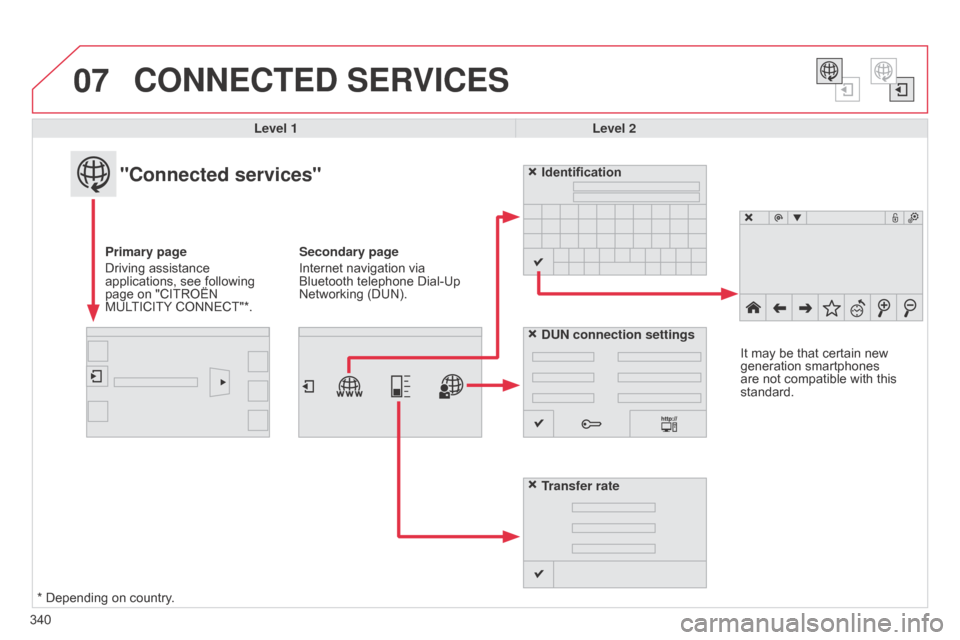
Level 1Level 2
"Connected services"
Primary page
Driving
assistance
applications,
see following
page
on "CITROËN
MUL
TICITY
CONNECT"*. Identification
DUN connection settings
Transfer rate
It
may be that certain new
generation
smartphones
are
not compatible with this
standard.
Secondary page
Internet navigation via
Bluetooth
telephone Dial-Up
Networking
(DUN).
*
Depending on country.
Page 354 of 494
C4-2_en_Chap13b_SMEGplus_ed01-2015
C4-2_en_Chap13b_SMEGplus_ed01-2015
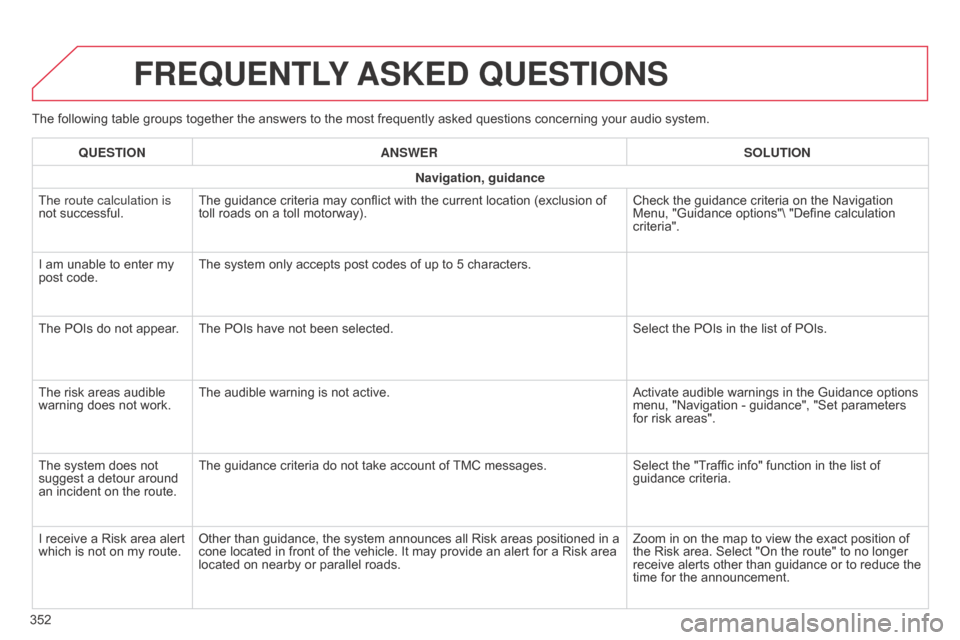
The following table groups together the answers to the most frequently asked questions concerning your audio system.
FREqUENTLY ASKED q UESTIONS
352
q
UESTION
ANSWER SOLUTION
Navigation, guidance
The route calculation is
not successful.
The guidance criteria may conflict with the current location (exclusion of
toll
roads on a toll motorway).
Check the guidance criteria on the Navigation
Menu,
"Guidance options"\ "Define calculation
criteria".
I
am unable to enter my
post
code.
The system only accepts post codes of up to 5 characters.
The POIs do not appear. The POIs have not been selected.
Select the POIs in the list of POIs.
The risk areas audible
warning
does not work.
The audible warning is not active.
Activate audible warnings in the Guidance options
menu,
"Navigation - guidance", "Set parameters
for
risk areas".
The system does not
suggest
a detour around
an
incident on the route.
The guidance criteria do not take account of
TMC
messages.
Select the "Traffic info" function in the list of
guidance
criteria.
I receive a Risk area alert
which
is not on my route.
Other than guidance, the system announces all Risk areas positioned in a
cone
located in front of the vehicle. It may provide an alert for a Risk area
located
on nearby or parallel roads.
Zoom in on the map to view the exact position of
the
Risk area. Select "On the route" to no longer
receive
alerts other than guidance or to reduce the
time
for the announcement.