bluetooth Citroen C4 2016 2.G Owner's Manual
[x] Cancel search | Manufacturer: CITROEN, Model Year: 2016, Model line: C4, Model: Citroen C4 2016 2.GPages: 396, PDF Size: 10.22 MB
Page 44 of 396
42
C4-2_en_Chap01_instruments-de-bord_ed02-2015
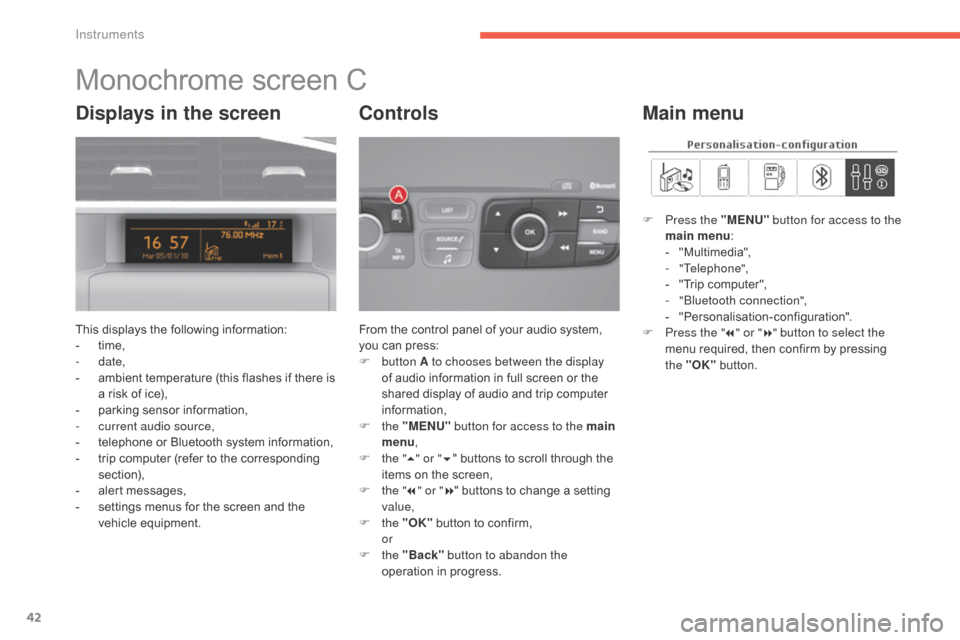
Monochrome screen C
This displays the following information:
- t ime,
-
date,
-
a
mbient temperature (this flashes if there is
a
risk of ice),
-
p
arking sensor information,
-
c
urrent audio source,
-
t
elephone or Bluetooth system information,
-
t
rip computer (refer to the corresponding
s
ection),
-
a
lert messages,
-
s
ettings menus for the screen and the
v
ehicle
e
quipment. From
the control panel of your audio system, y
ou can press:
F
button A to chooses between the display
of
audio information in full screen or the
s
hared display of audio and trip computer
i
nformation,
F
the "MENU" button for access to the main
menu ,
F
t
he "5" or " 6"
buttons to scroll through the
i
tems on the screen,
F
t
he "7" or " 8"
buttons to change a setting
va
lue,
F
the "OK"
button to confirm,
or
F
the "Back" button to abandon the
operation
in progress.
Controls
F Press the "MENU" button for access to the
main menu :
-
"
Multimedia",
-
"Telephone",
-
"
Trip computer",
-
"
Bluetooth connection",
-
"
Personalisation-configuration".
F
P
ress the " 7" or " 8" button to select the
menu
required, then confirm by pressing
t
he "OK"
button.
Main menuDisplays in the screen
Instruments
Page 45 of 396
43
C4-2_en_Chap01_instruments-de-bord_ed02-2015
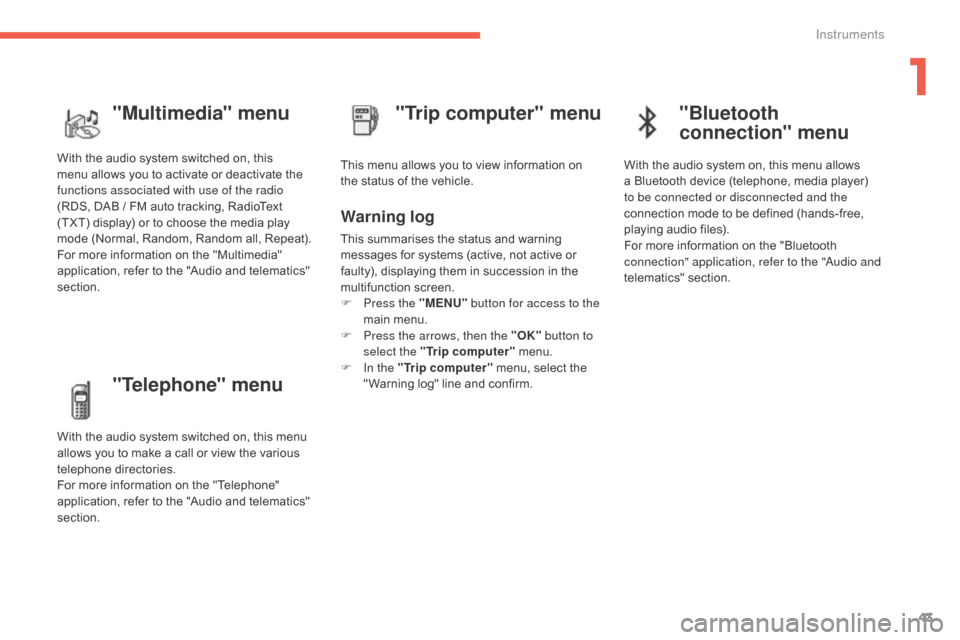
"Telephone" menu
With the audio system switched on, this menu allows you to make a call or view the various
t
elephone
d
irectories.
For
more information on the "Telephone"
a
pplication, refer to the "Audio and telematics"
s
ection. This
menu allows you to view information on
t
he status of the vehicle.
Warning log
This summarises the status and warning m
essages for systems (active, not active or
f
aulty), displaying them in succession in the
m
ultifunction
s
creen.
F
P
ress the "MENU" button for access to the
main
menu.
F
P
ress the arrows, then the "OK" button to
select the "Trip computer"
menu.
F
I
n the "Trip computer"
menu, select the
"
Warning log" line and confirm.
"Trip computer" menu
"Multimedia" menu
With the audio system switched on, this m
enu allows you to activate or deactivate the
f
unctions associated with use of the radio
(RDS,
DAB / FM auto tracking, RadioText
(
TXT) display) or to choose the media play
m
ode (Normal, Random, Random all, Repeat).
For
more information on the "Multimedia"
a
pplication, refer to the "Audio and telematics"
s
ection.
"Bluetooth
connection" menu
With the audio system on, this menu allows a Bluetooth device (telephone, media player)
t
o be connected or disconnected and the
connection
mode to be defined (hands-free,
p
laying audio files).
For
more information on the "Bluetooth
c
onnection" application, refer to the "Audio and
telematics"
se
ction.
1
Instruments
Page 50 of 396
48
C4-2_en_Chap01_instruments-de-bord_ed02-2015
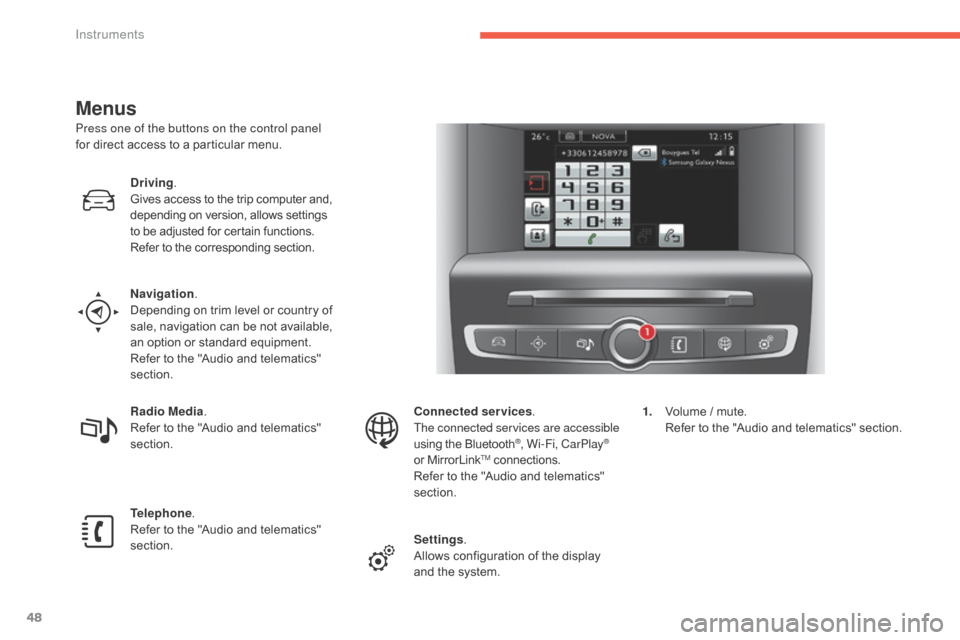
Menus
Press one of the buttons on the control panel
for direct access to a particular menu.
Driving .
Gives
access to the trip computer and,
d
epending on version, allows settings
t
o be adjusted for certain functions.
Refer
to the corresponding section.
Navigation .
Depending
on trim level or country of
s
ale, navigation can be not available,
a
n option or standard equipment.
Refer
to the "Audio and telematics"
s
ection.
Radio Media .
Refer
to the "Audio and telematics"
s
ection.
Telephone .
Refer
to the "Audio and telematics"
s
ection. Connected services
.
The connected services are accessible
using
the Bluetooth
®, Wi-Fi, CarPlay®
or
MirrorLinkTM connections.
Refer
to
the
"Audio and telematics"
s
ection.
Settings .
Allows
configuration of the display
a
nd
the
system. 1.
V
olume / mute.
R
efer to the "Audio and telematics" section.
Instruments
Page 239 of 396
237
C4-2_en_Chap07_infos-pratiques_ed02-2015
"Multimedia":
audio systems, steering mounted audio controls, speakers, Hi-Fi module, Bluetooth
h
ands-free system, portable satellite navigation
s
ystem, semi-integral support bracket for
p
ortable navigation system, mapping update
C
D, driving assistant, portable video screen,
p
ortable video support bracket, 230 V/50 Hz
s
ocket, 230 V/50 Hz adaptor, iPhone
®
compatible
mobile
phone
charger,
mobile
p
hone/smartphone
bracket,
Wi-Fi
on
board...
By
going to a CITROËN dealer, you can also
o
btain cleaning and maintenance products
(
interior and exterior) - including ecological
p
roducts in the "TECHNATURE" range -,
p
roducts for topping up (screenwash...), touch-
up
pens and paint aerosols for the exact colour
o
f your vehicle, recharges (cartridge for the
t
emporary puncture repair kit...), ...
Installation of radio
communication
transmitters
Before installing any after-market radio communication transmitter, you can
c
ontact a CITROËN dealer for the
specification
of transmitters which can
b
e fitted (frequency, maximum power,
a
erial position, specific installation
requirements),
in line with the Vehicle
E
lectromagnetic
C
ompatibility
D
irective (2004/104/EC). The
fitting of electrical equipment or
a
ccessories which are not recommended
b
y CITROËN may result in a failure of
y
our vehicle's electronic system and
e
xcessive electrical consumption.
Contact a CITROËN dealer
for
information on the range of
r
ecommended equipment and
a
ccessories.
Depending
on the legislation in force in
t
he country, certain safety equipment
m
ay be compulsory: high visibility s
afety vests, warning triangles, b
reathalyzers, spare bulbs, spare fuses,
fire
extinguisher, first aid kit, mud flaps
a
t the rear of the vehicle.
7
Practical information
Page 285 of 396
283
C4-2_en_Chap10b_SMEGplus_ed02-2015
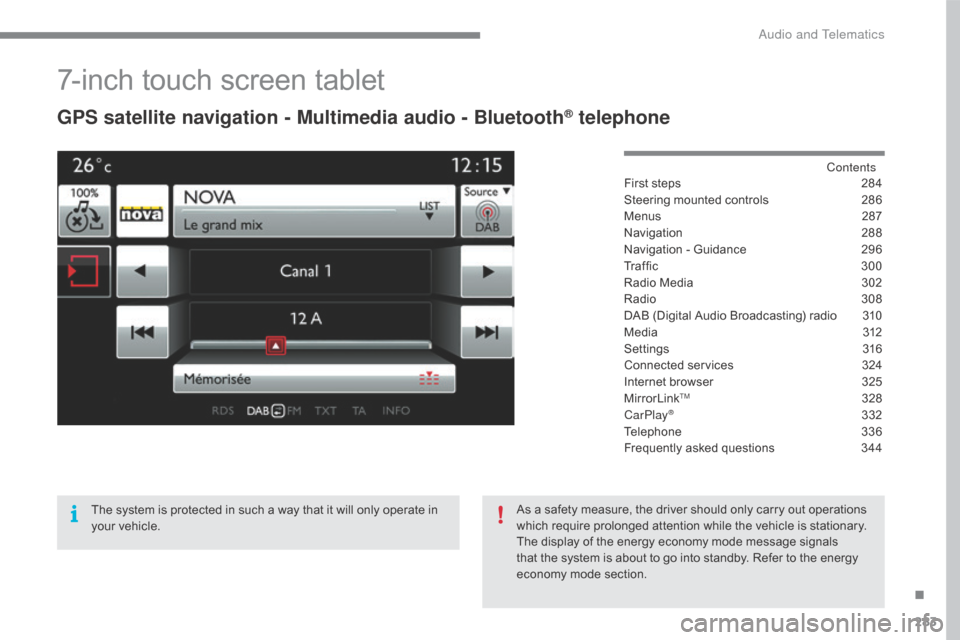
7-inch touch screen tablet
GPS satellite navigation - Multimedia audio - Bluetooth® telephone
Contents
First
steps
2 84
Steering
mounted
controls
2
86
Menus
2
87
Navigation
2
88
Navigation
-
Guidance
2
96
Tr a f fi c
3
0 0
Radio
Media
3
02
Radio
308
D
AB
(Digital
Audio
Broadcasting)
radio
3
10
M edia
3
12
Settings
3
16
Connected
services
3
24
Internet
browser
3
25
MirrorLink
TM 32 8
CarPlay® 3 32
Telephone
3
36
Frequently
asked questions
3
44
The
system
is
protected
in
such
a
way
that
it
will
only
operate
in
y
our
vehicle. As
a
safety
measure,
the
driver should only carry out operations
w
hich
require
prolonged
attention while the vehicle is stationary.
The
display
of
the
energy
economy mode message signals
t
hat
the
system
is
about
to
go into standby. Refer to the energy
ec
onomy
mo
de
s
ection.
.
Audio and Telematics
Page 287 of 396
285
C4-2_en_Chap10b_SMEGplus_ed02-2015
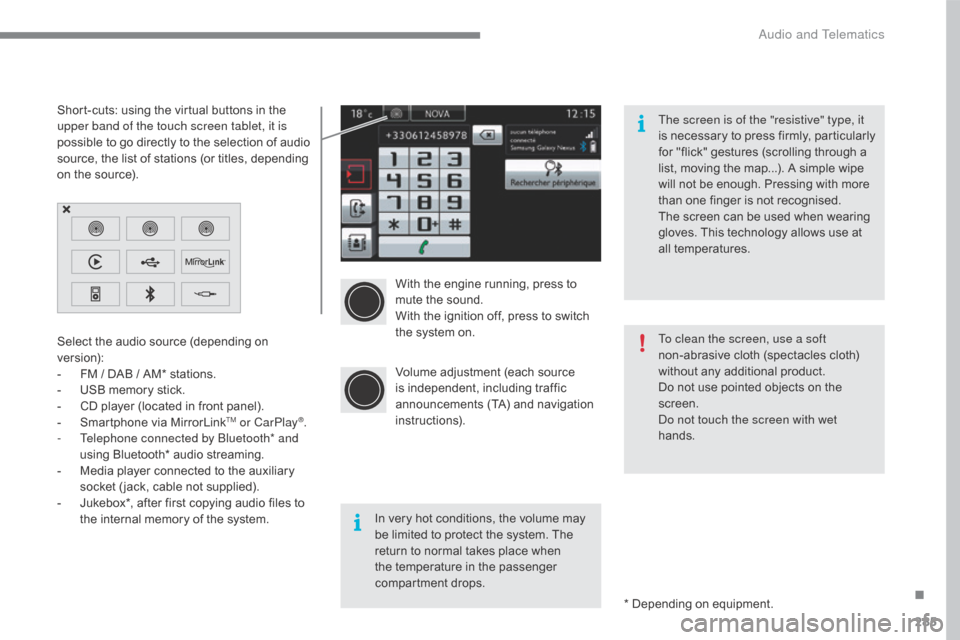
With the engine running, press to mute the sound.
With
the ignition off, press to switch
t
he system on.
Volume
adjustment (each source
i
s
i
ndependent,
i
ncluding
t
raffic
a
nnouncements (TA) and navigation
i
nstructions).
Select
the
audio
source
(depending
on
ve
rsion):
-
F
M
/
DAB
/
AM*
stations.
-
U
SB
memory
stick.
-
C
D
player
(located
in
front
panel).
-
S
martphone
via
MirrorLink
TM or CarPlay®.
-
T
elephone connected by Bluetooth* and
using
Bluetooth*
audio
streaming.
-
M
edia
player
connected
to
the
auxiliary
s
ocket
( jack,
cable
not
supplied).
-
J
ukebox*,
after
first
copying
audio
files
to
t
he
internal
memory
of
the
system. *
Depending on equipment.
Short-cuts:
using
the
virtual
buttons
in
the
u
pper band of the touch screen tablet, it is
possible
to
go
directly
to
the
selection
of
audio
s
ource,
the
list
of
stations
(or
titles,
depending
o
n
the
source).
The screen is of the "resistive" type, it
is
n
ecessary
t
o
p
ress
f
irmly,
p
articularly
f
or "flick" gestures (scrolling through a
l
ist, moving the map...). A simple wipe
w
ill not be enough. Pressing with more
t
han one finger is not recognised.
The screen can be used when wearing
g
loves. This technology allows use at
a
ll
t
emperatures.
In very hot conditions, the volume may
b
e limited to protect the system. The
r
eturn to normal takes place when
t
he temperature in the passenger
c
ompartment drops. To clean the screen, use a soft
non-abrasive
cloth (spectacles cloth)
w
ithout any additional product.
Do not use pointed objects on the
sc
reen.
Do not touch the screen with wet
hands.
.
Audio and Telematics
Page 289 of 396
287
C4-2_en_Chap10b_SMEGplus_ed02-2015
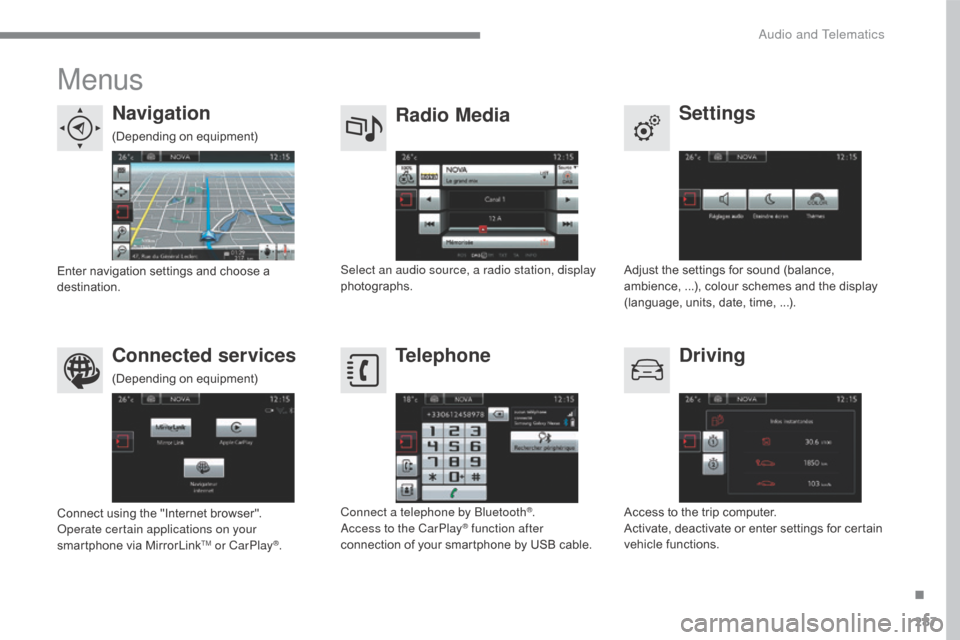
Menus
Settings
Radio Media
Navigation
Driving
Connected services Telephone
Adjust the settings for sound (balance, a
mbience, ...), colour schemes and the display
(
language, units, date, time, ...).
Select an audio source, a radio station, display
photographs.
Enter
navigation
settings
and
choose
a
d
estination.
Access
to the trip computer.
Activate,
deactivate or enter settings for certain
v
ehicle functions.
Connect
using
the
"Internet
browser".
Operate certain applications on your
smartphone
via
MirrorLink
TM or CarPlay®. Connect a telephone by Bluetooth
®.
Access to the CarPlay® function after
connection
of
your
smartphone by USB cable.
(Depending
o
n
e
quipment)
(Depending
o
n
e
quipment)
.
Audio and Telematics
Page 305 of 396
303
C4-2_en_Chap10b_SMEGplus_ed02-2015
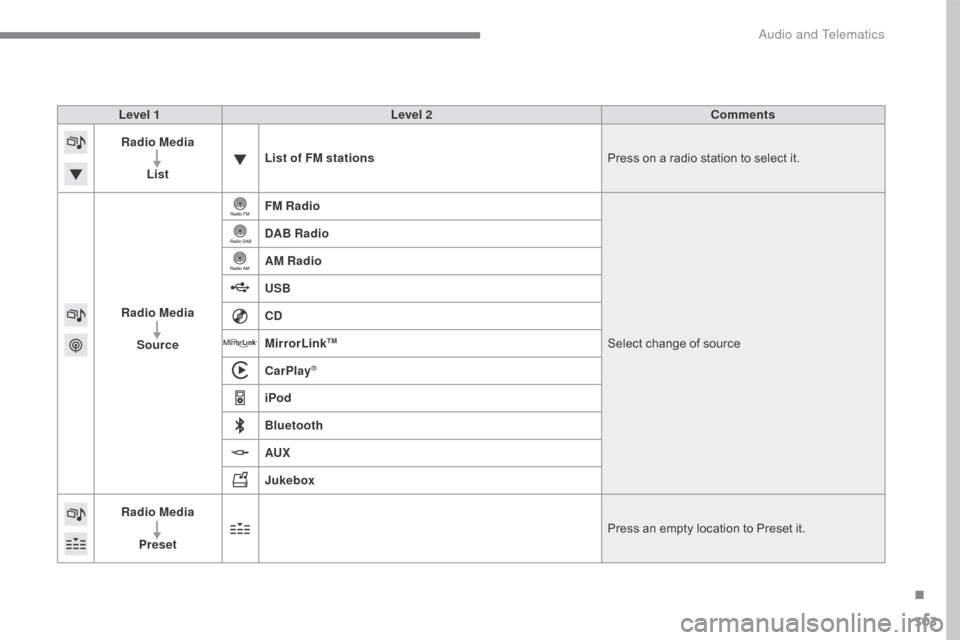
Level 1Level 2 Comments
Radio Media
List List of FM stations
Press
on a radio station to select it.
Radio Media Source FM Radio
Select
change of source
DAB Radio
AM Radio
USB
CD
MirrorLink
TM
CarPlay®
iPod
Bluetooth
AUX
Jukebox
Radio Media
Preset Press
an empty location to Preset it.
.
Audio and Telematics
Page 316 of 396
314
C4-2_en_Chap10b_SMEGplus_ed02-2015
Bluetooth® audio streaming
Streaming allows audio files on your telephone to be played through the vehicle's speakers.
Connect
the telephone: see the "Telephone "
section, then " Bluetooth".
Choose the " Audio" or "All"
pro
file.
If
play does not start automatically, it may be
n
ecessary to start the audio playback from the
t
elephone.
Control
is from the peripheral device or by
u
sing the audio system buttons.
Once
connected in streaming mode,
t
he telephone is considered to be a
media
source.
It
is recommended that you activate
"R
epeat"
on the Bluetooth peripheral.
Connecting Apple® players
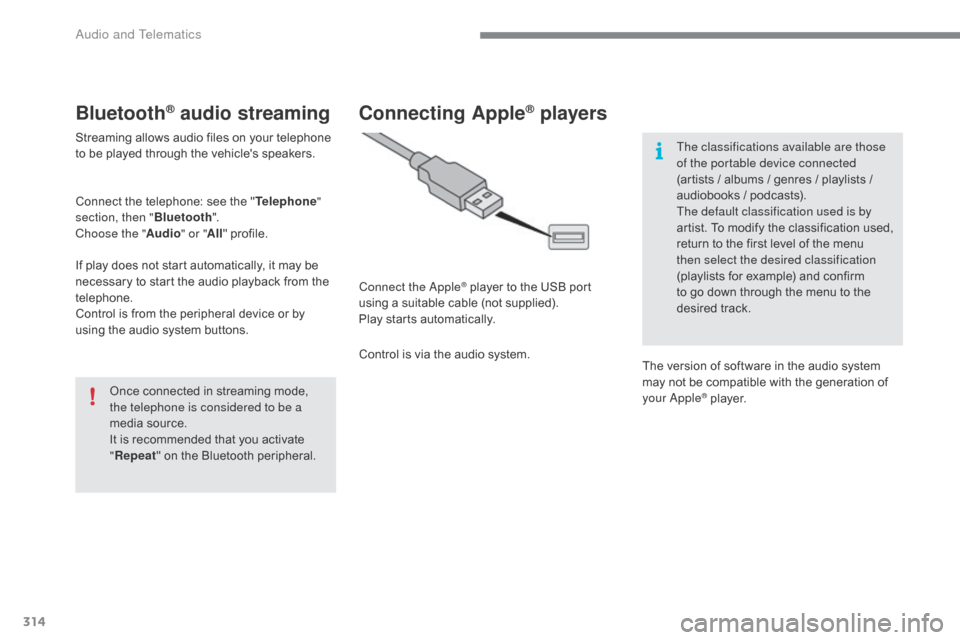
Connect the Apple® player to the USB port u
sing
a
suitable
cable (not supplied).
Play
starts
automatically.
Control
is
via
the
audio system. The classifications available are those
of the portable device connected
(artists
/ albums / genres / playlists /
a
udiobooks / podcasts).
The default classification used is by
artist. To modify the classification used,
r
eturn to the first level of the menu
t
hen select the desired classification
(playlists for example) and confirm t
o go down through the menu to the
de
sired
t
rack.
The
version of software in the audio system
m
ay not be compatible with the generation of
y
our Apple
® player.
Audio and Telematics
Page 328 of 396
326
C4-2_en_Chap10b_SMEGplus_ed02-2015
Level 1Level 2
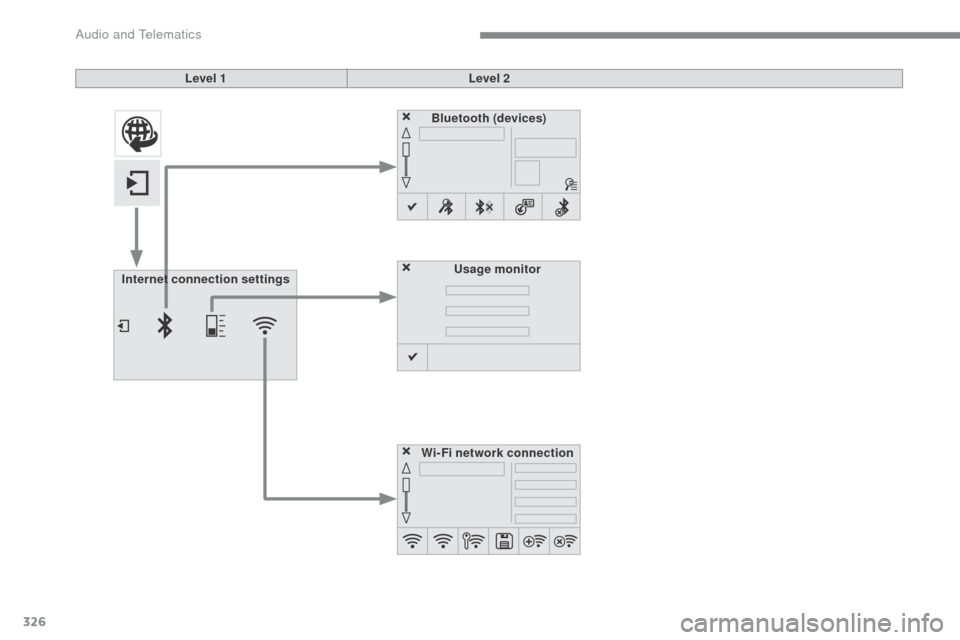
Internet connection settings Wi-Fi network connectionBluetooth (devices)
Usage monitor
Audio and Telematics