Page 70 CITROEN C4 2023 User Guide
[x] Cancel search | Manufacturer: CITROEN, Model Year: 2023, Model line: C4, Model: CITROEN C4 2023Pages: 292, PDF Size: 7.79 MB
Page 113 of 292
111
Driving
6Units of speed
Ensure that the units of speed displayed
on the instrument panel (mph or km/h) are
those for the country you are driving in.
If this is not the case, when the vehicle is
stationary, set the display to the required
units of speed so that it complies with what is
authorised locally.
In case of doubt, contact a CITROËN dealer
or a qualified workshop.
Shortcuts for driving aids
With MyCitroën Drive Plus
The full list of available driving aids can be found
in the Functions tab.
Driving aids can be accessed directly to quickly
activate/deactivate them.
By default, driving aids are already stored in the
Shortcuts tab (e.g.
Stop & Start, Lane keeping
assist).
Other driving aids can be added or deleted from
this tab.
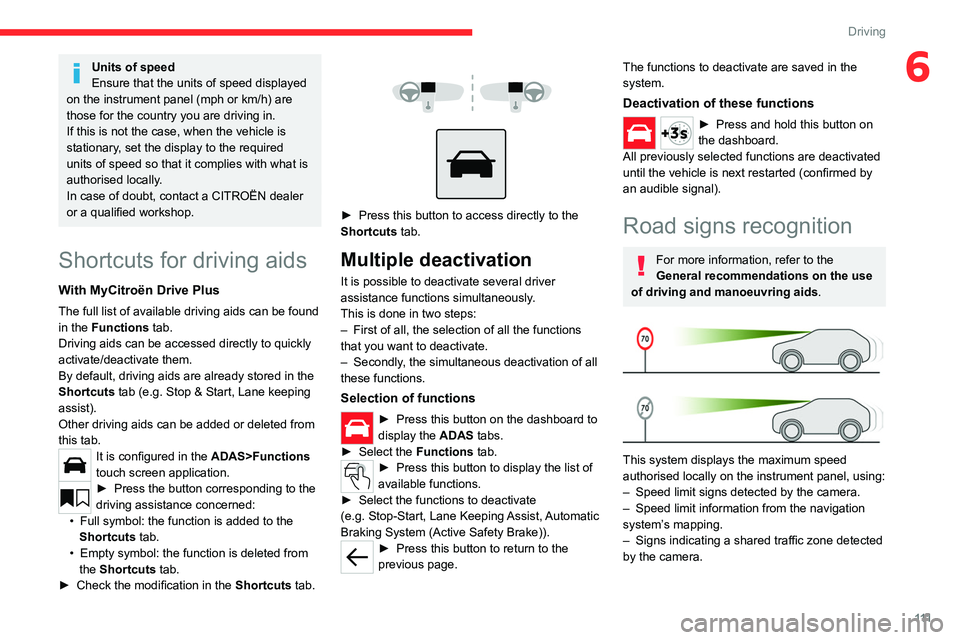
It is configured in the ADAS>Functions
touch screen application.
► Press the button corresponding to the
driving assistance concerned:
•
Full symbol: the function is added to the
Shortcuts
tab.
•
Empty symbol: the function is deleted from
the
Shortcuts tab.
►
Check the modification in the Shortcuts
tab.
► Press this button to access directly to the
Shortcuts tab.
Multiple deactivation
It is possible to deactivate several driver
assistance functions simultaneously.
This is done in two steps:
–
First of all, the selection of all the functions
that you want to deactivate.
–
Secondly
, the simultaneous deactivation of all
these functions.
Selection of functions
► Press this button on the dashboard to
display the ADAS
tabs.
►
Select the
Functions tab.
► Press this button to display the list of
available functions.
►
Select the functions to deactivate
(e.g.
Stop - Start, Lane Keeping Assist, Automatic
Braking System (Active Safety Brake)).
► Press this button to return to the
previous page.
The functions to deactivate are saved in the
system.
Deactivation of these functions
► Press and hold this bu tton on
the dashboard.
All previously selected functions are deactivated
until the vehicle is next restarted (confirmed by
an audible signal).
Road signs recognition
For more information, refer to the
General recommendations on the use
of driving and manoeuvring aids .
This system displays the maximum speed
authorised locally on the instrument panel, using:
–
Speed limit signs detected by the camera.
–
Speed limit information from the navigation
system’
s mapping.
–
Signs indicating a shared traffic zone detected
by the camera.
Page 149 of 292
147
Driving
6This system provides active parking assistance:
it detects a parking space and then steers in the
appropriate direction to park in the space while
the driver controls the driving direction, gear
changes, acceleration and braking.
To help the driver monitor the manoeuvre, the
system automatically triggers the display from
the Top Rear Vision or 360 Vision function and
activates the parking sensors.
The system measures the available parking
spaces and calculates the distances to obstacles
using ultrasonic sensors built into the front and
rear bumpers of the vehicle.
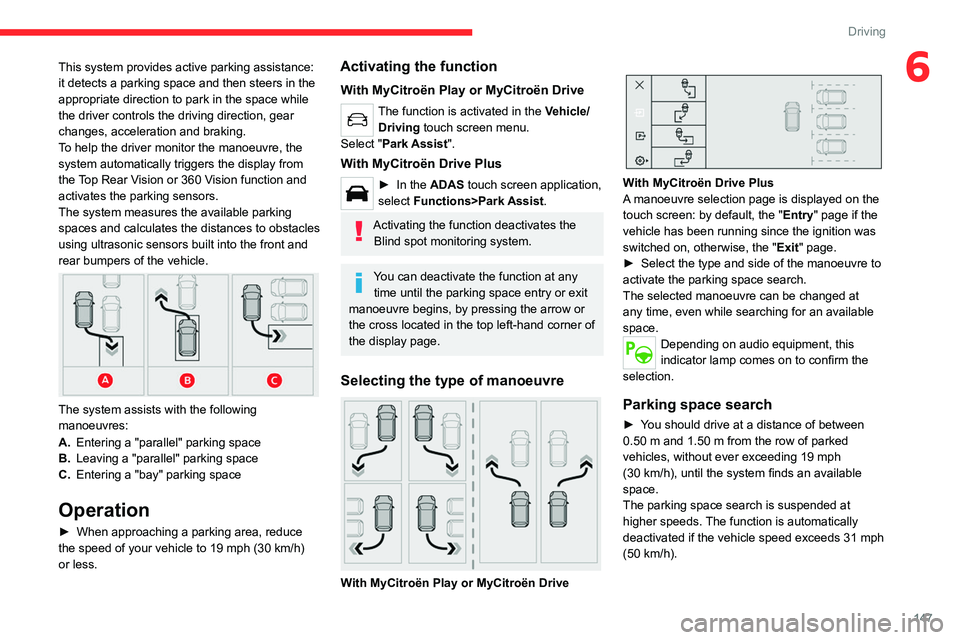
The system assists with the following
manoeuvres:
A.Entering a "parallel" parking space
B. Leaving a "parallel" parking space
C. Entering a "bay" parking space
Operation
► When approaching a parking area, reduce
the speed of your vehicle to 19 mph (30 km/h)
or less.
Activating the function
With MyCitroën Play or MyCitroën Drive
The function is activated in the Vehicle/ Driving touch screen menu.
Select "Park Assist".
With MyCitroën Drive Plus
► In the ADAS touch screen application,
select Functions>Park Assist.
Activating the function deactivates the Blind spot monitoring system.
You can deactivate the function at any time until the parking space entry or exit
manoeuvre begins, by pressing the arrow or
the cross located in the top left-hand corner of
the display page.
Selecting the type of manoeuvre
With MyCitroën Play or MyCitroën Drive
With MyCitroën Drive Plus
A manoeuvre selection page is displayed on the
touch screen: by default, the "Entry" page if the
vehicle has been running since the ignition was
switched on, otherwise, the " Exit" page.
►
Select the type and side of the manoeuvre to
activate the parking space search.
The selected manoeuvre can be changed at
any time, even while searching for an available
space.
Depending on audio equipment, this
indicator lamp comes on to confirm the
selection.
Parking space search
► You should drive at a distance of between
0.50 m and 1.50 m from the row of parked
vehicles, without ever exceeding 19
mph
(30
km/h), until the system finds an available
space.
The parking space search is suspended at
higher speeds. The function is automatically
deactivated if the vehicle speed exceeds 31 mph
(50
km/h).
Page 150 of 292
148
Driving
For ''parallel'' parking, the space must at
a minimum be equal to the length of your
vehicle plus 0.60 m.
For ''bay'' parking, the width of the space
must be equal to the width of your vehicle
plus 0.70 m.
If the parking sensors function has been
deactivated in the touch screen, it will be
automatically reactivated when the system is
activated.
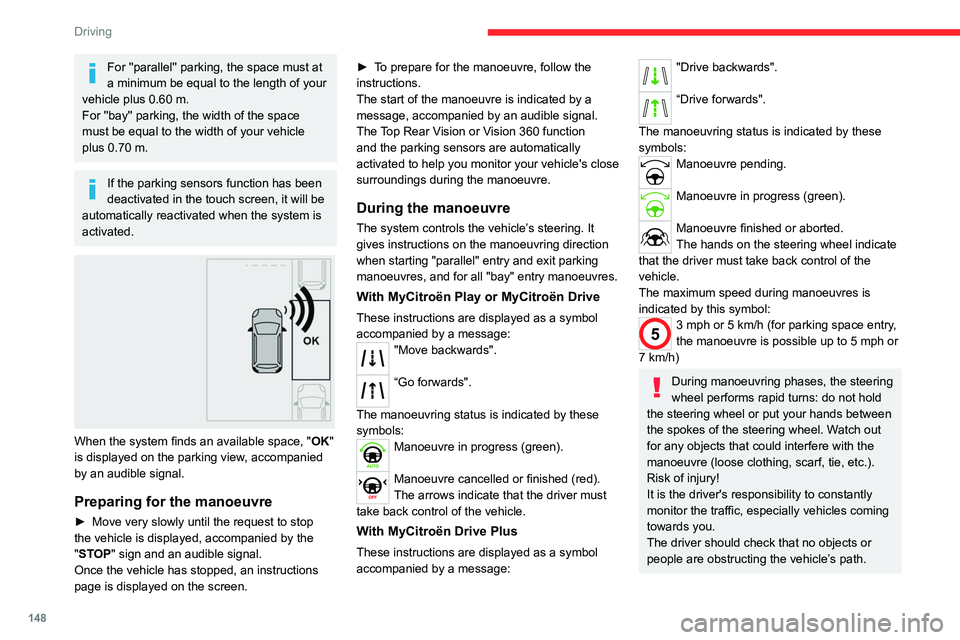
When the system finds an available space, " OK"
is displayed on the parking view, accompanied
by an audible signal.
Preparing for the manoeuvre
► Move very slowly until the request to stop
the vehicle is displayed, accompanied by the
"
STOP" sign and an audible signal.
Once the vehicle has stopped, an instructions
page is displayed on the screen. ►
T
o prepare for the manoeuvre, follow the
instructions.
The start of the manoeuvre is indicated by a
message, accompanied by an audible signal.
The Top Rear Vision or Vision 360 function
and the parking sensors are automatically
activated to help you monitor your vehicle's close
surroundings during the manoeuvre.
During the manoeuvre
The system controls the vehicle’s steering. It
gives instructions on the manoeuvring direction
when starting "parallel" entry and exit parking
manoeuvres, and for all "bay" entry manoeuvres.
With MyCitroën Play or MyCitroën Drive
These instructions are displayed as a symbol
accompanied by a message:
"Move backwards".
“Go forwards".
The manoeuvring status is indicated by these
symbols:
Manoeuvre in progress (green).
Manoeuvre cancelled or finished (red).
The arrows indicate that the driver must
take back control of the vehicle.
With MyCitroën Drive Plus
These instructions are displayed as a symbol
accompanied by a message:
"Drive backwards".
“Drive forwards".
The manoeuvring status is indicated by these
symbols:
Manoeuvre pending.
Manoeuvre in progress (green).
Manoeuvre finished or aborted.
The hands on the steering wheel indicate
that the driver must take back control of the
vehicle.
The maximum speed during manoeuvres is
indicated by this symbol:
53 mph or 5 km/h (for parking space entry,
the manoeuvre is possible up to 5 mph or
7
km/h)
During manoeuvring phases, the steering
wheel performs rapid turns: do not hold
the steering wheel or put your hands between
the spokes of the steering wheel. Watch out
for any objects that could interfere with the
manoeuvre (loose clothing, scarf, tie, etc.).
Risk of injury!
It is the driver's responsibility to constantly
monitor the traffic, especially vehicles coming
towards you.
The driver should check that no objects or
people are obstructing the vehicle’s path.
Page 165 of 292
163
Practical information
7the driver's door will display the charge level
on the instrument panel for about 20 seconds.
Accelerated charging, mode 3
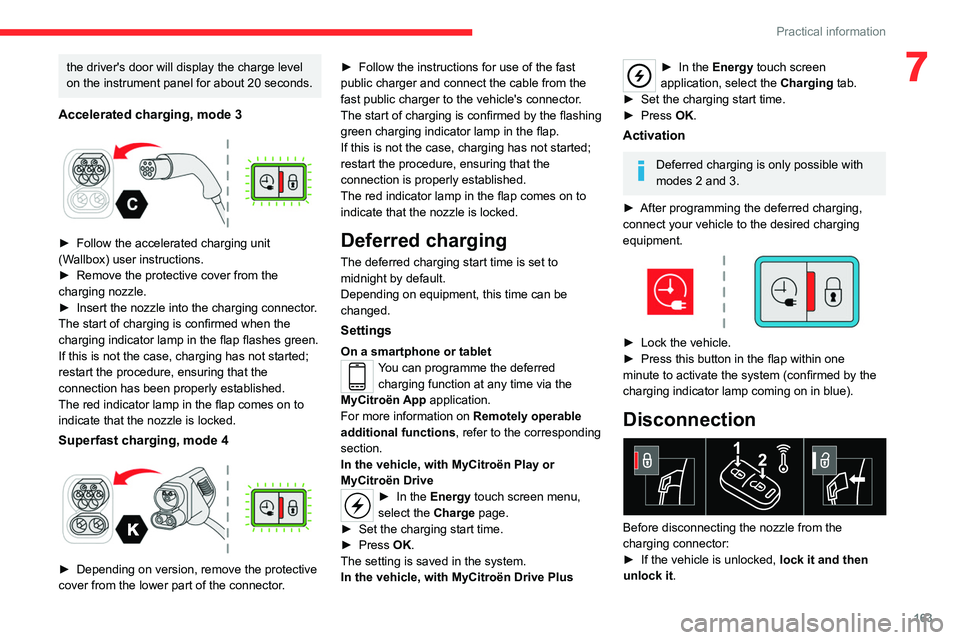
► Follow the accelerated charging unit
(W allbox) user instructions.
►
Remove the protective cover from the
charging nozzle.
►
Insert the nozzle into the charging connector
.
The start of charging is confirmed when the
charging indicator lamp in the flap flashes green.
If this is not the case, charging has not started;
restart the procedure, ensuring that the
connection has been properly established.
The red indicator lamp in the flap comes on to
indicate that the nozzle is locked.
Superfast charging, mode 4
► Depending on version, remove the protective
cover from the lower part of the connector .►
Follow the instructions for use of the fast
public charger and connect the cable from the
fast public charger
to the vehicle's connector.
The start of charging is confirmed by the flashing
green charging indicator lamp in the flap.
If this is not the case, charging has not started;
restart the procedure, ensuring that the
connection is properly established.
The red indicator lamp in the flap comes on to
indicate that the nozzle is locked.
Deferred charging
The deferred charging start time is set to
midnight by default.
Depending on equipment, this time can be
changed.
Settings
On a smartphone or tabletYou can programme the deferred charging function at any time via the
MyCitroën App application.
For more information on Remotely operable
additional functions , refer to the corresponding
section.
In the vehicle, with MyCitroën Play or
MyCitroën Drive
► In the Energy touch screen menu,
select the Charge page.
►
Set the charging start time.
►
Press
OK.
The setting is saved in the system.
In the vehicle, with MyCitroën Drive Plus
► In the Energy touch screen
application, select the Charging tab.
►
Set the charging start time.
►
Press
OK.
Activation
Deferred charging is only possible with
modes 2 and 3.
►
After programming the deferred charging,
connect your vehicle to the desired charging
equipment.
► Lock the vehicle.
► Press this button in the flap within one
minute to activate the system (confirmed by the
charging indicator lamp coming on in blue).
Disconnection
Before disconnecting the nozzle from the
charging connector:
►
If the vehicle is unlocked, lock it and then
unlock it .
Page 215 of 292
213
MyCitroën Play
11MyCitroën Play
Multimedia audio system -
Applications - Bluetooth
®
telephone
The functions and settings described
vary according to the vehicle version and
configuration, as well as the country of sale.
For safety reasons and because they
require sustained attention by the driver,
the following operations must be carried out
with the vehicle stationary and the ignition
on:
–
Connecting the smartphone via Bluetooth,
USB or Wi-Fi.
–
Using the smartphone.
–
Connecting to the CarPlay® or Android
Auto applications (certain applications stop
displaying when the vehicle is moving).
–
Changing the system settings and
configuration.
Any intervention or modification on the vehicle's system is strictly forbidden
- Risk of serious burns or electric shock
(short-circuit) that could lead to death
(electrocution)!
In the event of a problem, always contact a
CITROËN dealer or a qualified workshop.
The system is protected so that it only operates in the vehicle.
The message Energy economy mode is
displayed when the system is about to go into
standby.
The system’s Open Source Software (OSS) source codes are available at the
following addresses:
https://www.groupe-psa.com/fr/oss/
https://www.groupe-psa.com/en/oss/
The system transmits and/or receives radio waves subject to the Directive
2014/53/EU.
The manufacturers of the mentioned system
declare the conformity with the Directive
2014/53/EU.
The full text of the EU declaration of
conformity for each system is available at the
following address:
http://service.citroen.com/ACddb/
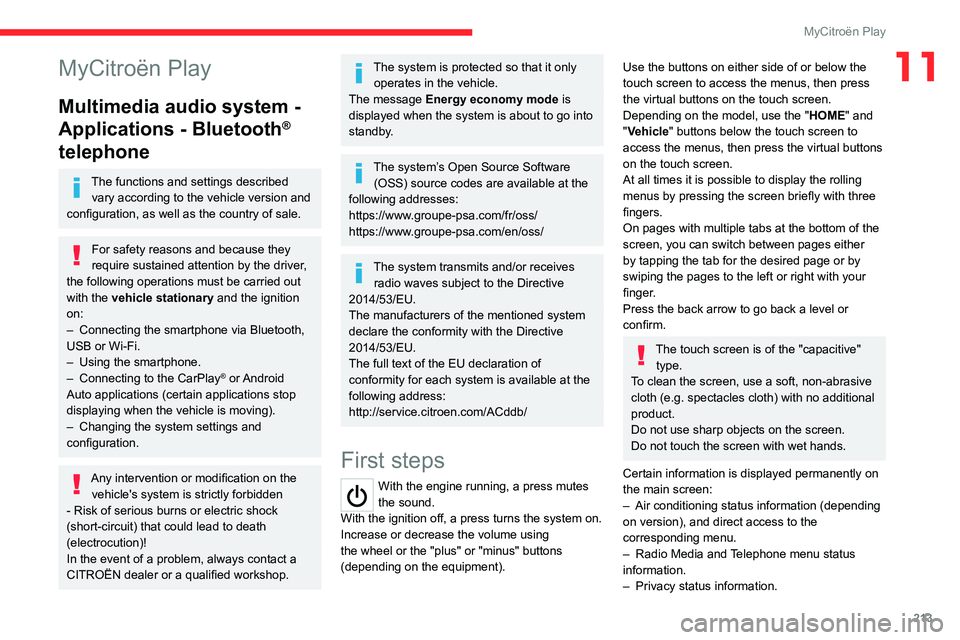
First steps
With the engine running, a press mutes
the sound.
With the ignition off, a press turns the system on.
Increase or decrease the volume using
the wheel or the "plus" or "minus" buttons
(depending on the equipment).
Use the buttons on either side of or below the
touch screen to access the menus, then press
the virtual buttons on the touch screen.
Depending on the model, use the " HOME" and
"Vehicle" buttons below the touch screen to
access the menus, then press the virtual buttons
on the touch screen.
At all times it is possible to display the rolling
menus by pressing the screen briefly with three
fingers.
On pages with multiple tabs at the bottom of the
screen, you can switch between pages either
by tapping the tab for the desired page or by
swiping the pages to the left or right with your
finger.
Press the back arrow to go back a level or
confirm.
The touch screen is of the "capacitive" type.
To clean the screen, use a soft, non-abrasive
cloth (e.g. spectacles cloth) with no additional
product.
Do not use sharp objects on the screen.
Do not touch the screen with wet hands.
Certain information is displayed permanently on
the main screen:
–
Air conditioning status information (depending
on version), and direct access to the
corresponding menu.
–
Radio Media and
Telephone menu status
information.
–
Privacy status information.
Page 217 of 292
215
MyCitroën Play
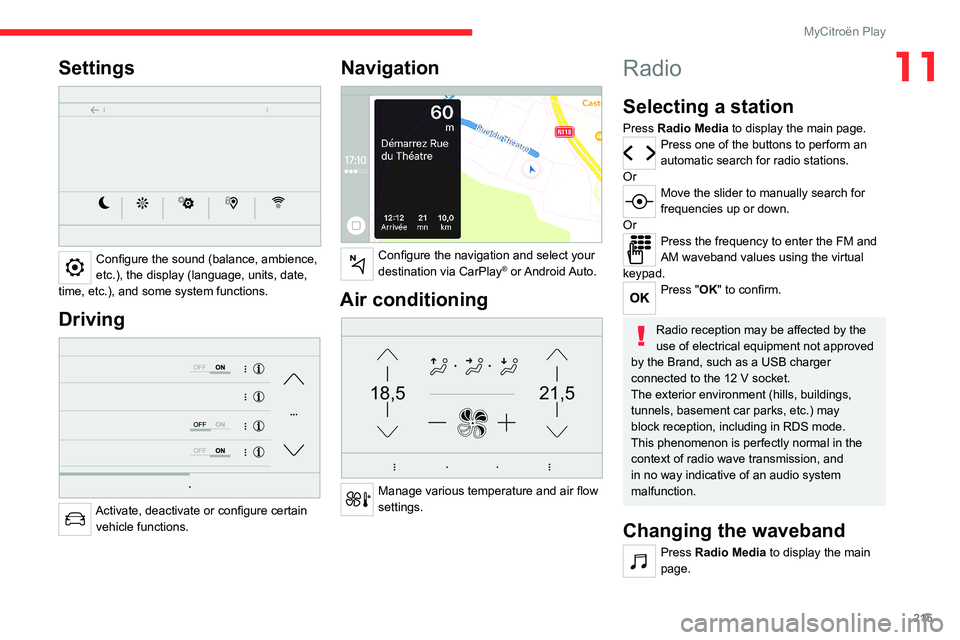
11Settings
Configure the sound (balance, ambience,
etc.), the display (language, units, date,
time, etc.), and some system functions.
Driving
Activate, deactivate or configure certain vehicle functions.
Navigation
Configure the navigation and select your
destination via CarPlay® or Android Auto.
Air conditioning
21,518,5
Manage various temperature and air flow
settings.
Radio
Selecting a station
Press Radio Media to display the main page.Press one of the buttons to perform an
automatic search for radio stations.
Or
Move the slider to manually search for
frequencies up or down.
Or
Press the frequency to enter the FM and
AM waveband values using the virtual
keypad.
Press "OK" to confirm.
Radio reception may be affected by the
use of electrical equipment not approved
by the Brand, such as a USB charger
connected to the 12 V socket.
The exterior environment (hills, buildings,
tunnels, basement car parks, etc.) may
block reception, including in RDS mode.
This phenomenon is perfectly normal in the
context of radio wave transmission, and
in no way indicative of an audio system
malfunction.
Changing the waveband
Press Radio Media to display the main
page.
Page 218 of 292
216
MyCitroën Play
Press the "OPTIONS" button to access the
secondary page.
Press "Band" to change waveband.
Press in the shaded area to confirm.
Presetting a station
Select a radio station or frequency.Make a short press on the star outline. If
the star is solid, the radio station is
already preset.
Or
Select a radio station or frequency.
Press "Preset ".
Make a long press on one of the buttons
to preset the station.
Activating/Deactivating RDS
RDS, if activated, allows you to continue
listening to the same station by automatically
retuning to alternative frequencies.
Press Radio Media to display the main
page.
Press the "OPTIONS " button to access the
secondary page.
Activate/deactivate "RDS".
Press in the shaded area to confirm.
RDS station tracking may not be
available nationwide, as many radio
stations do not cover 100 % of the country.
This explains the loss of reception of the
station during a journey
.
Displaying text information
The "Radio Text" function displays information
transmitted by the radio station relating to the
station or the currently playing song.
Press Radio Media to display the main
page.
Press the "OPTIONS " button to access the
secondary page.
Activate/deactivate "News".
Press in the shaded area to confirm.
Playing TA messages
The TA (Traffic Announcement) function gives
priority to TA alert messages. To operate, this
function needs good reception of a radio station
that transmits this type of message. While traffic
information is being broadcast, the current
media is automatically interrupted so that the
TA message can be heard. Normal play of the
previously playing media resumes at the end of
the message.
Press Radio Media to display the main
page.
Press the "OPTIONS " button to access the
secondary page.
Activate/deactivate "TA ".
Press in the shaded area to confirm.
Audio settings
Press Radio Media to display the main
page.
Press the "OPTIONS " button to access the
secondary page.
Press "Audio settings".
Select the "Tone", "Balance" or "Sound "
tab to configure the sound settings.
Press the back arrow to confirm.
In the "Tone" tab, the Ambience, Bass ,
Medium and Treble sound settings are
different and independent for each audio
source.
In the "Balance” tab, the All passengers,
Driver and Front only settings are common
to all sources.
In the "Sound ” tab, activate or deactivate
"Volume linked to speed ", "Auxiliary input"
and "Touch tones ".
The balance/distribution (or spatialisation
with the Arkamys© system) uses audio
processing to adjust the sound quality
according to the number of passengers in the
vehicle.
Page 219 of 292
217
MyCitroën Play
11Onboard audio: Arkamys Sound Staging©
optimises the sound distribution inside
the passenger compartment.
DAB (Digital Audio
Broadcasting) radio
Terrestrial Digital Radio
Digital radio provides higher quality sound.
The various "multiplexes/ensembles" offer a
choice of radio stations organised in alphabetical
order.
Press Radio Media to display the main
page.
Press the "OPTIONS " button to access the
secondary page.
Press "Band" to select "DAB band".
Press in the shaded area to confirm.
FM-DAB Follow-up
"DAB" does not cover 100% of the territory.
When the digital radio signal is poor, the
"FM-DAB Follow-up" enables you to continue
listening to the same station by automatically
switching to the corresponding "FM" analogue
station (if there is one).
Press Radio Media to display the main
page.
Press the "OPTIONS " button to go to the
secondary page.
Activate/deactivate "FM-DAB Follow-up ".
Press in the shaded area to confirm.
If "FM-DAB Follow-up" is activated, there
may be a time offset of a few seconds
when the system switches to "FM" analogue
radio, and in some cases a change in volume.
When the digital signal quality is restored, the
system automatically changes back to "DAB".
To minimise this time lag, storing radio
stations in the "DAB" band is recommended.
If the "DAB" station being listened to is
not available on "FM", or if "FM-DAB
Follow-up" is not activated, the sound will cut
out when the digital signal becomes too weak.
Media
USB port
Insert the USB memory stick into the USB
port or connect the USB device to the
USB port using a suitable cable (not supplied).
To protect the system, do not use a USB hub. The system builds playlists (in temporary
memory); this operation can take from a
few seconds to several minutes at the first
connection.
Reduce the number of non-music files and the
number of folders to reduce the waiting time.
Playlists are updated whenever the ignition
is switched off or a USB memory stick is
connected. The audio system memorises these
lists, which will subsequently load faster if they
have not been changed.
Selecting the source
Press Radio Media to display the main
page.
Press the "SOURCES" button.
Select the source.
BluetoothStreaming®
Streaming allows you to listen to the audio feed
from your smartphone.
The Bluetooth profile must be activated.
First adjust the volume on the portable device
(to a high level). Then adjust the volume of the
system.
If play does not start automatically, it may be
necessary to start the audio playback from the
smartphone.
Control is from the portable device or by using
the system's touch buttons.
Page 221 of 292
219
MyCitroën Play
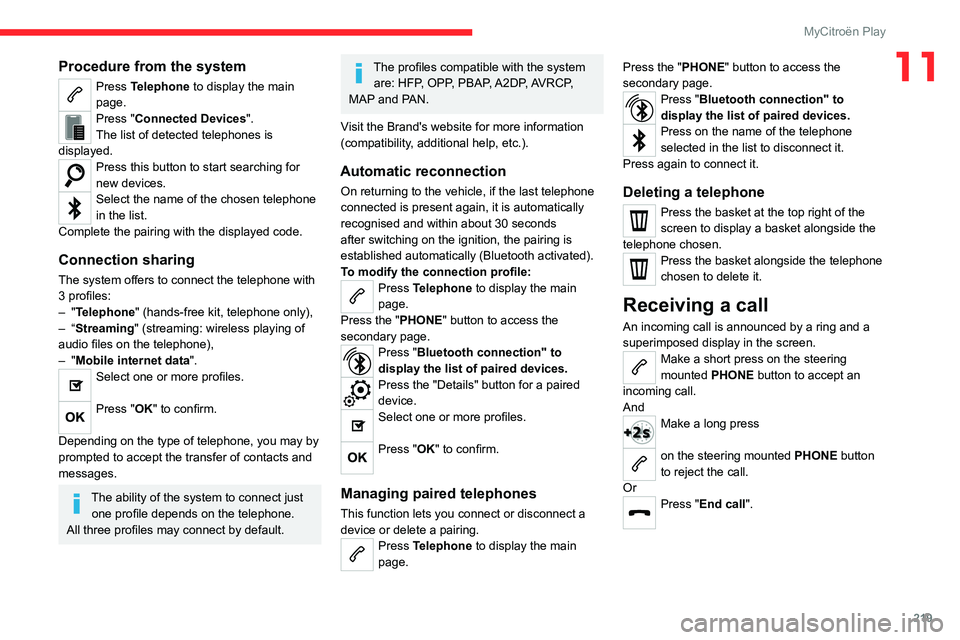
11Procedure from the system
Press Telephone to display the main
page.
Press "Connected Devices".
The list of detected telephones is
displayed.
Press this button to start searching for
new devices.
Select the name of the chosen telephone
in the list.
Complete the pairing with the displayed code.
Connection sharing
The system offers to connect the telephone with
3 profiles:
–
"Telephone" (hands-free kit, telephone only),
–
“Streaming" (streaming: wireless playing of
audio files on the telephone),
–
"Mobile internet data ".
Select one or more profiles.
Press "OK" to confirm.
Depending on the type of telephone, you may by
prompted to accept the transfer of contacts and
messages.
The ability of the system to connect just one profile depends on the telephone.
All three profiles may connect by default.
The profiles compatible with the system are: HFP, OPP, PBAP, A2DP, AVRCP,
MAP and PAN.
Visit the Brand's website for more information
(compatibility, additional help, etc.).
Automatic reconnection
On returning to the vehicle, if the last telephone
connected is present again, it is automatically
recognised and within about 30 seconds
after switching on the ignition, the pairing is
established automatically (Bluetooth activated).
To modify the connection profile:
Press Telephone to display the main
page.
Press the "PHONE" button to access the
secondary page.
Press "Bluetooth connection" to
display the list of paired devices.
Press the "Details" button for a paired
device.
Select one or more profiles.
Press "OK" to confirm.
Managing paired telephones
This function lets you connect or disconnect a
device or delete a pairing.
Press Telephone to display the main
page. Press the "PHONE" button to access the
secondary page.
Press "Bluetooth connection" to
display the list of paired devices.
Press on the name of the telephone
selected in the list to disconnect it.
Press again to connect it.
Deleting a telephone
Press the basket at the top right of the
screen to display a basket alongside the
telephone chosen.
Press the basket alongside the telephone
chosen to delete it.
Receiving a call
An incoming call is announced by a ring and a
superimposed display in the screen.
Make a short press on the steering
mounted PHONE button to accept an
incoming call.
And
Make a long press
on the steering mounted PHONE button
to reject the call.
Or
Press "End call".
Page 222 of 292
220
MyCitroën Play
Making a call
Using the telephone is not recommended
while driving.
Parking the vehicle.
Make the call using the steering mounted
controls.
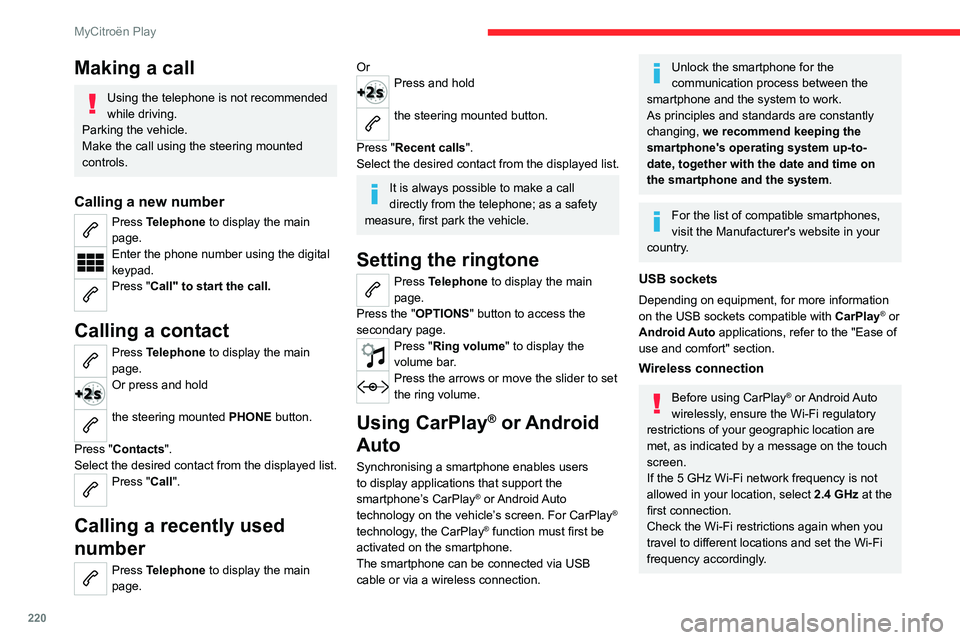
Calling a new number
Press Telephone to display the main
page.
Enter the phone number using the digital
keypad.
Press "Call" to start the call.
Calling a contact
Press Telephone to display the main
page.
Or press and hold
the steering mounted PHONE button.
Press "Contacts".
Select the desired contact from the displayed list.
Press "Call".
Calling a recently used
number
Press Telephone to display the main
page.
OrPress and hold
the steering mounted button.
Press "Recent calls".
Select the desired contact from the displayed list.
It is always possible to make a call
directly from the telephone; as a safety
measure, first park the vehicle.
Setting the ringtone
Press Telephone to display the main
page.
Press the "OPTIONS " button to access the
secondary page.
Press "Ring volume" to display the
volume bar.
Press the arrows or move the slider to set
the ring volume.
Using CarPlay® or Android
Auto
Synchronising a smartphone enables users
to display applications that support the
smartphone’s CarPlay
® or Android Auto
technology on the vehicle’s screen. For CarPlay®
technology, the CarPlay® function must first be
activated on the smartphone.
The smartphone can be connected via USB
cable or via a wireless connection.
Unlock the smartphone for the
communication process between the
smartphone and the system to work.
As principles and standards are constantly
changing, we recommend keeping the
smartphone's operating system up-to-
date, together with the date and time on
the smartphone and the system.
For the list of compatible smartphones,
visit the Manufacturer's website in your
country.
USB sockets
Depending on equipment, for more information
on the USB sockets compatible with CarPlay® or
Android Auto applications, refer to the "Ease of
use and comfort" section.
Wireless connection
Before using CarPlay® or Android Auto
wirelessly, ensure the Wi-Fi regulatory
restrictions of your geographic location are
met, as indicated by a message on the touch
screen.
If the 5 GHz Wi-Fi network frequency is not
allowed in your location, select 2.4 GHz at the
first connection.
Check the Wi-Fi restrictions again when you
travel to different locations and set the Wi-Fi
frequency accordingly.