messages CITROEN C4 2023 User Guide
[x] Cancel search | Manufacturer: CITROEN, Model Year: 2023, Model line: C4, Model: CITROEN C4 2023Pages: 292, PDF Size: 7.79 MB
Page 229 of 292
227
MyCitroën Drive
12MyCitroën Drive
GPS navigation -
Applications - Multimedia
audio system - Bluetooth
®
telephone
The functions and settings described
vary according to the vehicle version and
configuration, as well as the country of sale.
For safety reasons and because they
require sustained attention by the driver,
the following operations must be carried out
with the vehicle stationary and the ignition
on:
–
Pairing the smartphone with the system via
Bluetooth.
–
Using the smartphone.
–
Connecting to the CarPlay® or Android
Auto applications (certain applications stop
displaying when the vehicle is moving).
–
W
atching a video (the video stops when the
vehicle starts to move again).
–
Changing the system settings and
configuration.
AM and DAB radio are not available on Hybrid vehicles.
The system is protected so that it only operates in the vehicle.
The message Energy economy mode is
displayed when the system is about to go into
standby.
System and map updates can be
downloaded from the Brand's website.
The update procedure is also available there.
The system’s Open Source Software (OSS) source codes are available at the
following addresses:
https://www.groupe-psa.com/fr/oss/
https://www.groupe-psa.com/en/oss/
First steps
With the engine running, a press mutes
the sound.
With the ignition off, a press turns the system on.
Increase or decrease the volume using
the wheel or the "plus" or "minus" buttons
(depending on the equipment).
Use the menu buttons on either side of or below
the touch screen for access to the menus, then
press the virtual buttons in the touch screen.
Depending on the model, use the "Source" or
"Menu" buttons to access the rolling menus, then
press the virtual buttons in the touch screen.
Display the rolling menus at any time by pressing
the screen briefly with three fingers.
All of the touch areas of the screen are white.
Press the back arrow to go back a level.
Press "OK" to confirm.
The touch screen is of the "capacitive" type.
To clean the screen, use a soft, non-abrasive
cloth (e.g. spectacles cloth) with no additional
product.
Do not use sharp objects on the screen.
Do not touch the screen with wet hands.
Certain information is displayed permanently
in the side bars or in the upper bar of the touch
screen (depending on equipment):
–
Air conditioning status information (depending
on version), and direct access to the
corresponding menu.
–
Go directly to the audio source selection
option, to view the list of radio stations (or list of
titles depending on the source).
–
Go to the "Notifications" of messages, emails,
map updates and, depending on the services,
the navigation notifications.
–
Go to the settings for the touch screen and the
digital instrument panel.
Audio source selection (depending on
equipment):
–
FM/DAB/AM radio stations (depending on
equipment).
–
T
elephone connected via Bluetooth and
Bluetooth multimedia broadcast (streaming).
–
USB memory stick.
Page 231 of 292
229
MyCitroën Drive
12Check the status of the Bluetooth® and Wi-Fi
connections.
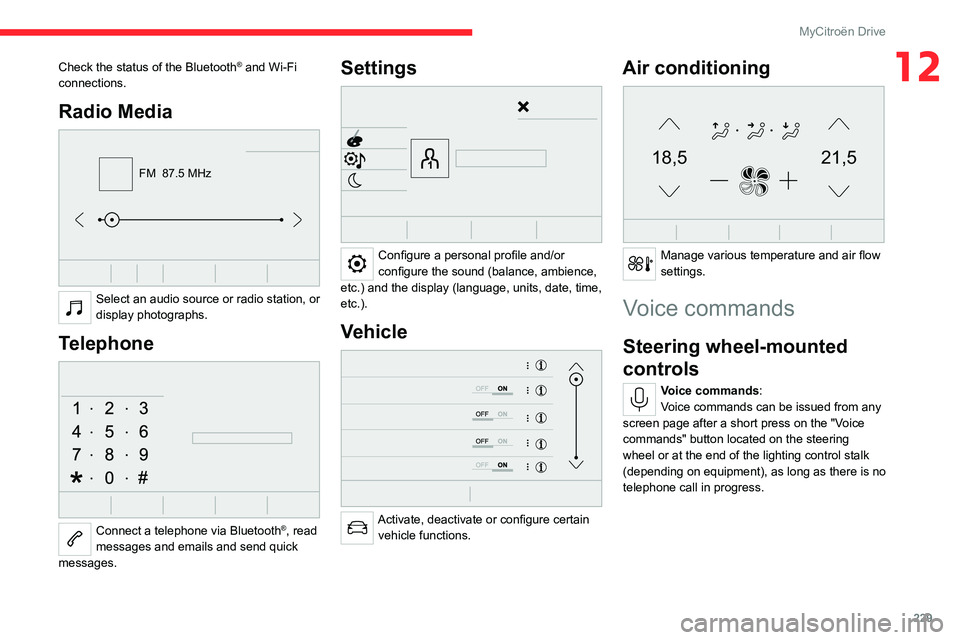
Radio Media
FM 87.5 MHz
Select an audio source or radio station, or
display photographs.
Telephone
Connect a telephone via Bluetooth®, read
messages and emails and send quick
messages.
Settings
Configure a personal profile and/or
configure the sound (balance, ambience,
etc.) and the display (language, units, date, time,
etc.).
Vehicle
Activate, deactivate or configure certain vehicle functions.
Air conditioning
21,518,5
Manage various temperature and air flow
settings.
Voice commands
Steering wheel-mounted
controls
Voice commands:
Voice commands can be issued from any
screen page after a short press on the "Voice
commands" button located on the steering
wheel or at the end of the lighting control stalk
(depending on equipment), as long as there is no
telephone call in progress.
Page 233 of 292
231
MyCitroën Drive
12Help messages
There are lots of topics I can help you with.
You can say: "help with phone", "help with
navigation", "help with media" or "help with
radio". For an overview on how to use voice
controls, you can say "help with voice controls".
Say "yes" if I got that right. Otherwise, say "no"
and we'll start that again.
"Navigation" voice
commands
Voice commands
Navigate home
Navigate to work
Navigate to preferred address, Tennis club
Navigate to contact, John Miller
Navigate to address 11 regent street, London
Help messages
To plan a route, say "navigate to" followed by the
address, the contact name or an intersection. For
example, "navigate to address 11 Regent Street,
London", "navigate to contact, John Miller",
or "navigate to intersection of Regent Street,
London". You can specify if it's a preferred
address, or a Point of Interest. For example, say
"navigate to preferred address, Tennis club", or
"navigate to POI Heathrow Airport in London".
Or, you can just say, "navigate home". To see
Points of Interest on a map, you can say things like "show POI hotels in Banbury". For more
information say "help with points of interest" or
"help with route guidance".
To choose a destination, say something like
"navigate to line three" or "select line two". If you
can't find the destination but the street's right,
say for example "select the street in line three".
To move around a displayed list, you can say
"next page" or "previous page". You can undo
your last action and start over by saying "undo",
or say "cancel" to cancel the current action.
Voice commands
Tell me the remaining distance
Tell me the remaining time
Tell me the arrival time
Stop route guidance
Help messages
You can say "stop" or "resume route guidance".
To get information about your current route, you
can say "tell me the remaining time", "remaining
distance" or "arrival time". To learn more
commands, try saying "help with navigation".
Voice commands
Show POI ''hotel'' at the destination
Show nearby POI petrol station
Navigate to POI Heathrow Airport in London
Navigate to POI petrol station along the route
Help messages
To see points of interest on a map, you can
say things like "show hotels in Banbury", "show
nearby parking", "show hotel at the destination"
or "show petrol station along the route". If you
prefer to navigate directly to a point of interest,
you can say "navigate to nearby petrol station".
If you feel you are not being well understood,
try to say the word "POI" in front of the point
of interest. For example say "navigate to POI
restaurant at the destination".
To choose a POI, say something like "select
line 2". If you've searched for a Point of Interest
and don't see the one you're after, you can filter
further by saying something like "select POI in
line 2", or "select the city in line 3". You can also
scroll through the list by saying "next page" or
"previous page".
Depending on the country, give
destination (address) instructions in the
language configured for the system.
"Radio Media" voice
commands
Voice commands
Turn on source radio - Streaming Bluetooth
- …
Help messages
You can select an audio source by saying "turn
on source" followed by the device name. For
Page 234 of 292
232
MyCitroën Drive
example, "turn on source, Streaming Bluetooth",
or "turn on source, radio". Use the command
"play" to specify the type of music you'd like to
hear. You can choose between "song", "artist",
or "album". Just say something like "play artist,
Madonna", "play song, Hey Jude", or "play
album, Thriller".
Voice commands
Tune to channel BBC Radio 2
Tune to 98.5 FM
Tune to preset number five
Help messages
You can pick a radio station by saying "tune to"
and the station name or frequency. For example
"tune to channel Talksport" or "tune to 98.5
FM". To listen to a preset radio station, say for
example "tune to preset number five".
Voice commands
What's playing?
Help messages
To choose what you'd like to play, start by saying
"play" and then the item. For example, say "play
song Hey Jude", "play line 3" or "select line 2".
You can undo your last action and start over
by saying "undo", or say "cancel" to cancel the
current action.
* This function is av ailable only if the telephone connected to the system supports downloadi\
ng of contacts and recent calls and the corresponding
download has been performed.
Voice commands
Play song Hey Jude
Play artist Madonna
Play album Thriller
Help messages
I'm not sure what you'd like to play. Please say
"play" and then a song title, an album title, or
an artist name. For example, say "play song
Hey Jude", "play artist Madonna" or "play
album Thriller". To select a line number from the
display, say "select line two". To move around
a displayed list, you can say "next page" or
"previous page". You can undo your last action
and start over by saying "undo", or say "cancel"
to cancel the current action.
Media voice commands are available
only with a USB connection.
"Telephone" voice
commands
If there is no telephone connected by
Bluetooth, a voice message announces:
"Please first connect a telephone", and the
voice session is closed.
Voice commands
Call David Miller*
Call voicemail*
Display calls*
Help messages
To make a phone call, say "call" followed by
the contact name, for example: "Call David
Miller". You can also include the phone type, for
example: "Call David Miller at home". To make
a call by number, say "dial" followed by the
phone number, for example, "Dial 107776 835
417". You can check your voicemail by saying
"call voicemail". To send a text, say "send quick
message to", followed by the contact, and then
the name of the quick message you'd like to
send. For example, "send quick message to
David Miller, I'll be late". To display the list of
calls, say "display calls". For more information on
SMS, you can say "help with texting".
To choose a contact, say something like "select
line three". To move around the list say "next
page" or "previous page". You can undo your last
action and start over by saying "undo", or say
"cancel" to cancel the current action.
Page 235 of 292

233
MyCitroën Drive
12"Text message" voice
commands
If there is no telephone connected by
Bluetooth, a voice message announces:
"Please first connect a telephone", and the
voice session is closed.
The "Text messages" voice commands function allows you to dictate and send
an SMS.
Dictate the text, taking care to pause briefly
between each word.
When you have finished, the voice recognition
system will automatically generate an SMS.
Voice commands
Send quick message to Bill Carter, I'll be late
Help messages
From the list of quick messages, say the name of
the one you'd like to send. To move around the
list you can say "go to start", "go to end", "next
page" or "previous page". You can undo your last
action and start over by saying "undo", or say
"cancel" to cancel the current action.
Voice commands
Send SMS to John Miller, I'm just arriving
* This function is av ailable only if the telephone connected to the system supports downloadi\
ng of contacts and recent calls and the corresponding
download has been performed.
Send SMS to David Miller at the office, don't
wait for me
Help messages
Please say "call" or "send quick message to",
and then select a line from the list. To move
around a list shown on the display, you can
say "go to start", "go to end", "next page" or
"previous page". You can undo your last action
and start over by saying "undo", or say "cancel"
to cancel the current action.
Voice commands
Listen to most recent message*
Help messages
To hear your last message, you can say "listen to
most recent message". When you want to send
a text, there's a set of quick messages ready for
you to use. Just use the quick message name
and say something like "send quick message to
Bill Carter, I'll be late". Check the phone menu
for the names of the supported messages.
The system only sends pre-recorded "Quick messages".
Navigation
Choice of a destination
To a new destination
Intuitive method:Press Navigation to display the main
page.
Press "Search…".
Enter an address or the key words for the
destination.
Press "OK" to select the "Guidance
criteria".
Or
Guided method:
In order to be able to use the navigation,
you must enter the "City", the "Street"
(suggestions are displayed automatically
when you begin typing), then enter the
"Number" using the virtual keypad, or select
an address from the "Contact" list or the
address "History".
If you do not confirm the number, the
navigation system will show one end of
the street.
Page 237 of 292

235
MyCitroën Drive
12a "network connection provided by the user"
via a smartphone,
In both cases, the system is automatically
connected to the Internet, if network coverage
permits.
Press Navigation to display the main
page.
Press the "MENU" button to access the
secondary page.
Select "Search".
Press on the mode shown in the bottom right of
the screen (On-Board or Connected) to change
the "Database".
Select the "Database" in "On-Board"
mode (integrated into the map), or in
"Connected" mode (connected to the Internet).
Press the back arrow to confirm.
Enter an address or the key words for the
destination (POI).
Press "OK" to start the search.
Select the "On the route ", "Around the
vehicle" or "At destination " tab to refine
your search.
Select the desired address to calculate the route.
To a point on the map
Press Navigation to display the main
page.
Explore the map by sliding a finger on the
screen.
Select the destination by pressing on the map.
Tap the screen to place a marker and display the sub-menu.
Press this button to start guided
navigation.
Or
Press this button to save the displayed
address.
A long press on a point opens a list of nearby POIs.
To GPS coordinates
Press Navigation to display the main
page.
Explore the map by sliding a finger on the
screen.
Touch the screen with a finger to go to the next
image.
Press this button to display the world
map.
Using the grid, select the desired country or
region by zooming.
Press this button to display or enter the
GPS coordinates.
A marker is displayed in the middle of the screen, with the "Latitude" and
"Longitude " coordinates.
Choose the type of coordinates:
DMS for: Degrees, Minutes, Seconds.
DD for: Degrees, Decimals.
Press this button to start guided
navigation.
Or
Press this button to save the displayed
address.
OR
Press this button to enter the "Latitude"
value using the virtual keypad.
And
Press this button to enter the "Longitude "
value using the virtual keypad.
TMC (Traffic Message
Channel)
Available in some countries.
TMC (Traffic Message Channel) messages
are based on a European standard for traffic
information broadcasting via the RDS system on
FM radio, sending traffic information in real time.
The TMC information is then displayed on a GPS
Navigation system map and taken into account
straight away when routes are calculated, to
avoid accidents, traffic jams and closed roads.
Danger zone alerts may or may not be
displayed, depending on the applicable
legislation and subscription to the
corresponding service.
Page 242 of 292

240
MyCitroën Drive
Procedure from the smartphone
Select the name of the system in the list
of detected devices.
In the system, accept the connection request
from the smartphone.
Procedure from the system
Press Connect-App to display the main
page.
Press the "OPTIONS " button to access the
secondary page.
Press "Bluetooth connection".
Select "Search".
The list of detected smartphones is
displayed.
Select the name of the chosen
smartphone in the list.
Depending on the type of smartphone,
you may by prompted to accept the
transfer of contacts and messages.
Connection sharing
The system offers to connect the smartphone
with 3 profiles:
–
"Telephone" (hands-free kit, telephone only),
–
“Streaming" (streaming: wireless playing of
audio files on the smartphone),
–
"Mobile internet data ".
The "Mobile internet data " profile must
be activated for connected navigation (if
the vehicle does not have "Emergency and
assistance call" services), after first activating
smartphone connection sharing.
Select one or more profiles.
Press "OK" to confirm.
Wi-Fi connection
Network connection via the smartphone's Wi-Fi.Press Connect-App to display the main
page.
Press the "OPTIONS " button to access the
secondary page.
Select "Wi-Fi network connection".
Select the "Secured", "Not secured" or
"Stored” tab.
Select a network.
Using the virtual keypad , enter the Wi-Fi
network "Key" and "Password".
Press "OK" to establish the connection.
The Wi-Fi connection and Wi-Fi connection sharing are exclusive.
Wi-Fi connection sharing
Depending on equipment.
Creation of a local Wi-Fi network by the system.
Press Connect-App to display the main
page.
Press the "OPTIONS " button to access the
secondary page.
Select "Share Wi-Fi connection".
Select the "Activation" tab to activate or
deactivate Wi-Fi connection sharing.
And/or
Select the "Settings" tab to change the system’s
network name and password.
Press "OK" to confirm.
To protect against unauthorised access and to make all systems as secure as
possible, the use of a security code or a
complex password is recommended.
Managing connections
Press Connect-App to display the main
page.
Press the "OPTIONS " button to access the
secondary page.
Select "Manage connection".
With this function, you can view the access to
connected services, the availability of connected
services and modify the connection mode.
Page 243 of 292

241
MyCitroën Drive
12Radio
Selecting a station
Press Radio Media to display the main
page.
Press "Frequency".
Press one of the buttons to perform an
automatic search for radio stations.
Or
Move the slider to manually search for
frequencies up or down.
Or
Press Radio Media to display the main
page.
Press the "OPTIONS " button to access the
secondary page.
Select "Radio stations" on the secondary
page.
Press "Frequency".
Enter the values using the virtual keypad.
First enter the units then click on the
decimals field to enter the figures after the
decimal point.
Press "OK" to confirm.
Radio reception may be affected by the
use of electrical equipment not approved
by the Brand, such as a USB charger
connected to the 12 V socket.
The exterior environment (hills, buildings,
tunnels, basement car parks, etc.) may
block reception, including in RDS mode.
This phenomenon is perfectly normal in the
context of radio wave transmission, and
in no way indicative of an audio system
malfunction.
Presetting a station
Select a radio station or frequency.
(refer to the corresponding section)
Press "Presets ".
Make a long press on one of the buttons
to preset the station.
Changing the waveband
Press Radio Media to display the main
page.
To change the waveband, press "Band…",
displayed at the top right of the screen.
Activating/Deactivating RDS
RDS, if activated, allows you to continue
listening to the same station by automatic
retuning to alternative frequencies.
Press Radio Media to display the main
page.
Press the "OPTIONS " button to access the
secondary page.
Select "Radio settings".
Select "General".
Activate/deactivate "Station follow ".
Press "OK" to confirm.
RDS station tracking may not be
available nationwide, as many radio
stations do not cover 100
% of the country.
This explains the loss of reception of the
station during a journey.
Displaying text information
The "Radio Text" function displays information
transmitted by the radio station relating to the
station or the currently playing song.
Press Radio Media to display the main
page.
Press the "OPTIONS " button to access the
secondary page.
Select "Radio settings".
Select "General".
Activate/deactivate "Display radio text".
Press "OK" to confirm.
Playing TA messages
The TA (Traffic Announcement) function gives
priority to TA alert messages. To operate, this
function needs good reception of a radio station
that carries this type of message. While traffic
information is being broadcast, the current
media is automatically interrupted so that the
Page 246 of 292
244
MyCitroën Drive
Telephone
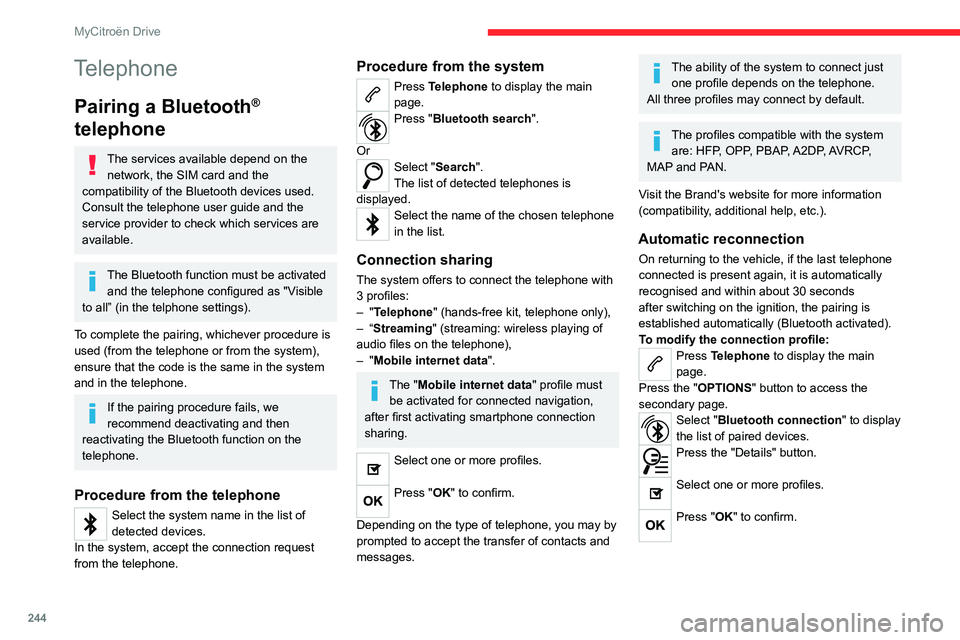
Pairing a Bluetooth®
telephone
The services available depend on the
network, the SIM card and the
compatibility of the Bluetooth devices used.
Consult the telephone user guide and the
service provider to check which services are
available.
The Bluetooth function must be activated and the telephone configured as "Visible
to all” (in the telphone settings).
To complete the pairing, whichever procedure is
used (from the telephone or from the system),
ensure that the code is the same in the system
and in the telephone.
If the pairing procedure fails, we
recommend deactivating and then
reactivating the Bluetooth function on the
telephone.
Procedure from the telephone
Select the system name in the list of
detected devices.
In the system, accept the connection request
from the telephone.
Procedure from the system
Press Telephone to display the main
page.
Press "Bluetooth search".
Or
Select "Search".
The list of detected telephones is
displayed.
Select the name of the chosen telephone
in the list.
Connection sharing
The system offers to connect the telephone with
3 profiles:
–
"Telephone" (hands-free kit, telephone only),
–
“Streaming" (streaming: wireless playing of
audio files on the telephone),
–
"Mobile internet data ".
The "Mobile internet data " profile must
be activated for connected navigation,
after first activating smartphone connection
sharing.
Select one or more profiles.
Press "OK" to confirm.
Depending on the type of telephone, you may by
prompted to accept the transfer of contacts and
messages.
The ability of the system to connect just one profile depends on the telephone.
All three profiles may connect by default.
The profiles compatible with the system are: HFP, OPP, PBAP, A2DP, AVRCP,
MAP and PAN.
Visit the Brand's website for more information
(compatibility, additional help, etc.).
Automatic reconnection
On returning to the vehicle, if the last telephone
connected is present again, it is automatically
recognised and within about 30 seconds
after switching on the ignition, the pairing is
established automatically (Bluetooth activated).
To modify the connection profile:
Press Telephone to display the main
page.
Press the "OPTIONS " button to access the
secondary page.
Select "Bluetooth connection" to display
the list of paired devices.
Press the "Details" button.
Select one or more profiles.
Press "OK" to confirm.
Page 248 of 292
246
MyCitroën Drive
Press this button to sort contacts by
Surname+first name or by First
name+surname.
The "Email" function allows email addresses to be entered for a contact,
but the system is not able to send emails.
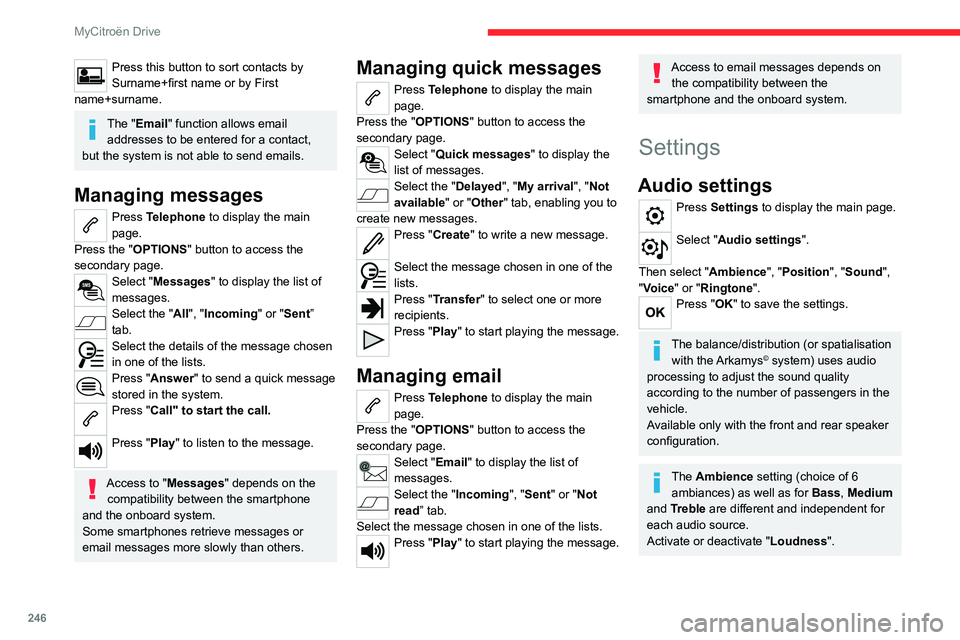
Managing messages
Press Telephone to display the main
page.
Press the "OPTIONS " button to access the
secondary page.
Select "Messages" to display the list of
messages.
Select the "All", "Incoming " or "Sent”
tab.
Select the details of the message chosen
in one of the lists.
Press "Answer" to send a quick message
stored in the system.
Press "Call" to start the call.
Press "Play" to listen to the message.
Access to "Messages " depends on the
compatibility between the smartphone
and the onboard system.
Some smartphones retrieve messages or
email messages more slowly than others.
Managing quick messages
Press Telephone to display the main
page.
Press the "OPTIONS " button to access the
secondary page.
Select "Quick messages " to display the
list of messages.
Select the "Delayed", "My arrival", "Not
available" or "Other" tab, enabling you to
create new messages.
Press "Create" to write a new message.
Select the message chosen in one of the
lists.
Press "Transfer" to select one or more
recipients.
Press "Play" to start playing the message.
Managing email
Press Telephone to display the main
page.
Press the "OPTIONS " button to access the
secondary page.
Select "Email" to display the list of
messages.
Select the "Incoming", "Sent" or "Not
read” tab.
Select the message chosen in one of the lists.
Press "Play" to start playing the message.
Access to email messages depends on the compatibility between the
smartphone and the onboard system.
Settings
Audio settings
Press Settings to display the main page.
Select "Audio settings".
Then select "Ambience", "Position", "Sound ",
"Voice" or "Ringtone ".
Press "OK" to save the settings.
The balance/distribution (or spatialisation
with the Arkamys© system) uses audio
processing to adjust the sound quality
according to the number of passengers in the
vehicle.
Available only with the front and rear speaker
configuration.
The Ambience setting (choice of 6 ambiances) as well as for Bass, Medium
and Treble are different and independent for
each audio source.
Activate or deactivate "Loudness".