eco mode CITROEN C4 2023 Repair Manual
[x] Cancel search | Manufacturer: CITROEN, Model Year: 2023, Model line: C4, Model: CITROEN C4 2023Pages: 292, PDF Size: 7.79 MB
Page 179 of 292

177
Practical information
7The system only registers AdBlue®
intermediate top-ups of 5
litres or more.
If the AdBlue® tank is completely empty
– which is confirmed by the message
“Top up AdBlue: Starting impossible ” – it is
essential to add at least 10
litres.
Top-up detection may not be instantaneous
after addition. It may take a few minutes of
driving before the top-up detection is effective.
Changing to free-wheeling
In certain situations, it is necessary to put the
vehicle into free-wheeling mode (e.g. towing, on
a rolling road, automatic car wash (Wash mode),
rail or sea transport).
The procedure varies according to the type of
gearbox and parking brake.
Never leave the vehicle unattended with
the vehicle into free-wheeling mode.
Keyless Entry and Start
You must not depress the brake pedal
while switching the ignition on again, then
switching it off. If you do, the engine will start,
requiring you to restart the procedure.
With a manual gearbox and
electric parking brake
/
To release them
► With the engine running and while depressing
the brake pedal, move the gear selector to the
neutral position.
►
While depressing the brake pedal, switch off
the engine.
►
Release the brake pedal, then switch on the
ignition.
►
While depressing the brake pedal, press the
control to release the parking brake.
►
Release the brake pedal, then switch off the
ignition.
Reverting to normal operation
► While depressing the brake pedal, restart the
engine and apply the parking brake.
With EAT8 automatic
gearbox or drive selector
and electric parking brake
/
Release procedure
► With the vehicle stationary and the engine
running, depress the brake pedal and select
mode
N.
Within 5 seconds:
► Depress and hold the brake pedal, then
observe this order: switch off the engine and
move the push selector forwards or backwards.
►
Release the brake pedal, then switch on the
ignition.
►
Place your foot on the brake and press the
electric parking brake control to release it.
►
Release the brake pedal, then switch off the
ignition.
A message is displayed on the instrument panel to confirm the unlocking
of the wheels for 15
minutes.
After 15 minutes or reverting to normal
operation
► While depressing the brake pedal, restart the
engine and select mode P .
Advice on care and maintenance
General recommendations
Observe the following recommendations to avoid
damaging the vehicle.
Page 197 of 292
195
In the event of a breakdown
8When towing a vehicle with all four wheels on
the ground, always use an approved towing
arm; rope and straps are prohibited.
The towing vehicle must move off gently.
When the vehicle is towed with its engine
off, there is no longer braking and steering
assistance.
A professional towing service must be
called if:
–
Broken down on a motorway or main road.
– Not possible to put the gearbox into neutral,
unlock the steering, or release the parking
brake.
–
Not possible to tow a vehicle with an
automatic gearbox, with the engine running.
–
T
owing with only two wheels on the ground.
–
Four-wheel drive vehicle.
–
No approved towbar available.
Before towing the vehicle, it is essential
to put the vehicle in free-wheeling mode.
For more information on Free-wheeling, refer
to the corresponding section.
Electric motor
An electric vehicle cannot under any
circumstances be used to tow another
vehicle.
However, it may be used, for example, to exit
a rut.
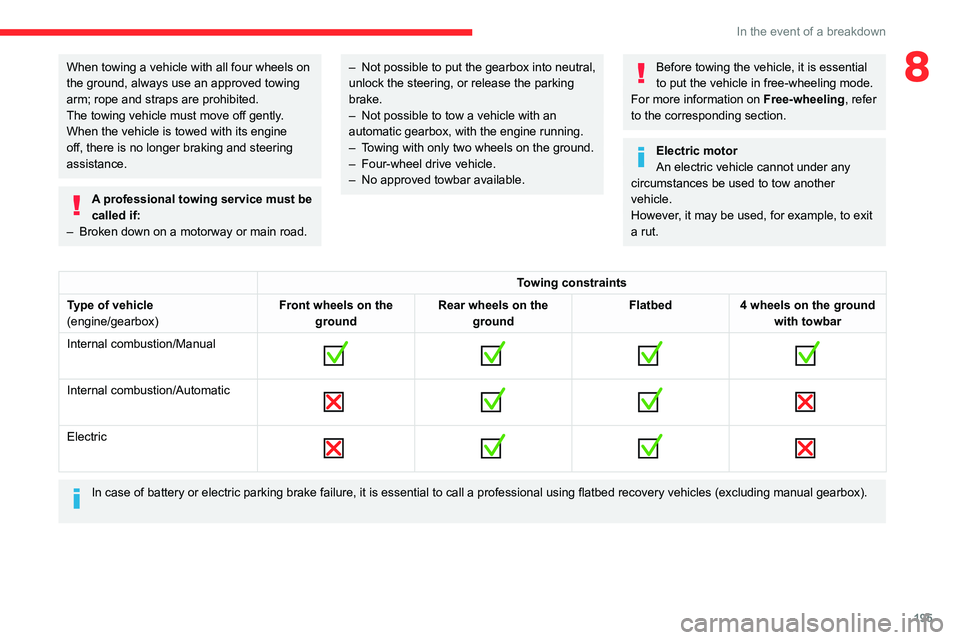
Towing constraints
Type of vehicle
(engine/gearbox) Front wheels on the
ground Rear wheels on the
ground Flatbed
4 wheels on the ground
with towbar
Internal combustion/Manual
Internal combustion/Automatic
Electric
In case of battery or electric parking brake failure, it is essential to call a p
rofessional using flatbed recovery vehicles (excluding manual gearbox).
Page 206 of 292
204
Touch screen BLUETOOTH audio system
Touch screen BLUETOOTH audio
system
Multimedia audio system -
Bluetooth
® telephone
The functions and settings described
vary according to the vehicle version and
configuration.
For safety reasons and because they
require sustained attention by the driver,
the following operations must be carried out
with the vehicle stationary and the ignition
on:
–
Pairing the smartphone with the system in
Bluetooth mode.
–
Using the smartphone.
–
Changing the system settings and
configuration.
The system is protected in such a way that it will only operate in the vehicle.
The Energy Economy Mode message is
displayed when the system is about to enter
the corresponding mode.
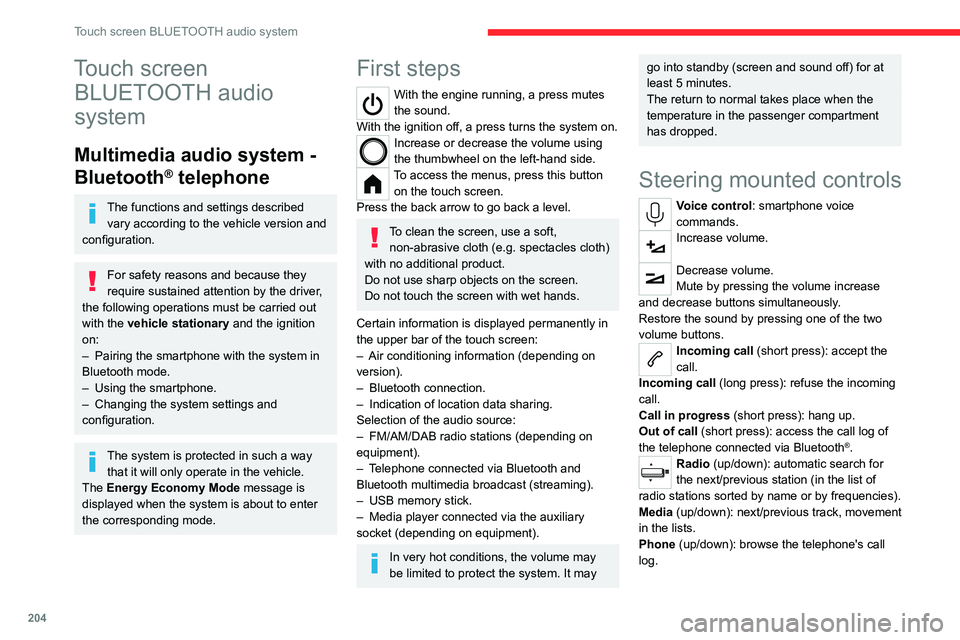
First steps
With the engine running, a press mutes
the sound.
With the ignition off, a press turns the system on.
Increase or decrease the volume using
the thumbwheel on the left-hand side.
To access the menus, press this button on the touch screen.
Press the back arrow to go back a level.
To clean the screen, use a soft, non-abrasive cloth (e.g. spectacles cloth)
with no additional product.
Do not use sharp objects on the screen.
Do not touch the screen with wet hands.
Certain information is displayed permanently in
the upper bar of the touch screen:
–
Air conditioning information (depending on
version).
–
Bluetooth connection.
–
Indication of location data sharing.
Selection of the audio source:
–
FM/AM/DAB radio stations (depending on
equipment).
–
T
elephone connected via Bluetooth and
Bluetooth multimedia broadcast (streaming).
–
USB memory stick.
–
Media player connected via the auxiliary
socket (depending on equipment).
In very hot conditions, the volume may
be limited to protect the system. It may
go into standby (screen and sound off) for at
least 5 minutes.
The return to normal takes place when the
temperature in the passenger compartment
has dropped.
Steering mounted controls
Voice control: smartphone voice
commands.
Increase volume.
Decrease volume.
Mute by pressing the volume increase
and decrease buttons simultaneously.
Restore the sound by pressing one of the two
volume buttons.
Incoming call (short press): accept the
call.
Incoming call (long press): refuse the incoming
call.
Call in progress (short press): hang up.
Out of call (short press): access the call log of
the telephone connected via
Bluetooth
®.Radio (up/down): automatic search for
the next/previous station (in the list of
radio stations sorted by name or by frequencies).
Media (up/down): next/previous track, movement
in the lists.
Phone (up/down): browse the telephone's call
log.
Page 210 of 292
208
Touch screen BLUETOOTH audio system
Once connected in Streaming mode, the
smartphone is considered to be a media
source.
Connecting Apple® players
Connect the Apple® player to the USB socket
using a suitable cable (not supplied).
Play starts automatically.
Control is via the audio system.
The classifications available are those of the portable device connected (artists/
albums/genres/playlists/audio books/
podcasts). It is also possible to use a
classification structured in the form of a
library.
The default classification used is by artist. To
modify the classification used, return to the
first level of the menu then select the desired
classification (playlists for example) and
confirm to go down through the menu to the
desired track.
The version of software in the audio system may
not be compatible with the generation of the
Apple
® player.
Media settings
Press the "Media Settings" button.
Activate/deactivate track playback options and
access the audio settings.
The audio settings are the same as the audio settings for the radio. For more
information on the " Audio settings", refer to
the corresponding section.
Information and advice
The system supports USB mass storage
devices, BlackBerry® devices or Apple® players
via the USB ports. The adapter cable is not
supplied.
Devices are managed using the audio system
controls.
Other devices, not recognised on connection,
must be connected to the auxiliary socket using
a jack cable (not supplied) or via Bluetooth
streaming, if compatible.
To protect the system, do not use a USB hub.
The audio system will only play audio files with
".wav", ".wma", ".aac", ".mp3", ".mp4", ".m4a",
".flac", ".ogg" file extensions and with a bit rate
of between 32 Kbps and 320 Kbps (300 Kbps
maximum for ".flac" files).
It also supports VBR (Variable Bit Rate) mode.
All ".wma" files must be standard WMA 9 files.
The supported sampling rates are 11, 22, 44 and
48 KHz.
To avoid reading and display problems, we
recommend choosing file names less than 20
characters long that do not contain any special
characters (e.g. “ ? .
; ù).
Use only USB memory sticks in FAT or FAT32
format (File Allocation Table).
We recommend using the original USB
cable for the portable device.
Telephone
Pairing a Bluetooth®
telephone
Up to 10 phones can be paired to the system.
Activate the Bluetooth function on the telephone
beforehand and ensure that it is "visible to all"
(telephone configuration).
To complete the pairing, whichever procedure is
used (from the telephone or from the system),
ensure that the code is the same in the system
and in the telephone.
The services available depend on the
network, the SIM card and the
compatibility of the Bluetooth devices used.
Check for services availability in the phone's
manual and with the operator.
The profiles compatible with the system are: HFP, OPP, PBAP, DID, A2DP,
AVRCP, SPP and PAN.
Go to the Brand's website for more information
(compatibility, additional help, etc.).
Page 213 of 292
2 11
Touch screen BLUETOOTH audio system
10Date format:Select the display format for the date.
Frequently asked
questions
The following information groups together the answers to the most frequently asked questions
concerning the system.
Radio
The reception quality of the tuned radio
station gradually deteriorates or the station
presets are not working (no sound, 87.5 MHz
is displayed, etc.).
The vehicle is too far from the selected station’s
transmitter, or no transmitter is present in the
geographical area.
►
Activate the "RDS" function in the upper bar
to enable the system to check whether there is
a more powerful transmitter in the geographical
area.
The environment (hills, buildings, tunnels,
basement car parks, etc.) is blocking reception,
including in RDS mode.
This is a perfectly normal phenomenon, and is
not indicative of an audio system malfunction.
The aerial is missing or has been damaged
(for example while entering a car wash or
underground car park).
►
Have the aerial checked by a dealer
.I cannot find some radio stations in the list of
received stations.
The name of the radio station changes.
The station is no longer received or its name has
changed in the list.
Some radio stations send other information
in place of their name (the title of the song for
example).
The system interprets these details as the station
name.
►
Press the "
Radio Settings
" button then
select "Update list". The radio reception is
cut off while searching for available stations
(approximately 30 seconds).
Media
Playback of my USB memory stick starts only
after a very long wait (around 2 to 3 minutes).
Some files supplied with the memory stick may
greatly slow down access to reading the memory
stick (multiplication by 10 of the cataloguing
time).
►
Delete the files supplied with the memory
stick and limit the number of sub-folders in the
file structure on the memory stick.
Some characters in information about the
currently playing media are not displayed
correctly
.
The audio system is unable to process certain
types of character.
►
Use standard characters to name tracks and
folders.
Playback of streaming files does not start. The connected device does not automatically
launch playback.
►
Start playback from the device.
T
rack names and playing times are not
displayed on the audio streaming screen.
The Bluetooth profile does not allow the transfer
of this information.
Telephone
I cannot connect my Bluetooth telephone.
The telephone's Bluetooth function may be
switched off or the telephone may not be visible.
►
Check that the telephone has Bluetooth
switched on.
►
Check in the telephone settings that it is
"visible to all".
The Bluetooth telephone is not compatible with
the system.
►
Check the compatibility of the telephone on
the Brand's website (services).
The volume of the telephone connected in
Bluetooth mode is inaudible.
The volume depends on both the system and the
telephone.
Ambient noise affects the quality of the
telephone call.
►
Increase the volume of the audio system, to
maximum if required, and increase the volume of
the telephone if necessary
.
►
Reduce ambient noise (close windows,
reduce ventilation, slow down, etc.).
The contacts are not listed in alphabetical
order
.
Page 214 of 292
212
Touch screen BLUETOOTH audio system
Some telephones offer display options.
Depending on the settings chosen, contacts can
be transferred in a specific order.
►
Modify the telephone directory display
settings.
Settings
When the treble and bass settings are
changed, the ambience is deselected.
When the ambience is changed, the treble
and bass settings are reset.
Selecting an ambience imposes the treble and
bass settings, and vice versa.
►
Modify the treble and bass or ambience
settings to obtain the desired musical ambience.
There is a difference in sound quality
between audio sources.
T
o allow for optimal listening quality, the sound
settings can be tailored to different audio
sources, which can generate audible differences
when changing source.
►
Check that the sound settings are appropriate
to the sources listened to.
Adjust the sound
functions to the middle position.
When the engine is off, the system switches
off after several minutes of use.
When the engine is switched off, the system's
operating time depends on the state of charge of
the battery.
The switch-off is normal: the system
automatically goes into energy economy mode
and switches off to maintain an adequate charge
in the battery. ►
Start the vehicle’
s engine to increase the
charge of the battery.
Page 215 of 292
213
MyCitroën Play
11MyCitroën Play
Multimedia audio system -
Applications - Bluetooth
®
telephone
The functions and settings described
vary according to the vehicle version and
configuration, as well as the country of sale.
For safety reasons and because they
require sustained attention by the driver,
the following operations must be carried out
with the vehicle stationary and the ignition
on:
–
Connecting the smartphone via Bluetooth,
USB or Wi-Fi.
–
Using the smartphone.
–
Connecting to the CarPlay® or Android
Auto applications (certain applications stop
displaying when the vehicle is moving).
–
Changing the system settings and
configuration.
Any intervention or modification on the vehicle's system is strictly forbidden
- Risk of serious burns or electric shock
(short-circuit) that could lead to death
(electrocution)!
In the event of a problem, always contact a
CITROËN dealer or a qualified workshop.
The system is protected so that it only operates in the vehicle.
The message Energy economy mode is
displayed when the system is about to go into
standby.
The system’s Open Source Software (OSS) source codes are available at the
following addresses:
https://www.groupe-psa.com/fr/oss/
https://www.groupe-psa.com/en/oss/
The system transmits and/or receives radio waves subject to the Directive
2014/53/EU.
The manufacturers of the mentioned system
declare the conformity with the Directive
2014/53/EU.
The full text of the EU declaration of
conformity for each system is available at the
following address:
http://service.citroen.com/ACddb/
First steps
With the engine running, a press mutes
the sound.
With the ignition off, a press turns the system on.
Increase or decrease the volume using
the wheel or the "plus" or "minus" buttons
(depending on the equipment).
Use the buttons on either side of or below the
touch screen to access the menus, then press
the virtual buttons on the touch screen.
Depending on the model, use the " HOME" and
"Vehicle" buttons below the touch screen to
access the menus, then press the virtual buttons
on the touch screen.
At all times it is possible to display the rolling
menus by pressing the screen briefly with three
fingers.
On pages with multiple tabs at the bottom of the
screen, you can switch between pages either
by tapping the tab for the desired page or by
swiping the pages to the left or right with your
finger.
Press the back arrow to go back a level or
confirm.
The touch screen is of the "capacitive" type.
To clean the screen, use a soft, non-abrasive
cloth (e.g. spectacles cloth) with no additional
product.
Do not use sharp objects on the screen.
Do not touch the screen with wet hands.
Certain information is displayed permanently on
the main screen:
–
Air conditioning status information (depending
on version), and direct access to the
corresponding menu.
–
Radio Media and
Telephone menu status
information.
–
Privacy status information.
Page 220 of 292
218
MyCitroën Play
Once connected in Streaming mode, the
smartphone is considered to be a media
source.
Connecting Apple® players
Connect the Apple® player to the USB socket
using a suitable cable (not supplied).
Play starts automatically.
Control is via the audio system.
The classifications available are those of the portable device connected (artists/
albums/genres/playlists/audio books/
podcasts). It is also possible to use a
classification structured in the form of a
library.
The default classification used is by artist. To
modify the classification used, return to the
first level of the menu then select the desired
classification (playlists for example) and
confirm to go down through the menu to the
desired track.
The version of software in the audio system may
not be compatible with the generation of the
Apple
® player.
Information and advice
The system supports USB mass storage
devices, BlackBerry® devices or Apple® players
via the USB ports. The adapter cable is not
supplied.
Devices are managed using the audio system
controls.
Other devices, not recognised on connection,
must be connected via Bluetooth streaming, if
compatible.
To protect the system, do not use a USB hub.
The audio system will only play audio files with
".wav", ".wma", ".aac", ".ogg" and ".mp3" file
extensions, at bit rates between 32 Kbps and
320 Kbps.
It also supports VBR (Variable Bit Rate) mode.
No other file types (".mp4", etc.) can be read.
All ".wma" files must be standard WMA 9 files.
The supported sampling rates are 11, 22, 44 and
48 KHz.
To avoid reading and display problems, we
recommend choosing file names less than 20
characters long that do not contain any special
characters (e.g. “ ? .
; ù).
Use only USB memory sticks in FAT32 format
(File Allocation Table).
We recommend using the original USB
cable for the portable device.
Telephone
Pairing a Bluetooth®
telephone
The services available depend on the
network, the SIM card and the
compatibility of the Bluetooth devices used.
Consult the telephone user guide and the
service provider to check which services are
available.
The Bluetooth function must be activated and
the telephone configured as "Visible to all” (in the
telephone settings).
To complete the pairing, whichever procedure is
used (from the telephone or from the system),
ensure that the code is the same in the system
and in the telephone.
If the pairing procedure fails, we
recommend deactivating and then
reactivating the Bluetooth function on the
telephone.
Procedure from the telephone
Select the name of the system in the list
of detected devices.
In the system, accept the connection request
from the telephone.
Page 223 of 292
221
MyCitroën Play
11The regulations of the 5 GHz frequency
are specific to each country. Refer to the
regulation in force in your country.
When using CarPlay® with 5 GHz
frequency activated, there may be
interference with certain devices (tolls,
parking...) resulting in a disconnection. To
prevent this from happening, it is
recommended to disable the 5 GHz function.
Difficulties in connecting wirelessly your
smartphone may happen, due to:
–
Interference with other Wi-Fi networks.
–
Interference with certain devices (tolls,
parking)
when using Android Auto.
–
An unsuitable configuration of the
smartphone.
In these cases, it is recommended to connect
the smartphone with its original cable.
CarPlay® smartphone connection
The availability of the application depends on the
country.
USB connection
On connecting the USB cable, the
CarPlay® function deactivates the
system's Bluetooth® mode.
The "CarPlay " function requires the use of
a compatible smartphone and compatible
applications.
Connect the USB cable.
The smartphone charges when connected by the
USB cable.
From the system, press "Telephone" to
display the main page.
Press "CarPlay" to display the CarPlay®
interface.
CarPlay® interface may appear
automatically.
When the USB cable is disconnected
and the ignition is switched off then back
on, the system will not automatically switch to
Radio Media mode; the source must be
changed manually.
The CarPlay® navigation can be accessed
at any time by pressing the system's
Navigation button.
Wireless connection
First activate the smartphone’s Bluetooth®
function.
From the system, press "Telephone" to
display the main page.
If the device has already been connected to the
system via Bluetooth
®, select the device settings
from the list of known devices and choose
CarPlay
® as the wireless connection mode.
If the device has never been connected to the
system before, it will have to be paired (refer to
the corresponding section).
The system detects if the smartphone is
compatible with CarPlay® and offers to connect
to it following the pairing process.
Subsequent automatic connection of the
smartphone requires activation of the Bluetooth
®
on your device.
As soon as the connection is established, press "CarPlay " to display the CarPlay®
interface.
Press and hold this steering-mounted
control button and say "Siri" to initiate the
smartphone voice commands.
Android Auto smartphone connection
The availability of the application depends on the
country.
On the smartphone, download the
Android Auto application.
The "Android Auto" function requires the use of a compatible smartphone and
applications.
The first connection of Android Auto to the system should be made by USB
cable.
USB connection
Connect a USB cable.
The smartphone charges when connected by a
USB cable.
Page 224 of 292
222
MyCitroën Play
From the system, press "Telephone" to
display the main page.
Press "Android Auto" to start the
application in the system.
Depending on the smartphone, it may be
necessary to activate the "Android Auto"
function.
During the procedure, several screen
pages relating to certain features are
displayed.
Accept to start and complete the connection.
When connecting a smartphone to the
system, we recommend enabling
Bluetooth
® on the smartphone.
Wireless connection
First activate the smartphone’s Bluetooth®
function.
Connect a USB cable.
From the system, press "Telephone" to
display the main page.
If the device has already been connected to the
system via Bluetooth
®, select the device settings
from the list of known devices and choose
Android Auto
® as the wireless connection mode.
If the device has never been connected to the
system before, it will have to be paired (refer to
the corresponding section).
The system detects if the smartphone is
compatible with Android Auto and offers to
connect to it following the pairing process.
Subsequent automatic connection of the
smartphone requires activation of the Bluetooth®
on your device.
As soon as the connection is established, press "Android Auto" to display the
Android Auto interface.
Press and hold this steering-mounted
control button and say "OK Google" to
initiate the smartphone voice commands.
Access to the different audio sources remains
available in the margin of the Android Auto
display, using the touch buttons located in the
upper bar.
Access to the menus for the system is possible
at any time using the dedicated buttons.
There may be a pause before applications become available,
depending on the quality of the network.
Applications
Viewing photos
Insert a USB memory stick in the USB port.
To protect the system, do not use a USB hub.
The system can read folders and image files in
the formats: .tiff; .gif; .jpg/jpeg; .bmp and .png.
Press Applications to display the main
page.
Press "Photos".
Select a folder.
Select an image to view.
Press this button to display the details of
the photo.
Press the back arrow to go back a level.
Managing messages
Press Applications to display the main
page.
Press "SMS".
Select the "SMS” tab.
Press this button to select the display
settings for messages.
Press this button to search and select a
recipient.
Select the "Quick messages” tab.
Press this button to select the display
settings for messages.
Press this button to write a new message.
Press the bin alongside the selected
message to delete it.
Press this button alongside the selected
message to display the secondary page.