Start Citroen C4 CACTUS 2014 1.G Repair Manual
[x] Cancel search | Manufacturer: CITROEN, Model Year: 2014, Model line: C4 CACTUS, Model: Citroen C4 CACTUS 2014 1.GPages: 331, PDF Size: 9 MB
Page 263 of 331
261
E3_en_Chap12b_SMEGplus_ed01-2014
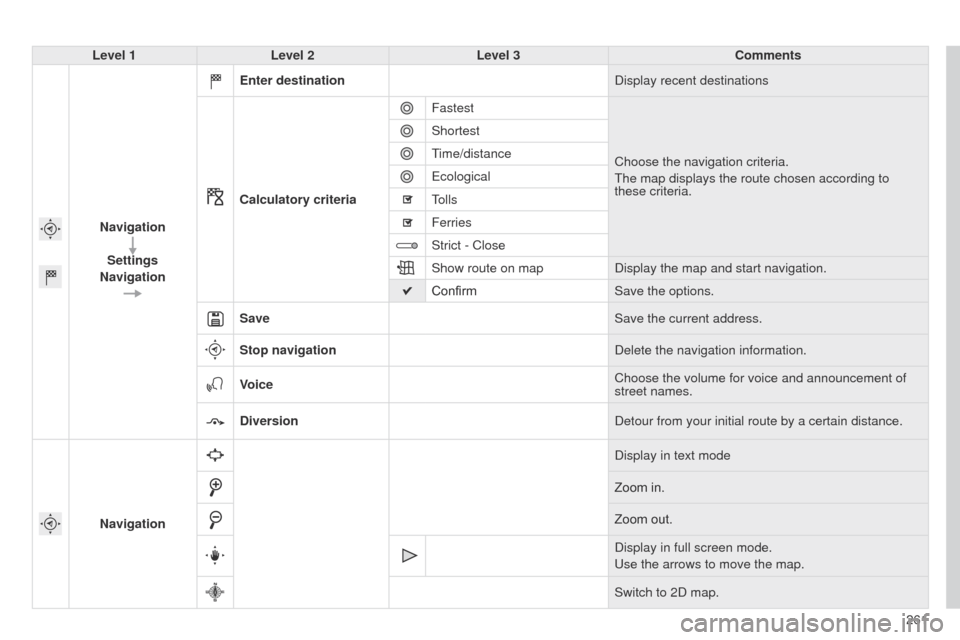
Level 1Level 2 Level 3 Comments
Navigation Settings
Navigation Enter destination
Display recent destinations
Calculatory criteria Fastest
Choose the navigation criteria.
The map displays the route chosen according to
these criteria.
Shortest
Time/distance
Ecological
Tolls
Ferries
Strict - Close
Show route on map
Display the map and start navigation.
Confirm Save the options.
Save Save the current address.
Stop navigation Delete the navigation information.
Voice Choose the volume for voice and announcement of
street names.
Diversion Detour from your initial route by a certain distance.
Navigation Display in text mode
Zoom in.
Zoom out.
Display in full screen mode.
Use the arrows to move the map.
Switch to 2D map.
Page 268 of 331

05
266
E3_en_Chap12b_SMEGplus_ed01-2014
Towards a new destination
Choosing a new destination
Select "Enter destination".
Select "Save" to save the address entered as a
contact entry.
The system allows up to 200 entries.Select "Confirm" or press "Show route on
map" to start navigation guidance.
Select "Address".
Select the "Country:" from the list offered then
in the same way:
the "City:" or its post code, the "Road:", the
"N°:". Confirm each time. Select "Navigate to".
Choose the restriction criteria: "
Include
tollroads", "Include ferries", "Traffic", "Strict",
"Close". Choose the navigation criteria: " Fastest" or
"Shortest" or "Time/distance" or "Ecological ".
To delete navigation information, press on
"Settings" then "Stop navigation ".
To restore the navigation information press on
"Settings" then "Resume navigation".
Press on Navigation to display the primary
page then go to the secondary page.
NAVIGATION - GUIDANCE
Page 269 of 331

05
267
E3_en_Chap12b_SMEGplus_ed01-2014
Towards a recent destinationTowards a contact
Navigation towards a contact imported from a telephone is only
possible if the address entered is compatible with the system.
Select "Enter destination".
Select an address from the list offered. Select "Enter destination".
Select "Contacts".
Select a destination from the contacts in the list
offered.
Select "Navigate to".
Select the criteria then "Confirm" to start
guidance.
Select "Navigate to".
Select the criteria then "Confirm" or press
"Show route on map
" to start guidance.
Press on Navigation to display the primary
page then go to the secondary page.
Press on Navigation to display the primary
page then go to the secondary page.
NAVIGATION - GUIDANCE
Page 270 of 331
05
E3_en_Chap12b_SMEGplus_ed01-2014
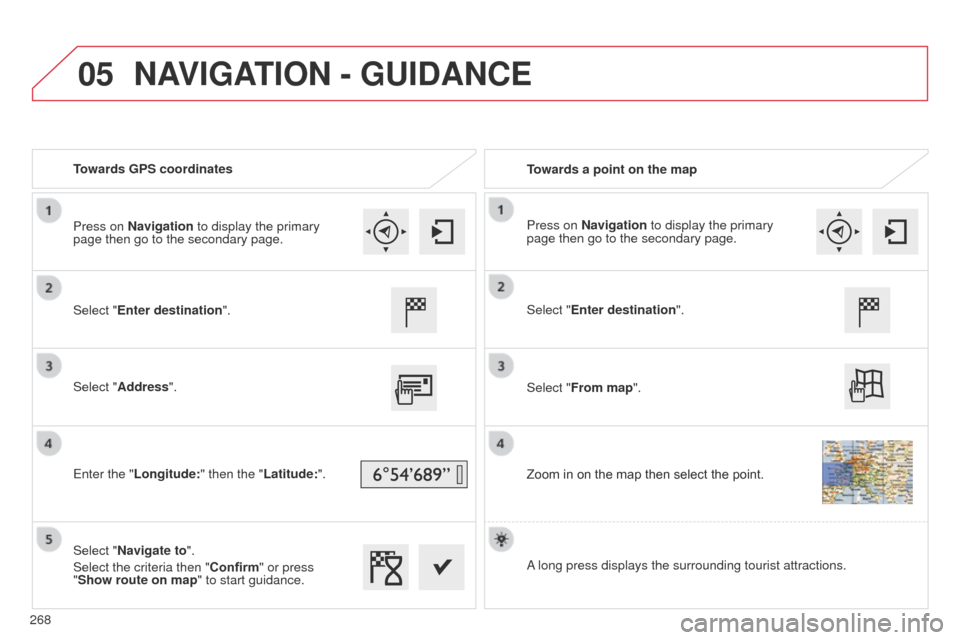
Towards GPS coordinatesTowards a point on the map
Select "Enter destination".
Select "Address".
Enter the "Longitude: " then the "Latitude:".
Select "Navigate to".
Select the criteria then "Confirm" or press
"Show route on map " to start guidance. Select "Enter destination".
Select "From map".
Zoom in on the map then select the point.
Press on Navigation to display the primary
page then go to the secondary page.
Press on Navigation to display the primary
page then go to the secondary page.
A long press displays the surrounding tourist attractions.
NAVIGATION - GUIDANCE
268
Page 274 of 331
05
272
E3_en_Chap12b_SMEGplus_ed01-2014
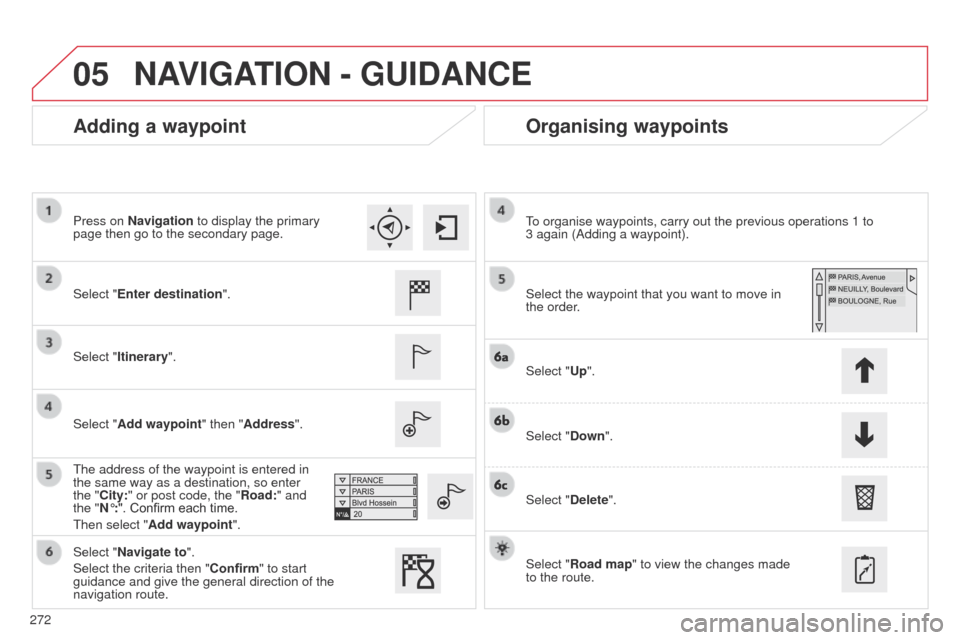
Adding a waypointOrganising waypoints
Select "Enter destination".
Select "Itinerary".
Select "Add waypoint" then "Address".
The address of the waypoint is entered in
the same way as a destination, so enter
the "City:" or post code, the "Road:" and
the "N°:". Confirm each time.
Then select "Add waypoint ". Select the waypoint that you want to move in
the order. To organise waypoints, carry out the previous operations 1 to
3
again (Adding a waypoint).
Select "Up".
Select "Down".
Select "Delete".
Select "Road map" to view the changes made
to the route.
Select "Navigate to".
Select the criteria then "Confirm" to start
guidance and give the general direction of the
navigation route. Press on Navigation to display the primary
page then go to the secondary page.
NAVIGATION - GUIDANCE
Page 295 of 331
293
E3_en_Chap12b_SMEGplus_ed01-2014
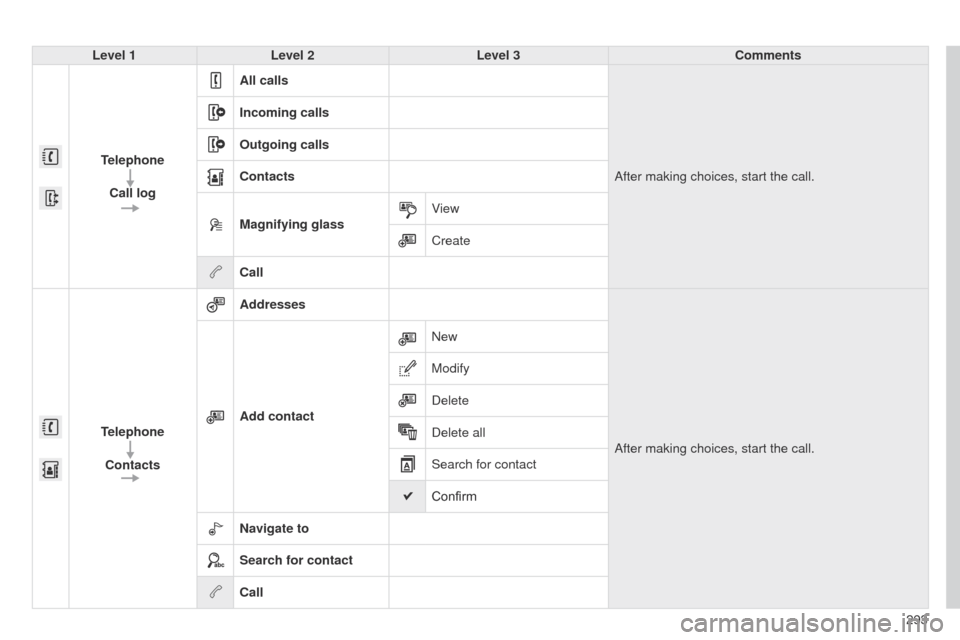
Level 1Level 2 Level 3 Comments
Telephone Call log All calls
After making choices, start the call.
Incoming calls
Outgoing calls
Contacts
Magnifying glass
View
Create
Call
Telephone Contacts Addresses
After making choices, start the call.
Add contact New
Modify
Delete
Delete all
Search for contact
Confirm
Navigate to
Search for contact
Call
Page 297 of 331
295
E3_en_Chap12b_SMEGplus_ed01-2014
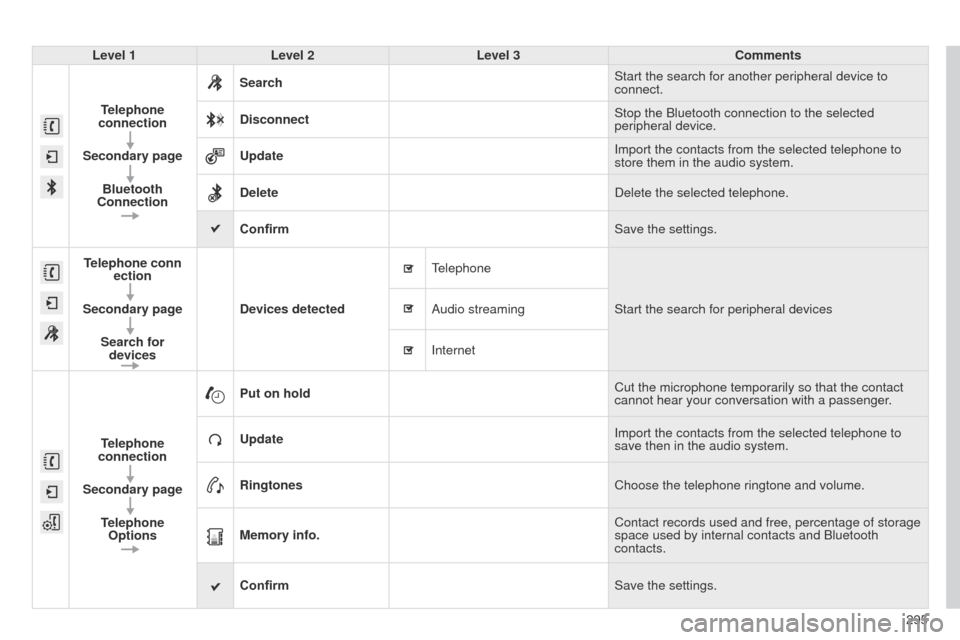
Level 1Level 2 Level 3 Comments
Telephone
connection
Secondary page Bluetooth
Connection Search
Start the search for another peripheral device to
connect.
Disconnect Stop the Bluetooth connection to the selected
peripheral device.
Update Import the contacts from the selected telephone to
store them in the audio system.
Delete Delete the selected telephone.
Confirm Save the settings.
Telephone conn ection
Secondary page Search for devices Devices detected
Telephone
Start the search for peripheral devices
Audio streaming
Internet
Telephone
connection
Secondary page Telephone Options Put on hold
Cut the microphone temporarily so that the contact
cannot hear your conversation with a passenger.
Update Import the contacts from the selected telephone to
save then in the audio system.
Ringtones Choose the telephone ringtone and volume.
Memory info. Contact records used and free, percentage of storage
space used by internal contacts and Bluetooth
contacts.
Confirm Save the settings.
Page 301 of 331

08
299
E3_en_Chap12b_SMEGplus_ed01-2014
Press on Telephone to display the primary
page.
Calling a new number
Calling a contact
Making a callUse of the telephone is not recommended while driving.
We recommended that you park safely or make use of the
steering mounted controls.
Enter the phone number using the keypad then
"Call" to start the call. Press on Telephone to display the primary
page. Select "Contacts".
Select the desired contact from the list offered.
Select "Call".
CONTACTS
Or make a long press on the steering
mounted TEL button.
Page 305 of 331
E3_en_Chap12b_SMEGplus_ed01-2014
FREQUENTLY ASKED QUESTIONS
303
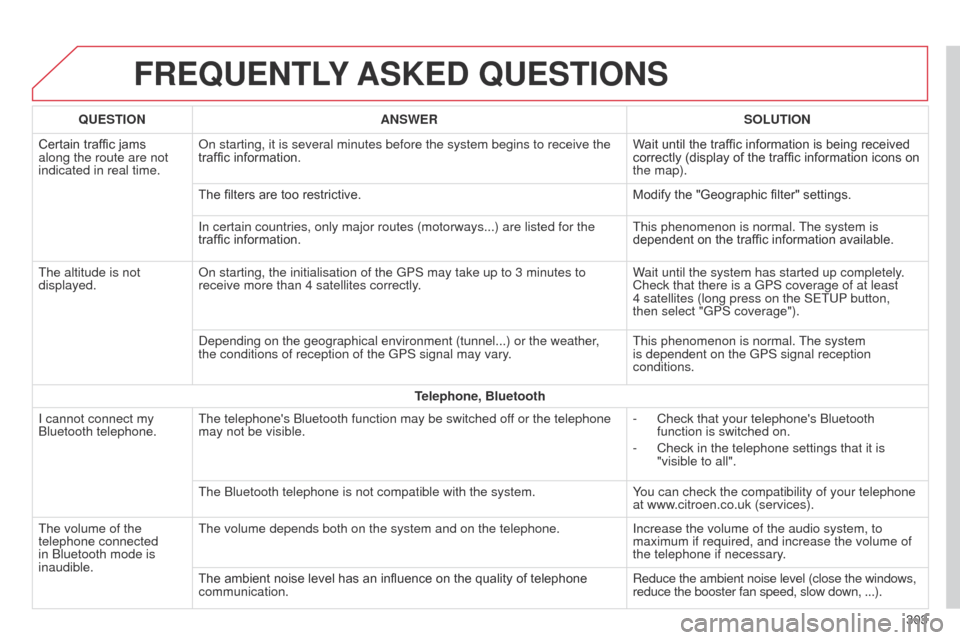
QUESTION
ANSWER SOLUTION
Certain traffic jams
along the route are not
indicated in real time. On starting, it is several minutes before the system begins to receive t\
he
traffic information.
Wait until the traffic information is being received
correctly (display of the traffic information icons on
the map).
The filters are too restrictive. Modify the "Geographic filter" settings.
In certain countries, only major routes (motorways...) are listed for \
the
traffic information. This phenomenon is normal. The system is
dependent on the traffic information available.
The altitude is not
displayed. On starting, the initialisation of the GPS may take up to 3 minutes to
receive more than 4 satellites correctly. Wait until the system has started up completely.
Check that there is a GPS coverage of at least
4
satellites (long press on the SETUP button,
then select "GPS coverage").
Depending on the geographical environment (tunnel...) or the weather,
the conditions of reception of the GPS signal may vary. This phenomenon is normal. The system
is dependent on the GPS signal reception
conditions.
Telephone, Bluetooth
I cannot connect my
Bluetooth telephone. The telephone's Bluetooth function may be switched off or the telephone
may not be visible. -
Check that your telephone's Bluetooth
function is switched on.
-
Check in the telephone settings that it is
"visible to all".
The Bluetooth telephone is not compatible with the system. Y
ou can check the compatibility of your telephone
at www.citroen.co.uk (services).
The volume of the
telephone connected
in Bluetooth mode is
inaudible. The volume depends both on the system and on the telephone.
Increase the volume of the audio system, to
maximum if required, and increase the volume of
the telephone if necessary.
The ambient noise level has an influence on the quality of telephone
communication. Reduce the ambient noise level (close the windows,
reduce the booster fan speed, slow down, ...).
Page 307 of 331
E3_en_Chap12b_SMEGplus_ed01-2014
FREQUENTLY ASKED QUESTIONS
305
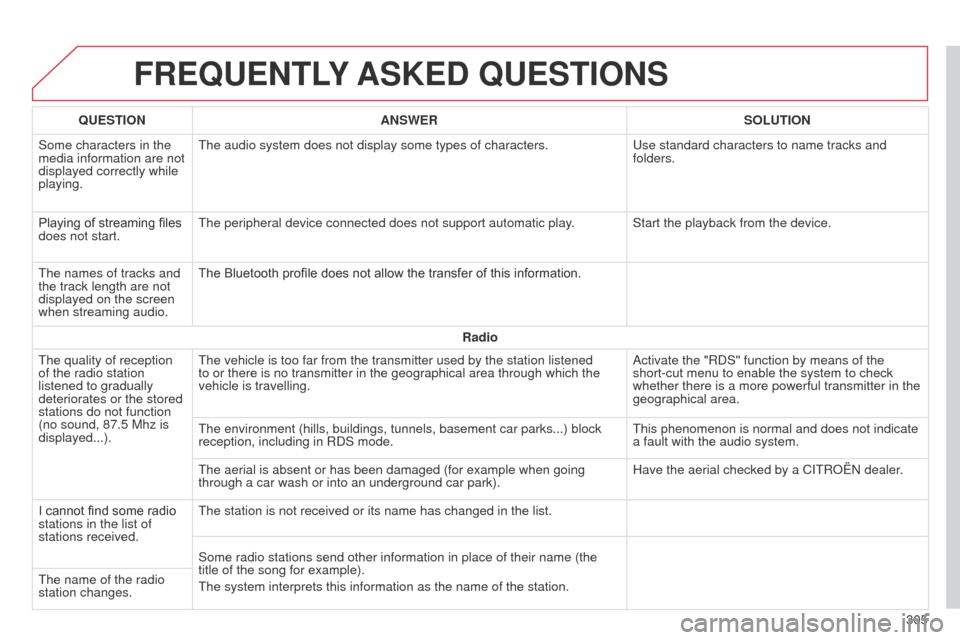
QUESTION
ANSWER SOLUTION
Some characters in the
media information are not
displayed correctly while
playing. The audio system does not display some types of characters.
Use standard characters to name tracks and
folders.
Playing of streaming files
does not start. The peripheral device connected does not support automatic play. Start the playback from the device.
The names of tracks and
the track length are not
displayed on the screen
when streaming audio. The Bluetooth profile does not allow the transfer of this information.
Radio
The quality of reception
of the radio station
listened to gradually
deteriorates or the stored
stations do not function
(no sound, 87.5
Mhz is
displayed...). The vehicle is too far from the transmitter used by the station listened\
to or there is no transmitter in the geographical area through which the\
vehicle is travelling.
Activate the "RDS" function by means of the
short-cut menu to enable the system to check
whether there is a more powerful transmitter in the
geographical area.
The environment (hills, buildings, tunnels, basement car parks...) blo\
ck
reception, including in RDS mode. This phenomenon is normal and does not indicate
a fault with the audio system.
The aerial is absent or has been damaged (for example when going
through a car wash or into an underground car park). Have the aerial checked by a CITROËN dealer.
I cannot find some radio
stations in the list of
stations received. The station is not received or its name has changed in the list.
Some radio stations send other information in place of their name (the \
title of the song for example).
The system interprets this information as the name of the station.
The name of the radio
station changes.