reset CITROEN C4 CACTUS 2017 User Guide
[x] Cancel search | Manufacturer: CITROEN, Model Year: 2017, Model line: C4 CACTUS, Model: CITROEN C4 CACTUS 2017Pages: 256, PDF Size: 7.62 MB
Page 192 of 256
10
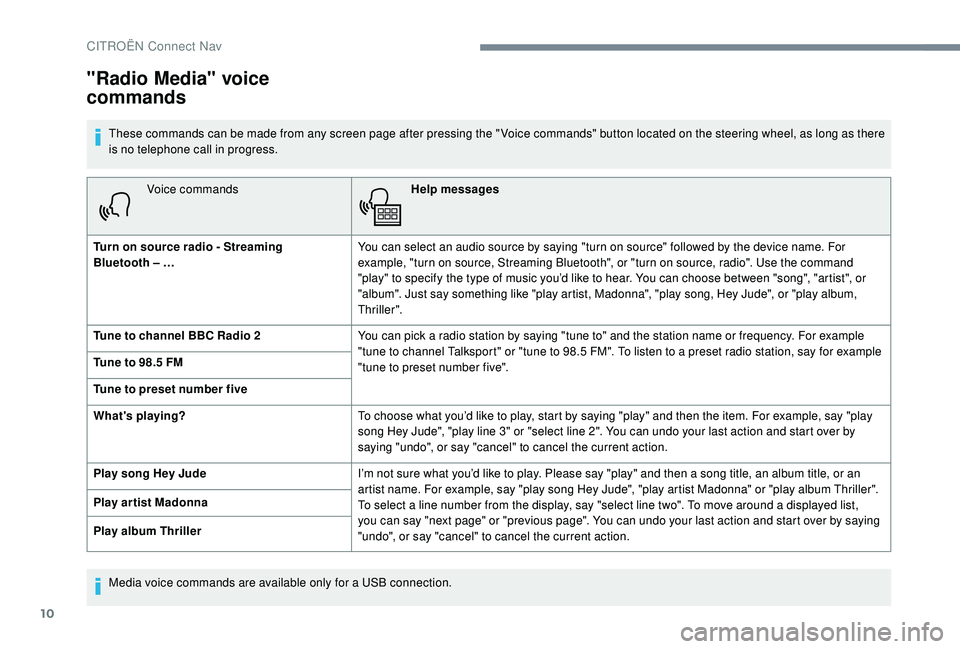
Voice commandsHelp messages
Turn on source radio - Streaming
Bluetooth – … You can select an audio source by saying "turn on source" followed by the device name. For
example, "turn on source, Streaming Bluetooth", or "turn on source, radio". Use the command
"play" to specify the type of music you’d like to hear. You can choose between "song", "artist", or
"album". Just say something like "play artist, Madonna", "play song, Hey Jude", or "play album,
Thriller".
Tune to channel BBC Radio 2 You can pick a radio station by saying "tune to" and the station name or frequency. For example
"tune to channel Talksport" or "tune to 98.5 FM". To listen to a preset radio station, say for example
"tune to preset number five".
Tune to 98.5 FM
Tune to preset number five
What's playing?
To choose what you’d like to play, start by saying "play" and then the item. For example, say "play
song Hey Jude", "play line 3" or "select line 2". You can undo your last action and start over by
saying "undo", or say "cancel" to cancel the current action.
Play song Hey Jude I’m not sure what you’d like to play. Please say "play" and then a song title, an album title, or an
artist name. For example, say "play song Hey Jude", "play artist Madonna" or "play album Thriller".
To select a line number from the display, say "select line two". To move around a displayed list,
you can say "next page" or "previous page". You can undo your last action and start over by saying
"undo", or say "cancel" to cancel the current action.
Play ar tist Madonna
Play album Thriller
"Radio Media" voice
commands
These commands can be made from any screen page after pressing the " Voice commands" button located on the steering wheel, as long as there
is no telephone call in progress.
Media voice commands are available only for a USB connection.
CITROËN Connect Nav
Page 195 of 256
13
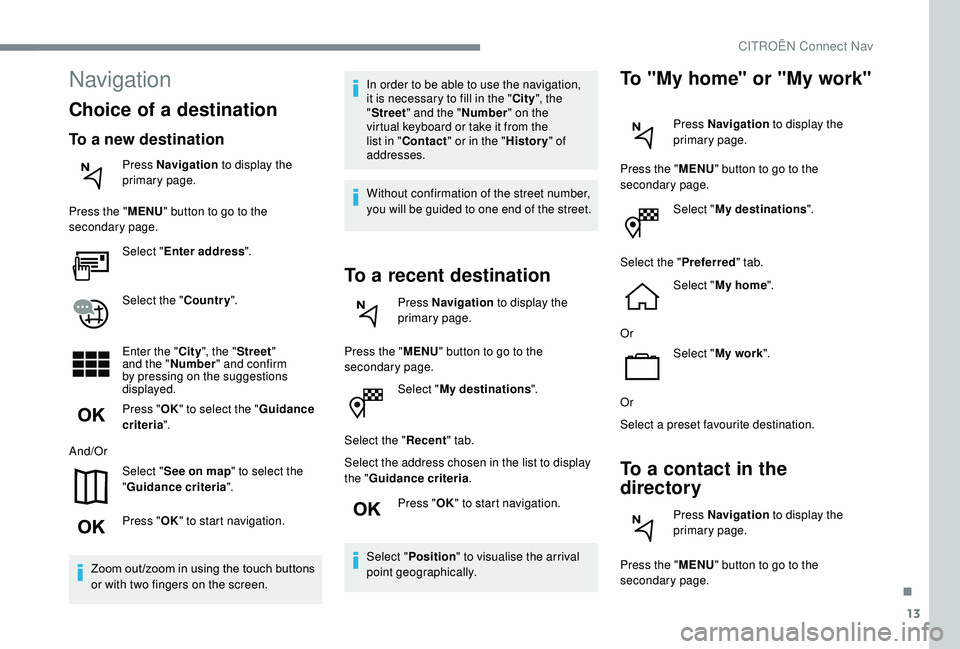
Select "My destinations ".
Select the " Recent" tab.
Select the address chosen in the list to display
the " Guidance criteria .
Press " OK" to start navigation.
Select " Position " to visualise the arrival
point geographically.
To "My home" or "My work"
Press Navigation to display the
primary page.
Press the " MENU" button to go to the
secondary page.
Select "My destinations ".
Select the " Preferred" tab.
Select " My home ".
Or Select "My work ".
Or
Select a preset favourite destination.
To a contact in the
directory
Press Navigation to display the
primary page.
Press the " MENU" button to go to the
secondary page.
Navigation
Choice of a destination
To a new destination
Press Navigation to display the
primary page.
Press the " MENU" button to go to the
secondary page.
Select "Enter address ".
Select the " Country".
Enter the " City", the " Street "
and the " Number" and confirm
by pressing on the suggestions
displayed.
Press " OK" to select the " Guidance
criteria ".
And/Or Select "See on map " to select the
" Guidance criteria ".
Press " OK" to start navigation.
Zoom out /zoom in using the touch buttons
or with two fingers on the screen. In order to be able to use the navigation,
it is necessary to fill in the "
City", the
" Street " and the " Number" on the
virtual keyboard or take it from the
list in " Contact " or in the " History" of
addresses.
Without confirmation of the street number,
you will be guided to one end of the street.
To a recent destination
Press Navigation to display the
primary page.
Press the " MENU" button to go to the
secondary page.
.
CITROËN Connect Nav
Page 198 of 256
16
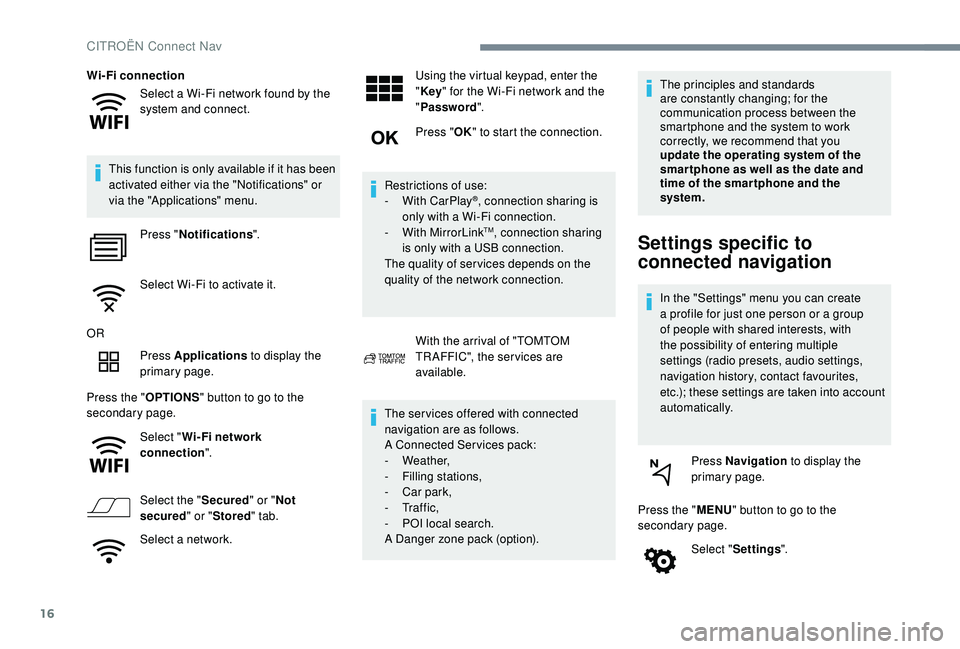
Select a Wi-Fi network found by the
system and connect.
Wi-Fi connection
This function is only available if it has been
activated either via the "Notifications" or
via the "Applications" menu. Press " Notifications ".
Select Wi-Fi to activate it.
OR Press Applications to display the
primary page.
Press the " OPTIONS" button to go to the
secondary page.
Select "Wi- Fi network
connection ".
Select the " Secured" or "Not
secured " or "Stored " tab.
Select a network. Using the virtual keypad, enter the
"
Key " for the Wi-Fi network and the
" Password ".
Press " OK" to start the connection.
Restrictions of use:
-
W
ith CarPlay
®, connection sharing is
only with a Wi-Fi connection.
-
W
ith MirrorLink
TM, connection sharing
is only with a USB connection.
The quality of ser vices depends on the
quality of the network connection.
With the arrival of "TOMTOM
TR AFFIC", the ser vices are
available.
The ser vices offered with connected
navigation are as follows.
A Connected Services pack:
-
Weather,
-
F
illing stations,
-
C
ar park,
-
Tr a f f i c ,
-
P
OI local search.
A Danger zone pack (option). The principles and standards
are constantly changing; for the
communication process between the
smartphone and the system to work
correctly, we recommend that you
update the operating system of the
smar tphone as well as the date and
time of the smar tphone and the
system.Settings specific to
connected navigation
In the "Settings" menu you can create
a profile for just one person or a group
of people with shared interests, with
the possibility of entering multiple
settings (radio presets, audio settings,
navigation history, contact favourites,
etc.); these settings are taken into account
automatically.
Press Navigation to display the
primary page.
Press the " MENU" button to go to the
secondary page.
Select "Settings ".
CITROËN Connect Nav
Page 205 of 256
23
Radio
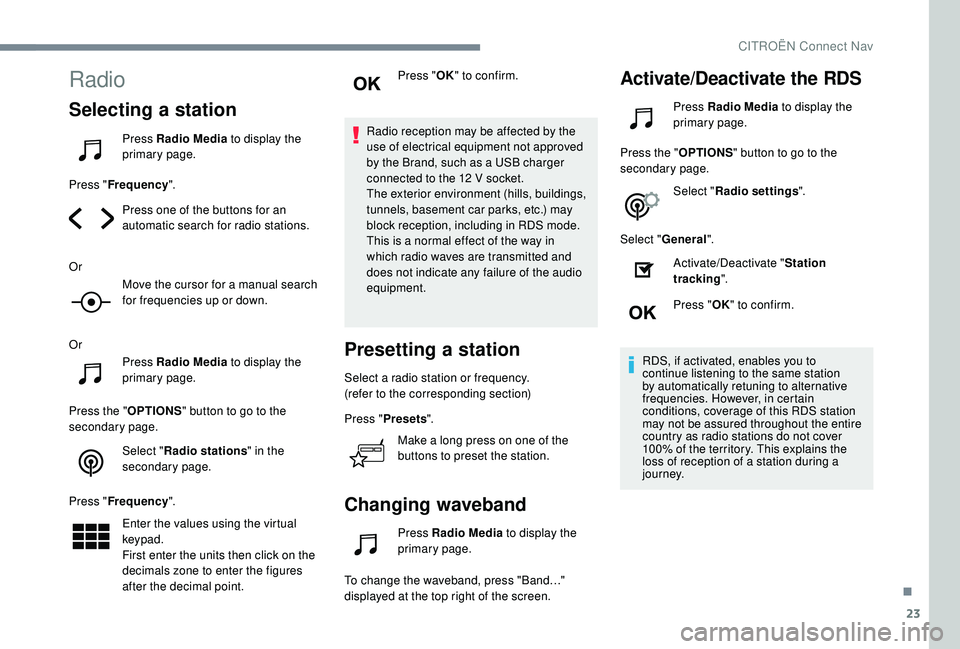
Selecting a station
Press Radio Media to display the
primary page.
Press " Frequency ".
Press one of the buttons for an
automatic search for radio stations.
Or Move the cursor for a manual search
for frequencies up or down.
Or Press Radio Media to display the
primary page.
Press the " OPTIONS" button to go to the
secondary page.
Select "Radio stations " in the
secondary page.
Press " Frequency ".
Enter the values using the virtual
keypad.
First enter the units then click on the
decimals zone to enter the figures
after the decimal point. Press "
OK" to confirm.
Radio reception may be affected by the
use of electrical equipment not approved
by the Brand, such as a USB charger
connected to the 12 V socket.
The exterior environment (hills, buildings,
tunnels, basement car parks, etc.) may
block reception, including in RDS mode.
This is a normal effect of the way in
which radio waves are transmitted and
does not indicate any failure of the audio
equipment.
Presetting a station
Select a radio station or frequency.
(refer to the corresponding section)
Press " Presets ".
Make a long press on one of the
buttons to preset the station.
Changing waveband
Press Radio Media to display the
primary page.
To change the waveband, press "Band…"
displayed at the top right of the screen.
Activate/Deactivate the RDS
Press Radio Media to display the
primary page.
Press the " OPTIONS" button to go to the
secondary page.
Select "Radio settings ".
Select " General ".
Activate/Deactivate " Station
tracking ".
Press " OK" to confirm.
RDS, if activated, enables you to
continue listening to the same station
by automatically retuning to alternative
frequencies. However, in certain
conditions, coverage of this RDS station
may not be assured throughout the entire
country as radio stations do not cover
100% of the territory. This explains the
loss of reception of a station during a
j o u r n ey.
.
CITROËN Connect Nav
Page 214 of 256

32
The framing for the photograph is
square; the system reshapes the original
photograph if in another format.Press this button to initialise the
profile selected.
Initialisation of the profile selected
activates the English language by default.
Select a " Profile" (1 or 2 or 3) to associate the
" Audio settings " with it.
Select " Audio settings ".
Select " Ambience ".
Or
" Balance "
Or
" Sound ".
Or
" Voice ".
Or
" Ringtone ".
Press " OK" to save the settings.Modifying system settings
Press Settings to display the
primary page.
Press the " OPTIONS" button to go to the
secondary page.
Select "Screen configuration ".
Select " Animation ".
Activate or deactivate: " Automatic
scrolling ".
Select " Brightness ".
Move the cursor to adjust the
brightness of the screen and/or of
the instrument panel.
Press Settings to display the
primary page.
Press the " OPTIONS" button to go to the
secondary page.
Select "System settings ".
Select " Units" to change the units of distance,
fuel consumption and temperature.
Select " Factory settings " to return to the initial
settings. Resetting the system to "Factory Settings"
activates English by default, as well as
Fahrenheit degrees, and turns off daylight
saving (summer) time.
Select " System info " to display the versions of
the different modules installed in the system.
Select the language
Press Settings to display the
primary page.
Press the " OPTIONS" button to go to the
secondary page.
Select "Languages " to change the
language.
Setting the date
Press Settings to display the
primary page.
Press the " OPTIONS" button to go to the
secondary page.
Select "Set time-date ".
CITROËN Connect Nav
Page 221 of 256

39
Settings
QUESTIONRESPONSESOLUTION
When changing the setting of treble and bass,
the equalizer setting is deselected.
When changing the equalizer setting, the treble
and bass settings are reset. The selection of an equalizer setting imposes
the settings for treble and bass and vice versa.
Modify the treble and bass or equalizer settings
to obtain the desired musical ambience.
When changing the balance setting,
distribution is deselected.
When changing the distribution setting, the
balance setting is deselected. The selection of a distribution setting imposes
the balance settings and vice versa.
Modify the balance setting or the distribution
setting to obtain the desired sound quality.
There is a difference in sound quality between
the different audio sources. To allow for optimal listening quality, the
audio settings can be tailored to different
sound sources, which can generate audible
differences when changing source.Check that the audio settings are adapted to
the sources listened to. It is recommended that
the audio settings (Bass:, Treble:, Balance)
be adjusted to the middle position, select the
"None" musical ambience and set the loudness
correction to the "Active" position in CD mode
or to the "Inactive" position in radio mode.
When the engine is off, the system switches off
after several minutes of use. When the engine is switched off, the system's
operating time depends on the state of charge of
the battery.
The switch-off is normal: the system automatically
goes into energy economy mode and switches off
to maintain an adequate charge in the battery.Start then vehicle's engine to increase the
charge of the battery.
The date and time cannot be set. Setting of the date and time is only available
if the synchronisation with the satellites is
deactivated.Settings menu/Options/Time-Date setting.
Select the "Time" tab and deactivate the "GPS
synchronisation" (UTC).
.
CITROËN Connect Nav
Page 224 of 256
2
First steps
With the engine running, a press
mutes the sound.
With the ignition off, a press turns
the system on.
Increase or decrease the volume using
the wheel or the "plus" or "minus" buttons
(depending on the equipment).
Use the buttons either side of or below the
touch screen for access to the menus, then
press the virtual buttons in the touch screen.
Depending on the model, use the "Source" or
"Menu" buttons on the left-hand side of the
touch screen for access to the menus, then
press the virtual buttons in the touch screen.
You can display the menu at any time by
pressing the screen briefly with three fingers.
All of the touch areas of the screen are white.
For pages with multiple tabs at the bottom of
the screen, you can switch between pages
either by tapping the tab for the desired page,
or by using a finger, sliding the pages to the left
or to the right.
Press in the grey zone to go back a level or
confirm. The touch screen is of the "capacitive"
type.
To clean the screen, use a soft, non-
abrasive cloth (e.g. spectacles cloth) with
no additional cleaning product.
Do not use sharp objects on the screen.
Do not touch the screen with wet hands.
Certain information is displayed permanently in
the upper bar of the touch screen:
-
R
eminder of the air conditioning information
(depending on version), and direct access to
the corresponding menu.
-
R
eminder of the Radio Media and
Telephone menu information.
-
R
eminder of the privacy information.
-
A
ccess to the Settings of the touch screen
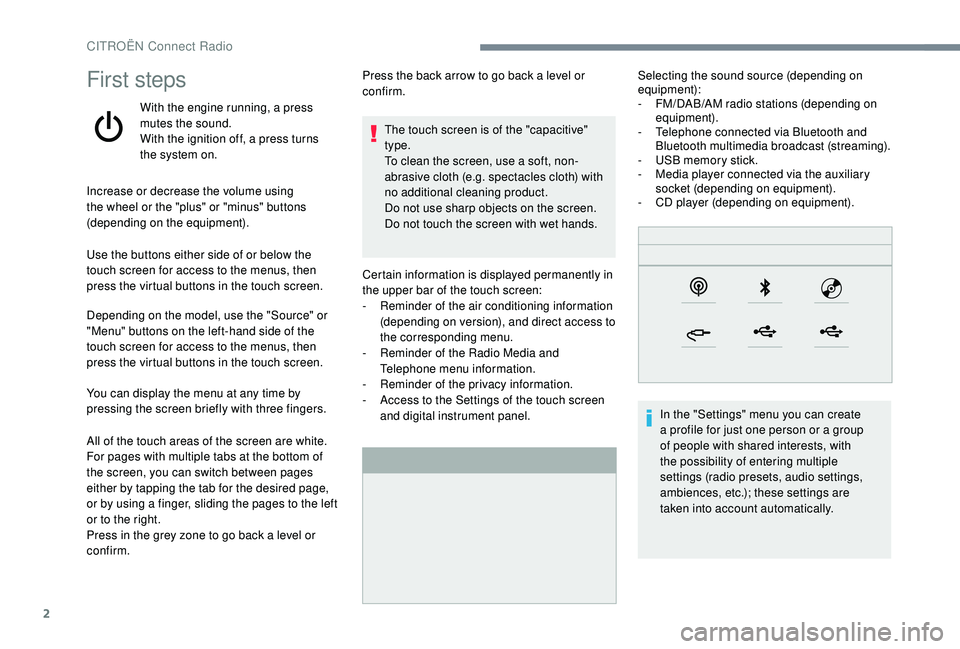
and digital instrument panel. Selecting the sound source (depending on
equipment):
-
F M/DAB/AM radio stations (depending on
equipment).
-
T
elephone connected via Bluetooth and
Bluetooth multimedia broadcast (streaming).
-
U
SB memory stick.
-
M
edia player connected via the auxiliary
socket (depending on equipment).
-
C
D player (depending on equipment).
In the "Settings" menu you can create
a profile for just one person or a group
of people with shared interests, with
the possibility of entering multiple
settings (radio presets, audio settings,
ambiences, etc.); these settings are
taken into account automatically.
Press the back arrow to go back a level or
confirm.
CITROËN Connect Radio
Page 225 of 256
3
In very hot conditions, the volume may
be limited to protect the system. It may go
into standby (screen and sound off) for at
least 5 minutes
The return to normal takes place when
the temperature in the passenger
compartment has dropped.
Steering mounted controls
Steering mounted controls –
Ty p e 1
Radio:
Select the previous/next preset radio
station.
Select the previous/next item in a
menu or a list.
Media:
Select the previous/next track.
Select the previous/next item in a
menu or a list.Radio:
Short press: display the list of radio
stations.
Long press: update the list.
Media:
Short press: display the list of
folders.
Long press: display the available
sorting options.
Change audio source (radio; USB;
AUX if equipment connected; CD;
streaming).
Confirm a selection.
Increase volume.
Decrease volume.
Mute/Restore sound by
simultaneously pressing the
increase and decrease volume
buttons.
Steering mounted controls –
Ty p e 2
Voice commands
:
This control is located on the
steering wheel or at the end of the
lighting control stalk (depending on
equipment).
Short press, smartphone voice
commands via the system.
Increase volume.
Mute/Restore the sound (depending
on equipment).
Or
Mute by pressing the volume
increase and decrease buttons
simultaneously (depending on
equipment).
Restore the sound by pressing one
of the two volume buttons.
Decrease volume.
Media (short press): change the
multimedia source.
.
CITROËN Connect Radio
Page 226 of 256

4
Telephone (short press): start
telephone call.
Call in progress (short press):
access telephone menu.
Telephone (long press): reject an
incoming call, end call; when no call
is in progress, access telephone
menu.
Radio (rotate): automatic search for
the previous/next station.
Media (rotate): previous/next track,
move through a list.
Short press : confirm a selection; if
nothing selected, access to presets.
Radio : display the list of stations.
Media : display the list of tracks.
Radio (press and hold): update the
list of stations received.Menus
Applications
Depending on equipment/Depending on version.
Access configurable equipment.
Radio Media
Depending on equipment/Depending on version.
Select an audio source or radio
station.
Telephone
Depending on equipment/Depending on version.Connect a telephone by Bluetooth
®.
Operate certain applications on
a smartphone connected via
MirrorLink
TM, CarPlay® or Android
Auto.
CITROËN Connect Radio
Page 229 of 256
7
Presetting a station
Select a radio station or frequency.Make a short press on the star
outline. If the star is solid, the radio
station is already preset.
Or
Select a radio station or frequency.
Press " Preset".
Make a long press on one of the
buttons to preset the station.
Activate/Deactivate the RDS
Press Radio Media to display the
primary page.
Press the " OPTIONS" button to go to the
secondary page.
Activate/Deactivate " RDS".
Press in the grey zone to confirm. The RDS, if activated, enables you to
continue listening to the same station
by automatically retuning to alternative
frequencies. However, in certain
conditions, coverage of this RDS station
may not be assured throughout the entire
country as radio stations do not cover
100% of the territory. This explains the
loss of reception of the station during a
j o u r n ey.
Display text information
The "Radio Text" function allows
information transmitted by the radio
station and related to the station or the
song playing to be displayed.
Press Radio Media to display the
primary page.
Press the " OPTIONS" button to go to the
secondary page.
Activate/Deactivate " INFO".
Press in the grey zone to confirm.
Play TA messages
The TA (Traffic Announcement) function
gives priority to TA alert messages.
To operate, this function needs good
reception of a radio station that carries
this type of message. While traffic
information is being broadcast, the current
media is automatically interrupted so that
the TA message can be heard. Normal
play of the media previously playing is
resumed at the end of the message.
Press Radio Media to display the
primary page.
Press the " OPTIONS" button to go to the
secondary page.
Activate/Deactivate " TA".
Press in the grey zone to confirm.
Audio settings
Press Radio Media to display the
primary page.
Press the " OPTIONS" button to go to the
secondary page.
.
CITROËN Connect Radio