audio CITROEN C4 CACTUS 2017 Owner's Manual
[x] Cancel search | Manufacturer: CITROEN, Model Year: 2017, Model line: C4 CACTUS, Model: CITROEN C4 CACTUS 2017Pages: 256, PDF Size: 7.62 MB
Page 205 of 256
23
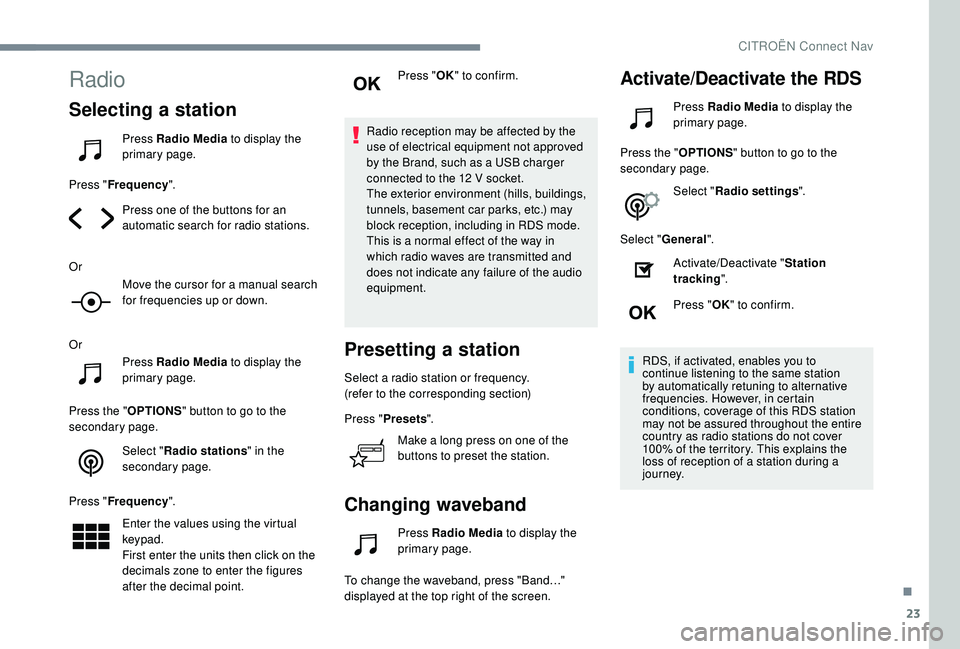
Radio
Selecting a station
Press Radio Media to display the
primary page.
Press " Frequency ".
Press one of the buttons for an
automatic search for radio stations.
Or Move the cursor for a manual search
for frequencies up or down.
Or Press Radio Media to display the
primary page.
Press the " OPTIONS" button to go to the
secondary page.
Select "Radio stations " in the
secondary page.
Press " Frequency ".
Enter the values using the virtual
keypad.
First enter the units then click on the
decimals zone to enter the figures
after the decimal point. Press "
OK" to confirm.
Radio reception may be affected by the
use of electrical equipment not approved
by the Brand, such as a USB charger
connected to the 12 V socket.
The exterior environment (hills, buildings,
tunnels, basement car parks, etc.) may
block reception, including in RDS mode.
This is a normal effect of the way in
which radio waves are transmitted and
does not indicate any failure of the audio
equipment.
Presetting a station
Select a radio station or frequency.
(refer to the corresponding section)
Press " Presets ".
Make a long press on one of the
buttons to preset the station.
Changing waveband
Press Radio Media to display the
primary page.
To change the waveband, press "Band…"
displayed at the top right of the screen.
Activate/Deactivate the RDS
Press Radio Media to display the
primary page.
Press the " OPTIONS" button to go to the
secondary page.
Select "Radio settings ".
Select " General ".
Activate/Deactivate " Station
tracking ".
Press " OK" to confirm.
RDS, if activated, enables you to
continue listening to the same station
by automatically retuning to alternative
frequencies. However, in certain
conditions, coverage of this RDS station
may not be assured throughout the entire
country as radio stations do not cover
100% of the territory. This explains the
loss of reception of a station during a
j o u r n ey.
.
CITROËN Connect Nav
Page 206 of 256
24
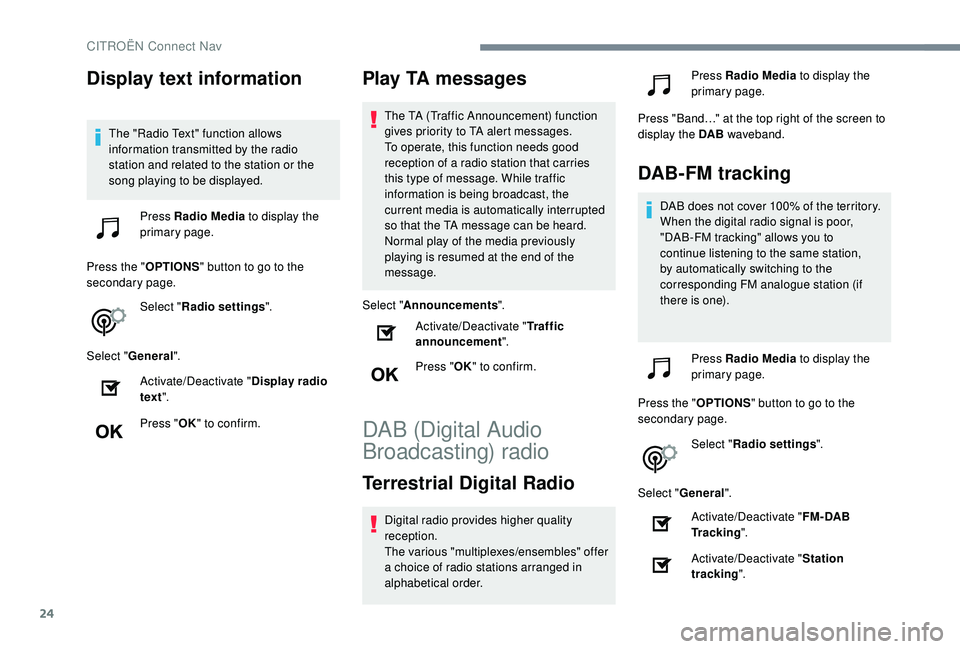
Display text information
The "Radio Text" function allows
information transmitted by the radio
station and related to the station or the
song playing to be displayed.Press Radio Media to display the
primary page.
Press the " OPTIONS" button to go to the
secondary page.
Select "Radio settings ".
Select " General ".
Activate/Deactivate " Display radio
text ".
Press " OK" to confirm.
Play TA messages
The TA (Traffic Announcement) function
gives priority to TA alert messages.
To operate, this function needs good
reception of a radio station that carries
this type of message. While traffic
information is being broadcast, the
current media is automatically interrupted
so that the TA message can be heard.
Normal play of the media previously
playing is resumed at the end of the
message.
Select " Announcements ".
Activate/Deactivate " Traffic
announcement ".
Press " OK" to confirm.
DAB (Digital Audio
Broadcasting) radio
Terrestrial Digital Radio
Digital radio provides higher quality
reception.
The various "multiplexes/ensembles" offer
a choice of radio stations arranged in
alphabetical order. Press Radio Media
to display the
primary page.
Press "Band…" at the top right of the screen to
display the DAB waveband.
DAB-FM tracking
DAB does not cover 100% of the territory.
When the digital radio signal is poor,
"DAB-FM tracking" allows you to
continue listening to the same station,
by automatically switching to the
corresponding FM analogue station (if
there is one).
Press Radio Media to display the
primary page.
Press the " OPTIONS" button to go to the
secondary page.
Select "Radio settings ".
Select " General ".
Activate/Deactivate " FM- DAB
Tracking ".
Activate/Deactivate " Station
tracking ".
CITROËN Connect Nav
Page 207 of 256
25
Press "OK".
If "DAB-FM tracking" is activated, there
is a difference of a few seconds when the
system switches to FM analogue radio
with sometimes a variation in volume.
Once the digital signal quality is restored,
the system automatically changes back
to DAB.
If the DAB station being listened to is
not available on FM (" DAB- FM" option
greyed out), or "DAB-FM tracking" is not
activated, the sound will cut out while the
digital signal is too weak.
Media
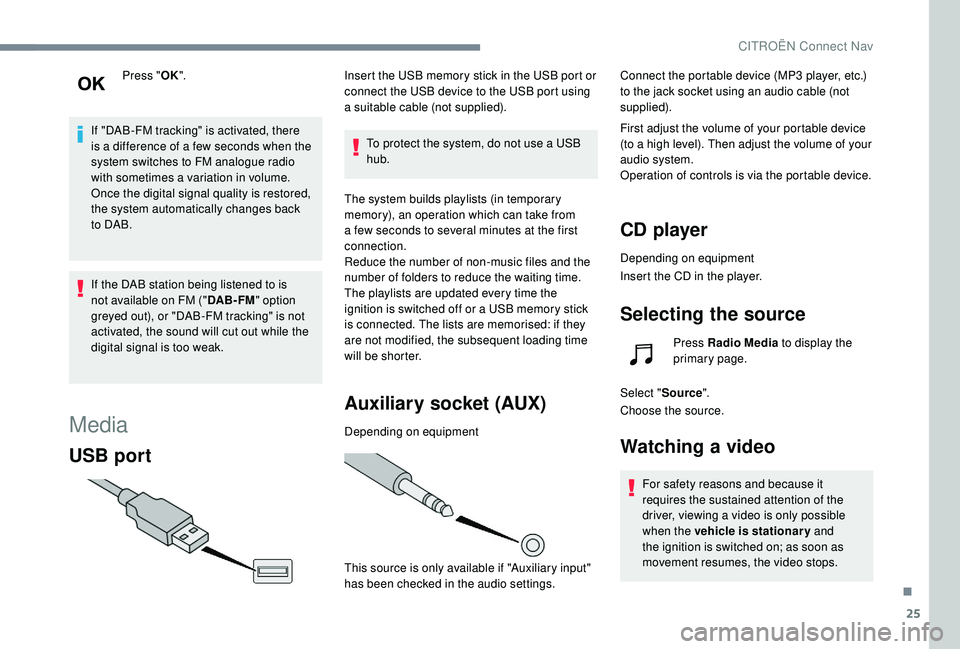
USB port
Insert the USB memory stick in the USB port or
connect the USB device to the USB port using
a suitable cable (not supplied).
To protect the system, do not use a USB
hub.
The system builds playlists (in temporary
memory), an operation which can take from
a few seconds to several minutes at the first
connection.
Reduce the number of non-music files and the
number of folders to reduce the waiting time.
The playlists are updated every time the
ignition is switched off or a USB memory stick
is connected. The lists are memorised: if they
are not modified, the subsequent loading time
will be shorter.
Auxiliary socket (AUX)
Depending on equipment
This source is only available if "Auxiliary input"
has been checked in the audio settings. Connect the portable device (MP3 player, etc.)
to the jack socket using an audio cable (not
supplied).
First adjust the volume of your portable device
(to a high level). Then adjust the volume of your
audio system.
Operation of controls is via the portable device.
CD player
Depending on equipment
Insert the CD in the player.
Selecting the source
Press Radio Media
to display the
primary page.
Select " Source".
Choose the source.
Watching a video
For safety reasons and because it
requires the sustained attention of the
driver, viewing a video is only possible
when the vehicle is stationary and
the ignition is switched on; as soon as
movement resumes, the video stops.
.
CITROËN Connect Nav
Page 208 of 256

26
Insert a USB memory stick in the USB port.Video control commands are accessible
only through the touch screen. Press Radio Media to display the
primary page.
Select " Source".
Select Video to start the video.
To remove the USB memory stick,
press the pause button to stop the
video, then remove the memory
stick.
Bluetooth® audio streaming
Streaming allows you to listen to music from
your smartphone.
The Bluetooth profile must be activated, first
adjust the volume on your portable device (to a
high level).
Then adjust the volume of your audio system.
If play does not start automatically, it may be
necessary to start the audio playback from the
telephone.
Control is from the portable device or by using
the system's touch buttons. Once connected in streaming mode, the
telephone is considered to be a media
source.
Connecting Apple® players
Connect the Apple® player to the USB port
using a suitable cable (not supplied).
Play starts automatically.
Control is via the audio system.
The classifications available are those of
the portable device connected (artists/
albums/genres/playlists/audiobooks/
podcasts).
The default classification used is by
artists. To modify the classification used,
return to the first level of the menu then
select the desired classification (playlists
for example) and confirm to go down
through the menu to the desired track.
The version of software in the audio system
may not be compatible with the generation of
your Apple
® p l aye r.
Information and advice
The system supports USB mass storage
devices, BlackBerry® devices or Apple®
players via USB ports. The adapter cable
is not supplied.
Device management is done by the audio
system controls.
Other peripherals, not recognised on
connection, must be connected to the
auxiliary socket using a Jack cable (not
supplied) or via Bluetooth streaming,
depending on compatibility.
To protect the system, do not use a USB
hub.
The audio equipment will only play audio files
with ".wma", ".aac", ".flac", ".ogg" and ".mp3" file
extensions and with a bitrate of between
32 Kbps and 320 Kbps.
It also supports VBR (Variable Bitrate) mode.
No other file types (.mp4, etc.) can be played.
Files of the ".wma" type should be to the wma
9 standard.
The sampling rates supported are 32, 44 and
48 kHz.
CITROËN Connect Nav
Page 209 of 256
27
To avoid any playback or display issues, it is
advisable to create file names that have less
than 20 characters and without using any
special characters (e.g. " ? . ; ù).
Use only USB memory sticks in FAT32 format
(File Allocation Table).It is recommended that the original USB
cable for the portable device be used.
CD player (depending on equipment).
In order to be able to play a burned CDR or
CDRW, select ISO 9660 level 1, 2 or Joliet
standards if possible when burning the CD.
If the disc is burned in another format, it may
not be played correctly.
It is recommended that the same burning
standard be always used on an individual disc,
with the lowest speed possible (4x maximum)
for the best acoustic quality.
In the particular case of a multi-session CD, the
Joliet standard is recommended.Telephone
Pairing a Bluetooth®
telephone
As a safety measure and because it
requires sustained attention by the
driver, the pairing of a Bluetooth mobile
telephone with the Bluetooth hands-free
system of your audio system must be
done with the vehicle stationary and the
ignition on.
Activate the Bluetooth function on the
telephone and ensure that it is "visible to
all" (telephone configuration).
Procedure from the telephone
Select the system name in the list of
devices detected.
In the system, accept the connection request
from the telephone.
To complete the pairing, whichever
procedure used (from the telephone or
from the system), ensure that the code
is the same in the system and in the
telephone.
Procedure from the system
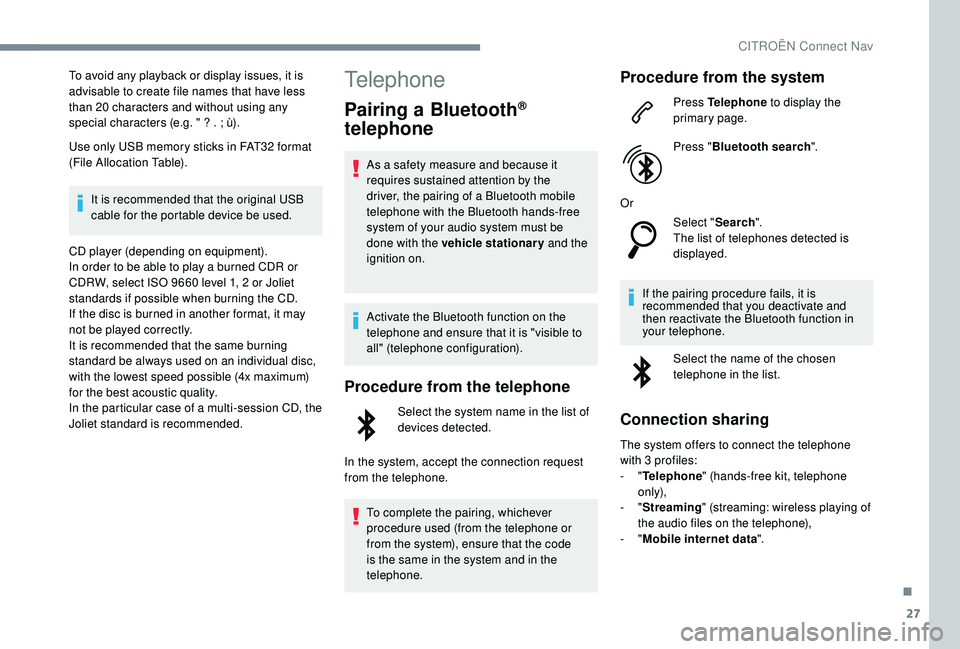
Press Telephone to display the
primary page.
Press " Bluetooth search ".
Or Select "Search".
The list of telephones detected is
displayed.
If the pairing procedure fails, it is
recommended that you deactivate and
then reactivate the Bluetooth function in
your telephone. Select the name of the chosen
telephone in the list.
Connection sharing
The system offers to connect the telephone
with 3 profiles:
-
"Telephone " (hands-free kit, telephone
only),
-
"Streaming " (streaming: wireless playing of
the audio files on the telephone),
-
"Mobile internet data ".
.
CITROËN Connect Nav
Page 213 of 256

31
Settings
Audio settings
Press Settings to display the
primary page.
Select " Audio settings ".
Select " Ambience ".
Or
" Balance "
Or
" Sound ".
Or
" Voice ".
Or
" Ringtone ".
Press " OK" to save the settings. The sound balance (or spatialisation with
the Arkamys
© system) is audio processing
that allows the quality of the sound to
be adapted according to the number of
passengers in the vehicle.
Available only with the front and rear
speakers configuration.
The audio settings Ambience (6 optional
ambiences) and Bass , Medium and
Tr e b l e are different and independent for
each audio source.
Activate or Deactivate " Loudness".
The settings for " Balance" (All
passengers, Driver and Front only) are
common to all sources.
Activate or Deactivate " Touch tones",
" Volume linked to speed " and
" Auxiliary input ".
Onboard audio: the Sound Staging of
Arkamys
© optimises the distribution of
sound in the passenger compartment.
Profile settings
As a safety measure and because it
requires the sustained attention of the
driver, changes to settings must only be
done with the vehicle stationary .
Press "
Play" to start playing the
message.
Access to " Email" depends on the
compatibility of the smartphone and the
integral system. Press Settings
to display the
primary page.
Press the " OPTIONS" button to go to the
secondary page.
Select "Setting of the profiles ".
Select " Profile 1 " or "Profile 2 " or "Profile 3 "
or " Common profile ".
Press this button to enter a name for
the profile using the virtual keypad.
Press " OK" to confirm.
Press this button to add a
photograph to the profile.
Insert a USB memory stick
containing the photograph in the
USB port.
Select the photograph.
Press " OK" to accept the transfer of
the photograph.
Press " OK" again to save the
settings.
.
CITROËN Connect Nav
Page 214 of 256

32
The framing for the photograph is
square; the system reshapes the original
photograph if in another format.Press this button to initialise the
profile selected.
Initialisation of the profile selected
activates the English language by default.
Select a " Profile" (1 or 2 or 3) to associate the
" Audio settings " with it.
Select " Audio settings ".
Select " Ambience ".
Or
" Balance "
Or
" Sound ".
Or
" Voice ".
Or
" Ringtone ".
Press " OK" to save the settings.Modifying system settings
Press Settings to display the
primary page.
Press the " OPTIONS" button to go to the
secondary page.
Select "Screen configuration ".
Select " Animation ".
Activate or deactivate: " Automatic
scrolling ".
Select " Brightness ".
Move the cursor to adjust the
brightness of the screen and/or of
the instrument panel.
Press Settings to display the
primary page.
Press the " OPTIONS" button to go to the
secondary page.
Select "System settings ".
Select " Units" to change the units of distance,
fuel consumption and temperature.
Select " Factory settings " to return to the initial
settings. Resetting the system to "Factory Settings"
activates English by default, as well as
Fahrenheit degrees, and turns off daylight
saving (summer) time.
Select " System info " to display the versions of
the different modules installed in the system.
Select the language
Press Settings to display the
primary page.
Press the " OPTIONS" button to go to the
secondary page.
Select "Languages " to change the
language.
Setting the date
Press Settings to display the
primary page.
Press the " OPTIONS" button to go to the
secondary page.
Select "Set time-date ".
CITROËN Connect Nav
Page 216 of 256
34
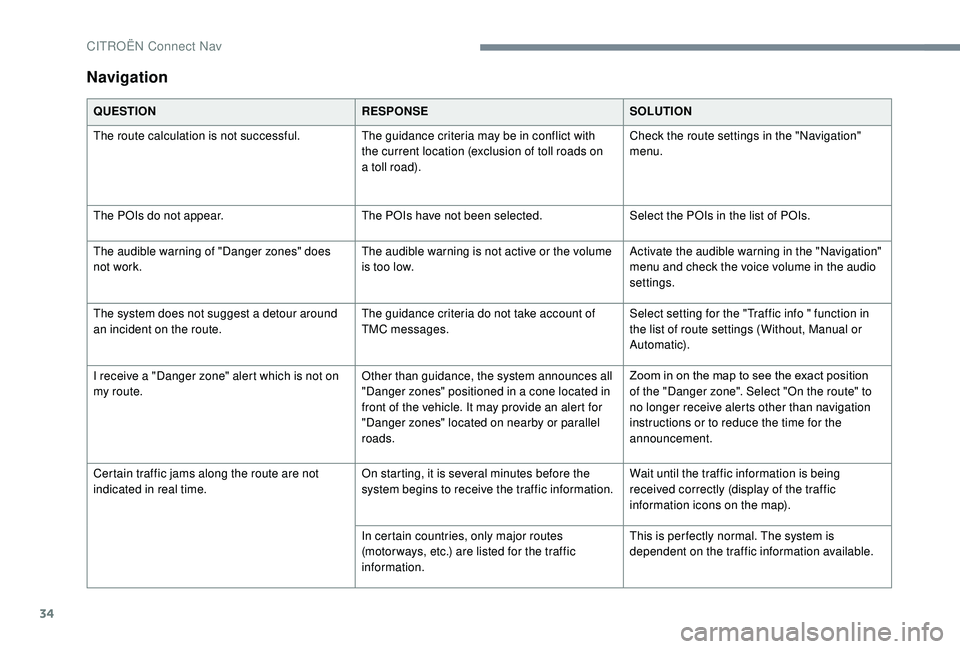
Navigation
QUESTIONRESPONSESOLUTION
The route calculation is not successful. The guidance criteria may be in conflict with
the current location (exclusion of toll roads on
a toll road).Check the route settings in the "Navigation"
menu.
The POIs do not appear. The POIs have not been selected.Select the POIs in the list of POIs.
The audible warning of "Danger zones" does
not work. The audible warning is not active or the volume
is too low.Activate the audible warning in the "Navigation"
menu and check the voice volume in the audio
settings.
The system does not suggest a detour around
an incident on the route. The guidance criteria do not take account of
TMC messages.Select setting for the "Traffic info " function in
the list of route settings (Without, Manual or
Automatic).
I receive a "Danger zone" alert which is not on
my route. Other than guidance, the system announces all
"Danger zones" positioned in a cone located in
front of the vehicle. It may provide an alert for
"Danger zones" located on nearby or parallel
roads.Zoom in on the map to see the exact position
of the "Danger zone". Select "On the route" to
no longer receive alerts other than navigation
instructions or to reduce the time for the
announcement.
Certain traffic jams along the route are not
indicated in real time. On starting, it is several minutes before the
system begins to receive the traffic information.Wait until the traffic information is being
received correctly (display of the traffic
information icons on the map).
In certain countries, only major routes
(motor ways, etc.) are listed for the traffic
information. This is per fectly normal. The system is
dependent on the traffic information available.
CITROËN Connect Nav
Page 217 of 256

35
Radio
QUESTIONRESPONSESOLUTION
The reception quality of the tuned radio station
gradually deteriorates or the stored stations are
not working (no sound, 87.5 MHz is displayed,
e t c .) . The vehicle is too far from the transmitter of
the station or no transmitter is present in the
geographical area.
Activate the "RDS" function by means of the
short-cut menu to enable the system to check
whether there is a more power ful transmitter in
the geographical area.
The environment (hills, buildings, tunnels,
basement car parks, etc.) block reception,
including in RDS mode. This phenomenon is normal and does not
indicate a failure of the audio equipment.
The aerial is absent or has been damaged (for
example when going through a car wash or into
an underground car park). Have the aerial checked by a dealer.
The altitude is not displayed.
On starting, the initialisation of the GPS may
take up to 3 minutes to receive more than
4 satellites correctly.Wait until the system has started up completely
so that there is GPS coverage by at least
4
satellites.
Depending on the geographical environment
(tunnel, etc.) or the weather, the conditions of
reception of the GPS signal may vary. This behaviour is normal. The system is
dependent on the GPS signal reception
conditions.
My navigation is no longer connected. During start-up and in certain geographical
areas, the connection may be unavailable.Check that the connected ser vices are
activated (settings, contract).
.
CITROËN Connect Nav
Page 218 of 256
36
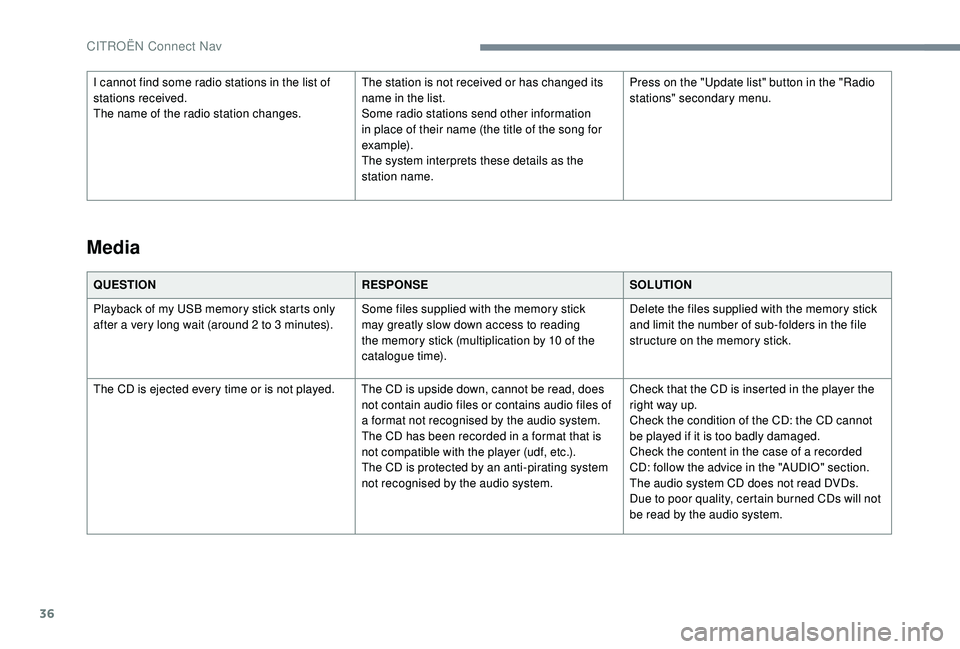
QUESTIONRESPONSESOLUTION
Playback of my USB memory stick starts only
after a very long wait (around 2 to 3 minutes). Some files supplied with the memory stick
may greatly slow down access to reading
the memory stick (multiplication by 10 of the
catalogue time).Delete the files supplied with the memory stick
and limit the number of sub-folders in the file
structure on the memory stick.
The CD is ejected every time or is not played. The CD is upside down, cannot be read, does not contain audio files or contains audio files of
a format not recognised by the audio system.
The CD has been recorded in a format that is
not compatible with the player (udf, etc.).
The CD is protected by an anti-pirating system
not recognised by the audio system.Check that the CD is inserted in the player the
right way up.
Check the condition of the CD: the CD cannot
be played if it is too badly damaged.
Check the content in the case of a recorded
CD: follow the advice in the "AUDIO" section.
The audio system CD does not read DVDs.
Due to poor quality, certain burned CDs will not
be read by the audio system.
Media
I cannot find some radio stations in the list of
stations received.
The name of the radio station changes.
The station is not received or has changed its
name in the list.
Some radio stations send other information
in place of their name (the title of the song for
example).
The system interprets these details as the
station name.Press on the "Update list" button in the "Radio
stations" secondary menu.
CITROËN Connect Nav